Posted 29 September 2025
I have decided to make the Klipper-related changes for my MissChanger adventure into its own post, so readers won’t have to wade through all my other non-klipper related blatherings.
The current project status is:
- My single SB configuration with single-extruder config file 250830_OrigToolhead_printer.cfg & 250920_Original_stealthburner_leds.cfg working fine.
- Currently using my new SB (due to original SB’s neopixel intermittency) with original SB’s NH BCB (due to new SB,s PCB failure). This combo works fine
Next step is to reload 250928_MC_T0_printer.cfg, 250922_T0-Nitehawk-Revo-LDO_Ex.cfg and 250922_T0_stealthburner_leds.cfg. this config file set loaded and started up fine.
Now it is time to go through Vim’s ‘Calibration’ (Section 4 in the TOC) instructions to see if I can get prints to work
02 October 2025 Update:
The first part of the ‘Calibration’ section is intended to shake the toolhead around on the Tap & Change mount to make sure it will slide onto and off the mount during tool changes.
Ran ‘G28’ (Home All) and confirmed the toolhead Z position of +10mm at the center of the bed.
Set the heated bed temp to 60C. According to Vin, this is to get the chamber temp up to 40C or so before starting the ‘shake & bake’ routine.
Tried to run ‘SHAPER_CALIBRATE’ but got a ‘Unknown Command’ error. Researched this a bit, and decided to skip this step for the moment.
So, I moved on to Section 4.1 – Park Position Calibrate.
First, I mounted the docking hardware I had previously constructed. This in itself required a bit of work to get everything assembled and mounted.
Then I ran the Home-All & QGL and STOP_TOOL_PROBE_CRASH_DETECTION.
I temporarily replaced the ‘100’ with ‘0.1’ in the toolhead movement options for X/Y movement. Then I used these movement options to optimize the ‘X’ position of the toolhead in front of the leftmost dock, as shown.

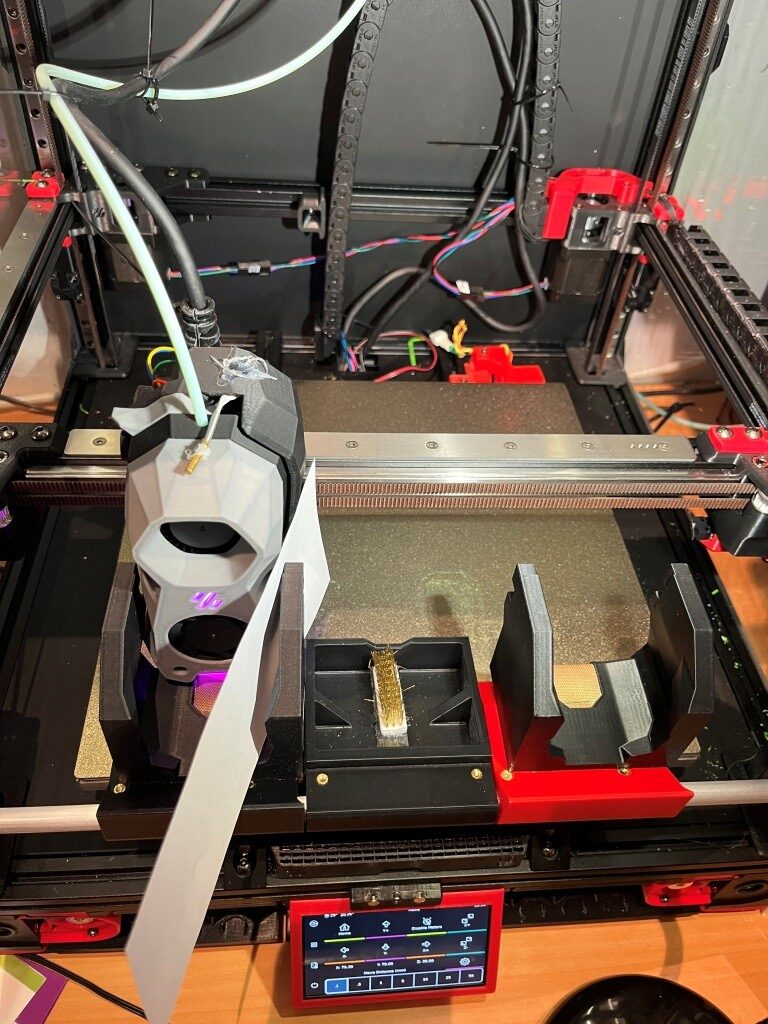
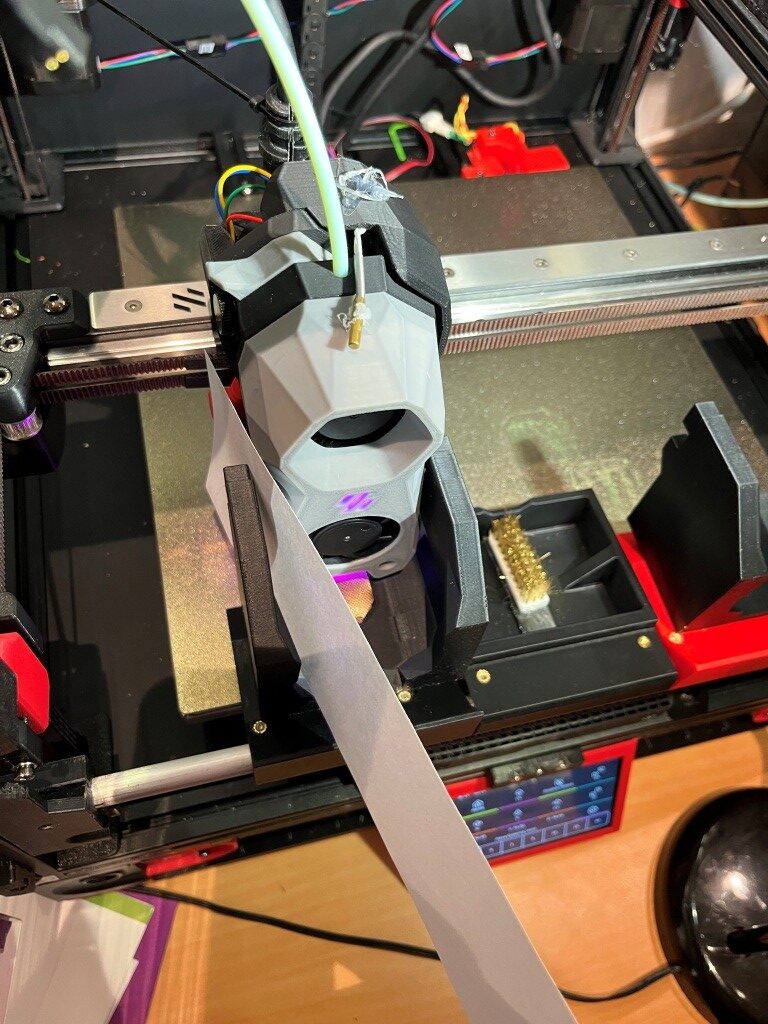
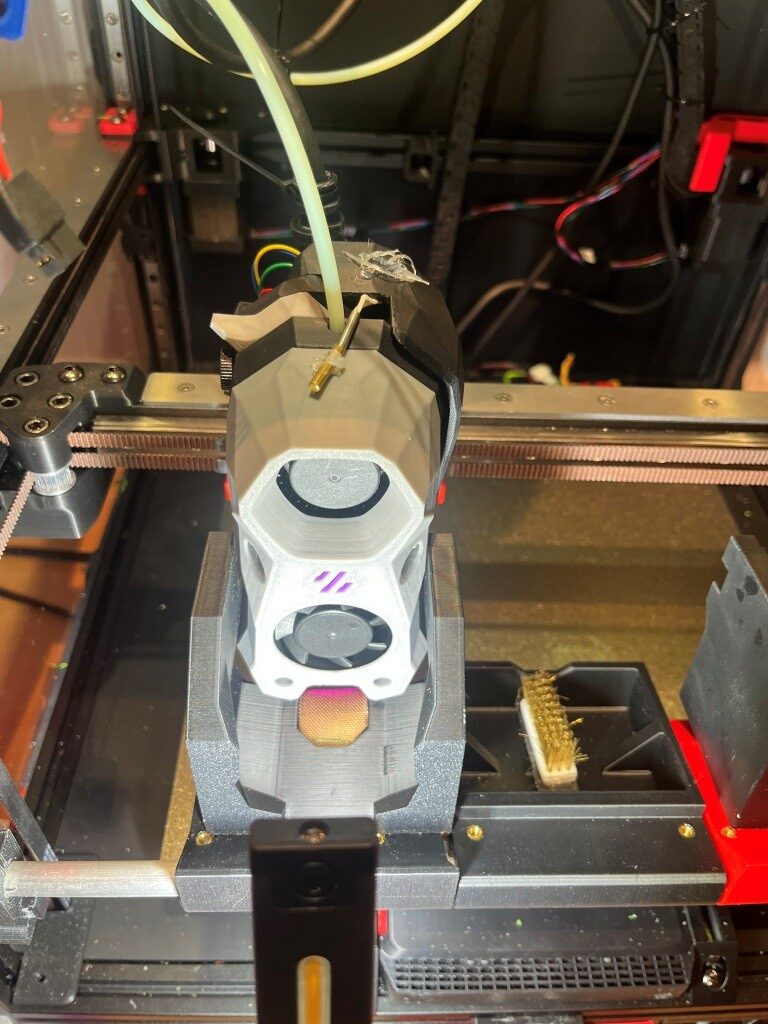
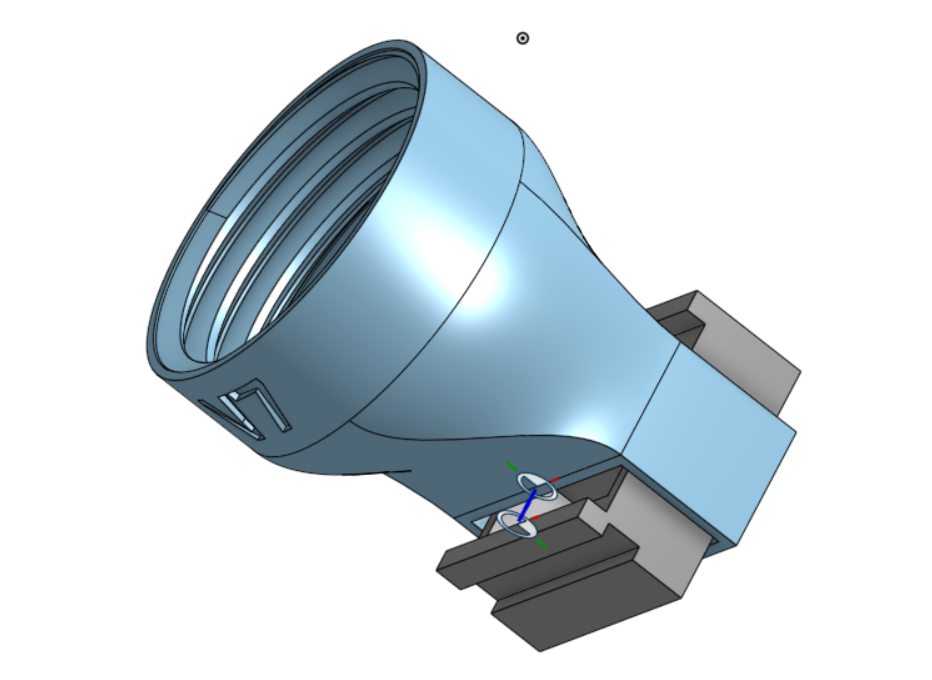
This process turned out to be a LOT more complicated than I thought, due to the irregular shape of the stealthburner toolhead. Not only did the X position have to be correct, but the dock module rotation around the 10mm rod mattered as well. Eventually I got what I think is a good lineup at X = 68.7.
After getting the X value down, and getting a good dock module orientation, I tried some dock/undock movements as shown in the following short video:
The above test was performed by moving the toolhead laterally to the optimum X position (68.7), and forward to just in front of the dock (Y ~ 110). Then I commanded a 50mm Y travel to fully engage the toolhead in the dock without forcing the docking collar up the locking ramp, followed by backing the toolhead out 50mm & repeating the process.
At this point I have one toolhead docking station calibrated with the leftmost docking station.
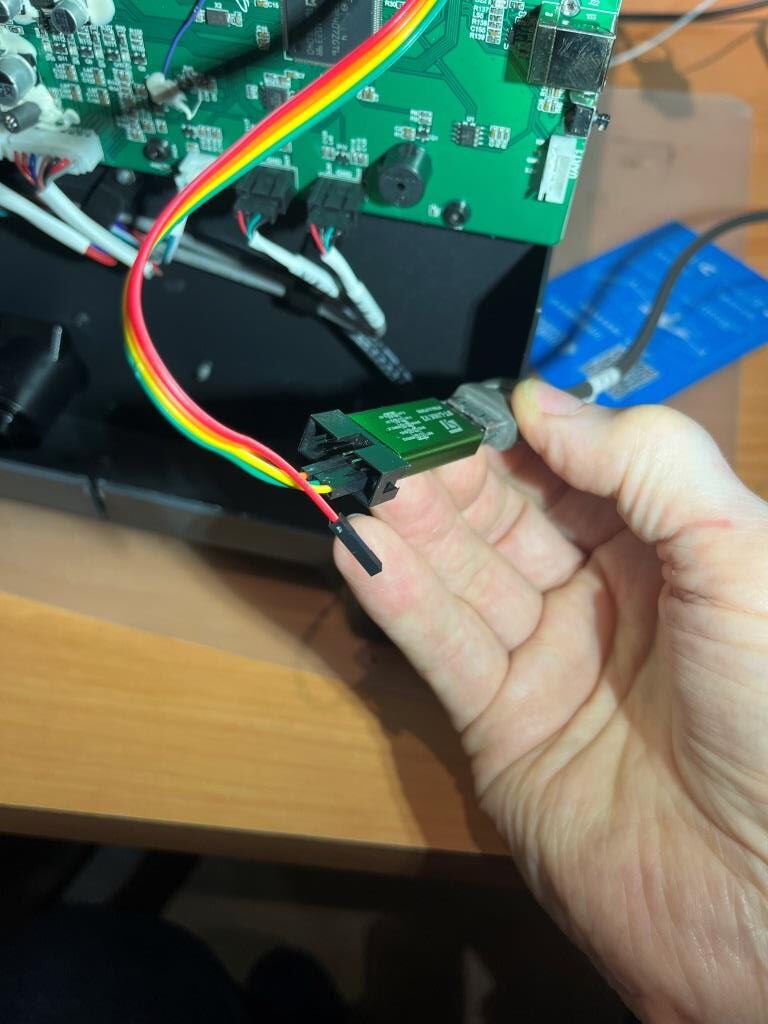
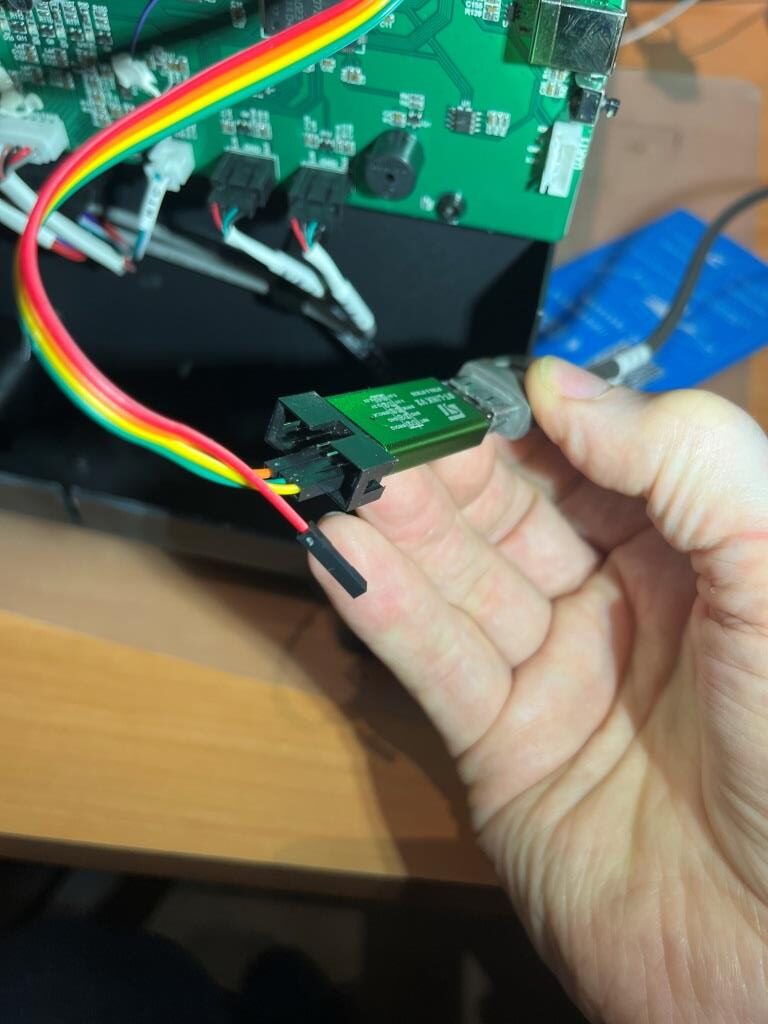
As a side note, my replacement NH USB PC and replacement RGB LED string came in today, so I have two working toolheads again. My original (Red) SB is now labelled as ‘T1’ and my second (Gray) SB is now labelled as ‘T0’. the USB serial ID’s are”
|
1 2 3 |
usb-Klipper_rp2040_4E363334320B42B6-if00 -- Orig (Red) toolhead with new USB PC usb-Klipper_rp2040_4E363334324B5803-if00 -- Second (Gray) toolhead with orig USB PC usb-Klipper_stm32h743xx_2A001E000A51333038383535-if00 -- Main controller MCU |
The next step is to create a second toolhead-specific config with its companion stealthburner_leds.cfg. Since the two stealthburners are identical save for their USB IDSs, this should be relatively easy.
I copied 250922_T0-Nitehawk-Revo-LDO_Ex.cfg to 251002_T1-Nitehawk-Revo-LDO_Ex.cfg, replaced the T0 USB ID with the new T1 USB ID, replaced include 250922_T0_stealthburner_leds.cfg with include 251002_T1_stealthburner_leds.cfg, and changed all 20 instances of ‘nhk0:’ with ‘nhk1:’.
I copied 250922_T0_stealthburner_leds.cfg to 251002_T1_stealthburner_leds.cfg and changed ‘nhk0:gpio7’ to ‘nhk1:gpio7’
Then I saved 250928_MC_T0_printer.cfg to 251002_MC_T1_printer.cfg and (on line 826) changed include ./250922_T0-Nitehawk-Revo-LDO_Ex.cfg to include ./251002_T1-Nitehawk-Revo-LDO_Ex.cfg.
Then using SCP in a Windows command window, I loaded all the above to the raspberry, changing the name of 251002_MC_T1_printer.cfg to just printer.cfg.
I disconnected the USB/Power connector onT0 and restarted restarted the printer. Got ‘mcu nhk0’ Unable to connect.
03 October 2025 Update:
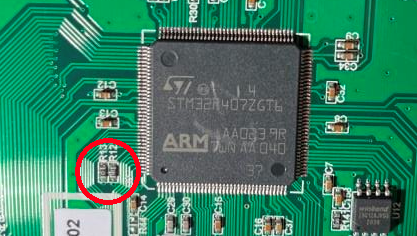
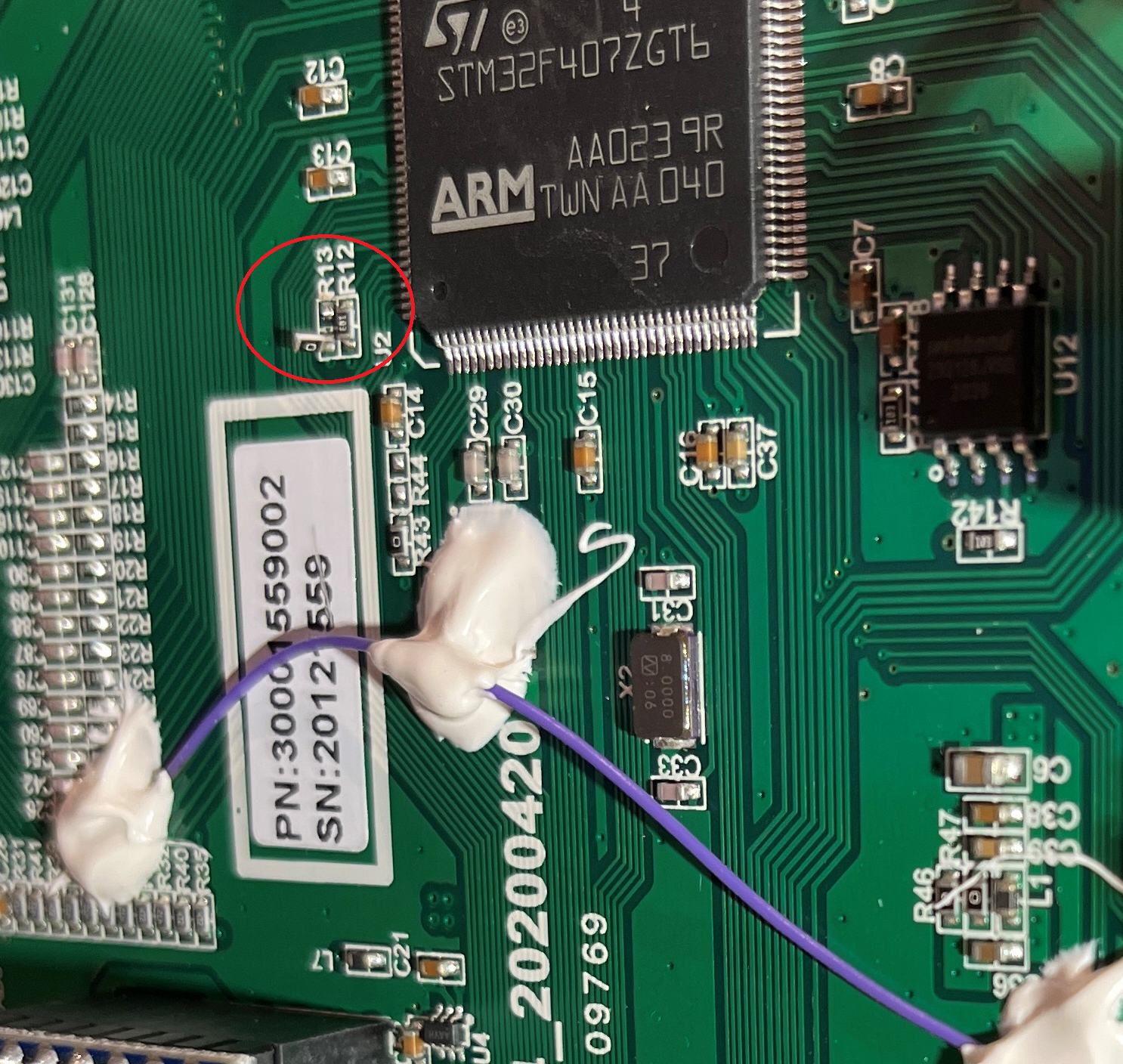
I was a bit ahead of myself with getting the second toolhead up and running. For one thing, I discovered the problem I was having with not being able to successfully do a firmware restart instead having to cycle power was a known problem with the LDO USB adaptor board, and the fix was to physically remove two resistor chips from the PCB. I did this for both the USB adaptor boards.
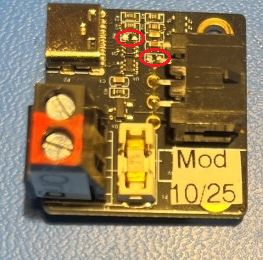
Then I realized I hadn’t really completed the ‘park position calibrate’ step – I had just done the X position step, so I reverted the firmware to the T0 configuration and started over with this procedure. This time I wound up with X = 69.7 (probably due to some lateral movement of the entire docking bar).
05 October 2025 Update:
Finally got all the way through the dock park calibrate step for T0, and was able to run several successful TEST_DOCK cycles
08 October 2025 Update:
The last couple of days have been marked by one disaster after another. First, I have been unable to get the neopixel string on my new(er) Stealthburner to work, even though I would have sworn on a stack of bibles that it was working fine a few days ago. Second, I tried to ‘unload filament’, forgetting that that particular macro (and a few others I suspect) move the toolhead to the front of the printer, where it promptly collided with the docking assembly, and third, I tried a test print with my new(er) toolhead forgetting that I needed to recalibrate the z-axis offset, so my extruder tip was dragging along the print bed while I frantically banged on the fine-tuning Z+ button. I thought I was doing OK until I watched in horror as the entire conical tip of the extruder fell onto the print bed, along with a huge glop of molten filament! YIKES!!!
Neopixel LED Woes:
By swapping the front shell of my known-good original toolhead with the one from my new(er) toolhead, I was able to determine that the neopixel problem followed the front shell – so not a NH PCB, umbilical or USB adaptor problem. I removed the neopixel strings from both shells and swapped just the neopixel string – and the problem followed the suspect string. Visual inspection of the string was hampered by the fact that whoever assembled the string used all black wires for the intra-pixel connections, and then glopped what looks like black RTV on the connections.
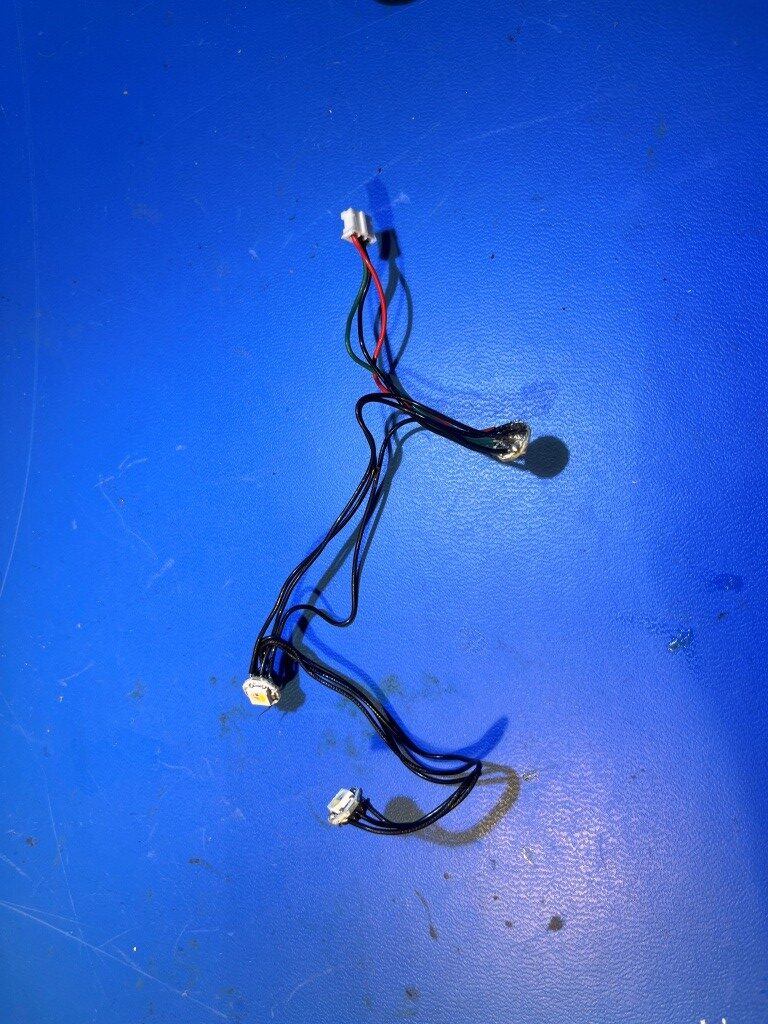
While I did find and repair a broken connection, the string still didn’t work. At this point I decided to get a replacement string on order, so I jumped up on Amazon and ordered this:
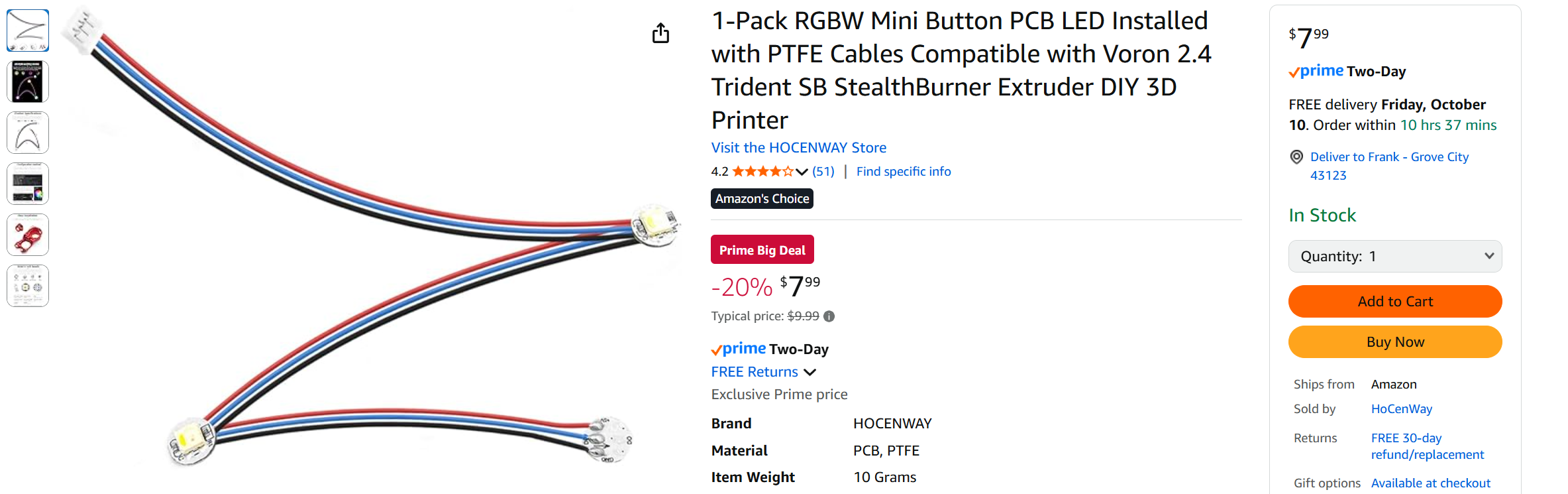
When it arrived, I plugged it into my new(er) toolhead (thankfully without going to the trouble of installing all the LEDs) whereupon I discovered that it didn’t work either! I did the same thing with my original shell – no joy there either. Now I feel like I’m in an episode of “The Twilight Zone” (for those of you old enough to have watched them); I have three strings, one of which is brand-new, but only my original toolhead string actually works! After sleeping on this, I decided to set up a test jig to test all the strings independently of the printer. I grabbed an ancient Arduino UNO and a 3-pin 2.0mm male JST plug from my parts bin, downloaded Adafruit’s wonderful NeoPixel library and used their ‘strandtest.ino’ example program to drive the string under test. After getting through all the normal stupid programmer issues, I was able to validate the test jig against my known-good neopixel string – Yay! Then I tested the suspect string from my new(er) toolhead – yep still bad – and then the brand-new string from Amazon – bad. I was really shocked that the new string was bad, as it looked perfect physically, and since the pixels are wired in parallel, I would certainly have expected at least one to work. So, I went looking on Amazon for reviews and found one that said the blue (data) and black (ground) wires were reversed in the connector – yikes! I reversed the pins, and voila` the string lit up – YAY!!
Now I have two working strings and one that’s still dead. Maybe it has the same mis-wiring issue? I grabbed my trusty Hanmatek DOS1102 digital O’Scope (a must-have for a well-equipped lab) and used it on my brand-new working string to verify that each pixel chip on the brand-new string had good, solid data (see trace-grab below).
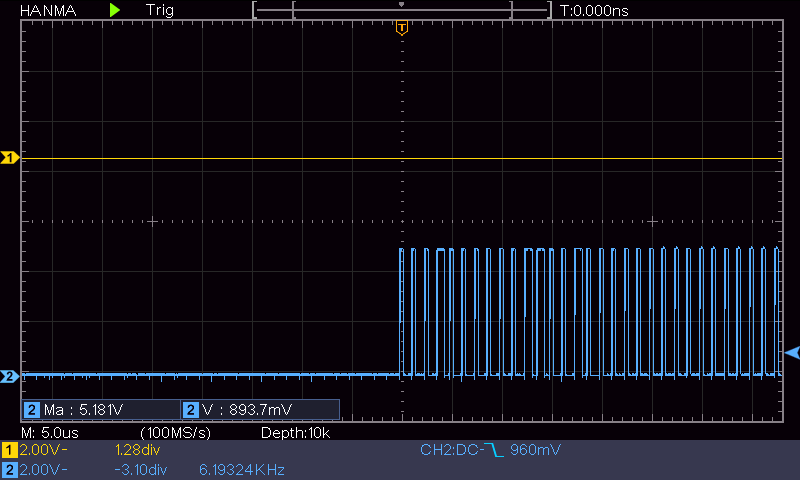
However, when I looked at the ‘bad’ string, I can see the proper waveform on the ‘DO’ solder pad on the ‘input’ side of the first pixel, but not on the ‘output’ side (I didn’t realize until just now that there was an ‘input’ and ‘output’ side – I thought the data line was just like the +V and GND – straight passthrough). So, I bypassed the first pixel by physically connecting the ‘output’ wire to the ‘input’ pad and sure ’nuff, the remaining two pixels lit right up!
I installed the new Neopixel string into my ‘T0’ toolhead (with the gray shell). Now that I have my nifty Arduino test program, I was able to test the string at each stage of the installation process to make sure all the required wire contortions didn’t fatally pinch a wire or break a solder connection. Here it is after the string was fully installed (and yes, I did check that the front-facing LED was working too).
If you happen to have an Arduino-compatible board (Ardiono, Sparkfun, Teensy, etc) you can easily build the same test jig. I have provided the Arduino code below:
|
1 2 3 4 5 6 7 8 9 10 11 12 13 14 15 16 17 18 19 20 21 22 23 24 25 26 27 28 29 30 31 32 33 34 35 36 37 38 39 40 41 42 43 44 45 46 47 48 49 50 51 52 53 54 55 56 57 58 59 60 61 62 63 64 65 66 67 68 69 70 71 72 73 74 75 76 77 78 79 80 81 82 83 84 85 86 87 88 89 90 91 92 93 94 95 96 97 98 99 100 101 102 103 104 105 106 107 108 109 110 111 112 113 114 115 116 117 118 119 120 121 122 123 124 125 126 127 128 129 130 131 132 133 134 135 136 137 138 139 140 141 142 143 144 145 146 147 148 149 150 151 152 153 154 155 156 157 158 159 160 161 162 163 164 165 166 167 168 169 170 171 172 173 174 175 176 177 178 179 180 181 182 183 184 185 186 187 188 189 190 191 |
/* Name: NeopixelTest2.ino Created: 10/7/2025 5:35:59 PM Author: FRANK_XPS_9530\Frank */ // A basic everyday NeoPixel strip test program. // NEOPIXEL BEST PRACTICES for most reliable operation: // - Add 1000 uF CAPACITOR between NeoPixel strip's + and - connections. // - MINIMIZE WIRING LENGTH between microcontroller board and first pixel. // - NeoPixel strip's DATA-IN should pass through a 300-500 OHM RESISTOR. // - AVOID connecting NeoPixels on a LIVE CIRCUIT. If you must, ALWAYS // connect GROUND (-) first, then +, then data. // - When using a 3.3V microcontroller with a 5V-powered NeoPixel strip, // a LOGIC-LEVEL CONVERTER on the data line is STRONGLY RECOMMENDED. // (Skipping these may work OK on your workbench but can fail in the field) #include <Adafruit_NeoPixel.h> #ifdef __AVR__ #include <avr/power.h> // Required for 16 MHz Adafruit Trinket #endif // Which pin on the Arduino is connected to the NeoPixels? // On a Trinket or Gemma we suggest changing this to 1: #define LED_PIN 6 // How many NeoPixels are attached to the Arduino? //#define LED_COUNT 60 #define LED_COUNT 3 // Declare our NeoPixel strip object: //Adafruit_NeoPixel strip(LED_COUNT, LED_PIN, NEO_GRB + NEO_KHZ800); //Adafruit_NeoPixel strip(LED_COUNT, LED_PIN, NEO_RGBW + NEO_KHZ800); //Adafruit_NeoPixel strip(LED_COUNT, LED_PIN, NEO_WRGB + NEO_KHZ800); //Adafruit_NeoPixel strip(LED_COUNT, LED_PIN, NEO_RGBW + NEO_KHZ800); Adafruit_NeoPixel strip(LED_COUNT, LED_PIN, NEO_RGBW + NEO_KHZ800); // Argument 1 = Number of pixels in NeoPixel strip // Argument 2 = Arduino pin number (most are valid) // Argument 3 = Pixel type flags, add together as needed: // NEO_KHZ800 800 KHz bitstream (most NeoPixel products w/WS2812 LEDs) // NEO_KHZ400 400 KHz (classic 'v1' (not v2) FLORA pixels, WS2811 drivers) // NEO_GRB Pixels are wired for GRB bitstream (most NeoPixel products) // NEO_RGB Pixels are wired for RGB bitstream (v1 FLORA pixels, not v2) // NEO_RGBW Pixels are wired for RGBW bitstream (NeoPixel RGBW products) // setup() function -- runs once at startup -------------------------------- void setup() { Serial.begin(115200); Serial.println("In Setup"); // These lines are specifically to support the Adafruit Trinket 5V 16 MHz. // Any other board, you can remove this part (but no harm leaving it): #if defined(__AVR_ATtiny85__) && (F_CPU == 16000000) clock_prescale_set(clock_div_1); #endif // END of Trinket-specific code. strip.begin(); // INITIALIZE NeoPixel strip object (REQUIRED) Serial.println("Set all LEDs OFF"); strip.show(); // Turn OFF all pixels ASAP //delay(2000); strip.setBrightness(50); // Set BRIGHTNESS to about 1/5 (max = 255) } // loop() function -- runs repeatedly as long as board is on --------------- void loop() { Serial.println("Set all LEDs OFF"); strip.fill(0,0, LED_COUNT); strip.show(); // Turn OFF all pixels ASAP delay(500); // Fill along the length of the strip in various colors... Serial.println("colorWipe"); colorWipe(strip.Color(255, 0, 0), 50); // Red delay(100); colorWipe(strip.Color(0, 255, 0), 50); // Green delay(100); colorWipe(strip.Color(0, 0, 255), 50); // Blue delay(500); Serial.println("Set all LEDs OFF"); strip.fill(0, 0, LED_COUNT); strip.show(); // Turn OFF all pixels ASAP delay(500); //// Do a theater marquee effect in various colors... //Serial.println("theaterChase"); //theaterChase(strip.Color(127, 127, 127), 50); // White, half brightness //theaterChase(strip.Color(127, 0, 0), 50); // Red, half brightness //theaterChase(strip.Color(0, 0, 127), 50); // Blue, half brightness //Serial.println("Set all LEDs OFF"); //strip.fill(0, 0, LED_COUNT); //strip.show(); // Turn OFF all pixels ASAP //delay(500); Serial.println("rainbow"); rainbow(10); // Flowing rainbow cycle along the whole strip Serial.println("Set all LEDs OFF"); strip.fill(0, 0, LED_COUNT); strip.show(); // Turn OFF all pixels ASAP delay(500); Serial.println("theaterChaseRainbow"); theaterChaseRainbow(10); // Rainbow-enhanced theaterChase variant } // Some functions of our own for creating animated effects ----------------- // Fill strip pixels one after another with a color. Strip is NOT cleared // first; anything there will be covered pixel by pixel. Pass in color // (as a single 'packed' 32-bit value, which you can get by calling // strip.Color(red, green, blue) as shown in the loop() function above), // and a delay time (in milliseconds) between pixels. void colorWipe(uint32_t color, int wait) { for (int i = 0; i < strip.numPixels(); i++) { // For each pixel in strip... strip.setPixelColor(i, color); // Set pixel's color (in RAM) strip.show(); // Update strip to match delay(wait); // Pause for a moment } } // Theater-marquee-style chasing lights. Pass in a color (32-bit value, // a la strip.Color(r,g,b) as mentioned above), and a delay time (in ms) // between frames. void theaterChase(uint32_t color, int wait) { for (int a = 0; a < 10; a++) { // Repeat 10 times... for (int b = 0; b < 3; b++) { // 'b' counts from 0 to 2... strip.clear(); // Set all pixels in RAM to 0 (off) // 'c' counts up from 'b' to end of strip in steps of 3... for (int c = b; c < strip.numPixels(); c += 3) { strip.setPixelColor(c, color); // Set pixel 'c' to value 'color' } strip.show(); // Update strip with new contents delay(wait); // Pause for a moment } } } // Rainbow cycle along whole strip. Pass delay time (in ms) between frames. void rainbow(int wait) { // Hue of first pixel runs 5 complete loops through the color wheel. // Color wheel has a range of 65536 but it's OK if we roll over, so // just count from 0 to 5*65536. Adding 256 to firstPixelHue each time // means we'll make 5*65536/256 = 1280 passes through this loop: for (long firstPixelHue = 0; firstPixelHue < 5 * 65536; firstPixelHue += 256) { // strip.rainbow() can take a single argument (first pixel hue) or // optionally a few extras: number of rainbow repetitions (default 1), // saturation and value (brightness) (both 0-255, similar to the // ColorHSV() function, default 255), and a true/false flag for whether // to apply gamma correction to provide 'truer' colors (default true). strip.rainbow(firstPixelHue); // Above line is equivalent to: // strip.rainbow(firstPixelHue, 1, 255, 255, true); strip.show(); // Update strip with new contents delay(wait); // Pause for a moment } } // Rainbow-enhanced theater marquee. Pass delay time (in ms) between frames. void theaterChaseRainbow(int wait) { int firstPixelHue = 0; // First pixel starts at red (hue 0) for (int a = 0; a < 30; a++) { // Repeat 30 times... for (int b = 0; b < 3; b++) { // 'b' counts from 0 to 2... strip.clear(); // Set all pixels in RAM to 0 (off) // 'c' counts up from 'b' to end of strip in increments of 3... for (int c = b; c < strip.numPixels(); c += 3) { // hue of pixel 'c' is offset by an amount to make one full // revolution of the color wheel (range 65536) along the length // of the strip (strip.numPixels() steps): int hue = firstPixelHue + c * 65536L / strip.numPixels(); uint32_t color = strip.gamma32(strip.ColorHSV(hue)); // hue -> RGB strip.setPixelColor(c, color); // Set pixel 'c' to value 'color' } strip.show(); // Update strip with new contents delay(wait); // Pause for a moment firstPixelHue += 65536 / 90; // One cycle of color wheel over 90 frames } } } |
Filament Load/Unload macros – and others?
When I tried to do a filament unload, the toolhead promptly drove itself right into the dock – oops! It was at this point that I realized I really didn’t know what I was doing, and had to get A LOT smarter. The filament unload macro (and surely many others) uses print bed size information from printer.cfg. gcode_macro UNLOAD_FILAMENT calls a macro called ‘FRONT’ to move the toolhead to the front center of the print bed, as shown below:
|
1 2 3 4 5 6 7 8 |
[gcode_macro FRONT] description: Moves the toolhead to the front gcode: CHOME {% set x_center = printer.toolhead.axis_maximum.x|float / 2.0 %} {% set y_center = printer.toolhead.axis_maximum.y|float / 2.0 %} G90 G1 X{x_center} Y10 F7800 |
As can be seen in the above code, the line “G1 X{x_center} Y10 F7800” uses the variable ‘x_center’, but goes to Y = 10, which is why it drives into the dock. This macro should really use something like “Y{printer.position_max – 10}, where ‘printer.position_max’ changes depending on whether or not the dock is present (i.e. on the value of the ‘variable_dock’ variable in ‘gcode_macro _home’)
11 October 2025 Update:
The above issue ran me down a rabbit hole from which I have just emerged – dirty but victorious. Although this crash problem could have been fixed easily by just changing ‘Y10’ to ‘Y110’, I was worried about other places where ‘magic numbers’ might be lurking. And then this got me thinking about all those places in the code where ‘printer.toolhead.axis_maximum.y’ is used, as this value doesn’t currently get changed when CONFIG_TOGGLE is executed.
So, I posed this problem to Grok as follows:
I have the MissChanger toolchanger mod installed. This mod uses a macro called CONFIG_TOGGLE to modify some printer.cfg parameters to account for the approximately 130mm at the front of the build plate occluded by the toolhead docking assembly, The python function ‘klipper-toolchanger/klipper/extras/config_switch.py’ manages this by replacing a section of printer.cfg with either the contents of ‘printer_data/config/config/config_no_dock.cfg’ or ‘printer_data/config/config/config_wt_dock.cfg’ I have attached copies of ‘printer.cfg’, ‘config_wt_dock.cfg’ and ‘config_no_dock.cfg’. It looks like the switch code should modify the printer object’s minimum_y value (derived from the stepper_y section’s position_max) instead of ( or maybe in addition to) the ‘variable_xh’ value in printer.cfg, as the printer object’s values are used everywhere in the code. What do you think?
Amazingly, Grok not only agreed with the idea in principal, but went on to digest the files I had provided and then produce a complete step-by-step procedure for implementing the idea, including complete ‘config_switch files. Grok even analyzed ‘klipper-toolchanger/klipper/extras/config_switch.py’ and figured out that the [stepper_y] and [tmc5160 stepper_y] sections would have to be moved below the ‘;< # Section Variable marker’ line in printer.cfg so that ‘config_switch.py’ could modify the ‘position_min:’ value appropriately. And Grok did the whole thing in just a few minutes! To say that I was blown away by this would be to hugely understate the impact this had on me – wow!
Armed with Grok’s step-by-step plan, I was able (after more ‘running around in circles’ than I care to admit) come up with a complete working set of files to support ‘with_dock’ and ‘without_dock’ configuration switching.
At this point I can switch from the ‘dock module installed’ to the ‘dock module removed’ condition freely. It remains to be seen whether I can now build on that to get to a fully functional dual-toolhead system.
16 October 2025 Update:
I was away for a while, but I’m back now. I read through my notes above, and starting from there will try to make a bit more progress. After getting the ‘config_toggle’ to work, I’m going to try to get the current toolhead (gray shell) working to the point of doing a test print. DON’T FORGET TO MAKE SURE THE ‘CONFIG_TOGGLE’ state matches the actual physical state (docking assembly present or not)!
Note: If you get the error “failed to detect active tool” after a head-banging episode, it is probably because the power was cycled with the toolhead resting on the print bed with the z_axis sensor in the ‘triggered’ state – apparently this prevents the toolhead from being ‘active’. Manually raise the gantry sufficiently to UNtrigger the sensor (blue LED changes to RED). Don’t worry about keeping the gantry level as this will be done later.
In the ‘Dock Installed’ configuraion, I got the Home_all to work, but the gantry-level failed with an ‘out of bounds’ error. This was due to the config_wt_dock.cfg file having ‘110’ as the min Y, but ‘position_min’ in [stepper_y] was set to 130 – oops. I fixed this by setting both numbers to 120 and did ‘Save&Restart’. Then I did *two* ‘CONFIG_TOGGLES’ and re-checked. OOPS! no change to ‘printer.cfg’ – how can this be?
I went back into config_wt_dock.cfg and saw that the numbers had not changed – so what happenec? Checked config_no_dock.cfg and those numbers are OK (25 for min quad level move in Y, position_min = 0 in [stepper_y]).
Did ONE Config_Toggle, and I see the value changed to the ‘no_dock’ values. Did a second one, and now the values are ‘110’ and ‘130’ again, even though I changed them to 120 & 120 in config_wt_dock.cfg. No, they are still 110 & 130 in config_wt_dock.cfg. I edited them again, verified that they were still correct after a save, then did a Save & Restart and checked again. This time they are correct. Oooh, I have a headache! I did a CONFIG_TOGGLE and verified the ‘no_dock’ numbers were correct, but when I did another CONFIG_TOGGLE, not only were the ‘wt_dock’ numbers wrong in printer.cfg, they were also wrong in /config/config_wt_dock.cfg! Something is editing (or reverting?) the wt_dock file
OK, the problem was that CONFIG_TOGGLE calls CONFIG_SAVE before anything else, and CONFIG_SAVE, writes the dock-related contents of printer.cfg to ‘config_wt_dock’ or ‘config_no_dock’ depending on the value (True or False) of the ‘variable_dock:’ parameter. Now fixed.
So now HOME_ALL and QUAD_GANTRY_LEVEL both worked as expected in the ‘with dock’ configuration. So now doing the ‘Calibrate reference z-offset’ step. *should* use the value ‘130’ (min_y = 120 + 10 = 130). YES! It did – and I’m getting a successful print – YAY!
The first test print required a ‘fine-tune’ adjustment of +0.350 to get the right amount of ‘squish’. When the print completed, I accepted the change, and this modified the z-offset to -2.000 (was -1.650). The second test print was OK without any fine-tuning.
I would like to have the toolhead go to Z = 225 after the print has finished but, if possible, do this only for the ‘with_dock’ configuration. I modified printer.cfg to put the entire PRINT_END macro just below the ‘variables’ marker, and then changed the finish z-axis position to 225. Then I ran a test print and this worked – the toolhead climbed to 225, pulling the dock assembly with it so I could easily access the finished print. Then I did a ‘SAVE_CONFIG_MODE’ from the console to write the new printer.cfg contents to the ‘config_wt_dock.cfg’ file. I checked this file and verified that the PRINT_END macro had indeed been saved to it. Then I switched to the ‘no-dock’ configuration, again moved the PRINT_END macro below the variable marker, changed the ending z position to Z25, and ran SAVE_CONFIG_MODE to write it out to ‘config_no_dock’.
Then I did a ‘test print, to verify that the PRINT_END macro works as intended in this config.
18 October 2025 Update:
I couldn’t get the TEST_DOCK operation to work. I kept getting ‘move out of bounds’ errors even though I had executed the STOP_TOOL_PROBE_CRASH_DETECTION macro. This worked before, so I was more than a little bit confused. When I asked Grok about this, he maintained that the STOP_TOOL_PROBE_CRASH_DETECTION has only a ‘local’ (whatever that means) effect – the hardware bounds listed in the config file are still checked and honored. Just now it came to me that I caused this problem when I modified the configuration toggle mechanism to dynamically modify the ‘position_min’ variable in [stepper_y]
|
1 2 3 4 5 6 7 8 9 |
[stepper_y] step_pin: PF15 dir_pin: !PF14 enable_pin: !PE9 rotation_distance: 40 microsteps: 32 full_steps_per_rotation:400 #set to 200 for 1.8 degree stepper endstop_pin: PC2 position_min: 120 #Dock installed |
I thought I was being very clever, but apparently not clever enough for klipper!
19 October 2025 Update:
When I asked Grok about this issue, it gave me a pretty detailed explanation why the previous ‘clever idea’ didn’t (and won’t) work. Here is Grok’s response:
To address your issue with position_min blocking docking operations while still leveraging printer.toolhead.axis_minimum.y (and similar) for general macro consistency, the core challenge is that position_min enforces a hard, system-wide limit on all moves—it’s static after startup and can’t be dynamically toggled or selectively bypassed for specific macros without workarounds. Based on Klipper’s documentation and community discussions, there are no built-in ways to change it at runtime or ignore it per-macro safely. However, here’s a viable strategy that balances your goals, with options from safe (recommended) to more advanced/risky.Recommended Approach: Use Soft Limits with Full Hardware RangeRevert position_min to 0 in both toggle files (config_no_dock.cfg and config_wt_dock.cfg) to allow full Y-axis access at the hardware level—this ensures docking macros can always succeed without errors, even mid-print. Then, enforce an “effective” minimum Y (your occlusion value, e.g., 130) as a soft limit via macro variables and conditionals. This propagates dynamically without magic numbers by referencing a single variable, while still using the printer object’s actual axis_minimum.y (now always 0) as a base.
Step 1: Update Toggle Files for Full Range
- In both config_no_dock.cfg and config_wt_dock.cfg, set [stepper_y] position_min: 0 (keep other values like position_max: 310).
- This makes printer.toolhead.axis_minimum.y always 0 after restart, avoiding any hard bounds errors during docking.
Step 2: Define an Effective Min Y Variable. Add or update a global variable in your toggle files (e.g., in [gcode_macro _static_variable] or a new [gcode_macro _limits]). Use variable_dock to set an “effective_min_y”:
[gcode_macro _limits]
variable_effective_min_y: {% if printer["gcode_macro _home"].dock %} 130.0 {% else %} printer.toolhead.axis_minimum.y {% endif %}  # Your occlusion value; use 110 if that's exact
gcode: # Empty, just for variables- Place this in the swappable section of both toggle files (after the marker).
- Now, printer[“_limits”].effective_min_y acts as your dynamic, dock-aware min Y—it’s 130 when docked (soft-enforcing occlusion for print ops) and 0 otherwise.
- After toggling/restarting, this propagates to all macros without hardcoding 130 everywhere.
Step 3: Update Macros to Use the Effective MinReplace direct references to printer.toolhead.axis_minimum.y or hard Y values with {printer[“_limits”].effective_min_y} (or add offsets as needed). Examples:
- Prime Line (e.g., in PRINT_START or a prime macro):
{% set prime_y = printer["_limits"].effective_min_y + 5 %} # Safe offset from effective minG1 X{printer.toolhead.axis_maximum.x / 2} Y{prime_y} F7800 # Prime at front if no dock, or just above occlusion if docked- Parking (e.g., in PAUSE or M600):
G1 X{printer.toolhead.axis_maximum.x / 2} Y{printer["_limits"].effective_min_y + 5} F6000 # Parks safely above effective min - Other Macros: For any that position near front (e.g., nozzle clean, unload), use similar: Y{printer[“_limits”].effective_min_y + offset}.
- Keep [bed_mesh] and [quad_gantry_level] toggling as-is—they already use high min Y (e.g., 110) when docked to avoid probing occluded areas.
Benefits and Trade-offs
- Keeps Using Printer Object: You still reference printer.toolhead.axis_minimum.y as a base (it’s now reliably 0), but layer the effective value on top for dock awareness—no magic numbers scattered around.
- Docking Succeeds: Full range allows low-Y moves without errors.
- Safety: Soft limits prevent accidental print/probe in occluded areas via macros, but won’t block invalid custom G-code (e.g., manual G0 Y10 would still work—add warnings if needed).
- No Restart Mid-Print: Toggle only when switching dock install state (e.g., hardware changes).
- Update your slicer profiles to match effective build volume (Y min 130 when docked) to avoid sliced violations.
This is the safest, most maintainable way without risking hardware.
It occurred to me that rather than modifying the dock & no-dock toggle files per Step1, I could simply move the [stepper_y] & [tmc5160 stepper_y] sections back above the variable marker where they started and remove the sections from both the dock & no-dock config files. I checked this with Grok, and he was OK with that. So, Step 1 – complete.
Step2: Grok said the [gcode_macro _limits] section could go anywhere ABOVE the toggle marker, so I put it JUST above the marker, with a comment. I also changed ‘130’ to ‘120’ as I know it works.
Other macros that needed to be modified:
- Prime line code in [gcode_macro PRINT_START]
- Front position in [gcode_macro FRONT]: I discovered that past-Frank had shifted this macro into the ‘Session Variables’ section (presumably so the y-value could be changed to reflect the ‘dock/no-dock’ configurations), but the corresponding macros in ‘config_wt_dock’ and ‘config_no_dock’ weren’t any different than the original version – oops!. Moved the CHOME & FRONT macros back to their original positions above the ‘Session Variables’ marker and changed the y value in ‘FRONT’ from {% set y_center = printer.toolhead.axis_maximum.y|float / 2.0 %} to {% set y_front = printer[“_limits”].effective_min_y + 5 %} and ‘G1 X{x_center} Y{y_center} F7800’ to ‘G1 X{x_center} Y{y_front} F7800’. Also added a statement to send the FRONT x,y pos to the display.
- Removed the CHOME & FRONT macros from ‘dock’ & ‘no-dock config files (and moved the ‘#include'[include 251003_T0-Nitehawk-Revo-LDO.cfg]’ to the top)
Now I will just have to play with the printer for a while and see what happens. Fortunately by this time I have a pretty good understanding of how all the bells and whistles work. As one more safety measure, I have included printer.cfg, config_wt_dock, and config_no_dock here:
config_wt_dock.cfg:
|
1 2 3 4 5 6 7 8 9 10 11 12 13 14 15 16 17 18 19 20 21 22 23 24 25 26 27 28 29 30 31 32 33 34 35 36 37 38 39 40 41 42 43 44 45 46 47 48 49 50 51 52 53 54 55 56 57 58 59 60 61 62 63 64 65 66 67 68 69 70 71 72 73 74 75 76 77 78 79 80 81 82 83 84 85 86 87 88 89 90 91 92 93 94 95 96 97 98 99 100 101 102 103 104 105 106 107 108 109 110 111 112 113 |
#;< # Section Variable marker [gcode_macro _limits] variable_effective_min_y: 120.0 #this value gets changed to '0.0' in 'config_no_dock' gcode: # Empty, just for variables #10/17/25 gfp: PRINT_END moved here to see if I can modify end Z position for only the 'with_dock' configuration [gcode_macro PRINT_END] # Use PRINT_END for the slicer ending script - please customise for your slicer of choice gcode: # safe anti-stringing move coords {% set th = printer.toolhead %} {% set x_safe = th.position.x + 20 * (1 if th.axis_maximum.x - th.position.x > 20 else -1) %} {% set y_safe = th.position.y + 20 * (1 if th.axis_maximum.y - th.position.y > 20 else -1) %} {% set z_safe = [th.position.z + 2, th.axis_maximum.z]|min %} SAVE_GCODE_STATE NAME=STATE_PRINT_END M400 ; wait for buffer to clear G92 E0 ; zero the extruder G1 E-5.0 F1800 ; retract filament TURN_OFF_HEATERS G90 ; absolute positioning G0 X{x_safe} Y{y_safe} Z{z_safe} F20000 ; move nozzle to remove stringing ;G0 X{th.axis_maximum.x//2} Y{th.axis_maximum.y - 2} F3600 ; park nozzle at rear G0 X{th.axis_maximum.x//2} Y{th.axis_maximum.y - 10} F3600 ; park nozzle at rear 06/17/25 gfp adj to avoid 'clunk' at end G0 Z225 F3600 ; 08/09/25 gfp adj to raise extruder 25mm M107 ; turn off fan BED_MESH_CLEAR RESTORE_GCODE_STATE NAME=STATE_PRINT_END --------------------------------------------------------------- [include 251003_T0-Nitehawk-Revo-LDO.cfg] #--------------------------------------------------------------- #gfp 09/19/25 edited for 300x300 bed [gcode_macro _home] variable_xh: 150.0 variable_yh: 205.0 #Dock installed # Dock is installed: True or False variable_dock: True gcode: #--------------------------------------------------------------- #05/30/25 added gfp [bed_mesh] speed: 120 horizontal_move_z: 5 mesh_min: 30, 120 #10/17/25 Dock Installed mesh_max: 275, 250 probe_count: 5, 5 #06/01/25 chg to 5,5 zero_reference_position: 150,205 #Dock installed #gfp 09/19/25 moved here per MissChanger setup instructions [quad_gantry_level] #-------------------------------------------------------------------- ## Gantry Corners for 300mm Build ## Uncomment for 300mm build gantry_corners: -60,-10 360,370 ## Probe points points: #Dock installed 50,120 50,225 250,225 250,120 ## A Stepper - Right ## Connected to HV STEPPER 1 ## Endstop connected to Y-ENDSTOP #10/19/25 gfp moved [stepper_y]&[tmc5160 stepper_y] back to their original positions # above the variable marker #*# <---------------------- SAVE_CONFIG ----------------------> #*# DO NOT EDIT THIS BLOCK OR BELOW. The contents are auto-generated. #*# #*# [tool_probe T0] #*# z_offset = -2.000000 #*# #*# [extruder] #*# #*# [bed_mesh default] #*# version = 1 #*# points = #*# -0.142158, -0.004658, 0.010342, -0.024658, -0.079658 #*# -0.082158, -0.000908, 0.100342, 0.089092, 0.025342 #*# -0.054658, 0.046592, 0.052842, 0.014092, -0.034658 #*# -0.188408, -0.058408, -0.033408, 0.050342, 0.006592 #*# -0.187158, -0.134658, -0.113408, -0.120908, -0.142158 #*# x_count = 5 #*# y_count = 5 #*# mesh_x_pps = 2 #*# mesh_y_pps = 2 #*# algo = lagrange #*# tension = 0.2 #*# min_x = 30.0 #*# max_x = 275.0 #*# min_y = 120.0 #*# max_y = 250.0 #*# #*# [tool_probe_endstop] #*# z_offset = -2.000 |
config_no_dock.cfg:
|
1 2 3 4 5 6 7 8 9 10 11 12 13 14 15 16 17 18 19 20 21 22 23 24 25 26 27 28 29 30 31 32 33 34 35 36 37 38 39 40 41 42 43 44 45 46 47 48 49 50 51 52 53 54 55 56 57 58 59 60 61 62 63 64 65 66 67 68 69 70 71 72 73 74 75 76 77 78 79 80 81 82 83 84 85 86 87 88 89 90 91 92 93 94 95 96 97 98 99 100 101 102 103 104 105 106 107 108 109 110 111 112 |
#;< # Section Variable marker #--------------------------------------------------------------- #--------------------------------------------------------------- [include 251003_T0-Nitehawk-Revo-LDO.cfg] #--------------------------------------------------------------- #################################################################################### ## 10/19/25 [gcode_macro _limits] section added ## See 19 October blog update for details #################################################################################### [gcode_macro _limits] variable_effective_min_y: 0.0 #this value gets changed to '120.0' in 'config_wt_dock' gcode: # Empty, just for variables [gcode_macro PRINT_END] # Use PRINT_END for the slicer ending script - please customise for your slicer of choice gcode: # safe anti-stringing move coords {% set th = printer.toolhead %} {% set x_safe = th.position.x + 20 * (1 if th.axis_maximum.x - th.position.x > 20 else -1) %} {% set y_safe = th.position.y + 20 * (1 if th.axis_maximum.y - th.position.y > 20 else -1) %} {% set z_safe = [th.position.z + 2, th.axis_maximum.z]|min %} SAVE_GCODE_STATE NAME=STATE_PRINT_END M400 ; wait for buffer to clear G92 E0 ; zero the extruder G1 E-5.0 F1800 ; retract filament TURN_OFF_HEATERS G90 ; absolute positioning G0 X{x_safe} Y{y_safe} Z{z_safe} F20000 ; move nozzle to remove stringing ;G0 X{th.axis_maximum.x//2} Y{th.axis_maximum.y - 2} F3600 ; park nozzle at rear G0 X{th.axis_maximum.x//2} Y{th.axis_maximum.y - 10} F3600 ; park nozzle at rear 06/17/25 gfp adj to avoid 'clunk' at end G0 Z25 F3600 #10/17/25 gfp No dock M107 ; turn off fan BED_MESH_CLEAR RESTORE_GCODE_STATE NAME=STATE_PRINT_END #--------------------------------------------------------------- #gfp 09/19/25 edited for 300x300 bed [gcode_macro _home] variable_xh: 150.0 variable_yh: 150.0 #Dock NOT installed # Dock is installed: True or False variable_dock: False gcode: #--------------------------------------------------------------- #05/30/25 added gfp [bed_mesh] speed: 120 horizontal_move_z: 5 mesh_min: 30, 35 #07/05/25 gfp: 30 was not enough for Y mesh_max: 275, 250 probe_count: 5, 5 #06/01/25 chg to 5,5 zero_reference_position: 150,150 #for use with stock z endstop. Added 06/01/25 gfp #gfp 09/19/25 moved here per MissChanger setup instructions [quad_gantry_level] #-------------------------------------------------------------------- ## Gantry Corners for 300mm Build ## Uncomment for 300mm build gantry_corners: -60,-10 360,370 ## Probe points points: #Dock NOT installed 50,25 50,225 250,225 250,25 #10/19/25 removed [stepper_y] & [tmc5160 stepper_y] sections - no longer needed in 'toggle' files #*# <---------------------- SAVE_CONFIG ----------------------> #*# DO NOT EDIT THIS BLOCK OR BELOW. The contents are auto-generated. #*# #*# [tool_probe T0] #*# z_offset = -0.563750 #*# #*# [extruder] #*# control = pid #*# pid_kp = 26.213 #*# pid_ki = 1.304 #*# pid_kd = 131.721 #*# #*# [bed_mesh default] #*# version = 1 #*# points = #*# -0.028569, 0.045181, 0.051431, 0.016431, -0.047319 #*# -0.013569, 0.017681, 0.015181, 0.010181, -0.034819 #*# -0.006069, -0.001069, 0.000181, -0.004819, -0.011069 #*# -0.067319, -0.023569, -0.001069, -0.017319, -0.041069 #*# -0.006069, -0.023569, -0.037319, -0.044819, -0.078569 #*# x_count = 5 #*# y_count = 5 #*# mesh_x_pps = 2 #*# mesh_y_pps = 2 #*# algo = lagrange #*# tension = 0.2 #*# min_x = 30.0 #*# max_x = 275.0 #*# min_y = 35.0 #*# max_y = 250.0 |
printer.cfg
|
1 2 3 4 5 6 7 8 9 10 11 12 13 14 15 16 17 18 19 20 21 22 23 24 25 26 27 28 29 30 31 32 33 34 35 36 37 38 39 40 41 42 43 44 45 46 47 48 49 50 51 52 53 54 55 56 57 58 59 60 61 62 63 64 65 66 67 68 69 70 71 72 73 74 75 76 77 78 79 80 81 82 83 84 85 86 87 88 89 90 91 92 93 94 95 96 97 98 99 100 101 102 103 104 105 106 107 108 109 110 111 112 113 114 115 116 117 118 119 120 121 122 123 124 125 126 127 128 129 130 131 132 133 134 135 136 137 138 139 140 141 142 143 144 145 146 147 148 149 150 151 152 153 154 155 156 157 158 159 160 161 162 163 164 165 166 167 168 169 170 171 172 173 174 175 176 177 178 179 180 181 182 183 184 185 186 187 188 189 190 191 192 193 194 195 196 197 198 199 200 201 202 203 204 205 206 207 208 209 210 211 212 213 214 215 216 217 218 219 220 221 222 223 224 225 226 227 228 229 230 231 232 233 234 235 236 237 238 239 240 241 242 243 244 245 246 247 248 249 250 251 252 253 254 255 256 257 258 259 260 261 262 263 264 265 266 267 268 269 270 271 272 273 274 275 276 277 278 279 280 281 282 283 284 285 286 287 288 289 290 291 292 293 294 295 296 297 298 299 300 301 302 303 304 305 306 307 308 309 310 311 312 313 314 315 316 317 318 319 320 321 322 323 324 325 326 327 328 329 330 331 332 333 334 335 336 337 338 339 340 341 342 343 344 345 346 347 348 349 350 351 352 353 354 355 356 357 358 359 360 361 362 363 364 365 366 367 368 369 370 371 372 373 374 375 376 377 378 379 380 381 382 383 384 385 386 387 388 389 390 391 392 393 394 395 396 397 398 399 400 401 402 403 404 405 406 407 408 409 410 411 412 413 414 415 416 417 418 419 420 421 422 423 424 425 426 427 428 429 430 431 432 433 434 435 436 437 438 439 440 441 442 443 444 445 446 447 448 449 450 451 452 453 454 455 456 457 458 459 460 461 462 463 464 465 466 467 468 469 470 471 472 473 474 475 476 477 478 479 480 481 482 483 484 485 486 487 488 489 490 491 492 493 494 495 496 497 498 499 500 501 502 503 504 505 506 507 508 509 510 511 512 513 514 515 516 517 518 519 520 521 522 523 524 525 526 527 528 529 530 531 532 533 534 535 536 537 538 539 540 541 542 543 544 545 546 547 548 549 550 551 552 553 554 555 556 557 558 559 560 561 562 563 564 565 566 567 568 569 570 571 572 573 574 575 576 577 578 579 580 581 582 583 584 585 586 587 588 589 590 591 592 593 594 595 596 597 598 599 600 601 602 603 604 605 606 607 608 609 610 611 612 613 614 615 616 617 618 619 620 621 622 623 624 625 626 627 628 629 630 631 632 633 634 635 636 637 638 639 640 641 642 643 644 645 646 647 648 649 650 651 652 653 654 655 656 657 658 659 660 661 662 663 664 665 666 667 668 669 670 671 672 673 674 675 676 677 678 679 680 681 682 683 684 685 686 687 688 689 690 691 692 693 694 695 696 697 698 699 700 701 702 703 704 705 706 707 708 709 710 711 712 713 714 715 716 717 718 719 720 721 722 723 724 725 726 727 728 729 730 731 732 733 734 735 736 737 738 739 740 741 742 743 744 745 746 747 748 749 750 751 752 753 754 755 756 757 758 759 760 761 762 763 764 765 766 767 768 769 770 771 772 773 774 775 776 777 778 779 780 781 782 783 784 785 786 787 788 789 790 791 792 793 794 795 796 797 798 799 800 801 802 803 804 805 806 807 808 809 810 811 812 813 814 815 816 817 818 819 820 821 822 823 824 825 826 827 828 829 830 831 832 833 834 835 836 837 838 839 840 841 842 843 844 845 846 847 848 849 850 851 852 853 854 855 856 857 858 859 860 861 862 863 864 865 866 867 868 869 870 871 872 873 874 875 876 877 878 879 880 881 882 883 884 885 886 887 888 889 890 891 892 893 894 895 896 897 898 899 900 901 902 903 904 905 906 907 908 909 910 911 912 913 914 915 916 917 918 919 920 921 922 923 924 925 926 927 928 929 930 931 932 933 934 935 936 937 938 939 940 |
[include mainsail.cfg] ## default marcros [include misschanger_macros/config_switch.cfg] [include misschanger_macros/homing.cfg] [include misschanger_macros/nozzle_clean.cfg] [include misschanger_macros/overwrite.cfg] [include misschanger_macros/print_time_default.cfg] [include misschanger_macros/tool_calibrate.cfg] [include misschanger_macros/toolchanger.cfg] [include misschanger_macros/offsets_adjust_record.cfg] # ## optional default marcros # [include misschanger_macros/tool_calibrate_extra.cfg] # For the Nudge probe ## misschanger settings [include misschanger_settings.cfg] ## Other macros [include macro-general.cfg] [include macro-testing.cfg] # ... # ... # ... [mcu] ## Obtain definition by "ls -l /dev/serial/by-id/" then unplug to verify ##-------------------------------------------------------------------- serial: /dev/serial/by-id/usb-Klipper_stm32h743xx_2A001E000A51333038383535-if00 restart_method: command ##-------------------------------------------------------------------- #################################################################################### ## Others #################################################################################### [config_switch] [pause_resume] [save_babies] # ... # ... # ... #################################################################################### ## Global Variables #################################################################################### #-------------------------------------------------------------------- [gcode_macro _static_variable] description: Global static variables that is used through out the configs ## Tool-head calibration variable_calibration_probe_x: 241.237500 # X aproximate position of the calibration probe. CHANGE TO MATCH YOUR SET-UP variable_calibration_probe_y: 329.825000 # Y aproximate position of the calibration probe. CHANGE TO MATCH YOUR SET-UP variable_calibration_safe_z: 50.00 # Z aproximate safe position of the calibration probe. KEEP CONSERVATIVE TO AVOID COLLISION variable_calibration_min_z: 30.00 # Z aproximate probe position of the calibration probe. variable_probe_stable_time: 1000 # Time (in ms) to wait for calibration probe to reset. Default: 1000 variable_calibration_abs_z_seperately: 0 # "0" = False / "1" = True. For, the Nudge probe this should be '1' variable_final_lift_z: 3 # This must be the same as "final_lift_z" in [tools_calibrate] in misschanger_settings.cfg ## Cleaning dock variable_clean_dock_x: 0 # Set to "0" to disable. X aproximate position of the cleaning dock. CHANGE TO MATCH YOUR SET-UP. variable_clean_speed: 7000 # Don't set too high, the violent shaking may cause problems. CHANGE TO MATCH YOUR SET-UP. variable_clean_temp: 200 # Nozzle clean temperature. variable_clean_threshold: 150.0 # The minimum perimeter of the print, below which no mid-print cleaning of the nozzle will occur. ## Always on crash detection variable_alway_on_crash_detection: 0 # "0" = False (off) / "1" = True (on) ## For heatsoak macro variable_heatsoak_temp: 0 # Set to "0" to disable. Chamber temperature target for heat soak. REQUIRES [temperature_sensor Chamber] below. ## Dynamic thermal expansion compensation variable_thermo_expand_offset: -0.080 # Maximum z offset for thermal expansion compensation. REQUIRES [temperature_sensor Chamber] variable_thermo_expand_temp_high: 70 # Chamber temp to apply maximum z offset for thermal expansion compensation. REQUIRES [temperature_sensor Chamber] variable_thermo_expand_temp_low: 0 # Set to "0" to disable. Chamber temp start applying thermal expansion compensation. REQUIRES [temperature_sensor Chamber] ## Fan control variable_nm_ciculation_speed: 1.00 # Nevermore Stealth Max fan speed in circulation mode variable_nm_exhaust_speed: 1.00 # Nevermore Stealth Max fan speed in exhaust mode variable_chamber_ciculation_speed: 0.25 # Chamber fan speed in chamber-heating mode variable_chamber_temp_threshold: 91 # If bed temp is below this temperature, then don't enable chamber-heating mode gcode: # This is here to appease klipper # ... # ... # ... # ... # ... # ##########################################################################. # ... 10/10/25 Added to report out macro variable values # ##########################################################################. [respond] default_type: echo # Options: echo (default, prefixes "echo: "), command (prefixes "// "), or error (prefixes "!! ") # default_prefix: "custom:" # Optional: Overrides default_type with a custom prefix string [gcode_macro REPORT_EFFECTIVE_MIN_Y] gcode: RESPOND MSG="Effective Min Y: {printer['gcode_macro _limits'].effective_min_y}" # ... # ... [printer] kinematics: corexy max_velocity: 300 #max_accel: 10000 max_accel: 15000 #gfp 08/12/25 per Ellis' tuning guide max_z_velocity: 15 #Max 15 for 12V TMC Drivers, can increase for 24V max_z_accel: 350 square_corner_velocity: 5.0 ##################################################################### # X/Y Stepper Settings ##################################################################### ## B Stepper - Left ## Connected to HV STEPPER 0 ## Endstop connected to X-ENDSTOP [stepper_x] step_pin: PB10 dir_pin: !PB11 enable_pin: !PG0 rotation_distance: 40 microsteps: 32 full_steps_per_rotation:400 #set to 200 for 1.8 degree stepper endstop_pin: PC1 position_min: 0 ##-------------------------------------------------------------------- ## Uncomment below for 250mm build #position_endstop: 250 #position_max: 250 ## Uncomment for 300mm build position_endstop: 300 position_max: 300 ## Uncomment for 350mm build #position_endstop: 350 #position_max: 350 ##-------------------------------------------------------------------- homing_speed: 25 #Max 100 homing_retract_dist: 5 homing_positive_dir: true ## Make sure to update below for your relevant driver (2209 or 5160) [tmc5160 stepper_x] cs_pin: PE15 spi_bus: spi4 #diag0_pin: ^!PG1 interpolate: false run_current: 0.8 sense_resistor: 0.075 stealthchop_threshold: 0 [stepper_y] step_pin: PF15 dir_pin: !PF14 enable_pin: !PE9 rotation_distance: 40 microsteps: 32 full_steps_per_rotation:400 #set to 200 for 1.8 degree stepper endstop_pin: PC2 position_min: 0 #10/19/25 gfp returned to original value of '0' ##-------------------------------------------------------------------- ## Uncomment for 300mm build position_endstop: 310 position_max: 310 ##-------------------------------------------------------------------- homing_speed: 25 #Max 100 homing_retract_dist: 5 homing_positive_dir: true ## Make sure to update below for your relevant driver (2209 or 5160) [tmc5160 stepper_y] cs_pin: PE11 spi_bus: spi4 #diag0_pin: ^!PE10 interpolate: false run_current: 0.8 sense_resistor: 0.075 stealthchop_threshold: 0 ##################################################################### # Z Stepper Settings ##################################################################### ## Z0 Stepper - Front Left ## Connected to STEPPER 0 ## Endstop connected to Z-ENDSTOP [stepper_z] step_pin: PD4 dir_pin: !PD3 enable_pin: !PD7 rotation_distance: 40 gear_ratio: 80:16 microsteps: 32 #endstop_pin: PC3 endstop_pin: probe:z_virtual_endstop #07/12/25 gfp chg for Voron Tap mod ## Z-position of nozzle (in mm) to z-endstop trigger point relative to print surface (Z0) ## (+) value = endstop above Z0, (-) value = endstop below ## Increasing position_endstop brings nozzle closer to the bed ## After you run Z_ENDSTOP_CALIBRATE, position_endstop will be stored at the very end of your config #position_endstop: -0.5 ##-------------------------------------------------------------------- ## Uncomment below for 250mm build #position_max: 230 ## Uncomment below for 300mm build position_max: 280 ## Uncomment below for 350mm build #position_max: 330 ##-------------------------------------------------------------------- position_min: -5 homing_speed: 8 second_homing_speed: 3 homing_retract_dist: 3 ## Make sure to update below for your relevant driver (2209 or 5160) [tmc2209 stepper_z] uart_pin: PD5 #diag_pin: ^!PD6 interpolate: false run_current: 0.8 sense_resistor: 0.110 stealthchop_threshold: 0 ## Z1 Stepper - Rear Left ## Connected to STEPPER 1 [stepper_z1] step_pin: PC12 dir_pin: PC11 enable_pin: !PD2 rotation_distance: 40 gear_ratio: 80:16 microsteps: 32 ## Make sure to update below for your relevant driver (2209 or 5160) [tmc2209 stepper_z1] uart_pin: PD0 #diag_pin: ^!PD1 interpolate: false run_current: 0.8 sense_resistor: 0.110 stealthchop_threshold: 0 ## Z2 Stepper - Rear Right ## Connected to STEPPER 2 [stepper_z2] step_pin: PC9 dir_pin: !PC8 enable_pin: !PC10 rotation_distance: 40 gear_ratio: 80:16 microsteps: 32 ## Make sure to update below for your relevant driver (2209 or 5160) [tmc2209 stepper_z2] uart_pin: PA8 #diag_pin: ^!PA15 interpolate: false run_current: 0.8 sense_resistor: 0.110 stealthchop_threshold: 0 ## Z3 Stepper - Front Right ## Connected to STEPPER 3 [stepper_z3] step_pin: PG7 dir_pin: PG6 enable_pin: !PC7 rotation_distance: 40 gear_ratio: 80:16 microsteps: 32 ## Make sure to update below for your relevant driver (2209 or 5160) [tmc2209 stepper_z3] uart_pin: PG8 #diag_pin: ^!PC6 interpolate: false run_current: 0.8 sense_resistor: 0.110 stealthchop_threshold: 0 [heater_bed] ## SSR Pin - HEATBED ## Thermistor - TH1 heater_pin: PG11 sensor_type: ATC Semitec 104NT-4-R025H42G sensor_pin: PA2 pullup_resistor: 2200 ## Adjust Max Power so your heater doesn't warp your bed. Rule of thumb is 0.4 watts / cm^2 . ## 7/5/25 gfp edited this section to suppress "Heater heater_bed not heating at expected rate" error #max_power: 0.8 max_power: 0.8 min_temp: 0 max_temp: 130 #max_error: 150 #check_gain_time: 100 #hysteresis: 7 control: pid pid_kp: 58.437 pid_ki: 2.347 pid_kd: 363.769 #################################################################################### ## Temperature Monitoring #################################################################################### # [temperature_sensor Chamber] # sensor_type: Generic 3950 # sensor_pin: PF4 # # ... # # ... # # ... # #################################################################################### # ## FAN # #################################################################################### #09/14/25 copied from 250830_SecondToolhead_printer.cfg ##################################################################### # TH # ##################################################################### #[temperature_sensor chamber_temp] #[temperature_sensor chamber] #06/16/25 gfp chg to match variable name in PRINT_START >90C 'IF' block # [temperature_sensor Chamber] #09/14/25 gfp chg 'chamber' to 'Chamber' # #gfp 09/14/25 This is the chamber thermistor used for *all* toolheads, so is in printer.cfg, but is # #actually connected to nhk0:gpio28 # ## Chamber Temperature - T1 # sensor_type: ATC Semitec 104NT-4-R025H42G # sensor_pin: nhk0:gpio28 # min_temp: 0 # max_temp: 100 # gcode_id: chamber_th #-------------------------------------------------------------------- [fan_generic fan_nevermore_stealthmax] pin: PD13 max_power: 1.0 shutdown_speed: 0.0 cycle_time: 0.010 hardware_pwm: False kick_start_time: 0.100 off_below: 0.05 #-------------------------------------------------------------------- # [fan_generic fan_chamber_heater] # pin: PA8 # max_power: 1.0 # shutdown_speed: 0.0 # cycle_time: 0.010 # hardware_pwm: False # kick_start_time: 0.100 # off_below: 0.05 # ... # ... # ... #09/22/25 copied from 250830_OrigToolhead_printer.cfg ##################################################################### # LED Control ##################################################################### ## Chamber Lighting (Optional) ## Connected to LED-STRIP [output_pin caselight] pin: PE6 pwm:true hardware_pwm: False value: 0.20 #startup value shutdown_value: 0 value:1 cycle_time: 0.00025 [gcode_macro PRINT_START] gcode: # This part fetches data from your slicer. Such as bed, extruder, and chamber temps and size of your printer. {% set target_bed = params.BED|int %} {% set target_extruder = params.EXTRUDER|int %} {% set target_chamber = params.CHAMBER|default("45")|int %} {% set x_wait = printer.toolhead.axis_maximum.x|float / 2 %} {% set y_wait = printer.toolhead.axis_maximum.y|float / 2 %} ## Uncomment for Beacon Contact (1 of 4 for beacon contact) #SET_GCODE_OFFSET Z=0 # Set offset to 0 # Home the printer, set absolute positioning and update the Stealthburner LEDs. STATUS_HOMING # Set LEDs to homing-mode G28 # Full home (XYZ) G90 # Absolute position ## Uncomment for bed mesh (1 of 2 for bed mesh) BED_MESH_CLEAR # Clear old saved bed mesh (if any) # Check if the bed temp is higher than 90c - if so then trigger a heatsoak. {% if params.BED|int > 90 %} SET_DISPLAY_TEXT MSG="Bed: {target_bed}c" # Display info on display STATUS_HEATING # Set LEDs to heating-mode M106 S255 # Turn on the PT-fan ## Uncomment if you have a Nevermore. #SET_PIN PIN=nevermore VALUE=1 # Turn on the nevermore G1 X{x_wait} Y{y_wait} Z15 F9000 # Go to center of the bed ;G1 X{x_wait} Y{y_wait} Z30 F9000 # Go to center of the bed 06/07/25 gfp chg Z15 to Z30 to avoid 'probe triggered prior' error M190 S{target_bed} # Set the target temp for the bed SET_DISPLAY_TEXT MSG="Heatsoak: {target_chamber}c" # Display info on display TEMPERATURE_WAIT SENSOR="temperature_sensor chamber" MINIMUM={target_chamber} # Waits for chamber temp # If the bed temp is not over 90c, then skip the heatsoak and just heat up to set temp with a 5 min soak {% else %} SET_DISPLAY_TEXT MSG="Bed: {target_bed}c" # Display info on display STATUS_HEATING # Set LEDs to heating-mode G1 X{x_wait} Y{y_wait} Z15 F9000 # Go to center of the bed ;G1 X{x_wait} Y{y_wait} Z30 F9000 # Go to center of the bed 06/07/25 gfp chg Z15 to Z30 to avoid 'probe triggered prior' error M190 S{target_bed} # Set the target temp for the bed SET_DISPLAY_TEXT MSG="Soak for 5 min" # Display info on display G4 P300000 # Wait 5 min for the bedtemp to stabilize {% endif %} # Heat hotend to 150c. This helps with getting a correct Z-home. SET_DISPLAY_TEXT MSG="Hotend: 150c" # Display info on display M109 S150 # Heat hotend to 150c ## Uncomment for Beacon contact (2 of 4 for beacon contact) #G28 Z METHOD=CONTACT CALIBRATE=1 # Calibrate z offset and beacon model ## Uncomment for Trident (Z_TILT_ADJUST) #SET_DISPLAY_TEXT MSG="Leveling" # Display info on display #STATUS_LEVELING # Set LEDs to leveling-mode #Z_TILT_ADJUST # Level the printer via Z_TILT_ADJUST #G28 Z # Home Z again after Z_TILT_ADJUST ## Uncomment for V2.4 (Quad gantry level AKA QGL) SET_DISPLAY_TEXT MSG="Leveling" # Display info on display STATUS_LEVELING # Set LEDs to leveling-mode QUAD_GANTRY_LEVEL # Level the printer via QGL G28 Z # Home Z again after QGL ## Uncomment for bed mesh (2 of 2 for bed mesh) SET_DISPLAY_TEXT MSG="Bed mesh" # Display info on display STATUS_MESHING # Set LEDs to bed mesh-mode BED_MESH_CALIBRATE # Start the bed mesh (add ADAPTIVE=1) for adaptive bed mesh ## Uncomment for Beacon Contact (3 of 4 for beacon contact) #G28 Z METHOD=CONTACT CALIBRATE=0 # Calibrate z offset only with hot nozzle # Heat up the hotend up to target via data from slicer SET_DISPLAY_TEXT MSG="Hotend: {target_extruder}c" # Display info on display STATUS_HEATING # Set LEDs to heating-mode G1 X{x_wait} Y{y_wait} Z15 F9000 # Go to center of the bed ;G1 X{x_wait} Y{y_wait} Z30 F9000 # Go to center of the bed 06/07/25 gfp chg Z15 to Z30 to avoid 'probe triggered prior' error M107 # Turn off partcooling fan M109 S{target_extruder} # Heat the hotend to set temp ## Uncomment for Beacon Contact (4 of 4 for beacon contact) #SET_GCODE_OFFSET Z=0.06 # Add a little offset for hotend thermal expansion # Get ready to print by doing a primeline and updating the LEDs SET_DISPLAY_TEXT MSG="Printer goes brr" # Display info on display STATUS_PRINTING # Set LEDs to printing-mode #G0 X{x_wait - 50} Y4 F10000 # Go to starting point #G0 X{x_wait - 50} Y10 F10000 # Go to starting point: gfp 8/8/25 adj for MC added thickness #G0 X{x_wait - 50} Y15 F10000 # Go to starting point: gfp 8/13/25 adj for MC added thickness #10/19/25 gfp: modified per Grok's 'effective_min_y strategy' #G0 X{x_wait - 50} Y{printer.toolhead.axis_minimum.y + 10} F10000 #10/17/25 gfp: use toolhead-specific y_min (see ) {% set prime_y = printer["_limits"].effective_min_y + 5 %} # Safe offset from effective min G1 X{printer.toolhead.axis_maximum.x / 2} Y{prime_y} F7800 # Prime at front if no dock, or just above occlusion if docked SET_DISPLAY_TEXT MSG="Primeline y= {printer.toolhead.axis_minimum.y + 10}" # 10/17/25 gfp: Output to display G0 Z0.4 # Raise Z to 0.4 G91 # Incremental positioning G1 X100 E20 F1000 # Primeline G90 # Absolute position #10/17/25 GFP - PLACEHOLDER FOR PRINT_END MACRO #10/19/25 gfp - moved CHOME & FRONT back here, and using {printer['gcode_macro _limits'].effective_min_y} [gcode_macro CHOME] description: Homes XYZ axis only if printer is in a non-homed state gcode: {% if "xyz" not in printer.toolhead.homed_axes %} G28 {% endif %} [gcode_macro FRONT] description: Moves the toolhead to the front gcode: CHOME {% set x_center = printer.toolhead.axis_maximum.x|float / 2.0 %} #10/19/25 modified to respect y value 'dock' constraint # {% set y_center = printer.toolhead.axis_maximum.y|float / 2.0 %} {% set y_front = printer["gcode_macro _limits"].effective_min_y + 5 %} # Safe offset from effective min G90 #G1 X{x_center} Y10 F7800 #G1 X{x_center} Y{y_center} F7800 #10/11/25 gfp modified to use y_center} vs hard-coded value G1 X{x_center} Y{y_front} F7800 #10/19/25 gfp modified to use y_front} for dock restriction SET_DISPLAY_TEXT MSG="FRONT pos = ({x_center}, {y_front})" [gcode_macro _LOGO_PENDING] gcode: SET_LED LED=rgb_light RED=0.15 GREEN=0.5 BLUE=0.75 WHITE=0 INDEX=1 [gcode_macro _LOGO_READY] gcode: SET_LED LED=rgb_light RED=0.99 GREEN=0.0 BLUE=0.0 WHITE=0 INDEX=1 [gcode_macro _LOGO_OFF] gcode: SET_LED LED=rgb_light RED=0 GREEN=0 BLUE=0 WHITE=0 INDEX=1 [gcode_macro _HEADLIGHT_ON] gcode: SET_LED LED=rgb_light RED=1 GREEN=1 BLUE=1 WHITE=1.0 INDEX=2 TRANSMIT=0 SET_LED LED=rgb_light RED=1 GREEN=1 BLUE=1 WHITE=1.0 INDEX=3 [gcode_macro _HEADLIGHT_OFF] gcode: SET_LED LED=rgb_light RED=0 GREEN=0 BLUE=0 WHITE=0 INDEX=2 TRANSMIT=0 SET_LED LED=rgb_light RED=0 GREEN=0 BLUE=0 WHITE=0 INDEX=3 [gcode_macro UNLOAD_FILAMENT] description: Unloads filament from toolhead gcode: {% set EXTRUDER_TEMP = params.TEMP|default(230)|int %} {% set MIN_TEMP = params.TEMP|default(230)|float * 0.98 %} {% set CURRENT_TARGET = printer.extruder.target|float %} CHOME G91 ; relative positioning G1 Z20 ; move nozzle upwards FRONT ; move the toolhead to the front {% if EXTRUDER_TEMP != 0 %} ;_LOGO_PENDING STATUS_HEATING ;06/07/25 gfp chg to something that works SET_DISPLAY_TEXT MSG="Heating to {EXTRUDER_TEMP}" {% if CURRENT_TARGET < EXTRUDER_TEMP %} M104 S{EXTRUDER_TEMP} ; only heat up if the current extruder is not already hot {% endif %} TEMPERATURE_WAIT SENSOR="extruder" MINIMUM={MIN_TEMP} ; wait for min extrude temp to reach {% endif %} ;_LOGO_READY STATUS_READY ;06/07/25 gfp chg to something that works SET_DISPLAY_TEXT MSG="Starting unload" M83 ; set extruder to relative mode G1 E10 F300 ; extrude a little to soften tip G1 E-8 F3600 ; quickly retract a small amount to elimate stringing G4 P200 ; pause for a short amount of time G1 E-50 F400 ; retract slowly the rest of the way G1 E-20 F300 M400 ; wait for moves to finish M117 Unload Complete! ;_LOGO_OFF STATUS_OFF ;06/07/25 gfp chg to something that works SET_DISPLAY_TEXT MSG="Unload Complete" [gcode_macro LOAD_FILAMENT] description: Loads new filament into toolhead gcode: {% set EXTRUDER_TEMP = params.TEMP|default(230)|int %} {% set MIN_TEMP = params.TEMP|default(230)|float * 0.98 %} {% set CURRENT_TARGET = printer.extruder.target|float %} FRONT ; move the toolhead to the front {% if EXTRUDER_TEMP != 0 %} ;_LOGO_PENDING STATUS_HEATING ;06/07/25 gfp chg to something that works SET_DISPLAY_TEXT MSG="Heating to {EXTRUDER_TEMP}" {% if CURRENT_TARGET < EXTRUDER_TEMP %} M104 S{EXTRUDER_TEMP} ; only heat up if the current extruder is not already hot {% endif %} TEMPERATURE_WAIT SENSOR="extruder" MINIMUM={MIN_TEMP} ; wait for min extrude temp to reach {% endif %} ;_LOGO_READY STATUS_READY ;06/07/25 gfp chg to something that works SET_DISPLAY_TEXT MSG="Starting unload" ; _HEADLIGHT_ON M83 ; set extruder to relative mode G1 E50 F300 ; extrude slowlyL G1 E50 F300 M400 ; wait for moves to finish M117 Load Complete! ;_LOGO_OFF STATUS_OFF ;06/07/25 gfp chg to something that works SET_DISPLAY_TEXT MSG="Unload Complete" ;_HEADLIGHT_OFF ;<---------------------- 06/17/25 gfp another try at color change using Ellis' macros ----------------------> [pause_resume] [gcode_macro PAUSE] rename_existing: BASE_PAUSE gcode: # Parameters {% set z = params.Z|default(10)|int %} ; z hop amount {% if printer['pause_resume'].is_paused|int == 0 %} SET_GCODE_VARIABLE MACRO=RESUME VARIABLE=zhop VALUE={z} ; set z hop variable for reference in resume macro SET_GCODE_VARIABLE MACRO=RESUME VARIABLE=etemp VALUE={printer['extruder'].target} ; set hotend temp variable for reference in resume macro ;SET_FILAMENT_SENSOR SENSOR=filament_sensor ENABLE=0 ; disable filament sensor 06/17/25 gfp commented out SAVE_GCODE_STATE NAME=PAUSE ; save current print position for resume BASE_PAUSE ; pause print {% if (printer.gcode_move.position.z + z) < printer.toolhead.axis_maximum.z %} ; check that zhop doesn't exceed z max G91 ; relative positioning G1 Z{z} F900 ; raise Z up by z hop amount {% else %} { action_respond_info("Pause zhop exceeds maximum Z height.") } ; if z max is exceeded, show message and set zhop value for resume to 0 SET_GCODE_VARIABLE MACRO=RESUME VARIABLE=zhop VALUE=0 {% endif %} G90 ; absolute positioning # G1 X{printer.toolhead.axis_maximum.x/2} Y{printer.toolhead.axis_minimum.y+5} F6000 ; park toolhead at front center G1 X{printer.toolhead.axis_maximum.x/2} Y{printer["_limits"].effective_min_y + 5} F6000 # Parks safely above effective min SAVE_GCODE_STATE NAME=PAUSEPARK ; save parked position in case toolhead is moved during the pause (otherwise the return zhop can error) M104 S0 ; turn off hotend SET_IDLE_TIMEOUT TIMEOUT=43200 ; set timeout to 12 hours {% endif %} [gcode_macro M600] ;rename_existing: BASE_PAUSE gcode: # Parameters {% set z = params.Z|default(10)|int %} ; z hop amount {% if printer['pause_resume'].is_paused|int == 0 %} SET_GCODE_VARIABLE MACRO=RESUME VARIABLE=zhop VALUE={z} ; set z hop variable for reference in resume macro SET_GCODE_VARIABLE MACRO=RESUME VARIABLE=etemp VALUE={printer['extruder'].target} ; set hotend temp variable for reference in resume macro ;SET_FILAMENT_SENSOR SENSOR=filament_sensor ENABLE=0 ; disable filament sensor 06/17/25 gfp commented out SAVE_GCODE_STATE NAME=PAUSE ; save current print position for resume ;BASE_PAUSE ; pause print PAUSE ; pause print {% if (printer.gcode_move.position.z + z) < printer.toolhead.axis_maximum.z %} ; check that zhop doesn't exceed z max G91 ; relative positioning G1 Z{z} F900 ; raise Z up by z hop amount {% else %} { action_respond_info("Pause zhop exceeds maximum Z height.") } ; if z max is exceeded, show message and set zhop value for resume to 0 SET_GCODE_VARIABLE MACRO=RESUME VARIABLE=zhop VALUE=0 {% endif %} G90 ; absolute positioning G1 X{printer.toolhead.axis_maximum.x/2} Y{printer.toolhead.axis_minimum.y+5} F6000 ; park toolhead at front center SAVE_GCODE_STATE NAME=PAUSEPARK ; save parked position in case toolhead is moved during the pause (otherwise the return zhop can error) M104 S0 ; turn off hotend SET_IDLE_TIMEOUT TIMEOUT=43200 ; set timeout to 12 hours {% endif %} [gcode_macro RESUME] rename_existing: BASE_RESUME variable_zhop: 0 variable_etemp: 0 gcode: # Parameters {% set e = params.E|default(2.5)|int %} ; hotend prime amount (in mm) {% if printer['pause_resume'].is_paused|int == 1 %} ;SET_FILAMENT_SENSOR SENSOR=filament_sensor ENABLE=0 ; disable filament sensor 06/17/25 gfp commented out #INITIAL_RGB ; reset LCD color SET_IDLE_TIMEOUT TIMEOUT={printer.configfile.settings.idle_timeout.timeout} ; set timeout back to configured value {% if etemp > 0 %} M109 S{etemp|int} ; wait for hotend to heat back up {% endif %} RESTORE_GCODE_STATE NAME=PAUSEPARK MOVE=1 MOVE_SPEED=100 ; go back to parked position in case toolhead was moved during pause (otherwise the return zhop can error) G91 ; relative positioning M83 ; relative extruder positioning {% if printer[printer.toolhead.extruder].temperature >= printer.configfile.settings.extruder.min_extrude_temp %} G1 Z{zhop * -1} E{e} F900 ; prime nozzle by E, lower Z back down {% else %} G1 Z{zhop * -1} F900 ; lower Z back down without priming (just in case we are testing the macro with cold hotend) {% endif %} RESTORE_GCODE_STATE NAME=PAUSE MOVE=1 MOVE_SPEED=60 ; restore position BASE_RESUME ; resume print {% endif %} [gcode_macro TEST_SPEED] # Home, get position, throw around toolhead, home again. # If MCU stepper positions (first line in GET_POSITION) are greater than a full step different (your number of microsteps), then skipping occured. # We only measure to a full step to accomodate for endstop variance. # Example: TEST_SPEED SPEED=300 ACCEL=5000 ITERATIONS=10 description: Test for max speed and acceleration parameters for the printer. Procedure: Home -> ReadPositionFromMCU -> MovesToolhead@Vel&Accel -> Home -> ReadPositionfromMCU gcode: # Speed {% set speed = params.SPEED|default(printer.configfile.settings.printer.max_velocity)|int %} # Iterations {% set iterations = params.ITERATIONS|default(5)|int %} # Acceleration {% set accel = params.ACCEL|default(printer.configfile.settings.printer.max_accel)|int %} # Minimum Cruise Ratio {% set min_cruise_ratio = params.MIN_CRUISE_RATIO|default(0.5)|float %} # Bounding inset for large pattern (helps prevent slamming the toolhead into the sides after small skips, and helps to account for machines with imperfectly set dimensions) {% set bound = params.BOUND|default(20)|int %} # Size for small pattern box {% set smallpatternsize = SMALLPATTERNSIZE|default(20)|int %} # Large pattern # Max positions, inset by BOUND {% set x_min = printer.toolhead.axis_minimum.x %} {% if x_min < 0 %} {% set x_min = 0 %} {% endif %} {% set y_min = printer.toolhead.axis_minimum.y %} {% if y_min < 0 %} {% set y_min = 0 %} {% endif %} {% set x_min = x_min + bound %} {% set x_max = printer.toolhead.axis_maximum.x - bound %} {% set y_min = y_min + bound %} {% set y_max = printer.toolhead.axis_maximum.y - bound %} # Small pattern at center # Find X/Y center point {% set x_center = (printer.toolhead.axis_minimum.x|float + printer.toolhead.axis_maximum.x|float ) / 2 %} {% set y_center = (printer.toolhead.axis_minimum.y|float + printer.toolhead.axis_maximum.y|float ) / 2 %} # Set small pattern box around center point {% set x_center_min = x_center - (smallpatternsize/2) %} {% set x_center_max = x_center + (smallpatternsize/2) %} {% set y_center_min = y_center - (smallpatternsize/2) %} {% set y_center_max = y_center + (smallpatternsize/2) %} # Save current gcode state (absolute/relative, etc) SAVE_GCODE_STATE NAME=TEST_SPEED # Output parameters to g-code terminal { action_respond_info("TEST_SPEED: starting %d iterations at speed %d, accel %d" % (iterations, speed, accel)) } # Home and get position for comparison later: M400 # Finish moves - https://github.com/AndrewEllis93/Print-Tuning-Guide/issues/66 G28 # QGL if not already QGLd (only if QGL section exists in config) {% if printer.configfile.settings.quad_gantry_level %} {% if printer.quad_gantry_level.applied == False %} QUAD_GANTRY_LEVEL G28 Z {% endif %} {% endif %} # Move 50mm away from max position and home again (to help with hall effect endstop accuracy - https://github.com/AndrewEllis93/Print-Tuning-Guide/issues/24) G90 G1 X{printer.toolhead.axis_maximum.x-50} Y{printer.toolhead.axis_maximum.y-50} F{30*60} M400 # Finish moves - https://github.com/AndrewEllis93/Print-Tuning-Guide/issues/66 G28 X Y G0 X{printer.toolhead.axis_maximum.x-1} Y{printer.toolhead.axis_maximum.y-1} F{30*60} G4 P1000 GET_POSITION # Go to starting position G0 X{x_min} Y{y_min} Z{bound + 10} F{speed*60} # Set new limits {% if printer.configfile.settings.printer.minimum_cruise_ratio is defined %} SET_VELOCITY_LIMIT VELOCITY={speed} ACCEL={accel} MINIMUM_CRUISE_RATIO={min_cruise_ratio} {% else %} SET_VELOCITY_LIMIT VELOCITY={speed} ACCEL={accel} ACCEL_TO_DECEL={accel / 2} {% endif %} {% for i in range(iterations) %} # Large pattern diagonals G0 X{x_min} Y{y_min} F{speed*60} G0 X{x_max} Y{y_max} F{speed*60} G0 X{x_min} Y{y_min} F{speed*60} G0 X{x_max} Y{y_min} F{speed*60} G0 X{x_min} Y{y_max} F{speed*60} G0 X{x_max} Y{y_min} F{speed*60} # Large pattern box G0 X{x_min} Y{y_min} F{speed*60} G0 X{x_min} Y{y_max} F{speed*60} G0 X{x_max} Y{y_max} F{speed*60} G0 X{x_max} Y{y_min} F{speed*60} # Small pattern diagonals G0 X{x_center_min} Y{y_center_min} F{speed*60} G0 X{x_center_max} Y{y_center_max} F{speed*60} G0 X{x_center_min} Y{y_center_min} F{speed*60} G0 X{x_center_max} Y{y_center_min} F{speed*60} G0 X{x_center_min} Y{y_center_max} F{speed*60} G0 X{x_center_max} Y{y_center_min} F{speed*60} # Small pattern box G0 X{x_center_min} Y{y_center_min} F{speed*60} G0 X{x_center_min} Y{y_center_max} F{speed*60} G0 X{x_center_max} Y{y_center_max} F{speed*60} G0 X{x_center_max} Y{y_center_min} F{speed*60} {% endfor %} # Restore max speed/accel/accel_to_decel to their configured values {% if printer.configfile.settings.printer.minimum_cruise_ratio is defined %} SET_VELOCITY_LIMIT VELOCITY={printer.configfile.settings.printer.max_velocity} ACCEL={printer.configfile.settings.printer.max_accel} MINIMUM_CRUISE_RATIO={printer.configfile.settings.printer.minimum_cruise_ratio} {% else %} SET_VELOCITY_LIMIT VELOCITY={printer.configfile.settings.printer.max_velocity} ACCEL={printer.configfile.settings.printer.max_accel} ACCEL_TO_DECEL={printer.configfile.settings.printer.max_accel_to_decel} {% endif %} # Re-home and get position again for comparison: M400 # Finish moves - https://github.com/AndrewEllis93/Print-Tuning-Guide/issues/66 G28 # This is a full G28 to fix an issue with CoreXZ - https://github.com/AndrewEllis93/Print-Tuning-Guide/issues/12 # Go to XY home positions (in case your homing override leaves it elsewhere) G90 G0 X{printer.toolhead.axis_maximum.x-1} Y{printer.toolhead.axis_maximum.y-1} F{30*60} G4 P1000 GET_POSITION # Restore previous gcode state (absolute/relative, etc) RESTORE_GCODE_STATE NAME=TEST_SPEED #09/22/25 copied caselight control from 250830_OrigToolhead_printer.cfg #06/16/25 gfp added to dim the caselights [delayed_gcode _TURN_ON_CASELIGHTS] initial_duration: 1 gcode: CASELIGHTS_ON [gcode_macro CASELIGHTS_ON] gcode: SET_PIN PIN=caselight VALUE=0.06 #################################################################################### ## Session Variables #################################################################################### #;< # Section Variable marker #--------------------------------------------------------------- [include 251003_T0-Nitehawk-Revo-LDO.cfg] #--------------------------------------------------------------- [gcode_macro _limits] variable_effective_min_y: 120.0 #this value gets changed to '0.0' in 'config_no_dock' gcode: # Empty, just for variables #10/17/25 gfp: PRINT_END moved here to see if I can modify end Z position for only the 'with_dock' configuration [gcode_macro PRINT_END] # Use PRINT_END for the slicer ending script - please customise for your slicer of choice gcode: # safe anti-stringing move coords {% set th = printer.toolhead %} {% set x_safe = th.position.x + 20 * (1 if th.axis_maximum.x - th.position.x > 20 else -1) %} {% set y_safe = th.position.y + 20 * (1 if th.axis_maximum.y - th.position.y > 20 else -1) %} {% set z_safe = [th.position.z + 2, th.axis_maximum.z]|min %} SAVE_GCODE_STATE NAME=STATE_PRINT_END M400 ; wait for buffer to clear G92 E0 ; zero the extruder G1 E-5.0 F1800 ; retract filament TURN_OFF_HEATERS G90 ; absolute positioning G0 X{x_safe} Y{y_safe} Z{z_safe} F20000 ; move nozzle to remove stringing ;G0 X{th.axis_maximum.x//2} Y{th.axis_maximum.y - 2} F3600 ; park nozzle at rear G0 X{th.axis_maximum.x//2} Y{th.axis_maximum.y - 10} F3600 ; park nozzle at rear 06/17/25 gfp adj to avoid 'clunk' at end G0 Z225 F3600 ; 08/09/25 gfp adj to raise extruder 25mm M107 ; turn off fan BED_MESH_CLEAR RESTORE_GCODE_STATE NAME=STATE_PRINT_END #gfp 09/19/25 edited for 300x300 bed [gcode_macro _home] variable_xh: 150.0 variable_yh: 205.0 #Dock installed # Dock is installed: True or False variable_dock: True gcode: #--------------------------------------------------------------- #05/30/25 added gfp [bed_mesh] speed: 120 horizontal_move_z: 5 mesh_min: 30, 120 #10/17/25 Dock Installed mesh_max: 275, 250 probe_count: 5, 5 #06/01/25 chg to 5,5 zero_reference_position: 150,205 #Dock installed #gfp 09/19/25 moved here per MissChanger setup instructions [quad_gantry_level] #-------------------------------------------------------------------- ## Gantry Corners for 300mm Build ## Uncomment for 300mm build gantry_corners: -60,-10 360,370 ## Probe points points: #Dock installed 50,120 50,225 250,225 250,120 ## A Stepper - Right ## Connected to HV STEPPER 1 ## Endstop connected to Y-ENDSTOP #10/19/25 gfp moved [stepper_y]&[tmc5160 stepper_y] back to their original positions # above the variable marker #*# <---------------------- SAVE_CONFIG ----------------------> #*# DO NOT EDIT THIS BLOCK OR BELOW. The contents are auto-generated. #*# #*# [tool_probe T0] #*# z_offset = -2.000000 #*# #*# [extruder] #*# #*# [bed_mesh default] #*# version = 1 #*# points = #*# -0.142158, -0.004658, 0.010342, -0.024658, -0.079658 #*# -0.082158, -0.000908, 0.100342, 0.089092, 0.025342 #*# -0.054658, 0.046592, 0.052842, 0.014092, -0.034658 #*# -0.188408, -0.058408, -0.033408, 0.050342, 0.006592 #*# -0.187158, -0.134658, -0.113408, -0.120908, -0.142158 #*# x_count = 5 #*# y_count = 5 #*# mesh_x_pps = 2 #*# mesh_y_pps = 2 #*# algo = lagrange #*# tension = 0.2 #*# min_x = 30.0 #*# max_x = 275.0 #*# min_y = 120.0 #*# max_y = 250.0 #*# #*# [tool_probe_endstop] #*# z_offset = -2.000 |
20 October 2025 Update:
Back to testing after yesterday’s marathon sessions with Grok. Started a test print with the dock in place (“variable_dock: True” in printer.cfg). Hopefully the prime line will get laid down just in front of the dock exclusion area. Hurrah – it worked! The prime line was laid down at Y=125, as expected, and the print itself turned out as well as any in the past.
28 October 2025 Update:
I spent the entire day yesterday trying to get the ‘LOAD_FILAMENT’ macro to work with toolhead T1, with no success. Every time I tried the macro, it would heat the extruder to 230C and then hang forever ‘waiting for temperature’, even though I could plainly see that extruder 1 was at 230C. For a long time I thought maybe this was happening because I hadn’t yet calibrated the PID for the extruder heater, so the temp was varying too much. After I finally figured out how (with a lot of help from Grok) to calibrate the PID, I *still* couldn’t get LOAD_FILAMENT to work. Eventually, with more help from Grok, I figured out the problem. It turns out that the LOAD_FILAMENT macro definition in printer.cfg only works for a single extruder setup, and it was blocking the execution of the multiple-extruder version of LOAD_FILAMENT in the ‘macro_general.cfg’ file that came with the MissChanger installation – oops!
Once I figured this out, I deleted the LOAD_FILAMENT (and UNLOAD_FILAMENT) versions in printer.cfg, and voila! everything started working again!
So now I understand why the example printer.cfg that came with the MissChanger installation is so simple compared to the one I had developed over time since I first got my Voron 2.4 going; it’s because many of the standard operations in my printer.cfg assume a single extruder (named ‘extruder’). This still works OK with my dual extruder setup when extruder T0 is active, as it is also named ‘extruder’. However, when T1 is active, its extruder is named ‘extruder1’, which isn’t recognized at all by the single-extruder macro definitions. The corresponding macros in ‘macro_general.cfg’ have been generalized to deal with any number of extruders, named ‘extruder’ (for T0) or ‘extruder[x]’ (where ‘x’ ranges from 0-N).
After finally figuring this out, I went back through all the macros in printer.cfg to see what other single-toolhead limited code has to be removed to avoid overriding multiple-toolhead versions in macro_general.cfg, but didn’t find any more. Apparently, the LOAD/UNLOAD_FILAMENT were the only ones.
OK, now I’m trying to figure out why my SB LEDs aren’t working, and my assumption is it has something to do with the T0/T1 issue above. I instrumented 251002_T1_stealthburner_leds.cfg to display on the status screen in the ‘Dashboard’ display, and from that I can tell that when I run the ‘status_ready’ (and others), that the correct macro is called (in this case, the one in 251002_T1_stealthburner_leds.cfg). However, nothing happens on the toolhead itself.
251029 Update:
Well, I am truly down the rabbit-hole without a crumb trail on this one. After a full day of working on the issue with Grok, I’m more lost now than when I started. Grok seems completely convinced that the issue is a hardware problem caused by trying to run the nominally 5V neopixel string from the nominally 3.3V RP2040 MCU on the NH PCB. Grok’s cure was to install a WS2812B 3.3-5V Shifter Board. I’m more than a little suspicious of this result, as I remember having the LED strings on both toolheads working not long ago. Here’s a short movie of a dock/undock cycle from 24 October and the neopixel string was working just fine then.
So, my plan is to revert my Klipper config setup to that previous one and see if the LEDs work again. If so, then it obviously is a software, not hardware, problem.
Looking through my saved config files, I found this complete set of config files:
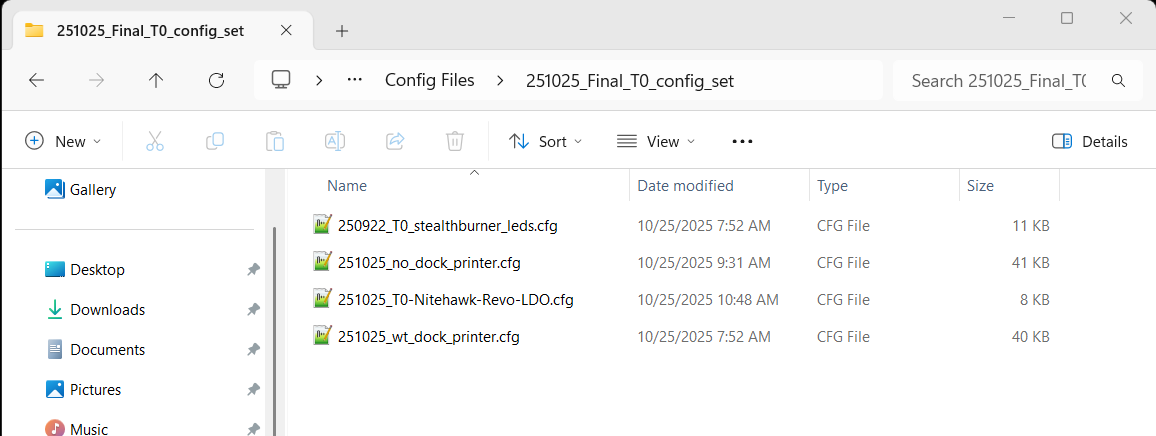
I replaced the contents of printer.cfg with the contents of 251025_wt_dock_printer.cfg (this file uses the 251003_T0-Nitehawk-Revo-LDO.cfg tool-specific config file, which is already available on the printer), and voila! the LEDs on the T0 (gray) toolhead are back, and all the ‘STATUS_xxx’ macros work as well! So, my old “Hardware never fails – it is ALWAYS a software issue” mantra wins again.
When I told this to Grok, he(it?) congratulated me on eliminating hardware as the problem, and then decided the problem was caused when I moved the T0/T1 include files to the top of printer.cfg. This caused the T0/T1 code to be inserted in the wrong place, thereby causing the LED problems I experienced. Grok then guided me through fixing the issues with the dual toolhead config files.
30 October 2025 Update:
Well, Grok and I have been back and forth a lot over the last few days, and I’m sure by now Grok (he/she/it?) is getting frustrated with the inability of this old human to ‘grok’ (and yes, I *am* old enough to have read “Stranger in a Strange Land” when it first came out) the finer points of Klipper configuration file construction.
The basic problem is that whenever I try to implement a dual-toolhead configuration, the stealthburner LEDs are disabled. Grok has explained this is due to ‘included’ files overwriting needed LED control information (like pin numbers?), and has provided several ideas for fixing the problem via different config file edits. Unfortunately my Klipper ignorance is showing (and Grok has some real blind spots as well), so I haven’t been able to get anything to work.
While researching why this LED thing is giving me so much trouble, I came to realize that the real problem is that I started with the single-toolhead config file developed over time since I first got the Voron going, and part of that was the use of the ‘stealthburner_leds.cfg’ add-on that contains all the cool ‘STATUSxxx’ macros. However, vin’s MISSChanger project starts with just a very plain-vanilla printer.cfg file without any of the bells/whistles and adds the multiple-toolhead stuff from there. This was a situation ripe for problems and boy did I have them. I’m going to give Grok’s ideas a good try, but if I can’t make them work, I’m going to go back to Vin’s basic printer.cfg and build things up from there.
31 October 2025:
Last night I was able to verify that ‘klippy.log’ contains the entire in-lined configuration, after all includes and before parsing at the top of each entry. This should go a long way toward effective troubleshooting of the ‘No LEDs’ problem. However, when I started the process of implementing the Grok-suggested changes, I discovered that my printer will no longer connect to nhk0 or nhk1. I get the dreaded “mcu ‘nhk1’: Unable to connect” and/or “mcu ‘nhk0’: Unable to connect” error(s). Since I haven’t made any hardware changes this is kinda hard to believe, and at least so far I’m convinced this is yet another software-induced issue.
So, I plan to go back to my 251025 configuration (251025_wt_dock_printer.cfg & 251003_T0-Nitehawk-Revo-LDO.cfg). Yep! this configuration setup worked perfectly – no errors, and the restart was very rapid (maybe 2-5 seconds).
I’m going to start a new post – “MissChanger Klipper Configuration – Part 2” – as this one is getting a bit cumbersome.
Stay tuned,
Frank