Giving Wall-E2 A Sense of Direction, Part IV

Posted 03/20/16

In my last post, I described my efforts to integrate a CK Devices Mongoose 9DOF IMU module into my Wall-E2 wall-following robot. In that post, I had collected  a set of azimuth (heading) data from the Mongoose showing that the Mongoose was operating properly and that significant error compensation was possible using a simple sine function.  This led me to believe that it would be feasible to install the Mongoose on the robot and create a similar compensation function.  Unfortunately, that turned out not to be the case.  When I collected a similar set of heading data in the installed case, the data showed non-linear behavior for which function-based compensation  would be difficult, if not impossible to achieve.

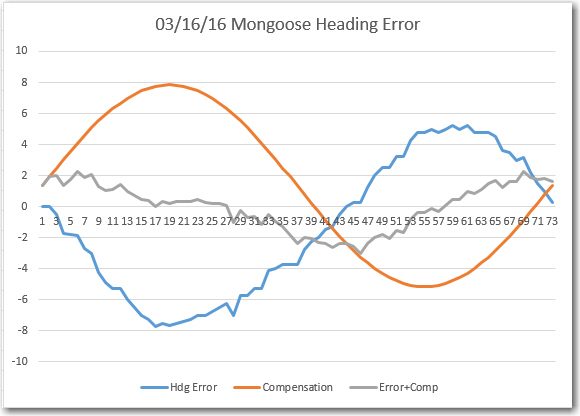
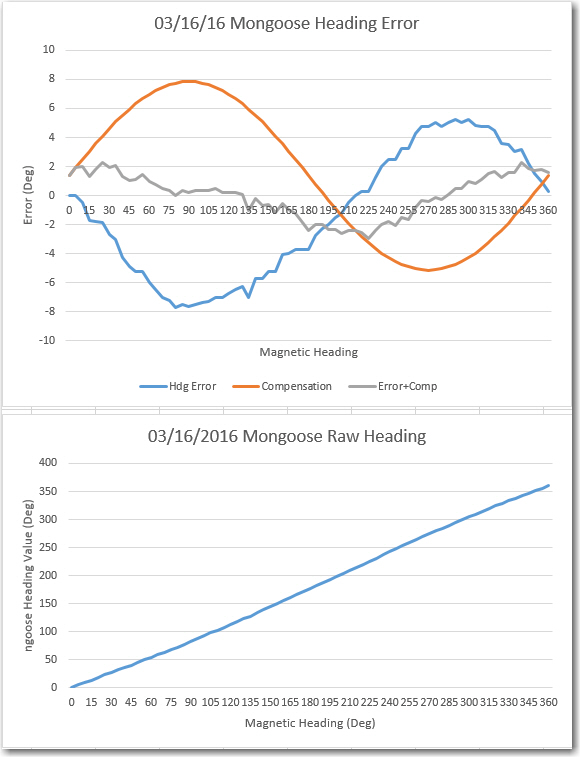
The image  below shows results from the ‘bare’ (desktop) uninstalled configuration, where it is clear that the Mongoose raw heading values closely follow the actual magnetic heading, and that a simple sine function is sufficient to reduce heading error to approximately +/- 2 deg.

Mongoose Mag Heading & Error on desk before installation on robot

Mongoose Mag Heading & Error on desk before installation on robot

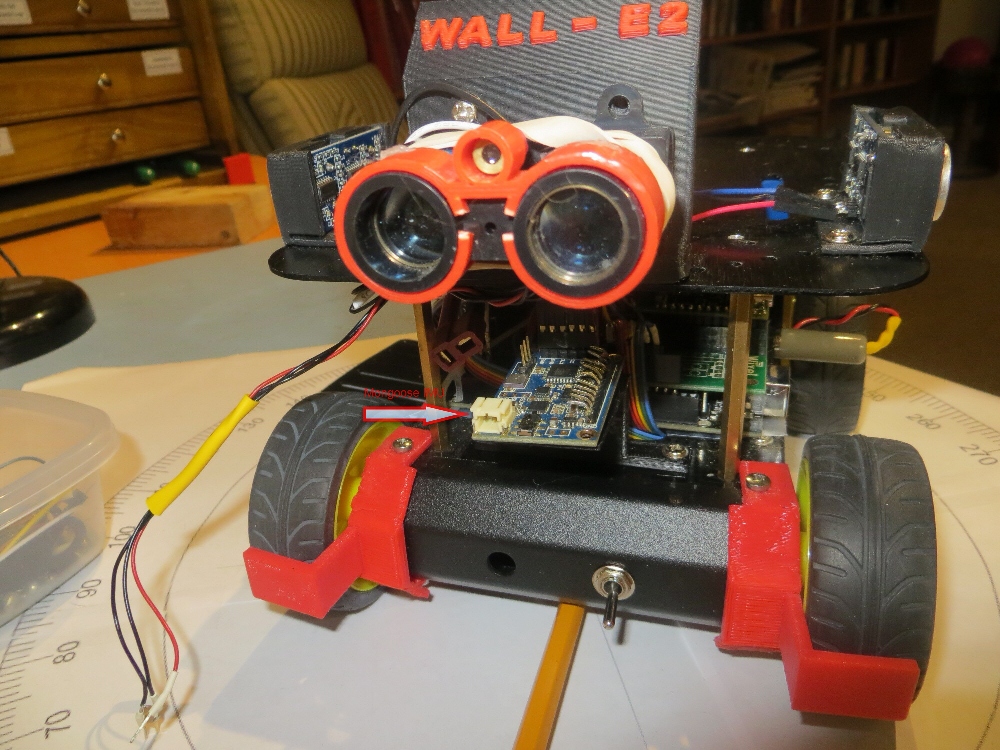
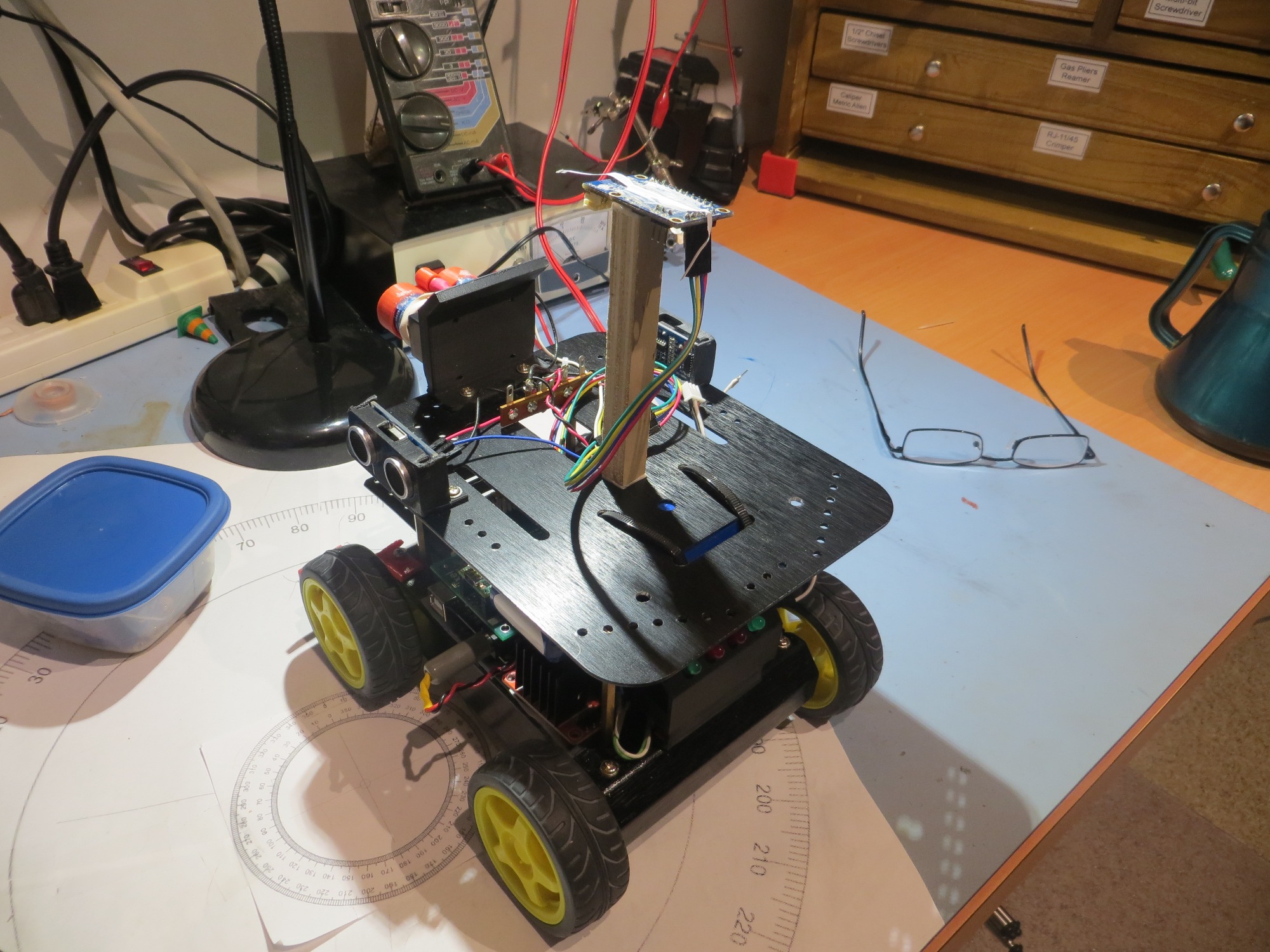
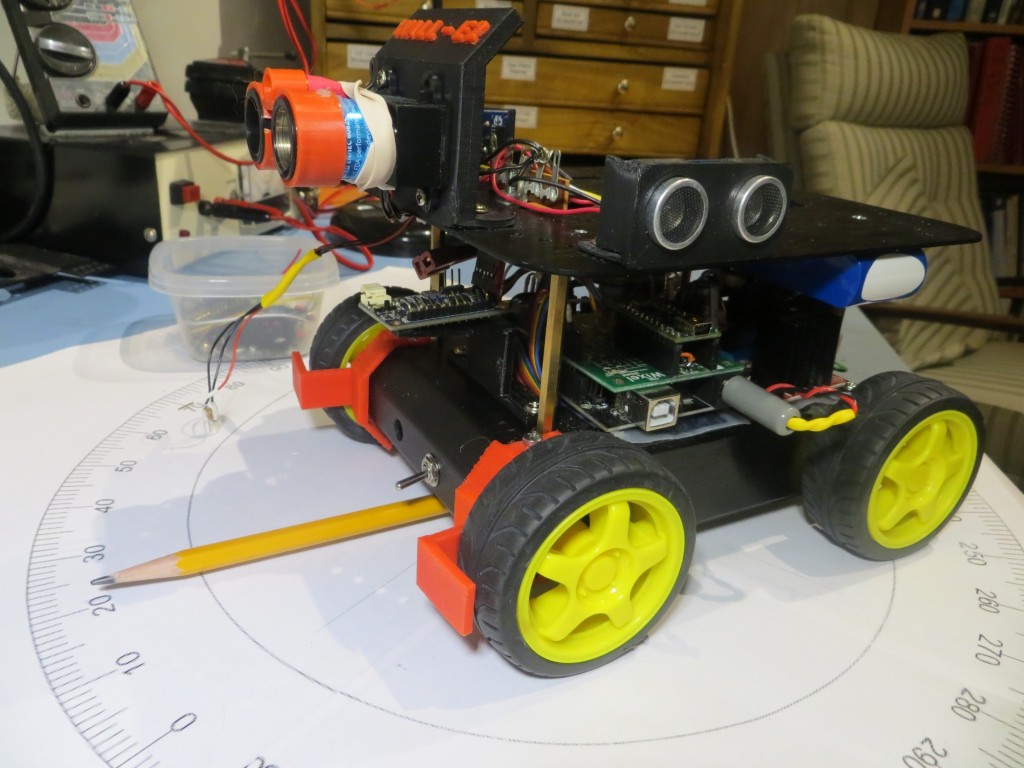
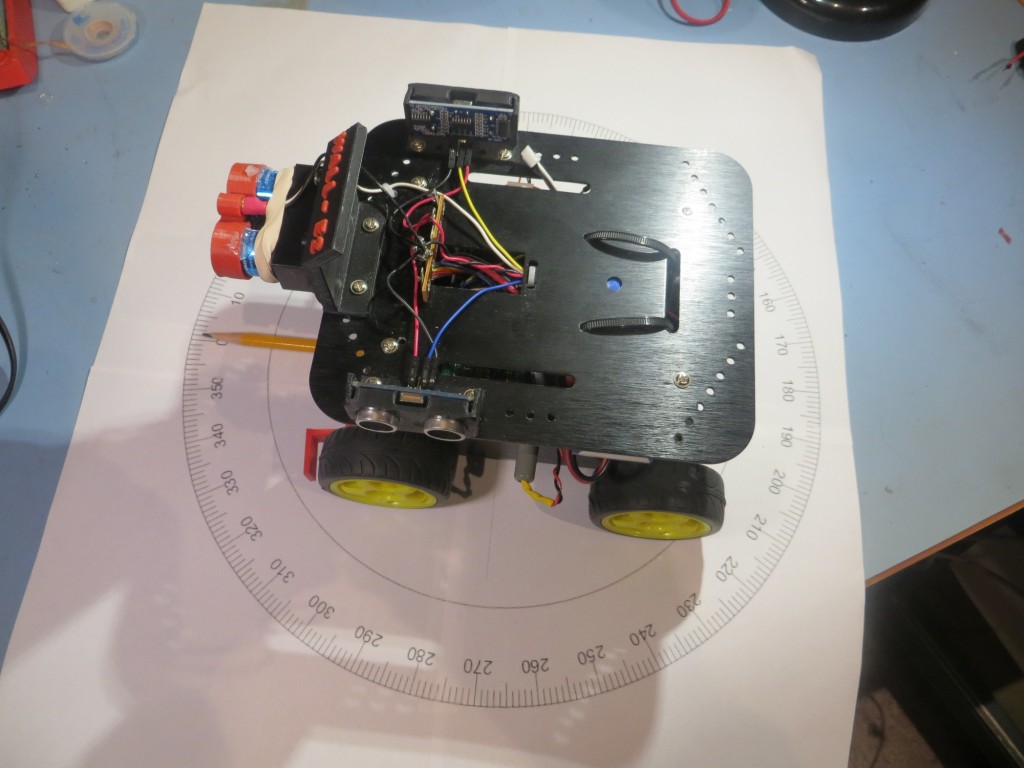
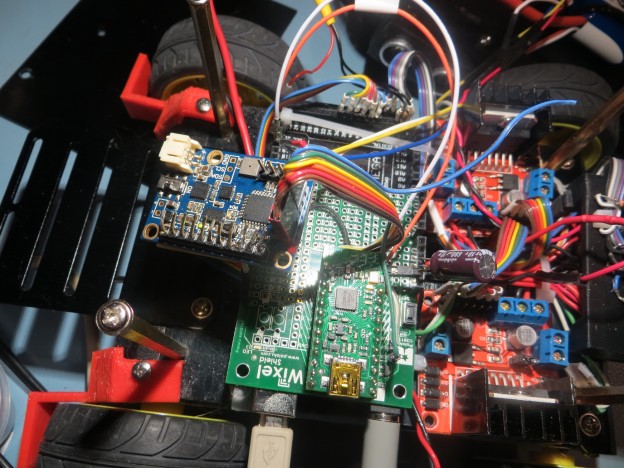
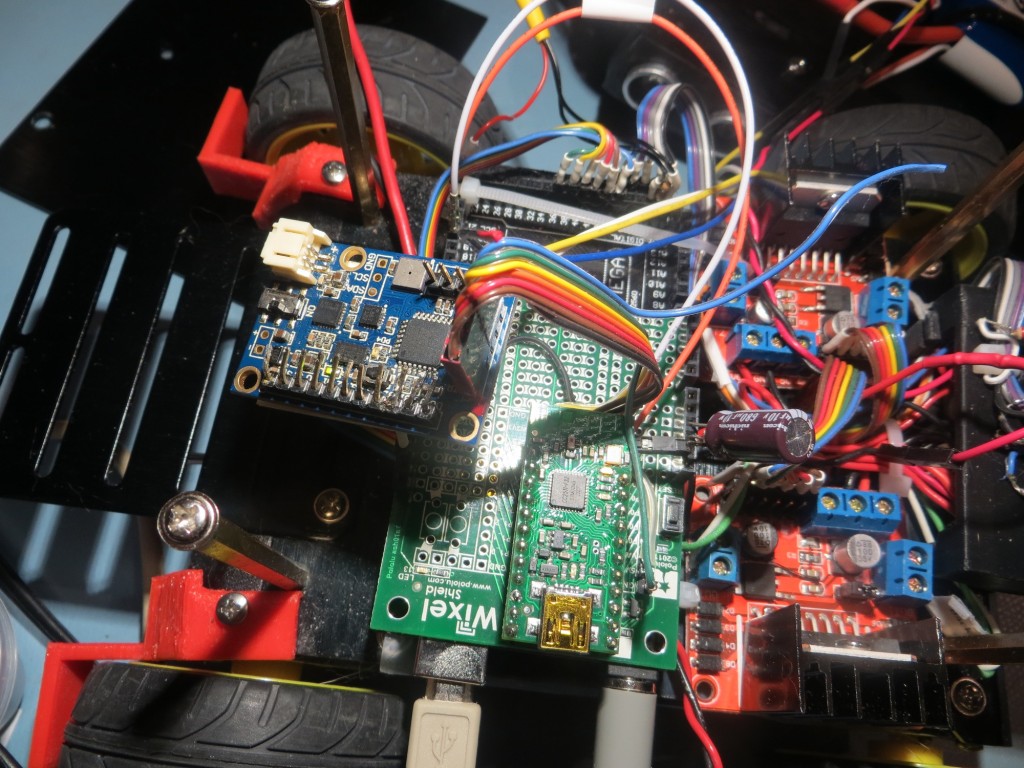
The next set of  images shows the Mongoose installed on the robot between the upper and lower decks.  The idea was to place the Mongoose in a location reasonably well protected physically, but away from high-current elements.  I also wanted to avoid placing it on the upper deck to avoid the additional inter-deck wiring and attendant maintenance/troubleshooting complexity.

Mongoose installed on robot, side view

Mongoose installed on robot, side view

Mongoose installed on robot, top view

Mongoose installed on robot, top view

160318MongooseInstalled1_Annotated2


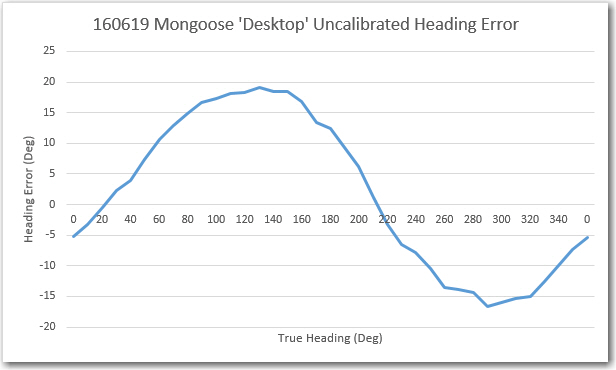
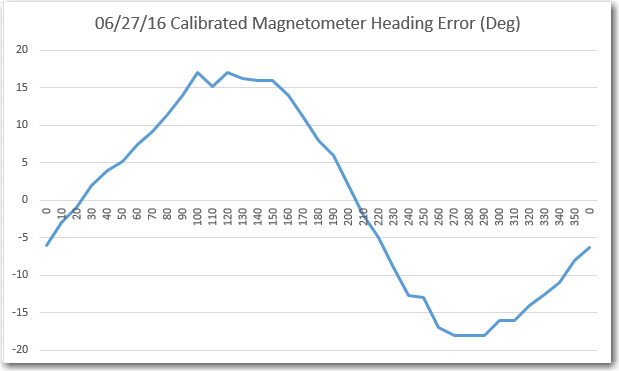
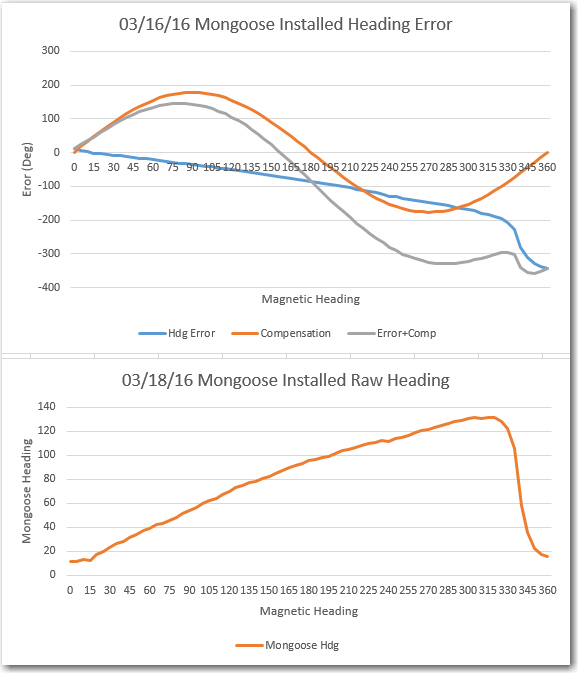
After installation, the same set of measurements were taken, with the results shown in the following plots.  As can be seen, the Mongoose heading readings in this case are hugely different than the desktop run.  Instead of being able to compensate the heading error to within +/- 2 deg, the compensated error is greater than the uncompensated one!  Looking at the Installed Raw Heading plot, it appears that the readings are relatively linear (but heavily suppressed) out to about 315 deg, where something bad happens and the reported heading falls rapidly to near zero.  I made another run in the installed configuration with the magnetometer gain turned down as far as possible, but this did not materially improve the situation.  Clearly something on the robot was drastically affecting the Mongoose magnetometer, to the extent that compensation was  impossible. Moreover, due to the retrograde readings between 315 and 360 degrees, even a lookup table solution seems problematic.

160318MongooseInstalledHdgCal1Results

As I often do when faced with what appears to be an insurmountable obstacle, I tabled the problem and did something else for a while and let my subconscious work on the problem for a while.  After a couple of days of this, I decided to go back to the uninstalled (desktop) case, re-establish my measurement baseline, and then see if I could determine what on the robot was causing such huge magnetic heading variations.   After playing around for a while, I was able to determine that the cause of the problem was the permanent magnets in the DC wheel motors – well DUH!!  After smacking myself on the forehead a couple of times for not thinking of this days ago, I realized that I had carefully determined that Wall-E’s chassis was constructed of aluminum that shouldn’t (I thought) cause problems with the magnetometer, forgetting entirely the fact that in addition to not affecting the magnetometer, it also wouldn’t shield the magnetometer from the strong magnetic fields generated by the motor magnets – oops!

So, what to do?  As much as I would like to avoid it, it appears now that the only viable solution (other than abandoning the magnetometer idea entirely) is to put the Mongoose on the top deck, as far away from the motors as possible.  I am at least a little optimistic that this will work, for two reasons; with the gain turned down, the Mongoose  almost worked where it was, and because mag fields decrease with R3, a few cm could make a significant difference.

Stay tuned!

Frank


Giving Wall-E2 A Sense of Direction. Part III

Posted  March 14, 2016

In my last post from about a week ago, I described my ongoing efforts to integrate the CK Devices Mongoose 9DOF IMU into my ‘Wall-E2’ wall-following robot.  Since that time, I have gotten the Mongoose successfully integrated into the robot, and am able to see magnetometer & accelerometer readings being passed through the host Arduino Mega to the PC via the Mega’s serial port.

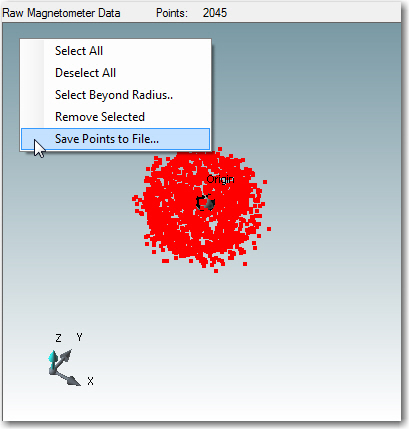
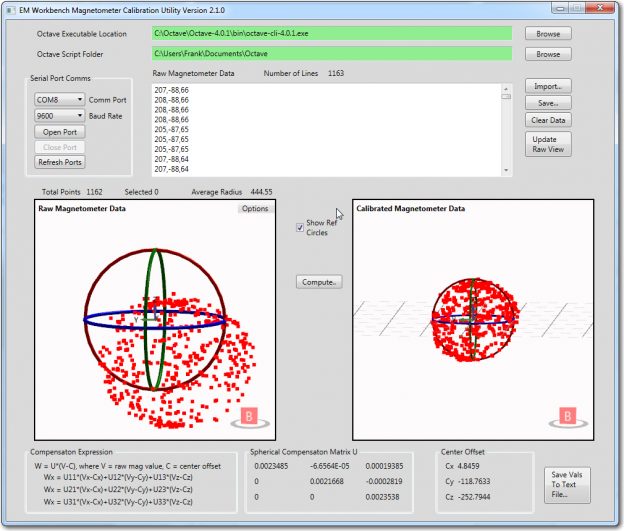
After getting all the hardware and software issues worked out, I have now started on the issue of getting the magnetometer calibrated for it’s new home in the robot.  All magnetometers need to be calibrated after installation to compensate for errors caused by nearby metal (ferrous and non-ferrous) objects; otherwise the reported magnetic heading can be substantially off.  I have considered just using a 360-element lookup table containing offset values, but that’s a bit tacky even for one with my low standards, so I have been researching available magnetometer calibration techniques and tools.  I found a nice  discussion at DIY Drones here, but I have been having trouble getting the tools to work.  The discussion (and tools) center around the widely available  GY-273 HMC5883L  breakout board, and this ain’t quite the same animal as the Mongoose.

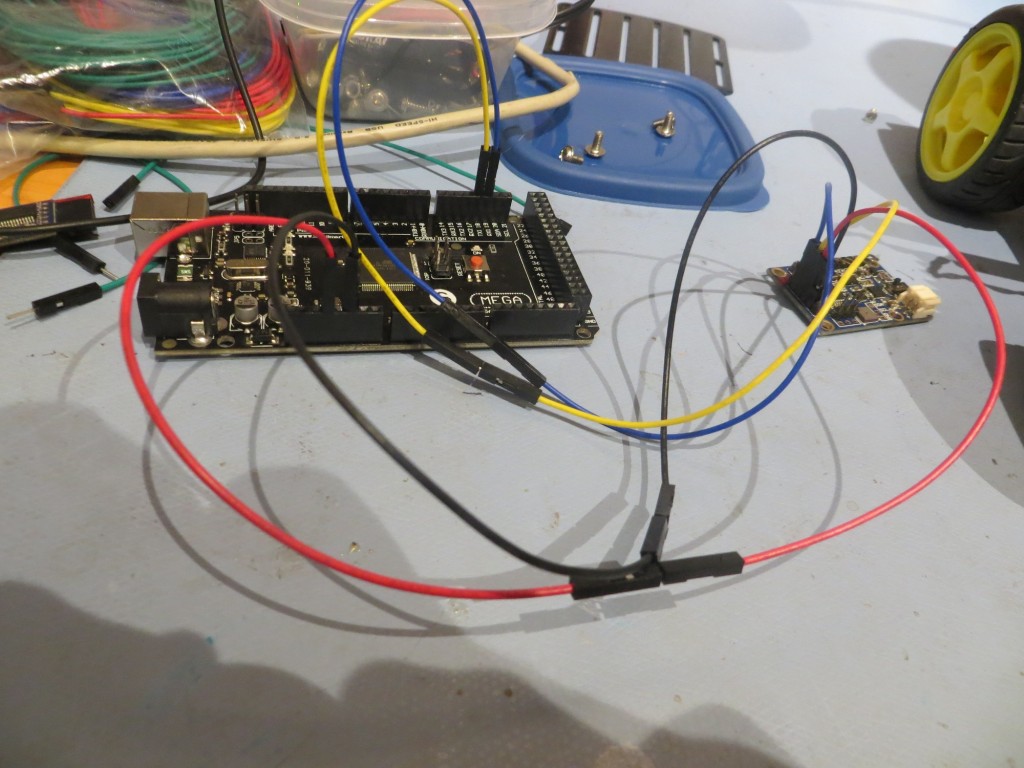
Following the general line of the discussion at DIY Drones, I downloaded the ‘MagMaster’ ZIP files, and attempted to get the MagViewer visualizer program linked up with my Mega/Mongoose combination, without much success.  After flailing around for a while with the robot/Mongoose setup, I decided to simplify things by isolating the Mega/Mongoose combination from everything else going on with the robot.  I had a spare Mega, so I simply connected the Mongoose to Tx1/Rx1 on the spare (same as on the robot) and loaded a modified version of the robot controller onto the Mega.

MongooseCalSetup1

The modifications basically stripped away everything to do with the robot, leaving only the code that interfaces with the Mongoose.  According to the DIY Drones discussion, this  should have allowed the MagViewer program to see the same magnetometer data as for the GY-273, but apparently not.  The viewer program never shows any activity – bummer!

Posted  March 16, 2016

Well, I’m still not sure why the MagViewer program didn’t recognize the Mongoose mag data (I posted to the DIY Drones forum, but no replies yet), so  I decided I would try a variant on my original idea of a lookup table.

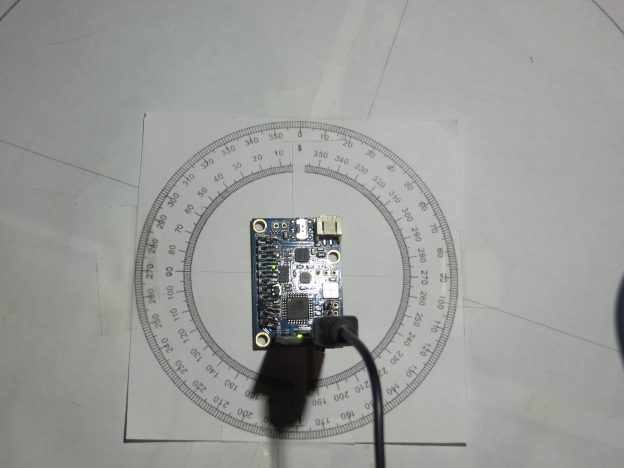
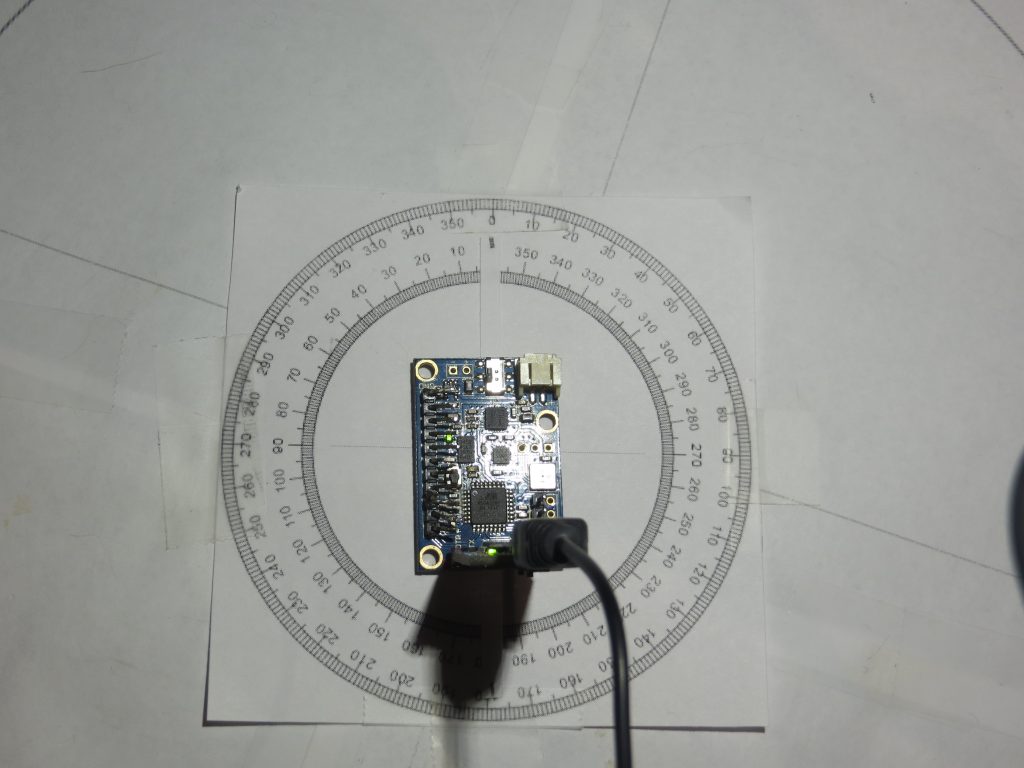
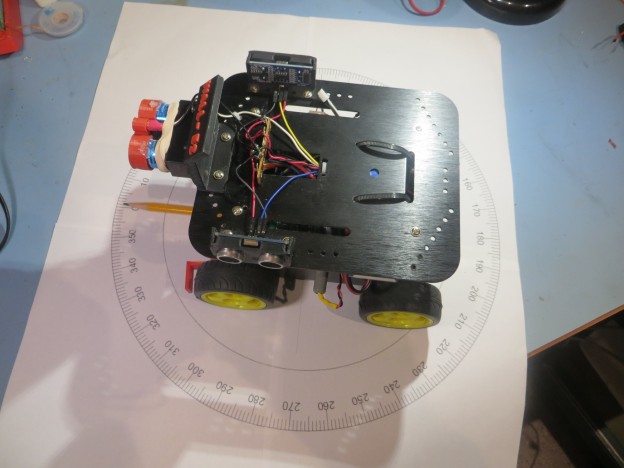
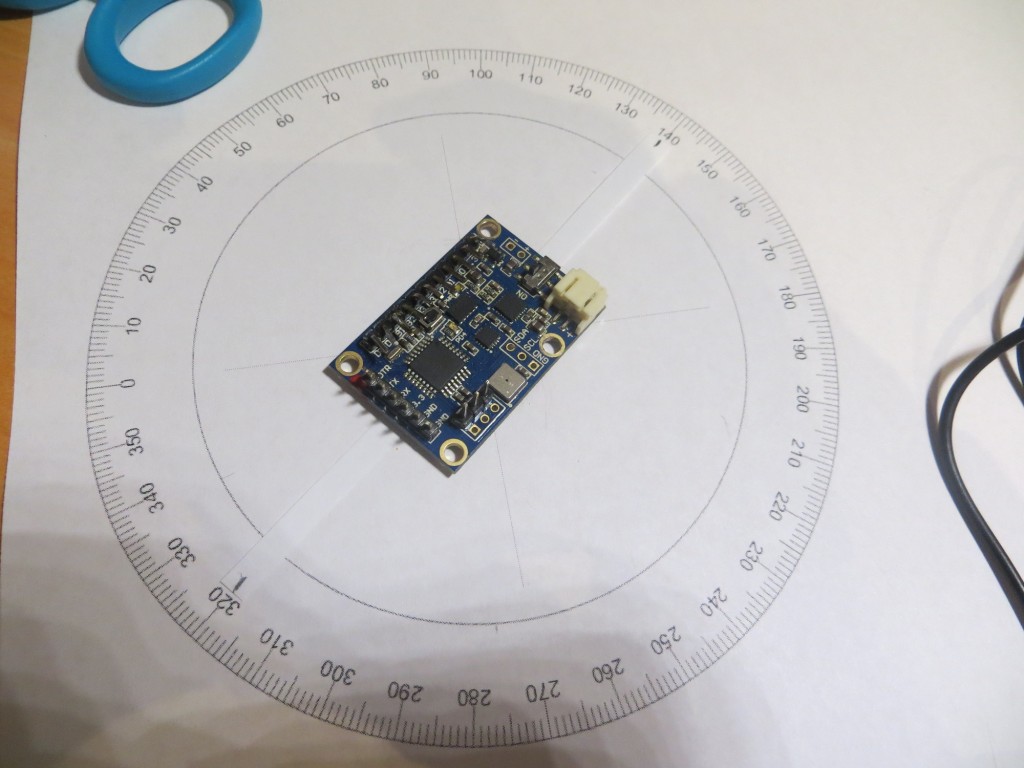
First, I needed a way to accurately orient  my Mongoose module to different headings.  I Googled around a bit, and found a protractor printing site  that offered 360-degree heading graphics like the one shown below

4-inch heading circle, calibrated in degrees

4-inch heading circle, calibrated in degrees

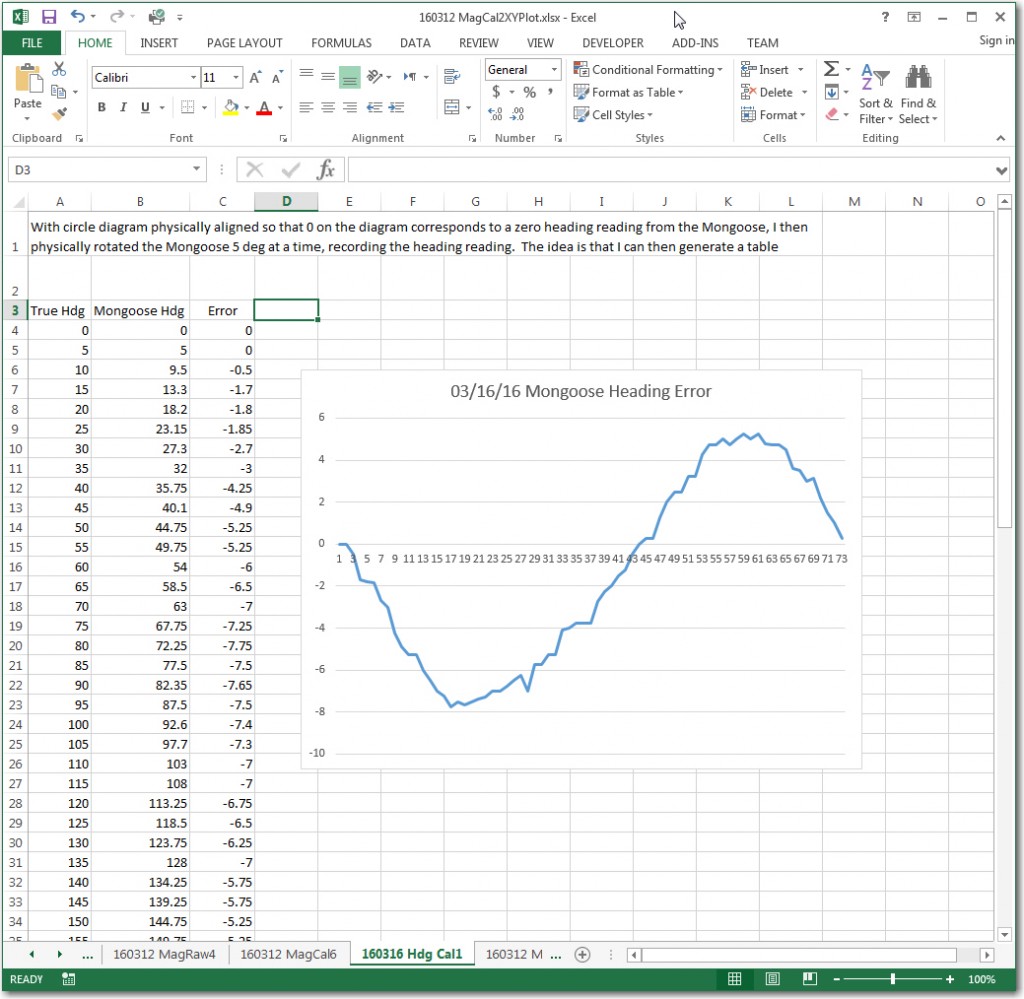
Then I taped a narrow strip of paper to the bottom centerline of the Mongoose module to make an accurate pointer, and proceeded to record the actual Mongoose heading reading for each 5-degree increment around the circle.  I started this process by orienting the paper heading circle so that the 0/360 point corresponded to a Mongoose heading reading of 0 degrees, i.e. aligned with magnetic north as measured by the Mongoose.  The data were recorded in an Excel spreadsheet, and the error term (difference between the nominal heading value and the Mongoose reading) was calculated and graphed, as shown below.


Mongoose reading versus actual magnetic heading, with error plot

Mongoose reading versus actual magnetic heading, with error plot

Well, when the graph first popped up, I just about fell off my chair, as I recognized an almost perfect sine wave graph.  This immediately told me two things:

  1. The Mongoose sensor, the test setup and the data was all valid.  There is no way I could have managed that smooth of a curve by accident, and also no way it could have been that smooth if there was any significant mag field distortion
  2. At least for this case, with no significant installation errors, almost perfect heading compensation could be accomplished with just a simple sine function with a slight negative DC offset corresponding to the average value of all errors (about -1.35 according to Excel)

To test this theory, I  used Excel to calculate the required sin function values, and added the result to the calculated error values for each measured angle.  Then I plotted the compensation and comp+error curves on the same plot as before, as shown below.

Angle Error, Comp values, and Comp+Error

Angle Error, Comp values, and Comp+Error

From the plot, it is clear that the compensation  is effective, although not perfect. The compensated error amplitude looks to be about 2-2.5 degrees, more than adequate for my purposes.  I think the remaining error is due to the fact that the sensor data traces out an ellipse rather than a circle.

So, the next step is to install the Mongoose sensor back on the robot, and do a similar test utilizing an 8″ diameter version of the heading graphic.  Assuming I get similar compensation results, I’ll probably call it a day and start running field tests.  After all, I’m not sure I care if Wall-E thinks a hallway is oriented at 270, 260, or 280 degrees magnetic, as long as the next time it goes down the same hallway it gets more or less the same results!

Stay tuned!

Frank


Giving Wall-E2 A Sense of Direction – Part II

Posted 03/07/16

In my last post on this subject, I described my efforts to renew my acquaintance with CK Devices’ Mongoose 9DOF IMU board, with the intent of integrating it into my wall-following robot project.  This post describes the first step toward that integration goal.

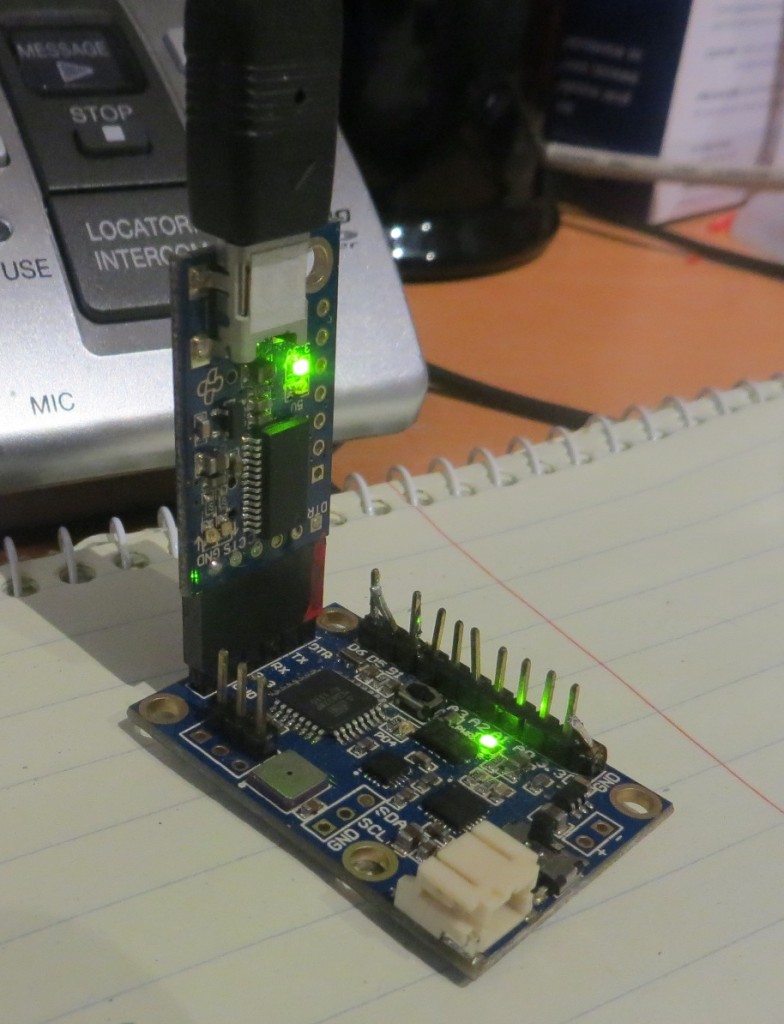
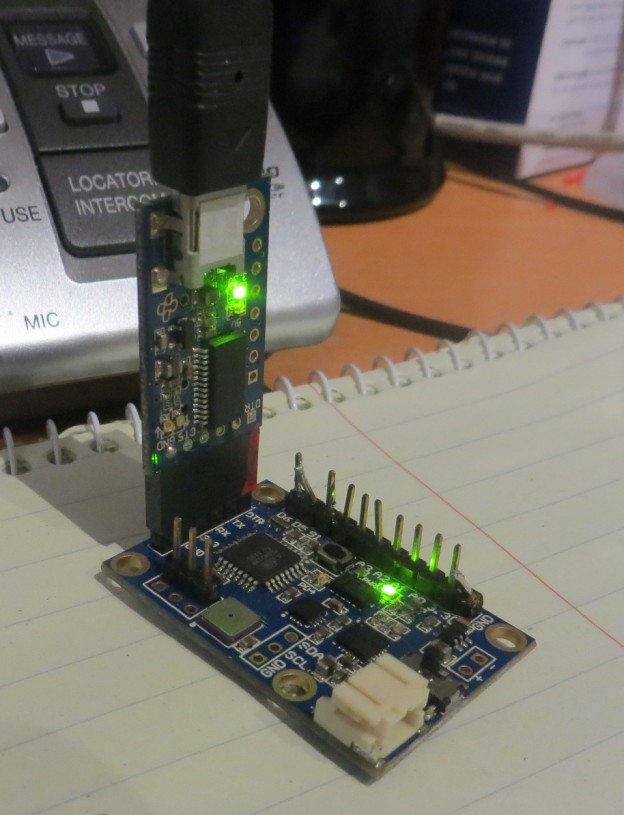
The Mongoose board operates on 3.3V and communicates via RS-232 protocol over a 6-pin 0.1″ header block, compatible with the CK Devices ‘FTDI Pro’ programmer  module, as shown in the following photo.

Mongoose 9DOF IMU board, with FTDI Pro USB-Serial adapter

Mongoose 9DOF IMU board, with FTDI Pro USB-Serial adapter

Integrating this board into Wall-E requires addressing two distinct but related issues – the voltage difference between the 5V Arduino Mega controller and the 3.3V Mongoose, and  the coding changes required to retrieve the desired heading/attitude information from the Mongoose.

The Hardware

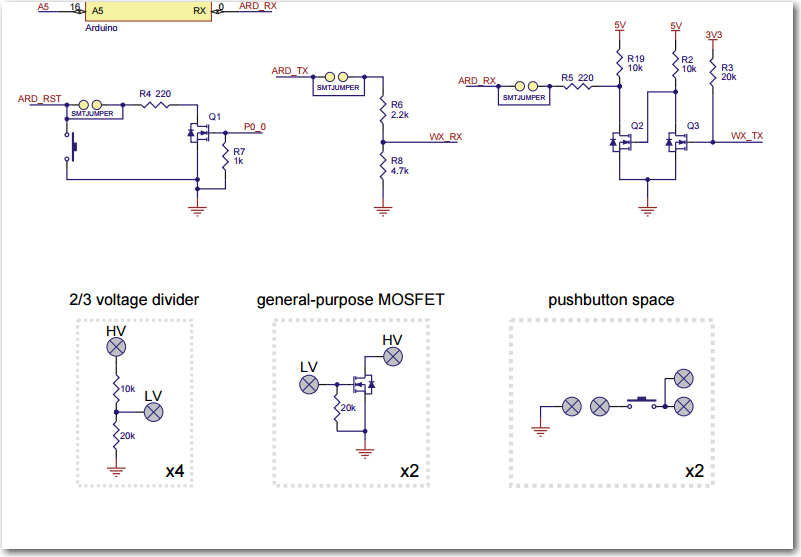
The 5V/3.3V issue requires that 5V serial data levels from the Arduino Mega be stepped down to 3.3V, and 3.3V serial data levels from the Mongoose be stepped up to 5V.  Simply ignoring these problems does seem to work (the 5V data from the Mega doesn’t appear to harm the Mongoose, and the 3.3V data from the Mongoose does seem to be recognized by the Mega), but it is inelegant to say the least.  Also, a recent addition to Wall-E’s superpowers included Pololu’s  ‘Wixel Shield’ module, which fortuitously included some spare circuitry for just this purpose, as shown in the schematic drawing excerpt below.  The upper right corner shows the full step-up circuit used to connect the 3.3V Wixel Tx line to the 5V Arduino Rx line, and the top  center  shows the step-down circuit used to connect the 5V Arduiono Tx line to the 3.3V Wixel Rx line.  The lower area shows the spare parts available on the Wixel shield – and the important thing is that there are  two general-purpose N-channel MOSFETs. These can be used to construct the same step-up circuit to connect the 3.3V Mongoose Tx line to the 5V Arduino Mega Rx1 line, and one of the 4 available 2/3 voltage dividers can be used to step down the 5V Arduino Mega Tx line to the 3.3V Mongoose Rx line.

SchematicDetail

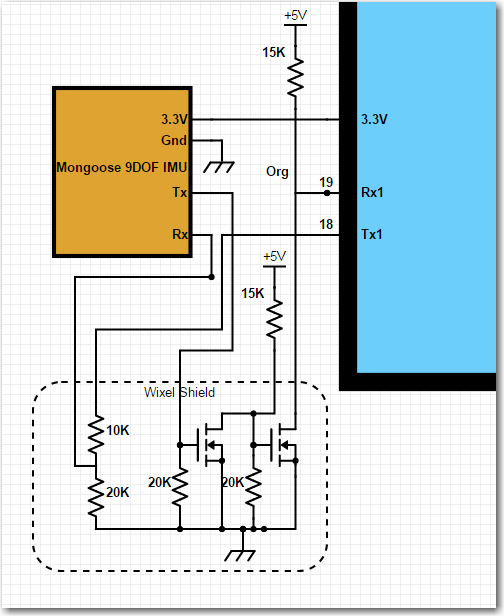
The following image  is a small section of my overall Scheme-it (Digikey’s free online schematic capture app) schematic for Wall-E, showing the addition of the Mongoose IMU.

MongooseTxRxDetail

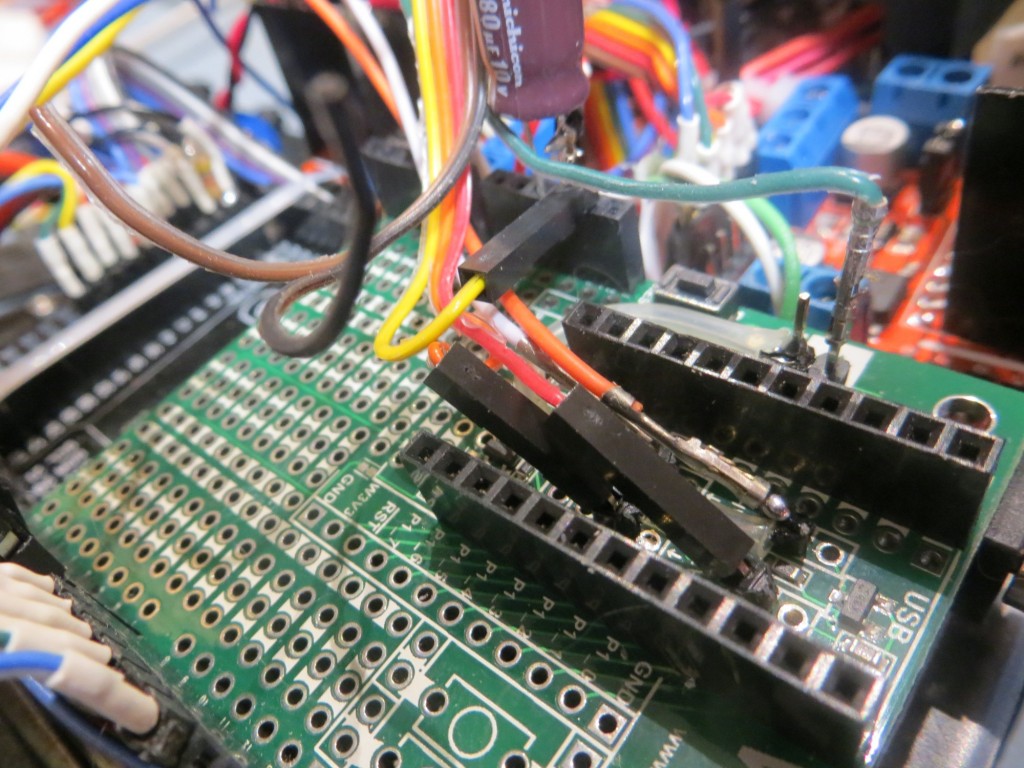
The photo below shows the serial up/down converter connections on the Wixel Shield board.  On the near side, Red = Mongoose Rx, Org = Mongoose Tx.  On the far side, Org = Mega Rx1, White = Mega Tx1.

Mongoose Serial Up/Down Converter Connections.  Near side Red = Mongoose Tx, Org = Mongoose Rx.  Far side: Org = Mega Rx1, White = Mega Tx1

Mongoose Serial Up/Down Converter Connections. Near side Red = Mongoose Tx, Org = Mongoose Rx. Far side: Org = Mega Rx1, White = Mega Tx1.  Yel = Mongoose 3.3V, Grn = Mongoose Gnd.


The Software:

After getting the hardware wired up and tested, I naturally thought All I had to do was plug in the Mongoose with the full set of reporting software, and I’d be ready to go –  NOT!  So, after the obligatory yelling and cursing and the appropriate number of random code changes hoping something would work, I was forced to fall back on my somewhat rusty (but not completely worthless) trouble-shooting skills.  I started by creating a new, blank Arduino project.  Into this project I placed code to simply echo whatever I typed on the serial command line to the serial view window.  To this I added a few lines to make the laser pointer blink on/off, just to provide a visual “I’m alive!” indication, and then tested it.  After all errors were made/corrected, etc, the final code was as shown below.

asd;lfkjsaf;
al;skfdj

The next step was to extend the echo loop to include Serial1, with a simple jumper between Tx1 and Rx1 on the Mega board.  In the software all this required was Serial1.begin(9600) in Setup() and the addition of the code to route command line bytes out Tx1 and to route received bytes on Rx1 to Tx0 so that it would get displayed on the serial monitor.  The code to do this is shown below:

The next step was to extend the loop beyond Serial1 and into the Mongoose, by replacing the jumper from Tx1 to Rx1 with the Mongoose board’s Rx & Tx lines respectively, and replacing the normal Mongoose code with the turn-around (echo) code.  No change should be required to the Arduino code, as it will still be echoing whatever shows up at Rx1 to Tx0.

The Mongoose code is:


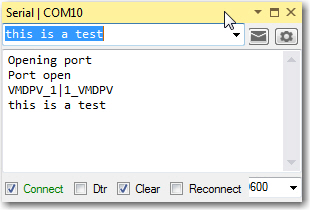
When this code was loaded into the Mongoose  and run stand-alone, I got the following output by typing ‘this is a test’ on the serial port command line.

MongooseEcho1

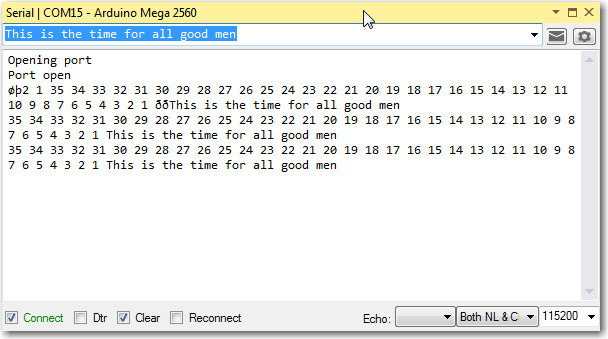
After  the Mongoose was disconnected and placed into the robot circuit, I got the following output from the Robot project on a different comm port.

MongooseEcho2

So, it is clear from the above that the Mongoose board connected (through the step-up/down circuitry on the Wixel shield) to Rx1/Tx1 is successfully receiving and echoing whatever shows up on its serial port.

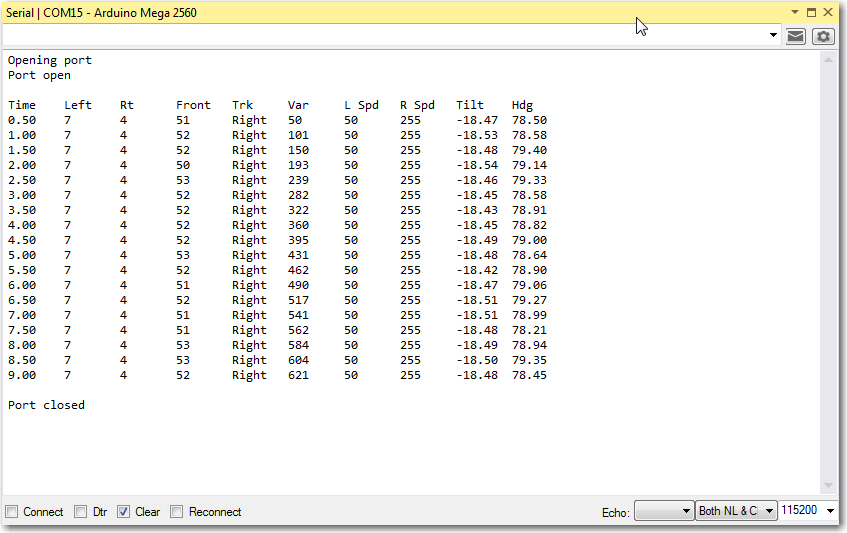
Now it was time to reload my modified version of CK Devices ‘Mongoose_base’ firmware back onto the Mongoose and get it running with Wall-E’s firmware.  After the usual number of hiccups and such, I got it running and nicely reporting ‘Tilt’ (X-axis accelerometer) and ‘Heading’ (derived from 3-axis magnetometer values) along with the normal robot telemetry values, as shown in the printout below.

Final version showing Mongoose Tilt & Hdg values integrated into normal robot telemetry

Final version showing Mongoose Tilt & Hdg values integrated into normal robot telemetry

Although  the Mongoose module  has been successfully integrated into the robot system from a technical standpoint, there is still plenty of work to be done to complete the project.  At the moment (see the photo below), it is just kind of ‘hanging around’ (literally), so some additional work will be required to mount it properly.  Stay tuned! ;-).

Mongoose installed loosely on Wall-E2

Mongoose installed loosely on Wall-E2


Giving Wall-E2 A Sense of Direction

Posted 02/16/16

Wall-E2, my 4WD wall-following robot, is doing pretty well these days.  He can navigate autonomously around the house quite nicely, and almost never gets irretrievably stuck. Up until the addition of front wheel  guards  a couple of months ago, Wall-E2 was quite adept at literally climbing the walls and winding up in the ‘scared tractor’ (from ‘Cars’) pose, or turning himself completely over on his back. Since then he has been much better behaved, but has still managed to very occasionally get himself into trouble (he has, on more than one occasion, managed to hang himself on a loose power or data cable, kinda like a horse rider getting scraped off by a low branch.  When this happens, Wall-E2 winds up on his back with his wheels spinning uselessly in the air.

So, my new ‘great idea’ is to give Wall-E2 a sense of direction, literally.  About 5 years ago I ginned up a pretty cool helmet-mounted attitude sensing device for my dressage-riding wife using a ‘Mongoose’ 9DOF board from CK Devices (I would post a link, but I don’t think they are being made anymore – see the Sparkfun ‘Razor’ IMU instead).  Anyway, I still had this miraculous little board hanging around, and decided to see if I could integrate it into Wall-E2.  The idea is that if I could detect an incipient ‘scared tractor’ event, I could short-circuit it by stopping or reversing the motors, or maybe taking some other action if that didn’t work.  In addition, I’m thinking maybe I could use the gyro & magnetometer sensors to have Wall-E2 report his current magnetic heading.  If I were to couple this with left/right/front distance readings, Wall-E2  *might* be able to determine where  he was in the house.  And, if he could do that, then maybe he could tell when he was close to a charging station, and hook himself for a quick electron meal (charging station yet to be designed/implemented, but hey – one thing at a time!)

So, I dug out the Mongoose board, and tried (unsuccessfully) to remember how I had gotten the darned thing to work 5 years ago (I can’t remember what happened 5 minutes ago, so 5 years was more than a stretch!).  Fortunately, I never, ever, throw files away (disk storage being effectively infinite, you know), so I was eventually able to track down my old Arduino ‘Motion Tracker’ project and bootstrap myself back up.  I did have a bit of a kerfluffle when I couldn’t get my Mongoose board to talk to the CK Devices Visualizer program, but that got solved after some head-scratching and a few emails to Cory (last name unknown) of CK Devices.

Using the very nice Visualizer program, as shown in the movie clip below, I was able to verify proper Mongoose operation.  I was also able to track down my old ‘Motion Tracker’ program (basically a very rudimentary hack of the ‘base’ Arduino program supplied by CK Devices) and verify that it still worked.  The next step(s) will be to figure out how to mount the Mongoose on Wall-E2, and how to integrate the IMU information into Wall-E2’s operations.

Stay tuned!

Making Wall-E2 Smarter Using Karnaugh Maps

Posted 01/12/16

A few weeks ago I had what I thought was a great idea – a way of making Wall-E2 react more intelligently to upcoming obstacles as it tracked along a wall.

As it stood at the time, Wall-E2 would continue to track the nearest wall until it got within a set obstacle clearance distance (about 9 cm at present), at which point it would stop, backup, and make a 90-deg turn away from the last-tracked wall direction.  For example, if it was tracking a wall to its left and detected a forward obstacle within 9 cm, it would stop, back up, and then turn 90 deg to the right before proceeding again.  This worked fine, but was a bit crude IMHO (and in my robot universe MY opinion is the only one that matters – Heh Heh!)

So, my idea was to give  Wall-E2 the ability to detect an upcoming obstacle early enough so that it could make a smooth turn away from the currently tracked wall so that it could intelligently navigate the typical concave 90-deg internal corners found in a house.  This required that Wall-E2’s navigation code recognize a third  distinct forward distance ‘band’ in addition to the current ones (less than 9cm and greater than 9 cm).  This third band would be from the obstacle avoidance distance of 9cm to some larger range (currently set at 8 times the obstacle avoidance distance).

After coding this up and setting Wall-E2 loose on some more test runs, I was able to see that this idea really worked – but not without the usual unintended consequences.  In fact, after a number of test runs I began to realize that the addition of the third distance ‘band’ had complicated the situation  to the point where I simply couldn’t acquire (or maintain) a sufficiently good understanding of all the subtleties  of the logic; Every time I thought I had it figured out, I discovered all I had done was to exchange one failure mode for another – bummer!

So, I did what I always do when faced with a problem that simply refuses to be solved – I quit!  Well, not actually, but I did quit trying to solve the problem by changing the program; instead I put it aside, and began thinking about it in the shower, and as I was lying in bed waiting to go to sleep.  I have found over the years that when a problem seems intractable, it usually means there is a piece or pieces missing from the puzzle, and until I ferret it or them out, there is no hope of arriving at a complete solution.

So, after some quality time in the showers and during the ‘drifting off to sleep’ periods, I came to realize that I was not only missing pieces, but I was trying to use some pieces in two different contexts at the same time – oops!  I decided that I needed to go back to the drawing board (literally) and try to capture  all the variables  that comprise the input set to the logic process that results in a new set of commands to the motors.  The result is the diagram below.

Overall Logic Diagram

Overall Logic Diagram

As shown in the above diagram, all Wall-E has to work with are  the inputs from three distance sensors.  The left & right sensors are acoustic ‘ping’ sensors, and the forward one is a Pulsed Light ‘Blue Label’ (V2) LIDAR sensor.  All the other ‘inputs’ on the left side are derived in some way from the distance sensor inputs.  The operating logic uses the sensor information, along with knowledge of the previous operating state to produce the next operating state – i.e. a set of motor commands.  The processor then updates the previous  operating state, and then does it all over again.

The logic diagram breaks the ‘inputs’ into four different categories. First and foremost is the raw distance data from the sensors, followed (in no particular order) by the current operating mode (i.e. what the motors are doing at the moment), the current tracking state (left, right, or neither), and the current distance ‘band’ (less than 9cm, between 9 and 72cm, and greater than 72cm).  The processor uses this information to generate a new operating mode and updates the current distance band and current tracking state.

After getting a handle on the inputs, outputs, and state variables, I decided to try my hand at using the Karnaugh mapping trick I learned back in my old logic circuit design days 40 or 50 years ago.  The technique involves mapping the inputs onto one or more two-dimensional grids, where every cell in the grid represents a possible output of the logic process being investigated.  In it’s ‘pure’ implementation, the outputs are all ‘1’ or ‘0’, but in my implementation, the outputs are one of the 8 motor operations modes (tracking left/right, backup-and-rotate left/right, step-turn left/right, and rotate-90-deg left/right).  The full set of Karnaugh maps for this system are shown in the following image.

Karnaugh Map using variables from logic diagram

Karnaugh Map using variables from logic diagram

The utility of Karnaugh maps lies in their ability to expose possible simplifications to the logic equations for the various desired outputs.  In a properly constructed K-map, adjacent cells with the same output indicate a potential simplification in the logic for that output.  For instance, in the diagram above, the ‘Backup-and-Rotate-Right’ output occurs in all four cells in the top row of the ‘Tracking Left’ map (shown in green above).  This indicates that the logic equation for that desired output simplifies down to simply “distance band ==  ‘NEAR’.  In addition, the Backup-and-Rotate-Right’ output occurs for all four cells in the ‘Stuck Recovery’ column, indicating that the logic equation is simply “operating mode == Stuck Recovery”.  The sum (OR) of these two equations gives the complete logic equation for the ‘Backup-and-Rotate-Right’ motor operating mode, i.e.

Backup-and-Rotate-Right = Tracking Left && (NEAR || STUCK)

The above example is admittedly the least complicated, but the complete logic equations for all the other motor operation modes can be similarly derived, and are shown at the bottom of the K-map diagram above.  Note that while for completeness I mapped out the K-map for ‘Tracking Neither’, it became evident that it doesn’t really add anything to the logic.  It can simply be ignored for purposes of generating the desired logic equations.

Now that I have what I hope and believe is the complete solution for the level of intelligence I wish to implement with Wall-E2, actually coding and testing it should be MUCH easier.  At the moment though, said implementation and testing will have to wait until I and my wife return from a week-long duplicate bridge tournament in Cleveland, OH.

Stay tuned! ;-))

Frank
January 16 Update:

As I was coding up the results of the above study, I realized that the  original Karnaugh map shown above wasn’t an entirely accurate description of the problem space.  In particular, I realized that  if Wall-E2 encounters an ‘open corner’ (i.e. both left & right distances are > max) just at the Far/Near boundary, it is OK to assign this condition to  either the ‘Step-Turn’ (i.e. start a turn away from the last-tracked wall)  or the ‘Open Corner’ (i.e. start a turn toward the last-tracked wall).  And if I were to arbitrarily (but cleverly!) assign this to ‘Step-Turn’, then the K-map changes from the above layout to the revised one shown below, where the ‘Open Corner’ condition has been reduced to just the one cell in the lower right-hand corner of both the left and right K-maps.

Revised Motor Control Logic Karnaugh Map

Revised Motor Control Logic Karnaugh Map

So now the logic expressions for the two  ‘Open Corner’ motor response cases (i.e. start a turn  toward the last-tracked wall) are:

Rotate 90 Left = Tracking Left && Open Corner&& Far

But the  other implication of this change is that now the ‘Step-Turn’ expression can be simplified from the  ‘sum’ (logical  OR) of two 3-term expressions to a single 3-term one, as shown by the dotted-line groupings in the revised K-map, and the following expressions for the ‘Left Tracking’ case:

previous: Step-turn Right = Tracking Left && Step && (Wall Tracking || Step Turn)
new: Step-turn Right = Tracking Left && Step && !Stuck

much easier to implement!

OK, back to coding…..

Frank

New Front Wheel Guards for Wall-E2

Posted 12/25/15

So, it’s Christmas day and I’m on a Southwest flight from Columbus, OH to Kansas City (via Chicago) to play in a bridge tournament.   On the way, I’m taking the opportunity to work on my latest blog post. describing Wall-E2’s new front wheel guard design.

The impetus for front wheel guards comes from Wall-E2’s tendency to re-enact the ‘Tractor-tipping’ scene from the Cars’ movie.   On occasion Wall-E2 encounters an obstacle like a chair leg with one front wheel or the other at just the right orientation so that it is able to climb up the leg with it’s 4-wheel drive, and, when it achieves a high enough angle, it’s relatively high CG does the rest.   So, after the novelty wore off, I decided it was time to do something about the situation.   After discussing options with my grandson Danny in a Skype session, we decided that two small wheel guards would probably work better than one big one, so that was the design direction we took.

In the year or so I have been working with TinkerCad and my 3D printing setup, I have learned that it is usually much faster and more effective to rapidly ‘evolve’ a design rather than trying to get it right the first time.   A complete design-print-evaluate cycle only takes about 30 minutes, with negligible material cost, so why not!?

In the case of the front wheel guards, the design evolution went through about a half-dozen iterations, (not counting the initial one done ‘on the fly’ with Danny during the Skype session using my pocket knife and a section of a cardboard box).   The ‘evolution of a modern wheel guard’ is shown in the following photo, proceeding from proto-guard on the left to fully modern wheel guard on the right.

Side view of guard installation with wheel removed for better visibility

Bumper evolution from ‘slime-mold’ to ‘fully evolved’ versions

The finished (as if anything is ever finished’ on Wall-E2) wheel guard is shown at the far right in the above photo, and the following shots show the installed result.

Side view of guard installation with wheel removed for better visibility

Side view of guard installation with wheel removed for better visibility

'Fully Evolved' wheel guard installed on left front wheel

‘Fully Evolved’ wheel guard installed on left front wheel

Both wheel guards installed

Both wheel guards installed

I haven’t had a chance to try the new wheel guards out in practice, but I am quite confident they’ll do the job, and end Wall-E2’s short stint as a ‘Tractor-Tipping’ mimic! ;-).

Stay Tuned,

Frank

New Battery and Wireless for Wall-E2

Posted 12/22/2015,

As I write this, I’m watching the Space-X video webcast  following their historic launch and first stage recovery at Cape Canaveral.  I am absolutely ecstatic that  someone (in this case Elon Musk and Space-X) finally got a clue and got past the “throw everything away” mentality of previous generations.  Also, as  a retired civil servant, I am more than a little embarrassed that our great and mighty U.S. Government, with its immense resources couldn’t get its collective head out of it’s collective ass and instead gets its ass handed to it by Elon Musk and Space-X.  I’m sure for Elon this was just another day in his special toy factory, but it was a  great day for U.S. entrepreneurship and individual initiative, and just another shameful lapse for our vaunted U.S. Government space ‘program’.

OK, so much for my ranting :-).  The reason for this post is to describe two major upgrades to the Wall-E2 4WD robot; a new, more powerful battery pack, and the addition of a Pololu Wixel wireless link to the robot.

New Battery Pack:

For Wall-E1 I used a pair of 2000maH Li-Po cells from Sparkfun, coupled with their basic charger modules and a relay to form a 7.4V stack.  This worked fine for  the 2-motor  Wall-E1, but I started having problems when I used this same configuration for the 4-motor Wall-E2. Apparently, these Li-Po cells incorporate some current limiting technology that disconnects a cell when it senses an over-current situation.  Although I’m not sure, I suspect they are using something like a solid-state polyfuse, which transitions from a low resistance state to a high resistance state when it gets too hot. When this happens, it can take several minutes for the polyfuse to cool back down to the point where it transitions back to the low resistance state.  I discovered this when Wall-E2 started shutting down for no apparent reason, and voltage measurements showed my 2-cell stack was only producing 3.5V or so, i.e. just one cell instead of two :-(.  At first I thought this was a wiring or relay (I use a relay to switch the cells from series to parallel configuration for charging) problem, but I couldn’t find anything wrong, and by the time I had everything opened up to troubleshoot, the problem would go away!  After two or three iterations of this routine, I finally got a clue and was able to observe the battery voltage transition from 3.5V or so back to the normal 7.4V, all without any intervention from me.  Apparently the additional current required to drive all 4 motors was occasionally exceeding the internal current trip point on at least one of the cells – oops!

So, I started looking for a Li-Po battery pack without the too-low peak current limitation, and immediately ran into lots of information on battery packs for RC cars and aircraft. These jewels have abou the same AH rating as my current cells, but have peak current ratings in the 20-40C range – just what I was looking for.  Now all I had to do was to find a pack that would fit in/on my robot, without looking like a hermit crab carrying a shell around.  I eventually settled on the  GForce 30C 2200mAh 2S 7.4V LiPO from Value Hobby, as shown in the following screenshot.

New battery pack for Wall-E2

New battery pack for Wall-E2

This pack is quite a bit larger (102mm X 34mm X 16mm) than the original 2000mAH cells from Sparkfun, and also requires a different (and much more expensive) charger.  At first I thought I would have to mount this monster on the top of the top deck, as shown below,

Original mounting idea for the new battery

Original mounting idea for the new battery

but then I figured out that I could actually mount it on the underside of the top deck, leaving the top deck area available for other stuff (in case one of the cats decides to take a ride), as shown in the next two photos.

under-deck mounting, looking from rear of robot

under-deck mounting, looking from rear of robot

under-deck mounting, looking from side of robot

under-deck mounting, looking from side of robot

After getting the battery pack mounted, I removed the existing battery pack and associated wiring from the motor compartment, and spliced in the new battery wiring through the existing power switch, as shown below (the power switch is shown at the extreme right side of the photo. The red wire is from the battery + terminal, and the black wire from the battery was spliced into the existing ground wire.

Empty battery compartment showing new battery wiring at front

Empty battery compartment showing new battery wiring at front

Pololu Wixel Wireless Link:

As I continued to improve Wall-E2’s wall following ability, I became more and more frustrated with my limited ability to monitor what Wall-E2 was ‘seeing’ as it navigated around my house.  When ‘field’ testing, I would follow it around observing it’s behavior, but then I would have to imagine how the observed behavior related to the navigation code.  Alternatively, I could bench test the robot with it tethered to my PC so I could see debugging printouts, but this wasn’t at all realistic.  What I really needed was a way for Wall-E2 to wirelessly report selected sensor and programming parameters during field testing.  A couple of years ago I had purchased a pair of Wixels from Pololu for another project, but that project died before I got  around to actually deploying them.  However, I never throw anything away, so I still had them hanging around – somewhere.  A search of my various parts bins yielded not only the pair of Wixels, but also a Wixel ‘shield’ kit for Arduino microcontollers – bonus points!!

After re-educating myself on all things Wixel, and getting (with the help of the folks on the Pololu support forum) the Wixel Configuration Utility installed and running, and after assembling the Wixel shield kit, I was able to implement a wireless link from my PC to the Arduino on the robot.  Pololu has a bunch of canned Wixel apps, and one of them does everything required to simulate a hard-wired USB cable connection to the robot – very nice!! And, the Wixel shield kit comes with surface-mounted resistive voltage dividers for converting the 5V Arduino Tx signals to 3.3V Wixel Rx levels, and a dual-FET non-inverting upconverter to convert 3.3V Wixel Tx signals to 5V Arduino Rx levels – double nice!  Even better, the entire thing plugs into the existing Arduino header layout, for a no-brainer (meaning even I would have trouble getting it wrong) installation, as shown in the following photo.

Wixel shield mounted on top of Arduino 'Mega' micro-controller

Wixel shield mounted on top of Arduino ‘Mega’ micro-controller

After getting everything installed and working, it was time to try it out.  I modified Wall-E2’s code to print out a timestamp along with all the other parameters, so I could match Wall-E2’s internal parameter reporting with the timeline of the video recording of Wall-E’s behavior, and this turned out to work fantastically well.  The only problem I had was the limited range provided by the Wixel pair, but I solved that by putting my laptop (with the ‘local’ Wixel attached) on my kitchen counter, approximately in the middle of my ‘field’ test range.  Then I set Wall-E2 loose and videoed its behavior, and later matched the video timeline with the parameter reports from the robot.  I found that the two timelines weren’t exactly synched up, but they were within a second or two – close enough so that I could easily match observed behavior changes with corresponding shifts in measured parameters.  Here’s a video of a recent test, followed by selected excerpts from the parameter log.

The video starts off with a straight wall-following section, and then at about 10  seconds Wall-E2 encounters the  door to the pantry, which is oriented at about 45 degrees to the direction of travel.  When I looked at the telemetry from WallE2, I found the following section starting at 11.35 seconds after motor start:

Time Left Right Front Tracking Variance Left Spd RightSpd
11.46 21 200 400 Left 474 90 215
11.51 21 200 63 Left 475 90 215
11.56 21 200 400 Left 435 90 215
—- Starting Stepturn with bIsTrackingLeft = 1
11.60 21 200 56 Left 476 255 50
11.65 20 200 53 Left 525 255 50
11.71 20 200 52 Left 589 255 50
11.76 20 200 53 Left 640 255 50
11.81 20 200 52 Left 692 255 50

[deleted section]
12.31 26 200 53 Left 1107 255 50
12.35 24 200 55 Left 1136 255 50
12.40 23 200 61 Left 1155 255 50
12.46 23 200 99 Left 1151 175 130
12.51 22 200 188 Left 1320 215 90

The lines in green are ‘normal navigation lines, showing that Wall-E2 is tracking a wall to its left, about 20-21 cm away (the first value after the timestamp), and is doing a good job keeping this distance constant.  It is more than 200cm away from anything on its right, and the distance to any forward obstruction is varying between 400+ (this value is truncated  to 400cm) and 63 cm (this variation is due to Wall-E2’s left/right navigation behavior).

Then between 11.56 and 11.60 sec, Wall-E2 detects the conditions for a ‘step-turn’, namely a front distance measurement less than about 60 cm (note the front distance of 56 cm – third value after the timestamp).  The ‘step-turn’ behavior is to apply full power to the motors on the same side as the wall being tracked, and slow  the outside motors, until the front distance goes back above 60cm.  The telemetry and the video shows that Wall-E2 successfully executes this maneuver for about 1 second, before the front-mounted LIDAR starts ‘seeing’ beyond the pantry door into the hallway behind, as shown by the pointing laser ‘dot’.

Similarly, at about 28 seconds on the video, Wall-E2  gets stuck on the dreaded furry slippers (the bane of Wall-E1’s existence), but gets away after a few seconds of spinning its wheels.  From the telemetry shown below, it is clear that Wall-E2’s new-improved ‘stuck’ detection & recovery algorithm is doing it’s job.  The ‘stuck’ detection algorithm computes a running variance of the last 50 LIDAR distance measurements.  During normal operation, this value is quite high, but when Wall-E2 gets stuck, the LIDAR measurements become static, and the computed variance rapidly decreases.  When the variance value falls below an adjustable threshold (currently set at 4), a ‘stuck condition’ is declared, and the robot backs up and turns away from the nearest wall.  As you can see from the telemetry excerpt below, this is precisely what happens when Wall-E2 gets stuck on the ‘slippers from hell’.  In the excerpt below, I have highlighted the calculated variance values.

30.96 77 26 26 Left 99 255 50
31.01 77 27 27 Left 88
31.36 77 27 26 Lef
31.51 77 28 22 Left 21 255 50
31.56 77 28 23 Left 18 255 50
31.61 77 26 25 Left 14 255 50
31.67 76 27 26
31.71 76 26 27 Left 9 255 50
31.76 76 27 25 Left 6 255 50
31.81 76 27 26 Left 5 255 50
———- Stuck Condition Detected!!———–
31.86 77 26 28 Left 4 127 127
34.13 61 200 117 Left 167 255 50
34.18 62 200 118 Left 325 215 90

This ‘field’ trial lasted less than two minutes, but the combination of the timestamped video and the timestamped telemetry log allowed me a much better understanding of how well (or poorly) Wall-E’s navigation and obstacle-avoidance algorithms were functioning.  Moreover, now that I can record and save video/telemetry pairs, I can more precisely assess the effects of future algorithm developments (like maybe the addition of PID-based wall following).

So, the combination of the new battery pack and the Wixel wireless link has given Wall-E2 some new super-powers.  It can now drive around with much greater energy, and it can now tell its human masters what it is thinking while it goes about its work – doesn’t get much better than that!

Stay tuned!

Frank

Wall Following Tests with the New 4WD Robot

Posted 12/14/15

After a bit of a hiatus, I finally got around to some basic wall-following tests with the new 4WD robot (aka ‘Wall-E2’), and they seemed to go fairly well, with of course the normal number of screw-ups and minor disasters.  As the wife and I were planning weekend with the kids & grand-kids in St. Louis, and one of the grand-kids was also my  fellow robot-master, I decided to take Wall-E2 along so he could strut his stuff in a different environment.  While we were there, we got in lots of kitchen/dining room testing (turns out the breakfast room at their place has a wall layout just about perfect for the testing we were doing).  During the testing, we ran down and killed off at least one significant, but very subtle bug (guess what happens when you send -15 to the 8-bit Arduino D/A) in the motor driver routines, so that was real progress, and we also investigated a couple of advanced ‘pre-turn’ algorithms (a way of smoothly transitioning from the wall being tracked to tracking an upcoming wall) that showed promise for more natural wall-to-wall intersection navigation.  All in all we had a great time, and Danny got to see (and influence!) the current state-of-play for the 4WD robot.

After returning home, I decided to try and document Wall-E2’s behavior with and without the new pre-turn algorithm, as a prelude to investigating modifications that might retain the advantages of the pre-turn algorithm while avoiding some of the problems we discovered.  So, I made the two short videos shown below. The first video shows Wall-E2’s baseline behavior, without the pre-turn maneuver enabled, and the second one shows the same situation, but with the pre-turn maneuver enabled.

In ‘normal’ operation, as shown in the first video above, Wall-E2 has a very simple instruction set.  Follow the closest wall until it hits something.  When an obstruction is encountered, it backs up, turns away from the closest wall, and then parties on.   The idea of the ‘pre-turn’ is to give Wall-E2 more natural wall intersection behavior; instead of waiting until it hits the wall to react, the pre-turn maneuver anticipates the upcoming wall and makes the turn early.  If done correctly, Wall-E2 should be able to navigate most wall-wall intersections, as shown in the second video above.

While this works great in the above situation, we discovered some significant ‘gotchas’ with this algorithm while testing it in Danny’s breakfast nook/Wall-E2 test range.  Correct execution of the pre-turn maneuver assumes that Wall-E2 will be following the closest wall when the upcoming wall (the one on the other side of the upcoming corner) gets into the trigger window, but in several of our tests, Wall-E2 turned the wrong way, into the wall it was following instead of away from it.  Upon closer observation we discovered this was due to Wall-E2 going by a nearby table leg  at just the right distance from the upcoming wall.  Just as Wall-E2 got into the trigger window, it switched control from the wall on the left to the table leg on the right, because (at that exact instant), Wall-E2 was closer to the table leg than it was to the wall. And, because in the pre-turn maneuver Wall-E2 is programmed to turn away from the followed (i.e. closest) wall, it dutifully turned away from the table leg – and smack into the wall – oops!

Another major gotcha with the current algorithm is that the pre-turn maneuver is executed in the foreground, so nothing else can happen at the same time.  In particular, no sensor measurements are taking place, so the duration and/or magnitude of the turn can’t be adjusted (extended or truncated) based on the actual corner geometry.

So, although the pre-turn maneuver works great when it works, and it works  most of the time, it has real problems in even mildly cluttered environments, and creates a 1-2 second ‘blind spot’ for the sensors.  We may be able to use filtering/averaging to handle clutter, and we may be able to segment the pre-turn maneuver sufficiently so that it can be adjusted on-the-fly to accommodate different corner geometries – we’ll see.

Stay tuned!

Frank

Building up the New 4WD Robot – Part 3


Posted 11/22/15

At the conclusion of last month’s  episode of “Bringing up Baby” (AKA our new 4WD Robot), my grandson and I had gotten it to the point of doing ‘The Robot Jig’ (a test program to show that all the motors ran in the same direction and at the same speed), but without any sensors or navigation capability.  After Danny went back home I sorta let the 4WD robot out to pasture while I concentrated on reworking Wall-E to remove all the spinning LIDAR stuff and add acoustic sensors.  This effort was pretty successful, so I thought it was now time to add this same capability to the 4WD robot – now christened ‘Wall-E2’.

The plan for adding sensor capability to Wall-E2  was to move  the ‘Blue Label’ LIDAR and two acoustic ‘ping’ sensors from Wall-E.  This entailed printing up a new LIDAR bracket (not really necessary, but aesthetically pleasing), and redesigned ping sensor brackets (the retainer latches on the old ones were  way too fragile).  For a while I toyed with the idea of discarding the 4WD robot’s ‘upper deck’, but in the end I decided that  giving up all that future expansion real estate was just too stupid for words.  However, retaining the second deck brought with it the challenge of managing the inter-deck cabling in a way that allowed the upper deck to be removed for troubleshooting without having to disconnect anything.  IOW, I wanted to be able to run everything on the second deck, while the deck  was physically off the robot.  Eventually I decided on a hybrid approach to the cabling issue; I added a terminal strip to the underside of the deck, and ran +5VDC and GND wires to it from the main terminal strip, with inline disconnects.  Then I permanently connected +5 & GND wires to each acoustic sensor, but ran the ping sensor control lines back to the main deck through inline disconnects. The LIDAR cable was run all the way from the LIDAR to the main deck without disconnects, but this was OK because this cable connects to the LIDAR itself via a multipin locking connector.  All the cabling runs have enough slack so that the upper deck can be placed on the bench beside the robot without having to disconnect anything – yay!  The following photos show the disassembled and assembled states of Wall-E2.

Disassembled robot.  Note the inline disconnects on the power/gnd cable and the ping sensor and laser pointer control lines

Disassembled robot. Note the inline disconnects on the power/gnd cable and the ping sensor and laser pointer control lines

Rear view of the assembled robot

Rear view of the assembled robot

Right side view of the assembled robot

Right side view of the assembled robot

Front view of the assembled robot

Front view of the assembled robot

Left front quarter view

Left front quarter view

Left side view

Left side view

So, at the end of this episode, all the mechanical and electrical work has been accomplished, but nothing has been tested yet.  It’s late, so I think I’ll wait until I have more than two neurons to rub together to check things over and test things out.  I have found over time that late-night testing almost invariably leads to next-day wailing and gnashing of teeth 😉

Stay tuned,

Frank


3D Printed Terminal Strip Cover/LED Bracket

Posted 11/21/15

In the process of building up my 4 wheel drive replacement for Wall-E, I ran across a problem that turned out to be a perfect showcase for the power of home 3D printing.  The problem was what to do with a terminal strip mounted at the rear of the robot chassis, as shown in the photo below.  Interestingly, the terminal strip itself is sort of a story of its own; it  is from the bygone era of point-to-point wired electronics, and they aren’t readily available anymore, even though they are perfect for this sort of robotics project.  I had this one left over from some 20-year old project, and when I tried to find a source for re-supply, I almost struck out entirely.  I finally found a source at Surplus Sales of Nebraska  – add this one to your bookmarks!

4WD Robot with old-style terminal strip shown at the rear (right side in this photo) of the chassis

4WD Robot with old-style terminal strip shown at the rear (right side in this photo) of the chassis

OK, so the problem is – the terminal strip is great for what it is doing, but now I have Vbatt, +5V, and GND all exposed where an errant wire or screwdriver could cause real problems – what to do?  Moreover, I needed some way of labeling the strip, because I now had two sets of red wires (one from the battery pack, one from regulated +5), and without some obvious and permanent labeling scheme, I was for sure going to screw this up at some point.  Before the recent advent of 3D printing and the ‘maker’ revolution, this would have been a real show-stopper.  I could have maybe found a small plastic box that I could cut down or reform somehow, or milled something fancy from a block of Lexan, but the cut-down box wold be inelegant to say the least, and the fancy milled piece of Lexan would be exorbitantly expensive and time-consuming, even assuming that I got it right the first time (unlikely).  However, now that I have the super-power of 3D printing at my fingertips, I “don’t need no stinking Lexan!”.  All I need is  my imagination, TinkerCad, and my PowerSpec 3D Pro dual-extruder printer!

So, using my imagination and TinkerCad, I rapidly sketched out a design for a U-shaped protective shroud for the terminal strip, and printed it out.  Once I had it mounted, I realized that I had only done half the job – literally!  The U-shaped shroud protected the terminal strip from the front, but not from the top – I needed a lid of some sort to finish the job.  Having a lid meant there had to be some way of keeping the lid on, while still being able to easily remove it to make changes to the strip wiring, so I needed some sort of snap-action latching mechanism.  This resulted in the design  shown in the following photo.  The U-shaped shroud is shown in blue, with the lid shown in green.  the complementary groves allow the lid to snap onto the trough.

Early version of the power strip cover and lid

Early version of the power strip cover and lid

In another hour or so, I had both parts printed up and mounted on the robot – and it worked great!  However, as often happens when I design and print 3D parts, I immediately saw possibilities for improvements.  The first idea was to incorporate the labeling right into the shroud design, literally.  I have a dual-extruder printer, so that meant that I could put the ‘Vbat’, ‘GND’ and ‘+5’ labels directly into the material, in a contrasting color – cool!  In another hour or so, I had the labels incorporated into the design and another piece printed out, with the result shown below

View showing the bottom part of the two-part cover, with integrated terminal labels

View showing the bottom part of the two-part cover, with integrated terminal labels

Another view of the bottom part of the two-part cover

Another view of the bottom part of the two-part cover

After admiring my work with the integrated labeling, and the way the lid snapped on and off firmly but easily, I had another cool thought.  Wall-E has a set of 4-LED’s mounted at the rear of its chassis, and the software uses these to announce  various program states, and I wanted to do the same thing for the new 4WD robot.  However, I had not yet figured out where I was going to put them, and it suddenly occurred to me that  I could use my new terminal strip cover  as the platform for some readout LED’s – cool!

So, in another hour or so I had yet another version designed and  printed out and installed on the robot chassis, as shown in the photos below


Inside view of the top part of the two-part terminal strip cover, showing the LED array installation

Inside view of the top part of the two-part terminal strip cover, showing the LED array installation

LED Array/Terminal strip cover snapped onto the bottom half

LED Array/Terminal strip cover snapped onto the bottom half

4WD Robot rear view showing the completed cover/LED array bracket

4WD Robot rear view showing the completed cover/LED array bracket

So, in the space of a day or day-and-a-half, I went  through a half-dozen or so design iterations, all the way from initial (incomplete) concept and (wrong) implementation, through several completely unforeseeable concept/idea mutations to a ‘final’ (to the extent that anything is final on one of my projects!) implementation that not only solved the original problem (covering the exposed wiring on the terminal strip, but also  implemented integrated labeling AND added a completely new and desirable feature – the LED array bracket.

Although this little project is no great shakes in the grand scheme of things, it does serve to illustrate how the combination of essentially infinite computing power, easy-to-use design tools like TinkerCad, and cheap, capable 3D printing tool availability is revolutionizing the hardware/software  development world.  40  years ago when I was a young electronics design engineer, there was a huge gap, in money and time, between a working prototype and a finished production design.  And, once the production process started, changes rapidly became impossible due to the cost and time penalties. So, everybody tried to ‘get it right’ the first time, and many really cool ideas didn’t get incorporated because they occurred too late in the design-production cycle.  Now, many of these constraints no longer apply, at least not for small production volumes; we now able to operate more like the ‘cut-and-try’ generation of the early 20th century.  No need to worry too much about which design alternative(s) is/are better when material costs are negligible and design-fabricate-test cycles are shorter than the time required to do a detailed analysis – just build them all and compare them ‘in the flesh’.

Many years ago when I was an active soaring (full-size glider) pilot, I wrote a book  (“Cross Country Soaring With Condor”)  about the use of a popular soaring simulator as a competition trainer.  When it came time to get the book published, I did a lot of research and eventually settled on an outfit called ‘DiggyPOD’, where the ‘POD’ stands for ‘Printing On Demand’. These folks had figured out how to eliminate most of the up-front publishing costs that made traditional book publishing inaccessible to all but established authors and professors with guaranteed markets. Consequently, I was able to get my book published in quantities and at prices that allowed me to make a profit selling into a very restrictive niche market.  I think the same sort of thing is now happening in the realm of small volume consumer products.  Not only is it now possible to conceive, design, and implement new products at very low cost and without any costly infrastructure, it is also possible to  customize  existing products in ways that would have been unimaginable 10 years ago.  For instance, I recently repaired a friend’s bicycle accessory.  This is something that would have been impossible before.  I think this ‘maker’ revolution is going to change our world in ways we can’t even begin to imagine!

Stay tuned,

Frank