Author Archives: paynterf

IR Light Follower for Wall-E2, Part I

Posted Oct 26, 2016

As I was browsing among the aisles in my local MicroCenter store the other day, I ran across the OSEPP ‘IR Light Follower’, an Arduinio-compatible board featuring 6 IR photodiodes arrayed in a semicircle, as shown in the following screen grab.

IR follower description from the OSEPP website

IR follower description from the OSEPP website

After a moment of thinking ‘what the heck would you do with this?’, it hit me – I might be able to use this device to get Wall-E2, my wall following robot, to home in on my planned charging station by placing an IR emitter on the station, pointed along a likely wall-following approach route.  Then, when Wall-E2 detects the IR emitter, it could transition from wall-following to IR homing mode, and voila  –  capture by the charging station!  So, I decided to buy one and give it a whirl.

When I fired this guy up on my bench, I was surprised to find that ALL the small blue ‘IR detected’ LEDs lit up, as shown in the following photo

IR Follower on my bench.  Note all the indicator LED's are ON due to IR emissions from overhead LED lighting

IR Follower on my bench. Note all the indicator LED’s are ON due to IR emissions from overhead LED lighting

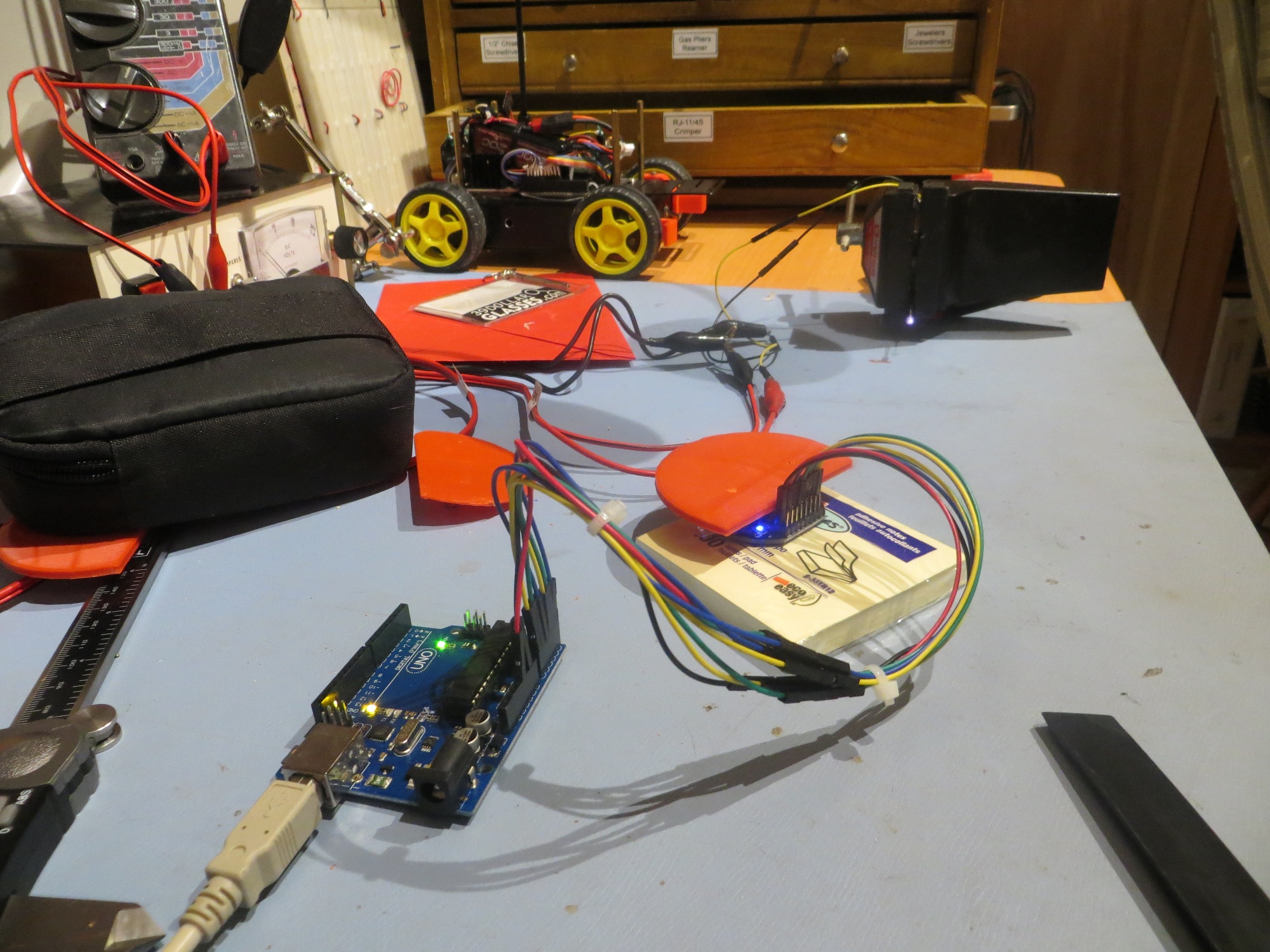
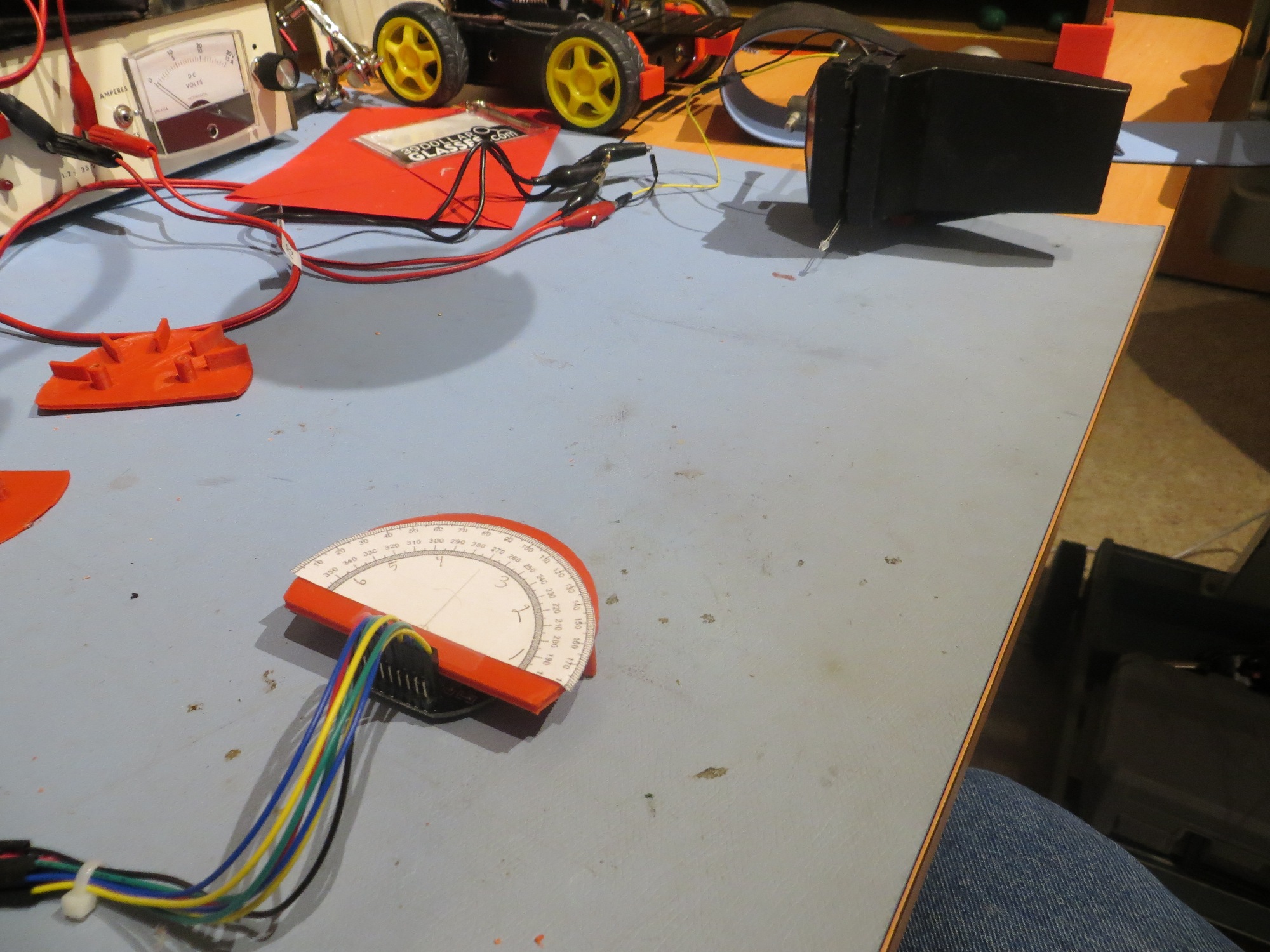
After a bit of head-scratching, I realized that the sensor board’s optics were being ‘flooded’ by my lab’s overhead LED track lighting (I had noticed this behavior on an earlier IR-related project, so it wasn’t too big of a leap).  After turning the room lights off, and rigging up an IR emitter a few inches away, I got the following results

Had to turn off the lights to eliminate IR flooding.  The blue LED at upper left is the power-on indicator.  IR emitter is at far right

Had to turn off the lights to eliminate IR flooding. The blue LED at upper left is the power-on indicator. IR emitter is at far right

At first blush, these initial results are very encouraging.  the board is obviously sensitive enough to detect the output from a  single IR LED emitter at a distance of about 6″, and has what appears to be reasonable directivity, but that’s about all I know at the moment.  I have no idea whether or not that will translate into sufficient tracking accuracy for charging station capture, but I do plan to find out!

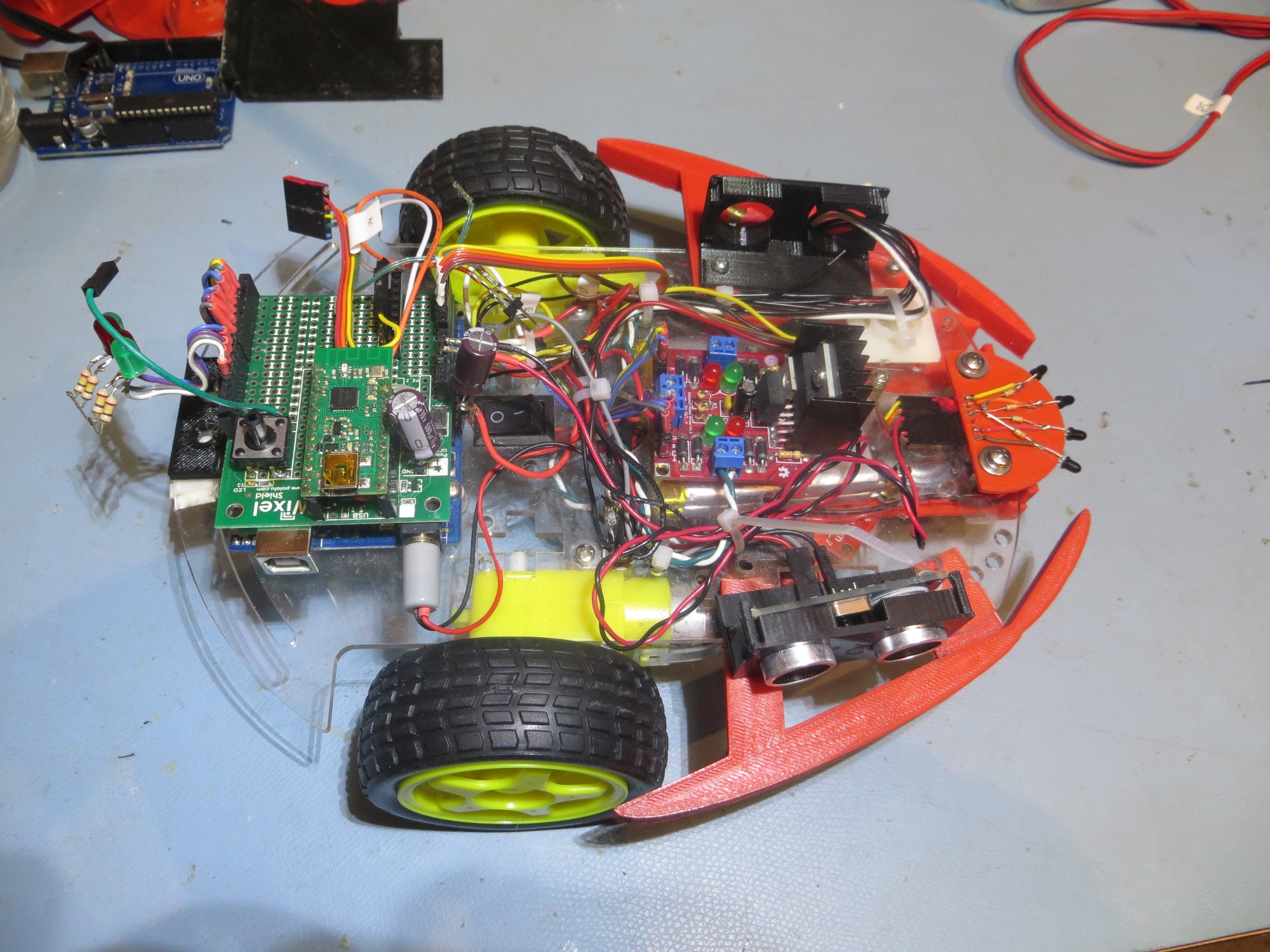
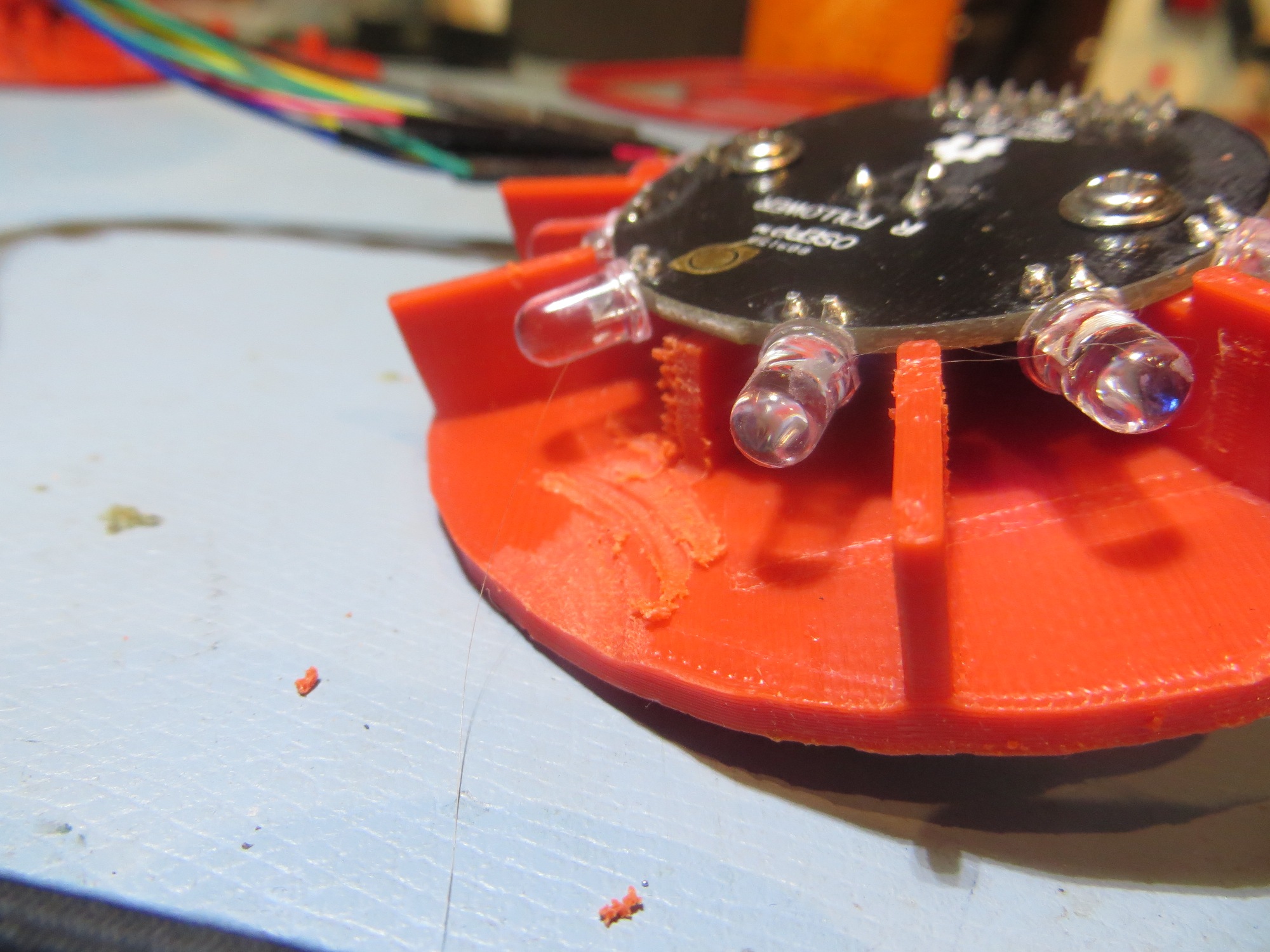
The current idea is to mount the board on the front ‘shelf’ of the robot, as shown in the following photo

Planned location for the IR follower board.  I'll have to build a 'sunshade' to prevent IR flooding from overhead lights

Planned location for the IR follower board. I’ll have to build a ‘sunshade’ to prevent IR flooding from overhead lights

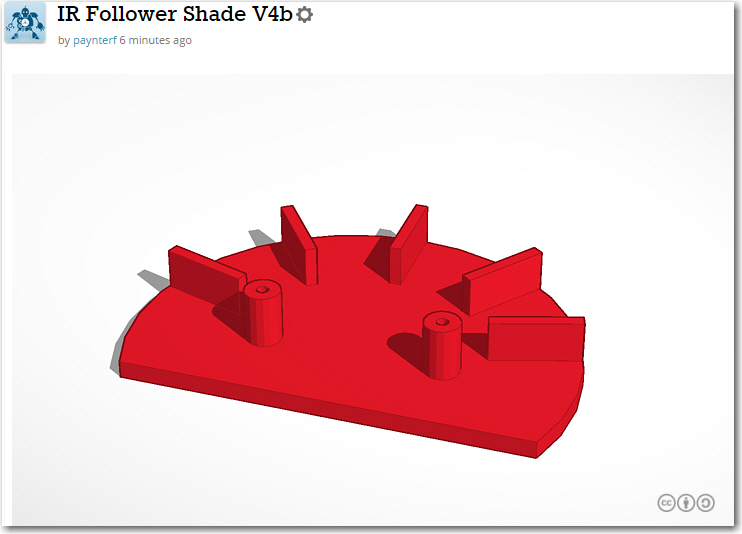
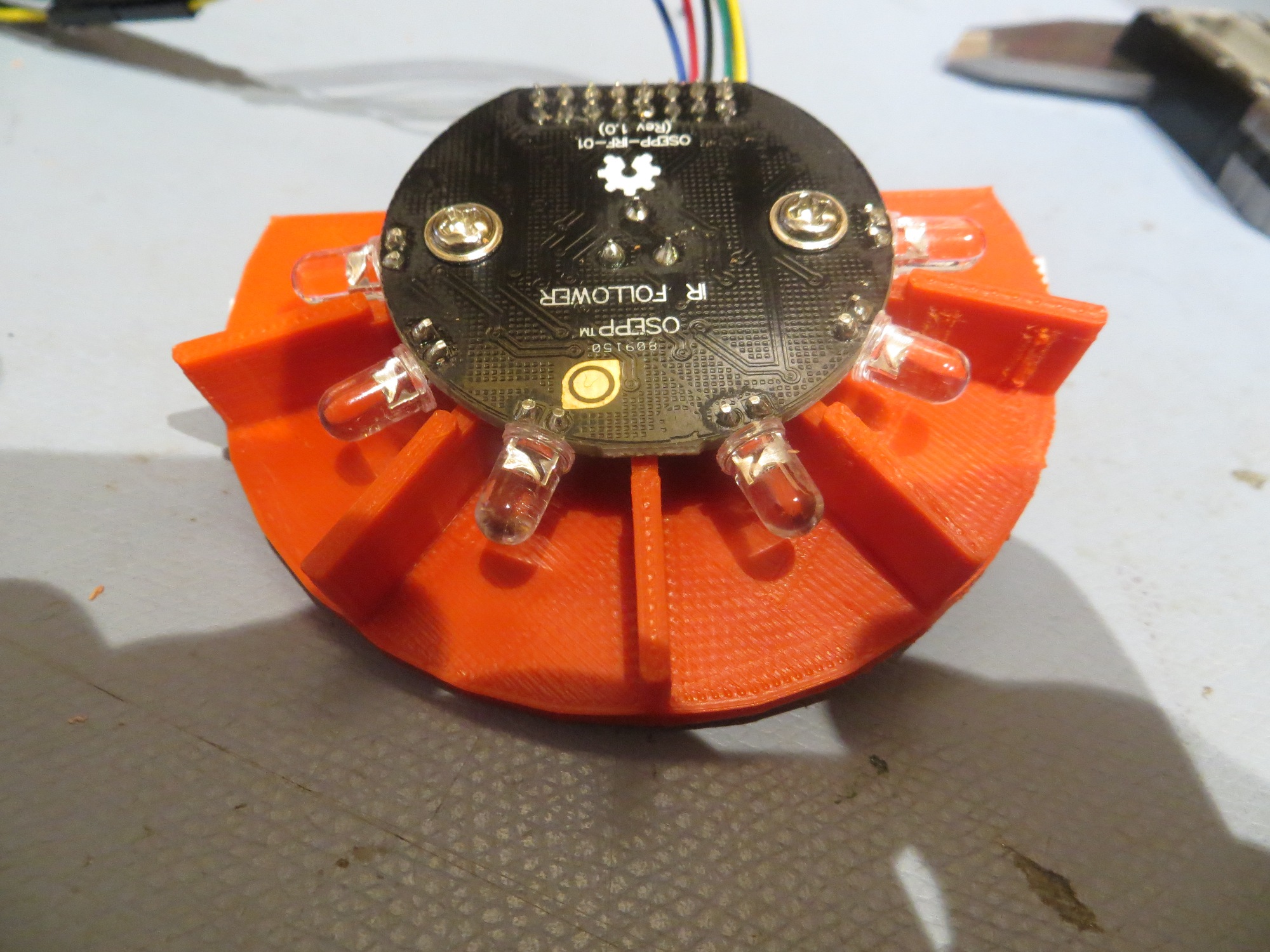
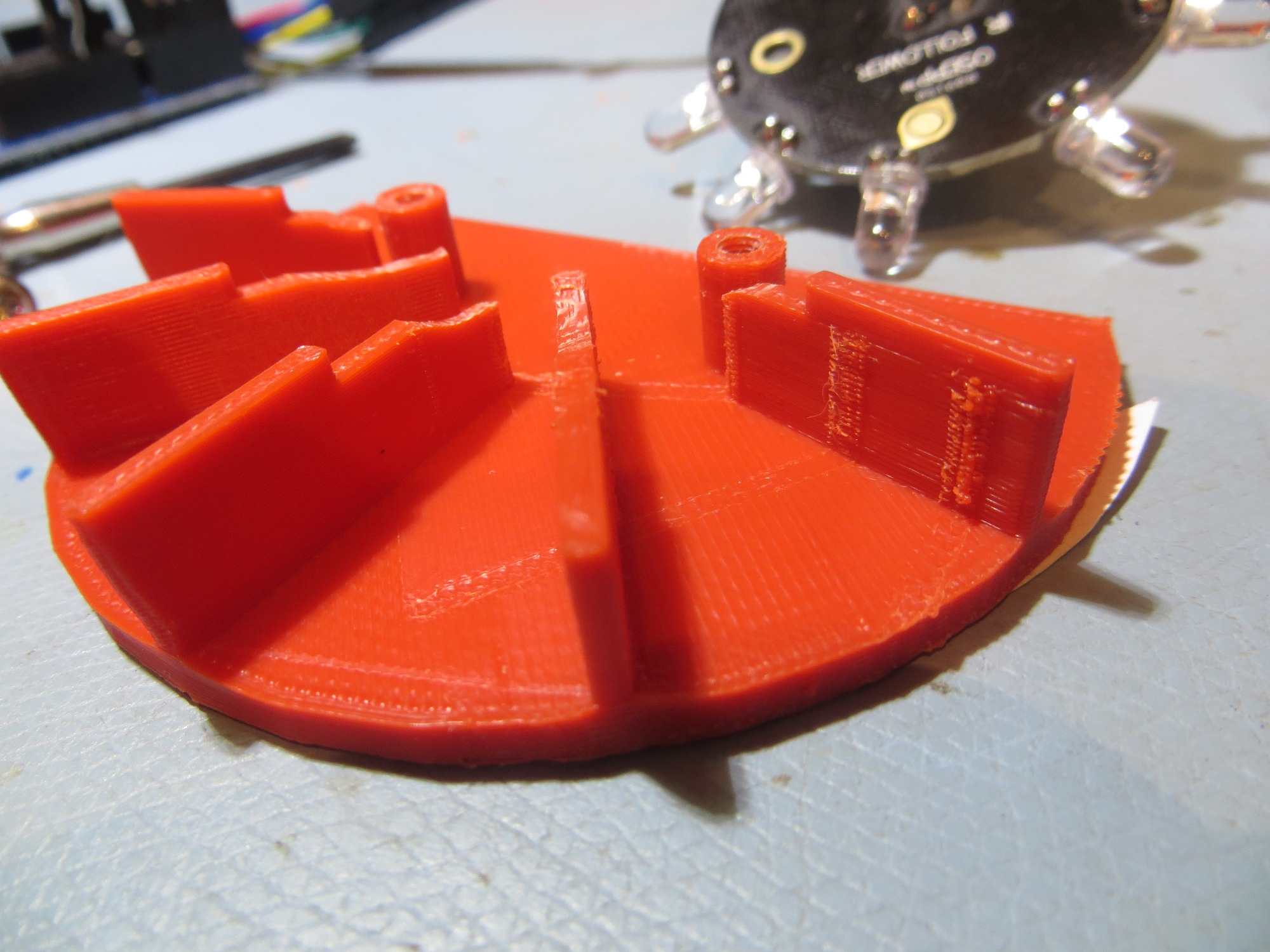
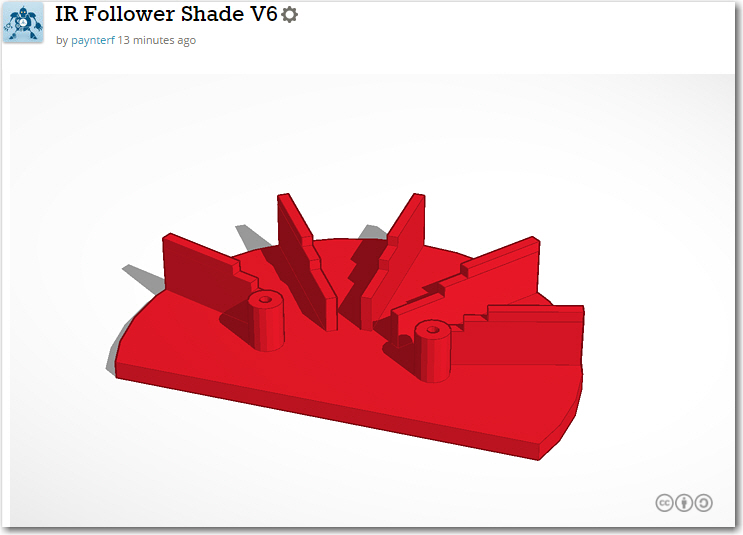
Of course, I’ll have to build some sort of sunshade to keep the sensor from being flooded by overhead lighting, but that’s what 3D printers are for ;-).

Stay tuned,

Frank


OSU/STEM Outreach Pulse Detector Project, Part II

Posted 22 October, 2016

In my last post on this subject, I discussed a modification to the OSU STEM Outreach’s Pulse Detector schematic to eliminate the dual 9V battery supply in favor of a single one, taking advantage of the LM358 op-amp’s single supply operation capability.  However, before actually recommending that the new arrangement be adopted, I wanted to make sure that it would work properly with the OXO ‘Soft-Clip’ finger clip module instead of the one I created for testing in my lab.  It  should work, but as a long-time engineer I have been bitten more than once by the difference between  should and  would! ;-).

So, Prof Anderson was gracious enough to bring a spare OXO clip to our next Outreach session, and since then I have had the opportunity to test this clip with my new circuit, as shown in the following photo.

OXO 'Soft-Clip' finger clip with new circuit in background

OXO ‘Soft-Clip’ finger clip with new circuit in background

After fiddling with the tension screw a bit, I got the Soft-Clip tension set properly for my finger, and lo-and-behold, the pulse detector circuit worked out quite nicely, as shown in the following short video clip (as you watch the clip, note that the IR beam from the IR LED is visible as a blue-white glow).

At this time I also made one other minor change.  In the original OSU circuit, the DC blocking capacitor (C2 in the schematic) was a 0.1uF, but in my circuit this value was changed to 0.01uF, because that’s all I had on hand.  In the meantime, however, I got some 0.1uF’s from Mouser, and so my final circuit as shown above incorporates a 0.1uF vice the original 0.01.

The next step in this project is to transfer the detector circuit from plugboard to a more permanent version on perfboard.  This will allow me to demonstrate the new circuit to Prof Anderson and the rest of the OSU STEM Outreach team, to lend credence to the idea of modifying this project’s documentation to eliminate the now-unneeded second supply.  Stay tuned!

Posted 10/24/2016

So, tonight I had the time to finish transferring the pulse detector circuit from my old trusty plugboard to a more permanent medium – i.e. perfboard.  The idea here is to provide the OSU STEM Outreach team with a working pulse detector circuit running from a single 9V battery, as a working example of my recommended modifications to the  circuit being used presently.  The image below shows the perfboard arrangement, and there is also a short video clip of the new pulse detector circuit in action.

The astute observer might notice there are only three wires going from the OXO ‘Soft-Clip’ assembly to the pulse detector circuit.  While I was wiring up the perfboard version, I realized I could eliminate one wire by simply moving the 100-Ohm IR LED current-limiting resistor from the anode (positive) side of the diode to the cathode (negative) end. This allowed me to connect the IR LED anode to the PhotoDiode cathode, and both to the +9V lead.  Implementing this change for all of the current stock of OXO clips may be more than the OSU STEM Outreach crew wants to take on, but I thought I would mention it ;-).  The finished schematic (with the transposed 100-Ohm resistor) is shown below

Final pulse detector schematic.  Note change to IR LED current limit resistor, and DC blocking capacitor

Final pulse detector schematic. Note change to IR LED current limit resistor, and DC blocking capacitor


Perfboard version of the single-supply pulse detector circuit

Perfboard version of the single-supply pulse detector circuit

The next (and hopefully final) step in all this is to 3D print a small box for the perfboard circuit.  Because I can’t help myself, I have decided to try printing  a transparent box – not a trivial undertaking for 3D printing.  Stay tuned!

Posted 10/25/2016

As mentioned above, 3D printing a transparent box is a non-trivial undertaking, at least with the current hobbyist FDM (Fused Deposition Modeling) materials and techniques.  After a number of iterations, the best I could do without a  lot of post-processing was a semi-transparent (but still pretty neat) container for the perfboard version of the ‘new-and-improved’ OSU Pulse Detector circuit.

As I have noted previously, the current 3D printing technology makes it easier, faster, and cheaper to go through a number of test cases (literally in this ‘case’!) on the way to a final product, rather than trying to design a final product all in one crack.  Each test takes about 15-30 minutes and just a few cents’ worth of material, and quite often the iterative process illuminates a design problem or opportunity that wasn’t obvious (or even considered) at the start.  In this case, it became apparent after about the 4th iteration that the perfboard should be mounted to the ‘lid’ via printed-on standoffs rather than to the ‘bottom’.

The TinkerCad model for the box and the lid is shown below, as well as the finished product and some of the precursor test boxes.  And, as usual, a short video of the final product.

Pulse Detector Box and lid. Note printed-on standoffs

Pulse Detector Box and lid. Note printed-on standoffs

OSU Pulse Detector Box and precursors

OSU Pulse Detector Box and precursors

Frank


OSU/STEM Outreach Pulse Detector Project


Posted 10/16/2016

A week or so ago I participated in an OSU STEM Outreach program that showed high-school students how to build a working pulse detector circuit, using a commonly available op-amp and an IR LED/Photodetector pair.  After an initial presentation, the students were given step-by-step instructions for building the circuit on a small plugboard, and I helped when students ran into trouble.  By the end of the one-hour session, most students were successful, and were able to see the output LED illuminate in time with their pulse – cool!

As I helped out with the class, I was a bit shocked to see that the circuit being build by the students required two 9V batteries wired in series to create a +/-9V supply for the op-amp. At the time I just assumed somebody forgot to spec the op-amp to be one with a common-mode range including ground, and the extra battery was the ‘field-expedient fix’ for the problem. When I asked Prof. Betty Lise Anderson about this, she said that a single supply had been tried at one point, but ‘didn’t work out’ for unspecified reasons.   This piqued my interest, so  decided I would investigate the problem a bit further in my home lab.

As it turned out, the op-amp being used in the students’ circuits was the ubiquitous dual-LM358  in an 8-pin DIP, and this unit does indeed have a common-mode range including ground, so  the single-supply idea should have worked.  Here’s the original OSU circuit (transcribed into DipTrace’s schematic capture format)

Original OSU Pulse Detector circuit.  Note the dual 9V suppies

Original OSU Pulse Detector circuit. Note the dual 9V suppies

And here’s my final single-supply detector circuit

Final single-supply Pulse Detector schematic

Final single-supply Pulse Detector schematic

Comparing the two, the only real difference is the addition of the 470K resistor from the inverting input to ground.  In the original circuit, the inverting input was tied directly to ground, while the non-inverting input had a 470K to ground.  This can be a problem, as the input bias current for the LM358 can be on the order of 100 X 10-9 (100 pico-Amp), which means that the DC voltage at  the non-inverting input due to bias currents could be as much as 50mV or so.  Since this is on the same order of magnitude as the photo-diode signal at this point, there is a real chance the op-amp would never toggle the output.  The dual-supply setup  eliminates  this problem, but at the cost of a second battery.

The final circuit, as laid out on my plug-board, is shown below.

Pulse Detector circuit with my 3D-printed finger socket

Pulse Detector circuit with my 3D-printed finger socket

Final Pulse Detector circuit

Final Pulse Detector circuit

And, because I can, here’s a short movie showing the pulse detector in action ;-).

Wall-E2 Charging Station, Part I

Posted 09/28/16

Ever since I started the Wall-E wall-following project, my goal has been to give Wall-E the ability to periodically recharge his battery without human intervention.  Then Wall-E would be free to roam the house indefinitely, striking fear into the hearts of humans and cats alike! ;-).

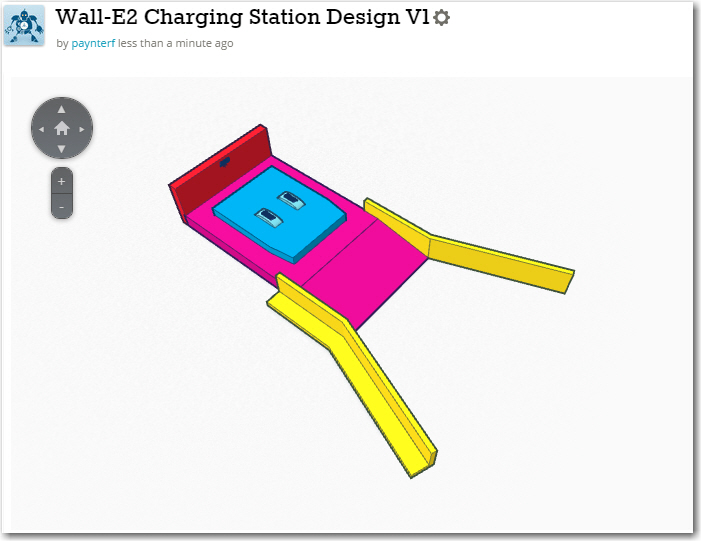
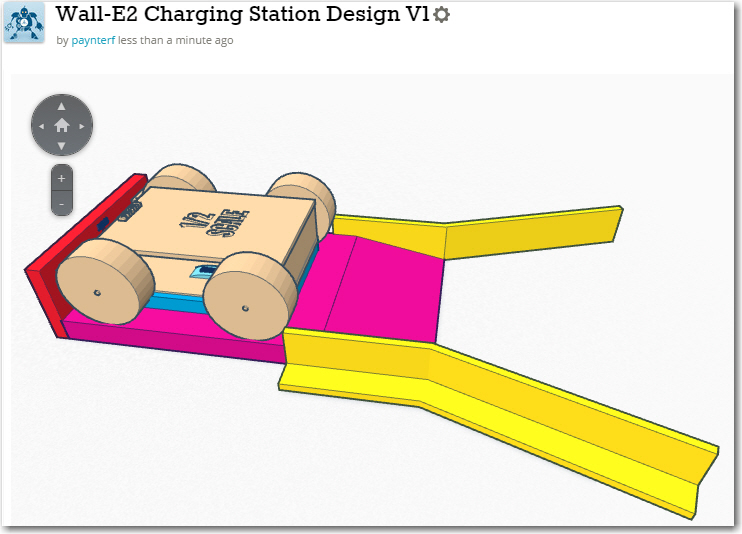
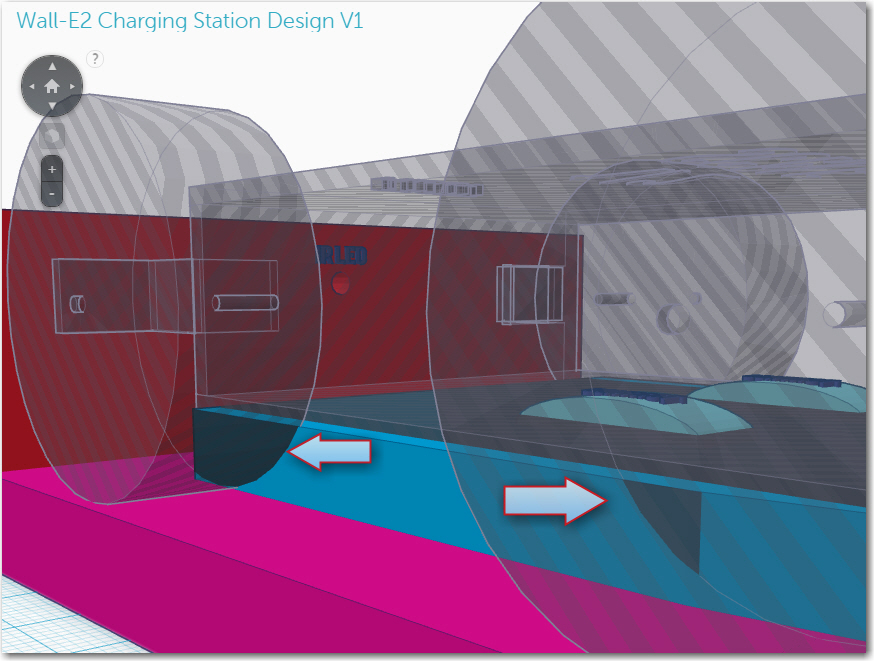
The concept for the Wall-E charging station has gone through  a lot of iterations, at least during my drifting-off-to-sleep conceptual design sessions.  Eventually I settled on a concept where Wall-E would be captured by some sort of lead-in railing which would force it onto a raised platform containing the charging power supply.   The platform would contain a set of spring-loaded contacts that would mate with contacts on the underside of Wall-E for charging power and for charging state control.

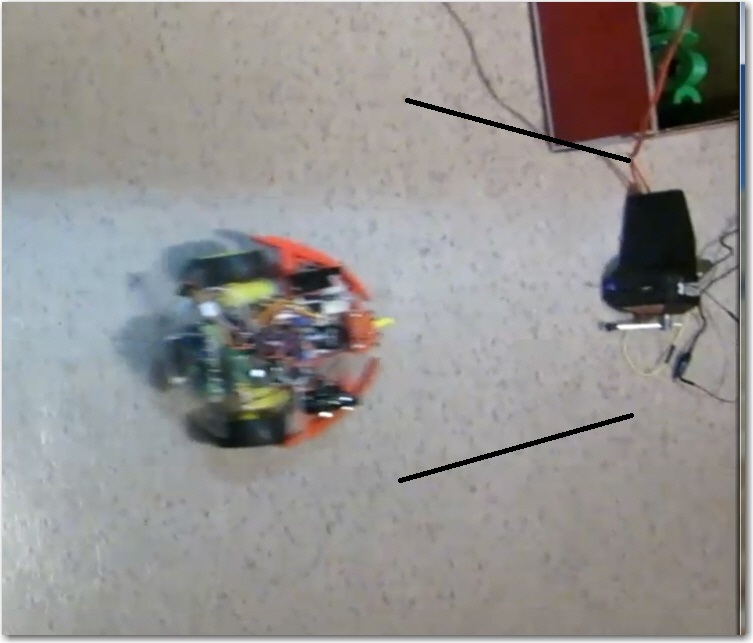
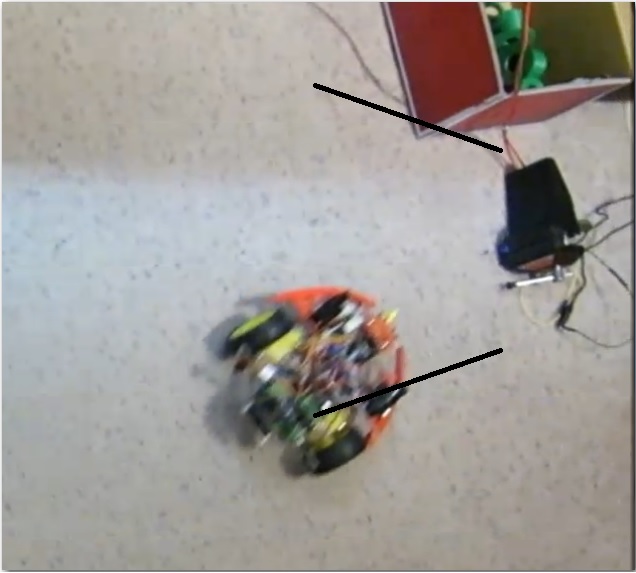
To start the process, I ran some tests to determine the basic requirements for the lead-in structure.  To support these tests, I modified Wall-E’s code to emulate its tracking behavior, but with an on-off push-button so I could run multiple tests without Wall-E running away.

As the following video snippet shows, my first idea of a low-sided lead-in wall was defeated in short order by Wall-E’s motor torque and soft, knobby wheels.

Speaker Amplifier Project, Part V

Posted 10 September 2016

Since my last post on this subject, I have actually gone through two revs of the PCB. The first set was fine electrically (and great quality AFAICT, but I didn’t get the physical border just right, and  I couldn’t file it down enough to fit without breaking a PCB run.  So, I went back to DipTrace, redid the board outline (which also involved some rejiggering of component placement and a bit of manual net editing) and sent off another order to Bay Area Circuits.  After returning from  a week at a duplicate bridge tournament in Atlanta  with my wife, the new rev boards were waiting for me – cool!  The image below shows the new board as installed on the Adafruit 20W amplifier board.

Rev2 PCB installed on Adafruit amplifier

Rev2 PCB installed on Adafruit amplifier

After ensuring that the PCB fit was OK, I populated it, checked all the net connections and resistor values and gave it the old smoke test – and of course it failed – ugh!  I quickly found that the problem was that common-mode range of the the MC748 dual op-amp I was using for the second system doesn’t include ground – oops!  A quick trip to the local Microcenter and the purchase of a wildly overpriced NTE928 dual op-amp solved that problem, but because I was I had soldered the op-amp package directly onto the board (I was  sure this was all going to work, after all), I was now faced with a messy removal and cleanup job.  After getting the old op-amp off and the PCB cleaned up, I installed the new one  (this time, suitably chastised, I installed a socket, and  then installed the op-amp).  The following image shows the finished PCB connected to the amp board, next to the hand-wired original.

Completed PCB connected to Adafruit amplifier

Completed PCB connected to Adafruit amplifier

Bottom of PCB and hand-wired original (note messy area around op-amp)

Bottom of PCB and hand-wired original (note messy area around op-amp)

The last thing to do was to get the PCB actually mounted onto the amplifier board, and the assembly into its custom-printed housing, as shown in the following images.

hand-wired and Rev2 PCB mounted to the Adafruit amp boards

hand-wired and Rev2 PCB mounted to the Adafruit amp boards

hand-wired and rev2 PCB mounted in custom-printed enclosures.

hand-wired and rev2 PCB mounted in custom-printed enclosures.

Now all I need is a ‘speaker’ presentation so I can find out if all this work was really worthwhile (actually, I’ve already had a great time with this project, so having it actually work for the students will just be icing on the cake!)


Giving Wall-E2 A Sense of Direction, Part X

Posted 15 August 2016

In my last post on this subject, I described a series of ‘field’ tests of the magnetometer on Wall-E2, my wall-following robot.  These tests demonstrated that the magnetometer was operating properly, but heading results were unusable due to significant distortion of the magnetic field along the west (garage-side) wall of the entry hallway.

This post describes a similar test in an interior hallway. The interior hallway in our home is oriented orthogonally to the entry hallway, i.e. at 110/290 deg magnetic. The walls are about 1 m wide, and constructed of standard wooden stud and sheet rock construction.  There are several rooms opening off this hallway, but all the entry doors were closed for this test.

As shown in the movie and the associated Excel chart, the robot starts at the west end headed east, travels the length of the hallway, maneuvers around for a while, and finishes up headed west.  During the first and last 10-15 seconds of the run, Wall-E2 is physically heading in a more or less constant direction (about 110 deg in the first part, about 290 deg in the last part).

Wall-E2 heading results from interior hallway run

Wall-E2 heading results from interior hallway run

Unfortunately, the Excel chart shows a different story.  During the first 15 seconds of the run, there is a definite linear change in the average heading, from about 25 deg to about 75 deg, even though the robot is physically tracking along a wall that is oriented at about 110/290 deg.  During the last 15 seconds or so, the opposite happens; there is a linear downward trend from about 300 deg to about 225 deg.   These trends are physically impossible, so the only possible explanation is that either the magnetometer readings are in error, or there is something in or near the interior hallway that is distorting the earth’s magnetic field enough to produce these results.

I had hoped that the interference noted in the previous post was due to the common wall with the garage and its associated metal structures,  and that the interior hallway would be free of such problems, but apparently this is not the case.  So, I’m now forced to consider other ideas for interior geo-location.

Stay tuned!

Frank
Giving Wall-E2 A Sense of Direction, Part IX

Posted 12 August 2016

For the last several months (or was it years – hard to tell anymore) I have been trying to implement a magnetic heading sensor for Wall-E2, my wall-following robot.  What started out last March as “an easy mod” has now turned into a Sisyphean ordeal – every time I think I have one problem figured out, another (bigger) one pops up to ruin my day.  The first problem was to  re-familiarize myself with the CK Devices ‘Mongoose’ IMU, and get it installed on the robot.  The next one was to figure out why it didn’t work quite the way I thought it should, only to discover that sensitive magnetometers don’t really appreciate being installed millimeters away from dc motor magnets – oops!  So, that little problem led me into the world of in-situ magnetometer calibration, which resulted in my creation of a complete 3D magnetometer calibration utility  based on a MATLAB routine (the tool uses Windows WPF for 3D visualization, and Octave for the MATLAB calculations – see this post).  After getting the calibration tool squared away, I used it to calibrate the Mongoose unit (now relocated to Wall-E2’s top deck, well away from the motors), and once again I thought I was home free.  Unfortunately, reality intruded again when my ‘field testing’ (in the entry hallway of my home) revealed that there were places in the hallway where the  magnetometer-based magnetic heading reports were wildly different than the actual physical robot orientation, as reported in my July post on this subject.

After the July tests, I knew something was badly wrong, but I didn’t have a clue what it was, so I decided to put the problem down for a while and let my subconscious poke at it for a while.  In the interim I had a wonderful time with my two grandchildren (ages 13 & 15)  and a real 3D printing geek-fest with the younger of the two.  I also got involved in creating a small audio amplifier in support of the Engineering Outreach program here at ‘The’ Ohio State University.

So now, after almost a month off, I’m back on the case again, trying to make sense of that clearly erroneous (or at least non-understandable) data, as shown below (repeated from my previous post)

July continuous run test, showing two areas where the reported headings don't match reality

July continuous run test, showing two areas where the reported headings don’t match reality

The two areas marked with ‘???’ correspond to the times where the robot was traversing along the west (garage side) wall of the entry hall, the first time going north, and the second time going south.  The robot was clearly going in a mostly constant direction, so the data obviously doesn’t reflect the robot’s actual heading.  However, on the other (east) side of the entry hallway, the data looks much better, so I began to think there was maybe something about the west wall that was screwing up the magnetometer data.

As usual with experimentation, it is important to design experiments where the number of variables is kept to the minimum, ideally just one.   By keeping all other parameters fixed, any variation in the data must be due solely to that one variable.  In this case, there were several variables that needed to be considered:

  • The anomalous data might be due to some changes in motor current.    When the robot is wall following, there are constant small changes  to the left & right motor currents.  When the robot encounters an obstacle, it backs up and spins around, and this entails radical changes in motor current direction and amplitude.
  • The anomaly might be due to some timing issue.  It could be, for instance, that the heading  data from the  magnetometer is coming in too fast for the comm link to handle, so it starts becoming decoupled from the actual robot position/orientation, and then catches up again at some other point.
  • The anomaly might be due to some physical characteristic of the entry hallway.  The west side is where the most obvious anomalies occurred, and that wall is common with the garage.  Maybe something in the garage (cars, tools, electrical wiring, …) is causing the problem.

Using my new magnetometer calibration utility, Wall-E2’s magnetometer has been  calibrated with the motors running and with them off, and there was very little difference between the two calibration matrices.  Moreover, my bench testing has shown very little heading change regardless of motor current/direction.  So although I couldn’t rule it out completely, I didn’t see the first item above as a  viable suspect.

Although I haven’t seen any timing issues during my bench testing, this one remained a viable suspect IMHO, as did the idea of a physical anomaly, so my experimental design was going to have to discriminate between these two variables.  To eliminate timing as the root cause, I ran a series of experiments in the entry hallway where the robot was placed on a pedestal (so its wheels were clear of the floor) at several fixed spots in the entry hallway, and heading data was collected for several seconds at each point.  The following images show the layout and the robot/pedestal arrangement

Experimental layout. Blue spots correspond to numbered/lettered position in layout diagram

Experimental layout. Blue spots correspond to numbered/lettered position in layout diagram

Wall-E2 on a pedestal so motors can run normally without moving the robot

Wall-E2 on a pedestal (at position ‘A’ in diagram) so motors can run normally without moving the robot

10-12 August Mag Heading Field Test Layout

10-12 August Mag Heading Field Test Layout

Data was collected at the positions shown by the  numbers from 1 to 5 along the west (garage) wall, and by the letters from A to F along the east wall.  At each position the robot was  placed on a pedestal and allowed to run for several seconds.  If the heading errors are caused by the physical characteristics of the hallway, then the collected data should be constant for each spot, and the data should correspond well to the heading data from my earlier continuous runs.

The above graphic shows the results of all 10 test positions.  For each position, data was collected with the robot oriented ‘north’ (actually about 020 deg) and ‘south’ (actually about 200 deg),  as denoted by the small black orientation arrows.  The ‘north’ heading  results are represented by the blue arrows, and the ‘south’ heading results are represented by the orange arrows.  There is no meaning associated with the length of the arrows.

Results:

  • Northbound and southbound data are almost exactly opposite each other at all points. To me, this indicates that the 3-axis magnetometer data and the heading values derived from that raw data are valid.
  • The data clearly shows that there is a significant  magnetic interferer in the vicinity of the west (garage) wall of the entry hallway.  The west wall data is skewed more significantly than the east wall results, indicating that the magnitude of the interference decreases from west to east. Since mag field intensity decreases as the cube of the distance, I infer that the interferer is very close to the west wall (if it were farther away, then the difference between the east and west wall results would be smaller, because the distance difference would be smaller).
  • The data at each position corresponds well with data from the same position and orientation from the various continuous runs.  Given a continuous run and the knowledge of the interference pattern, it is possible to determine the robot’s location to a fair degree.  The following image shows the heading results from a 10 August continuous run, labelled with the position numbers from the entry hall layout diagram.  The positions were deduced from a movie of the run.
10 Aug continuous run, labelled with positions from the entry hall layout diagram

10 Aug continuous run, labelled with positions from the entry hall layout diagram

Conclusions:

  • The magnetometer and the heading calculation algorithm are probably working correctly
  • Magnetic interference is certainly a problem in the entry hallway next to the garage, and  may (or may not) be a problem elsewhere
  • Magnetic heading information may not be reliable/accurate enough to determine location with any precision, even coupled with left/right/front distances.

My next task is to run some continuous and step-by-step tests in other areas of the house, to determine if the entry hallway issue  is unique to the house or an ubiquitous problem.

Stay tuned!

Frank
 

OSU/STEM Outreach Speaker Amplifier Project, Part IV

Posted 04 August, 2016

In my last post on this subject, I described the finishing touches on the project to design and fabricate a speaker amplifier for the OSU Engineering Outreach ‘paper speaker’ student project. The ‘finished’ project featured an audio activity monitoring circuit piggybacked onto the Adafruit 20W Class-D amplifier board, using my almost-forgotten  hand-wiring techniques on fiberglass ‘perf-board’, as shown in the following images.

Cut-down perfboard, top view

Cut-down perfboard, top view

Cut-down perfboard, bottom view

Cut-down perfboard, bottom view

While this technique is perfect for a one-off project, I ultimately wanted to fabricate a number of these amplifier/monitor modules for use by the OSU Engineering Outreach team.  So, I decided to investigate the feasibility of obtaining a printed-circuit (PCB) board version of the LED monitor circuit, so I wouldn’t have to hand-fabricate the same circuit multiple times.  Of course, I knew in my heart that I could probably hand-fabricate ten (or a hundred) LED monitor circuits in the time it would take me to research the PCB design/fabrication field, acquire and learn a PCB design (aka EDA) package, actually design and implement the PCB, and then have the boards fabricated by a PCB house, but where’s the fun in that?

The last time I dealt with PCB design and manufacture was about 15 years ago while I was a researcher/JOAT (look it up) at The Ohio State University ElectroScience Laboratory, a research lab that specializes in Electromagnetics research and applications.  At the time I was a relatively new grad student at the lab (but one with about 30 years of electronics design  experience  in a prior lifetime with the CIA) and had somehow managed to get involved in a project that required some small-quantity PCBs.  The lab’s normal supplier (a local PCB manufacturing house) was still using hand-taping methods and the result was very high priced and of somewhat inconsistent quality (at least in my opinion), so I started looking for ‘a better way’.  In short order I found some low-cost, high quality EDA tools, and also found a small PCB house in Canada that would deliver small quantities in about 1/10 the time and 1/10 the cost as the local house. This made me a hero in the eyes of the lab director (but an enemy in the eyes of the guys who were comfortable dealing with the local supplier).  Anyway, it’s been another decade or so since I last looked at the EDA/PCB field,  so  I suspected things were even better now – and I wasn’t disappointed!

After a few hours of Googling, I found a number of posts that indicated that one of the better/easier-to-use EDA packages was Dip Trace, and they had a freeware version for those of us who can get by with 300 pins or less and only 2 signal layers – YAY!!  With a little further digging, I found some very complimentary reviews, so I downloaded the ‘free’ version and started trying to refresh  my PCB ‘game’.  Right away I found that DipTrace has a very complete and readable beginner’s tutorial, and unlike most ‘tutorials’ these days, the DipTrace one doesn’t skip steps – everything is explained and demonstrated in what had to seem like completely unnecessary detail to the experts, but in fact is absolutely crucial for a (almost) first-timer like me. If you are a hobbyist/enthusiast interested in PCB design/fabrication, I highly recommend DipTrace.

After working my way through most of the tutorial, I decided to try my hand at implementing my LED monitor circuit.  I started by porting my schematic from Digikey’s ‘scheme-it‘ (a free, browser-based schematic capture utility).  Here’s the schematic – first from Scheme-It, and then as it was ported to DipTrace.

LED Monitor circuit schematic as captured in Digikey's 'Scheme-It' app

LED Monitor circuit schematic as captured in Digikey’s ‘Scheme-It’ app

LED Monitor circuit schematic as captured in DipTrace

LED Monitor circuit schematic as captured in DipTrace

Following the procedure described (in exhaustive detail – YAY!) in the DipTrace tutorial, I then created an initial PCB design using ‘File -> Convert to PCB’ (or Ctrl-B) in the schematic capture app. This launches the PCB designer, and presents an initially disorganized parts layout as shown below.

Initial PCB layout

Initial PCB layout

Had it not been for the great tutorial, this mishmash of parts would have been a real turnoff; fortunately, the tutorial had already covered this, so I knew to ‘keep calm and carry on’ by selecting ‘Placement -> Arrange Components’ from the main menu, which resulted in this much more compact and reasonable arrangement.

After 'Placement->Arrange Components'

After ‘Placement->Arrange Components’

Working back and forth between the tutorial, the actual Adafruit 20W amplifier board, and the PCB design/layout screen, I was able to arrive at a final PCB design that implemented the entire circuit in a form factor that fit into the space available, as shown below.

Finished PCB layout. Note the purple board border is customized to fit on top of the Adafruit amp board

Finished PCB layout. Note the purple board border is customized to fit on top of the Adafruit amp board

The above layout was significantly customized to fit on top of the Adafruit 20W amp board and in the 3D-printed enclosure.   This required a number of iterations, but the process was well supported by DipTrace; in particular, the ability to print the layout on my local laser printer in 1:1 scale helped immensely, as I was able to cut it out with scissors and actually lay it on top of the amp board to check the fit.

I was curious about how close I came to the ‘free’ version limitation of 300 pins, so I displayed the ‘File->Layout Properties’ dialog as shown below.  From this it was obvious that I still have plenty of room to play with for future projects, although I did use both the available signal layers. ;-).

PCB properties, showing that this design fits well within the 300-pin maximum for the 'free' version

PCB properties, showing that this design fits well within the 300-pin maximum for the ‘free’ version

All in all, I probably spent 2-3 days from start to finish with DipTrace to get a finished PCB layout – not too shabby for an old broke-down engineer who can’t remember where he left his cane and hearing aids ;-).

But, all of this wasn’t even the really cool part of working with DipTrace!  The  really cool part came when I realized that DipTrace features a ‘baked-in’ link with Bay Area Circuits  for PCB procurement (File -> Order PCB…) as shown below

The 'File->Order PCB' menu item

The ‘File->Order PCB’ menu item

When you click on this option, the relevant data is scarfed up from the PCB layout information and you are presented with a simple ordering screen, complete with per-unit and total prices for your design.  All you have to do is select the quantity desired and press the ‘Place Order…’ button.  No messing with Gerber files, net lists, drilling schedules, mask layouts, etc etc.  One button, 30 bucks from my PayPal account – done!!!

The order detail screen

The order detail screen

So, the lead time on the board order was quoted as about 10 days, so I won’t know for a couple of weeks how the whole thing worked out, but I’m quite optimistic.  I have to say that this was the most pleasurable and trouble-free PCB design project I have ever experienced, and I have experienced  a lot of them over the last 50 years, from hand-cut 10X mylar PCB masks, to hobbyist acid-baths, to $10,000 setup charge custom PCB shops, to this – wow!  I may never do another PCB project, but if I do, DipTrace will be my drug of choice!

Stay tuned,

Frank


Giving Wall-E2 A Sense of Direction, Part VIII

Posted 07/19/16

In my last post on this subject, I described moving my CK Devices ‘Mongoose’ IMU from a wooden stalk mounted on the 2nd deck to a more compact bracket mounted in the same location, and showed some data that indicated reasonable heading performance.  This post describes some ‘field’ (a hallway in my home) test results using the bracket-mounted configuration.

Field Test Site:

My ‘field test’ site consists of two hallway sections in my home. The two sections are oriented about 45 degrees to each other, as shown in the following diagram.

Field test area physical layout, oriented north-up

Field test area physical layout, oriented north-up

For my first ‘Field Test’, I simply set Wall-E2 loose at position 1, pointed in the direction shown in the diagram, and recorded via the  wixel-pair wireless connection implemented last December.  Wall-E2 successfully navigated (with a few ‘back-and-forth’ iterations) from point 1 to point 8 in the diagram, as shown in the following short video.

The captured telemetry data included the run time in seconds and the magnetic heading in degrees, and I sucked this information into Excel, where I graphed the mag heading versus time, as shown in the following screenshot.

Heading vs Time for Wall-E2 continuous run. Areas of puzzlement marked by '????'

Heading vs Time for Wall-E2 continuous run. Areas of puzzlement marked by ‘????’

As the caption notes, most of the graph makes sense, but there are at least two different areas where there is a more-or-less linear change of heading versus time, where there shouldn’t be any (or at least, where I don’t *think* there should be any).  Either Wall-E2 has some tricks up his sleeve that he wasn’t telling me about, or I don’t fully understand how the data and the physical record (the video) correspond.

OSU/STEM Outreach Speaker Amplifier Project, Part III


Posted 29 July 2016,

In my last post on this subject, I described the work to be completed to finish the OSU/STEM Outreach speaker amplifier project, as follows:

  • physically cut the perfboard down to a size that will fit into the enclosure, and figure out how it is to be secured.
  • Figure out how to mount the channel monitor LEDs so that they can be seen from outside the enclosure.  The plan at the moment is to mount them on the outside edge of the left and right screw terminals, respectively, and widen the AUD OUT opening enough so they can be easily viewed from outside.
  • Figure out how to route power and audio signals to the LED monitor board without using the external power and audio output screw terminals. The power wiring should be simple, as power and ground are available on the breakout pins provided by Adafruit.  However, the audio output signals are more problematic, as it isn’t obvious how to get to these circuit points, and I  really don’t want to start drilling holes in a multi-layer PCB.  After a careful visual inspection and some probing with my trusty DVM, I think I have located where I can safely tap into the PCB run from the last SMT resistor to the positive audio terminal for each channel – we’ll see!
  • Make sure the enclosure top fits OK, and all three LEDs are indeed visible.
  • Install semi-permanent L/R audio output cables with alligator clip terminations.  In actual use, I don’t really expect two paper speakers to be connected at once, but I’ll be ready if that situation occurs ;-).

Cut the perfboard down (and mount the LEDs):

With the help of my trusty Dremel tool and a carbide cutoff wheel, I trimmed the perfboard down to a size and shape that would fit into the enclosure, using the top surface of the audio input jack as a handy mating surface on one end, and with the monitor LEDs themselves as mounting legs on the other end, as shown in the following photos.
Cut-down perfboard, mounted front view

Cut-down perfboard, mounted front view

Cut-down perfboard, mounted, side view

Cut-down perfboard, mounted, side view

Power and audio signal wiring:

160729_LEDMonitorBoard1

Audio and power wiring

Audio and power wiring

Enclosure:

160729_LEDMonitorEncl4

Completed project shown connected to OSU paper speaker

Completed project shown connected to OSU paper speaker

Speaker connection cables:

Enclosure side view showing audio output connections

Enclosure side view showing audio output connections

All  Together Now…


So, at this point the amplifier project is all done  except for the ‘proof of the pudding’, which in this case is a real field test with real participants and student helpers.  If the field test results are satisfactory, I’ll probably build at least two more complete systems (I got 3ea amp boards from Adafruit and haven’t managed to kill any of them yet), and donate them to the OSU Engineering Outreach project.

Frank