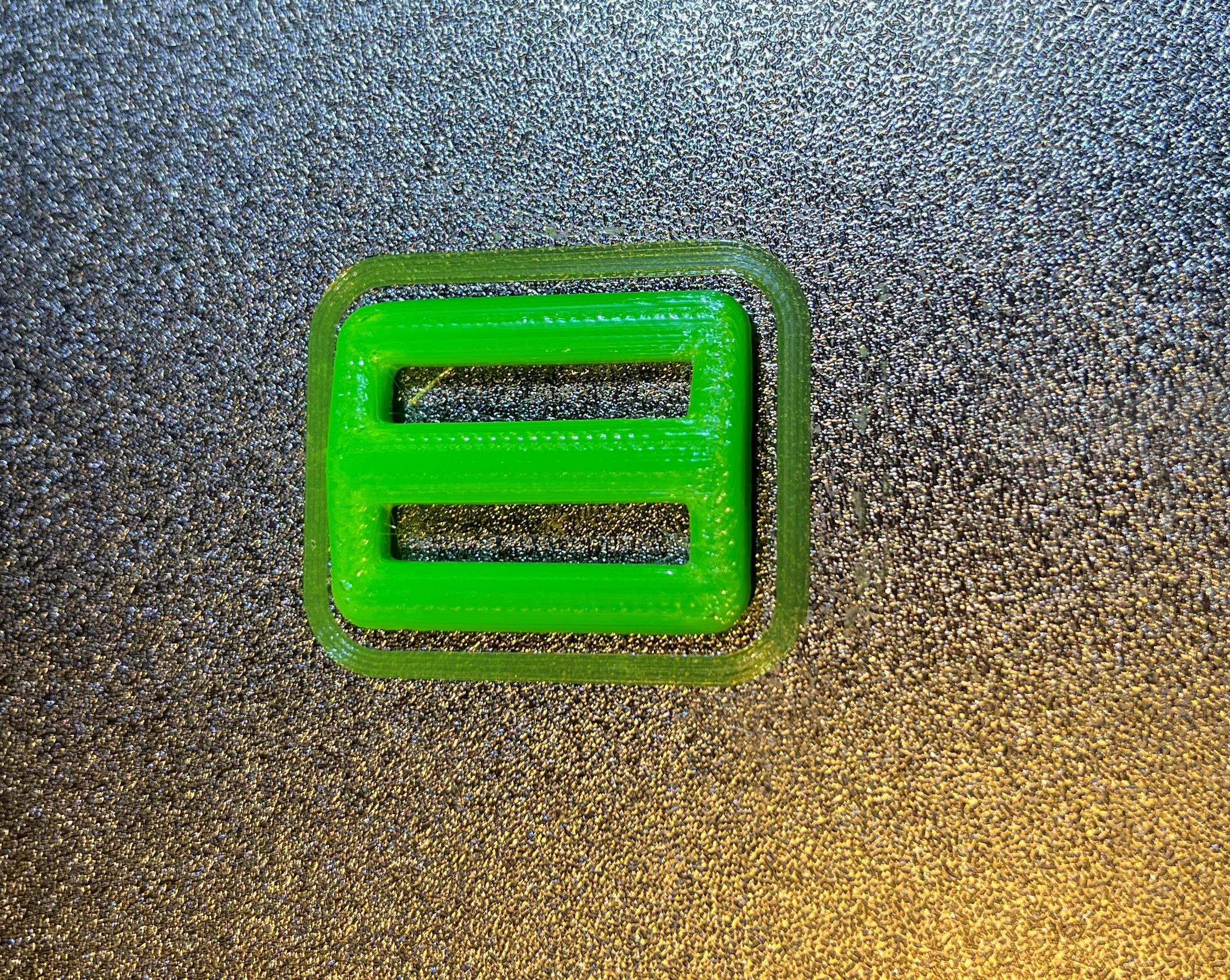
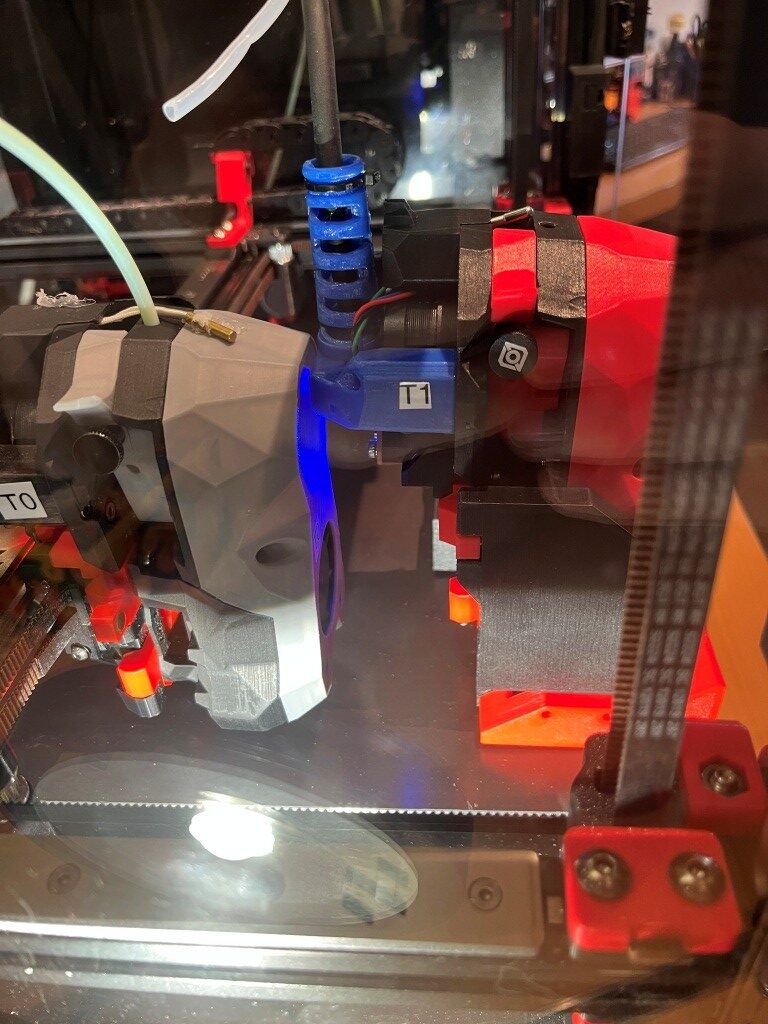
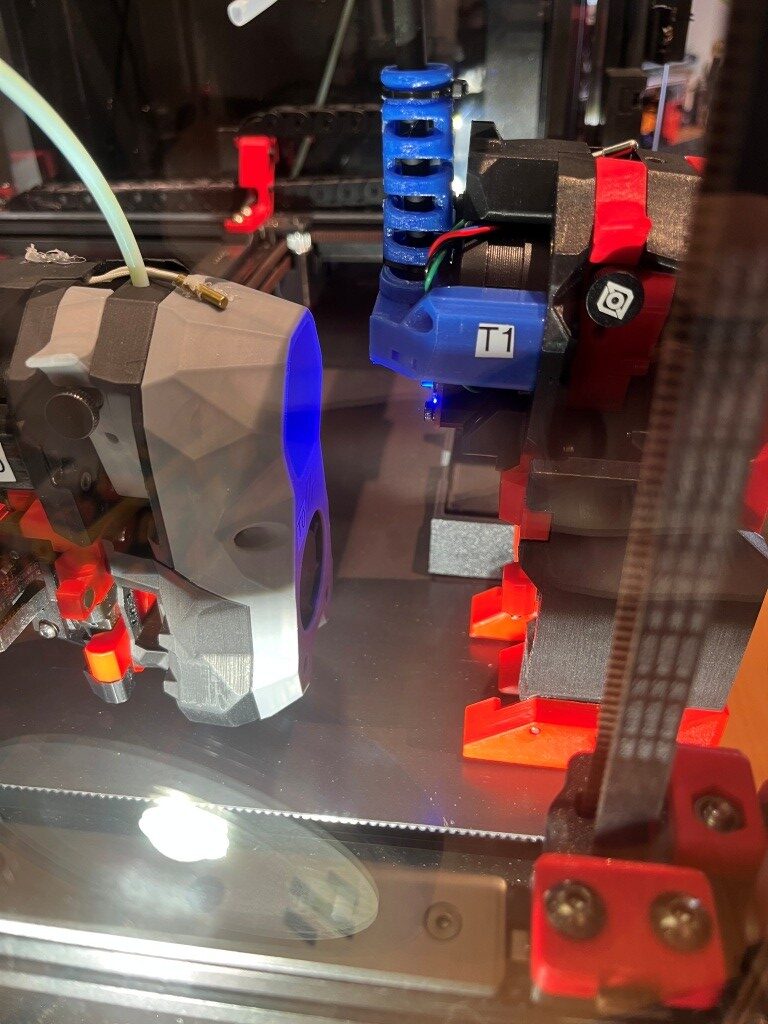
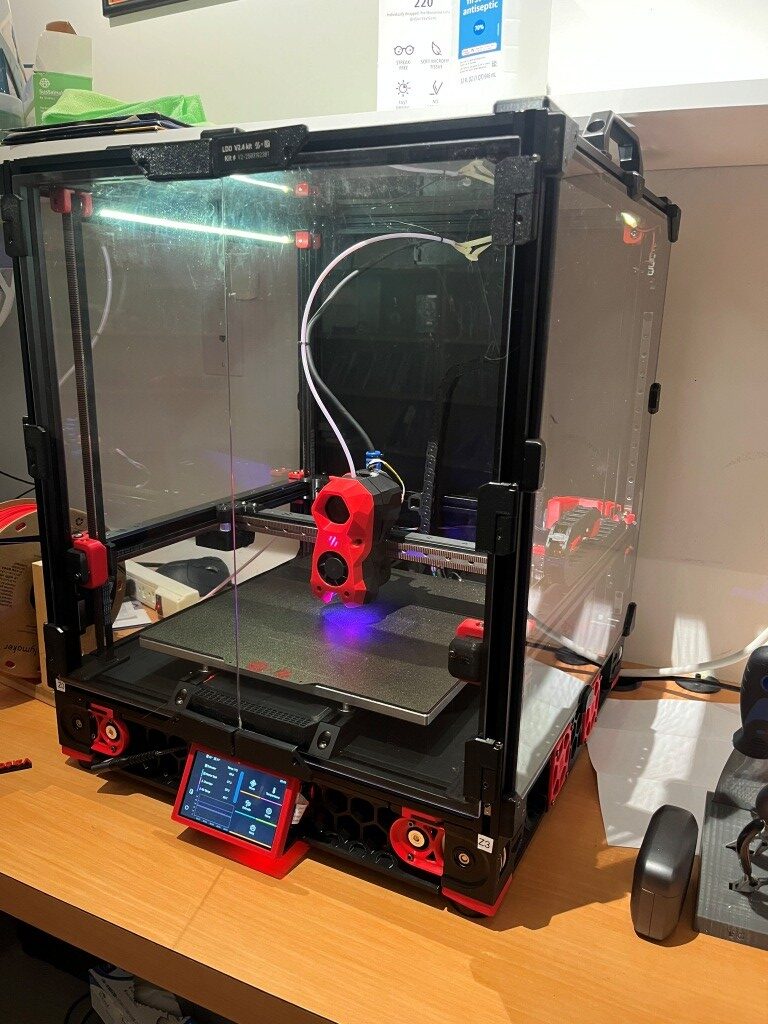
Tag Archives: Stealthburner

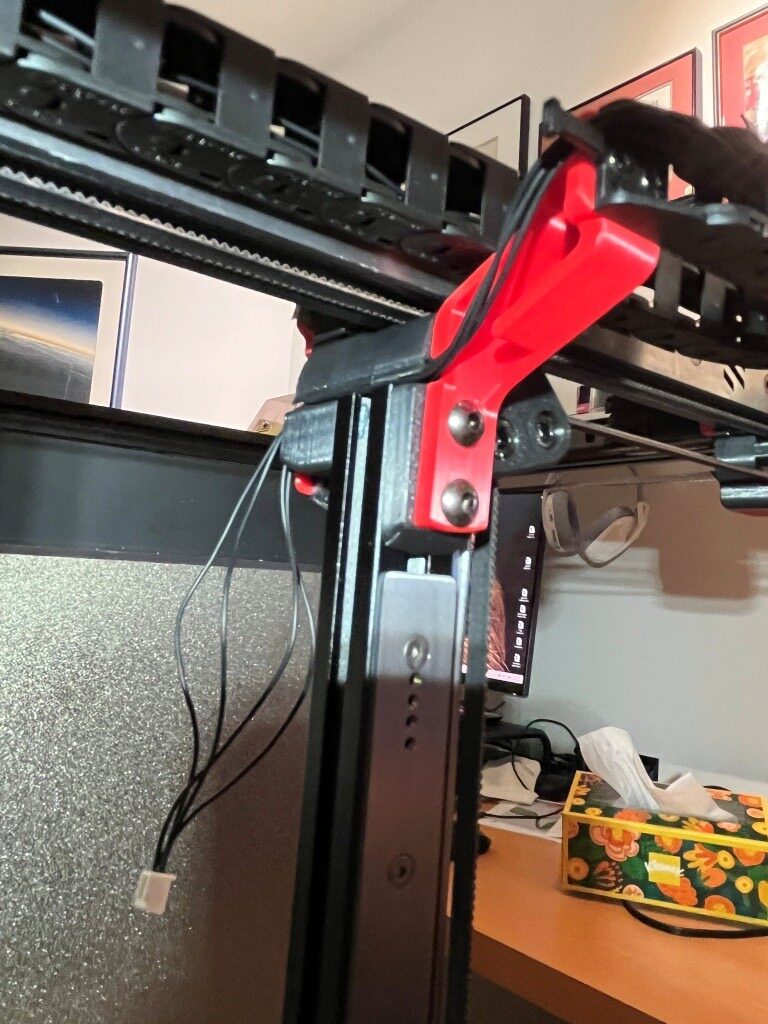
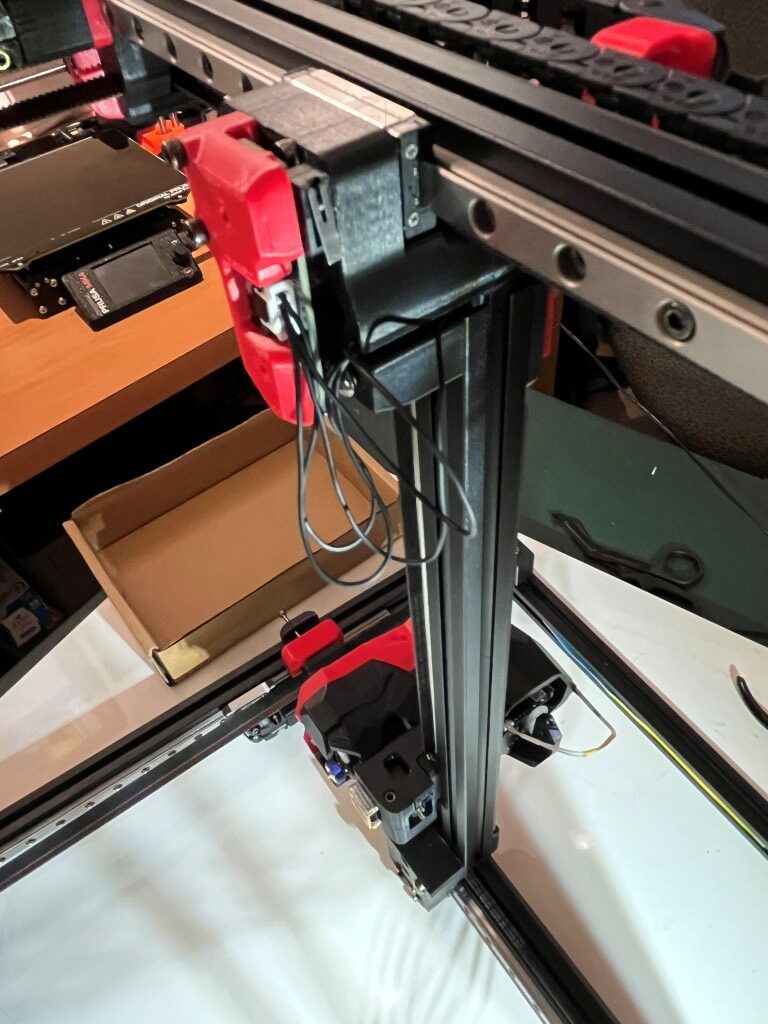
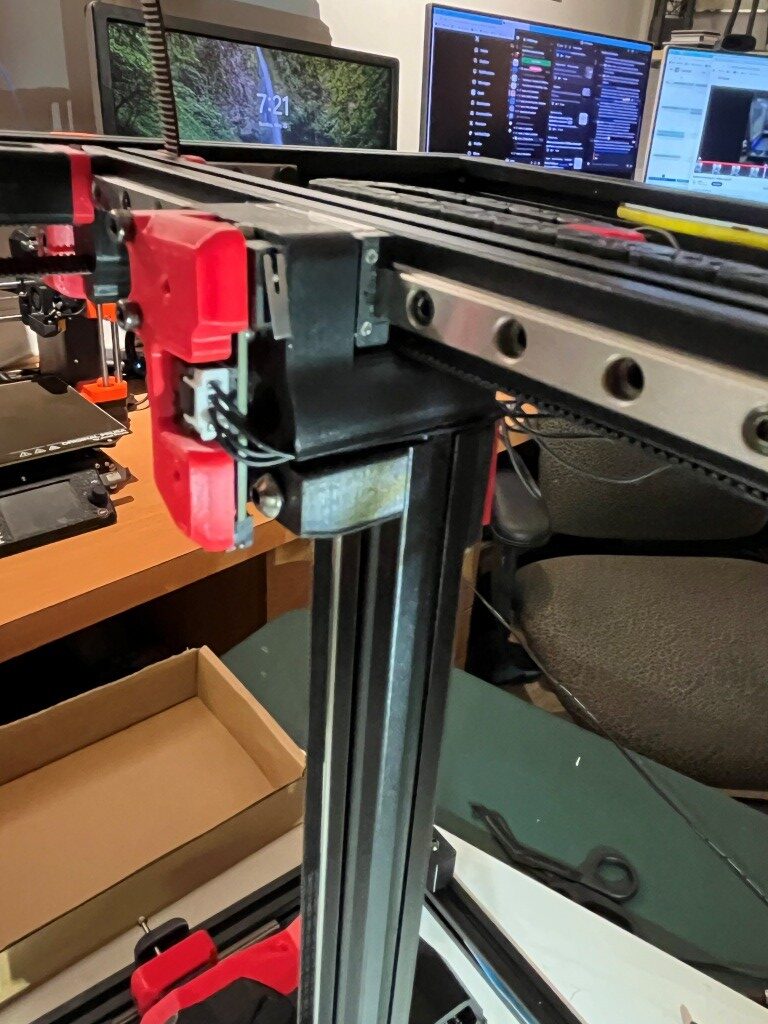
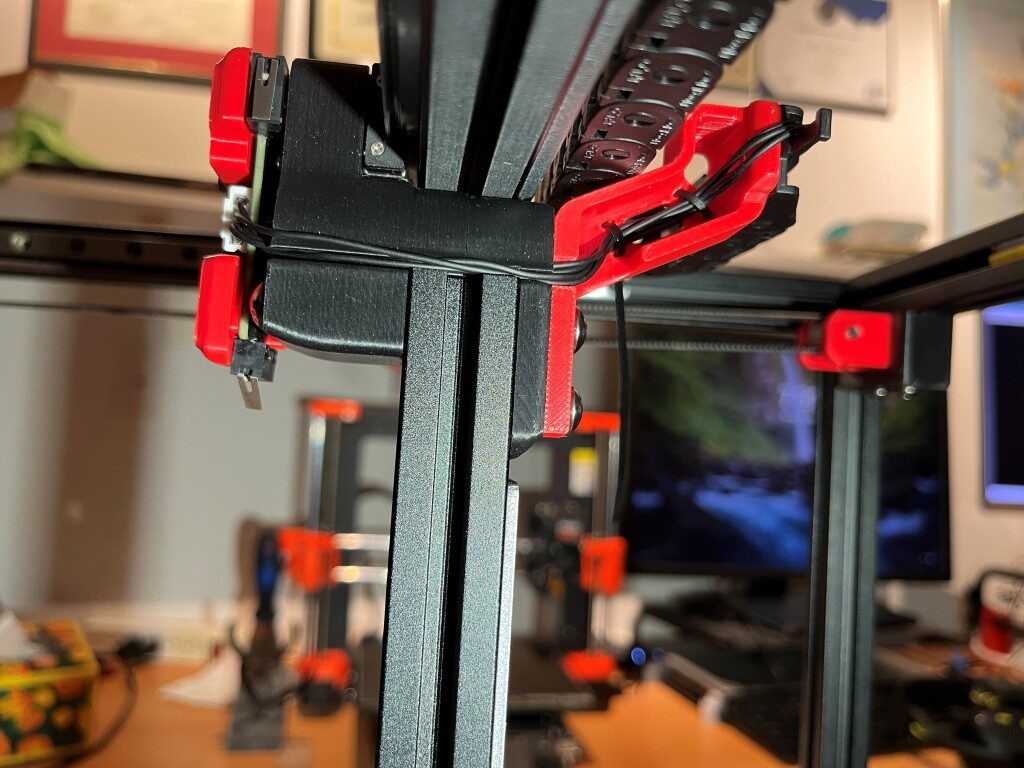
More Stealthburner Neopixel LED Problems

Posted 08 March 2026

I’m still having problems (see also this post) with the Neopixel LED string on my T1 (red) Stealthburner toolhead. It stops working, then I wiggle some wires on the toolhead and it starts working again – temporarily.

To start the troubleshooting process, I swapped just the front part of my two stealthburner toolheads. The T0 (grey) Neopixel installation works fine on the T1 (red) body, but the T1 (red) Neopixel installation does not work on the T0 (grey) body, indicating that the problem is isolated to the T1 (red) Neopixel installation.
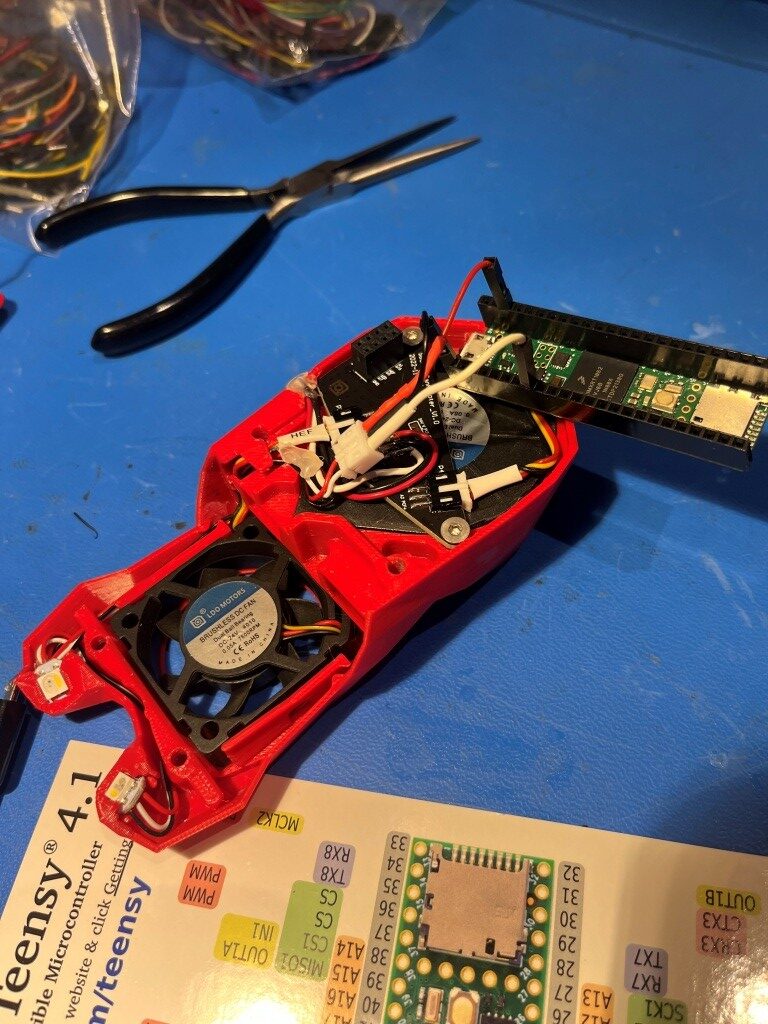
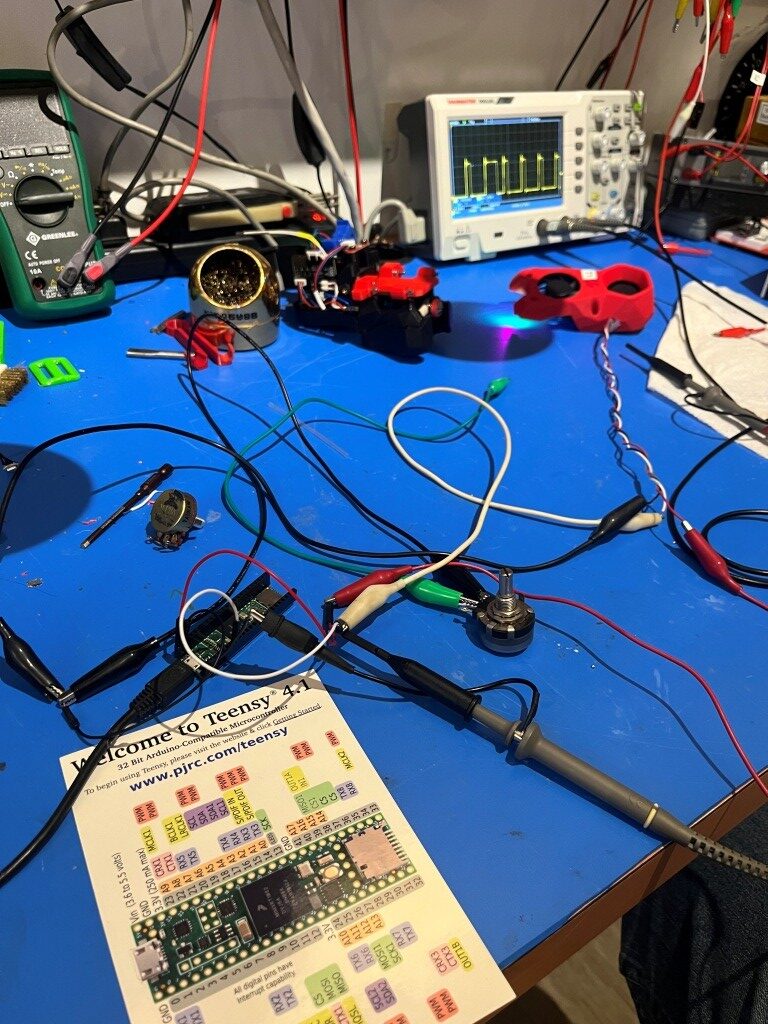
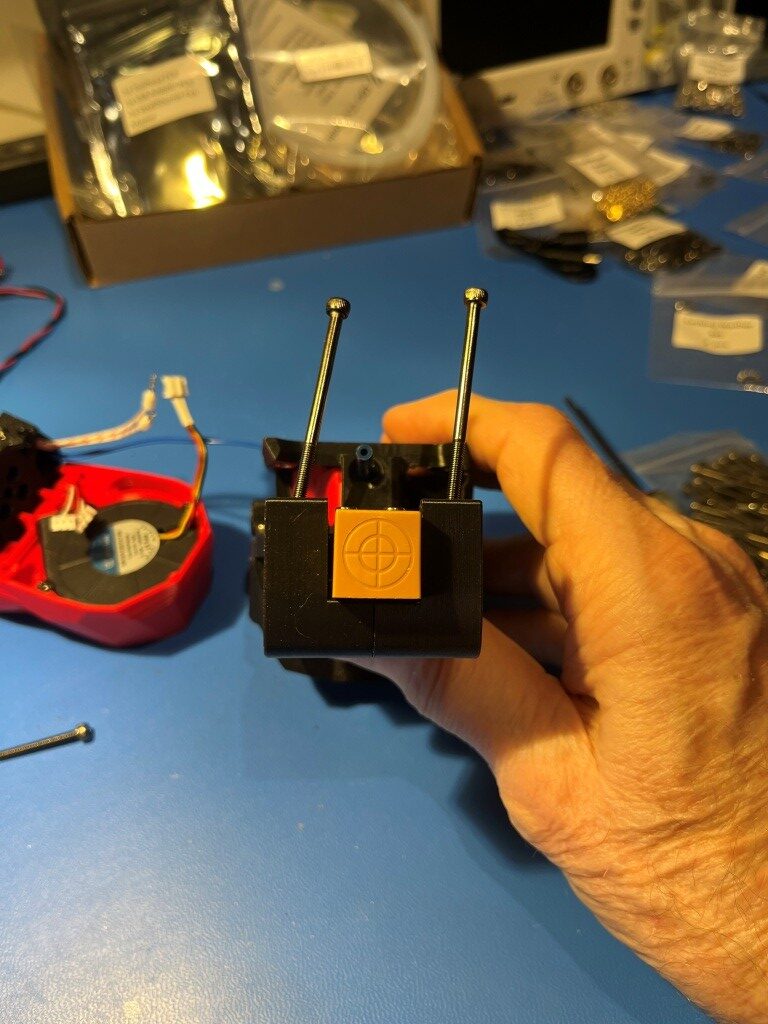
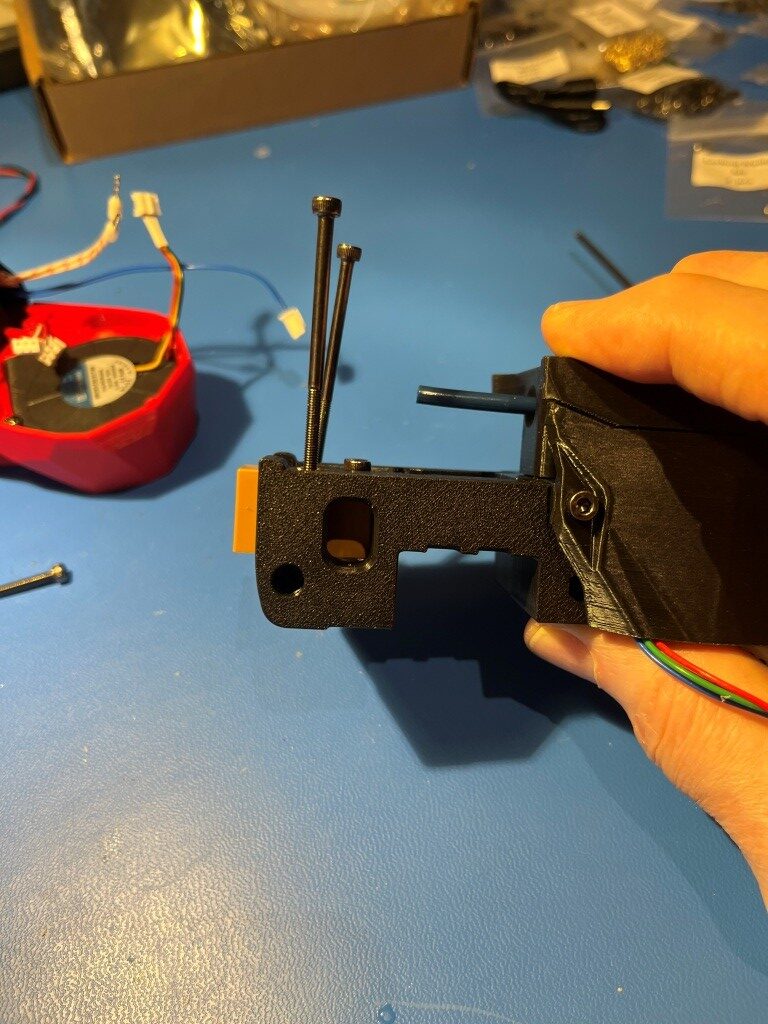
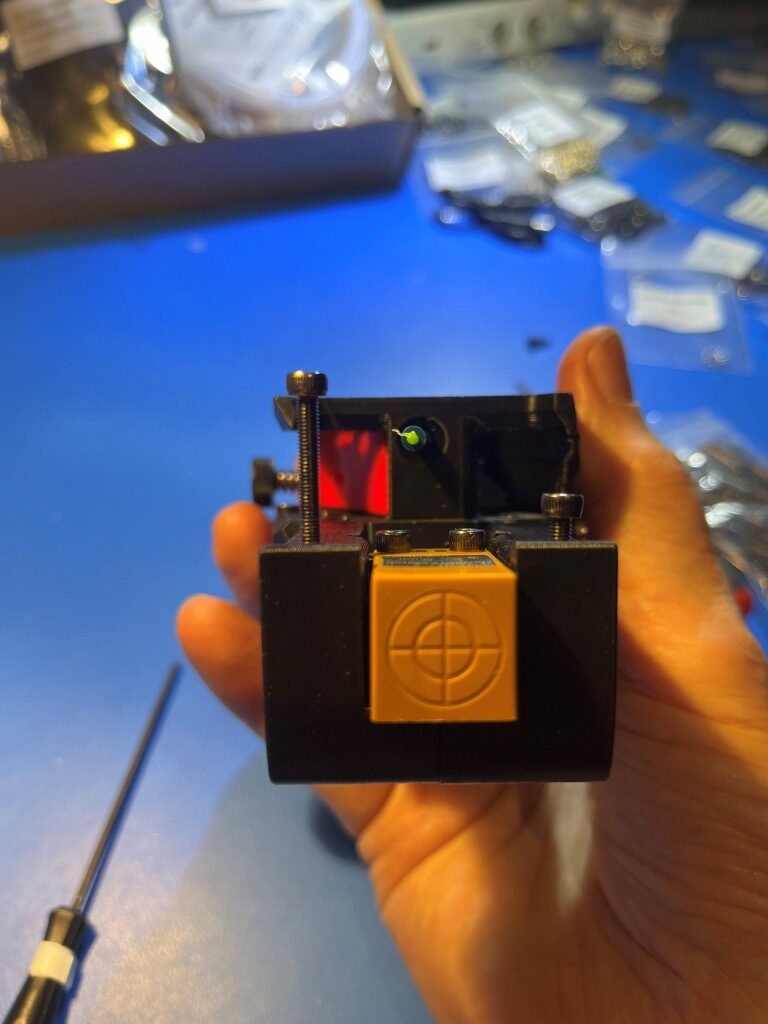
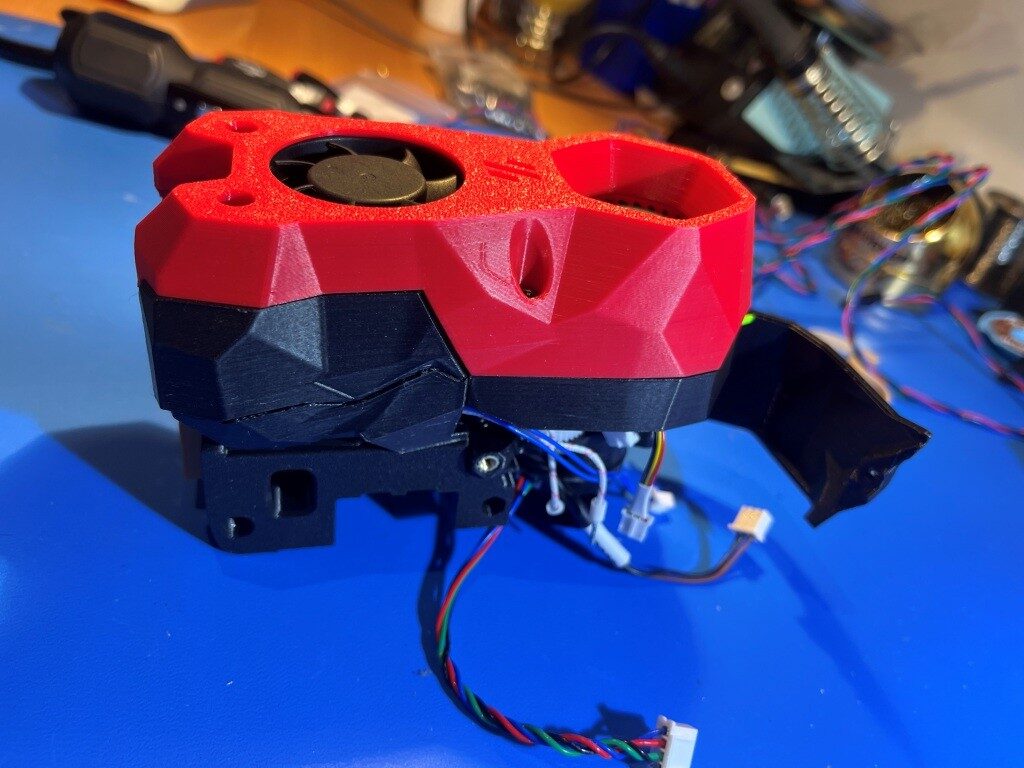
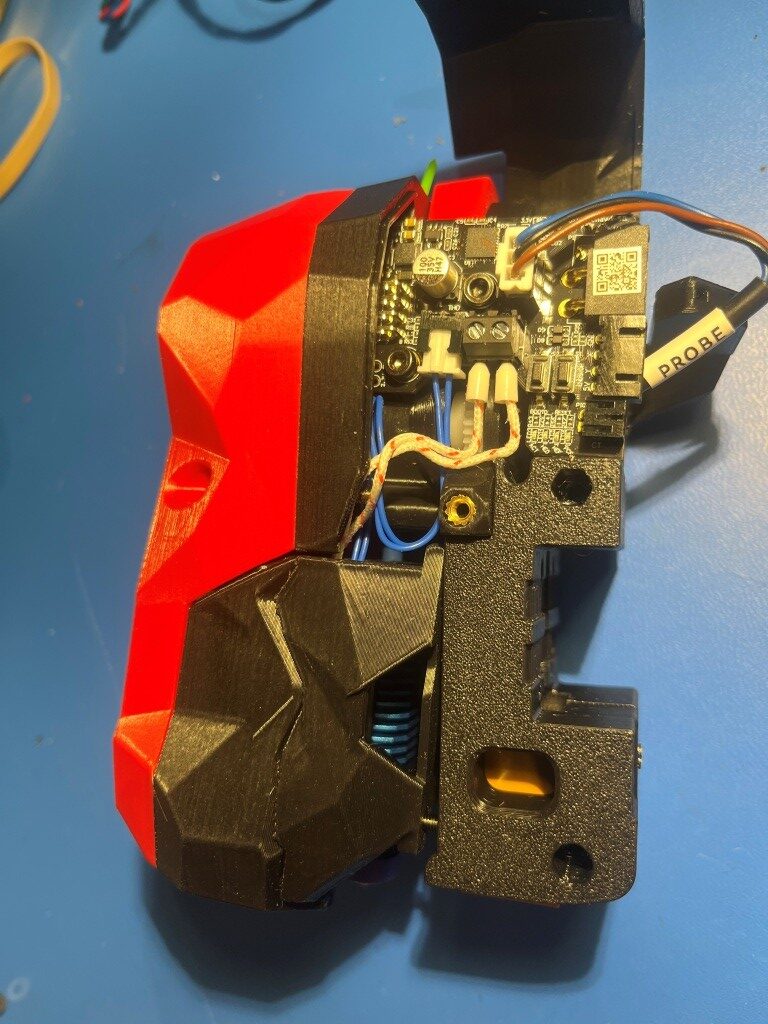
In a previous post I described connecting the string to a Teensy 4.1 using an AdaFruit Neopixel test program, so I dug out the Teensy 4.1 and the 3-pin 2.0mm male JST plug adaptor from this post, and connected the Teensy to the T1 (red) Neopixel string by disconnecting the Neopixel JST connector from the ‘SBurner Fan Adaptor V1’ and then connecting it to the Teensy via the 3-pin male JST, as shown in the following photo:

With this setup, the Neopixel string worked perfectly, so the problem is either in the Fan Adaptor board connector, or something else upstream from that. When I swapped just the front parts, I essentially eliminated everything upstream of the Fan Adaptor boar, and by exercising the NeoPixel string via the 3-pin JST connector I eliminated everything downstream of the Fan Adaptor module, leaving just the module itself. Plugged T1 (red) back into its toolhead 8-pin connector and everything worked! Came back this morning and turned on the printer; now the T1 LED’s are dead again.

It looks like this is one of those intermittent issues that just don’t go away. At this point I suspect that the 8-pin inter-board connector is the real issue, and I’m not sure there is anything to be done about it. If this is in fact the case, then it is the female half on the Fan Adaptor board that is faulty, as the T0 (gray) toolhead front module works fine when plugged into the T1 (red) main body.

22 March 2026 Update:

Still having problems with my T1 toolhead LED string; sometimes it will turn on when the printer powers up, but mostly not. As before, the T0 toolhead LED string works fine on the T1 toolhead, but the T0 string won’t work on either one. After consulting with Grok some more, I began to suspect the problem was in the female connector half of the two-PCB board arrangement that connects the toolhead body to the part that contains the two fans and the LED string, so I ordered a new set from West 3D.

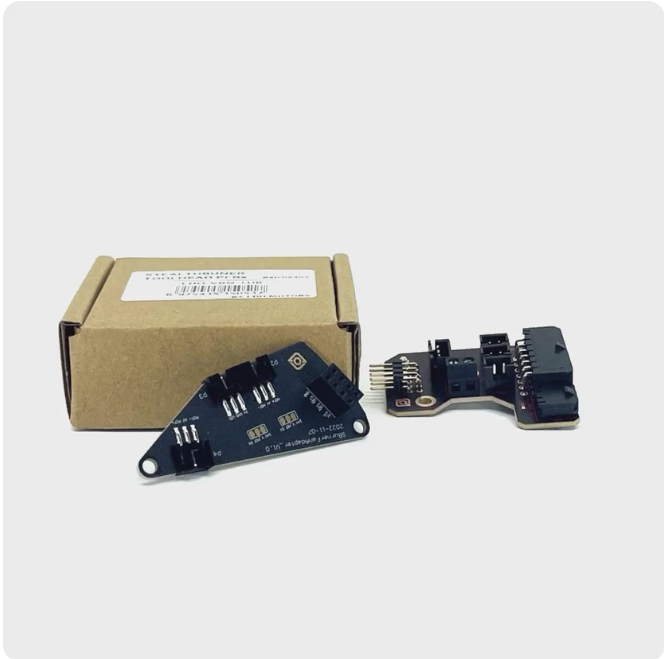
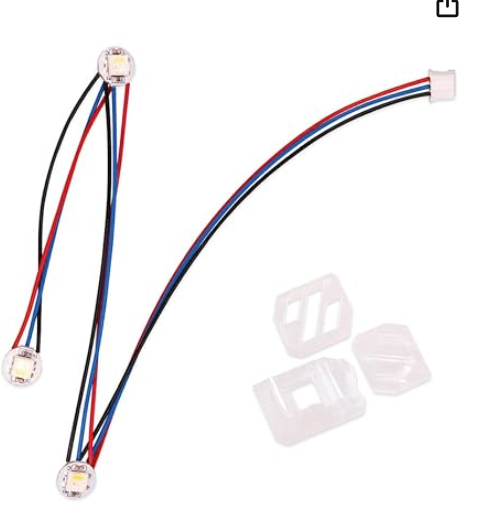
I was a more than a little miffed when I realized I had ordered the wrong part – this set of boards is for the CANbus umbilical configuration, but fortunately the ‘Fan Adaptor’ PCB (left-hand PCB in the above image) is identical in both versions. Unfortunately when I replaced the existing PCB with this one, the problem didn’t go away – bummer! At this point I had pretty much eliminated everything except possibly the LED string itself (although I have replaced it twice with no change in the symptoms. To reiterate the current situation:

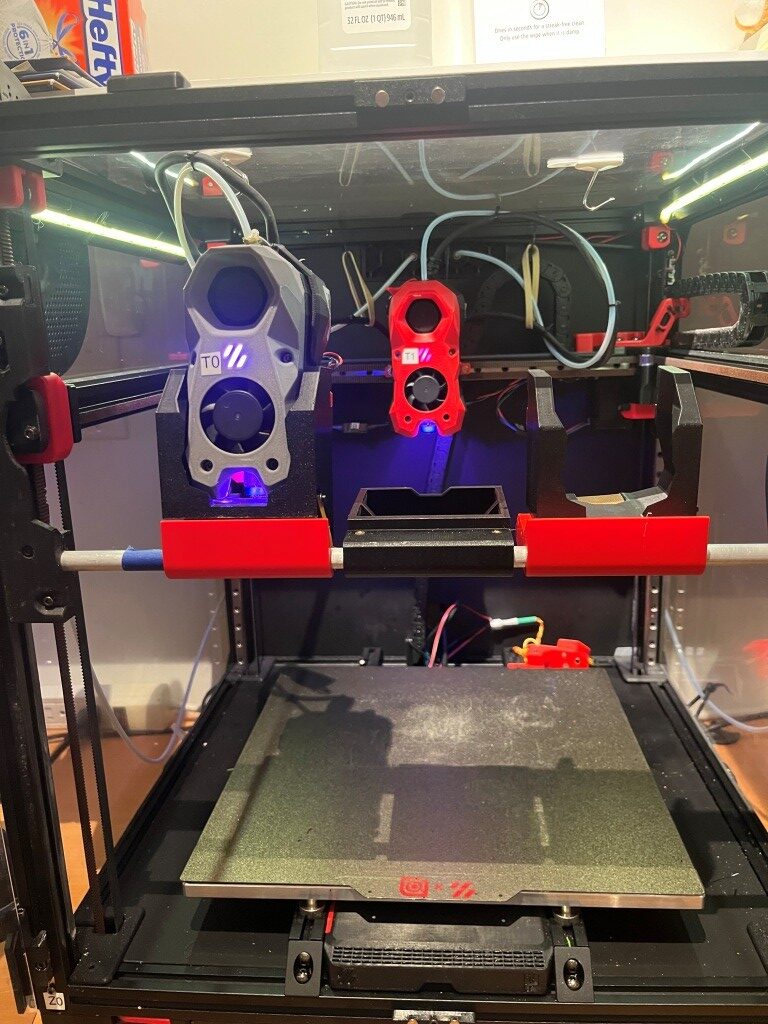
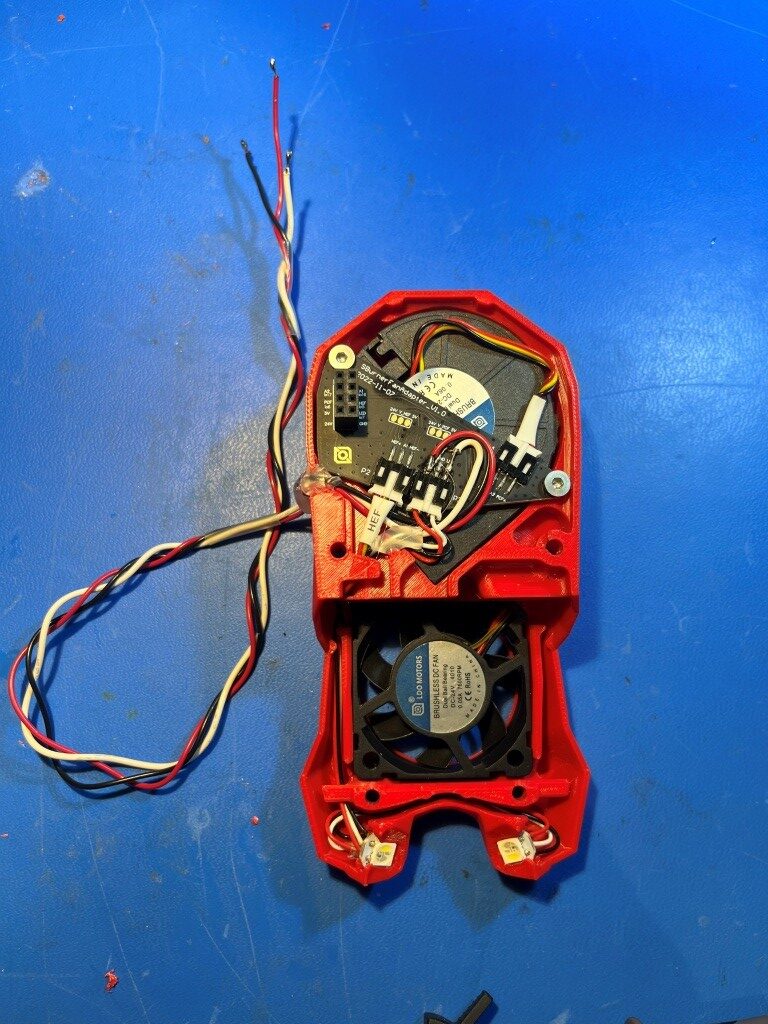
I have two Stealthburner toolheads each consisting of a body containing the extruder mechanics and the RP2040 driver PCB, and a ‘front half’ containing two cooling fans, the LED string and a daughter board that connects to the RP2040 PCB via an 8-pin push-on connector. The T0 ‘front half’ is colored gray, and the T1 ‘front half’ is colored red.

  • The T0 (gray) front half LED string works fine when installed on either the T0 or T1 body, while the T1 (red) front half LED string doesn’t work when connected to either the T0 or T1 body. This eliminates the T1 body as the source of the problem
  • Replacing the T1 (red) front half ‘Fan Adaptor’ PCB with the above brand-new item from West 3D did not change the symptoms. T1(gray) front half still works on both toolhead bodies but the T1 (red) front half doesn’t work on either. This eliminates the PCB connector as the culprit, leaving only the T1 LED string.

As noted in previous posts on this subject, there have been some issues in the past with intermittent LED strings, caused by some combination of using 3.3V signals from the RP2040 on LED strings meant for 5V and potential ringing on the data line, and Ton/Toff timing variations among different makes of Neopixel chips.

After some more consultation with Grok, I decided I needed a way to determine how well (or poorly) a particular LED string operated over a range of Ton/Toff values. I asked Grok to produce an Arduino program targeting a 600MHz Teensy 4.1 microcontroller to determine the actual operable timing range for a connected Neopixel LED string. Here’s the program Grok came up with (including some tweaks I made to allow for user comment capture during ‘sweep’ mode):

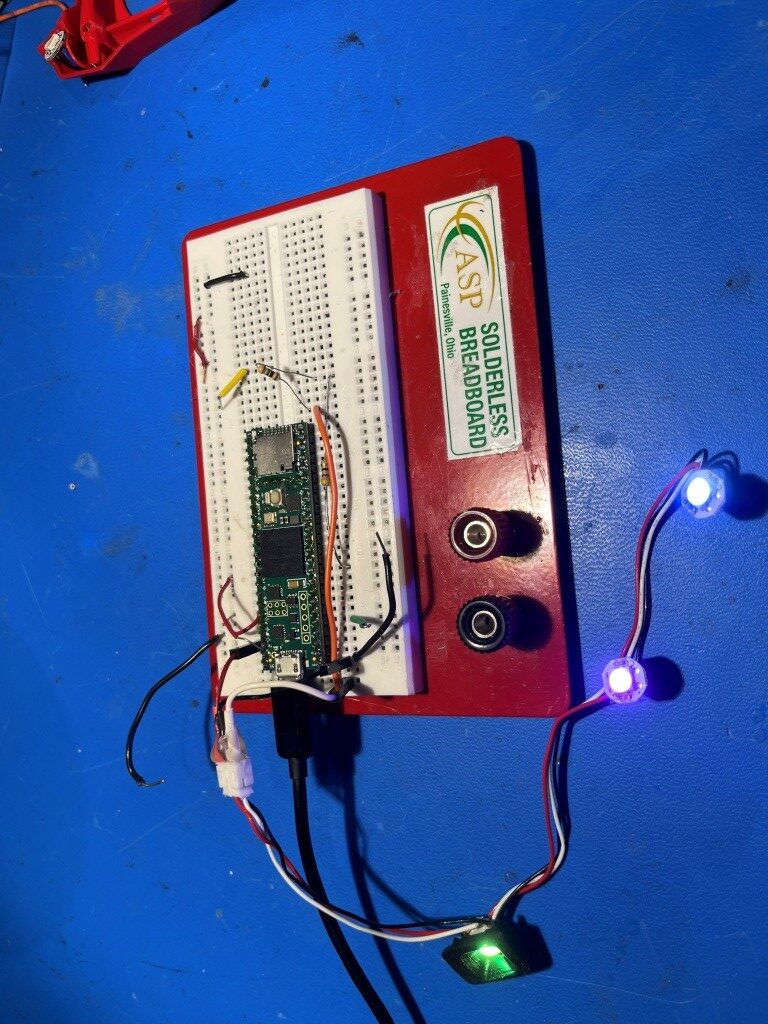
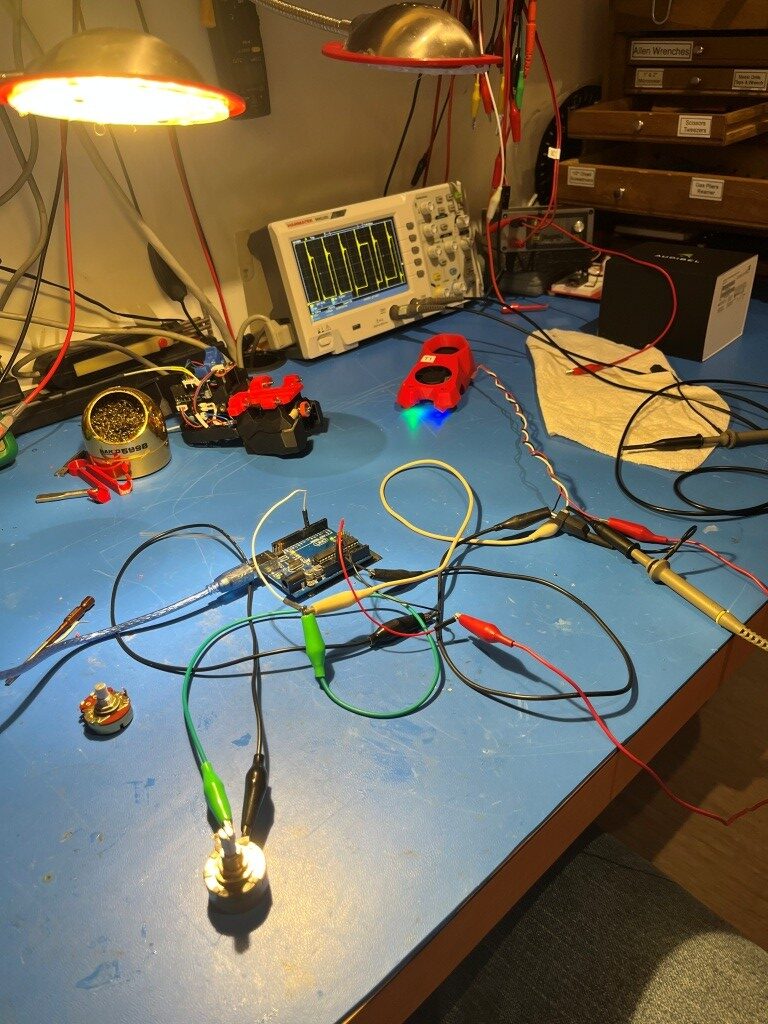
And here is a photo of the hardware setup:

When I performed a ‘sweep’ of the above LED string, I got the following output:

According to Grok, this output shows a ‘good’ LED string, and sure ’nuff, when I re-installed this string into my T1(red) toolhead, darned if it didn’t work!

27 March 2026 Update:

It’s been several days now since I got my recalcitrant toolhead LED string working, and so far, so good. I have turned the printer on and off several times, and even made several prints (with T0 rather than T1, but both toolhead LED strings always light up when power is applied to the printer, and I have been able to exercise the T1 LED string using the printer control panel). In the meantime, based on Grok’s recommendation I ordered two more LED strings from Fabreeko, as they seem to have the gold standard reputation for Stealthburner LED strings. However, when they arrived, they looked identical to one I had gotten some time ago from Amazon as shown below

Cheap knock-offs from Amazon

and in fact had the same defect as the Amazon knockoffs – the GND and Data_In wires were reversed on the 3-pin JST. Not only that, but even after correcting the pin-reversal issue, they did not perform well (or even at all) when tested using Grok’s Tstart/Tstop sweep program. It was hard to avoid the suspicion that Fabreeko was simply buying their strings from Amazon and reselling them as their own. Needless to say I returned them for credit.

So, currently I have working NeoPixel strings on both T0 & T1 toolheads, but no backup if one fails (again), and no known-good ordering source. Perhaps Grok can guide me on this (although it was Grok that recommended Fabreeko).

All for now – stay tuned.

Frank

MissChanger Klipper Configuration – Part 2

Posted 31 October 2025

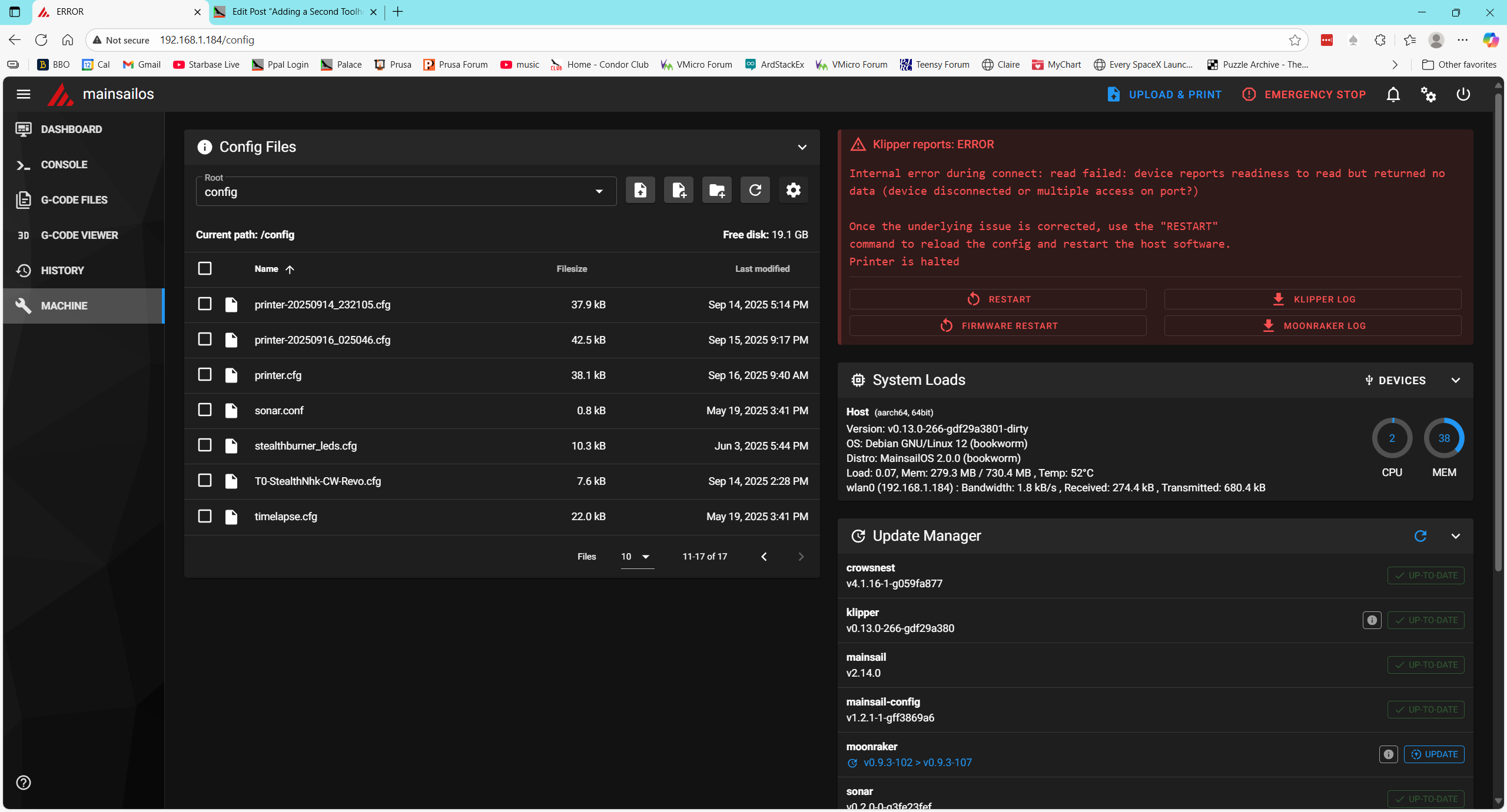
Last night I was able to verify that ‘klippy.log’ contains the entire in-lined configuration, after all includes and before parsing at the top of each entry. This should go a long way toward effective troubleshooting of the ‘No LEDs’ problem. However, when I started the process of implementing the Grok-suggested changes, I discovered that my printer will no longer connect to nhk0 or nhk1. I get the dreaded “mcu ‘nhk1’: Unable to connect” and/or “mcu ‘nhk0’: Unable to connect” error(s). Since I haven’t made any hardware changes this is kinda hard to believe, and at least so far I’m convinced this is yet another software-induced issue.

So, I plan to go back to my 251025 configuration (251025_wt_dock_printer.cfg & 251003_T0-Nitehawk-Revo-LDO.cfg). Yep! this configuration setup worked perfectly – no errors, and the restart was very rapid (maybe 2-5 seconds). LEDs on T0 also worked.

01 November 2025 Update:

After spending way too much time chasing the issue with LEDs not working on the T1(red) toolhead, I think I’m back going again. Again I’m starting with the following single-toolhead configuration:

  • 251025_wt_dock_printer.cfg (printer.cfg with ‘with dock’ contents below the SAVE_CONFIG line)
  • 251003_T0-Nitehawk-Revo-LDO.cfg

I modified printer.cfg in MainSail to change the max_y value for QGL from 225 to 275, and then ran SAVE_CONFIG_MODE to copy the changes to the ‘config_wt_dock.cfg’. This gives QGL a wider range of positions and should result in better gantry levelling in the ‘with-dock’ configuration.

I rechecked the x & y parking values for T0 and then ran TEST_DOCKING. The docking test went very well – very smooth, no hitches at all. An interesting note about TEST_DOCKING; if a recent HOME_ALL/QGL hasn’t been accomplished, it does another set before actually doing the docking moves.

Per recommendation from Grok I also added ‘[gcode_macro STATUS_MSG]’ to the top of printer.cfg to implement dual-destination logging – both to the status line and to the console log so I can see the full range of activity. The full macro is:

and it gets called like this:

Note that to make outputs from a STATUS_MSG command immediately visible in the console window in, the standard console filter “Hide Temperatures” must be disabled, and a new filter added to suppress the status messages that are emitted by the ‘STATUS’ line at the end of the STATUS_MSG macro (the STATUS line is required to force a console window update). Interestingly, the ‘Hide Temperatures’ filter is supposed to suppress the 1-2 second period temp reports, but disabling this filter still doesn’t result in a blizzard of temp reports. From Grok:

So I’m happy with the current setup; ‘Hide Temperatures’ filter OFF, ‘Hide Klipper State’ OFF, ‘STATUS’ line removed from STATUS_MSG macro.

02 November 2025 Update:

I saved the three files relevant to the STATUS_MGS macro adventure to a folder named

‘20251102-141756 STATUS_MSG Macro Files’ in the MissChanger/Config Files folder, so now I can start moving forward again toward dual-toolhead nirvana. I plan to do this as follows:

  • Add [include 251029_T1-Nitehawk-Revo-LDO.cfg] to printer.cfg just before the SAVE_CONFIG section. this file in turn includes 251002_T1_stealthburner_leds.cfg

OK, this came up OK, And now both ‘T0’ and ‘T1’ are available in the ‘Extruder’ tab in the dashboard – yay! From Klippy.log I can see that the T0/T1 include files have been properly in-lined into printer.cfg, along with the T0/T1 neopixel LED files, with NO errors. It’s really nice being able to see the entire config chain in one file.

Looking at klippy.log, I see the following ‘parking’ positions for T0 & T1:

  • T0: params_park_x = 69.00, params_park_y = 90.00, params_park_z = 250.0
  • T1: params_park_x = 245.0, params_park_y = 91.50, params_park_z = 250.0

These values should be pretty close to correct for tool changes. I have already verified that T0 can be docked and undocked using TEST_DOCKING, but I still need to re-verify the values for T1.

03 November 2025 Update:

At the moment, neither toolhead has been selected, so I’m going to manually swap T0 out (docked), and T1 in (place it on the carrier), and then command a HOME_ALL (G28). This *should* cause T1 to be detected as the active toolhead. Yes!! T1 was detected as the active toolhead. Wow! I actually knew something!

OK, now I’m going to re-verify the parking positions using manual moves, and then I’m going to try TEST_DOCKING. WooHoo! Test Docking on T1 worked, and now I can even change toolheads under program control, as shown in the following short videos:

Docking test with the TEST_DOCKING macro
Demonstrating the ability to change back and forth between T0 & T1

Now that I have tool changing working, I think we are about done with the hardware configuration aspects of the MissChanger mod. I think the next step is to get Prusa Slicer configured to handle dual extruders, and get some test prints going – woo hoo!

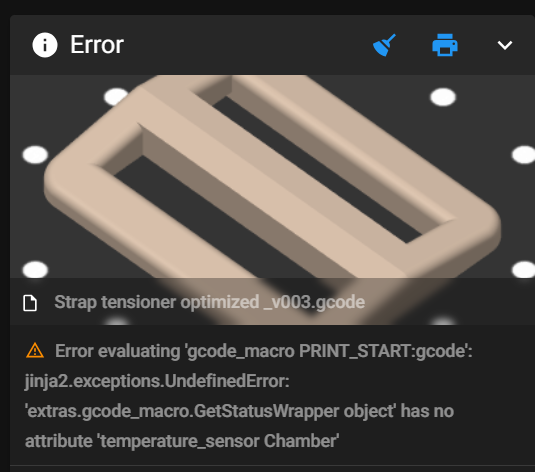
Went back through MissChanger’s Prusa Slicer settings, so I think I have this correct. Tried a T1 test print with ‘251103_T1_Strap tensioner optimized_v003.gcode’, but it failed with the error ‘Error evaluating ‘gcode_macro PRINT_START:gcode’: jinja2.exceptions.UndefinedError: ‘dict object’ has no attribute ‘BED

I’m thinking that this error is yet another instance of my old single-toolhead PRINT_START macro not being able to handle multiple toolheads.

Grok agreed, and proposed the following PRINT_START macro upgrade:

However, before implementing this change, I saved off the current config file set (printer.cfg, 251003_T0_Nitehawk-Revo-LDO.cfg, 250922_TO_stealthburner_leds.cfg, 251029_T1_Nitehawk-Revo-LDO.cfg, 251002_T1_stealthburner_leds.cfg) to config-20251103-113415.zip and put it in C:\Users\Frank\Documents\3D Projects\Voron Printer\MissChanger\Dock.

Then I replaced my PRINT_START with Grok’s version, saved, and restarted. I also reset (rolled-over) Klippy.log, which caused another save/restart. Then I tried the print again.

Side note: After starting the print, the console window started getting ‘spammed’ by temperature messages – the behavior that resulted in having a ‘hide temperatures’ filter. I activated the filter and the spam stopped (not sure if that affected my STATUS_MSG behavior or not).

Hmm, activating the ‘hide temperatures’ filter didn’t stop the temps span – uh oh!

Well, that went about as well as could be expected, meaning ‘not very well at all’ :(.

Grok used our STATUS_MSG macro:

but the result was “T1: PRINT_START: T{TOOL} Bed={BED} Extruder={EXTRUDER_TEMP} Chamber={CHAMBER}”. In other words, none of the {} parameters were expanded properly. And to add insult to injury, even that much didn’t show up until I hit F5 (or disabled the ‘hide temperatures’ filter).

The extruder temperature went up to 200C and then stayed there, until eventually resulting in a “Extrude below min temperature”. I’m actually not even sure the T1 extruder ever got hot AT ALL – have to check.

Also got another error – “The value ‘sb_leds’ is not valid for LED”. This sounds like an issue with naming conventions in printer.cfg

The reason the ‘Extruder below temps’ error occurred was because the T0 extruder was being heated, but the desired T1 extruder was not. I confirmed I could manually set T1 to a temp at the printer KlipperScreen and T1’s extruder actually got hot. So, the number mixup may well be in PRINT_START or in the Gcode

07 November 2025 Update:

These last few days I have been working on getting the various stealthburner LED color/intensity combinations working on both T0 & T1 toolheads, and wound up with a totally different configuration than the ‘stock’ MissChanger. Instead of two complete sets of ‘STATUS_xxx’ LED-setting macros, Grok talked me through creating a single set of macro files called ‘251103_shared_stealthburner_leds.cfg’ containing all the macro code, and separate very small ‘251103_T0/T1_stealthburner_leds.cfg. All the T0/T1 files to is define the mcu pin number to be used. When a ‘STATUS_XXX’ macro is called, it first figures out which toolhead is active, and then passes a new ‘LED’ parameter to the appropriate led-setting macro (typically ‘_set_sb_leds_by_name’). This took a long while to work through all the hardware and software problems, but eventually (with a LOT of help from Grok), I got it figured out. All the status codes work now, with both T0 & T1. The related config files were all saved to the ‘C:\Users\Frank\Documents\3D Projects\Voron Printer\MissChanger\Config Files\251107_stealthburner_LED_config’ folder.

The saga continues in

Stealthburner LED Problems

Posted 31 October 2025

I’ve been having a heck of a time getting the neopixel LED string working on one of my two Stealthburner toolheads (MissChanger mod). Sometimes it would work, sometimes it would not, and I wasn’t able to correlate the two conditions to anything I was doing. On several occasions it seemed to be correlated with whether or not the front piece (the one containing the LEDs) was securely fastened to the main toolhead body with the two (very) long and two short(er) screws. It seemed it worked when the screws were not in, and didn’t work when they were in and tightened down.

At first I was convinced that one or more LED wires was getting pinched between the two toolhead halves, and when I tightened down the mating screws, the circuit was interrupted. I even found evidence for this and fixed it – several times – but the intermittent behavior continued.

Some research by Grok turned up a LOT of talking about SB LED issues, which were mostly divided into two categories – one thread earlier this year talked about waveform timing issues, and the other thread talked about the fact that the rp2040 outputs 3.3V waveforms while the nominal voltage for the LED string is 5V.

In desperation, I decided to attach a short cable to the LED string connector pads on the Nitehawk PCB on the front half of the SB, thereby allowing me to directly monitor the actual waveform being transmitted to the LED string.

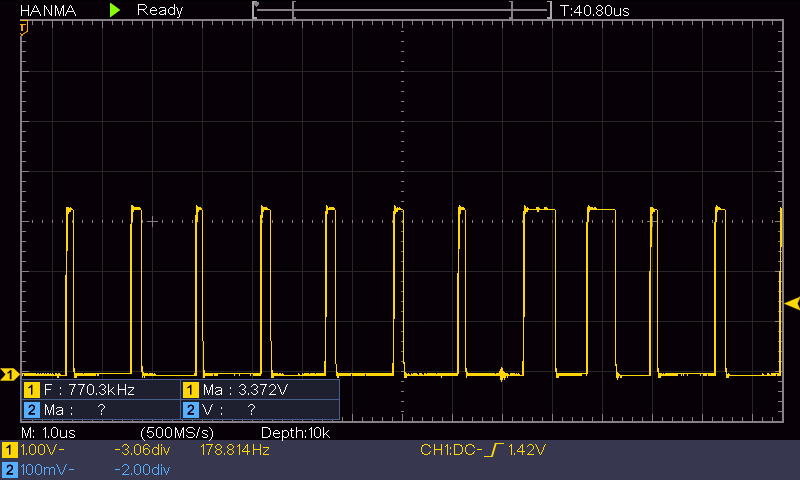
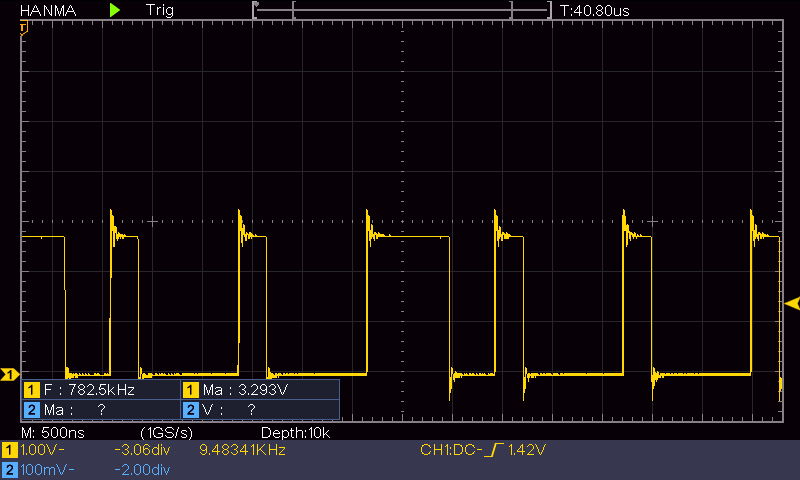
I was able to observe the ‘not working’ waveform once and then my troublesome SB refused to not work again, stubbornly continuing to light up no matter what I did. The waveform in the ‘not working’ condition looked more like triangular waves rather than rectangular indicating an output loading condition of some kind. Unfortunately, I was unable to capture the waveform on my DSO, so I can’t display it here. The ‘working’ waveform is shown below:

Toolhead mounted on the Voron printer, LED string working properly

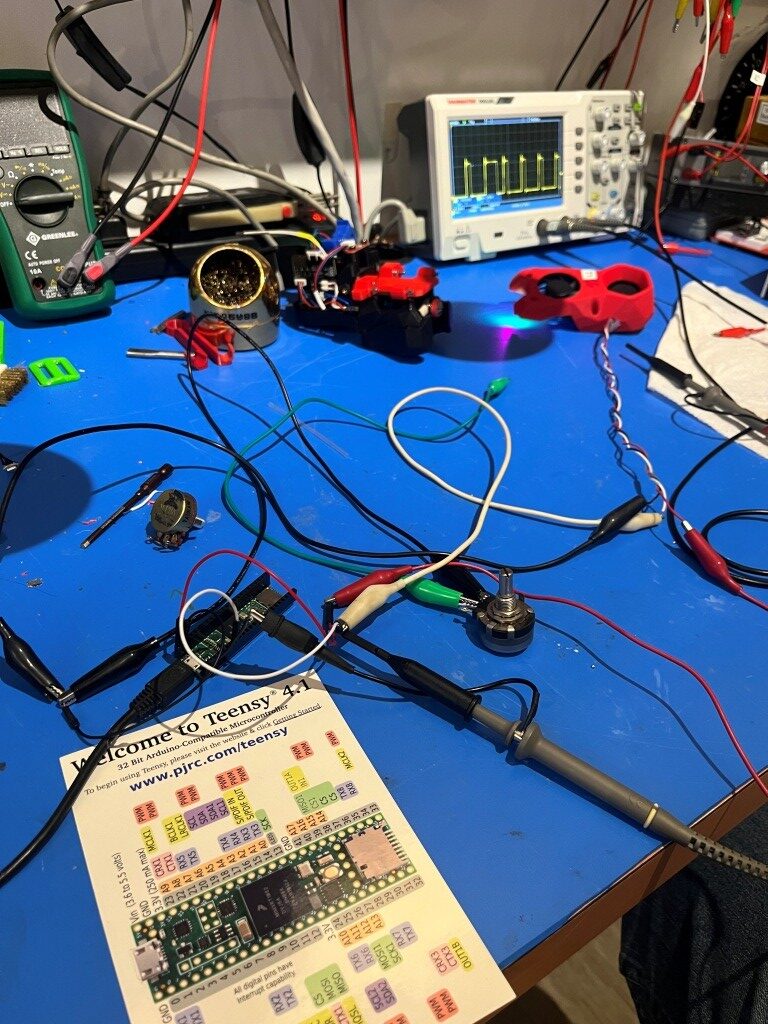
In an earlier post I described the test jig I had created using an Arduino UNO. I could use it to connect directly to the LED string on the front half of the SB, and my troublesome LED string worked fine on the test jig. As Grok pointed out however, the Arduino output waveform went to 5V, not the 3.3V the actual hardware was providing, so the test jig might not be valid. So, I replaced the Arduino UNO with a Teensy 4.1, which does use 3.3V outputs, as shown here:

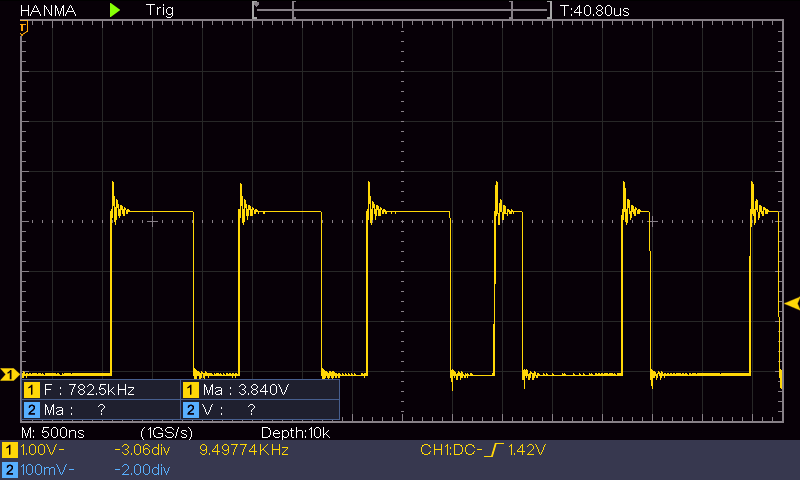
I added a potentiometer into the output circuit so I could slowly drop the output waveform down from 3.3V to see where the LED string stopped working. At 3.3V output it was solid, and this particular string still worked fine at 2.7V peak, as shown in following trace-grabs:

So, it appears that that at least my particular LED string works fine all the way down to 2.7V, so I don’t think the intermittent issues other users have been experiencing are due to the rp2040 having a 3.3V instead of 5V output. My current thinking is that the problems are more likely to be the timing issues discussed in this Klipper Github PR

01 November 2025 Update:

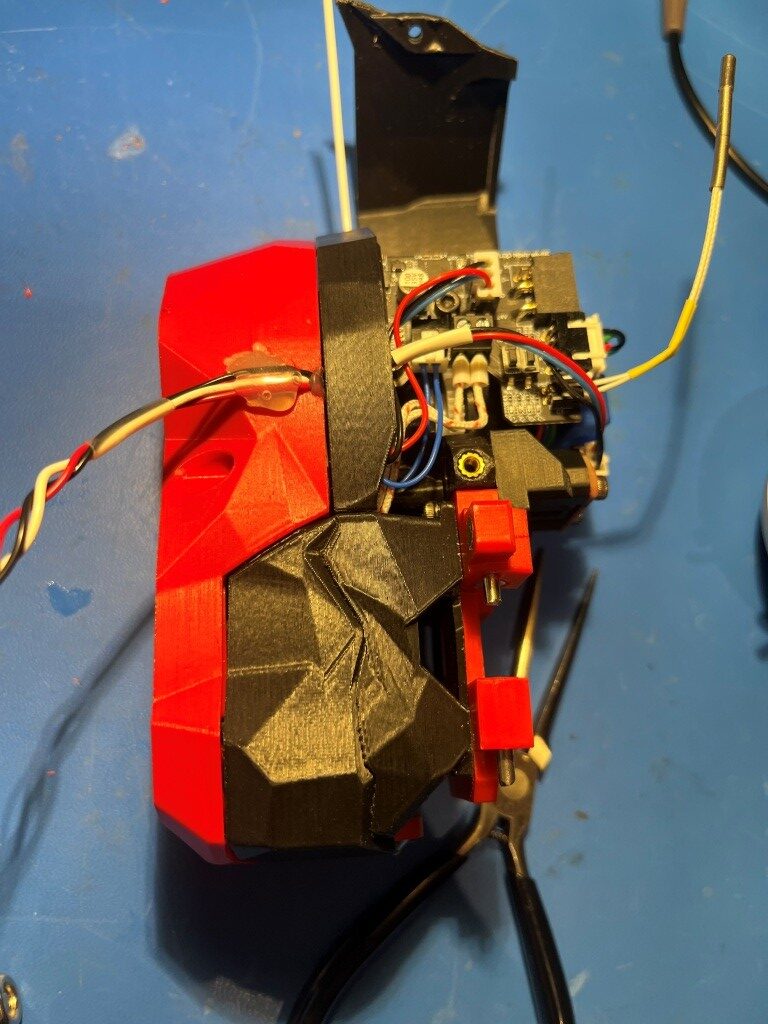
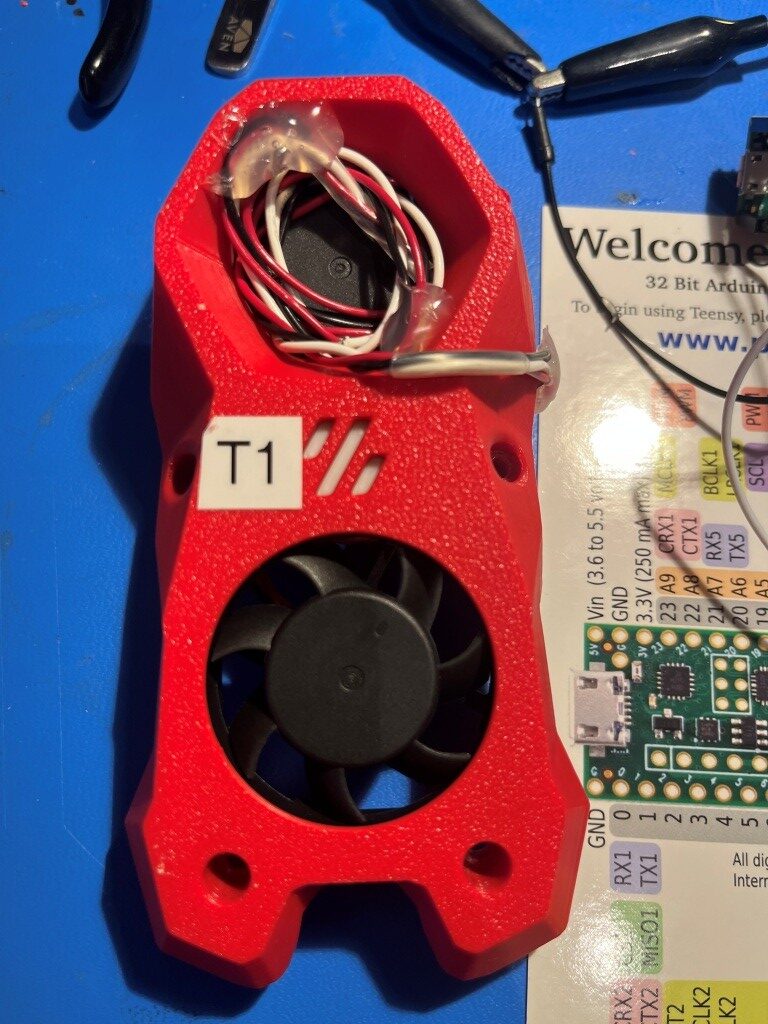
When all was said and done, I could no longer get the LED string on my troublesome toolhead to fail, so I wound up putting it back together and mounting it back on the printer. However, as insurance against a future Murphy attack, I left the external LED data line monitor cable intact, and hot-glued it into the intake cavity for the part cooling fan, as shone in the following photo:

Ugly, but it has a GREAT personality!

Adding a Second Toolhead to my Voron 2.4

Posted 12 September 2025

Last May I started the process of building a Voron 2.4 300x300mm 3D printer, with the ultimate goal of constructing a dual extruder system capable (hopefully) of complex prints requiring soluble supports. Now that I have the printer running with a single ‘Stealthburner’ toolhead, it is time to move on toward my ultimate goal of a dual extruder system.

After a LOT of research into the many available toolchanger mods, I chose the MISSChanger (the ‘MISS’ stands for ‘Make It Simple, Stupid!’) mod because unlike all the other mods, this one does not require a ‘top hat’ addition to make room for the top-rail-mounted docking system, room that I do not have in my office. Instead, it uses up about 130 mm of print surface (almost half of my available Y-dimension space on my 300×300 plate at the front of the printer for the docking system. If necessary, however, the docking system can be easily removed to recover the print space, but only at the cost of going back to a single-extruder configuration.

No room for a tophat

At this point, I have all the printed parts done, with a working dock module and two separately tested ‘Stealthburner’ toolheads

Now it is time to put all these parts together and see if I can get it all to work!

The MissChanger Github repo contains a ‘Klipper_Config’ folder that holds all the software and also provides a detailed description of the steps required to transition from a single to a multiple extruder firmware configuration. Step1 of this process is backing up the current config files by selecting them in the web interface and downloading them to your computer.

Step 2 (para 3.1.1 in the ReadMe) is the installation of the MissChanger-specific Klipper fork into the Raspbery Pi control computer on the Voron. This is accomplished by ssh’ing into the Pi and running the following command to install the ‘For normal use’ branch:

This operation went OK, but I got a minor error as shown:

When I posted this to Vin, he said – “this always happens the first time – just reboot”. I didn’t actually reboot, but the error seems to have disappeared, so…

On to the next step (Step 2: Set up printer.cfg in the ReadMe): Here is the sample printer.cfg:

14 September 2025 Update:

After a LOT of back-and-forth with Vin on Discord I finally got Klipper to get all the way through the bootup sequence to the point where I could actually try a print. Unfortunately, as soon as I tried, Klipper started throwing errors again, like the following:

This particular error was cleared by noting that there was a capitalization error in printer.cfg’s [temperature_sensor_chamber] section – the word ‘chamber’ should be capitalized, as follows:

Also, it took me forever to figure out how to handle the hardware pin assignment for this sensor. The sensor is connected to the NiteHawk PCB board on one of my two Stealthburner toolheads, but it is used regardless of which toolhead is actually in use. This meant (as I finally figured out) that the above ‘temperature_sensor Chamber’ section had to go into printer.cfg insteaf of one of the ‘Tx…’ toolhead config files, but the hardware pin has to be named ‘nhk0:gpio28’ because that’s actually where the signal shows up.

Then I hit another roadblock:

This got me to thinking about all the macros that were in my original, working-fine, printer.cfg that weren’t in my brand-new multiple-extruder ‘printer.cfg’. So, I took a deep breath and copied them all over to ‘printer.cfg’ and restarted everything. This time Klipper came all the way up – almost like normal!! – and I was able to print a test object – Yay!!

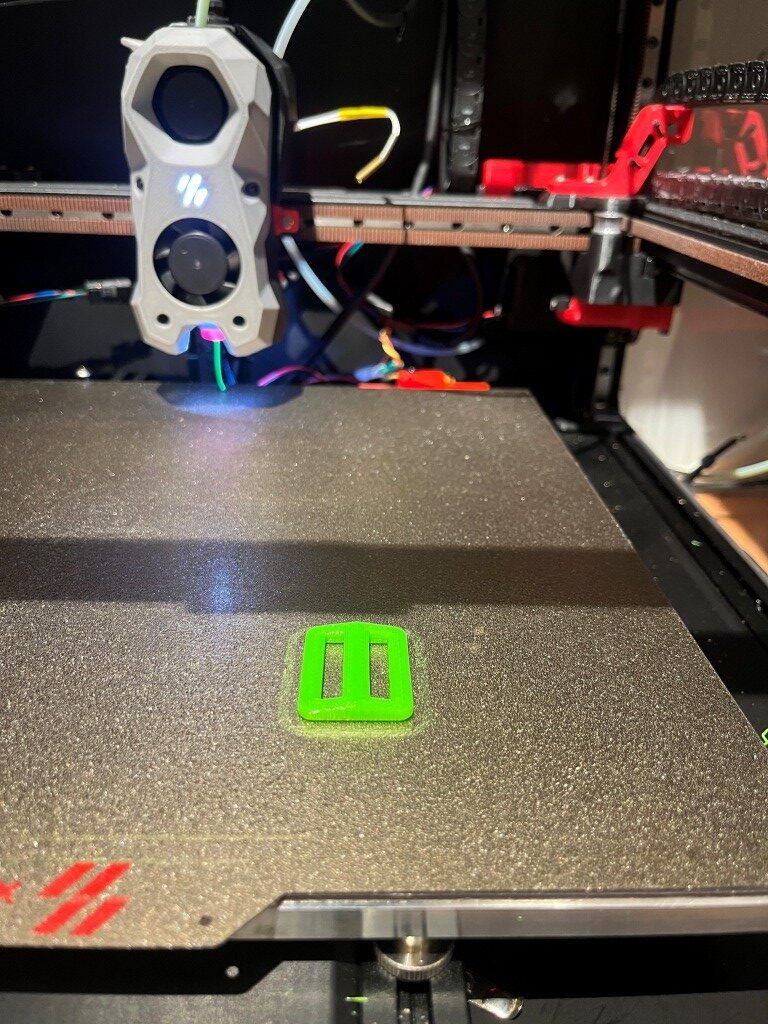
Strap retainer printed in PETG with ‘printer.cfg’ and ‘T0-StealthNhk-CW-Revo.cfg’ using Vin’s multiple-extruder Klipper configuration.

A couple of small flies in the ointment: First, the print started out *way* too close to the bed, just about dragging. I was able to use Klipper’s ‘fine tune’ facility (nice nice nice!) to raise the nozzle enough (1.5mm) to get a good first layer, and the print finished OK. Second, when I tried to save the new Z-offset I got an error about ‘BABY STEPS’ that I didn’t understand. Here are the relevant lines from Klippy.log:

Looking at ‘printer.cfg’ after the print, I see:

The ‘z_offset value of -1.680 *looks* correct, so maybe the fine-tuning offset got saved anyway. Another test print will tell the tale.

Nope – the second print had the same problem, so the offset was NOT saved – bummer!

15 September 2025 Update:

After fumbling around quite a bit with this single-extruder-but-multiple-extruder-configuration, I decided to try revert back to the original printer.cfg, which in this case is my ‘250830_SecondToolhead_printer.cfg’. To do this I ssh’d into the raspberry pi, replaced the existing ‘printer.cfg’, with my ‘250830_SecondToolhead_printer.cfg’ (renamed to ‘printer.cfg’ to the raspberry using SCP at a Windows Command Line prompt (the actual command syntax is shown below)

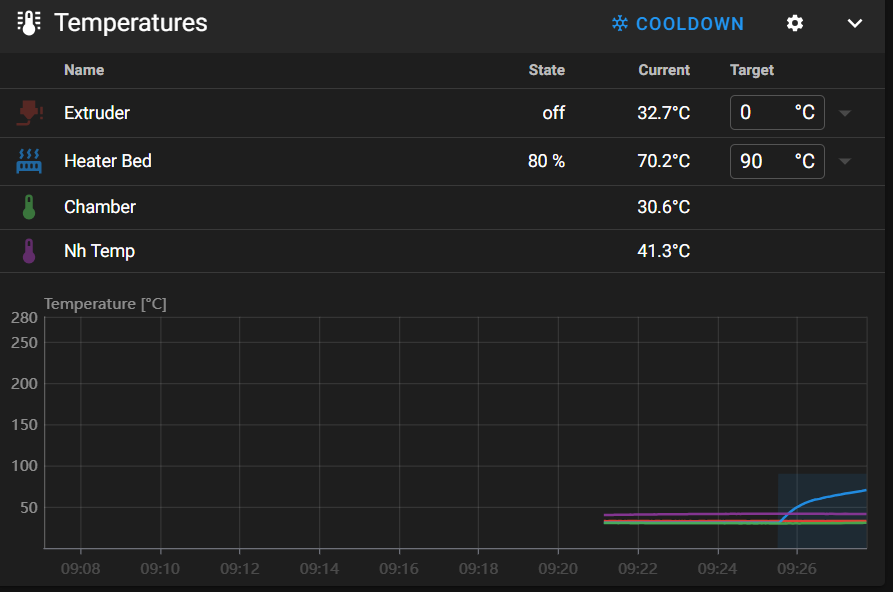
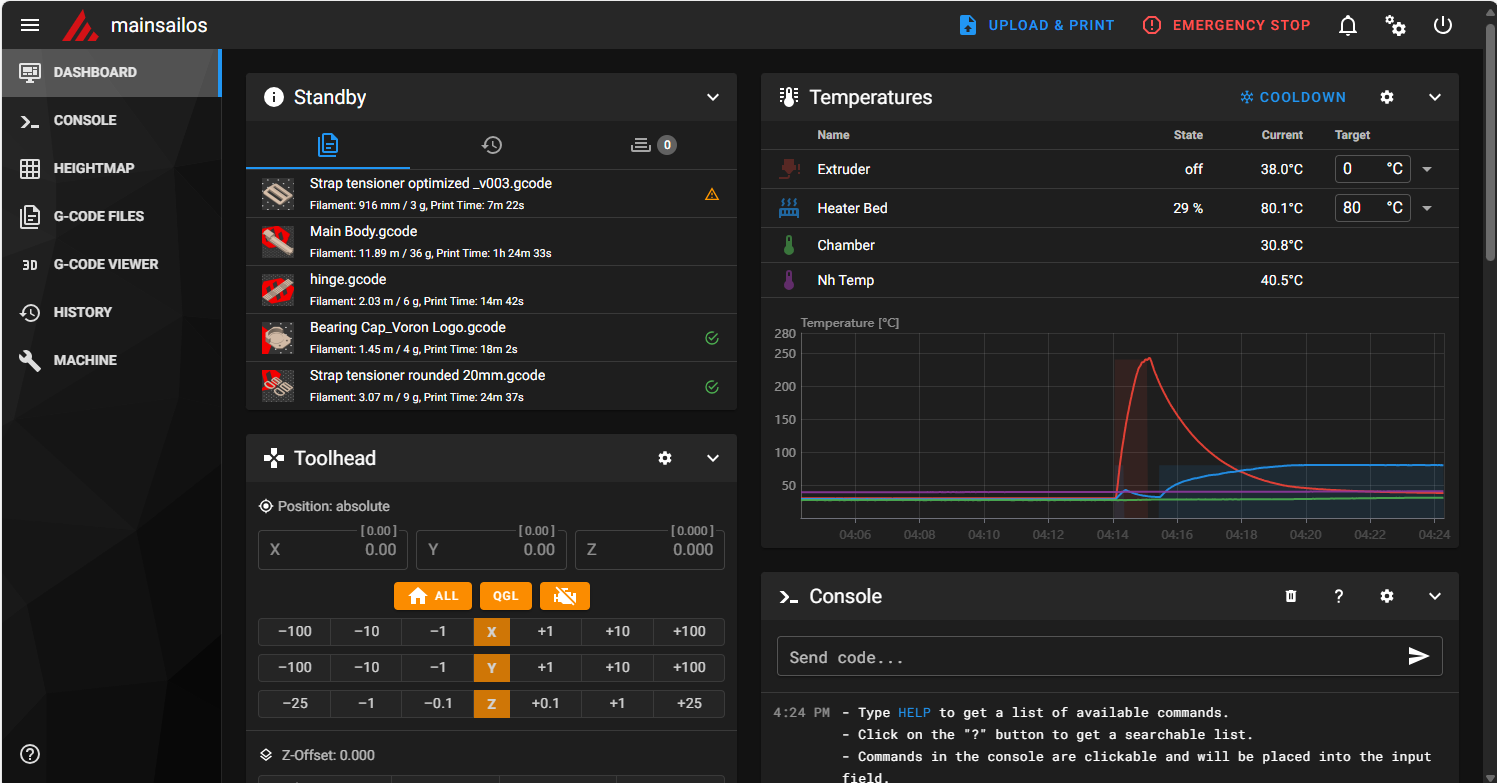
After doing this and restarting the printer, everything came back up peaches. The printer connected to the web browser page without issues, and now I could see all four temperature readouts as shown below:

The print job ran normally, and although I didn’t really need to, I used the ‘Fine Tune’ facility on the printer to slightly optimize the extruder z-offset to see if the new offset adjustment could be saved at the end of the print. As it turned out – the new offset save was successful, and the printer reset properly and reconnected to the browser properly (the MissChanger configuration did not allow this – I had to physically cycle the power each time to get the printer to come up and reconnect to the browser.

So, it is clear now that the problems I was having were due entirely to the differences in the printer.cfg and its interactions with the rest of the ‘Toolchanger’ software stack. Tomorrow I will try going back to the Toolchanger setup, with a much more basic config.

Stay Tuned!

Frank

16 September 2025 Update:

The plan for today is to start by breaking up my known-good ‘printer.cfg’ into two parts – ‘Printer_Specific_printer.cfg’ and ‘T0_Specific_printer.cfg’. The sum of these parts will exactly match the current ‘printer.cfg’, and therefore, should operate flawlessly – I hope. Here’s my current working ‘printer.cfg’:

Starting from the top:

  • the two includes and the ‘[mcu]’ sections stay in ‘250916_Printer_Specific_printer.cfg’, and the ‘[mcu nhk]’ section goes to ‘250916_T0_Specific_printer.cfg’:
  • The following stay in ‘Printer’:

The [extruder] and [tmc2209 extruder] sections go to ‘T0_Specific’

the [heater_bed] section stays.

The [probe], [fan] (print cooling fan) and [heater_fan hotend_fan] sections go.

The [output_pin caselight] and [output_pin pcb_led] sections stay

The ### Accelerometer ### and ### TH ### sections go

Everything else stays in ‘Printer_Specific’.

I inserted ‘[include 250916_T0_Specific_printer.cfg] just before ‘### Homing and Gantry Adjustment Routines ###’ and then saved the ‘Printer_Specific’ file to ‘MissChager/Config Files/printer.cfg’.

In ‘T0_Specific I changed all ‘nhk:’ entries to ‘nhk0:’ and then saved the file.

Then I ssh’d into the raspberry pi and deleted the existing ‘printer.cfg’

Then, using the following ‘SCP’ command, I copied ‘C:\Users\Frank\Documents\3D Projects\Voron Printer\MissChanger\Config Files\printer.cfg’ and ‘C:\Users\Frank\Documents\3D Projects\Voron Printer\MissChanger\Config Files\250916_T0_Specific_printer.cfg’ to the raspberry pi.

Then, in the MainSail view, I verified that ‘printer.cfg’ on the raspberry pi had been changed, and clicked on ‘Save and Restart’. This resulted in the following error:

Then I restarted the host (printer) and this rebooted the raspberry. This succeeded and I got back into the Mainsail window:

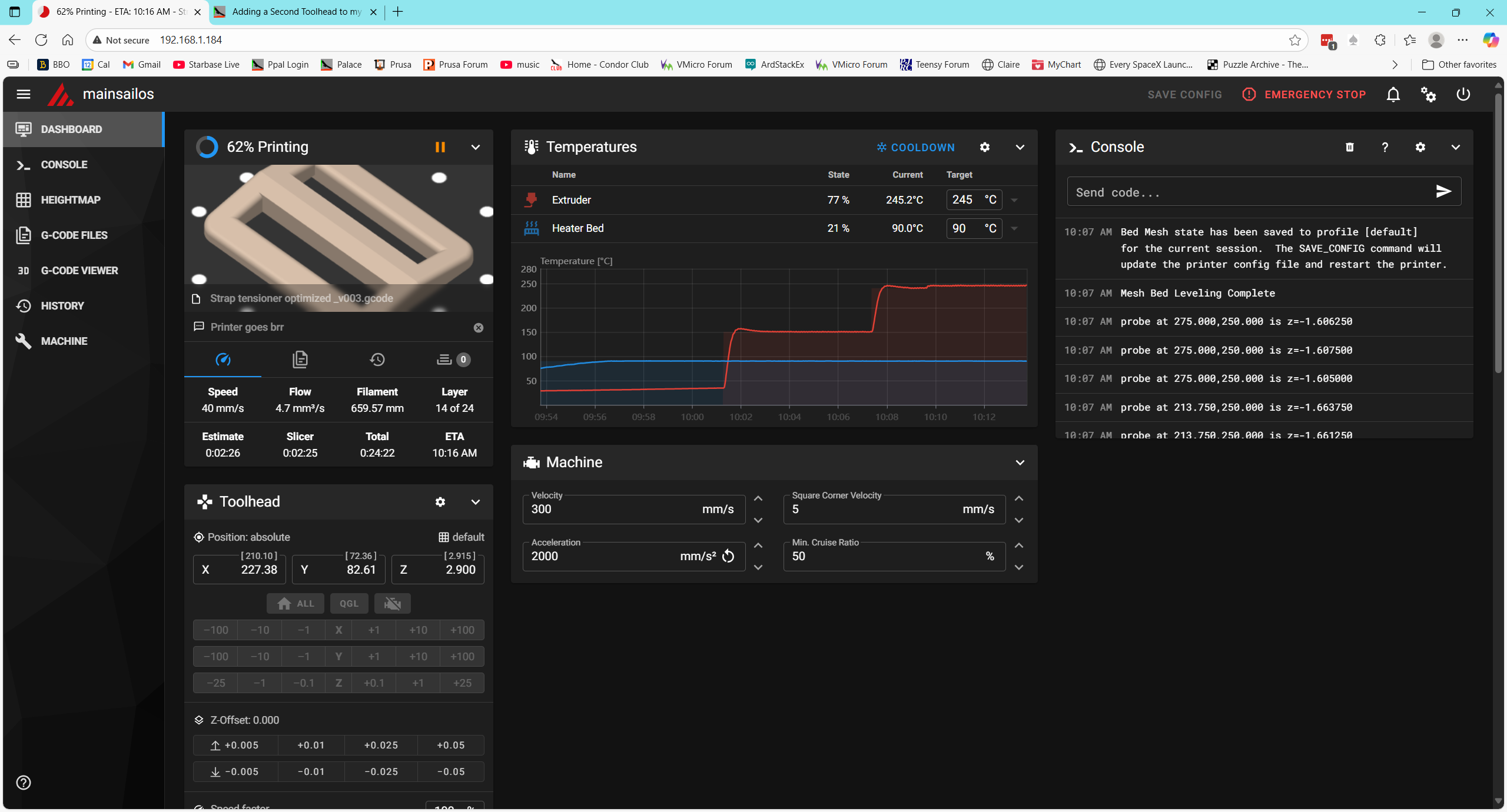
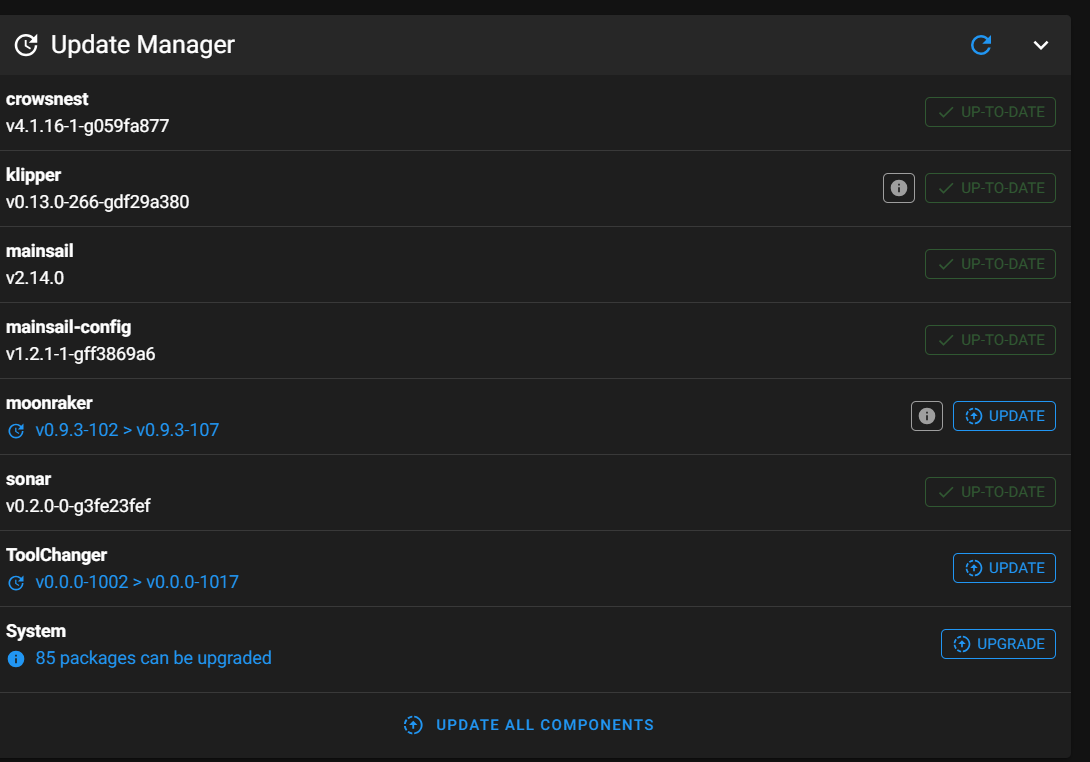
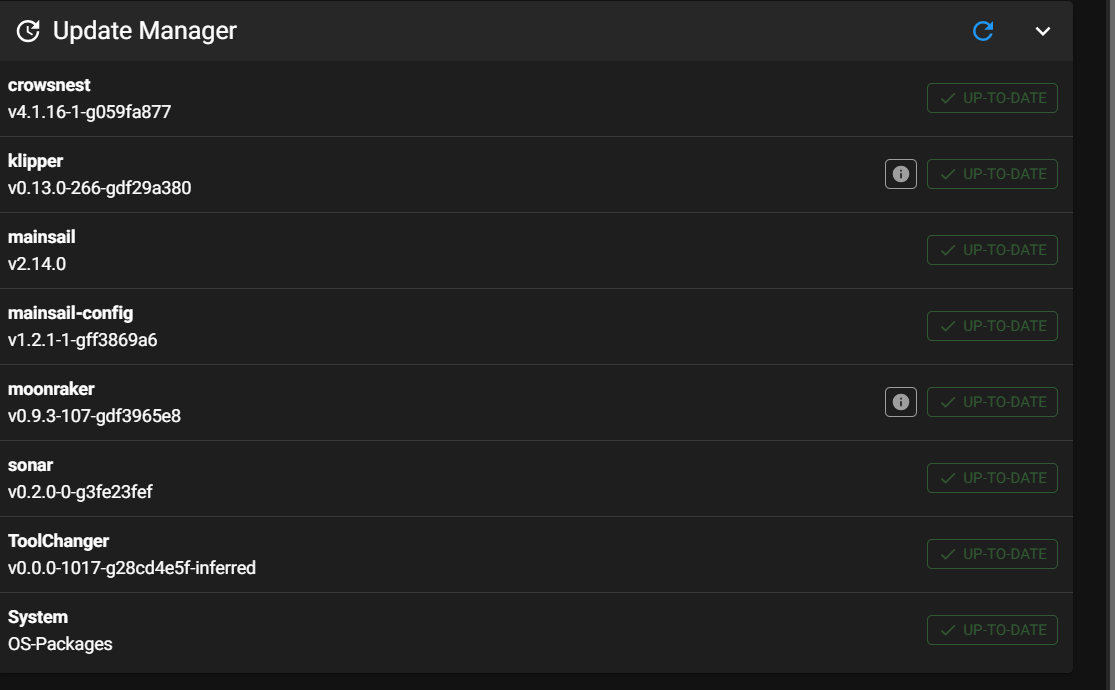
ASSIDE: I noticed when the Mainsail window came up that the ‘ToolChanger’ plugin (along with some others) had the ‘Update’ option activated, so maybe Vin did some more work on that overnight. I left it alone for the moment, not wanting to add yet another variable to the problem.

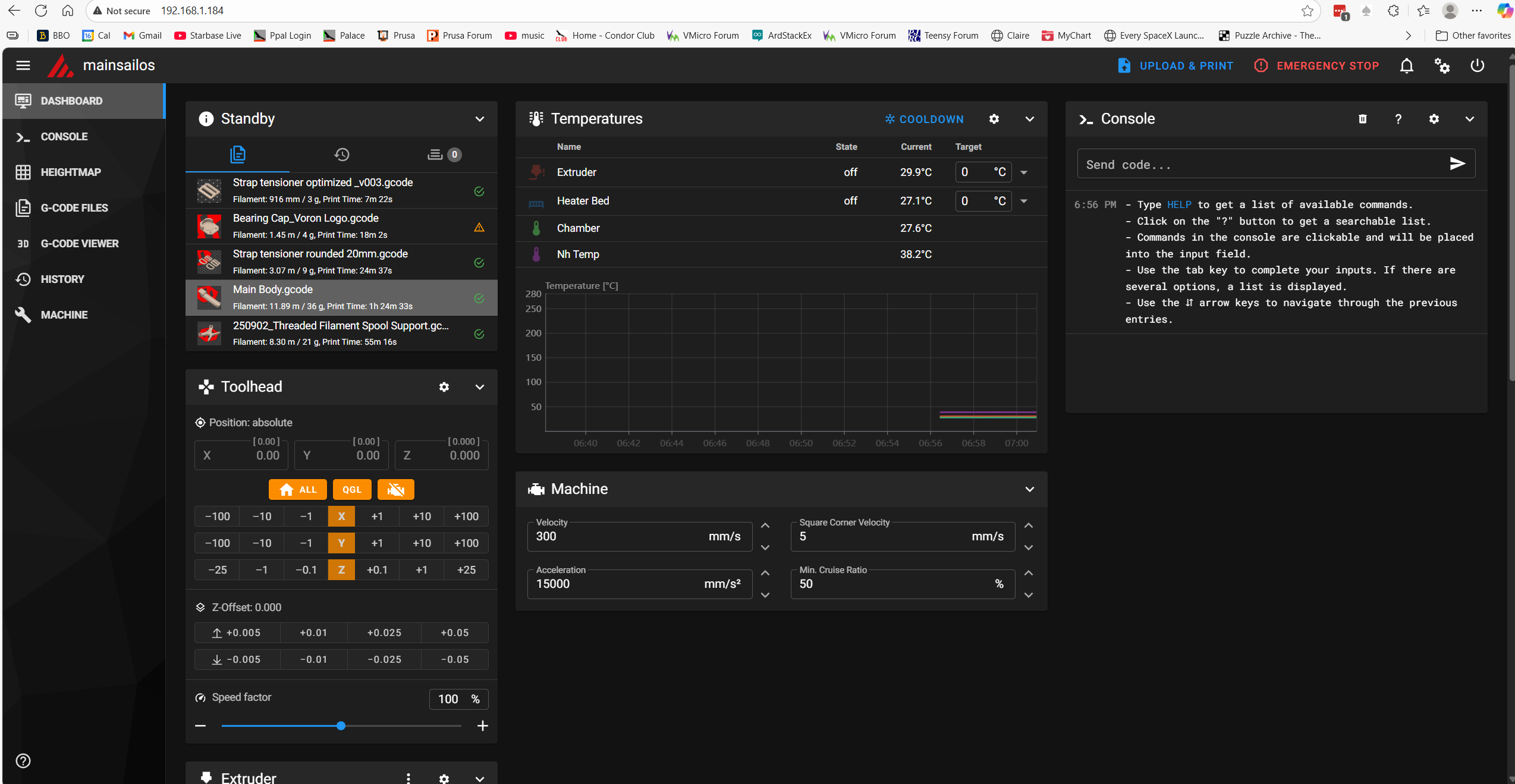
I attempted to print my simple strap tensioner. It started out OK with the printer homing and going on from there. Interestingly, the Mainsail ‘Dashboard’ window only showed two temperatures – extruder and heatbed.

This test succeeded. The ‘split config’ test worked great. The test print came out fine, with no need for ‘fine tuning’ and the Mainsail display looked OK too.

I think the next logical step would be to add in the raft of [include] statements that are in the MissChanger ‘printer.cfg’ but not in the one I just tested. Before doing that, however, I want to perform all the file updates advertised in the ‘machine’ view

This seemed to work fine, so I proceeded to the next step – adding all the [include xxxx] to the top of printer.cfg.

After making these changes and restarting the printer, I got an error message

Then I used ‘grep -r “safe_z_homing” to find all files with that string. This led me to klipper/klippy/extras/safe_z_home.py, where I found the following:

I looked for ‘homing_override’ in printer.cfg but could not find it. Then I looked for the same thing in the 250916_T0_Specific_printer.cfg file but couldn’t find it there either. Then I looked for safe_z_homing’ and found ‘[safe_z_home]’ (not the same, but close) in printer.cfg.

Then I looked into ‘/home/pi/klipper-toolchanger/macros/homing.cfg’ (one of the files included from MissChanger, where I found the following:

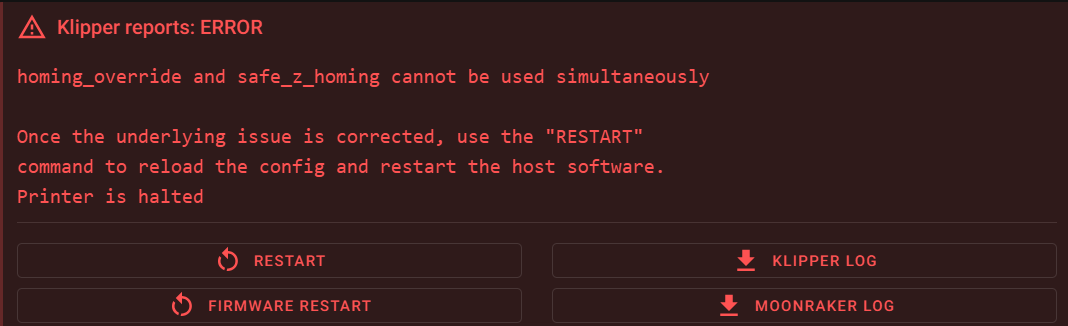
I don’t know if this is a ‘smoking gun’ or not. The error message (and the seems to indicate a conflict between ‘safe_z_homing’ and a [homing_override] section. So, I commented out the ‘[include misschanger_macros/homing.cfg] line and tried again.

This produced an error “option ‘pin’ not valid in section ‘probe’. Uncommenting the line

reproduced the ” ‘homing_override’ and ‘safe_z_homing’ cannot be used simultaneously” error

Got a note from ‘Vin’ saying that I needed to ‘disable’ the safe_z_homing section in printer.cfg. I finally figured out (with some help from Grok) that I needed to comment out the entire section.

When I did that, I got an error: “option ‘pin’ in section [probe] is invalid. So I commented out the ‘probe’ section in the ‘T0—.cfg’ file.

Now I get ‘unknown pin chip name nhk0’. There are 16 instances of ‘nhk0’ in the ‘T0—.cfg’ file and none in ‘printer.cfg’.

Thanks to some more help from Vin and others, I got through this one. It turns out the culprit was this line from ‘250916_T0_Specific_printer.cfg’:

This line ‘names’ the mcu inside the toolhead as ‘nhk’, but all the pin definitions later on used the name ‘nhk0’ – oops! All I had to do was add a ‘0’ to the name, and that error went away — only to be replaced by yet another one. This one is:

I found the symbol ‘speed’ in my toolhead config file:

I commented it out – reloaded the file to the raspberry, and did a ‘firmware restart on the printer. Then the same thing happened with the ‘samples’ symbol in the same secton. Commented that out too, and went on. Same with ‘sample_result’, ‘sample_retract_dist’, ‘samples_tolerance’. Then the error changed to “Option ‘activate_gcode’ is not valid in section ‘tmc2209 extruder’ “. I commented this out, by then realizing that I had actually commented out the entire ‘probe’ section.

At this point I didn’t get any immediate (parsing?) errors, but Klipper wouldn’t restart with just the ‘Firmware Restart’ button. Tried ‘cycling power, ‘Klipper Restart’, and this resulted in the error: “mcu ‘nhk0’: Unable to connect”. Tried power cycling, which resulted in the “Klipper is attempting to restart” error. I looked at Klippy.log, and found a lot of references to not finding ‘mcu nhk’. This led me on a merry chase for quite a while, until I finally did a search for all instances of ‘nhk’ in my toolhead config file, where I found this one little teensy line:

So, I changed ‘nhk’ above to ‘nhk0’, reloaded the file to the raspberry and restarted the printer. Took me a couple of tries, and I finally had to resort to a power cycle, but then it came *all the way* back and now shows the following in the browser window:

Note that all four temps are now shown, including the heat bed temperature – Yay!!

17 September 2025 Update:

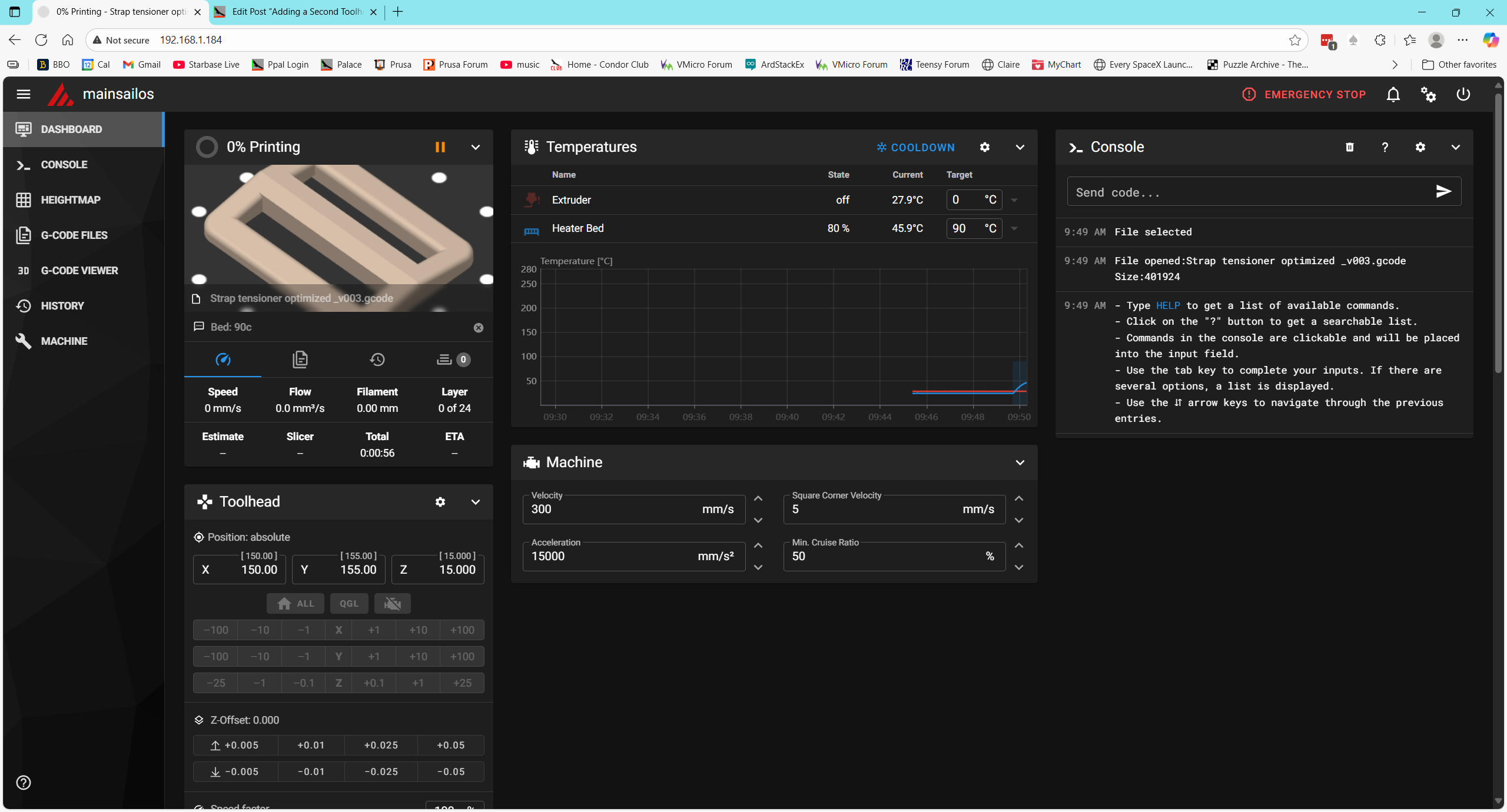
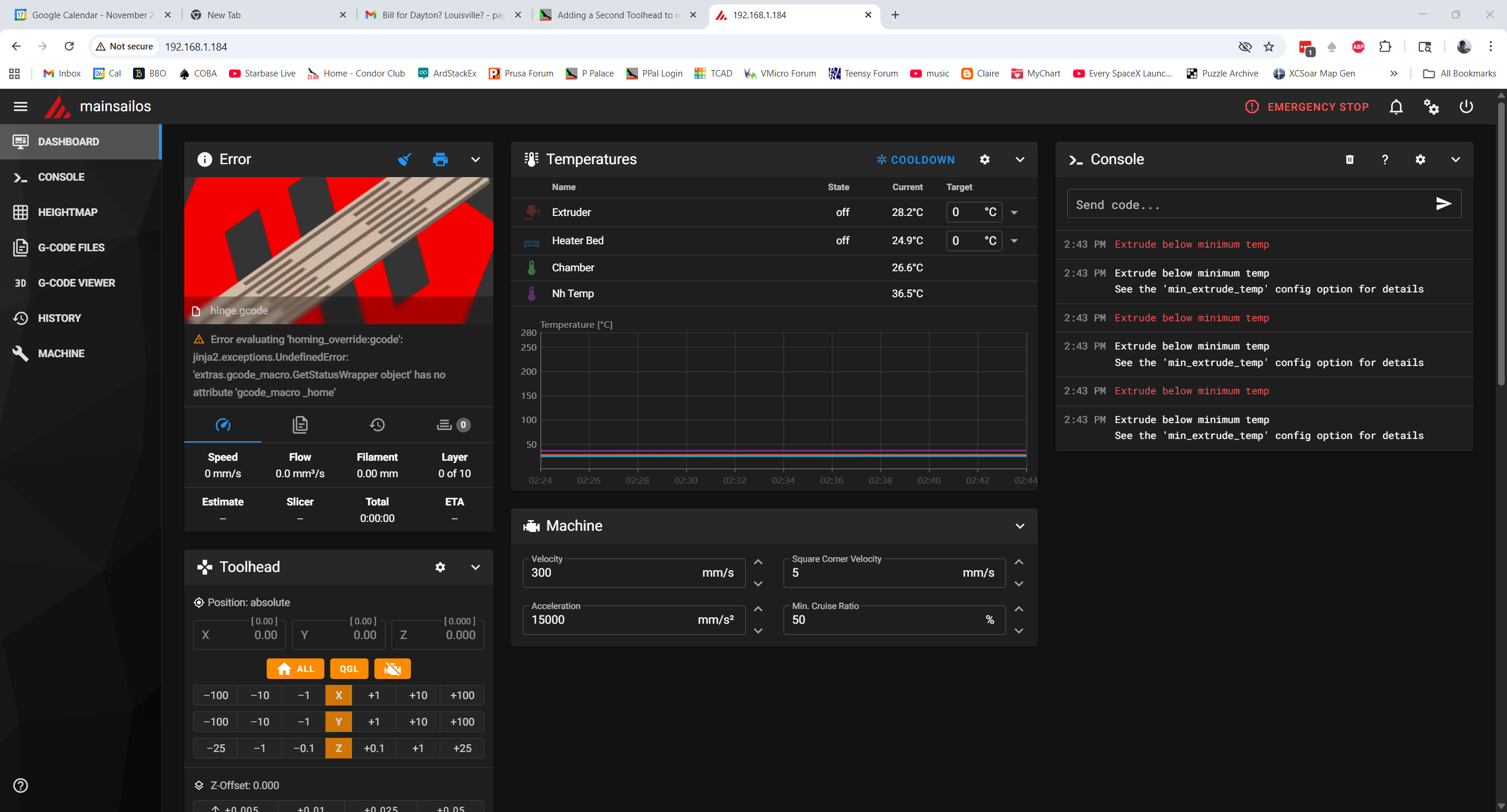
Well, maybe I spoke too soon. I tried a test print and got an error saying the extruder temp was too low and a jinja ‘undetermined error’. See the following screenshot:

So now it appears that the PRINT_START macro in printer.cfg is not executing when the line ‘print_start EXTRUDER=240 BED=90’ is encountered in the gcode. I have no idea why this happened, so I’m now officially lost. I think I’m going to (once again) revert to my single working printer.cfg, and work my way back into the two-file configuration while watching closely to see where the system breaks.

I ssh’d into raspberry and used the Windows ‘SCP’ command to overwrite the current printer.cfg. Unfortunately, this time Klipper came back up complaining about “Unknown pin chip name ‘nhk0’ “. This was due to my changing ‘nhk’ to ‘nhk0’ in ‘stealthburner_leds.cfg’, so I changed it back and now everything looks good.

Tried a test print and it went well, *except* the ‘Heatsoak’ display message said ’45c’ instead of ‘100c’. I tracked this down to a bug in PRINT_START and fixed it – so moving on. I completed the test print and confirmed that I could save the ‘fine tune’ result.

Now back to our regularly scheduled program: Following the above procedure, I once again started dividing my known-good printer.cfg into two parts, but this time armed with a bit more knowledge about symbol & object naming.

  • Move ‘[include stealthburner_leds.cfg]’ include to T0
  • Move the [mcu nhk] section to T0
  • Move the [extruder] and [tmc2209 extruder] sections to T0
  • Move the [probe], [fan] (print cooling fan) and [heater_fan hotend_fan] sections to T0
  • Move the [output_pin pcb_led], Accelerometer and TH sections to T0

Change all instances of ‘nhk’ to ‘nhk0’ in T0 (20 instances)

Insert [include ./250917_T0-StealthNhk-CW-Revo.cfg] just before ‘### Homing and Gantry Adjustment Routines ###’

Save ‘printer.cfg’ and ‘250917_T0-StealthNhk-CW-Revo.cfg’ and then transfer them to the raspberry pi.

Reboot the printer

After clearing up a few typo issues, the printer came back up and I was able to print my test model with no issues, and the little ‘fine tune’ adjustment was saved with no fuss – YAY!!

Not so fast!! I discovered that I had the ‘include stealthburner_leds.cfg’ line in printer.cfg and 250917_T0-StealthNhk-CW-Revo.cfg, so I deleted it from printer.cfg, rebooted, and tried the print again. The print completed successfully. Tomorrow I’ll try adding the MissChanger specific includes – but not before saving this file pair several times in different places so I don’t have to start from scratch — again!

18 September 2022 Update:

Saved ‘printer.cfg’ to

C:\Users\Frank\Documents\3D Projects\Voron Printer\MissChanger\Config Files\250918_Working_Without_Misschanger_Includes_printer.cfg

Saved ‘250917_T0-StealthNhk-CW-Revo.cfg’ to:

C:\Users\Frank\Documents\3D Projects\Voron Printer\MissChanger\Config Files\250918_Working_250917_T0-StealthNhk-CW-Revo.cfg

Then I added the MissChanger-specific includes to the top of printer.cfg, rebooted, and got the ‘homing_override and safe_z_homing cannot be used simultaneously’ error. From previous work,

Unfortunately, I can’ seem to find a ‘safe_z_homing’ section in either file. Did a grep safe_z_homing on the raspberry, and got a bunch of hits, but the one that seems relevant is in ‘klipper/klippy/extras/safe_z_home.py’

Then I did a ‘grep -r homing_override’ and got lots and lots of hits, but nothing in user space. So I did a ‘grep -r safe_z_homing’ and got no hits in user space.

19 September Update:

In response to my ‘What am I missing (again!) plea for help, Vin replied:

So, back to the example printer.cfg, where I found that I had completely ignored the ‘Session Variables’ section that needs to be added just before the *** SAVE_CONFIG**** section. The instructions are:

I found my first attempt at this from 09/16 (only 3 days ago?!!!), and after careful comparison of this version with the MissChanger example printer.cft, I constructed another one, as shown below. This version places the [gcode_macro _home], [bed_mesh] and [quad_gantry_level] sections properly within the ‘Session Variables’ section, and replaces the [bed_mesh] and [quad_gantry_level] sections with the versions from my original single-extruder printer.cfg, and adds [include ./250918_Working_T0-StealthNhk-CW-Revo.cfg] the [include] for the current working version of the toolhead.cfg file

As usual, I had to clear up a number of typos and other errors, but I finally wound up with what I hope is the ‘one remaining error’ – Option ‘pin’ is not valid in section ‘probe’. After stumbling around on this one for a while, I finally resorted to asking X/Grok, who came up with this answer:

And that was the revelation: in multi-tool setups the ‘pin’ option is invalid in the (a?) [probe] section. Comparing the T3 sample configuration file to my ‘250918_Working_T0-StealthNhk-CW-Revo.cfg’, I see the following matching sections:

  • The MCU section
  • [adxl345] – c/o in the example file
  • [resonance_tester] – c/o in the example file
  • [temperature_sensor chamber] – remove this section and move the ATC Semitec 104NT-4-R025H42G info into the [extruder] section as shown in the example file.
  • [thermistor CMFB103F3950FANT] – Rename to [thermistor CMFB103F3950FANT0]
  • [temperature_sensor nh_temp] rename to [temperature_sensor T0] and change ‘CMFB103F3950FANT’ to ‘CMFB103F3950FANT0’ to match thermistor section name
  • [extruder3] – rename to just [extruder] for T0
  • [tmc2209 extruder] – name stays the same
  • [fan] rename to [fan_generic T0_partfan]
  • [heater_fan hotend_fan] rename to [heater_fan T0_hotend_fan]
  • [probe] – rename to [tool_probe T0], change number of retries from 5 to 10. Copy “tool:3” from ‘T3-Nitehawk-Revo-LDO.cfg’, and change ‘3’ to ‘0’.
  • [output_pin pcb_led] rename to [output_pin act_led0]

In addition to the above, I have to:

  • Copy the [verify_heater extruder3] section from ‘T3-Nitehawk-Revo-LDO.cfg’, and change ‘3’ to ‘0’.
  • Copy the [neopixel T3_hotend_rgb] section from ‘T3-Nitehawk-Revo-LDO.cfg’, and change ‘T3’ to ‘T0’. Also remove ‘[include stealthburner_leds.cfg]’
  • Copy [gcode_macro T3] from ‘T3-Nitehawk-Revo-LDO.cfg’, and change ‘T3’ to ‘T0’. Change ‘3’ ‘to ‘0’ within the body of the macro.
  • Copy [tool T3] from ‘T3-Nitehawk-Revo-LDO.cfg’. Change “tool_number: 3” to “tool_number: 0”, “extruder: extruder3” to “extruder: extruder”, “fan: T3_partfan” to “fan: T0_partfan”

20 September 2025 Update:

After making the above changes, I changed printer.cfg to include ‘250919_T0_Merged_With_T3-Nitehawk-Revo-LDO_Ex.cfg’, and transferred both it and 250919_T0_Merged_With_T3-Nitehawk-Revo-LDO_Ex.cfg to the raspberry, and rebooted.

After fixing a number of typos, I got the system to come up with no errors. However, when I tried to print my test model, I got an error message saying “Temperature too low to extrude”. This happened before, and I remember it being something that prevented (or skipped) PRINT_START from running. Then I noticed there was an error message “Cannot interact with probe – no active tool probe” underneath the image of the test print model, so I asked Grok about it, resulting in this:

The error “Cannot interact with probe – no active tool probe” in a Voron 2.4 setup with Tap and multiple toolheads typically indicates that Klipper cannot identify an active tool or its associated probe, often due to incomplete hardware setup or configuration issues in tool changer mods like TapChanger or StealthChanger.

These designs rely on OptoTap sensors (PCBs) installed on every toolhead for dual purposes: Z-axis probing (like standard Tap) and detecting which tool is currently active/mounted on the gantry.

Common Causes and Fixes: Missing or Incomplete OptoTap Sensors: Each toolhead must have its own OptoTap sensor wired correctly. Parked toolheads typically have their sensors in a “triggered” state (e.g., mechanically engaged in the dock), while the active tool’s sensor is “not triggered.” If any toolhead lacks a sensor, Klipper can’t reliably detect the active one, leading to the error. Solution: Install and wire OptoTap on all toolheads—shorting pins temporarily can act as a workaround for testing, but order proper sensors for a permanent fix.

This triggered (pun intended) an earlier memory; I had inadvertently left the printer on overnight and when I came into my office this morning, I noticed that the blue ‘triggered’ LED on the toolhead was illuminated. I thought nothing of it at the time, but Grok’s input led me to turn the printer off and manually move the gantry up a bit so the toolhead tap probe would not be triggered.

OK! This time the print actually started (or at least the head movement started). Then I got “Heater extruder not heating at expected rate
See the ‘verify_heater’ section in docs/Config_Reference.md
for the parameters that control this check.

I had previously commented out the [verify heater extruder] section to get past a different error, so I uncommented the block and restarted the test print. So far, so good!

Nope – same error message: Looked some more and found that I had not included the [heater_bed] section in printer.cfg. Edited C:\Users\Frank\Documents\3D Projects\Voron Printer\MissChanger\Config Files\250919_With_MissChanger_Includes_and_SessionVariables_Section_printer.cfg to add this section and restarted. Starting another test print, and this time the status line shows: “Bed: 90c”, and the bed is definitely warming. However, when I looked at the actual heat_bed temperature reading, it stayed at 45c, indicating that the thermistor values weren’t being read by the mcu.

Then I had a similar issue with the extruder temps, so I may simply have the extruder and heat bed thermistor pin assignments swapped.

This may turn out to be a misconfiguration issue with the extruder hotend thermistor. There are actually 3 different places in the config that cite the same ATC Semitec 104NT-4-R025H42G thermistor

  • sensor_type: ATC Semitec 104NT-4-R025H42G in the [extruder] section
  • sensor_type: ATC Semitec 104NT-4-R025H42G in the [heater_bed] section
  • sensor_type: ATC Semitec 104NT-4-R025H42G in the [temperature_sensor chamber]

To eliminate any hardware issues, I swapped the toolhead back to my original one and changed printer.cfg back to ‘250830_OrigToolhead_printer.cfg’ to try to get back to a baseline.

Unfortunately Klipper came up with “unknown pin chip ‘nhk0’. I finally figured out that this was caused by me editing ‘stealthburner_leds.cfg’ for the second toolhead by changing ‘nhk’ to ‘nhk0’. I fixed this and (once I moved the chamber thermistor back from my second toolhead) I now have a working baseline, with all four temps shown – yay!

OK, now that I know the pin assignments in ‘250830_OrigToolhead_printer.cfg’ are correct, I can start comparing them to the later configs.

Comparing ‘250830_OrigToolhead_printer.cfg’ to ‘250830_SecondToolhead_printer.cfg’ I verified that they are identical in every way *except* for the nozzle diameter (0.4 on orig & 0.6 on second) and the unique USB ID. So, I should be able to swap in the second toolhead and its config and get it to come right up.

Yep – came up no problem, and successfully printed the test model.

So at this point we know that all the hardware works, and – more importantly – the nhk pin numbers in either printer.cfg correctly match the actual hardware. In particular the pin assignments for the three different ATC Semitec 104NT-4-R025H42G thermistors are:

  • In the [heater_bed] section it maps to ‘sensor pin: PA2’. It stays the same with all toolheads and is placed in printer.cfg.
  • in the [extruder] section the thermistor maps to’sensor_pin: nhk:gpio29′.
  • In the [temperature_sensor chamber] it maps to ‘sensor_pin: nhk:gpio28’.

Now back to the multi-toolhead ‘printer.cfg’ and my ‘T0 toolhead.cfg

comparing my original printer.cfg and 250919_With_MissChanger_Includes_and_SessionVariables_Section_printer.cfg, I see that in the [heater_bed] section they both map the thermistor to ‘sensor pin: PA2’. Good

Comparing the original printer.cfg to ‘250919_T0_Merged_With_T3-Nitehawk-Revo-LDO_Ex.cfg’:

  • [mcu nhk] becomes [mcu nhk0]
  • [extruder] sections are identical with the exception of the nozzle size and ‘nhk0’ vs ‘nhk’. In particular, they both point to the same pin nhk:gpio29 vs nhk0:gpio29. oops! duplicate ‘sensor_type’/’sensor_pin’ declaration to nhk0:gpio28 in the ‘T0—‘ file [extruder] section. Removed.
  • [temperature_sensor chamber] section in the ‘T0—‘ file was commented out – uncommented and verified it is pointed to nhk0:gpio28

OK, loading ‘250919_T0_Merged_With_T3-Nitehawk-Revo-LDO_Ex.cfg’ and ‘250919_With_MissChanger_Includes_and_SessionVariables_Section_printer.cfg’. This should work with the ‘T0’ toolhead already mounted in the printer.

It looks like everything is working with the T0 (gray) toolhead, *except*:

  • None of the ‘STATUS_xxx’ commands work
  • Still can’t save baby steps after a print

23 September 2025 Update:

Well, today I got everything working, including all the STATUS_xxx RGB LED macros, and I can now print and save the z-offset (‘baby steps’) from the ‘fine tune’ facility. All the code corrections are in 250922_printer.cfg, 250922_T0-Nitehawk-Revo-LDO_Ex.cfg and 250922_T0_stealthburner_leds.cfg (the only change in 250922_T0_stealthburner_leds.cfg is this line: pin: nhk0:gpio7 – it has to match the ‘T-ness’ of the associated toolhead. So there will be a T1_stealthburner_leds.cfg and it will point to ‘nhk1:gpio7).

I was basking in the glow of completion when I when I noticed that the next step, which was to run SAVE_CONFIG_MODE to create the needed ‘config_no_dock.cfg’ and ‘config_wt_dock.cfg’ files (which are in the wrong directory, but this doesn’t seem to hurt anything, so…). With a *lot* of help from Vin I got this done, only to find out I couldn’t proceed because my printer refused to recover from a FIRMWARE_RESTART call (which I believe has to happen on every tool change). Fortunately, I was able to troubleshoot this problem by replacing the toolhead I was using (the one I built from a kit from KB3D) with the one I built with the original LDO kit. Eventually by changing things in and out I was able to determine that the NiteHawk PCB on the ‘new’ toolhead was defective and wouldn’t reliably connect to raspberry pi via USB.

After figuring that out I created a support ticket on KB3D and it is now working its way through the system (KB3D responded very quickly, but ultimately the decision for replacement has to come from LDO, which means China. Hopefully that will work out OK.

In the meantime, I should be able to continue by using the ‘old’ toolhead, which is working fine.

24 September 2025 Update:

To summarize where I am at the moment. I have a complete working set of hardware, consisting of:

  • My original Stealthburner with Nitehawk USB PCB
  • A working printer-specific configuration file (250922_printer.cfg)
  • A working toolhead-specific configuration (250922_T0-Nitehawk-Revo-LDO_Ex.cfg)
  • 250922_T0_stealthburner_leds.cfg – included in 250922_T0-Nitehawk-Revo-LDO_Ex.cfg to handle toolhead RGB LED ‘STATUS_xxx’ color combinations

I ran a test print with the original toolhead, and it worked fine except for the starting z-offset. I used ‘fine tune’ to adjust this during the print, then cancelled the print, saved the offset, and reprinted the part. I had wondered if Klipper would offer to save the offset for a cancelled print, and now I know the answer is ‘Yes’.

The next print went the other way a bit in terms of z-offset, so I know the adjustment ‘took’. I adjusted it down a bit, cancelled, saved the offset, and started another print.

The next one overshot the mark again, toward too small an offset. I began to wonder if the fact that my current toolhead uses a 0.4mm nozzle, but the config was for a 0.6mm nozzle. I changed that and started another print.

In the next print, I used fine tune to adjust the offset down (toward the bed) by 0.250. This time I was smart enough to check the current configuration file offset *before* applying the offset. I saved printer.cfg & T0xxx.cfg to ‘Downloads’, then I applied the offset and started another print.

Comparing printer.cfg files, I see:

was added to the bottom of the SAVE_CONFIG section. I guess I won’t really know about offset adjustments until after the upcoming print.

OK, this time the adjustment was +0.450 (away from the bed), and now the #*# z_offset is -1.614, a change of -0.200; no idea why this works this way.

Started yet another print. This time the adjustment was -0.550 (toward the bed), and now the #*# z_offset is -2.164, a change of -0.550; at least that makes sense mathematically.

Another run, this time the adjustment was +0.250 (away from bed), and now the #*# z_offset is -1.314, a change of +0.850 – over 3x the offset I *thought* I was applying. WTF? I posted this data to the Voron discord in the ‘Klipper help’ channel, but haven’t seen anything remotely helpful so far.

25 September 2025 Update:

So, today I started over – again. I replaced the printer.cfg file with my 250830_OrigToolhead_printer.cfg file and did a Z-calibrate to get reasonably close to a printing starting point. Before the calibrate, the z_offset was about -1.6. After the Z-calibrate, I see

The print didn’t start. I got a ‘too many retries’ error (on the QGL I think). Nothing in Klippy.log though. Tried again and this time the print started OK. Used fine-tune and raised the nozzle +0.700. Stopped the print, saved the offset, and now I see:

Which makes sense (-0.530 – 0.70 = -1.230).

Did another manual Z-probe calibration. After the calibration finished, I see:

Did another manual Z-probe and this time the ‘before’ and ‘after’ numbers were very close (0.02mm). After completion, I see

So the Z probe cal is working properly.

Tried another print. This one started out with *almost* perfect offset. I dropped it down just a bit. After the reboot, I see:

So, just 0.05mm toward the bed, resulting in a slightly smaller negative offset.

So, at this point it looks like the original toolhead with the original printer.cfg is working properly. Did another print, and this one looks great.

All this time, none of the ‘STATUS_xxx’ LED colors were visible, even though it looks like the proper stealthburner_led.cfg file has been included. Hmm, I screwed around a bit with stealthburner_led.cfg, and now all of a sudden the LEDs are working again! Magic!

Reseated the neopixel cable connector to the NiteHawk PCB and things seem to be working for the moment.

So the situation at the moment is: I have my original toolhead and original printer.cfg working, and the Z-prob cal & fine tuning process seems to work, and produces believable, consistent offset values. The next step is to replace printer.cfg with my MissChanger versions 250922_printer.cfg, 250922_T0-Nitehawk-Revo-LDO_Ex.cfg and 250922_T0_stealthburner_leds.cfg

OK, changed back to the ‘MissChanger’ set of config files, and ran the Z-probe calibrate routine. At the start of the procedure I see:

At the end of the calibration process I see a Z: 0.530, very close (assuming sign match) to the current value. After accepting the above value and restarting, I see:

Note that the above is quite a bit different than what I saw in the ‘original’ config setup. Now there are *two* values of interest – the [tool_probe T0] value of -0.5673, and the [tool_probe_endstop] value of -1.870, neither of which are the value I got from the calibration (although the too_probe T0 value is pretty close).

Tried a test print: (Side note: neopixel LEDs are all OFF and don’t respond to a STATUS_PRINT command

After the print started I did a live-adjust to +0.400. When the print finished, I saved the offset, and looked at printer.cfg to see:

Frank

Looking at the post-Z-cal values I see that [tool_probe T0] was -0.563750 and is now -2.270. [tool_probe_endstop] z_offset was -1.870 and is now -0.964. Neither of these values make any sense to me.

Did another print, and this one started out with too little squish. I adjusted down by 0.1 and that seemed to work. Saved the offset, and now [tool_probe T0] changed from -2.270 to -0.864.

Did another print, and this time I had to go up 0.400 again! After cancelling the print, I accepted the adjustment and looked at printer.cfg. This time [tool_probe T0] changed from -0.864 to -2.570.

26 September Update:

I got a note from Vin that he had found and fixed a bug that might (or might not) have caused the above offset-related problems. So, I’m back to running the same series of experiments as before the update.

First print: I forgot to do the probe calibration beforehand, so who knows where the nozzle will be :(. I would start over, except that the printer takes sooooo loooong to heat up. The nozzle was *way* off the bed, and it took a fine-tune adjustment of -1.050mm to get it back down to where it was printing at least somewhat normally. Cancelled the print and saved the offset adjustment. Before applying the adjustment, the offset in printer.cfg were:

From the before and after values, it looks like the tool_probe z_offset value went from -2.57 to -1.264, a change of +1.306 (closer to the bed). The tool_probe_endstop value changed from -1.264 to -1.520, a change of -0.256 (farther from the bed). So the net affect (if this story can be believed, is a change of +(1.306-0.256) = +1.05 (closer to the bed, I think). This value (1.050) is exactly what was entered during fine-tuning. This, of course, begs the question of why this amount was allocated between these two values in such a way.

Second print. This time I had to adjust 1.35mm away from the bed in order to get a good first layer. The ‘after’ probe values are shown below:

From the before and after values, it looks like the tool_probe z_offset value went from -0.214 to -2.87, a change of -2.56 (farther from the bed). The tool_probe_endstop value changed from -1.520 to -1.564, a change of -0.36 (farther from the bed). So the net affect is a change of -(2.56+0.36) = -2.92 (farther from the bed). This value (2.92) is more than twice the entered adjustment value of -1.35mm.

This time I set the extruder temp to 150 and then did a PROBE_CALIBRATE from the Voron front panel, using a piece of paper with a measured thickness of 0.9mm. With the paper dragging just a bit, the required offset was -1.13. Before accepting the result, the printer.cfg values were:

After accepting the offset value, the probe values are:

As a result of PROBE_CALIBRATE, the [too_probe T0] value was not changed, but the [tool_probe_endstop] value was changed from -1.564 to -1.840, i.e 0.236mm farther away from the bed.

I did another Z-CALIBRATE and this time the [tool_probe_endstop] value changed from -1.840 to -1.744, about 0.096 closer to the bed.

A third calibration resulting in -1.185, and the [tool_probe_endstop] value stayed constant at -1.744.

Did two test prints. For the first one I had to lower the nozzle over 1mm to get a decent print, and on the second on I had to raise the nozzle by over 1mm to get a good print. This is not acceptable. I think I’m going back to my single-toolhead configuration until this can get sorted out. A second factor in all this is it seems my neopixel LEDs aren’t dependable in the multi-tool configuration, and I don’t remember them being this way.

Went back to my single-toolhead configuration. Did a Z_CALIBRATE, and the new offset was very close to the ‘saved’ offset.

Started a test print. It printed perfectly the first time – no ‘fine-tuning’ required. However, the toolhead LEDs are still OFF – so this may well be a hardware issue on the toolhead.

I loosened the top two screws on the stealthburner, and now the LEDs are alive again. Maybe a pinched wire? I removed the front half of the stealthburner, and I could see where the ground (black) wire leading from the lower LEDs to the upper set could have been pinched by the front half when the screws where tightened. I moved this wire out of the line of fire, and now everything seems to be going OK.

28 September 2025 Update:

I’ve been fighting a couple of hardware problems with my stealthburners. The Nitehawk PCB on my second (“new”) toolhead has become intermittent, so I’m corresponding with LDO via the KB-3D discord, trying to get me to send me a new PCB. In addition, the neopixel LEDs on my original stealthburner have become intermittent, to the point where I ordered a new neopixel assembly from Amazon. I was able to replace the defective NH PCB on the ‘new’ toolhead with the one from the original one, thereby giving me one toolhead with both LEDs and PCB working.

I got info back from Vin that I’m ‘almost there’, but I apparently missed a vital step in setting up the z_offset, step 4.3 as shown below:

I changed back from my single toolhead configuration to the MissChanger T0 configuration (250922_T0-Nitehawk-Revo-LDO_Ex.cfg, 250922_T0_printer.cfg and 250922_T0_stealthburner_leds.cfg. Because I switched NH PCBs, these .cfg files probably reference the wrong USB serial port ID, so I’ll have to fix that before moving on.

25 October 2025 Update:

I now have a two-tool config set (printer.cfg, T0 & T1 toolhead configs) working – at least as far as the config files go. I can start up with both toolheads connected, but as soon as I try to do anything that requires a tool switch, I get a bunch of errors:

  • Gantry is not LEVELED…
  • Printer is not HOMED…
  • Calibration Probe is not in place…
  • No tool selected (“A” / “a” / “0” / “1” / etc.)
  • Cannot select tool, toolchanger status is uninitialized

I finally worked my way through all the errors, and got to the point where I had T1 mounted in its cradle, and found that the proper X value for it is 246 – with the Y value the same as for T0. I ran TEST_DOCKING and was stunned to see the printer try to dock and undock T0 instead of T1!

After clearing up some more errors, I was planning to try that trick again but discovered that Klipper now didn’t recognize *either* toolhead and refused to respond to any movement commands. Even power cycling the printer didn’t solve the problem. Eventually barring any other ideas, I decided to manually mount T0 onto the carriage, and “lo and behold!” everything started working again. This makes NO SENSE to me, as I can’t see how the printer (klipper) can tell if a toolhead is actually mounted on the carriage. It’s a mystery.

Hallelujah! I got the printer to do a toolchange from T0 to T1 and then from T1 back to T0! See the short video below:

Reading some more through Vin’s ReadMe, I came across this note in the “‘Tool-change Tuning” section:

The speed and path of the default tool-change routine in misschanger_settings.cfg is tuned for reliability. It is slower and has more steps than needed. For a smooth running MissChanger. The params_path_speed can be increased and some of the “Wiggle wiggle”, in the path, can be disabled.

So I looked into misschanger_settings.cfg and saw this:

So it looks like there is plenty of “wriggle room” (pun intended). I modified this by removing several lines of ‘wriggle’s and restarted the printer. Then I did a toolchange and noted that the tool un-dock motion was a bit less frantic. I’ll let this ride for a while now and see how it goes.

26 October 2025 Update:

After getting the toolchange operation working, I have been trying to work my way through the the MissChanger Klipper_Config ReadMe instructions. It’s a bit confusing, as “Step 2: Set up printer.cfg” also incorporates a number of ‘Steps’ whose numbering duplicates the step numbers in other sections. After getting T0 working with the dock assembly and making some test prints, I started working on “Step 6: Make the next tool-head and its config file”. I created a config file for T1 and [include]’ed it in the session variables section of printer.cfg. Then I copy/pasted the ‘[tool_probe T0]’ & ‘[extruder]’ sections to ‘[tool_probe T1]’ & ‘[extruder1]’ in the ‘SAVE_CONFIG’ section of printer.cfg.

27 October 2025 Update:

I was running around in circles yesterday, trying to use the MissChanger calibration probe to get both toolheads zeroed in, and failing miserably. So today I decided to go back to basics on Tool 0.

I temporarily removed the docking module, as I discovered yesterday that the active toolhead brushes the inactive toolhead during quad gantry levelling operations. This isn’t bad enough to do any damage, but it definitely needs fixing.

After HOME_ALL & QGL, I did a PROBE_CALIBRATE to find the zero offset for T0. This value came in at -1.830 – significantly different than the -2.000 I had been using up til now. Not sure what caused this. Note that the new offset value appeared in the original

section at the very bottom of the SAVE_CONFIG section. This section isn’t used by MissChanger, so per the ReadMe I copy/pasted that value to

Then I made a test print, and it came out perfectly, with no fine tuning required – Yay!

Now I have a working baseline again – so I can go forward. The first thing I want to do though is fix the problem with the active toolhead brushing the inactive toolhead when doing a QGL. I re-attached the docking module and remounted the inactive toolhead in the left-most dock. Then I used manual position control to move the active toolhead back and forth on the X axis past the inactive toolhead, for decreasing values of Y.

OK, this turned out to be a false alarm. The toolheads only brush if the inactive toolhead is in the ‘release’ position (still in the dock, but not in the parked position). When the inactive toolhead is in the parked position, there is plenty of room – yay!

Then I did a HOME_ALL & QGL with the red toolhead in the fully docked position to verify the clearance – worked great!

Then I manually (using the MainSail control panel) switched from T0 to T1, and redid the PROBE_CALIBRATE operation. This time though, I copied this value:

to ‘tool_probe T1’ instead of ‘tool_probe T0’.

After a brief side-trip down the LOAD/UNLOAD_FILAMENT rabbit-hole (see the 28 October Update in this post) Then I tried the same test print as before.

Building a Voron 2.4 300 Dual Extruder 3D Printer

Posted 2 May, 2025

I’ve been a 3D printing hobbyist for over a decade now, starting with the ‘Printrbot Simple Metal’ printer from Printrbot (no longer in business), and working my way up through multiple Prusa (MK3S+ and MK4, with a Core One upgrade coming soon), and two different FlashForge dual-extruder printers.

I tried the FlashForge printers because I wanted to be able to do complex objects that require dissolvable filaments. This experiment ended with me giving one FlashForge to The Ohio State University, and (after yet again failing to make dissolvable filament printing work) throwing the other one in the trash some six months ago. The real problem with the FlashForge printers was the closed-source firmware, which wouldn’t do what I needed it to do, and wasn’t ever updated from the original. I actually tried ‘Klipperizing’ the FlashForge, but wound up bricking the motherboard instead – leading to the afformentioned trip to the trash bin.

Since then, I have been searching through the i-verse, looking for multi-material options that make sense. There are a LOT of multi-material printers out there, but almost all of them feature a single extruder with some sort of filament multiplexing system to achieve multi-material printing. Unfortunately, when one of the materials is a dissolvable filament type, this system breaks down rather badly. One is forced to accept weaker prints due to dissolvable filament leakage into the body of the part, or excessive waste and printing time due to the requirement to fully purge the dissolvable filament material from the extruder path before switching to the base material filament

Another option is a ‘tool changer’ 3D printer, where each material has a dedicated extruder that is connected to the positioning system as required, and ‘docked’ out of the way at other times. Prusa has their ‘XL’ tool changer printer, but it is indeed ‘Xtra Large’, won’t fit into my available lab workspace and also very expensive. However, I recently learned that there are well-supported tool changer mods for the very popular Voron printer – a printer so popular that I’d never heard of before!

The reason the Voron printer never crossed my mental horizon before is that the Voron printer isn’t actually a printer per-se – it is a printer design, not an actual printer.

The backstory, curtesy of X/Grok:

The Voron 3D printer project began in 2015, initiated by Maksim (Maks) Zolin, an Apple engineer with a passion for tinkering. Zolin aimed to create a high-performance, open-source 3D printer that was quiet, clean, aesthetically pleasing, and capable of reliable 24/7 operation without constant maintenance—a “no-compromise” home micro-manufacturing machine that didn’t carry the high price tag of industrial alternatives. Inspired by the open-source RepRap movement but seeking to surpass the limitations of existing consumer-grade printers, Zolin spent over a year designing, redesigning, stress-testing, and optimizing every component in his garage.

The project started as a personal challenge, partly driven by Zolin’s desire to build a better alternative to the Ultimaker 2 without spending thousands, especially as he and his wife were expecting their first child. Initially, he incorporated MZBOT to manufacture and sell kits, hand-assembling parts like harnesses and beds in his garage. The first Voron printer, V1, was released in 2016, shortly after his daughter’s birth, and 18 kits were shipped with serial numbers. However, Zolin decided against running a traditional 3D printer company, as the economic climate was tough for such ventures and he didn’t want to shift his life toward managing a startup. Instead, he open-sourced the designs, shut down MZBOT, and formed Voron Design, inviting collaboration from a growing community.

This community-driven approach transformed Voron into a collective of passionate engineers and hobbyists, now a small, tight-knit group of engineers united by a shared ethos of creating production-quality printers that can be assembled at home. The project’s emphasis on user-friendly documentation, influenced by Zolin’s Apple background, and its active community support via platforms like Discord and GitHub, set it apart from other open-source projects. Voron printers, built on CoreXY or CoreXZ kinematics for speed and precision, evolved into models like the Voron 0, 2.4, Trident, Switchwire, and Legacy, each catering to different needs while maintaining modularity and high performance. The community continues to drive innovation, sharing upgrades and mods, making Voron a standout in the 3D printing world for its blend of accessibility, quality, and customization.

There is nowhere one can go to buy a Voron – there are kits (like the ones from LDO Systems and Formbot), rich documentation, and even full BOM (Bill Of Materials) if you want to self-source all the parts, but nobody sells completely assembled Voron printers (well, there are individuals who have built Voron printers themselves who will sell them to you, but they are few and far between, and the size and weight of a fully assembled Voron printer makes shipment prohibitively expensive).

This was all completely new to me, and it has taken some time to digest all the different terminology and seemingly endless options available in the Voron ecosystem. Central to my education about all things Voron is the Voron discord channel. One caution in reading through this and other Voron-related channels is the terminology. For instance, in most other 3D printers, the terms ‘hotend’ and ‘extruder’ are mostly synonymous. However, in the Voron world, they aren’t. Now the ‘hotend’ may (and I may not even have this right) refer to just the ‘hot’ portions of a ‘tool’ (or ‘toolhead’), and ‘extruder’ refers to just the part of the tool that actually delivers filament to the printing bed. Also, the various tools and options in the Voron world have names that may or may not mean anything. Again from X/Grok:

1. Printer Models

Voron offers several distinct printer models, each with specific design characteristics and intended use cases:

  • Voron 0 (V0): A compact CoreXY printer with a 120x120x120mm build volume, ideal for small, fast prototyping. Current release is V0.2r1.
  • Voron 1 (V1): A versatile printer with a 250x250x250mm build volume, featuring a magnetic bed and enclosed chamber.
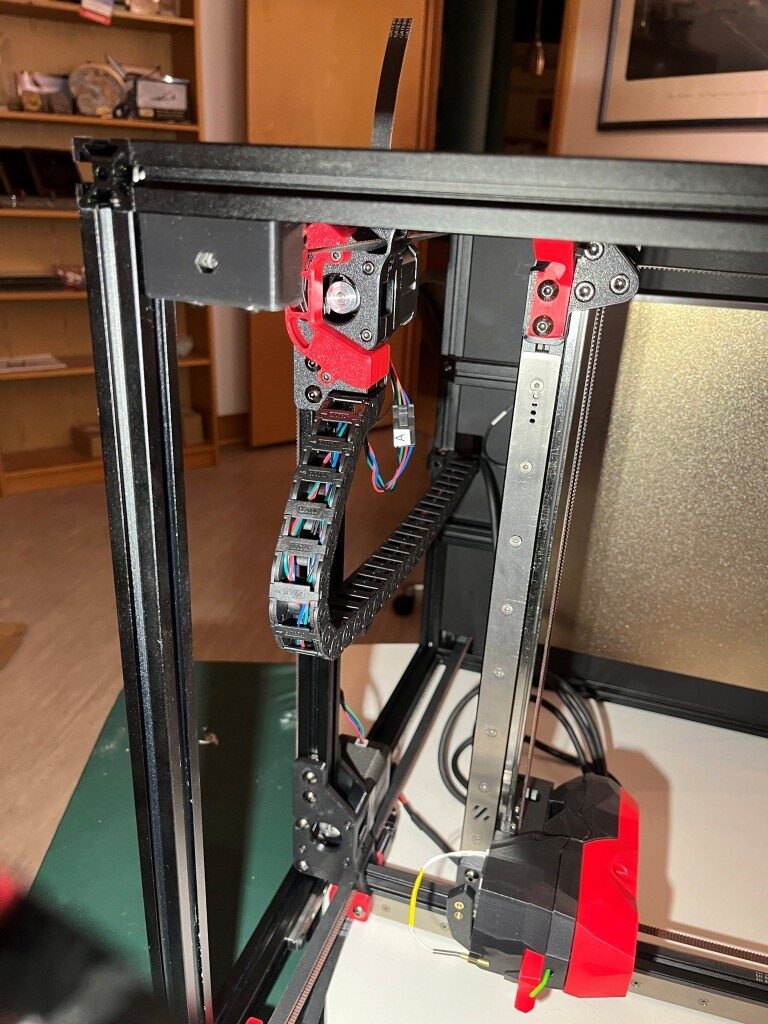
  • Voron 2 (V2): The flagship model with a large build volume (up to 350x350x350mm), advanced features like quad gantry leveling, and a belt-driven Z-axis. Current release is V2.4.
  • Voron Trident: A traditional CoreXY design with a fixed gantry and moving bed, available in 250x250mm, 300x300mm, or 350x350mm bed sizes. Simpler to build than V2, costing $1,000–$1,300.
  • Voron Switchwire: A CoreXZ design, similar to an upgraded Prusa i3, with linear bearings and a faster belt-driven Z-axis.
  • Voron Legacy: An older model, less common but still supported, designed for specific use cases.

2. Extruder Options

Voron printers support a range of extruders, each optimized for different setups (Bowden or direct-drive) and printer models:

  • Mobius: The original Bowden extruder, frame-mounted, highly optimized with dual gears. Driven by a full-size or compact “pancake” NEMA17 motor.
  • Jetpack: A modified Mobius mounted on the X-axis for a shorter Bowden tube. Superseded by the M4 extruder, driven by a compact NEMA17 motor.
  • Clockwork (CW1): The original extruder for the Afterburner toolhead, a repackaged BMG dual-gear extruder driven by a compact NEMA17 motor.
  • Clockwork 2 (CW2): An updated version of Clockwork, commonly paired with the Stealthburner toolhead.
  • Nightwatch: A repackaged Clockwork 2 designed for the smaller Voron 0, available as a standalone Bowden extruder.
  • Galileo: A newer extruder for the Afterburner toolhead, based on the Orbiter extruder with a planetary gear reduction for a smaller, lighter design.
  • Galileo 2 (G2): A redesigned Galileo with a 9:1 gear ratio, optimized gearbox, and custom 9T stepper motor. Includes variants like G2E (Stealthburner drop-in), G2Z (Z-drives for V2-style printers), and G2SA (standalone with Orbiter-2.0 or Sherpa-Mini mounts).
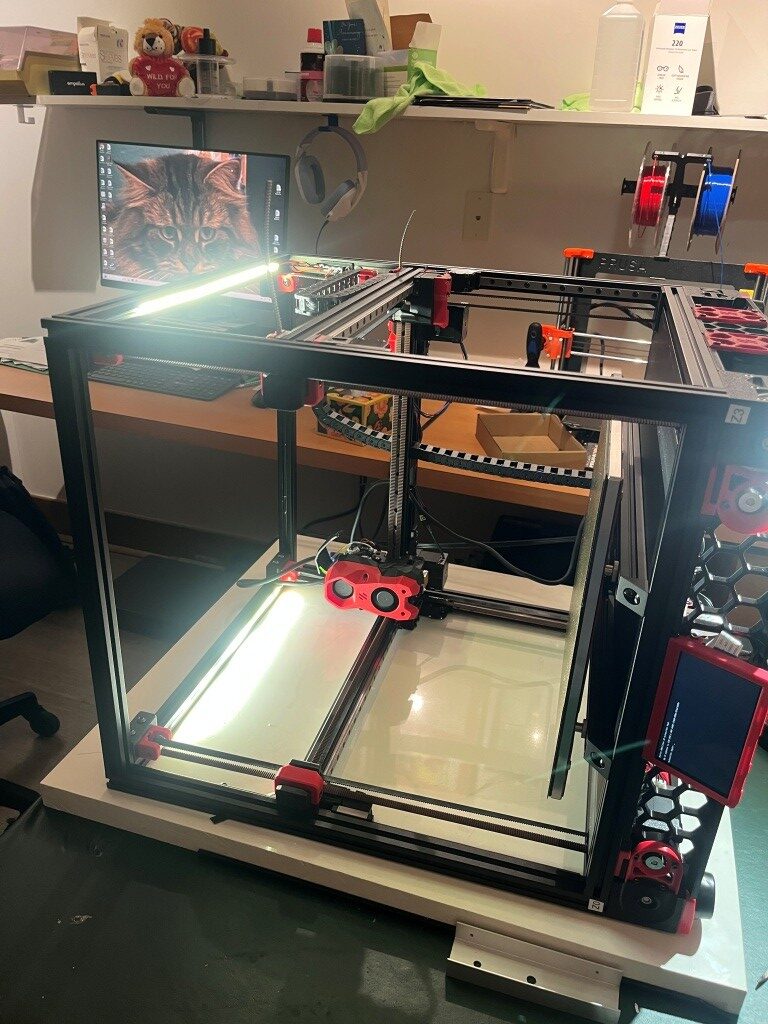
  • Pocketwatch: A compact Bowden extruder for the Voron 0, based on the Afterburner Clockwork design.
  • Bondtech LGX: A premade extruder compatible with the Afterburner toolhead, offering a warranty and high performance.

3. Toolhead Systems

Toolheads in Voron printers are modular, allowing for interchangeable components:

  • Afterburner: A direct-drive interchangeable toolhead system with three components: extruder, hotend holder, and cooling assembly. Often mistakenly used to refer to the Clockwork extruder.
  • Stealthburner: An updated toolhead, standard for newer builds, offering high performance and compatibility with extruders like Clockwork 2 and Galileo.
  • Mini Stealthburner: A compact toolhead with a built-in direct-drive extruder, designed for the Voron 0.2.
  • M4: A direct-drive toolhead that superseded the Jetpack, designed for shorter Bowden setups.

4. Hotend Options

Voron printers support multiple hotends, with STL files provided for compatibility:

  • E3D V6: A standard hotend option, limited to 12–15 mm³/s extrusion rate.
  • Dragon: A high-performance hotend supported by Voron’s STL files.
  • SliceEngineering Mosquito: A high-flow hotend capable of higher extrusion rates, especially with the Magnum heatbreak (up to 30 mm³/s).
  • E3D Volcano: Not recommended for Voron 0 due to reduced Z-height, but compatible with other models.

5. Bed Leveling Sensors

Voron printers offer options for bed leveling to ensure accurate prints:

  • Inductive Probe: A traditional sensor for bed leveling, used in stock configurations.
  • CNC TAP: An upgraded leveling sensor for improved accuracy, recommended for Voron 2.4 and other models.

6. Motion Systems

Voron printers use specific motion systems for precision and speed:

  • CoreXY: Used in Voron 0, Voron 1, Voron 2, and Trident for fast and accurate printing with reduced moving mass.
  • CoreXZ: Used in the Switchwire, combining X and Z motion for a design similar to an upgraded Prusa i3.

7. Frame Extrusions

The frame construction varies by model:

  • 1515 Makerbeam XL: Used in Voron 0, with tapped ends for cost efficiency.
  • 2020 Aluminum Extrusions: Used in Voron 1, Voron 2, and Legacy with a 6mm slot width.
  • 3030 and 6030 Extrusions: Used in the Switchwire for a robust frame.

8. Linear Rails

Voron printers use linear rails for smooth motion:

  • MGN7: Used in Voron 0 for all axes.
  • MGN9: Used in Voron 1, Voron 2, and Trident for X and Y axes. V-slot extrusions are discouraged due to misalignment risks.
  • MGN12: Used in some Voron 2.4 configurations for the X-axis (e.g., PRO+ version).

9. Firmware and Interfaces

Voron printers run on Klipper firmware with multiple web interface options:

  • Mainsail: A lightweight web interface for Klipper, recommended for all Voron printers.
  • Fluidd: Similar to Mainsail with a different look and feel, also Klipper-specific.
  • Octoprint: A general-use platform with plugin support, less recommended due to higher resource demands.

10. Multicolor Printing Options

For multicolor printing, Voron users can choose from several systems:

  • Tridex: A dual-extruder system for two-color printing without large purge blocks.
  • Double Dragon: Another dual-extruder option for two colors.
  • Dueling Zero: A dual-extruder system for Voron 0.
  • TapChanger: A tool-changing system for multiple colors or materials.
  • ERCF (Enraged Rabbit Carrot Feeder): A multi-material system for more colors, with options to purge into models to reduce waste.
  • IDEX (Independent Dual Extruder): Allows printing with different materials for supports or colors, planned for some custom builds.

11. Other Optional Components

  • Display/Screen: Optional, as many builders use the web interface (Mainsail or Fluidd) for control.
  • Filament Sensor: Used in some configurations to detect filament presence (e.g., toolhead_sensor in Klipper configs).
  • Moons’ Motors: Upgraded stepper motors included in some kits (e.g., Voron 2.4 PRO+).
  • Omron Relay: An upgraded relay for improved electrical reliability in some kits.
  • PEI Sheet: Double-sided PEI build plate for better adhesion, included in some kits.
  • Pre-Made Wiring Harness: Simplifies assembly in kits like the Voron 2.4 PRO+.

This list covers the primary option names associated with Voron printers. If you need details on a specific model, component, or configuration process, let me know!

In my particular case, I am primarily interested in dual-extruder designs, with robust open-source firmware, automatic bed-levelling (FlashForge’s lack of auto bed level and the impossibility of updating the firmware was ultimately the thing that drove me to throw that piece of junk away), VERY active user community and rich upgrade paths.

After exhaustive research (not necessarily in terms of the actual information retained, but certainly in terms of eye-strain and headache!), I narrowed my focus down as follows:

General System Configuration: I decided on a Voron 2.4 300mmx300mm configuration (my current Prusa Mk4 has a ~200mmx200mm print volume). In addition, the external dimensions of this configuration will actually fit quite nicely on my wrap-around lab workbench underneath my overhead cabinets and shelving units (this may not be entirely true of the planned dual extrusion toolchanger configuration, but I’ll cross that bridge when I come to it).

Toolhead/Extruder: I want to wind up with a dual-extruder system, which means a ‘toolchanger’ configuration. However, the community recommends that first-time builders build a completely normal (at least in the Voron world) printer, get it working to spec and only then start modifying it into a toolchanger configuration like StealthBurner/StealthChanger/TapChanger. I was told that the LDO kit I ordered comes with StealthBurner/StealthChanger supported parts, so I may not have to discard too much when upgrading to dual extrusion.

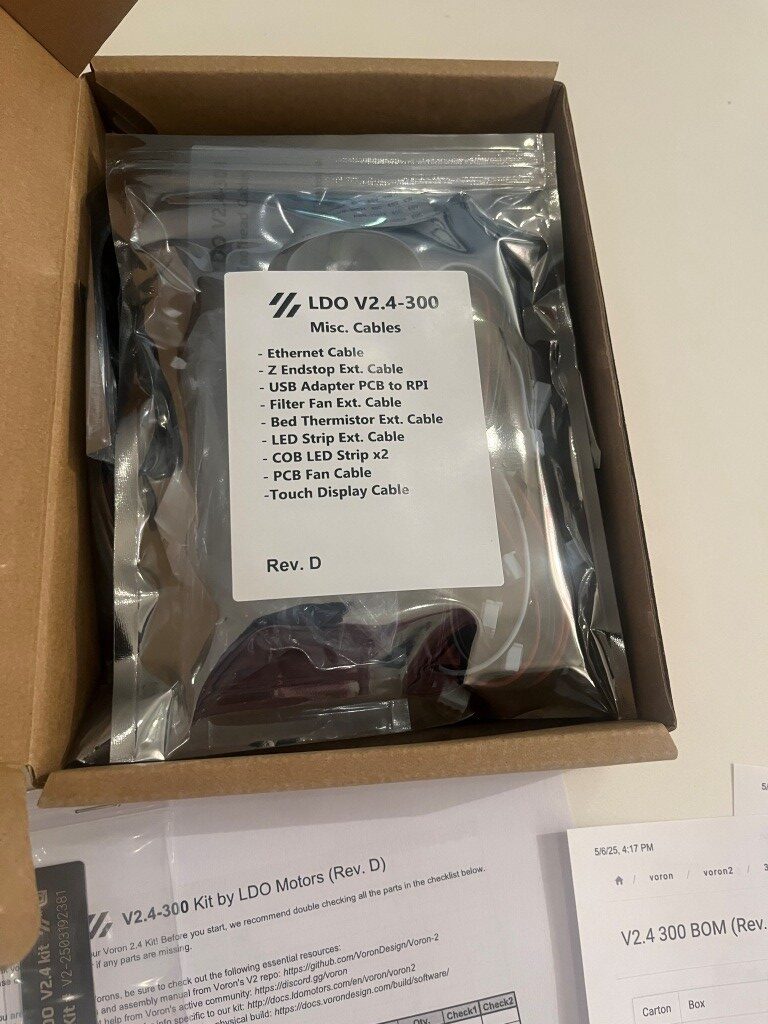
After all the research, I ordered a LDO Systems Voron 2.4 300mm Rev D kit from West3D. This is a significantly more expensive kit than the also-popular Formbot kit, but I’m more interested in top quality rather than economy.

I’m currently waiting on the printer kit to arrive so I can start my Voron adventure.

6 May 2025 Update:

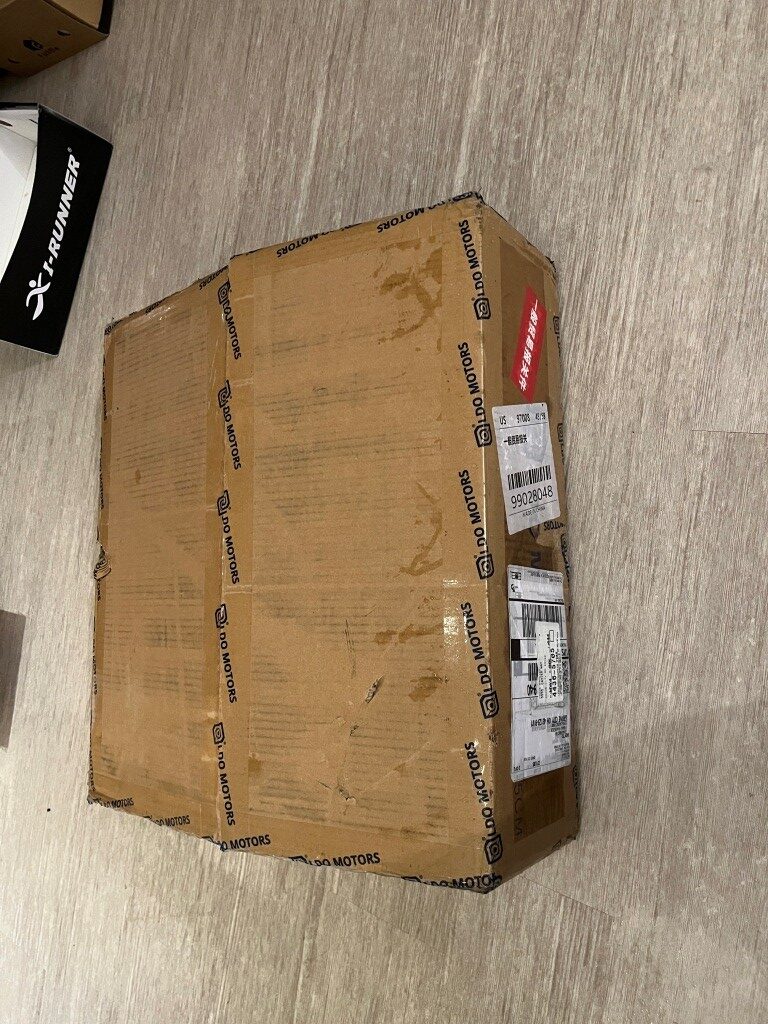
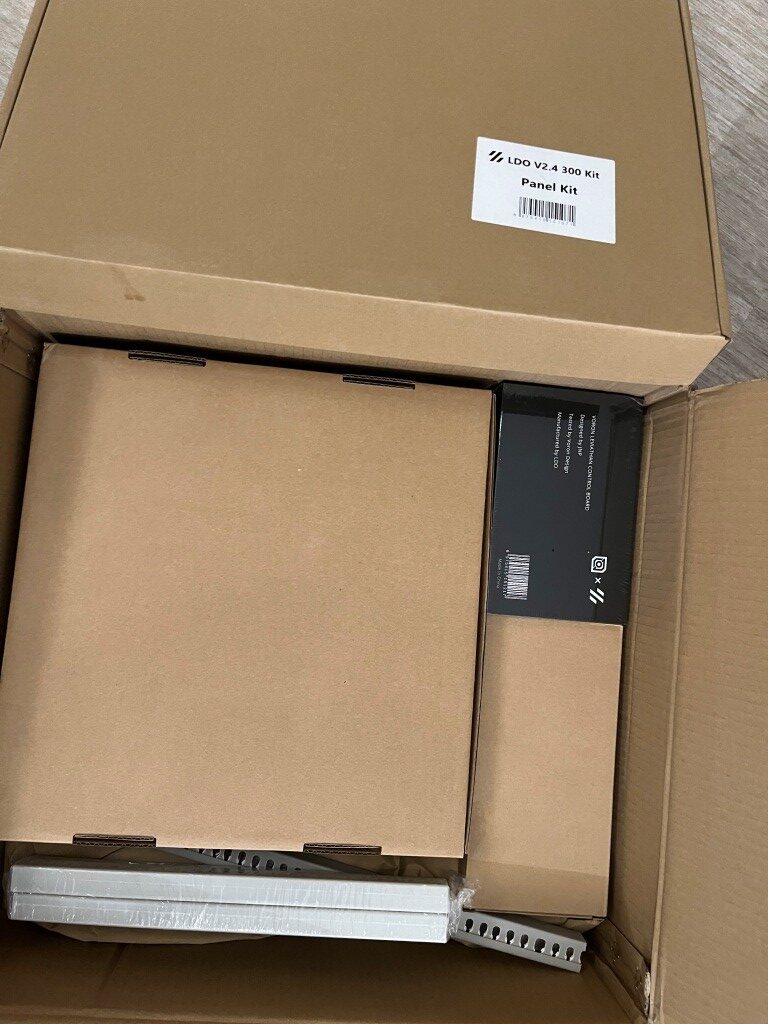
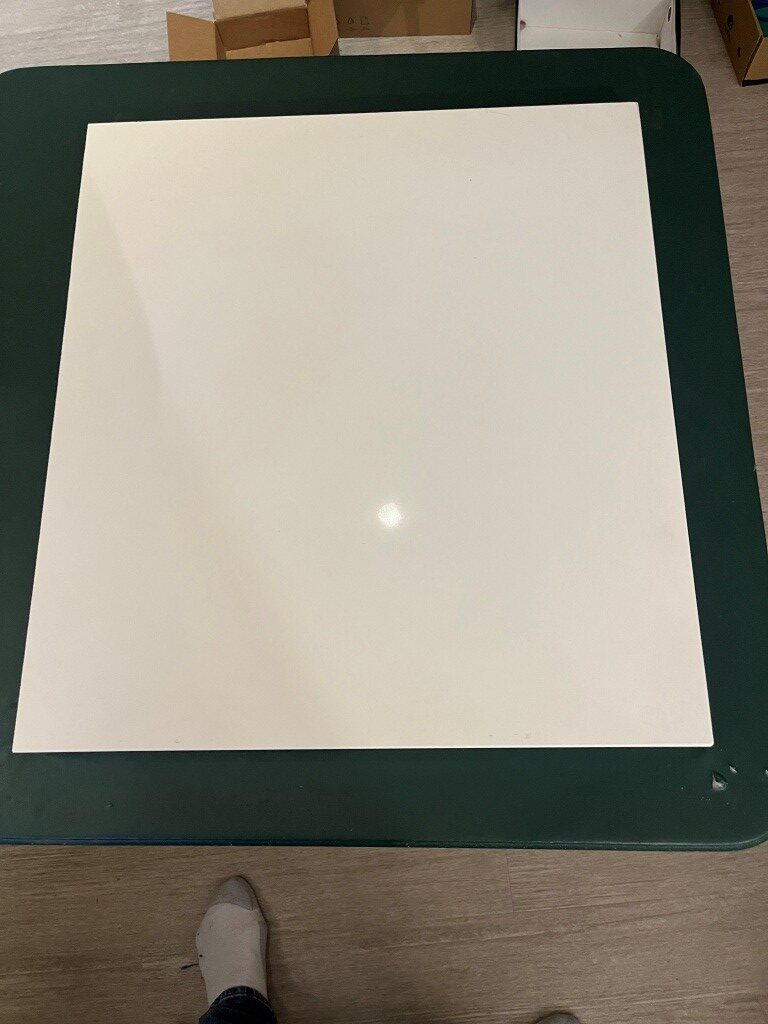
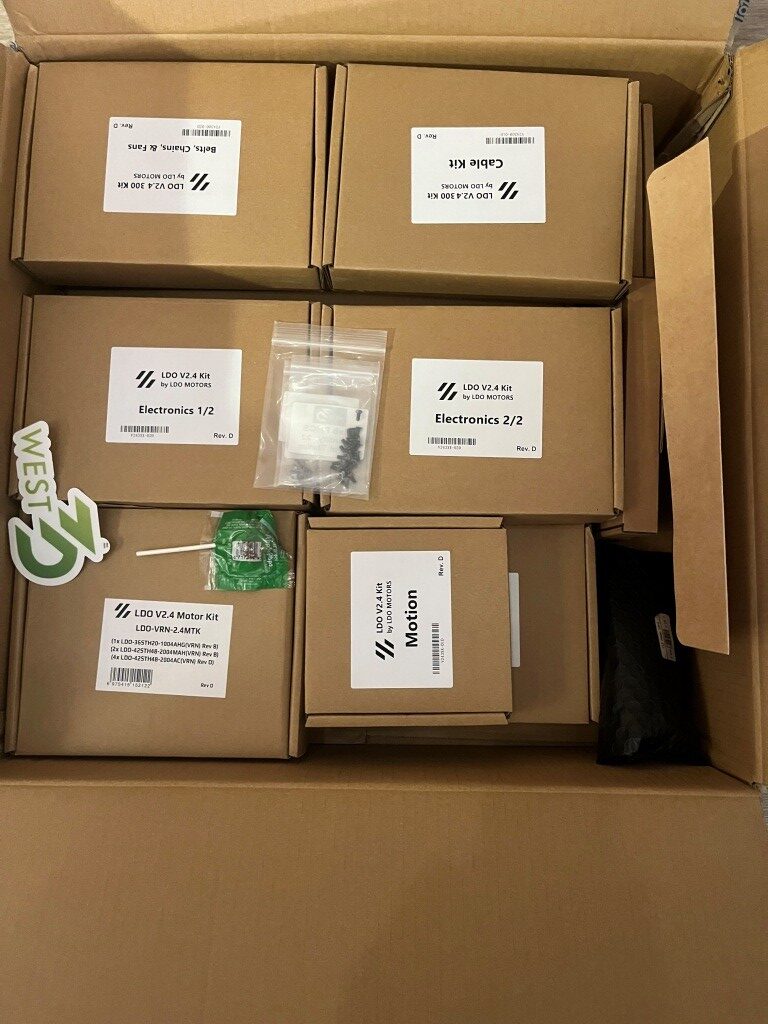
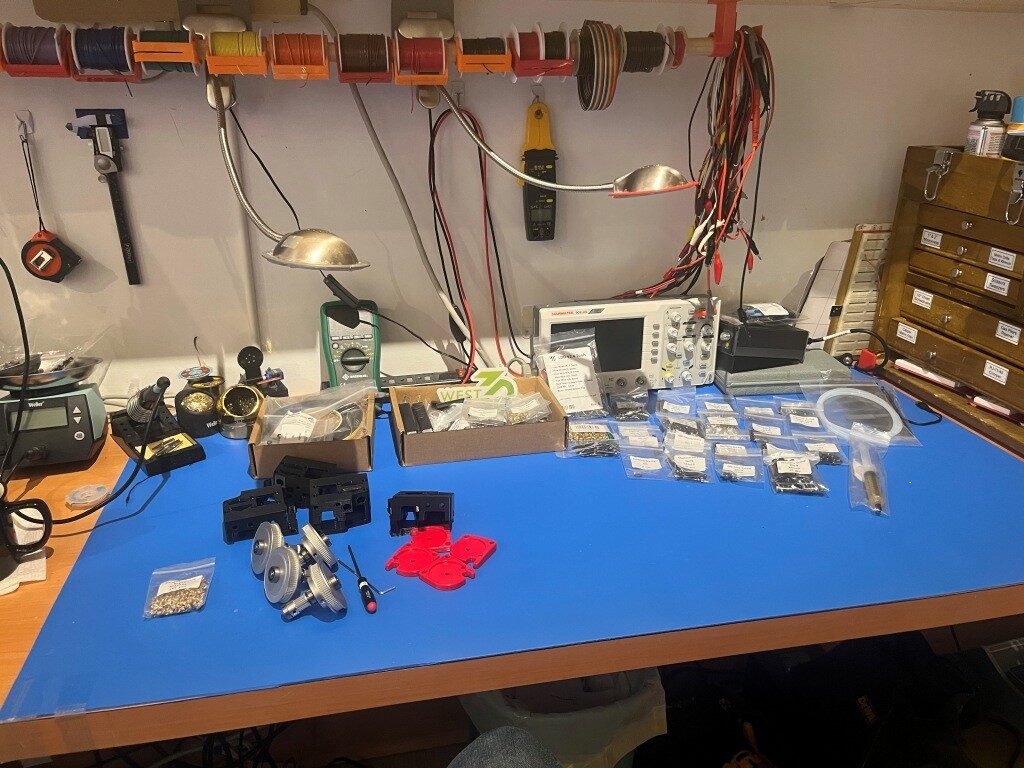
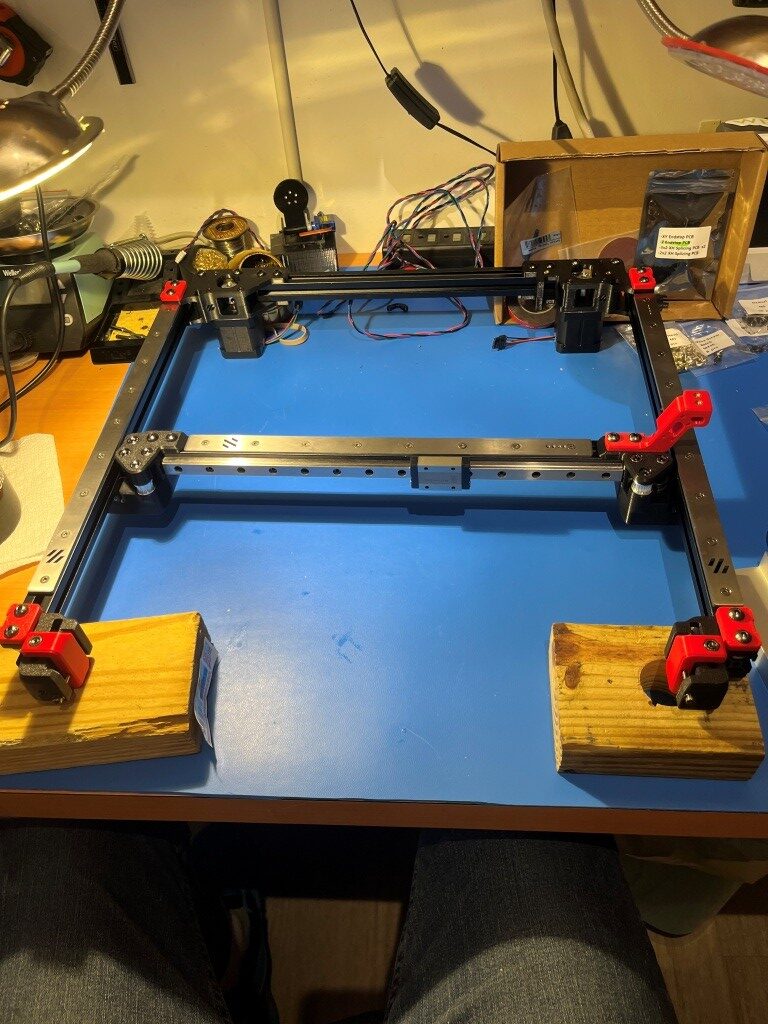
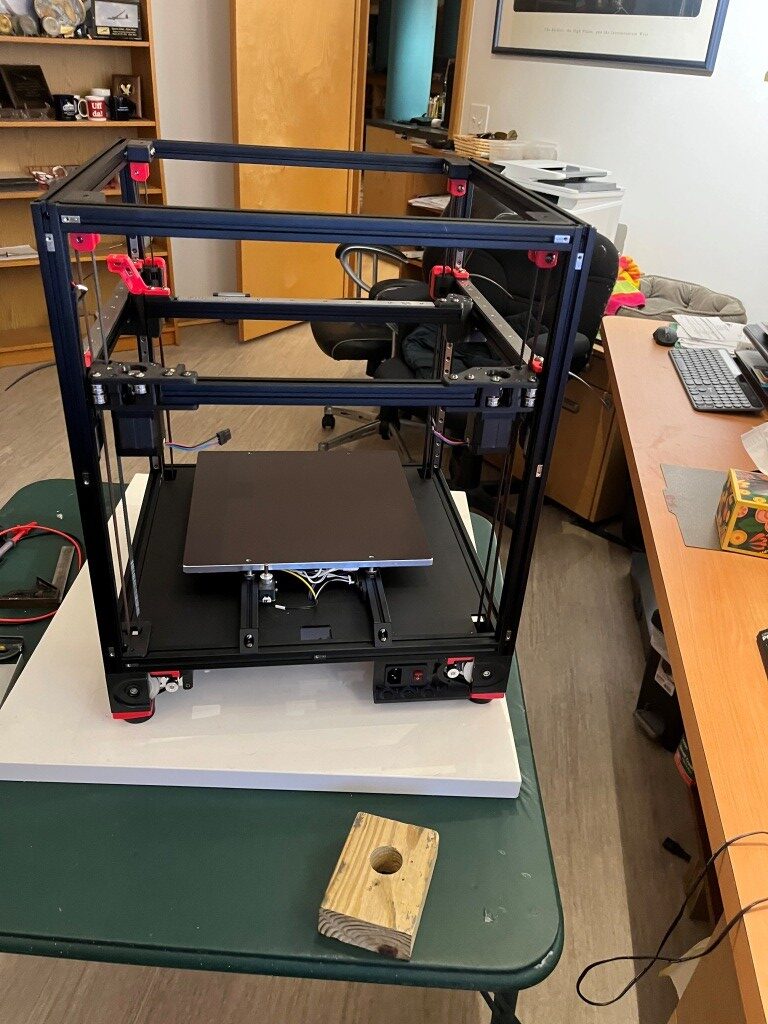
In preparation for my kit build I read through a number of Voron build logs and other posts on the Voron discord server and watched a number of build videos. One thing that stood out was the importance of a really flat build surface as a way of getting the frame square at the outset. I had a nice piece of granite left over from our house construction 20 years ago, but it was a little small for this project. So, I got a 1x24x26″ remnant from a local granite supplier to use as a build surface. At my wife’s suggestion, I put the granite piece on a fold-out card table in the middle of my lab so I could work all the way around the printer if necessary. Just as I got that done, the printer kit arrived, so I’m all set to start my Voron adventure 😁

10 May 2025 Update:

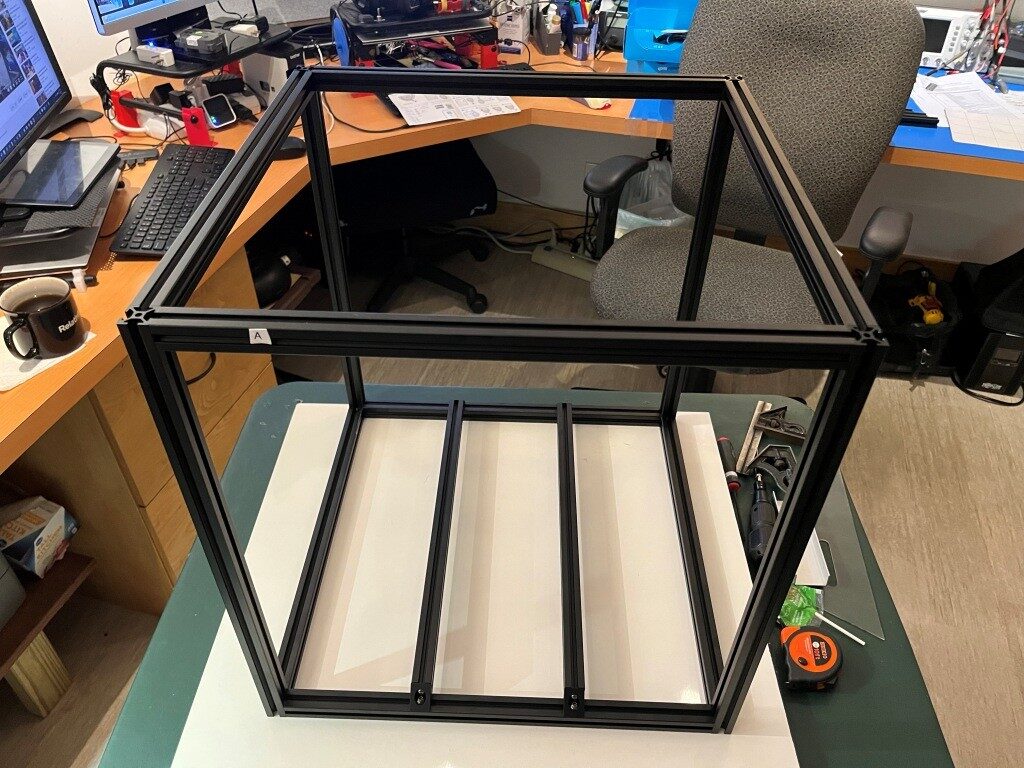
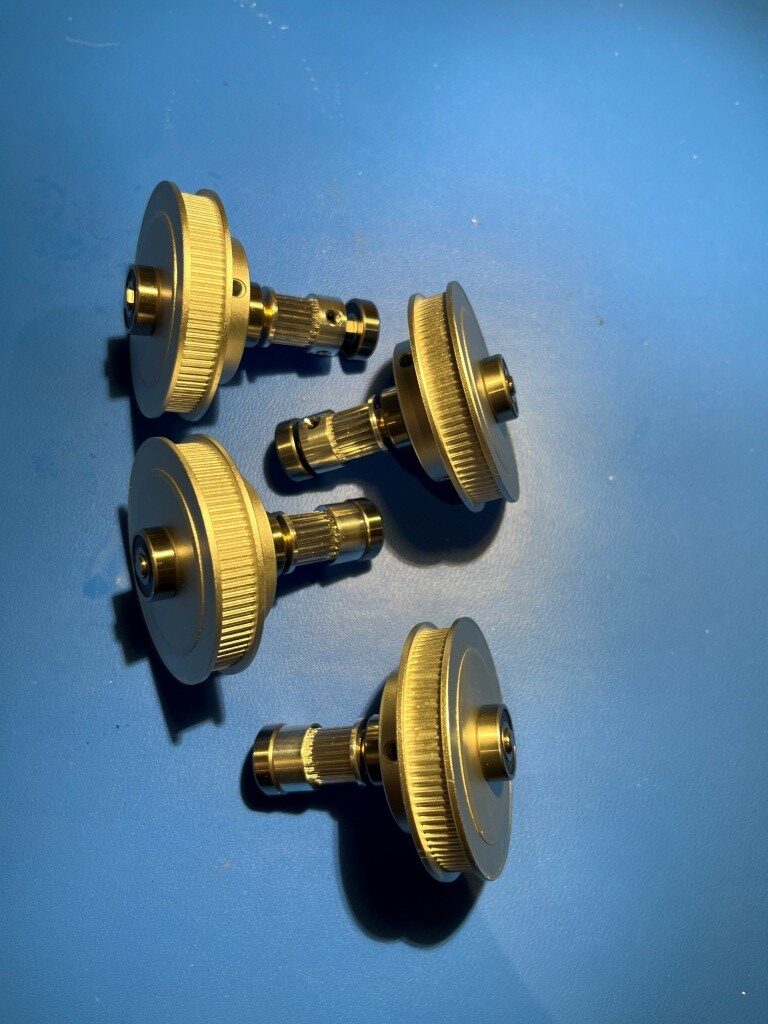
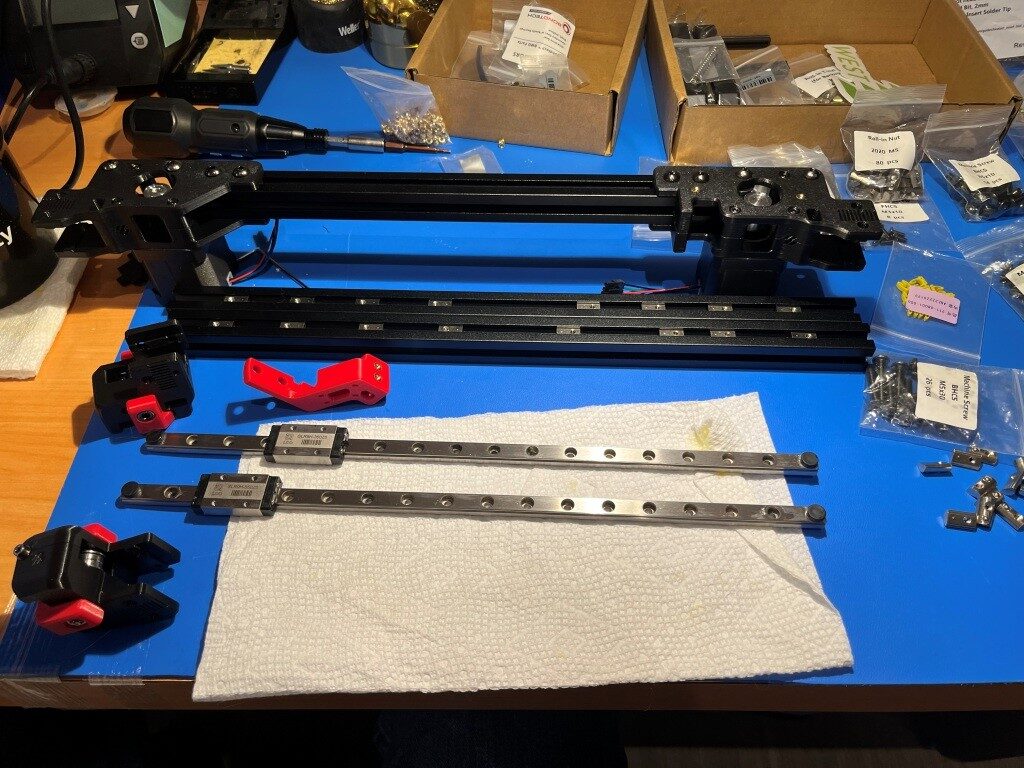
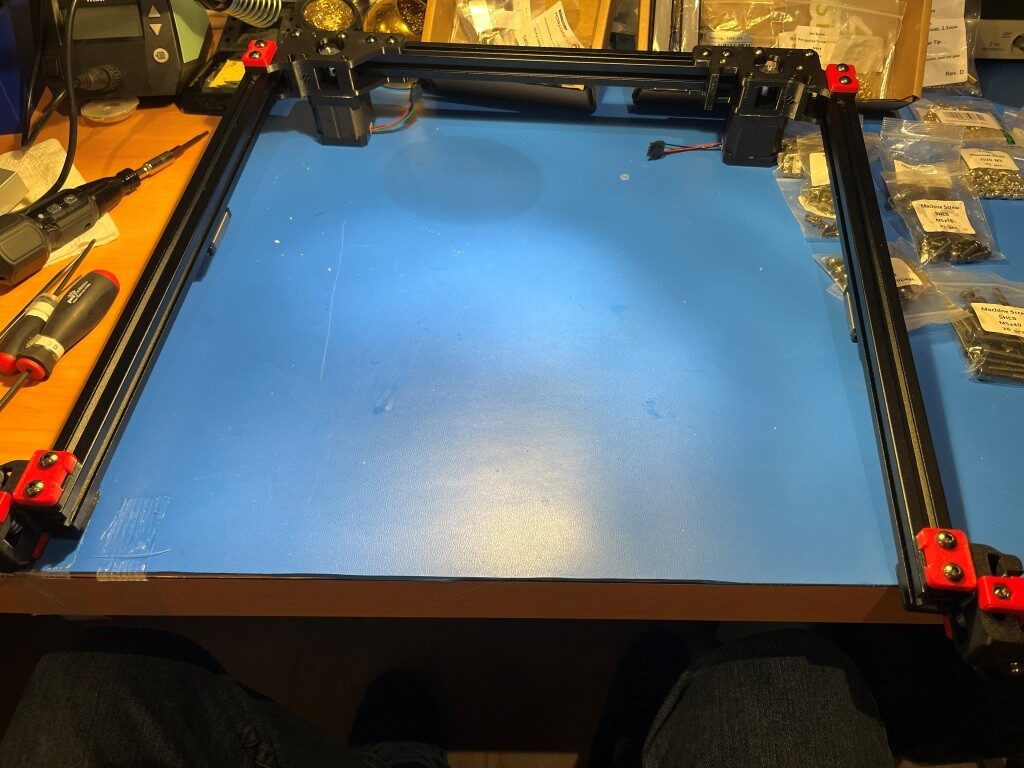
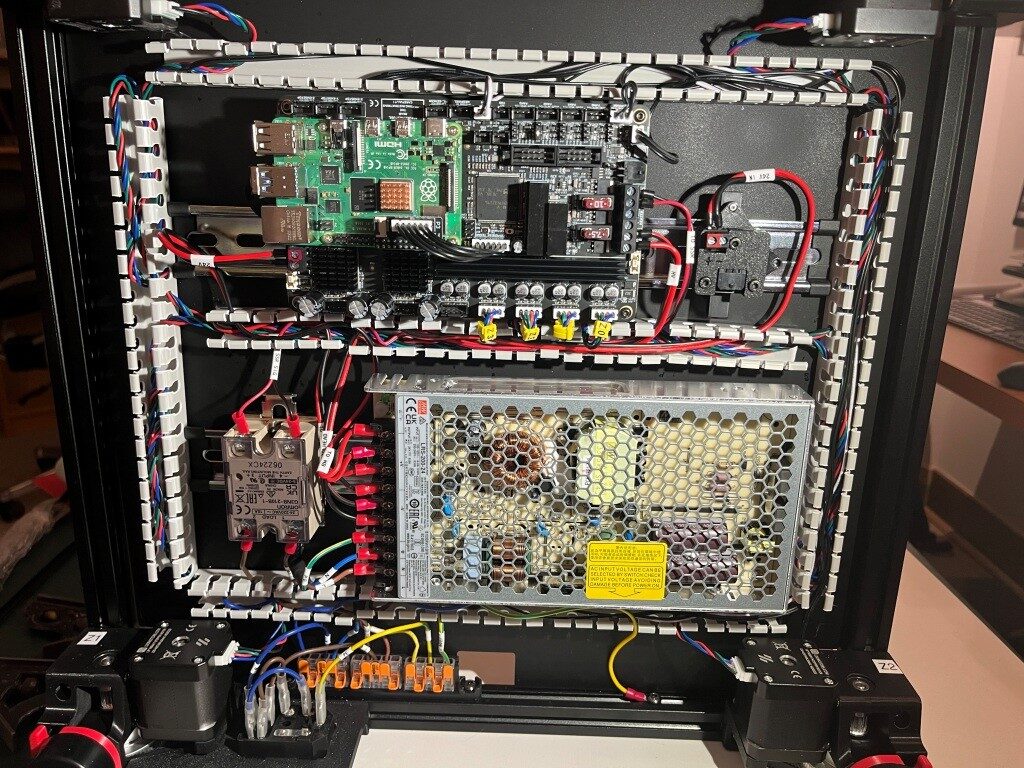
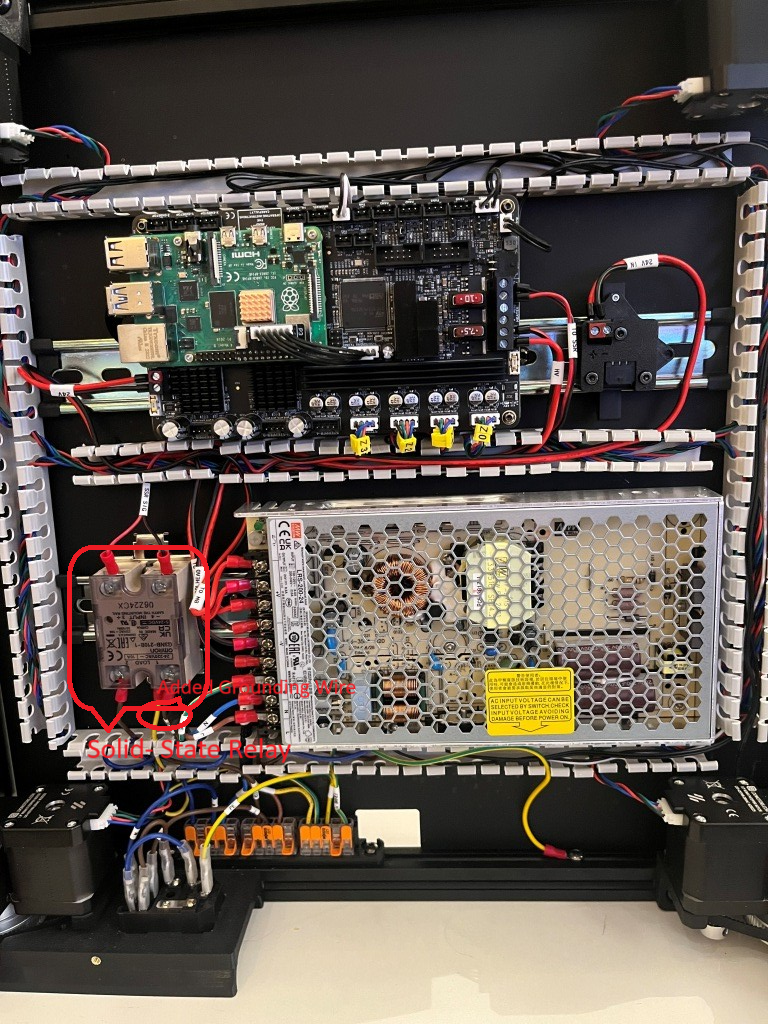
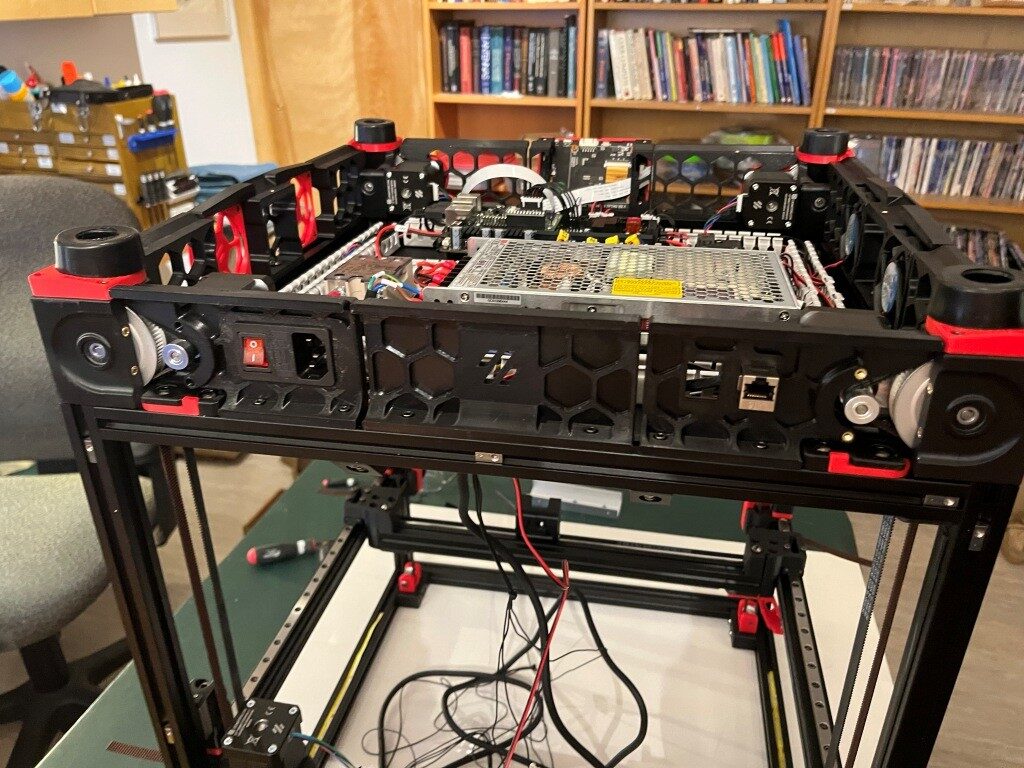
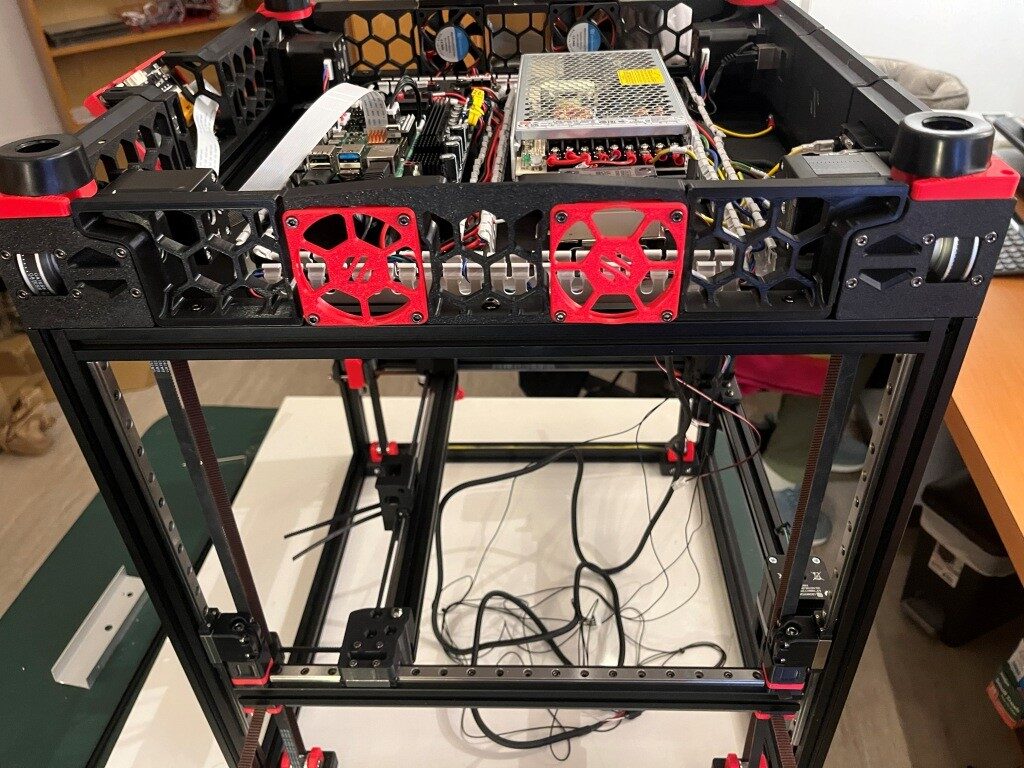
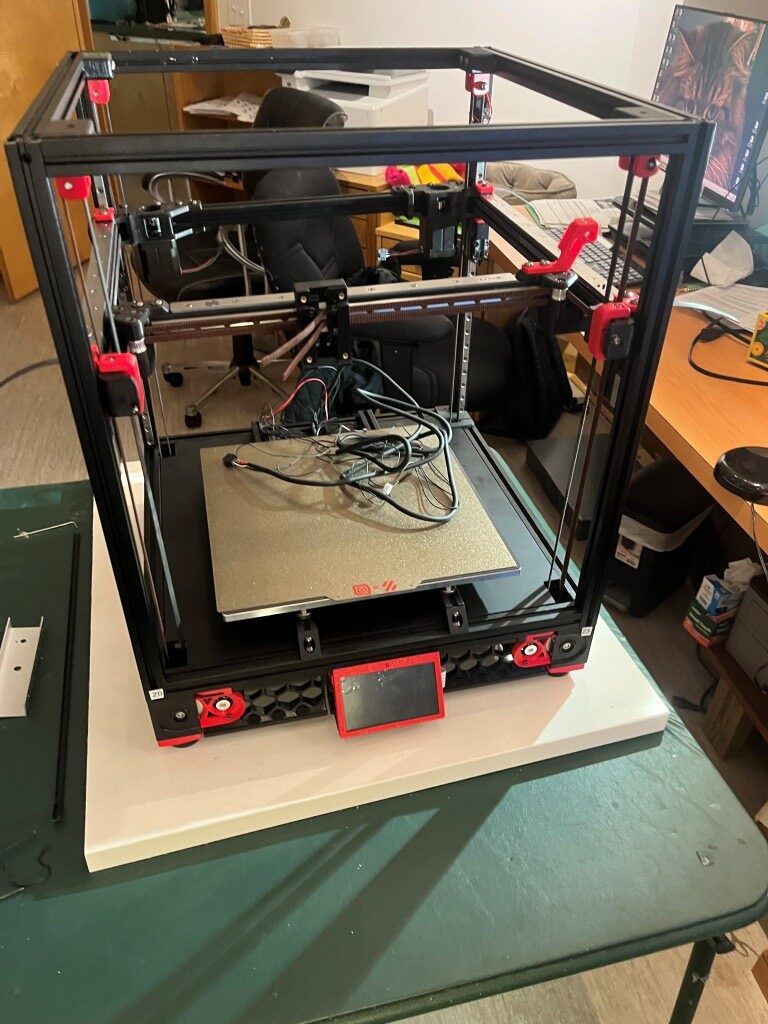
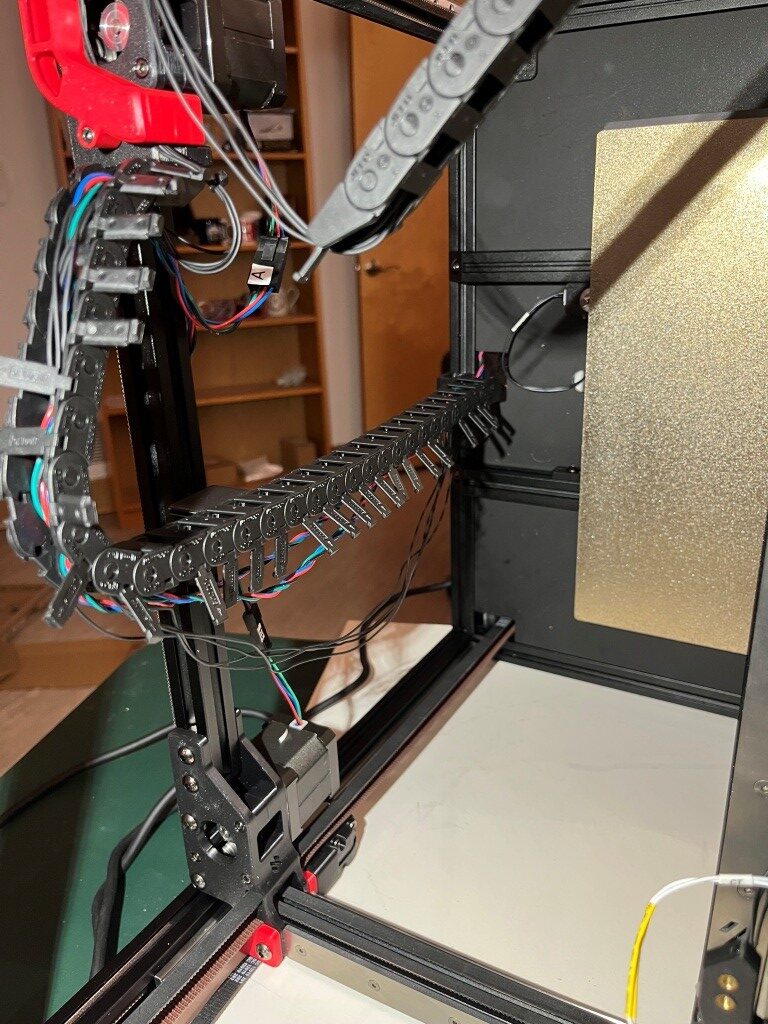
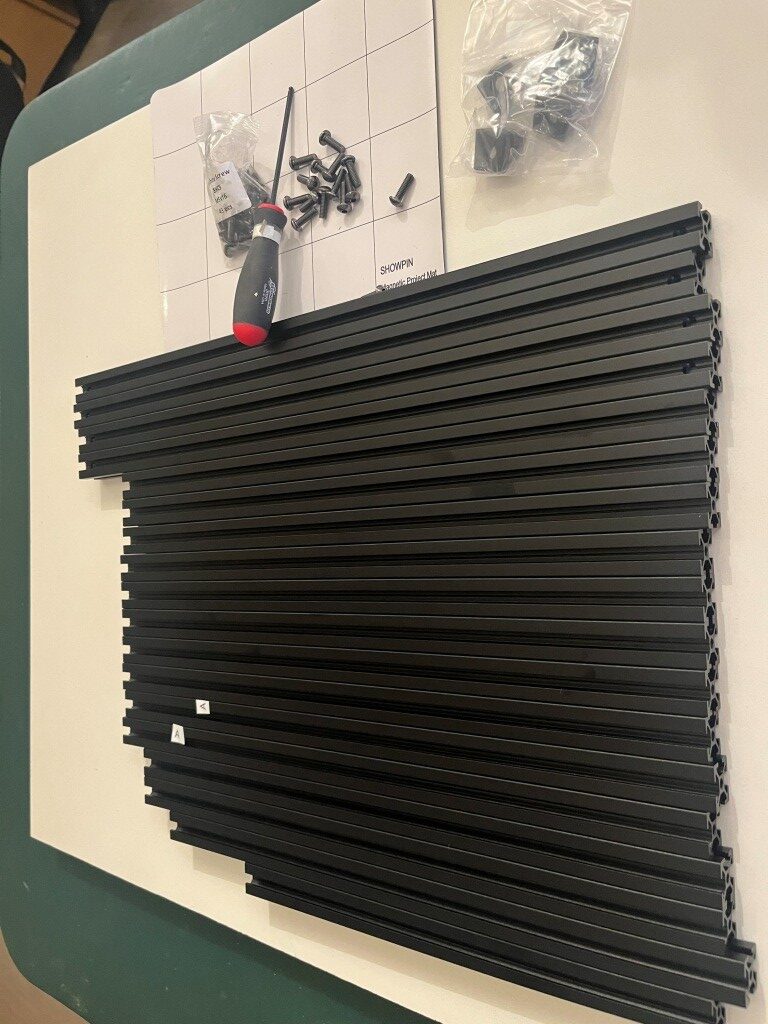
Well, a lot of progress has been made in the last four days. I’m fully into construction mode now, and everything else (including food, sleep, and personal hygiene) is an unwelcome distraction (well, bridge and b-ball practice are exceptions). Here are some progress photos:

So far, the build project has been relatively disaster-free. I have managed to install some roll-in nuts into wrong section of extrusion and managed to get all but one of them back out again. The remaining one, I fear will remain as a permanent testimony to the builder’s humanity (as in – “to err is human”).

11 May 2025 Update:

Miracle of miracles! I got that rogue roll-in nut out of the extrusion! Turned out to be pretty easy using the technique shown in this video. I thought that particular roll-in nut was going to be there forever!

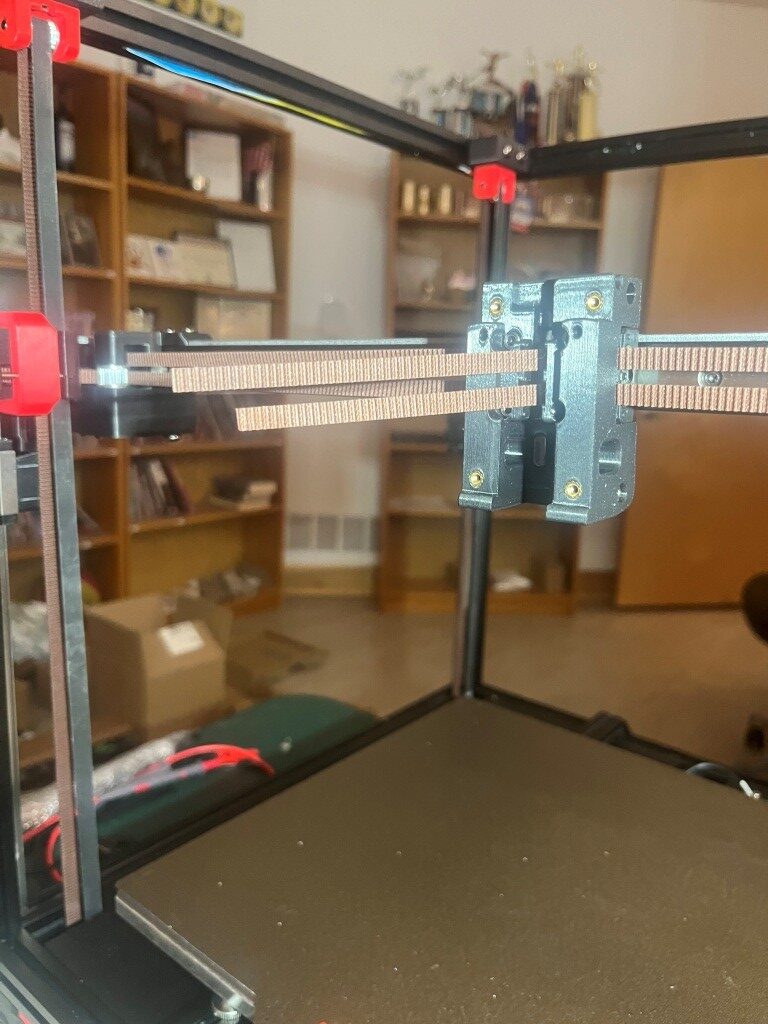
After getting past that roadblock, I continued to make progress. Here’s a photo showing the mostly completed gantry assembly.

15 May 2025 Update:

This is my quote from five days ago: “So far, the build project has been relatively disaster-free.” This is my quote from three days ago: “Holy Shit! My gantry assembly (see photo above in my 11 May 2025 Update) just dis-assembled itself onto the floor!” So, I guess the Voron printer god giveth, and the Voron printer god taketh away. I had everything on the gantry done, even to the point of test fitting it into the printer frame, where I found a couple of minor problems. So, I pulled the gantry back out and had it on my work surface to fix them, and when I rotated the gantry assembly around to get to the problem, the whole damned thing just fell apart! In the process, two of the carriages came off their linear rails and scattered little teensy-tiny ball bearings all over my floor. And, as the Voron assembly manual says (or words to that effect) “you ain’t recovering from that dude!”.

This was entirely my fault. After assembling the gantry pieces consisting of three frame pieces in a ‘U’ shape and a fourth frame piece (the Toolhead carriage that moves in X & Y axes) that slides back and forth along the ‘U’, I noticed that the distance between the open end of the ‘U’ changed as I manually slid the the moving piece back and forth. This is a BAD THING, so I fixed it by loosening the screws that clamp the side extrusions to the bottom extrusion and then slid the moving piece up and down again. This motion sort of self-adjusted the extrusions in the clamps, and everything was parallel again (a GOOD THING). Unfortunately, I forgot to tighten the clamping screws again, which led some time later to my gantry assembly dis-assembling itself in mid air. 😖

So, after seriously considering ritual suicide, I went up on the West3D discord and got the part number for the offending linear rails and ordered two new ones – putting another $100 or so dent in my bank balance, and a week or so delay in getting the frame and gantry finished UGH! UGH! UGH!

After a restless night filled with nightmares about flying gantries dis-assembling in mid air, I got up the next day and decided to skip ahead to the Electronics assembly section of the manual. At least I have some claim to expertise in that area. After a couple of days, I have made some pretty good progress in the Electronics bay, as shown below:

A Word about West3D:

When I decided to try my hand at building a Voron 3D printer from an LDO (the high-priced spread of Voron kits) kit, I naturally looked around for a distributor and got recommendations that West3D was a good company, so I bought my kit from them. Little did I know that what I also got for my money was A whole lot of support. As I encountered problems (and boy did I encounter problems), the staff at West3D was almost always just a few minutes away on their Discord channel. Here’s a sampling of a conversation I had just today about finishing up the Electronics sub-assembly (In the conversation below, I am ‘av8tor’ and the West3D support guy is ‘thunderkeys’):

11:06 AM]av8tor: yes, lots. I did find a packet containing 1ea M5x6 BHCS, and this worked great. Is this particular screw used somewhere else in the printer? I did a search in the assembly manual for ‘M5x6’ (after testing that ‘M5x10’ worked properly) and found 0 hits.

[11:06 AM]thunderkeys: That’s what it’s for

[11:06 AM]av8tor: cool!

[11:06 AM]av8tor: you are up early!

[11:06 AM]thunderkeys: I’m in Colorado today

[11:07 AM]av8tor: ah, 1 time zone diff from Oregon

[11:07 AM]av8tor: You see the photo & question about the RPi heatsink?

[11:09 AM]thunderkeys: I answered that first

[11:09 AM]thunderkeys: ⁠ticket-0123⁠

[11:10 AM]av8tor: oops – sorry 😬

[11:31 AM]av8tor: Some progress 🙂Image💚1

[11:50 AM]thunderkeys: I’d also look at a PE wire on the SSR

[11:50 AM]thunderkeys: secured with like an m4x6 bhcs💯1

[11:58 AM]av8tor: OK, nothing shown in the ‘final’ wiring guide image – is this something that has been found to be an issue – like SSR switching noise suppression? I could fabricate a wire with a ring terminal on one end and a swaged pin (like the provided PE wires). Connect the ring terminal end to one of the M4x6 screws securing the SSR to the Relay Mount (Assy Man pg 157), and the other end to the PE Wago. Would that work?

[11:59 AM]thunderkeys:Image

[11:59 AM]MistaExcuse_West3D: That would be PERFECT! It’s exactly what I did.

After this conversation I was able to add the ‘PE’ (grounding wire) from the SSR (Solid State Relay used to control the temperature of the heated bed) to the main grounding WAGO junction strip, and now – with just a few exceptions – I have completed the below-decks electrical wiring for my Voron 3D printer

Electrical bay showing the ‘PE’ (grounding) wire added to the Solid-state relay (SSR)

If you are considering your own Voron project, I highly recommend West3D. I didn’t know it at the time, but I literally could not have done this project without their (and by ‘their’ I mean #thunderkeys) constant help and encouragement.

17 May 2025 Update:

I’m pretty much finished with the electronics bay work, and because my new linear rails haven’t yet arrived, I decided to continue on other things – and the ‘other thing’ I started on was the StealthBurner toolhead that comes stock with the LDO kit. And since I had never heard of ‘Voron’ before, much less ‘StealthBurner’, I was pretty sure this was going to be a bit of a wild ride (and it was). However, like the rest of the Voron ecosytem there is a very detailed StealthBurner assembly manual, giving me hope that I just might be able to muddle through. Here’s the ‘after’ picture shown at the top of the StealthBurner assembly manual:

After working my way through to the end of the manual where the decorative cover is installed, as shown in this illustration:

Where I discovered that the long screws would not thread into the mating heatset threaded holes at all. I had encountered something similar to this in earlier parts of this process, and I had figured out that the problem was due to not having the heatset inserts square to the hole, such that the centerline through the heatset threads were perpendicular to the plane of the part (in those earlier instances I was able to fix the problem by reheating the insert with my modified soldering iron tip and reorienting it when the material became plastic). Sure enough, when I actually looked at the four heatset inserts used for this step, they were way out of square:

The two holes for the M3x50 mounting screws were the worst, but the heatset inserts for the M3x25 mounting screws were off far enough to keep the screws from engaging the threads.

So, what to do. With earlier similar issues I had simply reinserted my modified soldering tip into the heatset insert with the temp dialed up a bit and reoriented the insert ‘by eyeball’. However these were for much shorter screws, so significant misalignment was still OK. For these longer screws I would need a different technique.

What I wound up doing was to thread a M3x16 screw into the heatset insert just enough to engage all the threads, and then using the screw as an extension of my soldering iron. When sufficient heat made its way down the screw and into the insert, the surrounding material became plastic again and then the screw could be manipulated with the soldering iron tip to reorient the insert properly. With some experimentation I found that I needed to set the soldering iron temperature to about 250 degrees when using a M3x8 screw, and about 450 degrees when using a M3x16 screw (presumably due to the higher heat loss through the longer screw) the insert had a tendency to ‘bounce back’ to its previous orientation as the plastic resolidified, so I had to go past the correct orientation to allow for this. Then I discovered that I could remove the iron from the screw head and then use something like one of my hex-head socket drivers to hold the screw in place while the plastic resolidified and this worked pretty well. After reorienting all for inserts I was able to successfully mount the StealthBurner cover to the assembly as shown:

Heres another photo showing the completed StealthBurner with the NiteHawk toolhead PCB installed.

At this point I’m pretty amazed the richness of the Voron ecosystem and the vitality of the Voron community. These folks are seriously competent and innovative – and something I didn’t really expect – artistically creative. When you look at the StealthBurner toolhead photos above, there is a sort of ‘steampunk science-fiction’ motif with all the angular flat surfaces. Somebody (or maybe lots of somebody’s) went to a lot of trouble to include these aspects into the design of a 3D printer extruder assembly (‘toolhead’ in Voron-speak). I’m not used to seeing this sort of artistic flair on 3D printers. For instance, here is a photo of my Prusa MK4 extruder:

There is very little that is ‘artistic’ about this extruder assembly – maybe ‘brutally simple’ would be a better description 😉

Another thing that I didn’t really understand about this project is just how vast of an undertaking it was going to be. I have already assembled at three different 3D printers from kits, and I don’t recall them being anywhere near as complex and, well, massive as this one. I feel like I might still be building this thing sometime next year, even working 30+ hours/week on just this project. Hopefully I’ll like the end product 😀

04 June 2025 Update:

A lot has happened since my last update three weeks ago. The printer is actually functional now, albeit without any side/bottom panels or any other ‘niceties. Notable milestones along the way from there to here:

Linear Rail disaster recovery:

I received my replacement linear rails, only to discover that I had ordered the wrong ones; I had managed to order the ones for a 250x250mm Voron instead of my 300x300mm one. After some wailing and gnashing of teeth, I figured out how to transplant the carriers (with their millions of teensy tiny ball-bearings) from the new linear rails to the old ones. I mounted both the new and old rails onto the same extrusion with the ends touching as shown below:

Then I very carefully slid the carrier off the new linear rail onto the old one (right to left in the photo above). This actually turned out to be fairly easy, although it took a bit of a leap of faith to push through resistance as the internal ball-bearings bridged the gap. This saved me yet another embarrassing re-order from West3D.

I finally got the gantry re-assembled with the old linear rails and the new rail carriers

and then installed onto the printer frame

So then I started installing the Gates gear-tooth belts. The Z-belts were relatively straightforward, but the A/B motor belts were much more complicated. Due to the X/Y core movement dynamics, both the A and B motor belts have to move to produce a the desired toolhead trajectory. If only one motor belt moves, the head moves on a diagonal. For a pure X or pure Y movement, both A and B motor belts have to move in a coordinated fashion. I did not understand this at all when I started out, and didn’t understand why the ‘A’ and ‘B’ motors were called ‘A’ and ‘B’ instead of ‘X’ and ‘Y’, so this took some research into ‘Core X/Y kinematics’ and some head-scratching. All this is prefatory to understanding why the assembly instructions make such a big deal out of making sure that both the ‘A’ and ‘B’ belts wind up with exactly the same amount left over after they are run through the system. Here’s what I wound up with.

First attempt to run A/B belts

Definitely not ‘exactly the same length’.

After some back and forth with the experts on the Voron forum and providing photos showing the routing for both belts, I was informed that I was guilty of ‘doing the thing’. I had seen this reference to ‘the thing’ a number of times on discord postings, but had no idea what it was up to this point. Turns out ‘the thing’ involves misrouting the belt over a part of the A or B (or both I guess) motor mount instead of through a slot and around an idler.

After correcting this error, the belt remainders were the same length, as shown below:

After correcting ‘the thing’

After this I installed all the ‘skirt’ pieces.

At this point I decided to start working my way toward my desired ‘Stealthchanger’ (dual Stealthburner toolhead) configuration by not installing the XY drag chain from the fixed frame out to the toolhead, and instead routing the ‘umbilical’ cable directly from the electronics bay to the toolhead. When I get around to installing a second Stealthburner toolhead, this independent umbilical routing will be required.

At this point I had a ‘mostly functional’ Voron printer, albeit with no side, top or bottom panels, and lots of left-over hardware.

After a few more hiccups with belt routing:

I was able to get the Z endstop switch installed, and actually get the printer to ‘home’

Next was to get the BTT (Big Tree Tech) touch-sensitive display to actually display the control panel instead of just console text. This turned out to require the installation of a Klipper extension called ‘KlipperScreen’ – another piece of the puzzle I’d never heard of before. With help from the Voron discord and X/Grok, I got this installed and got the display working properly. This turned out to be important, as this allowed me to access the ‘fine tuning’ tool to get the first layer dialed in.

Then I had to work my way through another set of problems getting a first layer print to work, and among other things this involved understanding the role of the ‘Z position_endstop’ value in determining the actual distance from the nozzle to the print bed for the first layer. It turns out there was a lot of misunderstanding on the Voron discord about this parameter and how best to adjust it to the optimum value for a good first layer. After fumbling around for a good while trying to adjust ‘Z position_endstop’, I discovered that the ‘fine tune’ tool on the BTT display offers to adjust the ‘Z position_endstop’ to incorporate the ending ‘fine tune’ value, operating under the assumption that the operator used the ‘fine tune’ feature to achieve a good first layer – nice! With that, I was able to get a very nice first layer, as shown below:

And then, for my first ‘official’ printed part, I of course chose the ‘Voron Cube’:

So, at this point I have a functioning printer, but there is lots to do yet. All the panels, the Nevermore filter, change out the Omron sensor for a ‘Klippy Stepper’ (parts included in the LDO kit), and ultimately get to the desired dual-Stealthburner configuration.

17 June 2025 Update:

A lot has changed since the last update. The Voron 2.4 printer has been completely finished, and I even got a serial number (a big deal in the Voron community). Now I’m working on ‘enhancing the user experience’. Here’s a photo showing the finished printer:

Once I got the printer mostly finished and inside its enclosure, I tried some ABS prints, and immediately ran into some issues. It turns out that there is an ‘IF’ statement in the PRINT_START macro that treats commanded heatbed temps over 90C (the default heatbed temp for ABS is 100C) a bit differently, and this held me up for a bit. With some hints from the Voron discord community, I figured out what was wrong and fixed it, and then ABS prints went very nicely.

Then I decided to try a two-color ABS print – my Voron serial number in red on a black background. Prusa Slicer offers to put in a ‘M600’ (filament change) at the appropriate level so the user can manually change the filament color and resume the print. Unfortunately, the Klipper firmware doesn’t recognize the M600 command, so my first few tries at this just resulted in monochrome (all black) results. After much more study and cries for help on Discord, I finally got a two-color print going – sorta:

First ‘successful’ two color print

When I once again cried for help on the Voron Discord, I was pointed in the general direction of “Ellis’ Pause/Resume Macros”. This led me down yet another rabbit-hole, from which I have yet to emerge.

Two-color prints using Voron/Klipper and Prusa Slicer:

Prusa Slicer offers to insert a ‘M600’ (filament change) g-code command into the g-code at the appropriate layer whenever it detects a ‘logo-like’ object being sliced. However, Klipper does not natively recognize M600 g-code commands.

My first attempt at enabling two-color printing was to add the following macro (suggested by Grok) into Klipper’s printer.cfg:

As I understand it, the ‘[pause_resume]’ section is required before any pause/resume macro operations to enable the underlying Klipper firmware routines.

The ‘[gcode_macro M600]’ macro executes whenever a M600 command is detected in the print gcode file. This macro was sufficient to pause the print, allowing me to change the filament. When I clicked on ‘Resume’ on the KlipperScreen, the print restarted, but unfortunately at a slightly offset position. So, ‘close but no cigar’.

Looking at the above macro, I *thought* the ‘SAVE_GCODE_STATE NAME=M600_state’ and ‘RESTORE_GCODE_STATE NAME=M600_state’ calls would do the job of returning the extruder to the original position, but apparently this magic is not entirely foolproof.

So, on to Ellis’ Print Tuning Guide, which contains advanced PRINT_PAUSE and PRINT_RESUME macros with some explanations, one of which is germane to my situation:

“It’s probably okay to leave the hotend on during a non-runout filament change (M600) if you plan to be near your printer. If you want to do that, you can duplicate the macro to M600 (rather than just having M600 as an alias for pause) and comment that part out.”

I take the above comment to mean that I can overwrite the contents of the above [gcode_macro M600] macro with the contents of Ellis’ [gcode_macro PAUSE] macro (and then, presumably add Ellis’ [gcode_macro RESUME] macro as-is. On further thought, it sounds like the word ‘duplicate’ is meaningful – meaning that I should use Ellis’ [gcode_macro PAUSE] macro and have the [gcode_macro M600] with all the [gcode_macro PAUSE] code, in addition to Ellis’ [gcode_macro PAUSE] macro, like so:

After making the above changes, the printer.cfg file looks like this:

with this printer.cfg file I was able to get a nice, two-color print as shown below:

Stay tuned,

Frank