Author Archives: paynterf

Adafruit DS3231 Module vs generic ZS-042 Module

Posted 30 October 2020,

Back in May of 2018, well over 2 years ago, I posted about adding an Adafruit DS3231 RTC module to Wall-E2, my autonomous wall-following robot project. This addition went swimmingly until about 6 months later in September of 2018 when I posted to the Adafruit support forum, saying that I was having trouble with the ‘lostPower()’ function return values; it seems like it was returning FALSE (no power loss) even though I had removed the battery and turned off the power to the system. As described in the post, I eventually gave up on this in February of 2019after discovering that I was getting radically different results when I used a different Arduino Mega and two different Adafruit DS3231 modules. Eventually I wound up in the situation where both DS3231 modules appeared to work correctly no matter what I did – strange!

Fast-forward to the present. In the process of adding a rear distance sensor to Wall-E2, I once again ran across the same anomalous behavior by the Adafruit DS3231 RTC module; The ‘lostPower()’ function stubbornly refused to declare a loss of power, even with the battery removed and the main power turned off. After a lot more investigation, including a dedicated test program and some more back-and-forth on the Adafruit forum, I (and the Adafruit support guys) still was unable to resolve the issue.

In desperation, I fished a generic ‘ZS-042’ DS3231 RTC module out of my parts bin and started working with it, thinking maybe I could use it to get a clue why the Adafruit modules were failing. As it turned out, the ZS-042 module worked perfectly from the get-go with the Adafruit RTC library, and the ‘lostPower()’ function correctly returned TRUE when main power was lost with the battery removed, and FALSE when power was lost but the battery was in place.

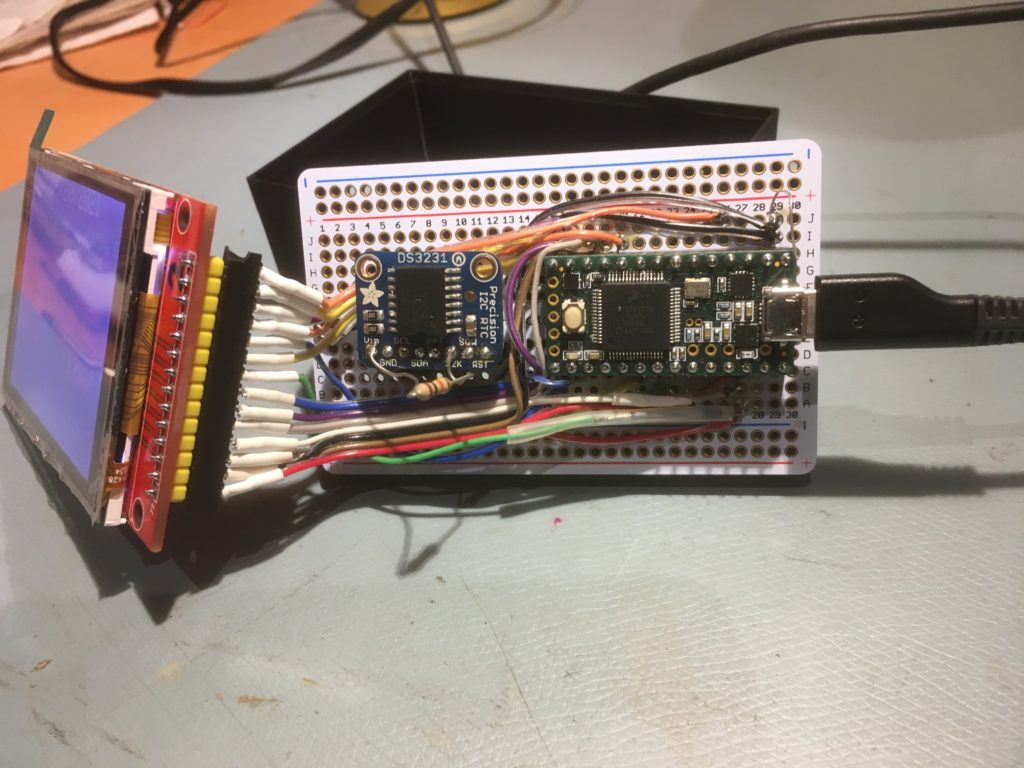
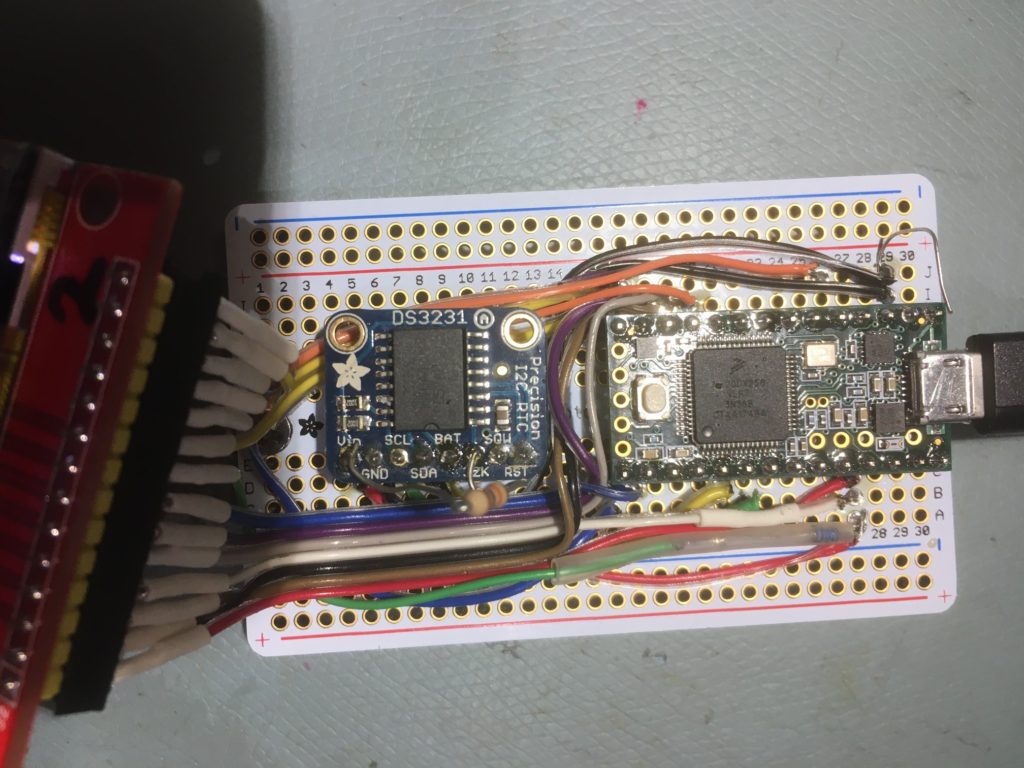
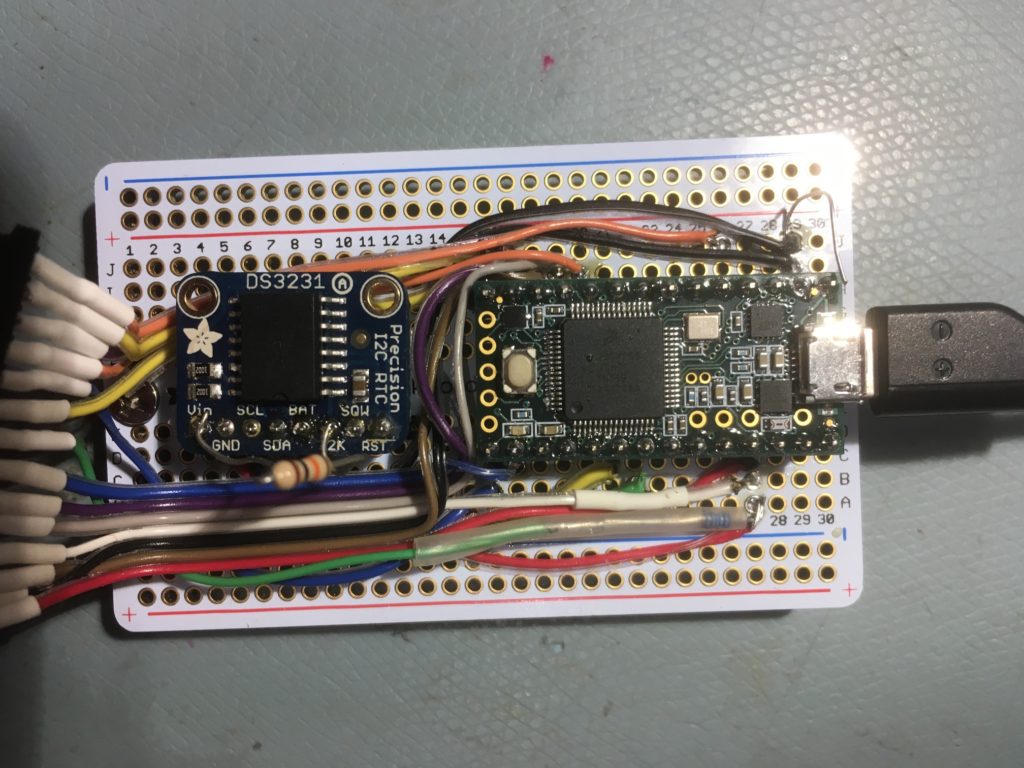
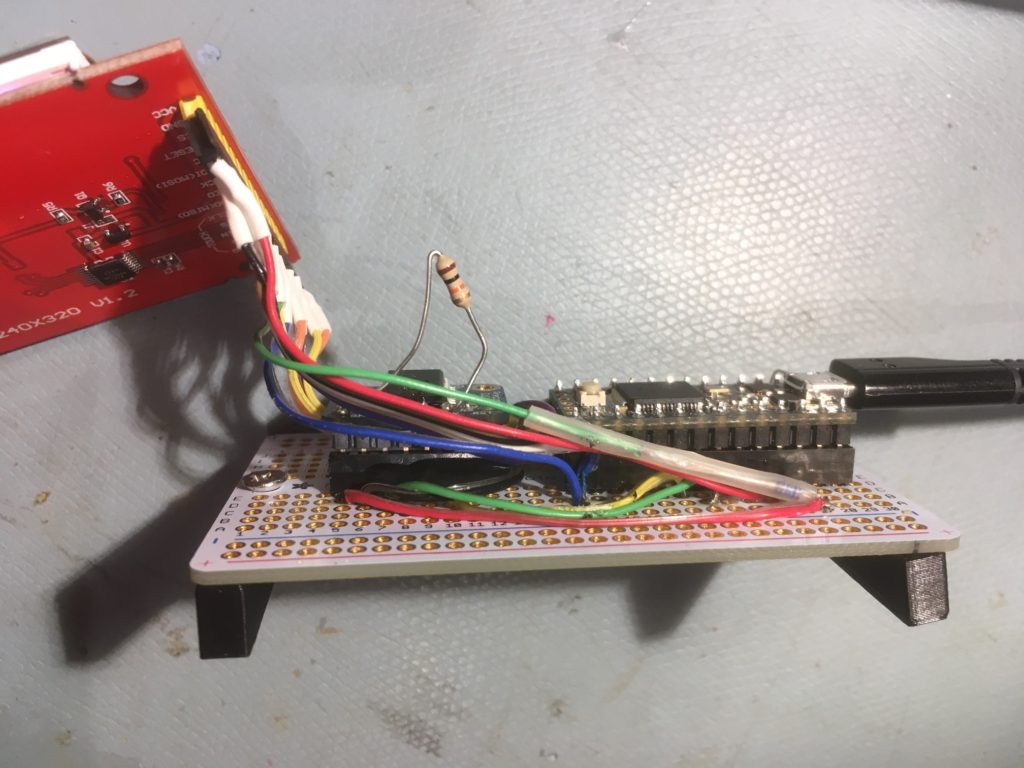
Here are some photos of the Adafruit and ZS-042 modules:

As can be readily seen, the ZS-042 module is considerably larger, due almost entirely to the decision to use the LIR-2032 Li-ion rechargeable cell instead of the smaller non-rechargeable CR1220 type. Other differences:

  • The ZS-042 module includes a power LED. This LED illuminates when main power is available on the VCC pin, but not when the RTC module is running from the battery
  • The Adafruit module exposes the RST (reset) line. If you need this, the ZS-042 won’t work for you.
  • When used with the supplied LIR2032, the battery is recharged and/or float-charged from VCC through a 1N4148 diode. This works fine if VCC is 5V, but doesn’t work at all if VCC is 3.3V.
  • The 32KHz output is open-drain, without a pullup on both the Adafruit module, but the ZS-042 module has a pullup to VCC. What this means in practice is you can’t easily monitor this output when operating off the battery, so it is hard to tell if the RTC module is still running. My solution to that was to attach a completely separate power supply to the 32KHz output via a 10K pullup resistor. The Adafruit module needs this to see the 32KHz output for both battery power and mains power. The ZS-042 module only needs it for battery power.
Adafruit module with temporary 10K pullup resistor installed. Note clock scope trace in background
ZS-042 module with main power applied to USB connector. 32KHz output is present even without an external pullup
Same setup but with USB connector removed. Now need a 10K external pullup to an external supply to monitor 32KHz clock

So, there you have it. The Adafruit module is smaller, has an additional output (RST) and uses a smaller, non-rechargeable CR2210 button cell. However, in my testing and use over a two-year period, I came to distrust its ability to reliably detect and report on complete power loss situations that would require a forced date/time update.

The ZS-042 module is significantly larger due to its use of the rechargeable Li-ion LIR2032 button cell, and doesn’t have the RST output. It is also considerably cheaper and widely available. Lastly, it appears to more reliably report complete power loss occurrences, allowing proper date/time updates.

For my money, I have replaced the Adafruit DS3231 module in my system with the ZS-042 module. In practice, complete RTC power failure events are very rare, so in all probability there would be no appreciable difference between the two choices. However, for those applications (like mine) where you really do want to know if the RTC loses its sense of time, I don’t feel comfortable with the Adafruit module.

If anyone has a better understanding of the Adafruit module, please feel free to comment.

30 October 2020 Update

I replaced the Adafruit DS3231 RTC module on my Wall-E2 autonomous wall-following robot with the ZS-042 DS3231 RTC module. As shown in the following photos, I had to re-arrange the I2C FRAM and I2C MPU6050 IMU modules in order to make room for the significantly larger ZS-042 module.

Original layout. Adafruit RTC module on left, MPU6050 IMU in center, FRAM on right
Straight replacement not going to work – oops!
After re-arrangement

Stay tuned,

Frank

Adding a VL53L0X Rear Distance Sensor to Wall-E2

posted 24 October 2020

After documenting left-side wall-tracking success with Wall-E2, my autonomous wall-tracking robot (see this post and this post), I started thinking about improving Wall-E2’s obstacle avoidance performance.

Wall-E2 can encounter several distinct obstacle situations during wall tracking operations. In the simplest case, Wall-E2 approaches an upcoming corner while tracking a wall, and needs to know how to transition from tracking the current wall to tracking the upcoming wall. A more difficult situation arises when Wall-E2 is ‘stuck’ – prevented from moving forward by an obstacle that isn’t detected by its front LIDAR distance sensor; a shoe, or the curved foot of a coat rack. A third situation arises when Wall-E2 encounters an obstacle that just wasn’t there a second ago; a cat or a human foot or a bag of groceries.

In the simple wall-to-wall transition case, all Wall-E2 has to do is make a right-angle turn away from the current wall and start following the next wall; this was successfully demonstrated several times in the previous posts. This maneuver utilizes a ‘spin-turn’ technique intended to minimize the backward movement of the robot while turning. This is done to prevent Wall-E2 from backing into the currently-tracked wall while attempting to turn toward and track the upcoming wall. Unfortunately, this maneuver is not always successful, whereupon Wall-E2 tries to climb backwards up the current wall, often with disastrous results.

In the ‘stuck’ case, Wall-E2 has to first recognize that it is no longer moving forward (or in any other direction for that matter), and then figure out what to do about it. Detection is accomplished by looking at the variance of front distance measurements over time; the ‘stuck’ condition is declared when the front-distance variance falls below a pre-determined value. A typical ‘stuck’ recovery maneuver is to back up slightly, and then make a right-angle turn away from the wall currently being tracked. This maneuver, while usually successful, has the same problem as the simple wall-to-wall transition; it sometimes results in the same backward-up-the-wall climb, with similar results.

The ‘suddenly appearing obstacle’ case can be handled in a manner similar to ‘stuck’ detection, but bypassing the variance measurement stage. and the resulting avoidance maneuver is similar to the ‘stuck’ case

Wall-E2 currently handles all of the above cases fairly well, except when it backs into something while maneuvering to avoid the detected obstacle. So, my challenge was to find a way to avoid running into something while backup up from something else. The easy answer to this problem was to add a rear-distance sensor to Wall-E2, and then use that information to modify obstacle-avoidance behavior as necessary.

During the changeover from ‘ping’ style distance sensors to left and right 3-element arrays of VL53L0X time-of-flight sensors I learned quite a bit about the care and feeding of the VL53L0X, and also wound up with quite a few spares. So, I took one of the spares and installed it on the rear ‘bumper’ plate on Wall-E2, as shown in the following photo:

GY-530 VL53L0X mounted on rear ‘bumper’

Since the 2nd-deck Teensy 3.5 was already handling both 3-element VL53L0X arrays, I simply added the rear sensor to the left-hand array ‘Wire2’ daisy-chain, and connected its XSHUT pin to Teensy pin 8. Then I modified the Teensy’s program to initialize and poll the rear sensor in the same manner as all the others, and tested it to make sure it was responding properly to rear-aspect obstacles.

The next step is to incorporate rear-aspect distance information into the various obstacle avoidance algorithms in the main program.

‘Stuck’ case:

The ‘stuck’ case by definition occurs when the mathematical variance of the last 3-5 seconds of forward distance measurements fall below a set value, indicating that the robot is no longer moving forward or backward. When this happens while wall tracking, the robot has to decide what to do. The current response is to back up for 1 second at half speed, execute a 90 deg ‘spin turn’ away from the nearest wall and then go back to normal operations.

I think I would like to enhance this algorithm as follows:

  • If the measured front distance is less than MAX_FRONT_DISTANCE_CM (currently set at 400 cm) by at least STUCK_BACKUP_DISTANCE_CM (currently set at 25), then back up by STUCK_BACKUP_DISTANCE_CM using front distance measurements as the primary means of terminating the backup maneuver. If the front distance measurement cannot be used, but the rear distance measurement is valid (less than MAX_REAR_DISTANCE_CM, currently set at 100), then back up using the rear sensor measurement. If neither measurement is available, then revert back to a 1 second half-speed movement. In all cases, use the rear distance measurement to prevent ‘reverse wall climb’ by stopping the motors if the robot gets too close to an obstacle while backing up.
  • Execute a ‘spin turn’ away from the nearest wall – this is the same as the current algorithm.
  • Execute a ‘rolling turn’ back toward the original direction of travel. This should offset the robot further away from the nearest wall, and hopefully allow it to bypass the obstacle.

Left Side Wall Tracking Success With VL53L0X Array, Part II

Posted 10 October 2020

After the left-wall tracking success described previously in this post, I made some more adjustments and also set up a ‘ tracking sandbox’ in my lab to test Wall-E2’s ability to detect & respond to upcoming obstacles. Here’s a short video showing Wall-E2 in action

Tracking run demonstrating obstacle avoidance maneuvers

Here’s the raw output from the run:

And here is an Excel plot of just the movement sections of the above, highlighting the avoidance maneuvers.

left-side wall distances are shown in mm, while the front distance is shown in cm. Note 1-2 sec gaps during turns

Comparing the Excel plot to to the video, the front distance plot shows a monotonically decreasing value and then a large jump after each obstacle avoidance turn. It appears that the robot acquires and tracks the 30cm offset target successfully on the first wall, but doesn’t do as well on the second one. It was much more successful on the third wall. The plot for the last wall is only about 2 seconds long.

All in all, this looks like a pretty successful run for Wall-E2. It tracked three different walls (the fourth wall was too short to track) and successfully avoided obstacles three times – woo hoo!

12 October 2020 Update:

On the above ‘sandbox’ run, I noticed that at the end of the third leg at about 14 seconds into the run, the ‘spin turn’ at the white foam core wall wasn’t a ‘step turn’, but a ‘backup and turn’ triggered by the front distance going below the front obstacle limit of 20 cm, rather than the tracking obstacle clearance limit of 30 cm. Here are two output lines that illustrate the difference

and

In the video, these events are at about 7 & 14 seconds respectively. From this I came to the conclusion that at least the front distance wasn’t getting updated enough to keep the robot from getting too close to the obstacle before it realized there was a problem. At the time, the update rate for the system was set at 5Hz or 200 mSec. If the robot is travelling at 50 cm/sec, it means that it will travel 10 cm between distance updates – ouch!

So, I changed the timer interrupt timeout value for a 10Hz rate, and ran the ‘sandbox’ run again. This time when I looked at the output I could see that each leg terminated with something like

and it was clear that the updates were happening about every 100 mSec. Here’s the output:

and a short video:

And an Excel plot showing the left wall and forward distances progressing through the run.

Note that the front distance is shown in cm, while the left wall distances are shown in mm

At this point, I’m pretty happy with Wall-E2’s new-found wall tracking superpowers, at least for the left wall case. Now I need to port the V7 left-side-only code back into the main program and also port it to the right wall case.

Stay tuned!

Frank

Left Side Wall Tracking Success With VL53L0X Array

Posted 05 October 2020

This post describes the successful left-side wall-tracking performance of my re-motored, re-wheeled, and re-sensored robot. Back in January of this year I was able to demonstrate reasonable wall tracking performance with my two-wheel robot using the old HC-SR04 ‘Ping’ sensors. However, I still wasn’t able to consistently track and maintain a desired wall offset, the main goal in this project stage

Since January, I have made the following changes to my larger four-wheel robot:

With all the changes, I had kind of lost track of the ultimate goal, which is to have the robot follow the nearest wall at a specified offset distance. All of the above updates were intended, in one way or another, to facilitate that goal, but I hadn’t yet got the robot to actually perform to expectations.

To help clear away some of the fog, I created a new version of the operating software that was pared down to just what was required to track the left wall, and nothing else. The idea was to work out all the bugs for offset capture and subsequent wall tracking with just the minimum required software, and then incorporate the modified code back into the mainstream software.

At first I was working with a 4-stage process;

  • find the parallel heading to the selected wall
  • drive at an angle toward the desired offset distance
  • when the offset distance is obtained, turn parallel to the wall again
  • track the wall at the desired offset

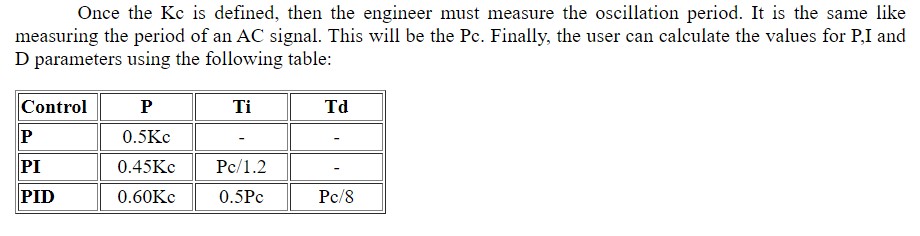
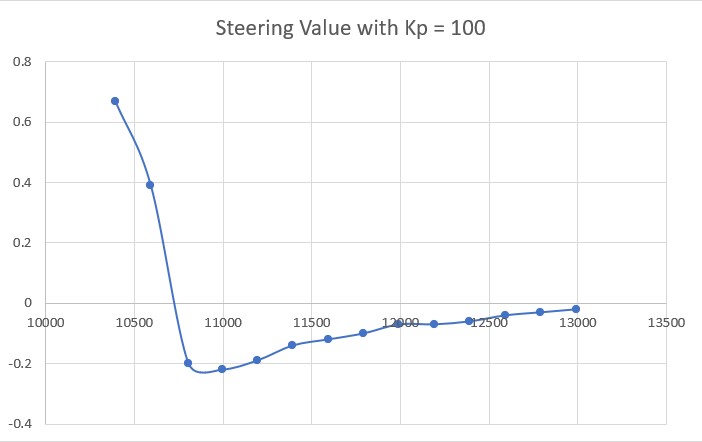
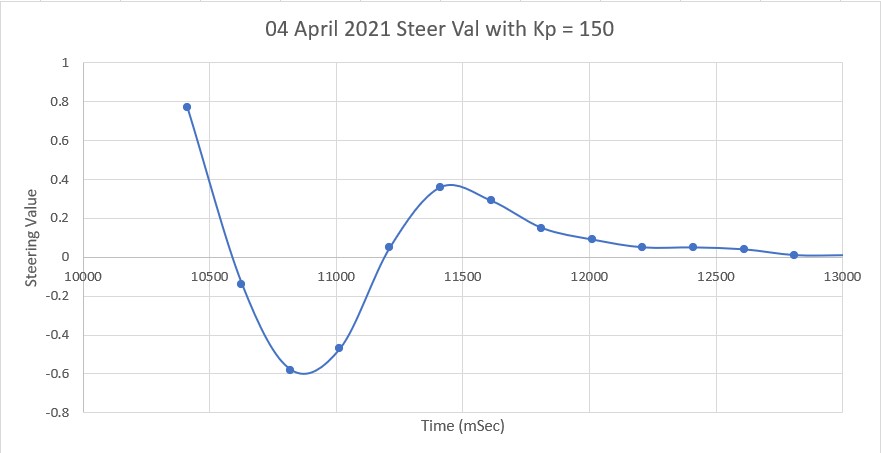
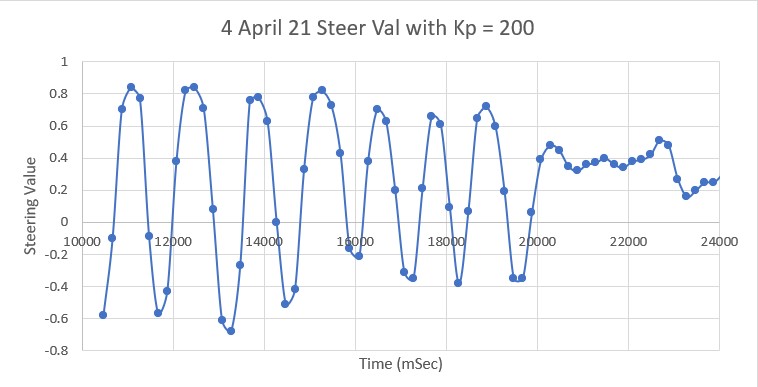
However, I found that the when the robot started off outside the desired wall offset, the second ‘turn to parallel’ operation took up too much space, both in terms of wall offset distance, and distance along the wall. By the time the second ‘find parallel’ operation was completed, the robot was usually much too close to the wall for effective offset tracking, meaning the entire 4-step process would have to be repeated. So, I eliminated step 3 in the process (the second ‘turn to parallel’ operation) entirely, and modified the wall tracking algorithm to capture the desired wall offset and track it. Instead of using the distance sensor measurements directly, I generate a ‘steering value’ proportional to the difference between the front and rear sensor measurements, and a target ‘steering value’ proportional to the difference between the desired offset and the center sensor measurement and use a PID controller to match the measured steering value to the target steering value. The effect of this is that the robot will track toward the offset at an angle, and then turn parallel to the wall and continue to track, as shown in the video below:

Left-side offset capture and track demonstration

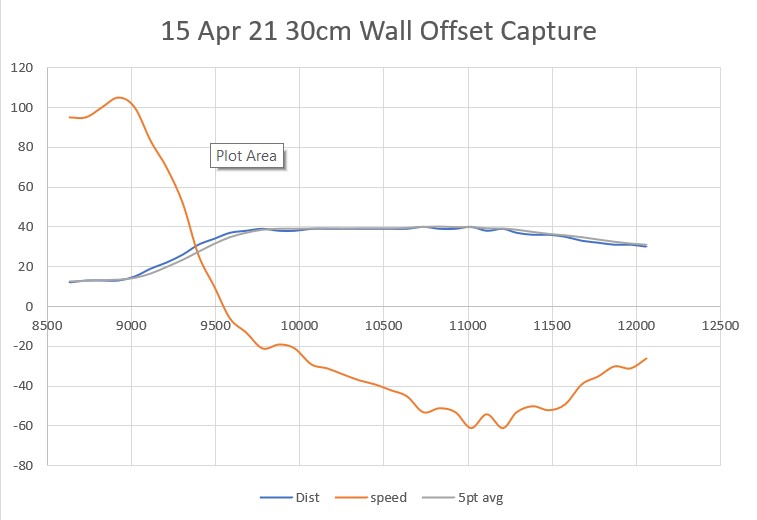
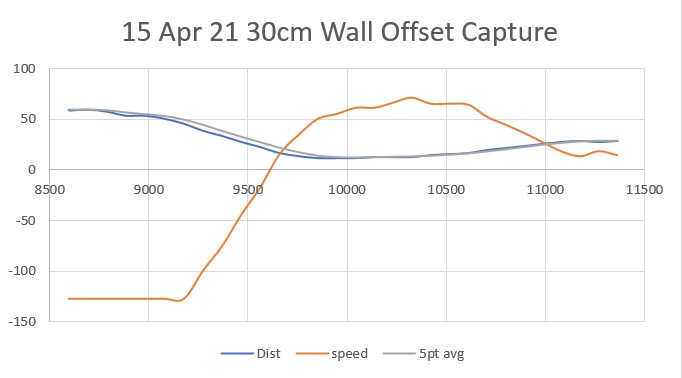
Here’s an Excel plot showing the wall offset distance versus time for the above demonstration run.

As can be seen in the above plot, the robot starts off at about 45 cm from the wall, tracks inward to capture the desired offset, and then continues to track the desired offset even when it goes around the 45-degree bend. The code that accomplished this is posted below:

Stay Tuned!

Frank

Replacing HC-SRO4 Ultrasonic Sensors with VL53L0X Arrays Part V

I have been running some wall-tracking tests with Wall-E2 and the new VL53L0X sensor array arrangement, but have been having poor results, especially with offset capture. After a bunch of test runs, I started to think that the distances aren’t updating fast enough to keep up with the robot’s forward speed, so it runs into the wall before it knows that it has gotten too close

Looking at the Teensy 3.5 I2C Slave code that manages the sensor array, I see the following loop() code

And I get the following output:

Looking at the timestamps, it appears that a measurement cycle takes about 200 mSec, taking into account the added 100 mSec delay from the delay(100); statement. This is consistent with the default 30 mSec measurement time for a single VL53L0X, but unfortunately this is much greater than the default 100 mSec PID controller update rate.

The VL53L0X can make measurements faster, but at the cost of lower accuracy. In my case, the increased accuracy from a 30 mSec measurement time is useless if it isn’t fast enough to keep up with the robot. Searching around the net, I found this post on the Pololu support forum, dealing with just this problem. So, I modified my Teensy 3.5 I2C Slave program to use ‘continuous measurements and the shorter (20 mSec vs 30 mSec) timing budget, as follows:

with the following results:

From the above it is apparent that the new loop time is about 19 mSec for all six sensors. This is very interesting, as it implies that in ‘continuous’ mode, all six sensors run all the time, and all the readContinuousMillimeters() function does is pull the latest measurement out of a buffer.

As a quick test, I rigged up a ‘fan blade’ (piece of paper taped to a old robot wheel on a motor) as shown, and then ran the program again with the motor spinning the ‘blade’ in front of the left-side sensor array (at about 100 RPM, I think). The plot shows that the sensor response is certainly fast enough to ‘see’ the rise and fall times on the ‘fan blade’.

03 October 2020 Update

With the above results in mind, I decided to try speeding up the ‘fan blade’ setup to see if I could find out how fast the VL53L0X sensor could go. I thought I should be able to use the shaft encoder setup on the back of the motor to acquire an accurate RPM reading and convert that into ‘milliseconds/blade’ to tell how short of an interval the VL53L0X could detect. As things often happen, determining motor RPM from encoder signals turned out to be a LOT harder than I thought. After a loooonnnng side-trip into geared-motor hell, I wound up more or less disregarding the encoder feature and modified the Teensy 3.5 ‘loop()’ code to produce a direct tachometer reading, as follows:

This allowed me to directly monitor ‘effective’ RPM & obstruction frequency. So I set up the experiment using a ‘four blade fan’ as shown below, and monitored the obstruction detector output with my Hanmatek DSO

DSO Output from VL53L0X Obstruction Detection loop() code

As can be seen from the DSO screenshot, the obstruction detection pulse frequency is about 26Hz, with a period of a little over 38 mSec. So it is clear that the VL53L0X running in continuous mode with a timing budget of 20 mSec can easily produce readings every 30 mSec or so.

04 October Update:

The next step was to see if the ‘VL53L0X fast/continuous’ code running on the Teensy VL53L0X sensor array manager would allow the main robot MCU to fetch distance readings faster. To do this, I uncommented the #define DISTANCES_ONLY //added 11/14/18 to just display distances in infinite loop line in my program to eliminate all code except a short loop displaying distances. Then I took measurements with my 4-blade ‘fan’ running in front of the left-front sensor. I ran the motor voltage up to the point where the Teensy’s blade sensor output was showing about a 20Hz blade rate, and got the following output from the main MCU ‘DISTANCES_ONLY’ loop.

From the above, it is clear that the main MCU code can ‘see’ sensor output changes occurring at 20 Hz (50 mSec period). This should be fast enough to keep up with the physical movement of the robot during offset capture and wall-tracking activities.

In theory, I won’t have to do anything to the main MCU code to enjoy the faster response

Stay Tuned!

Frank

Working on B-Ball Techniques with Mark Clay

Posted 01 October 2020,

I have been working with Mark Clay, a personal basketball coach I found through CoachUp – a site for connecting coaches and clients. We have been working on ball handling and shooting fundamentals, and it seems to be improving my game considerably (to the extent that a 71-year old B-Ball Wannabe’s game can be improved). Here are some videos from my September 28, 2020 session (that’s Mark in the background of the first video). Mark has been super helpful and supportive, even though I’m absolutely certain that I’m not his (or anyone’s) idea of a hot NBA prospect ;-).

23 March 2021 Update:

I had to suspend training with Mark last Fall, as I underwent right shoulder surgery to address a long-running pain issue. After a successful surgery and rehab, I re-connected with Mark to use up the last three sessions of the original 10-session package. Last night was the final session, and the following video shows the results. I have to say that I never thought I would be draining threes off the dribble, but that’s exactly what happened last night (well, there were a lot of misses, too, but….

And here’s a link to a much longer, hi-res record of the above session

Replacing Wall-E2’s L298N Motor Drivers with Adafruit DRV8871

Posted 07 September 2020,

I’ve been having some ‘issues’ with driving Wall-E2’s Pololu 20D 125:1 12V metal geared motors with the old L298N motor drivers, so I thought it was time to replace them with the Adafruit DRV8871 models used in ‘re-motoring’ my two-wheel robot (see this post for some of the details).

The first step was to review the work I had done earlier replacing the L298N on my two-wheel robot with the same DRV8871 Driver. The two-wheel robot uses a UNO controller, while Wall-E2 uses a Mega, but they are similar enough so porting the wiring and code should be simple enough. The two-wheel robot uses UNO pins 5, 6, 9 & 10 (all PWM lines) for direction and speed control, while Wall-E2 uses pins 8-13 and 36, 38, 40, 42, 44 & 46 for controlling the two L298N motor drivers. My plan is to try using just two motor drivers, one for both left motors, and another for both right motors. If this works, I’ll need just 4 lines, say 8-11 (If I later need to use four drivers vs two, I’ll use 12/13 for one of the ‘extras’ and 6/7 for the other one. Currently 6 is unused and 7 drives the red laser diode, so moving it shouldn’t be a big problem).

So, I replaced the two L298N modules with two DRV8871 modules, and wired both left motors into one driver and both right motors into the other, as shown in the following photos

‘before’ – dual L298N motor drivers
‘after’ – Dual Adafruit DRV8871 motor drivers

Since I previously replaced an L298N with a DRV8871 in my two-wheel robot, I had already modified all the relevant motor driver code to use the DRV8871 module vs the L298N, so all I had to do was replace the low-level motor interface modules in my four-wheel robot project with the corresponding ones from my two-wheel robot project. The replaced modules were:

  • SetLeftMotorDirAndSpeed
  • SetRightMotorDirAndSpeed
  • StopBothMotors
  • MoveAhead
  • MoveReverse

Note that the four-wheel robot code uses separate SetLeft/RightMotorDir & SetLeft/RightMotorSpeed functions, so these needed to be modified or replaced.

SetLeft/RightMotorSpeed() is called from RunBothMotors() & SpinTurn(). I could modify SpinTurn() to call RunBothMotors() instead of calling SetLeft/RightMotorSpeed() directly.

RunBothMotors() is called from RunBothMotorsMsec(), Setup(), MoveReverse() and MoveForward(). Every call to RunBothMotors() is paired with calls to SetLeft/RightMotorDir(), so I could replace Each set of calls with a single call to SetLeft/RightMotorDirAndSpeed(). The only issue with this are the RunBothMotorsMsec() calls in Setup() & ExecDisconManeuver().

I decided to modify the RunBothMotors() & RunBothMotorsMsec() functions to take a direction parameter, and then the functions will simply call SetLeft/RightDirAndSpeed().
10 September 2020 Update:

I got lost in the details of the Wall-E2 code, so I decided to simplify things to check out the new DRV8871-based motor setup. I modified my original ‘Adafruit_DRV8871_Driver_Test’ project to run both motor sets forward and backward from the minimum PWM value (about 50) to max (255) while monitoring the total current for all four motors, as shown in the following Excel plot

Total motor current for motor speed commands from 50-255

As can be seen from the above plot, the total motor current for all four motors is right around 0.8A or about 0.4A per driver – well within the current limits for the DRV8871 module. As a side note, the TO-3 cans on the modules barely got warm, so this looks like a real winner.

Now that I have the technical issues sorted out with respect to the driver replacement project, I can get back to the main project of improving Wall-E2’s wall-following ability.

Stay tuned!

Frank

13 September 2020 Update:

Unfortunately, when I started running the full Wall-E2 code, the right set of motors would go backwards, but not forwards – awkward to say the least. After a lot of troubleshooting, it finally dawned on me that the problem was being caused by my introduction of a TIMER1-based interrupt a while ago to manage ‘stuck’ detection. TIMER1 controls PWM on pins 11 & 12, and one of those pins was being used by the right motor – bummer!

After a LOT of screwing around, I finally decided that the only way to really figure things out was to remove everything but the timer and motor driver code from the program to figure out what timer (if any) I can use for the ‘stuck’ detection interrupt and still have proper motor control.

To that end, I created a new Arduino program ‘TimerISRvsPWMTest.ino’ as shown below:

With the TIMER1 setup commented out, both motors rotate forwards and backwards no problem. However, as soon as the TIMER1 code was un-commented, the motor driver on pins 10/11 would turn one way but not the other. With an O’scope I could see the PWM waveform on pin 10 but not on pin 11. This is consistent with Timer1 controlling PWM on pins 11,12 & 13.

So, I moved the wire connected to DRV8871 IN2 from 11 to 3 and changed the code to use pins 10 & 3 vs 10 & 11. Now the motor connected to these pins rotates both forward and backwards

Then I went back to my WallE2_V6 project and tried the same trick – moving the IN2 pin from 11 to 3; nope – still doesn’t work. In fact, moving from 11 to any other PWM pin doesn’t work in the WallE2 project, but does in the TimerPWM test project – weird.

So, thinking that maybe there were some timer dependencies hidden in one or more of the libraries being used for the WallE2 project, I copied them all over to the TimerPWM project folder, added them to the project in VS2019, and added them to the project code. After I got everything to compile, I ran the TimerPWM test project successfully using 10 & 7, 10 & 3, 10 & 2, etc (but 10 & 11 still doesn’t work with TIMER1 ISR enabled).

So, it’s not the libraries. Next I changed the timer interrupt code to use TIMER5 instead of TIMER1, moving the pin dependency from 11-13 to 44-46. I confirmed this by changing ‘In1_Right‘ to 44, 45, 46 in turn and moving the physical In1_Right connection to the corresponding pin, noting that the motors don’t rotate properly when driven from any of the affected pins.

Next, I changed the timer interrupt code in WallE2_V6 from TIMER1 to TIMER5 to see if I can get back pin 11 as a PWM pin. Nope – it still doesn’t work in the WallE2 code, nor does pin 7.

Back to the test program. Copied all the ‘pre-setup’ code from WallE2 to the test program; no change – test program still works properly.

After a few back-and-forths of this nature, I eventually narrowed the problem down to the driver modules themselves. A physical inspection revealed that I had forgotten to solder the second pin on both 2-pin screw terminals on one of the drivers – oops! So, like many seemingly intractable technical problems, this one was caused by two independent issues; the use of TIMER1 caused pins 10-12 to be unavailable for motor drive PWM, and the intermittent connections to the left-side motors complicated the symptoms. This was a perfect example of why ‘cutting the problem in half’ (in my case, by eliminating all the Wall-E2 hardware from the problem) is so effective in troubleshooting.
Stay tuned!

Frank

New Wheels for Wall-E2

Posted 24 August 2020, 1402 days into the Covid-19 Lockdown

My autonomous wall-following robot Wall-E2 is now smart enough to reliably follow walls and connect to a charging station, at least in my office ‘sandbox’ testing area, as shown in the following video

However, as can be seen toward the end of the video, Wall-E2 had some trouble and almost got stuck making the third 90 degree turn.  Apparently the current thin 90mm wheels just don’t provide enough traction on carpet.

So, I decided to see what I could do about re-wheeling Wall-E2.  After some research I found there are now plenty of larger diameter wheels for robots out there, but I couldn’t seem to find a set that would fit Wall-E2 and still allow me to keep the current set of wheel guards.  I needed the same (or maybe slightly larger) diameter for ‘road’ clearance, but something less than about 20 mm thick to fit within the current wheel guard dimensions. Then it occurred to me while reading the specs for one of the wheels (ABS for the wheel, and TPU for the tire)  that I already had two 3D printers standing around waiting for something to do, and I had a plentiful supply of ABS (or in my case, PETG) and TPU filaments – why not build my own?  After all, how hard could it be?  As you might guess, that question started what now feels like a 10-year slog through ‘3D printed wheel hell’

I wanted to create a spoked wheel with a hub that would accept a 3mm flatted motor shaft, and I wanted to fit this wheel with a simple TPU treaded tire.  The wheel would have small ‘guard rail’ rims that would keep the tire from sliding off.

It started innocently enough with a search through Thingiverse, where I found several SCAD scripts for ‘parameterized’ wheels.  Great – just what the doctor ordered!  Well, except that the scripts, which may have worked fine for the authors, didn’t do what I wanted.  and as soon as I tried to adjust them to fit my design specs, I discovered they were incomplete, buggy, or both.

I had wanted to learn a bit more about SCAD anyway and this seemed like a good project to do that with, so I persevered, and eventually came up with a SCAD design that I liked.

I started with bioconcave’s ‘Highly Modular Wheel_v1.0.scad’ file from Thingiverse, and (after what seemed like years trying to understand what was going on) was able to extract modular pieces into my own ‘FlatTireWheel’ scad script, as follows:

/*
The wheel is defined as having a hub, a rim, and a tire.  Wheel dimensions are overall diameter
and width, i.e. a 100mm x 30mm wheel will be a cylindrical shape with an overall diameter of 100mm
and a height (width) of 30mm.  The rim will be a hollow cylinder with ID = overall diam - tire
thickness - rim thickness, and OD = ID + rim thickness. The cylindrical area between the center of
the wheel and the ID of the rim may be solid or spoked, and there may or may not be a hub.
*/

$fn=150;

wheelDiameter        = 90; //overall diameter of the wheel, including rim & tire
wheelWidth           = 15; //overall width (height) of the wheel, including guardrails
rimThickness         = 5; //rim thickness (part of overall tire diameter)
tireThickness        = 5; //tire thickness (part of overall tire diameter)
guardrailThickness   = 2; //doesn't add to overall tire diameter
guardrailWidth       = 1; //included in overall tire width
spokeThickness       = 9;
numberOfSpokes       = 3;
spokeEccentricity    = 1.5; //how elliptical do the spokes look

//derived values
wheelMinusRimDiameter = wheelDiameter - rimThickness;
rimOD = wheelDiameter - tireThickness;
rimID = rimOD - rimThickness;

// The hub
includeHub           = true; // Set to false to remove the hub and only include the shaft diameter hole. 
hubDiameter          = 15;    // The diameter of the hub portion of the wheel
hubHeight            = 18;    // The total height of the hub
hubZOffset           =  -wheelWidth/2;     // The Z position of the hub, negative numbers from the surface of the wheel 
innerCircleDiameter  = 0;    // The diameter of the solid inner circle under the hub, or zero for none. 

baseFilletRadius     = 2;     // The radius of the fillet (rounded part) between the hub and wheel. 
topFilletRadius      = 2;     // The radius of the fillet (rounded part) at the top of the hub. 
chamferOnly          = false; // Set to true to use chamfers (straight 45-degree angles) instead of fillets. 
concavity = [0,0];

//hardware
shaftDiameter        = 4.5;          // The diameter of the motor shaft
shaftFlatDiameter    = 3.5  ;          // The diameter of the motor shaft at the flat, or shaftDiameter for no flat.

setScrewCount        = 1;          // The number of set screws/nuts to render, spaced evenly around the shaft 
setScrewDiameter     = 3;          // The diameter of the set screw. 3 is the default for an M3 screw. 
setScrewTrap         = [5.4, 2.3]; // Size [indiameter, thickness] of set screw nut. The depth is set automatically.
setScrewNutDiameter  = 5.4;        // The "diameter" of the captive nut, from flat to flat (the "in-diameter")
setScrewNutThickness = 2.3;        // The thickness of the captive nut
setScrewNutOffset    = 0;          // The distance to offset the nut from the center of the material. -/+ = in/out

servoHoleDiameter    = 0;          // The diameter of servo arm hounting holes, or zero if no holes
servoHoleDistance1   = 25;         // Distance across servo horn from hole to hole (0 to ignore)
servoHoleDistance2   = 21;         // Distance across servo horn from hole to hole, rotated 90 degrees (0 to ignore)
servoArmRotation     = 45;         // The total rotation of all servo holes
servoNutTrap         = [4,1.6];    // Size [indiameter, depth] of servo arm captive nut, or 0 (any) for none.

outerNutTrap         = [12.5,0];   // Size [indiameter, depth] of a captive nut, or 0 (any) for none.


wheel_with_tire();

if ( includeHub ) 
{
   translate([0,0, hubHeight/2 + wheelWidth/2 + hubZOffset - concavity[0]]) 
      hub(hubHeight, hubDiameter, shaftDiameter, shaftFlatDiameter,
         setScrewCount, setScrewTrap, setScrewDiameter, setScrewNutOffset,
         hubZOffset, baseFilletRadius, topFilletRadius, chamferOnly);
}


/////////////////////////////////////////////////////////////////////////////
// Modules...  
/////////////////////////////////////////////////////////////////////////////

// The hub (the part that holds the wheel onto the motor
module hub( height, diameter, shaftDiameter, shaftFlatDiameter, nuts, nutSize, setScrewDiameter, 
	setScrewNutOffset=0,	hubZOffset=0, baseFilletRadius=0, topFilletRadius=0, chamferOnly=false) {

	hubWidth=(diameter-shaftDiameter)/2;

	union() {	
		difference() {

			// Main hub shape
			union() {
				difference() {
					union() {
						cylinder( h=height, r=diameter/2, center=true );
			
						// First chamfer the base...
                  translate([0,0,hubZOffset])
						rotate_extrude() 
							translate([diameter/2,-(height/2)-hubZOffset,0])
								polygon(points=[[0,0],[0,baseFilletRadius],[baseFilletRadius,0]]);
					}
			
					// Chamfer the top...
					rotate_extrude() 
						translate([diameter/2,height/2,0])				
							polygon(points=[[0.5,0.5],[-topFilletRadius-0.5,0.5],[0.5, -topFilletRadius-0.5]]);
			
					// Carve the bottom fillet from the chamfer
					if ( !chamferOnly ) { 
                  translate([0,0,hubZOffset])
						rotate_extrude() {
							translate([(diameter/2)+baseFilletRadius,
								-(height-(2*baseFilletRadius))/2-hubZOffset,0]) {
								circle(r=baseFilletRadius);
							}
						}
					}
				}

				// Add the fillet back on top of the top chamfer 
				if (!chamferOnly) {
					rotate_extrude() {
						translate([
							(diameter/2)-topFilletRadius,
							(height-(2*topFilletRadius))/2,
							0])				
							circle(r=topFilletRadius);
					}
				}
			}
	
			// Remove the bore
         echo(str("shaftDiameter = ", shaftDiameter));
			difference() 
         {
				cylinder( h=height+1, r=shaftDiameter/2, center=true ); 
				translate([(shaftDiameter-shaftFlatDiameter+1)/2 + (shaftDiameter/2) 
						- (shaftDiameter - shaftFlatDiameter),0,0]) 
					cube( [shaftDiameter-shaftFlatDiameter+1,shaftDiameter,height+2], center=true ); 
			}
	
			// Remove the captive nut
         //08/22/20 gfp bugfix: chg translate() z param to zero so it follows hub offsets
         //08/22/20 gfp bugfix: repl 'boreDiameter' with 'shaftDiameter' to reduce confusion 
			for( i=[0:nuts-1] ) 
         {
				rotate([ 0,0, (360/nuts)*i ])
				translate([shaftDiameter/2+(diameter-shaftDiameter)/4 +setScrewNutOffset,
						0, 0]) 
            {
					rotate([0,-90,0]) 
               { 
						captiveNut( nutSize, setScrewDiameter, 
							depth=height/2+1, holeLengthTop=hubWidth/2+setScrewNutOffset
								+(shaftDiameter-shaftFlatDiameter), 
							holeLengthBottom=hubWidth+baseFilletRadius-setScrewNutOffset);
					}
				}
			}
		}
	}
}


module wheel_with_tire()
{
   difference()
   {
      union()
      {
         cylinder(wheelWidth, rimOD/2, rimOD/2, $fn=150);
         cylinder(guardrailWidth, 
            guardrailThickness + rimOD/2, 
            guardrailThickness + rimOD/2, 
            $fn=150);
         
         translate(v=[0,0,wheelWidth-guardrailWidth])
         {
            cylinder(guardrailWidth, 
               guardrailThickness + rimOD/2, 
               guardrailThickness + rimOD/2, 
               $fn=150);
         }
      }
      
      translate(v=[0,0,-2])
      {
         cylinder(wheelWidth+4, rimID/2, rimID/2, $fn=150);
      }
         
         //08/22/20 remove setscrew access hole
         //extend the hub shaft capture screw hole out past rim, so that
         //it will pierce the rim if the hub sits low enough on the rim
         if ( includeHub ) 
         {
            nutSize=setScrewTrap;

           translate([0,0, hubHeight/2 + wheelWidth/2 + hubZOffset]) 
            hubHoleCutout(hubHeight, hubDiameter, shaftDiameter, shaftFlatDiameter,
                  setScrewCount, setScrewTrap, setScrewDiameter, setScrewNutOffset,
                  hubZOffset, baseFilletRadius, topFilletRadius, chamferOnly);
         }        
    
   }
   
   if(numberOfSpokes > 0)
   {
      difference()
      {
         for (step = [0:numberOfSpokes-1]) 
            {
               rotate( [0, 0, step*(360/numberOfSpokes)] )
               ellipticalSpoke(wheelWidth, wheelMinusRimDiameter, spokeEccentricity);
            }
            
			// Remove the motor shaft and setscrew nut trap cutouts if necessary
         if(includeHub)
         {
            union()
            {
               //flatted motor shaft cutout
               difference() 
               {
                  cylinder( h=(wheelWidth+hubHeight) + 2, r=shaftDiameter/2, center=true ); 
                  translate([(shaftDiameter-shaftFlatDiameter+1)/2 + (shaftDiameter/2) 
                        - (shaftDiameter - shaftFlatDiameter),0,0]) 
                     cube( [shaftDiameter-shaftFlatDiameter+1,shaftDiameter,10*hubHeight+2], center=true ); 
               }
               
               //setscrew nut trap cutout
               //08/22/20 gfp bugfix: chg translate() z param to zero so it follows hub offsets
               //08/22/20 gfp bugfix: repl 'boreDiameter' with 'shaftDiameter' to reduce confusion 
//               for( i=[0:nuts-1] ) 
               {
                  hubWidth=(hubDiameter-shaftDiameter)/2;
//                  rotate([ 0,0, (360/nuts)*i ])
//                  translate([shaftDiameter/2+(hubDiameter-shaftDiameter)/4 +setScrewNutOffset,
//                        0, 0]) 
                  translate([shaftDiameter/2+(hubDiameter-shaftDiameter)/4 +setScrewNutOffset,0, hubHeight/2 + wheelWidth/2 + hubZOffset]) 
                  {
                     rotate([0,-90,0]) 
                     {
                       echo(str("captiveNut(",
                        setScrewTrap,
                        ",",setScrewDiameter,
                        ",",hubHeight/2+1,
                        ",",hubWidth/2+setScrewNutOffset
                              +(shaftDiameter-shaftFlatDiameter),
                        ",",hubWidth+baseFilletRadius-setScrewNutOffset,") call in spoke"));  
                        captiveNut( setScrewTrap, setScrewDiameter, 
                           depth=hubHeight/2+1, holeLengthTop=hubWidth/2+setScrewNutOffset
                              +(shaftDiameter-shaftFlatDiameter), 
                           holeLengthBottom=hubWidth+baseFilletRadius-setScrewNutOffset);
                     }
                  }
               }
               
            }
         }
         
         //08/22/20 remove setscrew access hole
         //extend the hub shaft capture screw hole out past rim, so that
         //it will pierce the rim if the hub sits low enough on the rim
         if ( includeHub ) 
         {
            
            hubWidth=(wheelDiameter-shaftDiameter)/2;
            nutSize=setScrewTrap;

           translate([0,0, hubHeight/2 + wheelWidth/2 + hubZOffset]) 
            hubHoleCutout(hubHeight, hubDiameter, shaftDiameter, shaftFlatDiameter,
                  setScrewCount, setScrewTrap, setScrewDiameter, setScrewNutOffset,
                  hubZOffset, baseFilletRadius, topFilletRadius, chamferOnly);
         }        
      }
   }
}


module hubHoleCutout( height, diameter, boreDiameter, shaftFlatDiameter, nuts, nutSize, setScrewDiameter, 
setScrewNutOffset=0,	hubZOffset=0, baseFilletRadius=0, topFilletRadius=0, chamferOnly=false) 
{
   hubWidth=(diameter-boreDiameter)/2;

   union() 
   {	
         // Remove the captive nut
         for( i=[0:nuts-1] ) 
         {
            rotate([ 0,0, (360/nuts)*i ])
//            translate([boreDiameter/2+(diameter-boreDiameter)/4 +setScrewNutOffset,
//                  0, height/2 - (height+hubZOffset)/2]) 
            translate([boreDiameter/2+(diameter-boreDiameter)/4 +setScrewNutOffset,
                  0,0]) 
            {
               rotate([0,-90,0]) 
               { 
                  echo(str("before call to captiveNutHoleExtension(",nutSize, ", ",setScrewDiameter, ", ",depth=height/2+1, ", ",hubWidth/2+setScrewNutOffset
                        +(boreDiameter-shaftFlatDiameter), ", ",hubWidth+baseFilletRadius-setScrewNutOffset));
//*                    captiveNut( nutSize, setScrewDiameter, 
//                     depth=height/2+1, holeLengthTop=hubWidth/2+setScrewNutOffset
//                        +(boreDiameter-shaftFlatDiameter), 
//                     holeLengthBottom=hubWidth+baseFilletRadius-setScrewNutOffset);
                   captiveNutHoleExtension( nutSize, setScrewDiameter, 
                     depth=height/2+1, holeLengthTop=hubWidth/2+setScrewNutOffset
                        +(boreDiameter-shaftFlatDiameter), 
                     holeLengthBottom=hubWidth+baseFilletRadius-setScrewNutOffset);
               }
            }
         }
//		}
	}
}


module ellipticalSpoke(width, diameter, eccentricity)
{
   translate([0,0,width/2])
   intersection()
   {
      cylinder(h=width, r=wheelMinusRimDiameter/2, center = true);
      translate([spokeEccentricity*wheelMinusRimDiameter/4, 0, 0])
      scale([spokeEccentricity,1,1])
      {
         difference()
         {
            cylinder(h = width, r = wheelMinusRimDiameter/4, center = true);
            
            //translation and width addition to make sure of good punch-out
            translate([spokeThickness,0,0])
            cylinder(h = width+4, r = wheelMinusRimDiameter/4, center = true);
         }
      }
   }
}
//circleSpokes( d, wheelWidth, spokeThickness, proportion, numberOfSpokes );
//
//// Circles pattern spokes
//module circleSpokes( wheelDiameter, wheelWidth, spokeThickness, proportion, numberofSpokes ) {
//	echo( "Circles Style..." ); 
//	intersection() {
//#		cylinder( h=wheelWidth, r=wheelDiameter/2, center = true ); 
//
//		for (step = [0:numberofSpokes-1]) {
//		    rotate( [0, 0, step*(360/numberofSpokes)] )
//				circleSpoke(  wheelDiameter, wheelWidth, spokeThickness, proportion );
//		}
//	}
//
//}
//module circleSpoke( wheelDiameter, wheelWidth, spokeThickness, proportion ) {
////	render()
//   echo(str("spokeThickness = ",spokeThickness));
//	let( ox=(wheelDiameter/2)*proportion[0], oy=(wheelDiameter/2)*proportion[1] )
//	let( ix=ox-(spokeThickness*2), iy=oy-(spokeThickness*2) ) 
//   {
//		translate ( [-ox/2, 0, 0] ) 
//      {
//			difference() 
//         {
//				scale([proportion[0],proportion[1],1])
//#					cylinder( r=wheelDiameter/4, h=wheelWidth, center=true); 
//				scale([(ix/ox)*proportion[0],(iy/oy)*proportion[1],1])
//					cylinder( r=wheelDiameter/5, h=wheelWidth +1, center=true); 
//			}
//		}
// 	}
//}
// This is the captive nut module I use in several of my designs. 
module captiveNut( nutSize, setScrewHoleDiameter=3, 
	depth=10, holeLengthTop=5, holeLengthBottom=5 )
{
	render()
	union() {
		nut( nutSize ); 
	
		if ( depth > 0 ) 
			translate([depth/2,0,0]) 
				cube( [depth, nutSize[0], nutSize[1]], center=true );
	
		translate([0,0,-(nutSize[1]/2)-holeLengthBottom]) 
			cylinder(r=setScrewHoleDiameter/2, h=nutSize[1]+holeLengthTop+holeLengthBottom, $fn=15);
	}
}

// nutSize = [inDiameter,thickness]
module nut( nutSize ) { 
	side = nutSize[0] * tan( 180/6 );
	if ( nutSize[0] * nutSize[1] != 0 ) {
		for ( i = [0 : 2] ) {
			rotate( i*120, [0, 0, 1]) 
				cube( [side, nutSize[0], nutSize[1]], center=true );
		}
	}
}
// This extends the captive nut hole so through the wheel rim for tool access 
module captiveNutHoleExtension( nutSize, setScrewHoleDiameter=3, 
	depth=10, holeLengthTop=5, holeLengthBottom=5 )
{
		translate([0,0,-wheelDiameter/2]) 
			cylinder(r=1+setScrewDiameter/2, h=wheelDiameter/2, $fn=15);
}

Here’s a screenshot of a completed 86mm wheel with elliptical spokes and a hub compatible with a 3mm flatted shaft.  When a TPU tire is added to the rim, the assembly should be about 90mm in diameter.

SCAD-generated wheel with elliptical spokes and a hub compatible with a 3mm flatted shaft. Note extensions to set screw hole through spoke and rim

One of the many issues I had with the original code is it assumed the hub would sit on top of the spokes, and therefore there was no need to worry about whether or not the setscrew arrangement would be blocked by the spokes and/or rim.  Since I wanted a wheel that was mostly tread, I wanted to ‘sink’ the hub into the spokes as shown above. In order to make this work, I needed to extend the setscrew access hole through the spoke assembly and through the rim.  In the finished design, the hub assembly can be moved freely up and down in the center of the wheel, and the hole extensions will follow.  If the hub setscrew hole isn’t blocked by the spokes and/or rim, then the extensions don’t do anything; otherwise they extend the setscrew hole as shown above.

Here’s a photo of separate wheel/tire pieces, and a completed wheel/tire combination on Wall-E2

Separate wheel & tire parts, plus a completed wheel on Wall-E2

2 September 2020 Update:

After running some sandbox tests with my new wheels, I discovered that the new tires didn’t have much more traction than the old ones. However, now that I ‘had the technology’, it was a fairly simple task to design and print new tires to fit onto the existing new rims. Rather than do the tire design in SCAD, I found it much much easier to do this in TinkerCad. Here’s a couple of screenshots showing the TCad design.

Original printed tire on the left, new one on the right. Note more aggressive tread on new tire
Exploded view showing construction technique used for new (and old) tire. Very easy to do in TinkerCad!

03 September 2020 Update:

The increased traction provided by the new tires have caused a new problem; on a hard surface the rotation during a ‘spin turn’ (one side’s motors going forward, the other going in reverse) is too fast, causing the robot to slide well past the target heading. Not so much of a problem on carpet, but how would the robot know which surface is in play at the moment. After some thought, I decided to try and modulate the turn rate, in deg/sec, as a proxy for the surface type. So, in ‘SpinTurn()’ I put in some code to monitor the turn rate and adjust the motor speeds upward or downward to try and keep the turn rate at a reasonable level.

Here’s a video of a recent run utilizing the new ‘SpinTurn’ rate modulation algorithm

And the data from the three ‘spin turn’ executions, one on hard surface, and two on carpet.

Spin Turn executions; hard surface, followed by two carpet turns

As can be seen in the above video and plots, the motor speeds used on the hard surface turn is much lower than the speeds used during the carpet turns, as would be expected. This is a much nicer result than the ‘fire and forget’ algorithm used before. Moreover, the carpet turns are much more positive now thanks to the more aggressive tread on the new tires – yay!

Offloading Distance Measurements from Wall-E2’s Main (Mega) MCU

Posted 08 August 2020,

Now that I have the two 3-element VL53L0X proximity sensors integrated into Wall-E2, my autonomous wall following robot, I have been running some ‘field’ tests in my ‘sandbox’ test area, as shown in the photo  below.

‘Sandbox’ field test area. Very simple layout with no obstacles (other than my feet)

As can be seen from the above video, Wall-E2 ‘ran into’ a problem at the end of the second leg.  The problem is caused by the extended time required for finding the parallel orientation and capturing the desired wall offset. During this time, Wall-E2 isn’t checking the front distance for upcoming obstacles, and isn’t checking for the ‘isStuck’ condition.  In the function that homes to the IR beam on a charging station have the following guard code:

that checks for a ‘stuck’ condition or an upcoming obstacle.  I could also put this same guard code in the functions that handle parallel orientation and offset acquisition/tracking, but it occurred to me that I might want to try off-loading this responsibility to the newly-added Teensy 3.5 I2C slave that manages the dual 3-element VL53L0X proximity sensors.  This Teensy spends 99.9% of its time just waiting for the next distance check interval to appear on the horizon, so it would probably welcome something else to do.  I could route the LIDAR-lite front LIDAR data to it as well, which would give it all the distance sensors to play with.  It could then do the forward/left/right distance array updates, and calculate the forward distance variance that is the heart of the ‘isStuck()’ function.  This is all great, but I’m not sure how all that gets integrated back into the main Mega MCU processing loop.
I currently have a ‘receiveEvent(int numBytes)’ implemented on the Teensy to receive a ‘request type’ value from the Mega.  This value determines what dataset (left, right, both, just centers, etc) gets sent back to the Mega at the next ‘requestEvent()’ event (triggered by a ‘Wire.requestFrom()’ call from the Mega).  So, I could simply add some more request types to ‘GetRequestedVL53l0xValues(VL53L0X_REQUEST which)’ or better yet, add a new function to the Mega to specifically request things like front distance or front distance variance (or simply have the Mega request that the Teensy report the current value of the ‘bisStuck’ boolean variable.

I could also set up a Mega input as an interrupt pin with a CHANGE condition, and have the Teensy interrupt the Mega whenever the ‘stuck’ condition changed (from ‘not stuck’ to ‘stuck, or vice versa).  The Mega’s ISR would simply set the ‘bisStuck’ boolean variable to the state of the interrupt input (HIGH or LOW).

Of course, this all presumes there is some real advantage to moving this functionality to the Teensy.  If the Mega isn’t processing-challenged, there is no reason to do all this.  As this post shows, the time cost for the incremental variance calculation on the Mega is only about 225 uSec, or less than 0.5% of the current 200 mSec loop time.

And, looking at the timestamps on the last actual ‘sandbox’ run, I see that the timestamps during the wall-tracking portion were pretty constant – between 197 and 202 mSec – not the kind of data one would expect from an MCU struggling to keep up.

10 August 2020 Update:

After realizing that the Mega really wasn’t having much problem keeping up with a 200 mSec loop cycle, I went ahead and added the ‘!bIsStuck’ guard to both the ‘RotateToParallelOrientation()’ and ‘CaptureWallOffset()’ functions, thinking this would solve the problem.  What actually happened is that as soon as Wall-E2 started running, it immediately sensed a ‘Stuck’ condition and started backing up – WTF!  Some head-scratching and some troubleshooting revealed that the while() loops in which I had put the new guard code were running much faster than the main loop (which runs at 200 mSec intervals via use of a ‘elapsedMillis’ variable).  What this meant was that it was calculating the forward distance variance hundreds of times per second rather than five, and the forward distance wasn’t changing nearly fast enough to prevent the variance from quickly winding down to zero – oops!  In order to fix this problem I had to install some more ‘elapseMillis’ variables to make sure that CalcDistArrayVariance() was called at the same rate as in the main loop, namely every MIN_PING_INTERVAL_MSEC mSec.  This works, but now I not only had more ‘Stuck’ guard code scattered throughout my code, but additional kludge-code needed to make the ‘Stuck’ kludge-code work – YUK!!
After thinking about this a bit more, I realized there was another option I hadn’t considered – a timer interrupt set at a convenient interval (like MIN_PING_INTERVAL_MSEC mSec as I am doing now) that does nothing but calculate front distance variance and set bIsStuck accordingly.  I haven’t used any timer interrupts up to this point in my Arduino journey, but this seems like a perfect application.

As I normally do, I grabbed a spare Arduino Mega from my parts box, Googled for some timer interrupt examples, and created a demo program to test my theory.  First I just did the normal ‘blink without delay’ demo, copying the ‘Timer1’ portion of the code from this post to a new project, and then modifying the ISR to call my ‘CalcDistArrayVariance()’ function with a constant number for the ‘frontdist’ parameter.  The CalcDistArrayVariance() function computes the variance of a 25-element array of distance values, and feeding a constant into the function simulates what would happen if the robot gets stuck at some point.

I set up the program to show how long it takes to calculate the variance each time, and how long it takes for the variance to fall to zero.  When I ran the program, I got this output:

As can be seen from the above, calls to CalcDistArrayVariance() occur at 200 mSec intervals and each call takes about 150 uSec (insignificant compared to the 200 mSec loop interval), and it takes about 5 seconds for a constant distance input to produce zero variance on the output.  This is pretty much perfect for my application.  Before implementing the timer idea, I had over 20 calls to IsStuck() scattered throughout my code, and now they can all be replaced by the boolean bIsStuck variable, which is managed by the timer1 ISR.

Here’s the entire timer interrupt demo code:


Stay tuned,

Frank