Author Archives: paynterf

Integrating Heading-based Wall Tracking into Wall-E2

Posted 09 September 2019

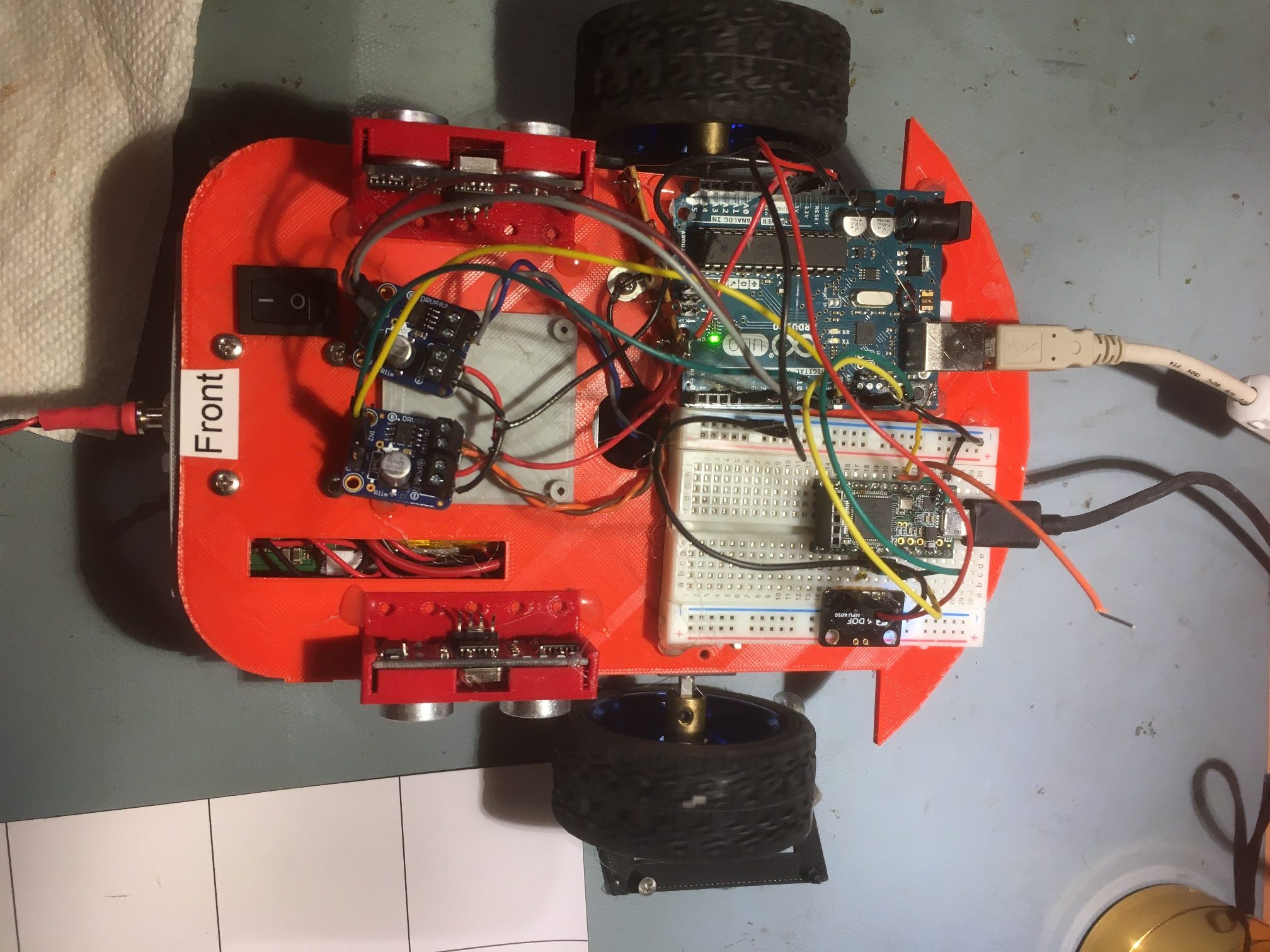
After successfully demonstrating heading-based wall tracking with my little 2-motor robot, I am now trying to add this capability to Wall-E2’s repertoire.

Current Algorithm:

Every MIN_PING_INTERVAL_MSEC millisec Wall-E2 measures left/right/forward distances, and then calls ‘GetOpMode()’ to determine its current operating mode.  The currently defined modes are:

  • MODE_NONE: (0) default case
  • MODE_CHARGING (1):  connected to the charger and not finished
  • MODE_IRHOMING (2): coded IR signal from a charger has been detected
  • MODE_WALLFOLLOW (3):  trying to run parallel to a wall
  • MODE_DEADBATTERY (4): battery exhausted

The MODE_WALLFOLLOW operational mode is returned from GetOpMode() when none of the other modes are active – in other words it is the real ‘default mode’.  The MODE_WALLFOLLOW mode has three distinct sub-modes;

    • TRACKING_LEFT (1): actively tracking the left wall
    • TRACKING_RIGHT (2): actively tracking the right wall
    • TRACKING_NEITHER (3): not tracking either wall (both distances > 200cm)

TRACKING_LEFT & TRACKING_RIGHT are identical for purposes of heading-based wall tracking, and the TRACKING_NEITHER case isn’t relevant, so we just have to come up with a way of integrating heading-based tracking into either the LEFT or RIGHT case.  The TRACKING_LEFT case block is shown below:

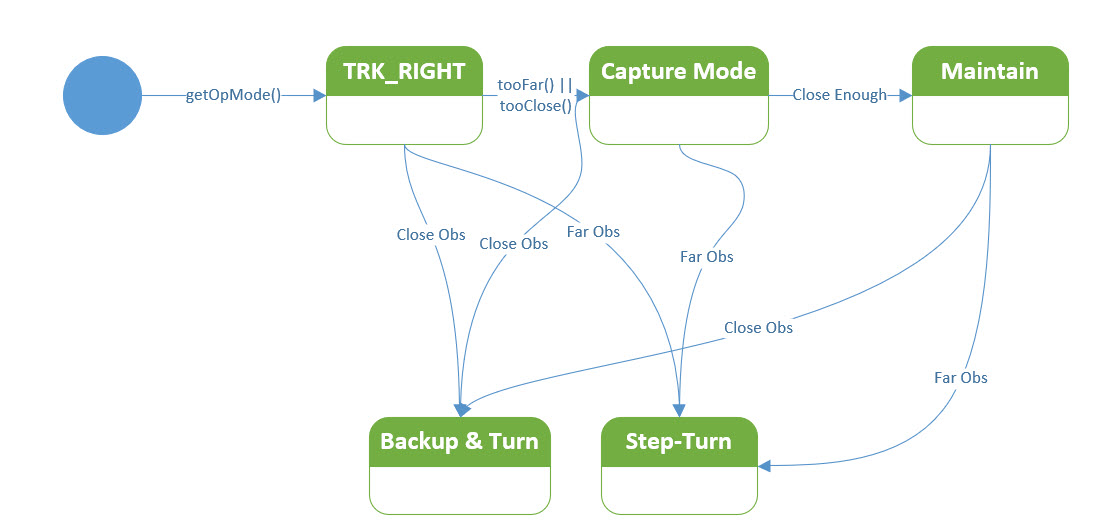
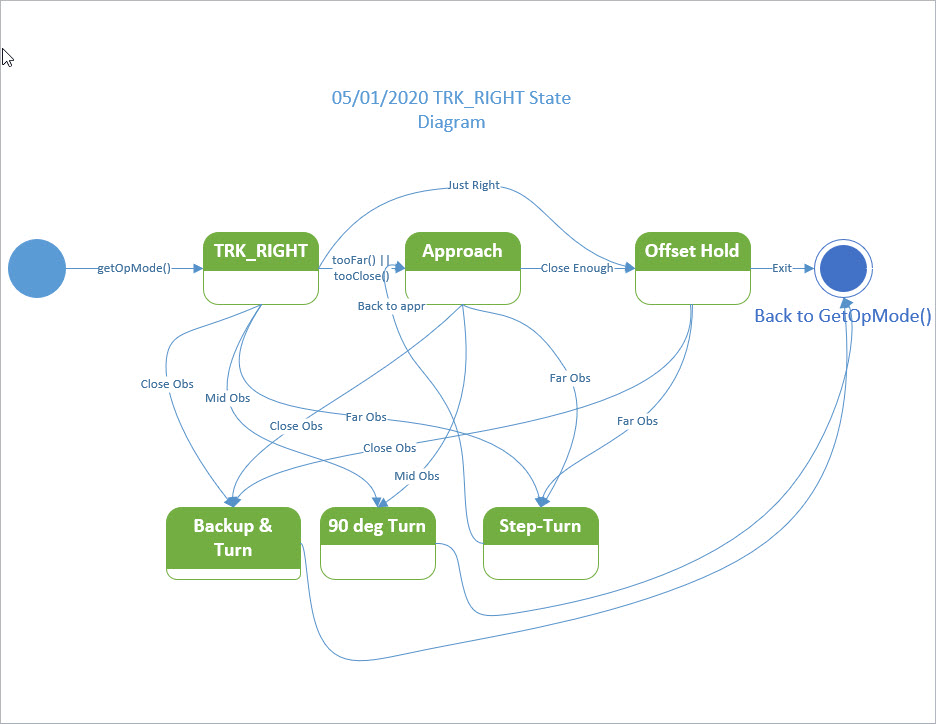
The first thing that happens is a check for an obstacle within the MIN_OBS_DIST_CM or the ‘stuck’ condition (determined via a call to ‘IsStuck()’).  If this test passes, a check is made for an obstacle that is farther away than MIN_OBS_DIST_CM but closer than STEPTURN_DIST_CM, so a gradual ‘step-turn’ can be made to negotiate an upcoming corner.  If that check too fails, then the robot is assumed to be tracking the left wall, safely far from any oncoming obstacles.  In this case, a new set of motor speeds is computed using a PID setup to keep the left PING distance constant – no consideration is given for whether or not the PING distance is appropriate – just that it is either greater or less than the one measured in the last pass.

So, the thing we want to change is the way the robot responds to PING distances to the left wall.  We want the robot to acquire and maintain a selected standoff distance from the wall being tracked (the LEFT wall in this case).  Pretty much by definition, this requires two distinct activities – the first to acquire the selected standoff distance, and the second to maintain that distance for the duration of the wall-tracking activity.  So now we have three state variables for wall tracking, and only the last one (ACQUIRE/MAINTAIN) is new

  •  TRACKING_LEFT/RIGHT
    • NAV_WALLTRK (as opposed to NAV_STEPTURN)
      • PHASE_ACQUIREDIST/PHASE_MAINTAINDIST

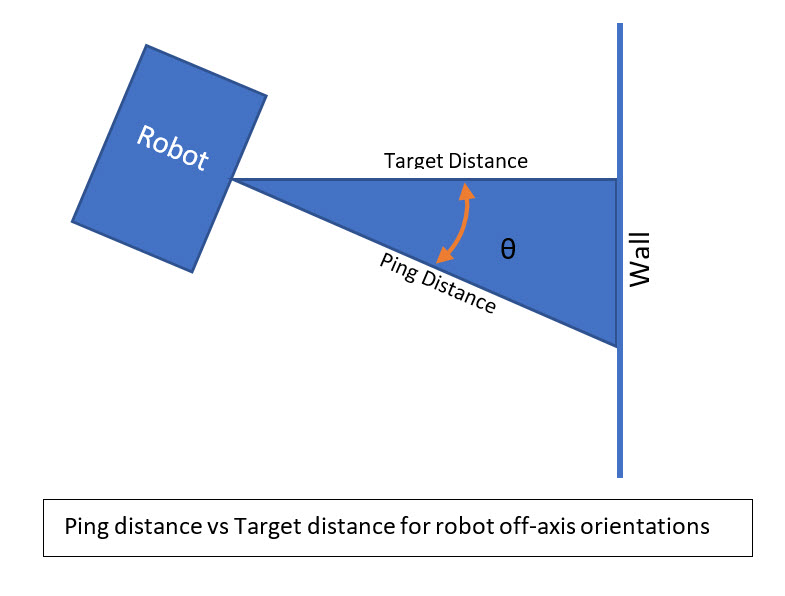
In the PHASE_ACQUIREDIST phase, a heading change of up to 20 deg is made in the appropriate direction to move toward the selected offset distance.  The situation is then monitored in subsequent loop passes to determine if a larger or small heading cut is required.  When the robot gets close to the desired distance, all the added heading offset is removed and the robot enters the PHASE_MAINTAINDIST phase.  In this phase, small(er) ping distance variations cause larg(er) heading changes, resulting in a sawtooth pattern about the selected distance.


IMU Motor Noise Troubleshooting, Part II

Posted 13 November 2019,

After a month-long diversion to help Homer Creutz investigate some of the many issues associated with the Invensense MPU6050 IMU chip, I’m now back to figuring out how to keep my robots’ motor & driver noise from corrupting the yaw values from my MPU6050 IMU module.  In my last post on this issue, I worked through a number of theories for what might be causing the problem, and eventually decided the issue was more associated with the motor drivers than with the motors themselves.  At the conclusion of this prior study, I was able to demonstrate effective turn control using MPU6050 yaw values, even with the motors running.

However, I have since determined that I basically had gotten lucky; the problem still persists, even after changing back from switch-mode to linear motor drivers.  After a lot more work, I am now convinced that the basic problem is very high frequency voltage spikes on the order of 2-3 V p-p being conducted onto the Mega 2560 microcontroller board via the motor control connections from the Mega to the motor driver.  The result is intermittent and erratic behavior from the Mega and/or the MPU6050 module.

As a potential solution to the problem, I spent some time investigating whether or not I could use a ESP32 module to replace the Mega and it’s accompanying wireless module  (HC-05 BT module on the 2-motor robot, and a Wixel wireless serial extender on the 4-motor model). The idea was that since the ESP32 module is much smaller and has an integrated/shielded wireless module, it might be more immune to the conducted noise issue.  As it turned out though, getting the ESP32 to work the way I needed it to was next to impossible, and so I abandoned ship after a few weeks.

Anyway, now I’m back to working the motor noise problem again.  When I left the problem the last time, I thought that one possible solution to the noise conduction problem would be to use an optical isolator module such as this one, to isolate the motor power circuits from the Mega circuits.

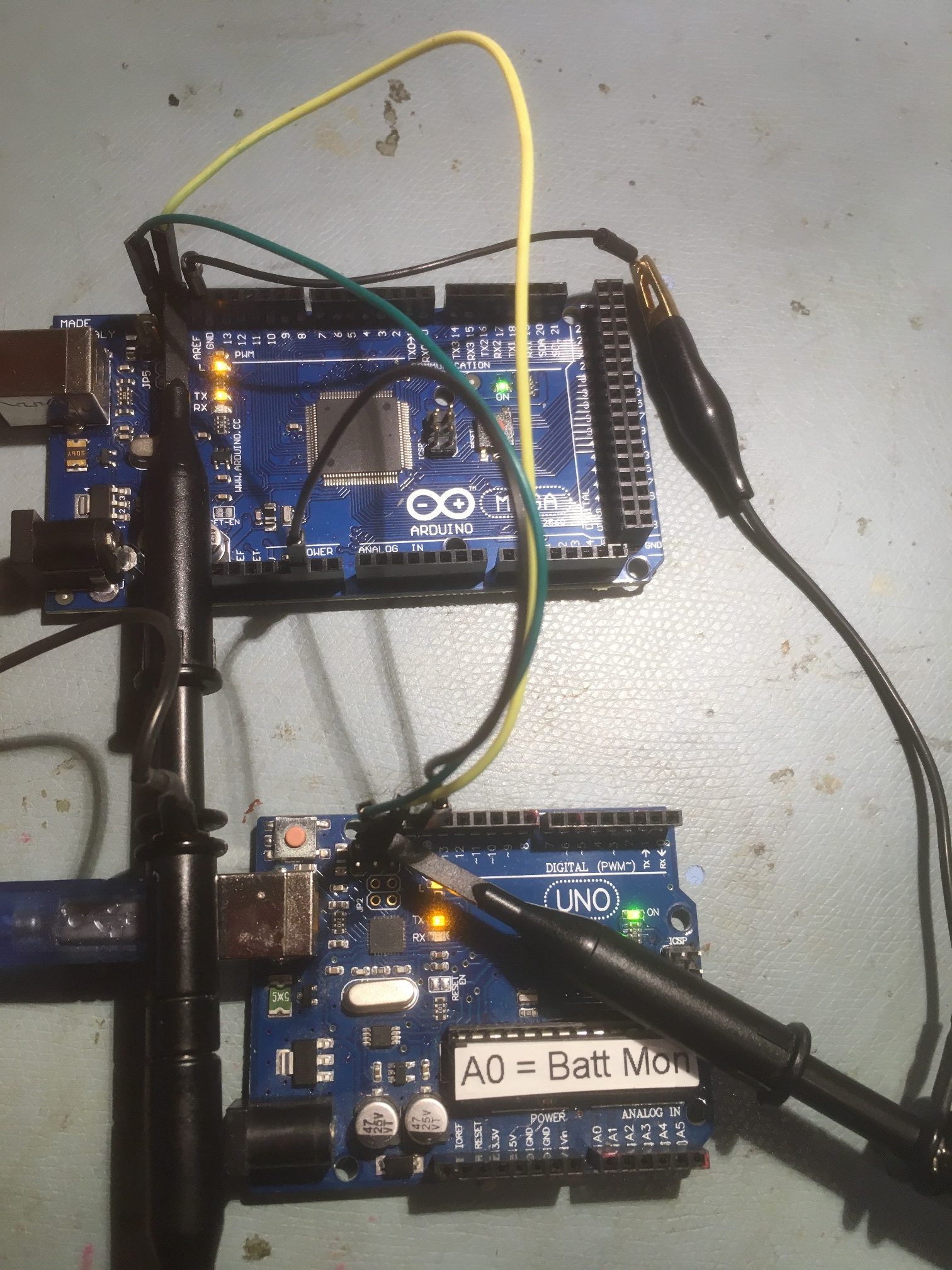
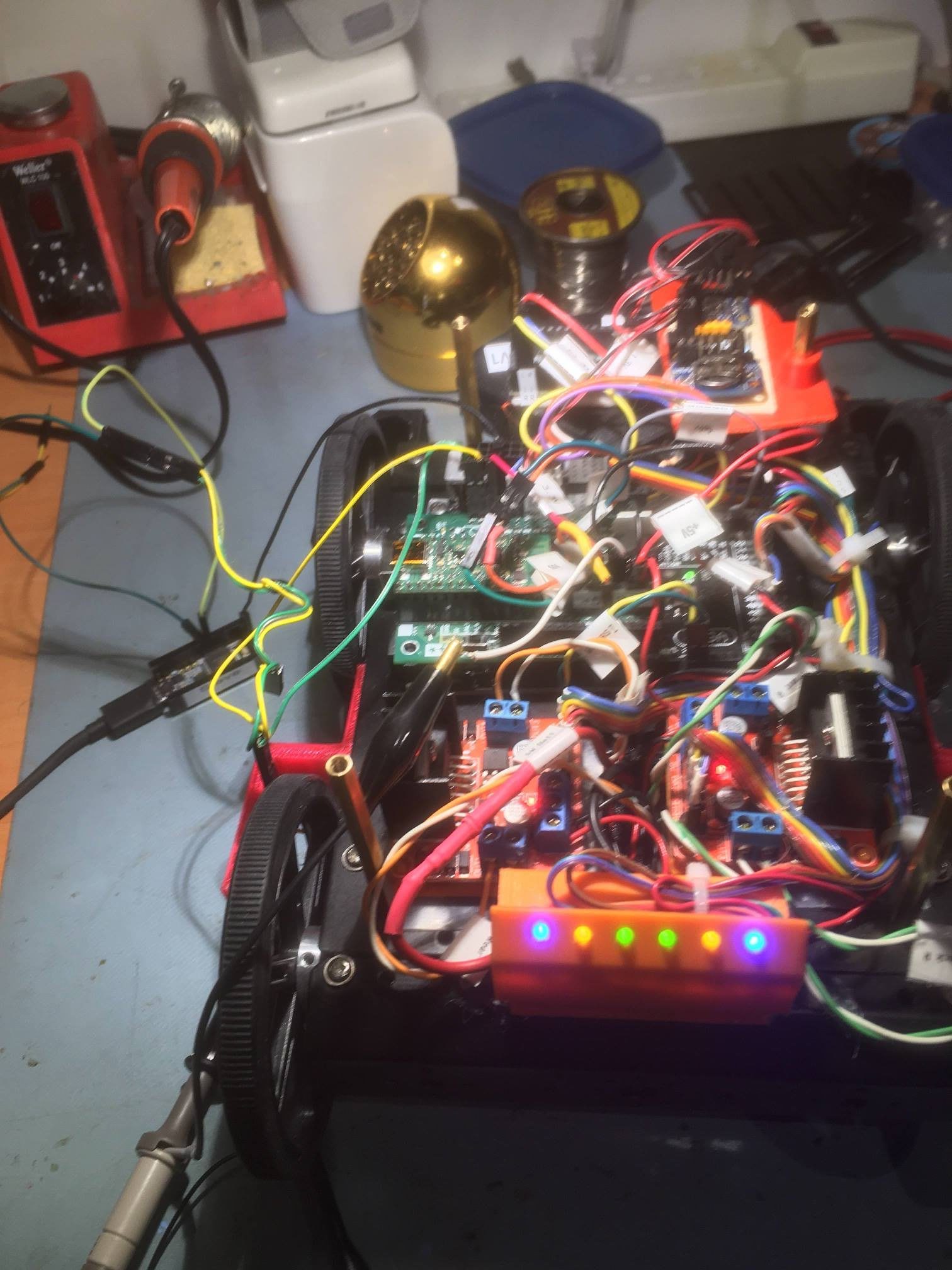
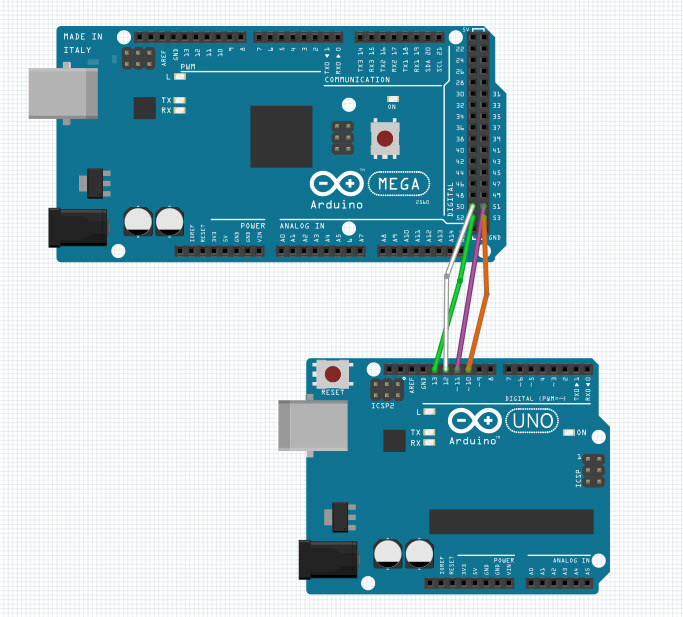
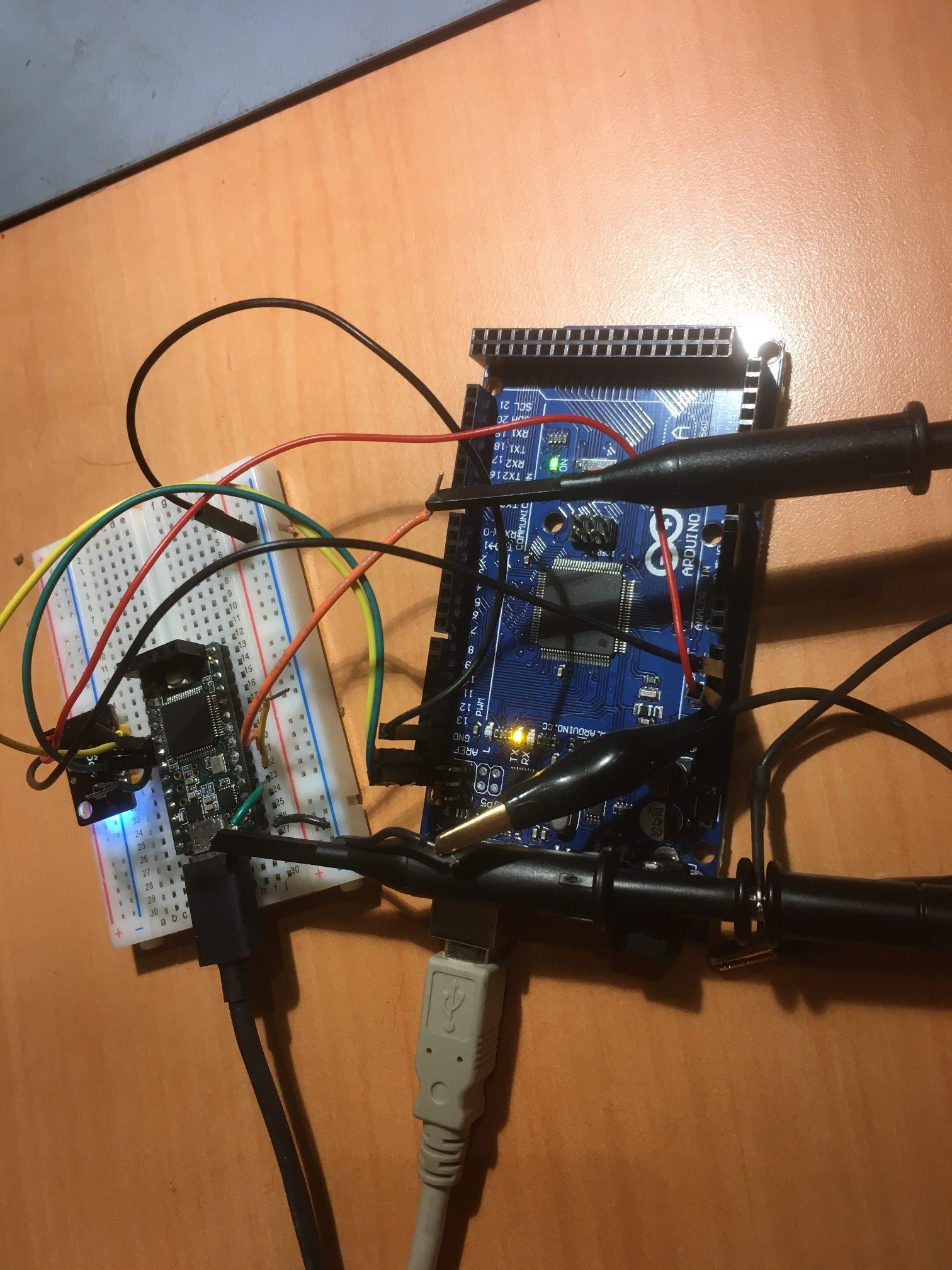
So, I set up an 6-channel optical isolation bank between the Mega 2560 controller and the 2-motor robot’s motor controller, as shown below:

6-channel opto-isolator setup with 2-motor robot and Mega 2560 controller

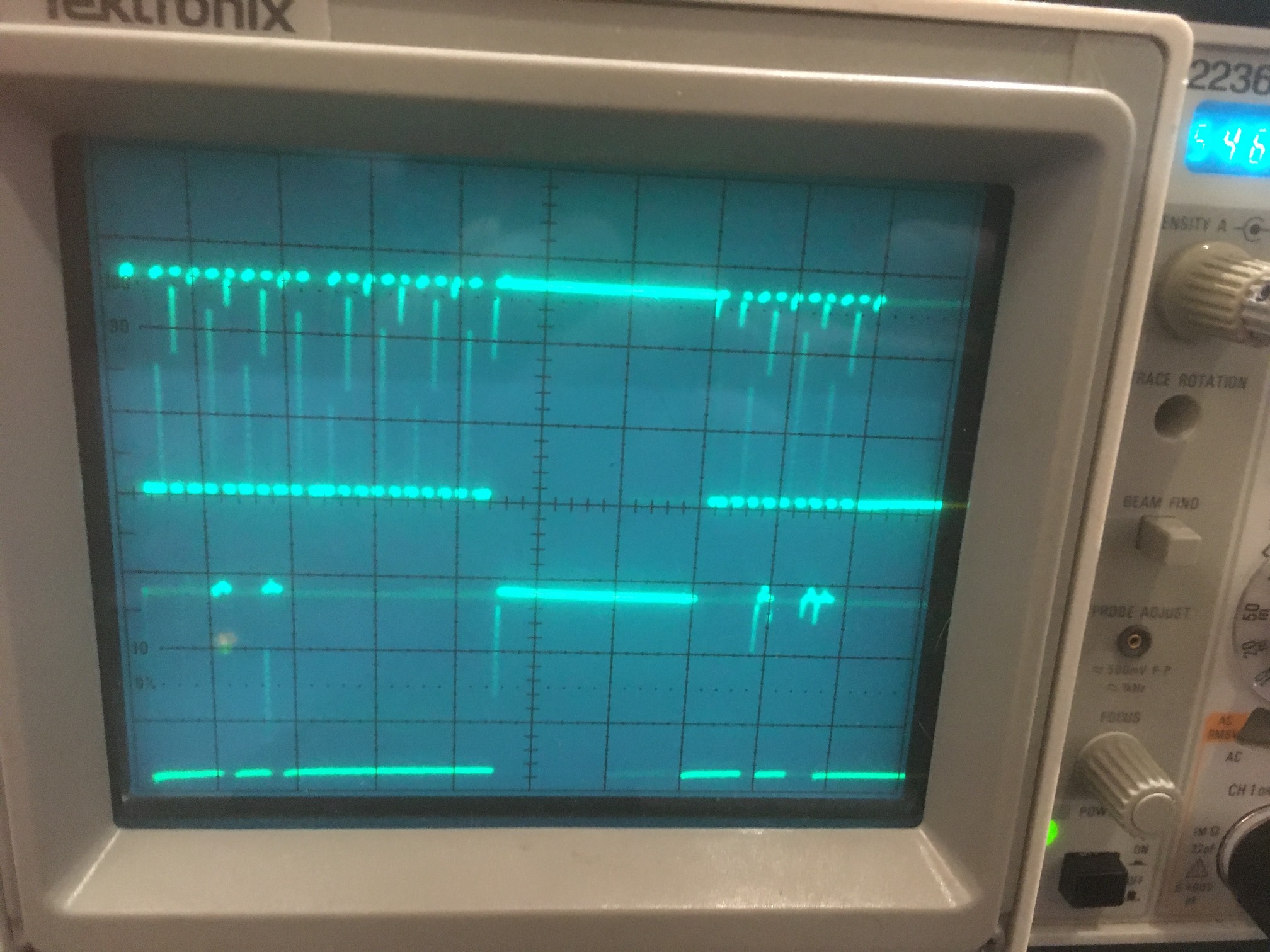
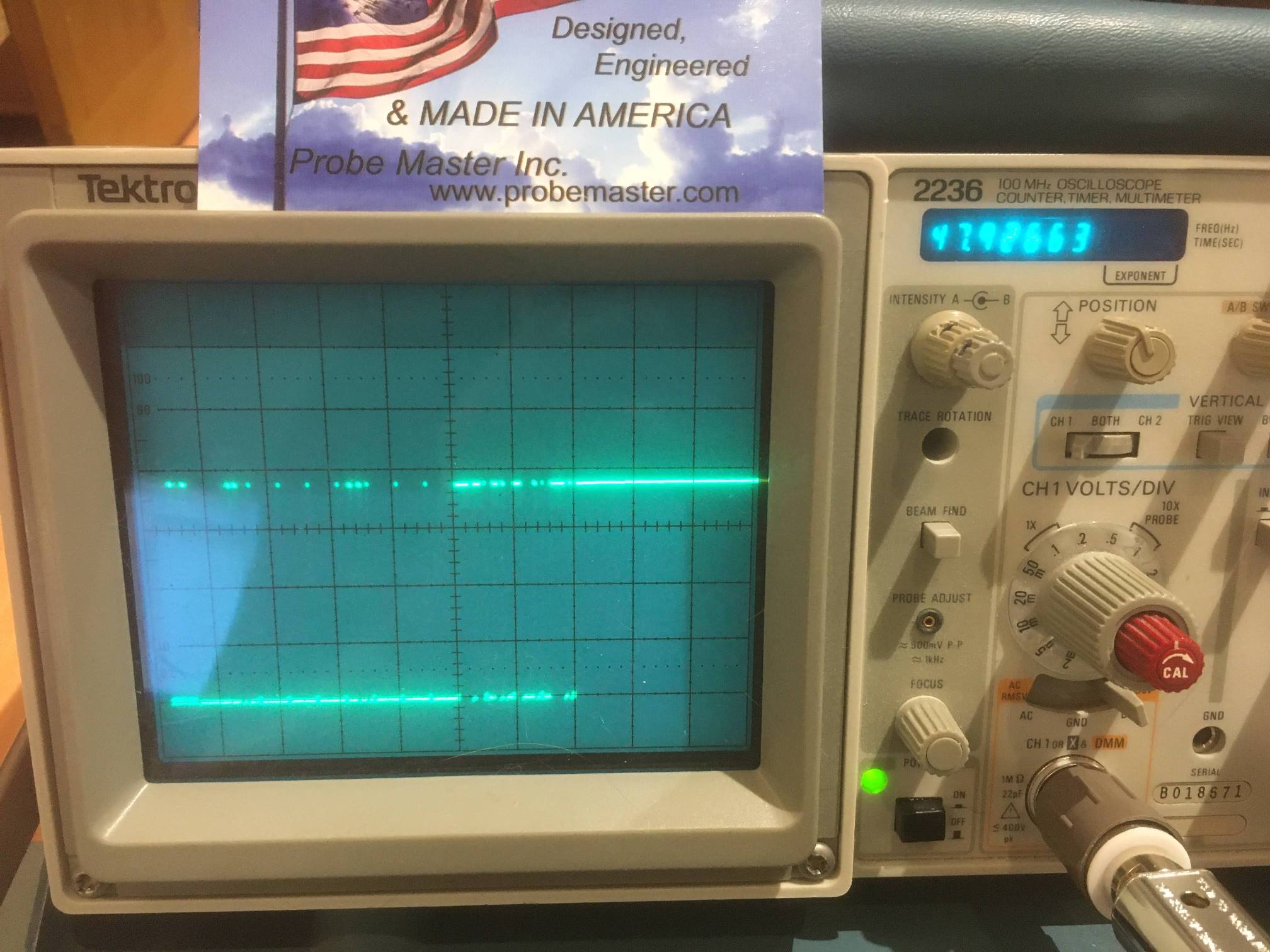
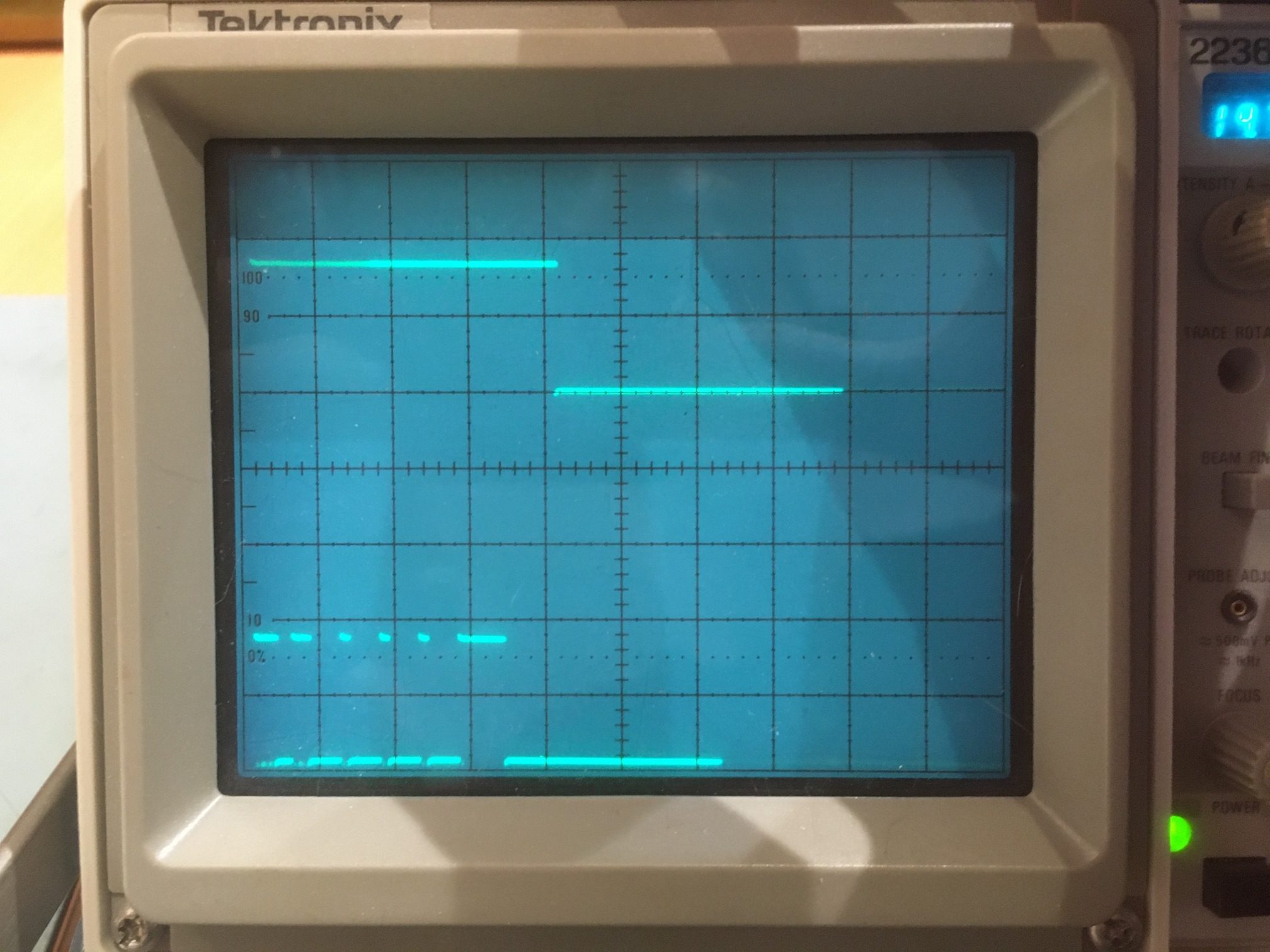
However, when I tried this trick, I still got lots of high-frequency transients on the control and power lines, and the computed yaw values from the MPU6050 soon became invalid.  After poking around a bit with a scope, I realized that while this cheap 4-channel optical isolator is great for voltage difference isolation and low frequency isolation, the high-frequency stuff I was seeing was going around the optical isolation and capacitively coupling from the output side back to the controller side – bummer!

After getting back on the project, the first thing I did was to refresh my memory on a prior project to test a Sparkfun MPU9250 (basically the same as the MPU6050 but with a magnetometer included) interfaced to a Teensy 3.2 microcontroller.  The Teensy is much faster and physically much smaller than the Mega controller currently on my robots, so I thought it might be less susceptible to motor noise – worth a shot anyway.  So, I got the Teensy/MPU9250 configuration working again, and then did the absolute minimum to get the Teensy to drive just one motor on my 2-motor robot.  Surprisingly, the Teensy/MPU9250 combination went Tango Uniform as soon as the motor started up – wow!

So, now I wasn’t any closer to solving the problem, but I did have some additional information.  Now I knew that the problem wasn’t unique to the Mega 2560/MPU6050 combination – it also happened in the same manner with the Teensy 3.2/MPU9250. This indicated to me that the issue really was high-frequency noise spikes being conducted down the motor control wires and back into the microcontroller circuits.

So, I needed a way to effectively block these transients from reaching the microcontroller.  As noted above, I tried the cheap eBay optical isolator module, but although it clearly isolated the DC circuits, the high-frequency transients still made it through to the controller board. I needed an optical isolator setup with an ‘air gap’ big enough so that there would be no chance for the transient energy to jump the gap.  And, because to a man with a 3D printer, everything looks like a 3D fabrication problem, I figured I could whip something up using IR LED/IR phototransistor pairs, something like the following:

This model is just a small solid piece of plastic with 4 holes, sized so that a 3-mm LED / phototransistor will slide in, with a step to stop if from sliding all the way through.  There is no metal at all, other than the LED/phototransistor leads, so (hopefully) no conductive or capacitive path.

After the required three or four quick and dirty model iterations, I had a model that I could use for a very basic experiment.  In fact, I realized my little 4-hole model was way overkill, as all I really needed was one channel for the motor speed PWM signal – the other two inputs to the motor controller could be tied HIGH or LOW as necessary on the motor controller side for purposes of this experiment.

The setup is shown below:

Teensy 3.2 controlling one robot motor via homebrew optical isolator

Closeup comparing the 3D-printed optical isolator with the commercial 4-channel module

After getting the 1-channel optical isolator working, I used it to control one of the two motors on the 2-motor robot, and found that I could run this setup indefinitely with no data corruption – yay!  Here’s an Excel plot of a 35+ minute run with the robot motor running.  As can be seen from the plot, the MPU9250 responded properly the entire time. The five ‘spikes’ are caused by occasional manual sensor rotation to confirm proper operation

35-minute run showing reliable yaw data acquisition. The three ‘spikes’ are caused by manual sensor rotation to confirm proper operation

For the next step, I plan to expand my homebrew opto-isolator to 2 channels so I can control both robot motors.  If that is successful, I’ll add 4 more channels so I can control both motors completely.  If this all works, then I’ll need two complete 6-channel opto-isolators to control all 4 motors on the 4-motor robot.

15 November 2019 Update:

I added two more optical isolator channels so I could control both the speed and the direction of one motor on my two-motor robot.  Then I modified my Teensy 3.2 test program to run the motor at increasing and then decreasing speeds, both forward and backward, forever.  The motor speed increments and direction changes occur in the same section of code that acquires a new yaw value, every 200 mSec or so.  Here’s the setup

This setup puts about 30 mm separation between the two circuits, with the only connection being via my homebrew optoisolator.

I ran the system for over two hours with the motor running in both directions and with the speed varied across the entire range.  The motor, the program, and the yaw retrieval process worked perfectly the entire time, as shown in the following Excel plot and short video clip.


This clearly demonstrates that my homebrew optical isolator works as it should, and effectively isolates motor/driver related transients from the Teensy board.  What it doesn’t do is demonstrate the same capability with the Teensy connected to the same power supply; right now the Teensy is powered from my laptop via USB, and the motor is powered from the robot battery supply.  The next step will be to figure out how to suppress these transients to the point where both the Teensy and the motor/driver can live on the same circuit.

16 November 2019 Update

Success!  I now have the Teensy controller and the Robot running from the same power supply – yay!!  I accomplished this by constructing a two-stage RC filter between the 8.5V battery supply voltage and the 4-6V Teensy power input, as shown below, and modifying the USB cable to cut the red power wire.

Two-stage power supply filter for Teensy

2-stage power supply filter

With this setup, I ran for almost 30 minutes with no problems, as shown in the following Excel plot (the ‘glitches’ at the start and finish are manual sensor rotations to confirm valid data retrieval.


Stay Tuned!

17 November 2019 Update

According to this link, Thomas Huxley once said “The great tragedy of science—the slaying of a beautiful hypothesis by an ugly fact.”  Well, my ‘beautiful hypothesis’ has been well and truly slain by an ugly fact! As a last experiment to verify my hypothesis about the need for both an optical isolator and a power supply filter to adequately address the two-wheel robot’s motor noise transients, I bypassed the optical isolator as shown in the following photo, and ran the setup for several minutes.  Unfortunately (or fortunately depending on one’s point of view), the setup did not cooperate with my hypothesis – the setup ran fine, with no missed yaw value acquisitions, as shown in the following Excel plot (the ‘glitches’ in the plot are due to me manually rotating the sensor to verify proper operation).  So, apparently the power supply filter is required, but the optical isolator is not – Yay! (I think).


So then I removed the Female-Female jumpers and wired the motor control lines directly to the Teensy – no problem.  Then I added the three control lines for the second motor, and changed the Teensy program to control both motors.  This ran fine, so it is now clear that all that is required for motor transient suppression (at least for the Teensy setup) is a good power supply filter.  It’s even possible that my 2-stage power supply filter circuit is overkill for the application, and one stage would do fine.  To test this theory, I eliminated the first stage of the filter entirely, and tried again.  This works as well, so it looks like only a single-stage power supply filter is required for reliable operation, at least with the two motor robot and the Teensy microcontroller.  However, one fly in the ointment is that eliminating the first stage causes the power dissipation of the 5V Zener diode to increase to well over its nominal max Pd of 1W.  With a 10-ohm series resistor dropping 3.5V, the current through the zener is 3.5/10 = 0.25A (minus the negligible Teensy current), so Pd = 0.25 * 5 = 2.5W – oops!  I need to increase the series resistor by a factor of 2.5 to get Pd down to 1W.  So, I increased the series resistor to 20 ohms and with the actual power supply voltage of 8V, the zener Pd falls well below 1W.

For a final confirmation test, I eliminated the power supply filter entirely, bringing the setup back to to the original baseline, with the Teensy controlling both robot motors with no power supply filtering or optical isolator.  As expected, this caused the Teensy to lose synch with the IMU within a few minutes.

19 November 2019 Update:

After testing with the Teensy/MPU9250 combination, I decided to try and go back to the Arduino series of microcontrollers.  The reasons for doing this are:

  • The Teensy doesn’t have sufficient I/O channels to control all the required peripherals on the 4-wheel robot.  I does have enough I/O to control the 2-wheel robot, but that’s not what I’m after.
  • Remote programming of the Teensy is not possible without the use of another controller, like a Raspberry Pi Zero W or something like that.  However, this is easy to accomplish with the Arduino UNO or Mega 2560.

So, I started with an Arduino UNO that has been modified by removing T1 so board power is isolated from the USB cable power lead, and hooked up the motor control lines directly to the 2-wheel robot.  This arrangement failed after a few minutes, with or without power supply filtering.

So then I re-introduced my homebrew optical isolator, and found that the UNO will run indefinitely while running one of the two motors via the optical isolator and the power supply filter.  So at this point a reasonable hypothesis is that the Teensy is a bit more robust with respect to EMI/RFI effects than the UNO/Mega controllers, but the combination of the two-stage power filter and my homebrew optical isolator effectively suppresses motor and motor driver EMI/RFI (at least for one motor).

30 November 2019 Update:

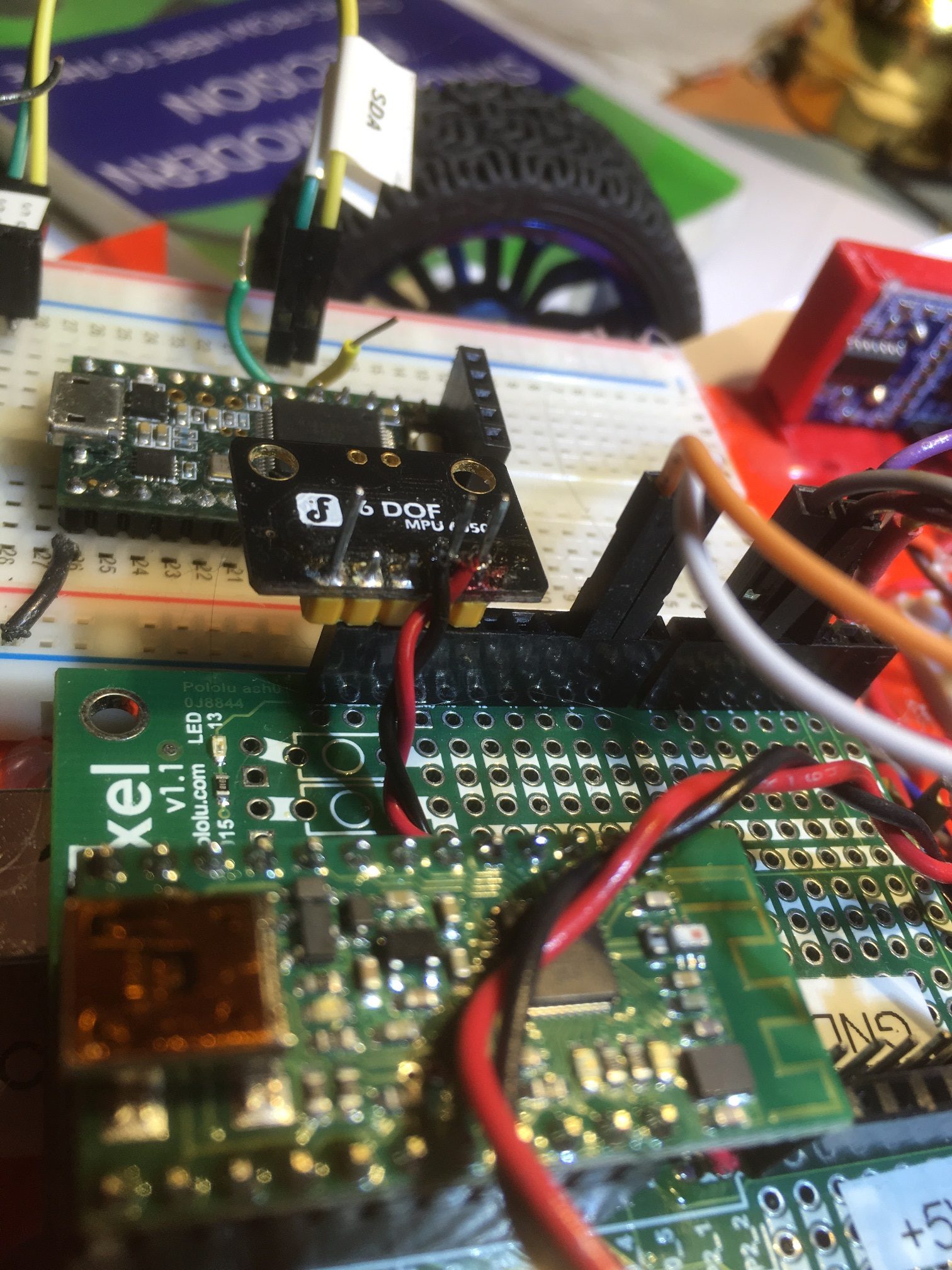
I now have my two-motor robot running reliably with an Arduino UNO running my DF Robots MPU6050 module, with both motors running. As far as I have been able to determine, this requires both a power supply filter between Vbatt and the UNO Vin, and a 6-channel optoisolator between the UNO and the motor driver module.  Some photos and schematics are shown below:

6-channel homebrew optoisolator and power filter mounted on an Adafruit ‘Perma-Proto’ half-size breadboard

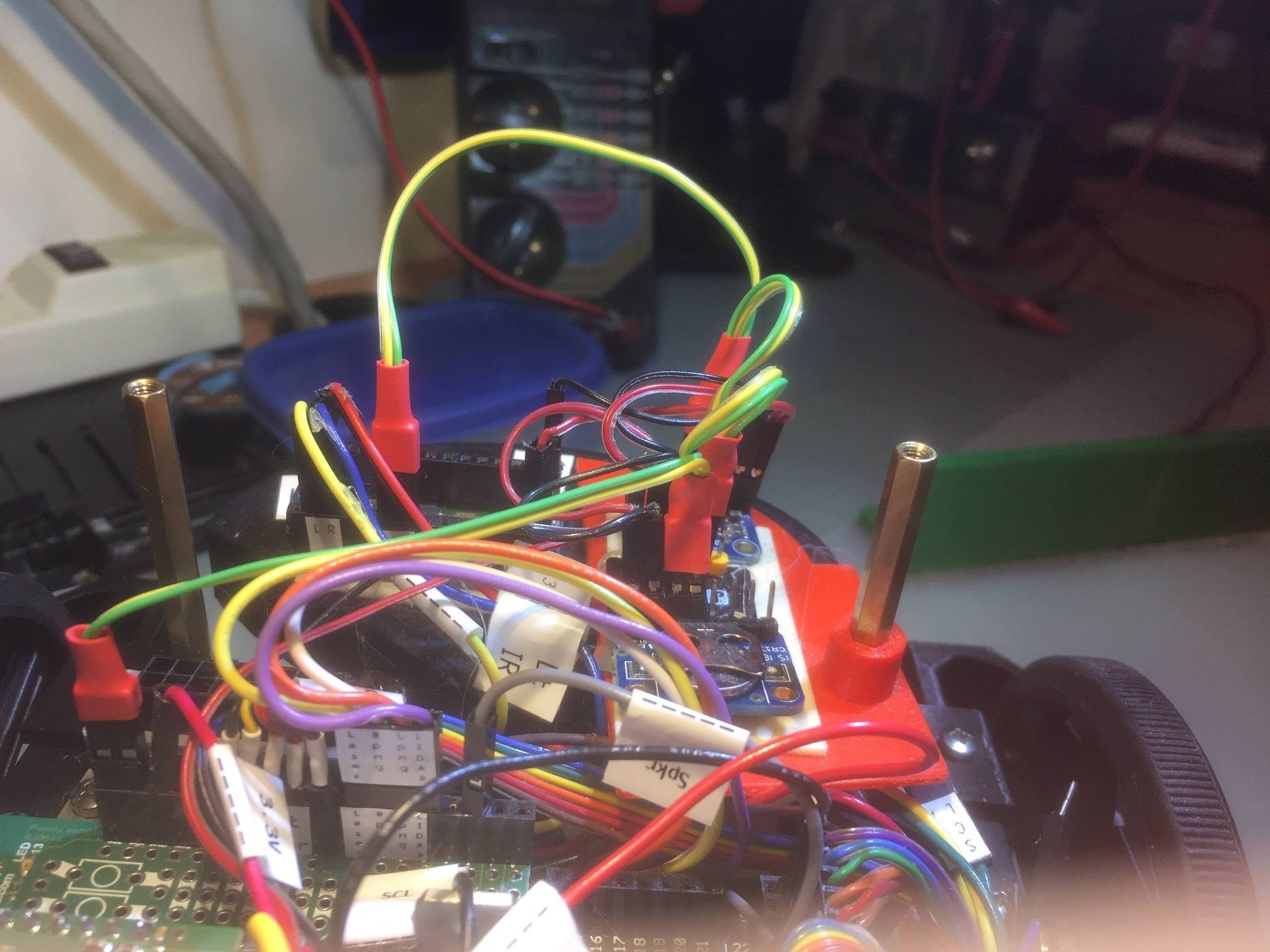
Optoisolator mounted on two-motor robot. Note DF Robots MPU6050 module in top left of photo

6-channel optoisolator schematic


03 December 2019 Update:  The Final Chapter (I hope)

After going through the entire process described above, proving to my satisfaction that the ‘final cure’ to the motor noise problem was to opto-isolate the motor driver control signals and thoroughly filter the power to the UNO, I was once again rudely smacked in the face by reality when my finely tuned setup refused to cooperate. As I prepared to start ‘field’ testing again, the yaw value corruption problem once again reared its ugly head.  This was beyond depressing – I have now spent upwards of 5 months trying to kill this particular alligator, and it keeps coming back.

Based on my philosophy that if I’m having an apparently insoluble problem, there’s someone (possibly many someones) out there in the i-verse that has had (and solved!) that particular problem already, I started over on internet research, googling for ‘motor noise problem’ and similar terms.  One of the hits I got was for an application note on the Pololu site dealing with just this problem (don’t know why I didn’t see it before, but…). In any case, Pololu’s solution was to install one or three bypass caps on the motor body itself.  Since I had already tried everything else, I thought ‘what the heck -it can’t get any worse than it is already’, and installed the three-capacitor arrangement, using non-polar 1 uF caps from each terminal to the motor body, and a 0.01 uF cap across the terminals.

Pololu D20 metal-geared motor with bypass caps installed. Blue caps are 1uF, orange cap is 0.01uF

Lo and Behold! It worked!  I was able to run for 90 minutes without a problem with all three elements in place; the motor bypass capacitors, the power supply filter, and the 6-channel optoisolator.  So, the next step was to bypass the optoisolator and see if that was a necessary component – and it continued to work without problems – yay!  Next, I bypassed the power supply filter circuit, and everything STILL continued to work great – double yay!

Two-motor robot with power supply filter and optoisolator bypassed

So, I wound up back at the beginning of my five-month circular journey, having learned a lot and had a lot of fun, but having wasted half a year.  So, if you are using metal-geared motors like the Pololu D20/D25 models, for Pete’s sake install bypass capacitors before doing anything else!

Stay tuned,

Frank


MPU6050 FIFO Buffer Management Study

Posted 13 October 2019

I have been attempting to use the Invensense MPU6050 6-axis IMU for some time now in both my two and four-wheel robots for improved wall-following ability. By measuring the relative heading change during turns, I could get the robot to accurately acquire and maintain a specified distance from the currently tracked wall.  I say ‘attempting’, as I have experienced somewhat mixed results in getting reliable results from the IMU.  A large part of the problem, as I described in this post, wasn’t the IMU at all, but rather the sensitivity of the Arduino I2C bus to RFI/EMI caused by the motor drivers.  However, even after solving this problem, my programs would still occasionally ‘lose synch’ with the IMU’s FIFO buffer and start returning garbage for heading values – not good!

In addition to the I2C issue, there are several factors that make the MPU6050 harder do work with:

  • Invensense, the company that makes the MPU6050 chip, appears to have been purchased by TDK, and their technical support forums don’t appear to be supported any longer.
  • Apparently there are significant pieces of the MPU6050 firmware that aren’t freely available as human-readable code, so much of the MPU6050 magic is just that – magic.  In particular, the details of how the MPU6050 handles its internal FIFO are (at least to me) completely unknown, except by reverse-engineering.
  • While there is a lot of MPU6050-related information and code floating around out there in the i-verse, that is as much a trial as a blessing; it has been very difficult for me to wade through everything and to try to sort out the wheat from the chaff.
  • Jeff Rowberg’s wonderful I2CDevLib contains support for the MPU6050, with examples.  While it is fairly easy to get started using Jeff’s examples, it was difficult for me to understand how the examples work so I would know how to modify them for my application without running off into the bushes.
  • Almost all the example code out there assumes an interrupt based IMU management scheme.  For my wall-following robot application, the interrupt scheme was overkill and then some, so I wanted to use a polling arrangement, which is very poorly documented. Eventually I developed a working polling algorithm (described here) , which I now use in my robots.
  • Invensense (now TDK) has released several updates to the MPU6050 firmware, and it is difficult (at least for me) to figure out what the differences are and whether or not those differences are worthwhile for my application.  There is some information in the header files provided by Jeff Rowberg, but if there is any sort of formal change history, I haven’t found it.

Despite all this, the MPU6050 is a wonderful device, and it’s EVERYWHERE – you can get MPU6050 modules from Adafruit, Sparkfun, DFRobots, and GY-521 Chinese knockoffs from eBay.  The GY-521 modules have some reputed issues with quality control, but at about $1-2 per module, it’s hard to go wrong.

In my continued attempts to understand how the MPU6050 works, and the details of some of the latest example code provided on Jeff Rowberg’s Github site, I posted an issue related to a particular part of the example code that defied my ability to understand, as shown below:

This code obviously works, but I get a headache everytime I try to figure out how it makes sense.  One of the replies I got from this post was from Homer Creutz, who I knew to be one of the very best experts on all things MPU6050.  The gist of Homer’s reply was “yeah, it looks kinda clumsy, but it does work”. But then Homer went on to suggest an alternative using the modulus (%) operator that piqued my interest, as I had used this technique in my four-wheel robot code.  In subsequent email conversations Homer went WAY out of his way to thoroughly answer my stupid questions about the MPU6050, especially about the issue with FIFO overflow.  He sent me a link to this video explaining how circular buffers work, and the following graphic illustration (slightly edited for clarity) of the problem of MPU6050 overflow and multiple-byte packets

The combination of the video and the above simple graphic finally allowed me to understand why properly managing FIFO overflow is so critical for successful MPU6050 implementations. Ironically, FIFO overflow management is more of an issue in my low-speed, high mass, low-dynamics environment than at the other end of the scale.  In high-dynamics applications, FIFO overflow is almost never an issue because the application sucks data out of the FIFO as fast as it is put in, in order to provide the best possible stabilization and control.  However, in low-dynamics applications like my wall-following robots, there is no need for IMU information more than a few times per second, meaning that the FIFO will almost certainly overflow if it isn’t proactively drained even if the information isn’t really needed.

Homer also sent me a couple of untested alternatives for FIFO management to replace the ‘while() within an if()’ algorithm, so I decided to test them and report the results back to Homer. After all, Homer was going WAY out of his way to answer my ignorant questions, so the least I could do was to be his lab tech.  So, I started with Jeff Rowberg’s MPU6050_DMP6_using_DMP_V6.12 example (the one with the ‘while() within an if()’ snippet) and modified it to deliberately cause FIFO overflows. After a bit of debugging and some very slight changes to Homer’s code, I got the following output from a run using a 100 mSec delay at the start of loop():

As can be seen from the above, about 20 interrupt cycles are skipped in each loop() iteration, causing the 1024-byte FIFO contents to expand by either 280 or 252 bytes each time, until it overflowed and was reset.  The example code handled FIFO overflows properly resetting the FIFO each time so that the retrieved yaw values continued to make sense.

The next step was to replace the example code with Homer’s proposed setup using the modulus operator for FIFO management. The first section below shows the example code loop() function before Homer’s modifications:

And the following shows the same loop() function after implementing Homer’s suggested code:

This resulted in the following output:

Showing that FIFO overflow was indeed handled properly.  The FIFO overflowed after the 3rd time through the loop, (the returned count was capped at the 1024-byte physical length of the FIFO), and Homer’s code correctly removed the 16 corrupted bytes at the beginning of the FIFO, plus one more 28-byte packet.  The subsequent mpu.getFIFOBytes() call retrieved an entire valid packet, which was then process to produce a valid yaw value.  Of course, since only one extra packet was removed, the FIFO overflowed again when the next 336 bytes were loaded during the 100 mSec delay at the start of the next loop() iteration.

When the code snippet to retrieve all available packets

was uncommented from the above program, I got an almost perfect output as shown below:

There were 4 bad values starting at 15250 mSec, as shown below

I’m not real sure what happened here.  A FIFO count of 308 is nowhere near the overflow condition, and it is an even multiple of 28 (the packet size), so everything should have gone swimmingly.  However the displayed value of 2.04 degrees at time 8859 mSec is clearly incorrect, as I was manually (and slowly) rotating the MPU at the time.

Another issue with all of this is the FIFO count associated with the number of interrupts shown in the output.  22 interrupts should produce 22*28 = 616 bytes, but mpu.GetFIFOCount() only returns 308 – exactly half the expected value.  So, either the packet size is actually 14 bytes (not very likely, as mpu.GetPacketSize() returns 28) or the IMU is only loading half a packet on each interrupt.  I added digitalWrite() statements to the ISR so I could directly monitor interrupt occurrences with my O’scope, and the interrupts happened exactly as expected, at approximately 4.58 mSec intervals (about 220Hz).  The 100 mSec delay at the top of loop() should produce approximately 100/4.58 = ~22 interrupts each iteration, and that is what is reported in the output.  So, why the x2 error in the reported FIFO count?

I ran another test, and this one responded perfectly for as long as I let it run (about 22 seconds). During the run I manually rotated the robot (and its attached IMU) back and forth, as shown in the following Excel plot

14 October 2019 Update:

There is clearly something not-quite-right with the way the MPU6050 reports the current length of the FIFO contents.  Here are the results from a recent run:

Aside from the fact that 22 x 28 = 616 not the reported 308, there is also the problem that after one more interrupt (23 vs 22), the reported FIFO content length didn’t go up by 14 (half the expected 28, but…) but instead by 12 bytes – what the heck?  This clearly implies that MPU interrupts aren’t entirely synchronous with actually filling the FIFO – like some sort of race condition?  In other words, the number that is reported by mpu.getFIFOCount() isn’t always an integer multiple of the packet size!  This is contrary to Homer’s assumption that the only way for mpu.getFIFOCount() to retrieve a non-integral multiple was for the FIFO to overflow. This clearly is not happening here, but I’m still getting non-integer multiple results.  Here’s another snippet from the same run:

In the above snippet, it can be seen that a 22 interrupt interval can sometimes result in 316 bytes being reported rather than the expected (ignoring for the moment the issue of a 2x error), and the ‘success’ of removing 36 bytes still resulted in a ‘bad’ yaw value computation (-179.17) 308.  In the very next loop iteration, 22 interrupts resulted in 328 bytes being reported. This time removing the excess allowed a valid yaw computation (-30.46).  So, a 22 interrupt loop interval can result in 308 (the ‘normal’ result), 316, or 328.

15 October 2019 Update:

I changed the loop() delay time from 100 mSec to 200 mSec, and (with no other changes) re-ran the test, with the following output:

The above results showed the expected 42-43 interrupt count between loop() iterations, and the expected (ignoring for the moment the 2x error factor) FIFO contents byte count of 588-616.  However, there were a couple of anomalous occurrences on two consecutive loop() iterations at 19094 and 19312 mSec.  The first one reported a FIFO contents count of 600 instead of 616 and (even after error correction) a clearly erroneous yaw value of -179.20, and the second one reported 604 bytes and (after error correction) an apparently valid yaw value of 61.54.

After an email exchange with Homer, I tried replacing this line

with this one:

In the following section of Homer’s algorithm

After this change, I re-ran the test at the 100 mSec loop() iteration delay setting with and without the above code change.  In both cases, I still got errors trapped,  as shown below (The test conditions for each run below are noted at the top of the text file)

So then, also at Homer’s suggestion, I instrumented the code to get the FIFO count rapidly several times after an error detection to see if the first mpu.getFIFOCount() occurred while data was actually being loaded into the FIFO and therefore got an erroneous count. So, I changed Homer’s code correction section to the following:

and re-ran the 100 mSec loop() iteration delay test.  What I got was this:

Wow!  the FIFO count changed!  The first mpu.getFIFOCount() at the top of the detection section got 334, and the next 3 calls all got 336!  So the first mpu.getFIFOCount() call must have hit the mpu 26/28 of the way through the packet load!

So, the MPU6050 packet load scheme isn’t atomic and there is, in fact, some sort of a race condition.  I think we have all been assuming that the MPU6050 loads the FIFO with a complete packet and then triggers an interrupt, while it appears that it is actually happening the other way around; the interrupt is triggered and then the packet is loaded into the FIFO. Most of the time this doesn’t cause a problem, but if you ‘get lucky’, the register associated with the mpu.getFIFOCount() call is read before the entire packet is loaded

16 October 2019 Update:

Homer asked me to change the code to determine exactly how long it takes to “clear the error”, which I take to mean “how long would a program have to wait for the MPU6050 to finish loading the rest of the packet into the FIFO”.  Homer sent me some sample code, which I modified slightly to produce the output Homer was looking for, as shown below:

When I ran this code, I got the following output:


21 October 2019 Update:

After several more email exchanges with Homer, he believes that he has now come up with pretty ‘bullet-proof’ way of handling MPU6050 errors, with the following subroutine

The idea behind this subroutine is to ensure that any overflow condition is detected and managed properly. The routine is completely independent of interrupts, so it can be used in a program using interrupts or polling.

Homer also sent me some test results using the program, with a variable loop delay time designed to be just below and then just above the delay required to overflow the buffer. This demonstrated that his subroutine properly handles FIFO overflow conditions, and returns valid packet data whenever possible.

In the above output, the first column is the loop delay in mSec, then the ‘Flag’ value returned by the subroutine, and then the ypr (yaw,pitch, roll) values extracted from the buffer filled by the subroutine.  As is shown, loop delay values above about 177 mSec start returning ‘2’ Flag values, indicating the routine detected (and recovered from) an overflow condition.

I replicated this experiment on my end, but discovered that for my installation, I had to use a loop delay almost exactly twice the value used by Homer (360-370 vs 177-178). The implication is that either my MPU6050 is loading the FIFO at one-half the rate of Homer’s unit, or my IMU has a buffer size twice the one being used by Homer.  Curioser and Curioser ;-).

Here’s my code and results:

Summary of results to date:


  • Homer has clearly created an effective algorithm for detecting and recovering from FIFO overflow events, and the subroutine that implements his algorithm can be used in an interrupt-driven or polling configuration.  I personally like the polling arrangement because it requires one less connecting wire, and removes the need for an ISR.
  • Both Homer and I have demonstrated that the algorithm works as designed, but the loop delay required to just trigger FIFO overflows in my configuration is almost exactly twice the delay needed for Homer’s. This needs to be explained.
  • There is still the problem of a factor of 2 error between the expected return from mpu.getFIFOCount() and the number calculated by multiplying the number of interrupts times the expected packet length. In my configuration using an interrupt-driven arrangement, a 22-interrupt loop delay resulted in a FIFO count of 308.  But, 22 x the expected packet size of 28 yields 616, not 308!  This also needs to be explained.

23 October 2019 Update:

To further investigate the ‘factor of 2 error’ problem, I went back and re-ran the initial experiment that produced the problem, just to verify that it was still there.  Here’s the entire program to recreate the results, and a partial printout of the results:

Significant points to note from the above output:

  • The time (in mSec) between adjacent output lines is about 111 mSece on average (110.5762 mSec according to Excel), and the reported number of interrupts is either 20 or 21 in almost every case (average is 20.0833333 according to Excel).  O’Scope observations confirm this is the case, as the output from the interrupt monitoring pin shows almost exactly 5 mSec between interrupts and an almost exactly 200 Hz interrupt frequency.  So, an interrupt count of 20 or 21 is reasonable, and cannot be the reason for the ‘factor of 2’ error in the FIFO buffer count.  However, there is an apparent ‘off by 2’ problem with the interrupt count, as the reported FIFO counts are consistent with interrupt counts of 22 & 23 rather than 20 or 21 as shown
  • Every so often a 22 interrupt span produces a FIFO count of 336 instead of 308 – a 28 byte difference.  In fact, over a run time of about 6.5 minutes (388,671 mSec), this phenomenon occurred 264 times, about 0.07% of the time.

The inference I draw from the above two points is that the MPU6050 chip isn’t actually loading an entire 28-byte packet during each interrupt cycle, but is in fact loading only 14 bytes each time.  With an artificially imposed 100 mSec (about 22 interrupt cycles) loop delay, the MPU loads 22 * 14 = 308 bytes.

An alternative explanation is that the MPU6050 loads complete packets into the FIFO every other interrupt. Under this scenario, it takes 11 cycles (22 interrupts) to load 11*28 = 308 bytes, and 12 cycles (24 interrupts) to load 12 * 28 = 336 bytes.

Another (and maybe even more reasonable) possibility is that the MPU6050 loads packet data into the FIFO one byte at a time, at an average rate of 14 bytes per 5 mSec, or 2.8 KBS. To the outside world, this might not be noticeable unless the application was trying to retrieve packets at the full 200 Hz.  At rates of 100Hz or less, the MPU would still have loaded at least one complete packet every time one was requested.

29 October 2019 Update:

As someone once said as both a benediction and a curse – “May you live in interesting times”.  In our ongoing investigation into the depths of MPU6050 behavior, we now have solved one mystery solved, only to encounter another one.

As I have noted several times above, there appears to be a factor of 2 mismatch between the number of interrupts counted from ISR activations and the number of bytes reported by mpu.getFIFOCount().  Either the interrupt count is off, or the FIFO count is off, and there doesn’t seem to be any other explanation.  Well, now I have determined that there is apparently a third option – that the MPU6050 only loads a packet into the FIFO on every other interrupt! This doesn’t make a whole lot of sense to me, but I now have what I believe to be irrefutable proof that this is exactly what is happening.

I set up a very simple program to get the FIFO byte count as rapidly as possible.  In order to avoid slowing the system down, I stored the results in a 1000-entry array during the retrieval process, and then printed out all 1000 entries at the end. Then I plotted the results in Excel as shown in the following figure:

The stairsteps in the above plot are (almost) uniformly the expected packet size of 28 bytes;  the MPU6050 is clearly loading entire 28-byte packets into the FIFO each time, contrary to one of the possibilities I had considered to explain the factor of 2 inconsistency between the interrupt count and the FIFO count.

However, when I started looking at the time interval between FIFO loads, I got the following plot:

As the above plot clearly shows, the MPU6050 loads a new packet into the FIFO every 10 mSec or so (I think it is exactly 10 mSec, with the differences explained by the lack of resolution in the time axis).  But wait – the MPU6050 produces an interrupt on the Arduino interrupt pin every 5 mSec – not every 10 mSec!  So, the mystery of the ‘factor of 2’ error is now solved.  The MPU6050 loads a new packet into the FIFO every other interrupt – not every interrupt as expected. So, the interrupt count is too high by a factor of 2 when compared to the actual FIFO count.

Unfortunately (or fortunately depending on one’s point of view), that simply begs the question – why is the MPU6050 producing interrupts on a 5 mSec schedule when it only changes the FIFO count on a 10 mSec schedule?  Who knows?

Changing the subject slightly, I got another ‘overflow proof’ version of GetCurrentFIFOPacket() from Homer Creutz to try.  I set up a small program to test it.   Since the idea was that GetCurrentFIFOPacket() would return a valid packet no matter how long it had been since the last time it was called, I set up a program to iterate through a sequence of delay times from 100 mSec to 500 mSec. For each loop delay setting I called GetCurrentFIFOPacket() multiple times and printed out the extracted yaw value and the return status from the function.

As the plot below shows, everything works swimmingly up to a loop delay of 350 mSec. Unfortunately, the wheels came off with a 400 mSec loop delay, and the packet values were all invalid after that – bummer!


06 November 2019 Update:

Holy cow!  Homer and I started this marathon project back in mid October, and we don’t seem to be any closer to nirvana than we were before.  What I can say though, is that I have learned a lot more about the MPU6050 and Jeff Rowberg’s driver software ;-).

One of the major issues we encountered with the polling method (vs interrupt-driven) is that, without the synchronization with MPU6050’s internal processes provided by the interrupt model, we can’t count on (no pun intended) the FIFO count returned by mpu.getFIFOCount() being accurate.  Depending on the timing of the call, the return value could be wildly inaccurate.  However, we discovered that two back-to-back calls to mpu.getFIFOCount() always resulted in an accurate count, although there was still a very small probability that a 3rd call would be required.  So, I created a small routine called ‘getPollingFIFOCount()’ to wrap this construct, as follows:

This function simply loops until two adjacent calls to mpu.getFIFOCount() return the same value. As always, however, there is a backup counter to force the function to exit if it gets hung up for any reason.  In the calling program I have a line like:

to set the backup loop counter value.

Another major issue with the MPU6050 is that it can overflow its packet FIFO buffer, and there doesn’t appear to be any way to prevent this, other than removing packets from the FIFO at the same rate or higher than they are loaded.  This may not be a problem for ‘high dynamics’ applications like quadcopters or balancing robots that need continuous attitude information, but for ‘slow dynamics’ applications like my wall-following robot where yaw information is only needed a few times per second, overflow becomes a practical certainty.  In an interrupt -driven environment, it might be reasonable to simply retrieve and then discard DMP packets as fast as they arrive, and then only process the latest packet when the application needs an update.  However, for a polling strategy, doing this may or may not work depending on what else is going on. So, for polling we need a way of ensuring we can retrieve a valid packet from the DMP FIFO, whether or not the FIFO has overflowed. Doing so would be trivial if the FIFO length was an integral multiple of packetSize, but it isn’t – yuk!!  So, now when the FIFO overflows, the first packet in the FIFO is guaranteed to be corrupted. The good news is, the last complete packet (i.e. the most recent information)  in the FIFO is always valid, but getting to that last good packet is non-trivial.  To summarize:

  • FIFO overflow is almost certain to happen in a ‘low dynamics’ polling-based program
  • When FIFO overflow occurs, the first packet is always corrupted, but the last one is still valid
  • The last (valid) packet isn’t the last [packetSize] bytes, due to the non-modular size of the FIFO
  • The MPU6050 DMP may start loading another packet at any time, but there will always be 10 mSec or so between packet loads
  • Any last-valid-packet retrieval algorithm must work for any loop delay time.

So, the ‘last-valid-packet-retrieval’ algorithm is something like this:

  1. Get the current packet count, using the ‘getPollingFIFOCount()’ routine above
  2. Extract [packetSize] chunks until there are less than 2* [packetSize]  bytes left. This ensures there is exactly one valid packet remaining in the FIFO.
  3. Extract one more [packetSize] chunk and return it as the result.

Note that implementation of this algorithm will require several ‘while’ loops, so there must also be provision for forcibly terminating all such loops in case some edge condition causes the normal exit condition to never be reached.  Homer and I have been creating and testing versions of this function for the last couple of weeks, without quite getting there yet.  Either they don’t handle all the edge conditions, or they are too slow as the loop delays get larger.

While I was testing my most recent concoction, I ran into a third major problem with the MPU6050 API.  I wanted to be able to remove up to 35 [packetSize] chunks (980 bytes) in one go, and I expected the mpu.getFIFOBytes() API call to manage the required chunking for me.  When I tried this trick, the getFIFOBytes() function crashed repeatedly.  Eventually I figured out that the reason it was crashing wa that it’s ‘length’ parameter is declared as a ‘uint8_t’ object and of course it couldn’t handle a value greater than 255 without choking.  I thought that was a little odd, but that maybe changing the declaration from ‘uint8_t’ to ‘uint16_t’ in MPU6050.h/cpp would solve the problem.  Nope – It turns out that, due to the way that the Arduino I2C bus operates, there is a limitation on how many bytes can be transferred across the bus in one operation, and this limit is currently set at 32 bytes.  As a result of this fundamental limitation, all the I2CDev functions that use the I2C bus also have the same underlying limitation and all of them have their length parameters declared as ‘uint8_t’. This reminds me of the old pre-scientific myth about the earth resting on the back of a turtle.  When the myth was challenged, the defender says “its no use – it’s turtles all the way down”.  In our case “it’s no use – it’s uint8_t all the way down!”.

So, I had to figure out a way around this problem, so I decided to create yet another wrapper function, this one cleverly called ‘getManyFIFOBytes()’. The idea for this would be to pull one [packetSize] chunk off the FIFO at a time using the normal ‘mpu.getFIFOBytes()’ call and place the result in a destination buffer large enough to hold the entire result.  Since it has been a (long, long) while since I last played with pointer gymnastics, I decided to write a short test program to figure out a reasonable technique.  Here is the program, and some results:

As the output shows, the ‘getManyFIFOBytes(uint16_t* buffer, uint16_t len)’ function can take an arbitrary ‘uint16_t’ length parameter and fill the destination buffer with [packetSize] (28 bytes in this case) chunks, followed by the non-modular remainder.  Although this test was done with a simulated receive buffer and simulated packet contents, I believe it will work using the actual contents of the MPU6050 FIFO and repeated calls to ‘mpu.getFIFOBytes()’ to retrieve the ‘chunks’ and any non-modular remainder bytes.

Having convinced myself that my two helper functions actually did what I wanted, I revised my latest MPU6050 test program (MPU6050_Overflow8.ino) to test the whole thing out. The test program steps through a series of loop delays from 50 to 550 msec, and takes 25 yaw measurements at each loop delay setting.  The Excel plot and a snippet of the output log from the program is shown below

  • There were no invalid packets in the entire run, so the attempt to avoid invalid packet retrieval was a success.
  • The actual loop delay per measurement pass varied quite a bit from the desired loop delay setting.  For instance the average measured loop delay for the 25 yaw measurement passes at the 200 mSec loop delay setting was actually 274.08 mSec, almost 50% higher than desired.  At the 150 mSec loop delay setting, the average loop delay was 223.88 mSec, and at the 100 mSec setting it was 133.24 mSec.  So, if the application needs 5 measurements/sec, the allowable loop delay between passes needs to be between 100 and 150 mSec.

12 November 2019 Update:

Based on some comments and data from Homer’s experiments, it appears that a FIFO reset can be done in less than 10 mSec.  This means that a packet retrieval algorithm based on a mpu.resetFIFO() call will miss at most one 10 mSec FIFO load interval, which is insignificant compared to the typical polling interval (200 mSec in my case).  So I decided to try a ‘brute force’ approach to ‘GetCurrentFIFOPacket()’ as follows:

When I first tested this algorithm, I ran into an occasional glitch where the FIFO would somehow fail to reset, resulting in a FIFO count > 28. So I added an outer loop to allow multiple shots at getting a clean FIFO reset.

Shown below are some Excel plots from some long runs


The first plot above shows a long run (over 17 minutes) of valid yaw data (the perturbations in the yaw plot are due to occasional manual rotations of the sensor to verify that the sensor was still responding).  The interesting thing about this plot is the yellow curve, showing the ‘outer loop’ count. The only way this value can be greater than 1 is if the first mpu.resetFIFO() call fails to actually clear the FIFO, which appears to happen an average of about once per minute, or about once every 6,000 10 mSec MPU6050 FIFO cycles.

The second plot is a closeup of the first 171.42 seconds of the overall plot, showing the detail of the FIFO clear failures, occurring about once per minute.

So, it is clear that the MPU6050 has some significant behavioral quirks, especially when used in a non-interrupt-driven environment.  That being said, I believe the ‘brute force’ algorithm shown above is a reliable way of interfacing with the MPU6050 in a polling environment, and obviates the need for a separate interrupt line, and the associated ISR software.

This will probably be the last update on this subject, as I now think Homer and I have pretty much beat the MPU6050 FIFO issue to death.

Stay tuned!

Frank


Heading-based Turns Using MPU6050 and Polling vs Interrupts

Posted 06 October 2019

In previous posts I have described my efforts to integrate heading-based wall tracking into my two-wheel and four-wheel robots.  I installed a MPU6050 module into Wall-E2, my primary four-wheel robot, some time ago but was never able to make heading-based turns work for one reason or another.  In conjunction with some other experiments, I installed an MPU6050 module on my two-wheel robot so that I could investigate the issues with heading-based turns and heading-based wall tracking with a simpler hardware configuration.

With the two-wheel robot I was able to demonstrate successful heading-based wall tracking, but I was unable to port the capability to my four-wheel configuration.  Not only that, but for some reason I started having problems getting reliable yaw/heading values from my two-wheel robot configuration.  This post describes the steps I took to troubleshoot the problem, ultimately arriving at a stable polling-only (no interrupt line required) yaw/heading value retrieval algorithm suitable for both the two-wheel and four-wheel robot configurations.

Back to Basics:

As I always do when faced with a complex problem with conflicting results, I decided to simplify the problem as much as possible.  In this case that meant reducing the hardware configuration to just a MPU6050 module and an Arduino Mega controller, as shown below:

Arduino Mega and MPU6050

On the software side, I started with the simplest possible Arduino sketch – Jeff Rowberg’s ‘MPU6050_DMP6.ino’ example, included in his latest I2CDevLib library and described in this post.

After getting everything running properly in this very basic configuration using an interrupt-driven algorithm, I moved on to working with the polling-driven arrangement, to confirm that polling was a viable strategy.  To do this I modified the hardware to disconnect the interrupt line from the MPU6050 to the controller board, and modified the software as described in this post to use a polling arrangement vs interrupts.

After confirming that this simple example worked properly and seemed stable, it was time to work my way back into the two-wheel robot hardware and software configuration (again!).  To do this I started with the basic controller/MPU6050 only hardware configuration, but running my two-wheel robot software program, modified to eliminate everything but the ‘RollingTurn()’ function that uses heading information from the MPU6050 to initiate and terminate turns.  After some false starts and blind alleys, I finally arrived at a stable software configuration demonstrating consistent heading-based turn performance using polling only – no interrupts!  the code is shown below:

In the above code, the only relevant functions are the ‘GetIMUHeading()’ and ‘RollingTurn()’ functions, as shown below:

When the ‘RollingTurn()’ function is called, it waits for mpu.dmpPacketAvailable() to return TRUE, and then it calls GetIMUHeadingDeg(), which updates a global variable (subtly named ‘global_yawval’.  This value is then used to determine turn completion.

GetIMUHeadingDeg() reads bytes from the FIFO and computes a yaw value using the retreived quaternion data.

After getting everything going to my satisfaction, I added code to setup() for a 30-degree turn to the right followed by a 30-degree turn to the left, followed by an infinite loop of yaw value readouts.  The output from one test run is shown below.

Shown below are the yaw values plotted against time in Excel

The next step will be to port the updated software back into my two-wheel robot to confirm that heading-based turns can be accomplished automatically (this is something that I had going before, but…).

Stay tuned!

Frank


Flashforge Creator Pro 3D Printer Motherboard replacement

Posted 07 October 2019

I have owned a Microcenter clone of the very popular Flashforge Creator Pro for several years now and just the other day it gave up the ghost and died; the internal LED lighting and the front panel LCD display started flickering, and then went dark altogether. This wasn’t an entirely unexpected event, as for the last week or so I had been smelling burnt insulation every time I used the printer.

So I turned the printer on its side and removed the bottom panel to have a look around. Everything looked normal until I examined the main power connector to the motherboard; this connector looked a bit brown and charred as shown below:

Motherboard power input connector. Note the discoloration and bubbling

If I wiggled this connector with the power to the printer enabled, I could get the display and internal LEDs to light up briefly and then go out again, so it seemed pretty reasonable that this was the problem.  After removing the motherboard from its mounting posts, I was able to get a better look at the connector, as shown below:


Motherboard power connector as viewed from the side

As can be seen in the photo, the plastic power connector has melted and bubbled out to the side, and the mating halves of the connector are fused together.  In order to disconnect the power cable I had to physically pry the two halves apart, as shown in the following photos:

Motherboard half of the burnt power connector

Cable half of the power connector

I didn’t know if the connector fried and caused the motherboard to die, or the motherboard died and caused the connector to die (or maybe a little of both?).    Anyway, I decided to try an replace the motherboard with a new one purchased on eBay.

When the new motherboard arrived, I started preparing for the exchange by carefully labelling all the cables, so I could make sure I got them back to the right places after the exchange. The labelling step is critical, as many of the motherboard connectors and the corresponding cables are indistinguishable from each other; without the labels there would be no way to tell which cable goes to which connector. Then I moved all the cables except for the power cable from the old motherboard to the new one, as shown in the following photos:

After moving all the cables, I still had a problem; the cable end of the power connector was so badly damaged that I couldn’t use it on the new motherboard, and without a power connection, there was no way to test the new board.  I solved this problem by temporarily disconnecting my after-market extruder cooling fan from the ‘EXTRA’ connector on the motherboard, and using that cable connector for the power connection to the motherboard.  After making this change, the printer came up normally when I applied power – YAY!!

So, I still had the problem of not having a connector for my printhead cooling fan cable.  After some more web research, I found this link by Aaron Gilliam (on Thingiverse of all places) describing the part numbers for the entire Flashforge Creator Pro in detail – thanks Aaron!

Flashforge Creator Pro Motherboard connector

Flashforge Creator Pro cable connector

The connector I was looking for was ‘2 pin DIGIKEY # ED2779-ND’ So, off I went to Digikey where I ordered several of the cable connectors, and also several of the mating motherboard connectors.  My plan was to first get the printhead cooling fan back on line, and then maybe try and replace the motherboard connector on the old motherboard to see if that was the only problem; if so, then I would have a complete spare motherboard available – cool!

Stay tuned!

Frank


Polling vs Interrupt with MPU6050 (GY-521) and Arduino

Posted 04 October 2019,

In my last post I described my Arduino Mega test program to interface with the popular Invensense MPU6050 IMU and it’s GY-521 clone.  In this post I describe the interface configuration for using a polling strategy rather than relying on the IMU6050’s interrupt signal.  A polling strategy can be very useful as it is much simpler, and saves a pin connection from the MPU6050 to the controller; all that is required is +V, GND, SDA & SCL, as shown below:

With this wiring setup, the control program is shown below:

In the above program, the interrupt service routine (ISR) and the accompanying ‘attachInterrupt()’ setup function have been removed as they are no longer needed for the polling arrangement.  Instead, the program calls ‘mpu.dmpPacketAvailable()’ every time through the loop, and if a packet is available, GetIMUHeadingDeg() is called to read the packet and return a yaw value.  The rest of the code in the loop() function is the place holder for the ‘other stuff’ that the program does when it isn’t paying attention to the IMU.

In this test program, I have set this section up to execute every 100 Msec, but in my robot programs I usually set it up for a 200 Msec interval; 5 cycles/sec is plenty fast enough for a wheeled robot that uses only the IMU yaw information for turn management.

So far, this arrangement seems very stable; I have been running it now for several hours without a hiccup.

Stay tuned,

Frank


Basic Arduino/MPU6050 (GY-521) test

Posted 29 September 2019,

In my quest to figure out WTF happened to my ability to acquire real-time relative heading information on both my 2-wheel and 4-wheel robots, I have been trying to start from scratch with very simple controller/IMU hardware configurations.  After succeeding with a basic functionality demonstration using a Teensy 3.2 and a Sparkfun MPU6250 IMU breakout board, I decided the next step would be to do the same thing with an Arduino Mega controller and a GY-521 )MPU6050 clone) to more closely replicate the hardware configuration on my 2-wheel and 4-wheel robots.

As usual I started this project with a web search for basic MPU6050/Arduino examples, and I found this YouTube video showing just what I was after.  After going through the video several times to make sure I understood what was going on, I decided to try and duplicate it so I could compare my (hopefully) working demo code with my (currently non-working) robot code.

In my past efforts with the MPU6050, I had struggled with the complexities of using Jeff Rowberg’s wonderful (but quite massive and convoluted) I2CDevLib GitHub repository. There was always something that didn’t quite fit the situation, and making it fit invariably required a trip down the rabbit hole into Alice’s wonderland.  Getting the right combination of files in the right places seemed to be more a matter of luck than skill.  However, this particular video does a nice job of explicitly demonstrating what has to go where.  Essentially the magic steps are:

  • Download Jeff Rowberg’s IC2DevLib repository from GitHub into a ZIP file.
  • UnZip the repository files into a temporary folder
  • Copy the Arduino/I2CDev and Arduino/MPU6050 folders into the Arduino/Libraries folder. This makes them available to the Arduino IDE (and the VS2017/Visual Micro setup I use).
  • Open a new sketch in the Arduino IDE (or a new project in the VS/VisMicro environment) and then:
    • In the Arduino IDE select ‘File-Examples, and scroll down to the ‘Examples from Custom Libraries’ section. Then select ‘MPU6050->MPU6050_DMP6’  This will load the example code into the sketch.
    • In the VS/VM environment, select the Visual Micro Explorer (under the vMicro tab). Then click on the Examples tab, expand the ‘MPU6050’ section and then select the MPU6050_DMP6 example. This will load the code into the edit window.

Assuming you have the wiring setup correct, the example should run ‘out of the box’ with no required modifications.  However, after verifying that everything was working, I made the following changes:

  • The unmodified MPU6050_6Axis_MotionApps20.h file configures the MPU6050 DMP to send data packets to the controller at a fairly high rate – like 100Hz.  This is way too high for my robot application, so I changed the configuration to send packets at a 10Hz rate, by changing the MPU6050_DMP_FIFO_RATE_DIVISOR constant from 0x01 to 0x09 (lines 271-274) as shown below
  • The Arduino I2C library (Wire.h) has a well-known and documented flaw that causes the I2C bus to hang up on an intermittent basis, so I modified I2CDev.h lines 50-57 to use the SBWIRE library that contains timeouts to prevent this problem from happening

And the last change I made was to disable the interrupt service routine (ISR) and use a polling technique.  Instead of waiting for an interrupt, I simply poll the DMP register with

‘mpuIntStatus = mpu.getIntStatus();’

every time through the loop.  If the return value indicates that a data packet is ready, it is read; otherwise it does nothing.  This appears to be entirely equivalent to the interrupt technique as long as the loop is fast enough service the DMP’s FIFO.

30 September Update:

Well, something’s not equivalent, as the yaw values are fine for a few minutes, but then start showing up as ‘179.000’.  From my previous work I know this means that the line

mpu.getFIFOBytes(fifoBuffer, packetSize);

is getting out of sync with the DMP and isn’t reading a complete packet.  When I then changed the code back to the original interrupt-driven model, the yaw values stay valid forever.

03 October Update:

I modified the code to break the ‘put other programming stuff here’ block out of the ‘if()’ within a ‘while()’ within a ‘loop()’ structure for two reasons:

  • It gave me a headache every time I tried to figure out how it worked
  • I wanted to do ‘the programming stuff’ only once every K Msec where K was something like 100 or 200.  With the above nested structure, that would never work.

After removing extraneous comments and unused code, the resulting program is shown below:

Notes about the above program:

  • I used the SBWIRE library vs the normal Arduino WIRE library to avoid the well-known and well documented infinite blocking problems in the WIRE code.  This was accomplished by editing the I2C interface implementation section in I2Cdev.h as follows

  •  
  • I lowered the MPU6050 interrupt rate to 20Hz (I don’t need anything faster for my wall-following robot by modifying MPU6050_6AxisMotionApps20.h as follows:
  • The loop() function has just three blocks
    • if (!dmpReady) return; this bypasses everything else if the MPU6050 didn’t init correctly

    • All this section does is call GetIMUHeadingDeg() whenever an interrupt has been processed in the ISR

    • This section is the ‘everything else’ block. In my robot programs, this section runs the robot, using the yaw value output from the MPU6050 as appropriate.
  • I discovered that the local variable ‘fifoCount’ can become desynchronized from the actual FIFO count resulting in a situation where the line:

if (mpuInterrupt && fifoCount < packetSize)

in the loop() function fails with fifoCount == packetSize.  The fix for this was to remove the fifoCount comparison from the if() statement, making it just ‘if (mpuInterrupt)’.  This means the if() block will execute every time the interrupt occurs, whether or not there is data in the FIFO.

With the above modifications, the program has run for many hours with no problems, so I’m convinced I have most, if not all, the problems licked.  I’m still using the interrupt-driven version rather than the polling version I would prefer, but that’s a small price to pay for the demonstrated stability of the interrupt-driven version.

Future Work:

Next I plan to try the new MotionDriver 6.12 version of the MPU6050 DMP firmware, which is reputed to be faster, better, and more stable than the present 2.0 version.

04 October Update.

As it happens, the only thing that was required to change from MotionApps V2 to MotionApps V6.12 was to change #include “MPU6050_6Axis_MotionApps20.h” to #include “MPU6050_6Axis_MotionApps_V6_12.h” in little test program.  This compiled and ran fine, and the only difference I could see is that V6.12 has a fixed interrupt rate of about 200Hz, whereas V2.0 could be adjusted down to about 20Hz.  According to some Invensense documentation, the newer version has better/faster calibration capabilities and (maybe?) lower drift rates??

Stay Tuned


Frank


Speaker Amplifier Project, Part VI – Second Production Run

Posted 29 September 2019,

I got an email from Dr. Betty Lise Anderson of the Electrical Engineering Department (I think it’s actually Electrical and Computer Engineering now) at The Ohio State University, asking me if I still had the documentation for the speaker amplifiers I created a couple of years ago for her STEM outreach program.  . Dr. Anderson said these units were very well-liked by her STEM outreach students; so well liked in fact that they apparently walked away on their own!  She asked me if I would be willing to fabricate another couple of amps, and said she would happily pay for all the parts.

Since I never throw anything away, I did indeed have the documentation and even some remaining parts from the original project.  I still had a half-dozen or so of the custom audio level indicator PCBs and at least one Adafruit 20W Class D amplifier left over.  I figured I’d need a couple of wall-wart 12V power supplies and one more amplifier – everything else was already available in my parts bins.  I figured the hundred bucks or so required to get all the parts was not worth worrying about, and besides I could probably write it off as advertising expense for EM Workbench LLC.

The enclosure:

When I made the first set, I 3D printed an enclosure that was a modified version of the nice rounded-corner box design published by Adafruit for just the amplifier.  However, when I tried this trick again, I wound up not liking the result.  Instead, I decided I should be able to create my own rounded corner box.  I searched around on Thingiverse and found a few parameterized rounded box designs, but they all seemed sort of half-baked.  So I broke out my copy of Open SCAD and started figuring out how to do it myself.  I ran across a video that demonstrated the rounded-corner technique using a ‘minkowski’ function, and then I was off and running.  After just a few hours (OK, more than a few, but definitely less than infinity) I had coded a nice, compact Open SCAD module to generate an arbitrary shaped rounded-corner box with an optional companion nesting lid.  The code is available on Thingiverse here.  Using the Open SCAD module, I generated an enclosure and companion lid and exported the result as an STL file, which I then sucked into Tinkercad to add the required cutouts and such for the amplifier project.

Amplifier enclosure as generated in Open SCAD

Amplifier enclosure after importing the STL file into Tinkercad

Amplifier enclosure after modification for the Adafruit amplifier and level indicator PCB

After getting the enclosure design all spiffed up, I started printing it on my trusty PowerSpec 3D Pro 3D printer, only to have it die on me – so much for ‘trusty’!  This was not an entirely unexpected event, as I had been noticing a ‘burnt insulation’ smell coming from it over the last few weeks, and suspected that it might be on its last legs.  So, this batch of amplifier enclosures would have to be single-color (the last one was dual-color red or the enclosure and gray for the text) – at least until my new MakerGear M3-ID 3D printer shows up :-)).  Here’s the result.

Amplifier and Activity Indicator:

In reviewing the documentation from the original project, I saw that the activity indicator schematic wasn’t entirely accurate, so I brought it up to date – mostly cosmetic/lettering, but…

View showing power indicator LED installation before installing power input terminal connector

View showing 2.2K current limiting resistor for power indicator LED

View showing connections between activity monitor PCB and amplifier board

The finished product:

Two complete amplifiers with companion power supplies

A large part of the motivation for this post was to thoroughly document all aspects of fabricating the second run of OSU/STEM speaker amplifiers, so that when I get that next call from Dr. Betty Lise Anderson… 😉

Frank

Sparkfun MPU9250 Test with Teensy 3.2

Posted 15 September 2019

After successfully demonstrating heading-based wall following with my little two motor robot, I attempted to integrate this capability back into my newly re-engined (re-motored??) 4-wheel Wall-E2 robot. Naturally the attempt was a dismal failure, for reasons I have yet to determine.  For some reason, the MPU 6050 IMU on the 4-wheel robot refused to produce valid heading data, and when I then attempted to redo the previously successful experiment on my 2-wheel robot, it too failed – in the same manner!  Clearly the two robots got together and decided to misbehave just to watch me tear what’s left of my hair out!

So, after trying in vain to figure out WTF with respect to the two robots and their respective IMU’s, I decided to just start all over with a different controller and a different IMU and see if I could just make something positive happen.  I found a Sparkfun MPU 9250 IMU breakout board in my parts bin, left over from an older post.  Because the Sparkfun board is set up for 3.3V only, I decided to use a Teensy controller instead of an Arduino Mega and see if I could just get something to work.

After the usual number of screwups and frustrations, I was finally able to get the Sparkfun MPU 9250 breakout board and the Teensy 3.2 talking to each other and to capture some valid heading (yaw) data from the MPU 9250.  The reason for this post is to document the setup and the code so when I have this same problem a year from now, I can come back here and have a working, documented baseline to start with.

The Hardware:

I used a Teensy 3.2 and a Sparkfun MPU 9250 IMU breakout board, both mounted on a small ASP solderless breadboard, as shown in the following photo, along with a Fritzing view of the layout

The Software:

I wrote a short program to display heading (yaw) values from the 9250, as shown below. The program uses Brian (nox771)’s wonderful i2c_t3 I2C library for the Teensy 3.x & LC controllers, and a modified version of ‘Class_MPU9250BasicAHRS_t3.h/cpp that incorporates an adaptation of Sebastian Madgwick’s “…efficient orientation filter” for 6D0F vs 9DOF.  The modification removes the magnetometer information from the calculations, as I already know that the magnetic field in my environment is corrupted with house wiring and is unreliable.

The modified Madgwick routine is included below

Note to self; after reviewing the extensive email thread with Kris Winer (tleracorp@gmail.com) I now believe I encapsulated all the required modifications to the AHRS code into a new class called “Class_MPU9250BasicAHRS_t3” with Class_MPU9250BasicAHRS_t3.h & .cpp files, and then referenced this new class in my MPU9250 work.

The results:

After getting everything working (and figuring out the history), I finally started getting reliable heading data from the MPU9250 as shown in the following Excel plot, where the breadboard was manually rotated back and forth.

Stay tuned,


Frank


Accessing the Internet with an ESP32 Dev Board

Posted 27 August 2019

During my recent investigation of problems associated with the MPU6050 IMU on my 2-motor robot (which I eventually narrowed down to I2C bus susceptibility to motor driver noise), one poster suggested that the Espressif ESP32 wifi & bluetooth enabled microcontroller might be a good alternative to Arduino boards because the ESP32 chip is ‘shielded’ (not sure what that means, but…).  In any case, I was intrigued by the possibility that I might be able to replace my current HC-05 bluetooth module (on the 2-motor robot) and/or the Wixel shield (on the 4-motor robot) with an integrated wifi link that would be able to send back telemetry from anywhere in my house via the existing wifi network.  So, I decided to buy a couple (I got the Espressif ESP32 Dev Board from Adafruit) and see if I could get the wifi capability to work.

As usual, this turned out to be a much bigger deal than I thought.  My first clue was the fact that Adafruit went to significant pains on their website to note that the ESP Dev Board was ‘for developers only” as shown below:

Please note: The ESP32 is still targeted to developers. Not all of the peripherals are fully documented with example code, and there are some bugs still being found and fixed. We got many sensors and displays working under Arduino IDE, so you can expect things like I2C and SPI and analog reads to work. But other elements are still under dev

Undaunted, I got two boards, and set about connecting my ESP32 dev board to the internet.  I found several examples on the internet, but none of them worked (or were even understandable, at least to me).  That’s when I realized that I was basically clueless about the entire IoT world in general, and the ESP32’s place in that world in particular – bummer!

So, after lots of screaming, yelling, and hair-pulling (well, not the last because I don’t have much left), I finally got my ESP32 to talk to the internet and actually retrieve part of a web page without crashing.  In order to consolidate my new-found knowledge (and maybe help other ESP32 newbies), I decided to create this post as a ‘how to’ for ESP32 internet connections.

General Strategy

Here’s the general strategy I followed in getting my ESP Dev Board connected to the internet and capable of downloading data from a website.

  1. Install ESP32 libraries and tools into either the Arduino IDE or the Visual Micro extension to Microsoft Visual Studio (I have the VS 2019 Community Edition).
  2. Install and run a localhost server.  This was a great troubleshooting tool, as with it I could monitor website requests to the server.
  3. Install ‘curl’, the wonderful open-source tool for internet protocol data transfers.  This was absolutely essential for verifying the proper http request syntax needed to elicit the proper response from the server.
  4. Use curl to figure out the proper HTTP ‘GET’ string syntax.
  5. Modify the WiFiClientBasic example program to successfully retrieve a document from my localhost server.

Install ESP32 libraries and tools

This step by itself was not entirely straightforward;  I wound up installing the libraries & tools using the Arduino IDE rather than in the VS2019/Visual Micro environment.  I’m sure it can be done either way, but it seemed much easier in the Arduino IDE.  Once this is done, then the ESP32 Dev Board can be selected (in either the Arduino IDE or the VS/VM environment) as a compile target.

Install and run a localhost server

This step is probably not absolutely necessary, as there are a number of ‘mock’ sites on the internet that purport to help with IoT app development.  However, I found having a ‘localhost’ web server on my laptop very convenient, as this gave me a self-contained test suite for working through the myriad problems I encountered.  I used the Node.js setup for Win10, as described in this post.  The cool thing about this approach is the console window used to start the server also shows all the request activity directed to the server, allowing me to directly monitor what the ESP32 is actually sending to the site. Here are two screenshots showing some recent activity.

The first log fragment above shows the server starting up, and the first set of http requests.  The first half dozen or so requests are from another PC; I did this to initially confirm I could actually reach my localhost server.  This first test failed miserably until I figured out I had to disable my PC’s firewall – oops!  The next set of lines are from my curl app showing what is actually received by the server when I send a ‘GET’ request from curl.

The screenshot above shows some more curl-generated requests, and then a bunch of requests from ‘undefined’.  These requests were generated by my ‘WiFiClientBasic’ program running on the ESP32 – success!!

Install ‘curl’

Curl is a wonderful command-line program to generate http (and any other web protocol you can imagine) requests.  You can get the executable from this site, and unzip and run it from a command window – no installation required.  Using curl, I was able to determine the exact syntax for an http ‘GET’ request to a website, as shown in the screenshot below

The screenshot above shows curl being used from the command line.  The first line C:\Users\Frank>curl -v http://192.168.1.90:1337/index.html generates a ‘GET’ request for the file ‘index.html’ to the site ‘192.168.1.90’ (my localhost server address on the local network), and the -v (verbose) option displays what is actually sent to the server, i.e.

GET /index.html HTTP/1.1
> Host: 192.168.1.90:1337
> User-Agent: curl/7.55.1
> Accept: */*

This was actually a huge revelation to me, as I had no idea that a simple ‘GET’ request was a multi-line deal – wow! Up to this point, I had been trying to use the ‘client.send()’ command in the WiFiClientBasic example program to just send the ‘GET /index.html HTTP/1.1’ string, with a commensurate lack of success – oops!

Modify the WifiClientBasic example program

Armed with the knowledge of the exact syntax required, I was now able to modify the ‘WifiClientBasic’ example program to emit the proper ‘GET’ syntax so that the localhost server would respond appropriately.  The final program (minus my network login credentials) is shown below.

This produced the following output:

Conclusion:

After all was said and done, most of the problems I had getting the ESP32 to connect to the internet and successfully retrieve some contents from a website were due to my almost complete ignorance of HTTP protocol syntax.  However, some of the blame must be laid at the foot of the WiFiClientBasic example program, as the lack of any error checking caused multiple ‘Guru Meditation Errors’ (which I believe is Espressif-speak for ‘segmentation fault’) when I was trying to get everything to work.  In particular, the original example code assumes the website response will be available immediately after the request and tries to read an invalid buffer, crashing the ESP32.  My modified code waits in a 1 Msec delay loop for client.available() to return a non-zero result. As shown in the above output, this usually happens after 5-7 Msec.

In addition, I found that either the full syntax:

GET /index.html HTTP/1.1
Host: 192.168.1.90:1337
User-Agent: ESP32
Accept: */* {newline}

or just

GET /index.html HTTP/1.1{newline}

worked fine to retrieve the contents of ‘index.html’ on the localhost server, because the ‘host’ information is already present in the connection, and the defaults for the  remaining two lines are reasonable.  However, I believe the trailing {newline} is still required for both cases.

So, now that I can successfully use the ESP32 to connect to my local wireless network and perform internet functions, my plan is to try and use some of the IoT support facilities available on the internet (like Adafruit’s io.adafruit.com) to see if I can get the ESP32 to upload simulated robot telemetry data to a cloud-based data store. If I can pull that off, then I’ll be one step closer to replacing my current HC-05 bluetooth setup (on the 2-motor robot) and/or my Wixel setup (on the 4-motor robot).

Stay tuned!

Frank