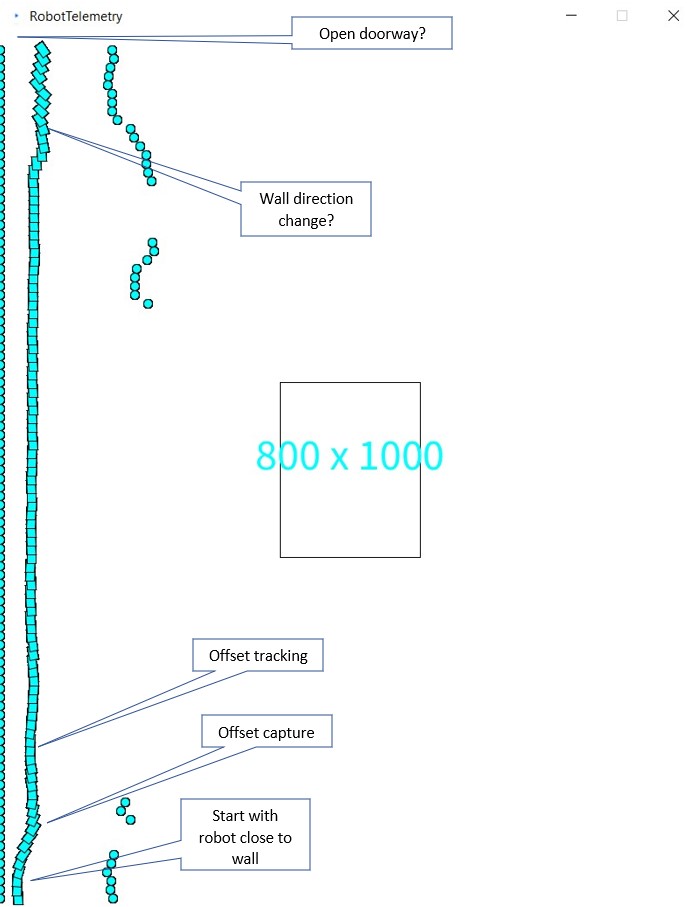
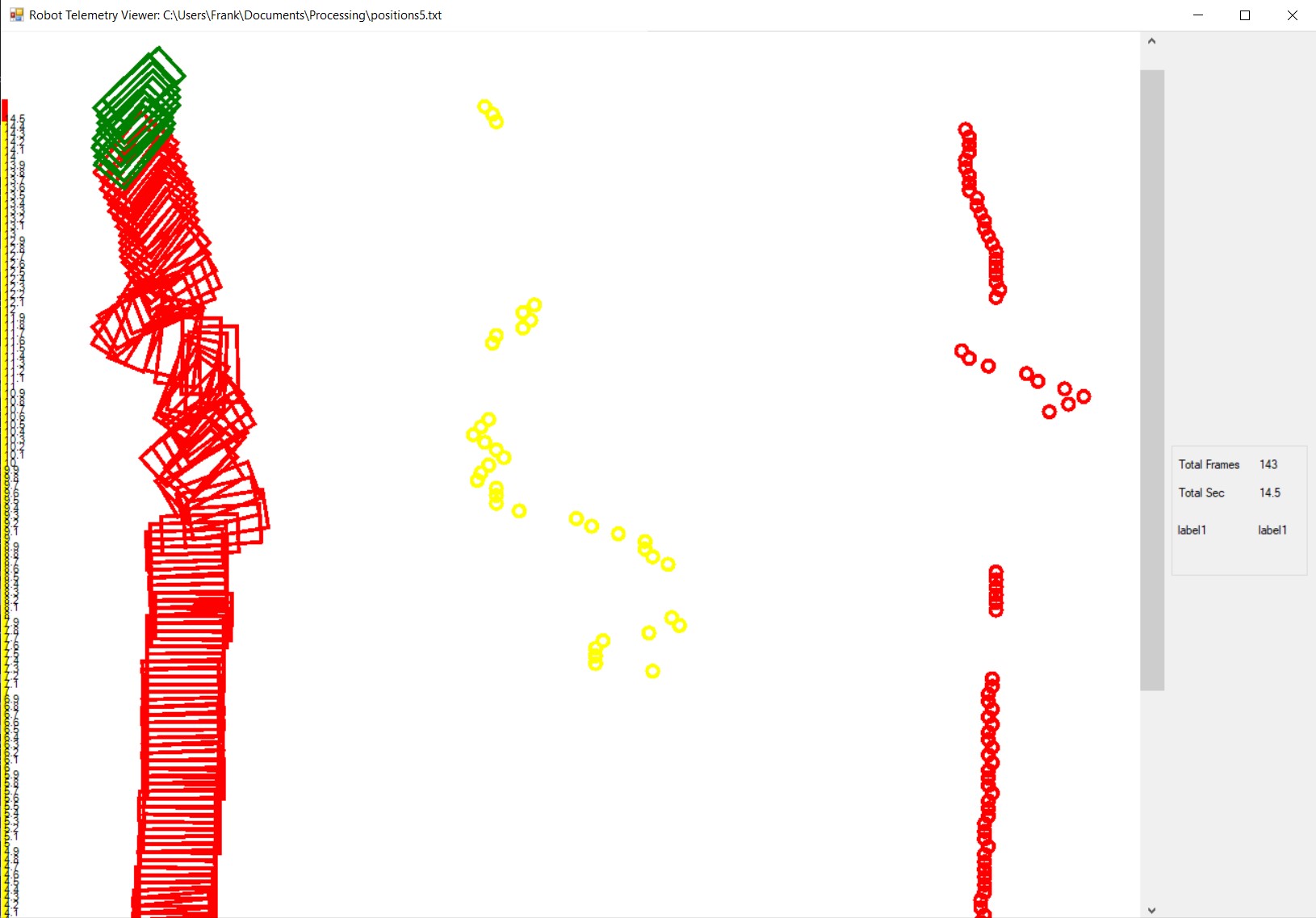
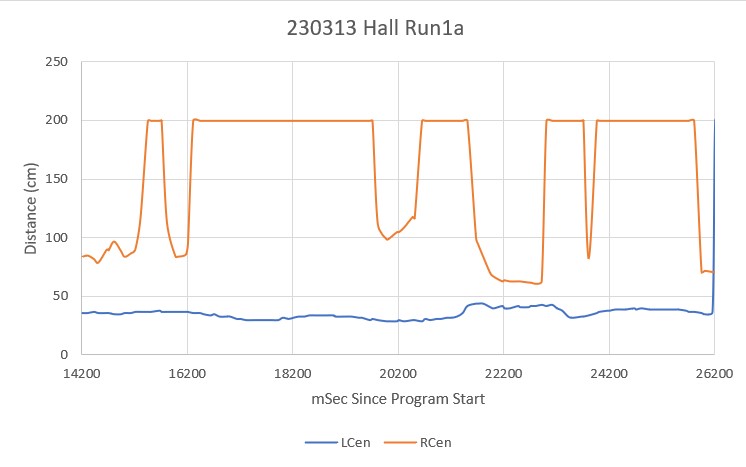
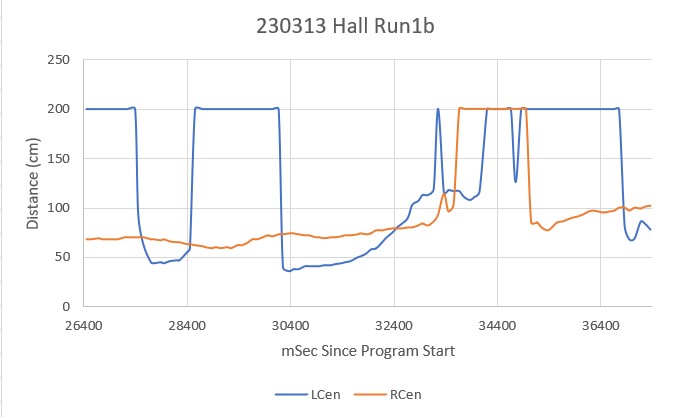
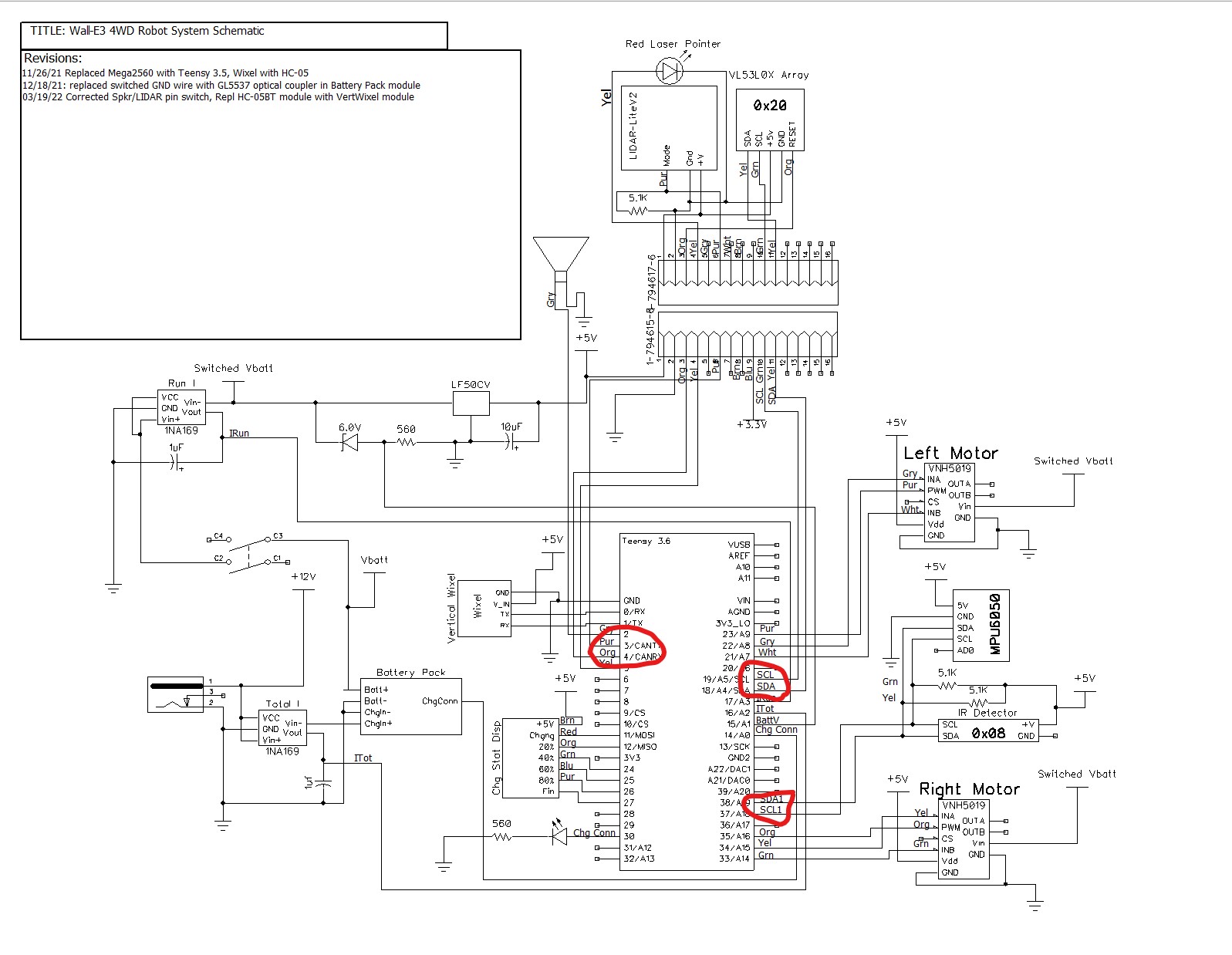
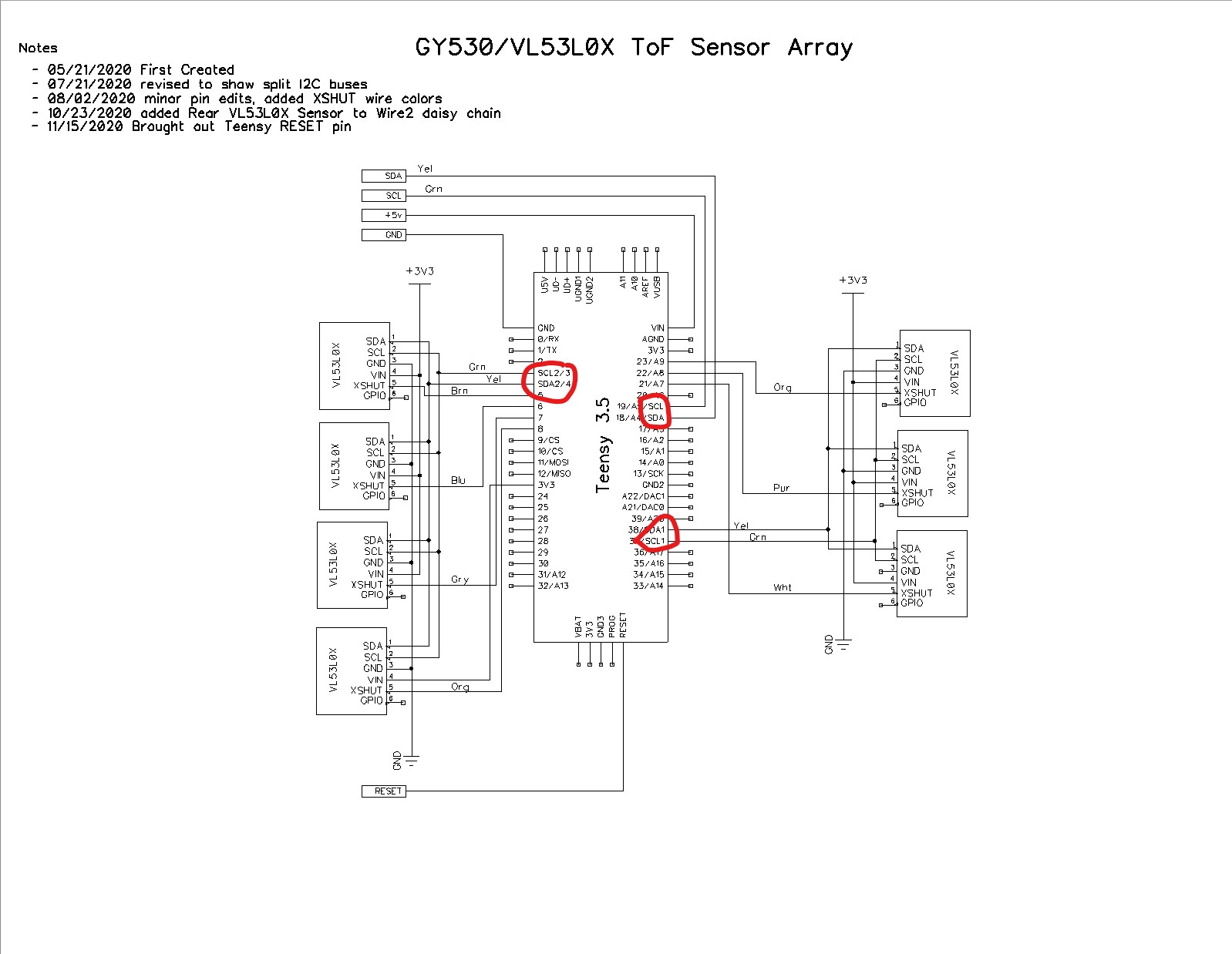
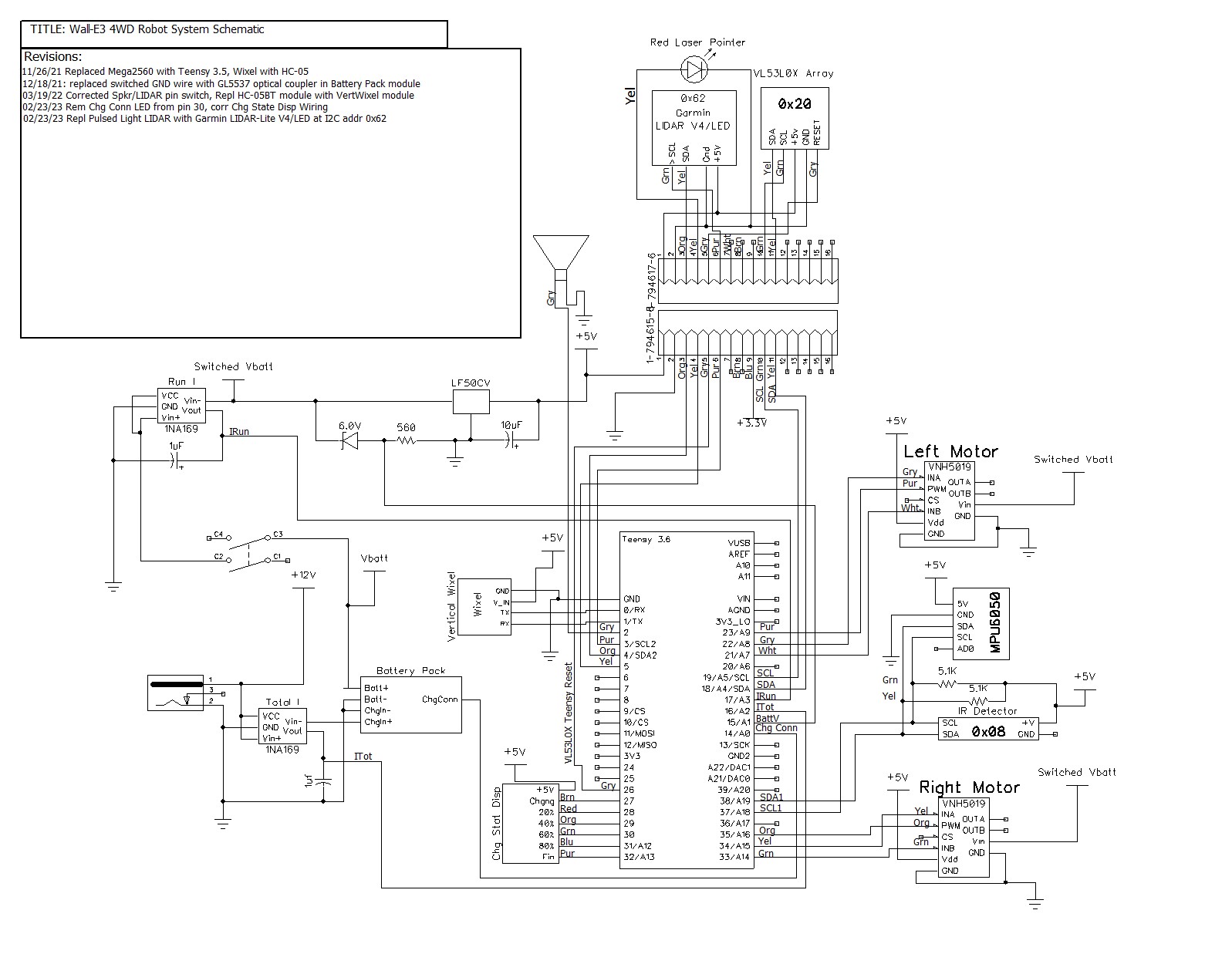
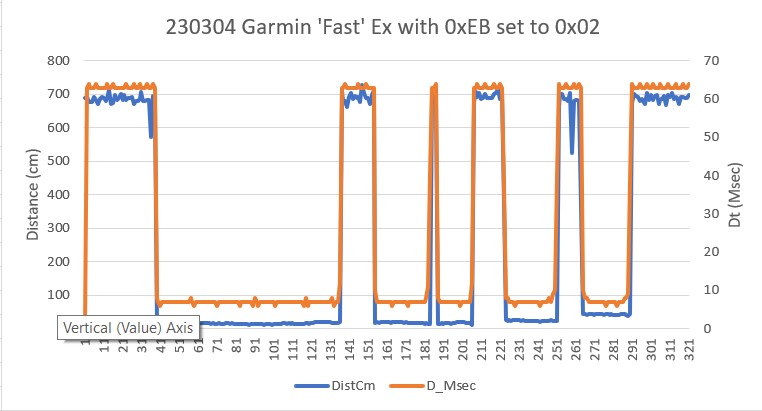
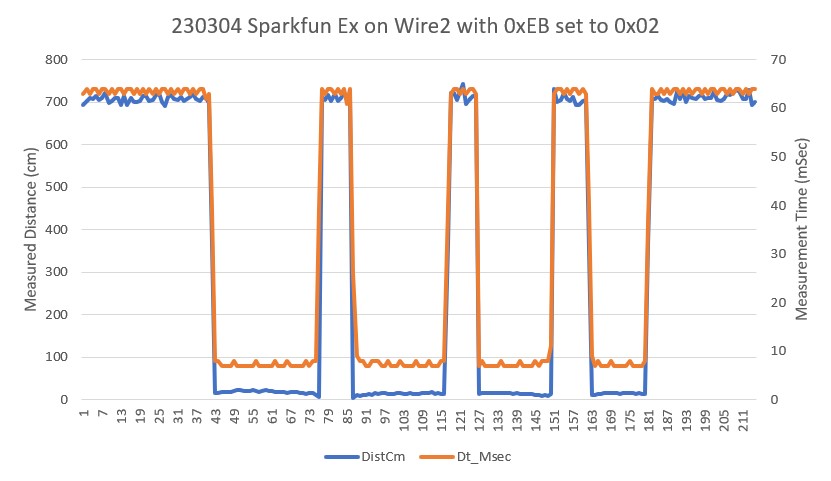
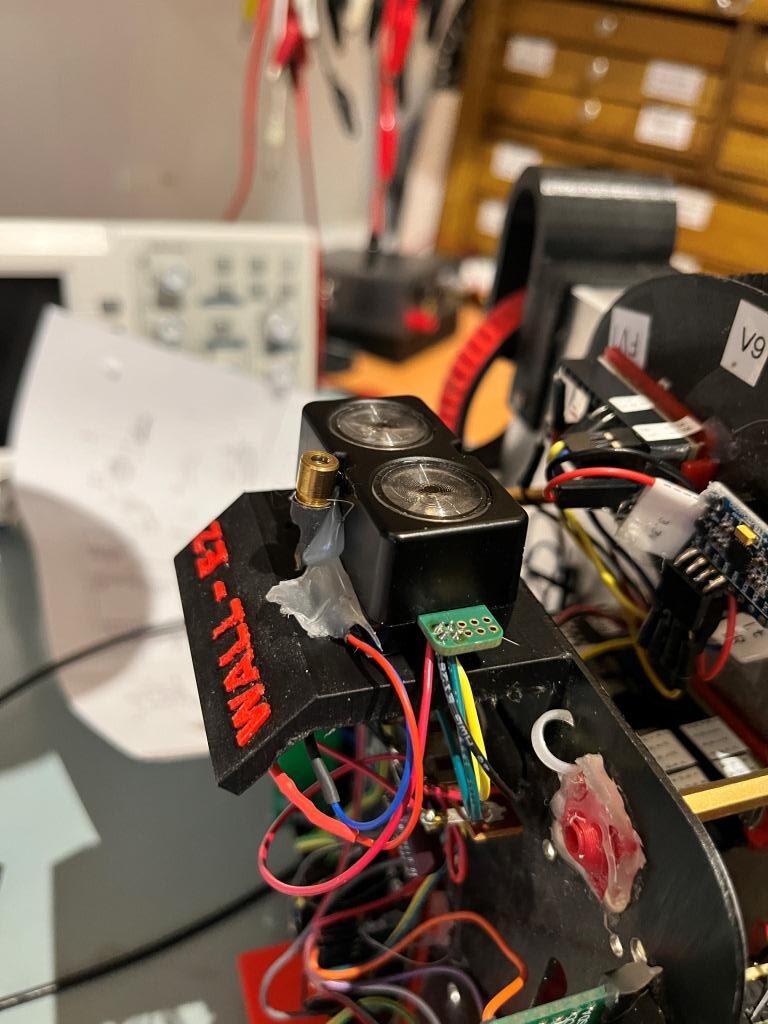
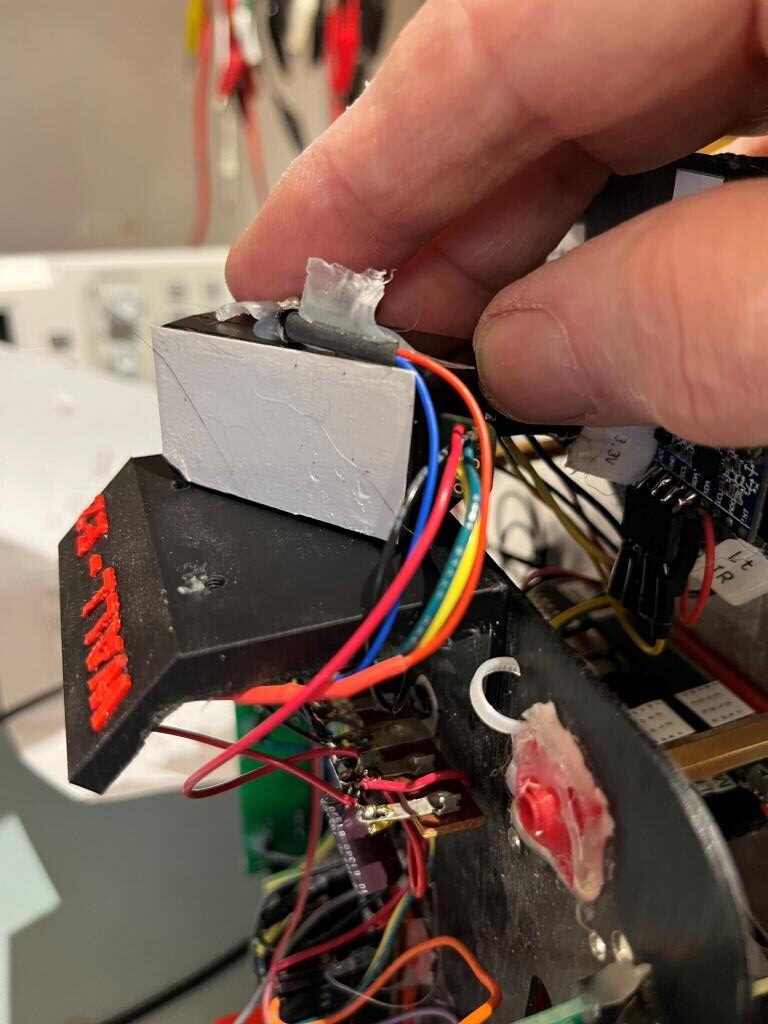
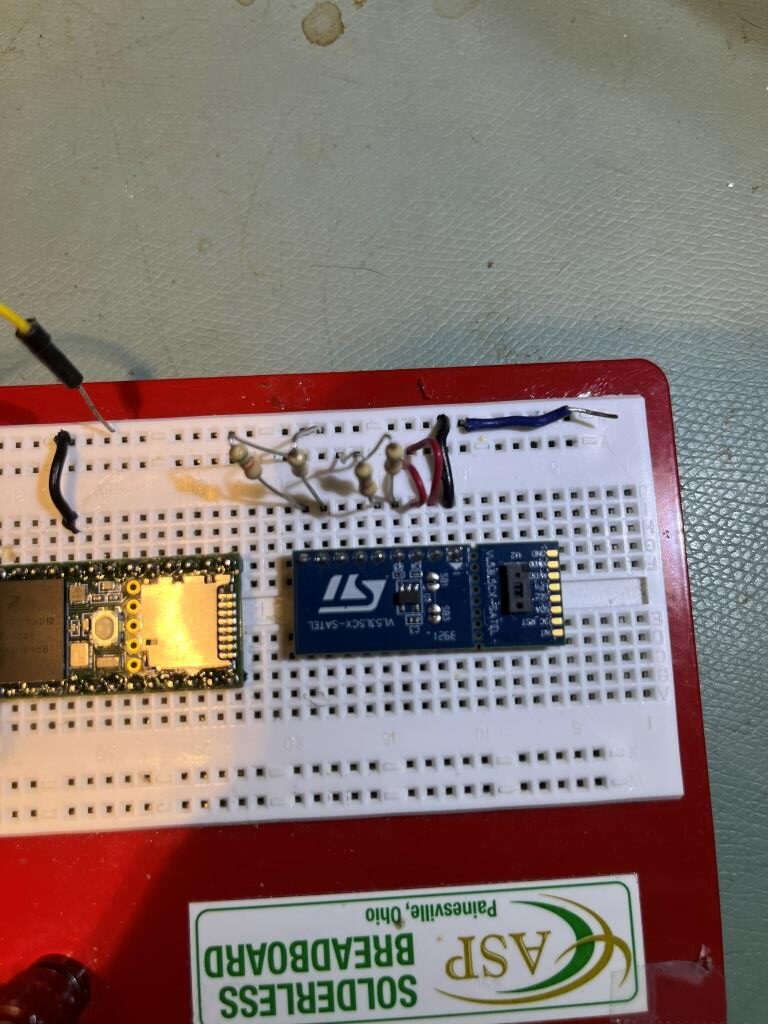
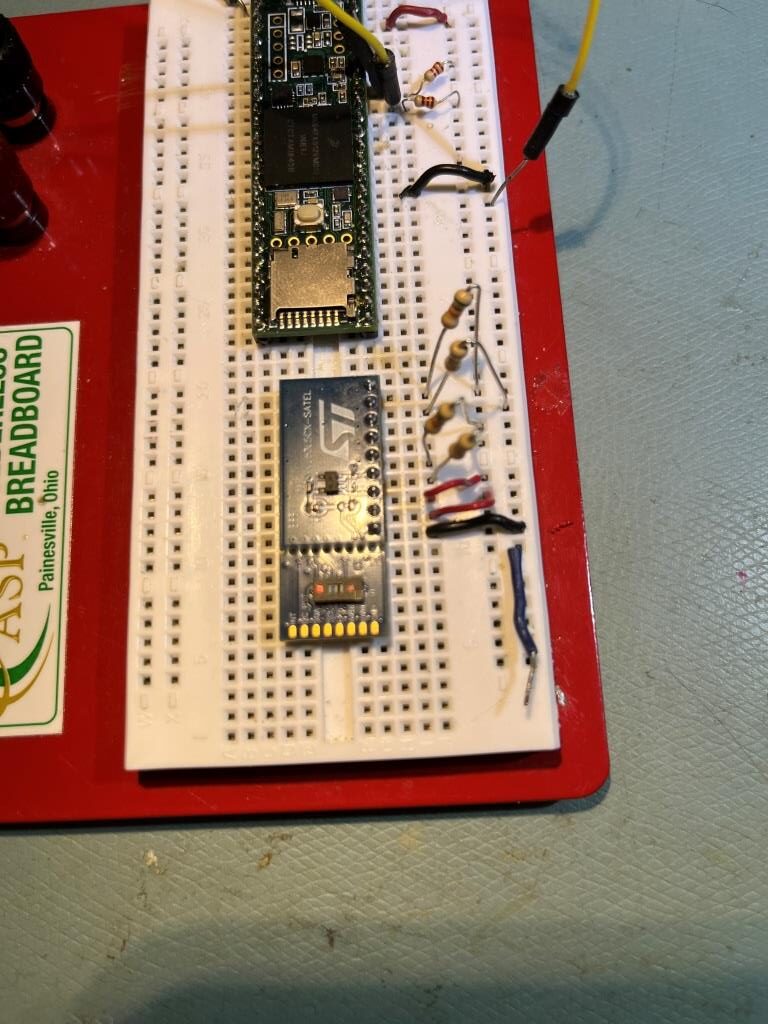
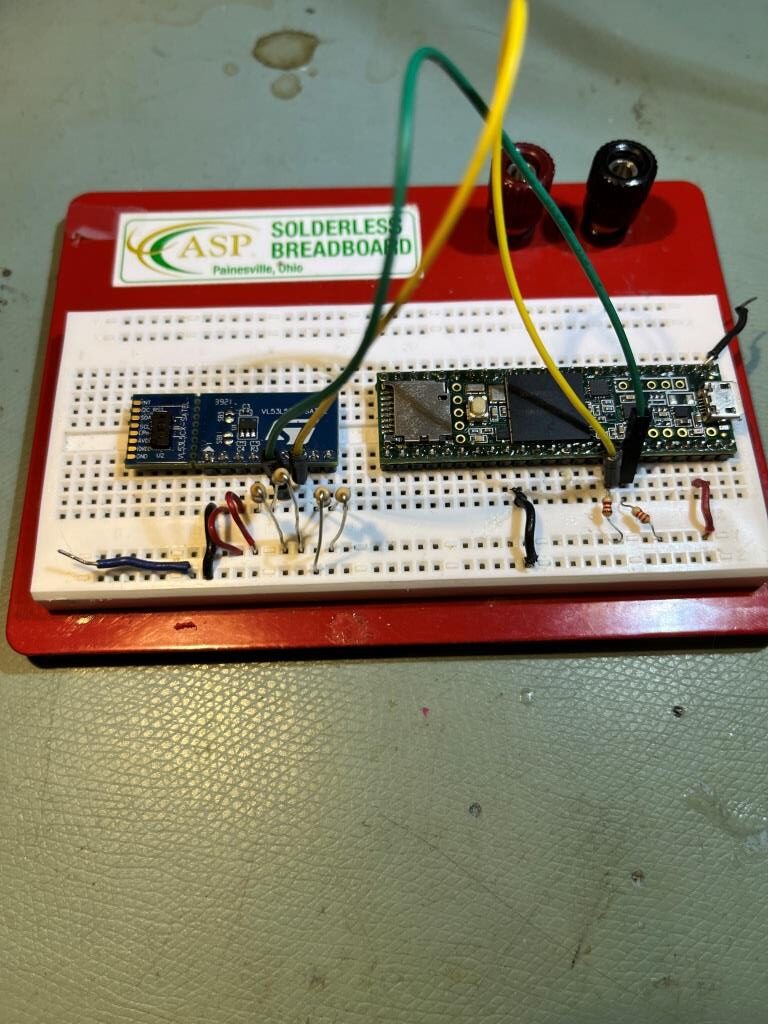
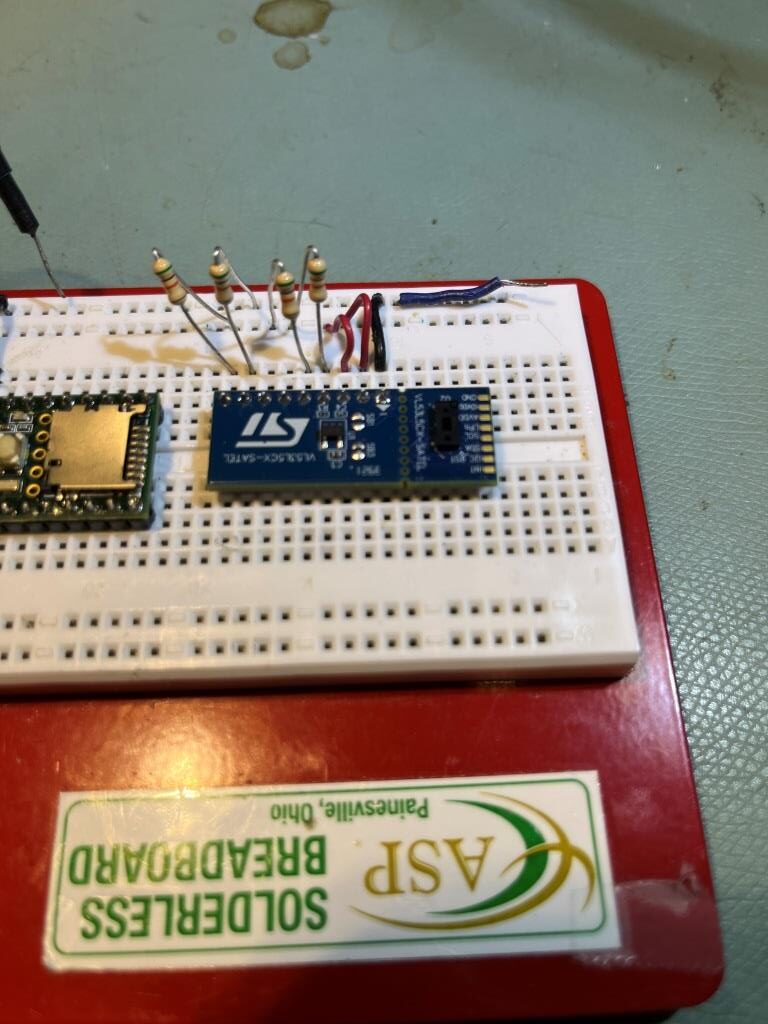
This post describes the actions I have taken to centralize the ‘board.txt’ and ‘TeensyOTA1.ttl’ (Tera Term macro) locations that facilitate the Teensy OTA capability, so that all my various firmware projects targeted at my wall-following robot all use the same set of files. This is done by using the Windows ‘mklink’ command to create ‘hard’ links from the various program folders to a single folder called ‘Robot Common Files’.
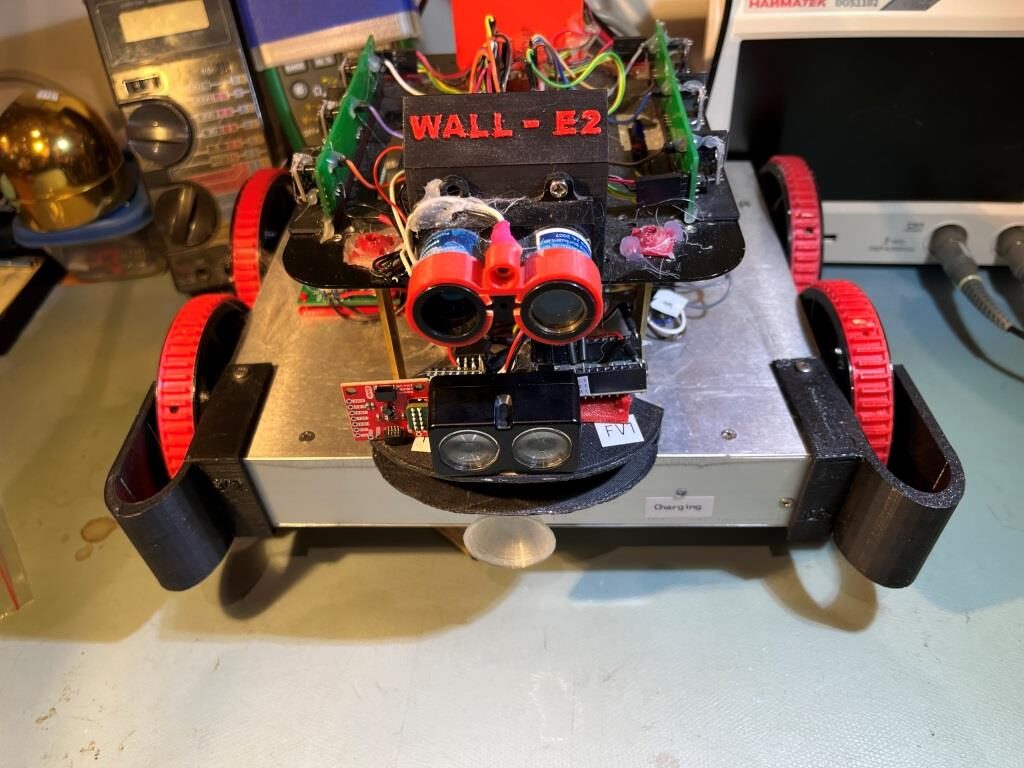
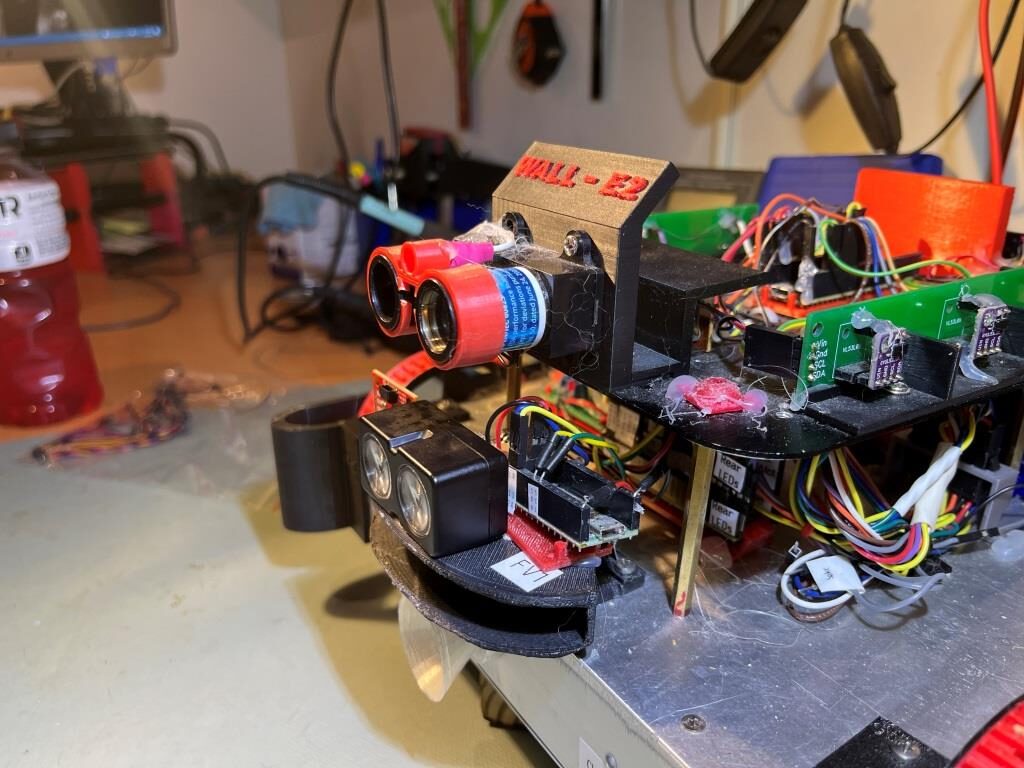
For the past five or six years I’ve been working on a 4-wheel robot project to autonomously navigate around my house using a (by now) fairly sophisticated wall-following algorithm. As I have worked through the various problems, I’ve gone through at least three different physical form factors, starting with a 3-wheel (two driven wheels, one castering wheel) and ending up (so far) with a custom 4-wheel ‘wide-track’ model.
Also along the way I have gone through any number of software versions. I work mainly with the Arduino ecosystem, but I don’t use Arduino directly. I use Microsoft Visual Studio 2022 Community Edition with the Visual Micro extension, and this is a great platform.
My latest hardware upgrade was to replace my original Arduino Mega 2560 processor with a Teensy 3.5 main processor, with a firmware update to achieve over-the-air (OTA) updates using a Wixel RF pair.
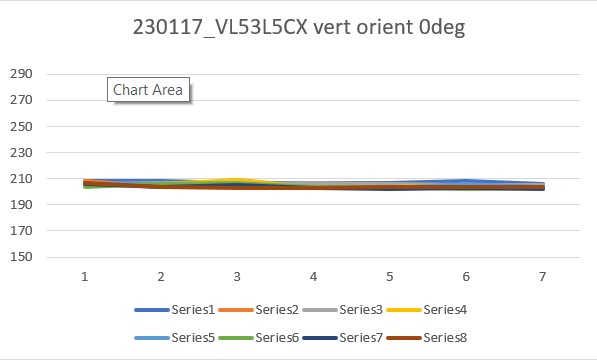
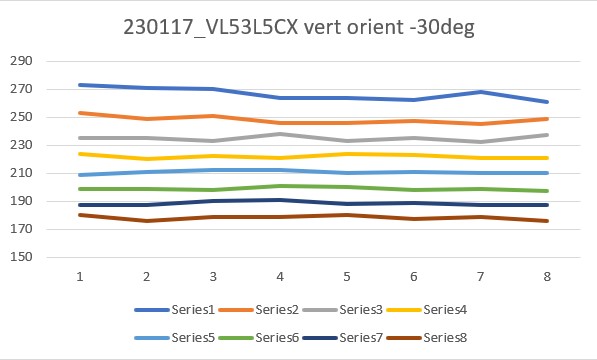
I now have at least twenty different software/firmware projects that I run on the robot for different reasons. I have a ‘main line’ project that incorporates all features required to full execute autonomous wall-following, and then I have lots of smaller projects aimed at exercising some small subset of the full feature set – things like distance calibration testing for the robot’s two 3-element VL53L0X time-of-flight distance sensors, and for testing out different ways of managing ‘rolling’ and ‘spin’ turns, and different algorithms for wall-tracking. All of these projects use the same ‘over-the-air’ (OTA) firmware/hardware configuration for firmware updates. Up until now I have been simply copying the two required files – ‘board.txt’ and ‘TeensyOTA1.ttl’ (a Tera Term macro) from project folder to project folder, but a recent Visual Micro update broke my OTA routine, and I discovered that having these two files copied into multiple project folders didn’t work so well – oops!
So, I decided to create ‘Robot Common Files’ folder in my Documents\Arduino folder tree, place these two files (along with the required FlashTxx.cpp/h files and my ‘enums.h’ file) into this folder, and then use the ‘mklink /H’ command (12/23/22 note: Admin privileges are not required) to create ‘hard’ links from each project’s folder to the single files in m Robot Common Files folder. The commands I used to accomplish this were:
1
2
3
4
5
6
7
//
//
C:\Users\Frank\Documents\Arduino\WallE3_AnomalyRecovery_V2>mklink/Hboard.txt"C:\Users\Frank\Documents\Arduino\Robot Common Files\board.txt"
Hardlink created forboard.txt<<===>>C:\Users\Frank\Documents\Arduino\Robot Common Files\board.txt
C:\Users\Frank\Documents\Arduino\WallE3_AnomalyRecovery_V2>mklink/HTeensyOTA1.ttl"C:\Users\Frank\Documents\Arduino\Robot Common Files\TeensyOTA1.ttl"
Hardlink created forTeensyOTA1.ttl<<===>>C:\Users\Frank\Documents\Arduino\Robot Common Files\TeensyOTA1.ttl
where ‘WallE3_AnomalyRecovery_V2’ gets replaced each time with the actual project name
Now, when I want to edit either the ‘board.txt’ or ‘TeensyOTA1.ttl’ file, I can simply right-click on the filename in any project folder and select ‘edit with NotePad++’, and the single file in Robot Common Files gets opened for edit, and the changes are immediately available in all projects that use the Teensy OTA feature.
31 January 2023 Update:
After trying this trick a few times, I realized I had left out a step, so this update fixes that. Below is the entire Cmd line session for my latest ‘new project’:
The first line above shows the ‘cd’ step, which I had left out of the previous post. After that, I just copy/pasted the ‘mklink….’ text for each of the two files, and then everything was wonderful again.
With this in mind, I decided to revisit my old ‘Rolling Turn’ algorithm, to see if I could get it’s performance up to the point where it could be used instead of ‘Spin Turn’ for the ‘parallel find’ maneuver. The Spin Turn maneuver involves rotating one set of wheels backwards and the other forwards to effect a ‘spin in place’ action. The Rolling Turn maneuver involves rotating both sets of wheels in the same direction, but at different speeds. My going-in assumption was that a rolling turn should allow more accurate control of the turn rate, as there should be less acceleration involved.
In preparation for this project, I went back to the web and read some more about PID tuning. This time I found this well-written and informative post by ‘marco_c’ – Thanks marco!
I had dropped the original ‘RollingTurn’ function from the code some time ago, so I started this experiment by copying SpinTurn() and adapting it to move both sets of wheels in the same direction (forward in this case) instead of in opposite directions. The conversion from SpinTurn and RollingTurn took surprisingly little effort, as everything but the motor direction code is pretty much the same.
I created a part-task program by creating a new ‘WallE3_RollingTurn_V1’ arduino project in VS2022 Community, and then copying my WallE3_WallTrackTuning_V4. The WallE3_WallTrackTuning_V4 project is also a part-task test vehicle, and as such had almost all the required parameter entry code already in setup().
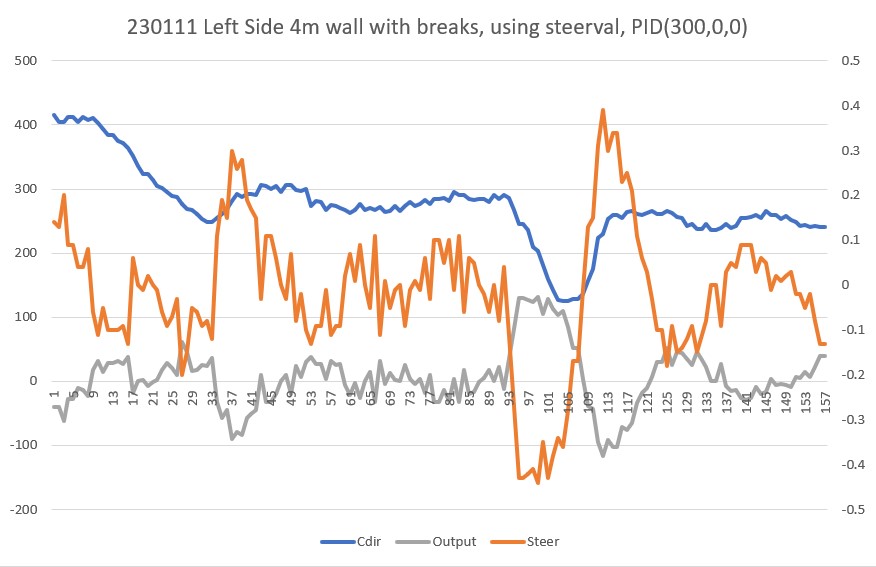
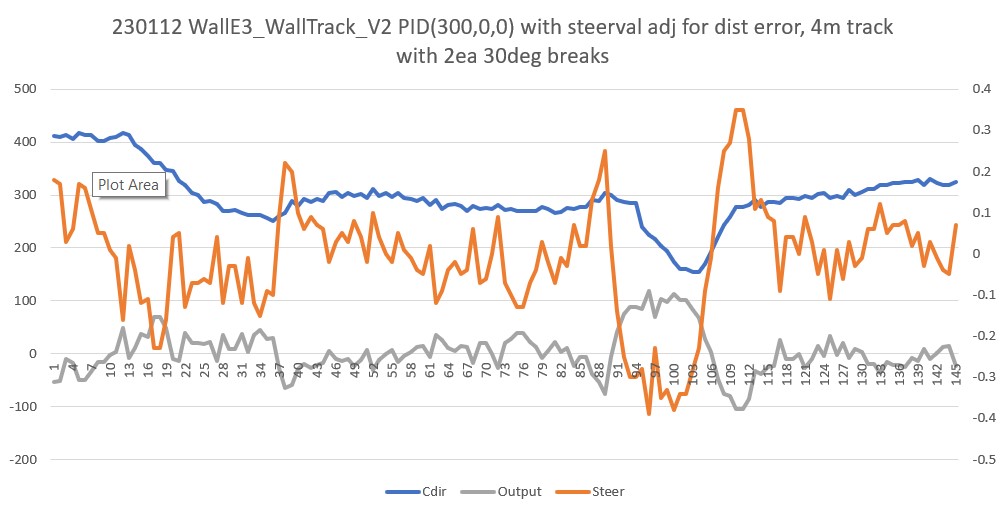
After working my way through the usual number of mistakes, I finally got the project working smoothly. I copied captured telemetry output to Excel and used it’s excellent plotting facilities to investigate possible PID triplet combinations. After a day or so of work, I finally homed in on a triplet PID(1.1, 0.1, 0) as providing a pretty nice, smooth turning action for a 180º turn at 30º/sec. Then I tested the same configuration using both a 60º/sec and a 90º/sec commanded turn rate. As shown in the plots below, the robot did well in all three of these conditions:
180º turn at 30º/sec180º turn at 60º/sec180º turn at 90º/sec
Here’s a short video showing the 180º turn at 90º/sec configuration:
180º turn at 90º/sec
My test program as described above only handles forward motion CCW & CW turns. If I decide to put this feature back into WallE3’s main codebase, I’ll have to expand it a bit to handle the backward motion case as well.
05 December 2022 Update:
I modified the RollingTurn() function to accommodate both forward and backward motion, and both CW & CCW turns, so four cases.
Also, as I was doing this, it occurred to me that I might want to revisit my ‘SpinTurn()’ function in light of my better understanding of PID tuning. Maybe I can get SpinTurn to operate a little more smoothly.
I thought I had the ‘parallel find’ problem solved about 18 months ago, back in April of 2021, but it seems this is a problem that refuses to die (well, up until now, anyway). This post describes the ‘new, new!’ solution, based on much improved distance measurement performance from the VL53L0X time-of-flight sensors and associated software. Basically, I discovered that I had been doing VL53L0X distance calibration all wrong, and a big part of the problem was my use of an integer instead of floating point data type to represent distance values. The VL53L0X sensor reports distances in integer millimeters, but when I converted the integer mm values to integer cm (without even rounding – but by truncation – yikes!) the resulting loss of precision caused significant problems with the parallel find algorithm.
So, after converting all my VL53L0X distance variables from integer to float (which turned out to be pretty easy as I had practiced good modularity and low coupling – yay!), I started over again with a two stage strategy. The first part addressed the calibration problem by redoing a series of tests to acquire compensation curves for both the right and left-side sensor arrays which were then programmed into the Teensy 3.5 processor that handles the VL53L0X arrays. The second part was to revisit the ‘parallel find’ algorithm. This post describes the result of the second part – revisiting the ‘parallel find’ algorithm.
The parallel find algorithm implements a two-stage search for the parallel condition, defined as the robot (or, more accurately, the relevant VL53L0X array) orientation that produces identical distance readings from the front and rear sensors of the relevant (i.e. left or right) array. The first ‘coarse’ stage searches for the change in sign of the steering value, and the second ‘fine tune’ stage searches for a steering value < 0.01, meaning that the front and rear distance values are nearly identical.
Here is the code for the parallel find subroutine:
Msec Hdg FrontD RearD Steer PSteer err Ival Out speed
3303320.828.023.00.40.0-0.4-4.3-47.3-47
3323514.127.024.00.30.4-0.3-7.7-41.7-41
334351.724.022.00.20.3-0.2-9.8-30.8-30
33644-7.824.022.00.20.2-0.2-11.9-32.9-32
33824-13.721.022.0-0.10.20.1-11.1-3.1-3
Exited RTPO coarse tune with hdg/steerval/prev_steerval/errcode=-13.7/-0.1/0.2/NO_ANOMALIES
Msec Hdg FrontD RearD Steer PSteer err Ival Out speed
35057-15.121.022.0-0.1-0.10.1-9.92.12
35267-15.120.023.0-0.2-0.10.2-7.516.516
35467-15.020.023.0-0.2-0.20.2-5.118.918
35656-14.721.023.0-0.2-0.20.2-3.116.916
35854-14.621.021.0-0.1-0.20.1-2.62.42
36068-14.621.021.0-0.1-0.10.1-2.12.92
36258-14.620.022.0-0.1-0.10.1-1.010.010
36455-14.620.022.0-0.1-0.10.10.111.111
36655-14.620.022.0-0.1-0.10.11.414.414
36857-14.620.022.0-0.1-0.10.12.715.715
37058-14.620.022.0-0.2-0.10.24.623.623
37258-14.220.020.00.0-0.2-0.04.20.20
37458-14.020.020.00.00.0-0.03.8-0.20
37656-14.021.022.0-0.10.00.14.814.814
37860-14.120.022.0-0.2-0.10.26.523.523
38060-13.720.022.0-0.2-0.20.28.225.225
38258-12.720.022.0-0.1-0.20.19.623.623
38460-11.320.022.0-0.1-0.10.111.025.024
38659-10.220.020.00.1-0.1-0.110.44.44
38860-10.120.022.0-0.10.10.111.724.724
39060-10.120.022.0-0.1-0.10.113.026.025
39261-10.020.020.00.0-0.10.013.013.012
Exited RTPO fine tune with hdg/frontD/steerval/prev_steerval=-10.0/400/0.00/-0.13
3927920.019.020.00.00
3940120.019.020.00.00
3951320.020.020.00.03
3963620.020.020.00.03
So it appears that my original parallel find algorithm now performs much better, due mainly to the more accurate distance reporting obtained by changing from integer to float data type, and better distance compensation curves for each of the six sensors in the two VL53L0X arrays. Now I need to back-port this improved code into my main robot navigation code, probably by way of the Wall Track part-task program described in my earlier ‘More Wall Track PID Tuning‘ post.
29 December 2022 Update:
After going through some additional ‘part-task’ tune-up exercises, I started the process of integrating all the changes back into my Wall Tracking PID Tuning code. After the usual number of screw-ups I got the left-side offset capture feature working up to the point of turning back parallel to the wall. The code at this point just used ‘SpinTurn()’ to turn 30º in the opposite direction as the first turn away from the wall, with a note that this was done because ‘Parallel Find is fatally flawed’. Well, since I had just gotten through testing this feature I thought I could just drop it in. When I did, the robot promptly turned in the wrong direction and started spinning – yikes! Back to the ‘Parallel Find’ drawing board!
After making some code changes to make the part-task code a bit easier to use, I got everything working again, with basically the same PID values (100,0,0) as before. Here’s the output and a short video from a run:
1
2
3
4
5
6
7
8
9
10
11
12
13
14
15
16
17
18
19
20
At top of parameter retrieval section
Wallstr=0
isRightWall=FALSE
Parallel Find forLeft Wall with PID=(100.0,0.0,0.0)
Msec Hdg FrontD RearD Steer PSteer err Ival Out speed
941942109.236.030.00.60.0-0.60.0-63.0-63
94214297.731.027.00.40.6-0.40.0-38.0-38
942311:Error inGetFrontDistCm()-0replaced with312
94234279.024.022.00.20.4-0.20.0-15.0-15
94253370.322.022.00.10.2-0.10.0-7.0-7
94274270.022.022.00.00.1-0.00.0-2.0-2
94294170.122.022.00.00.0-0.00.0-2.0-2
94315370.122.022.00.00.0-0.00.0-3.0-3
94334270.122.022.0-0.00.00.00.02.02
Exited RTPO coarse tune with hdg/steerval/prev_steerval/errcode=70.1/-0.0/0.0/NO_ANOMALIES
30 December 2022 Update:
Not so fast, pardner! Well, it seems I was a bit premature about completing this effort – After a few more trials I realized this wasn’t working anywhere near as well as I thought – oops!
So, after lots more trials aimlessly wandering around PID space, I came up with new values that *seem* to work (for the left side case, at least). I also discovered that I really don’t need a two-stage process (‘coarse’ tune followed by ‘fine’ tune) to get a decent result, as long as the robot turns slowly enough to allow the distance measurement changes to keep up. Here’s are a couple of runs (telemetry output and short video) for the new setup.
Msec Hdg FrontD RearD Steer PSteer err Ival Out speed
168221-14.947.0042.100.490.00-0.49-1.96-11.76-11
168421-14.947.1041.500.560.49-0.56-4.20-15.40-15
168622-14.946.8040.300.650.56-0.65-6.80-19.80-19
168812-14.847.0042.300.470.65-0.47-8.68-18.08-18
169011-14.446.9040.300.660.47-0.66-11.32-24.52-24
169212-13.546.8040.400.640.66-0.64-13.88-26.68-26
169412-11.045.7041.000.470.64-0.47-15.76-25.16-25
169611-8.544.3039.600.470.47-0.47-17.64-27.04-27
169812-5.543.6038.900.470.47-0.47-19.52-28.92-28
170013-1.742.3037.600.470.47-0.47-21.40-30.80-30
1702132.740.7038.900.230.47-0.23-22.32-26.92-26
1704136.639.6037.800.180.23-0.18-23.04-26.64-26
1706139.638.6037.800.080.18-0.08-23.36-24.96-24
17081211.838.6036.100.250.08-0.25-24.36-29.36-29
17101315.038.6038.500.010.25-0.01-24.40-24.60-24
17121417.338.6037.900.070.01-0.07-24.68-26.08-26
17141419.037.9038.70-0.080.070.08-24.36-22.76-22
Exited RTPO coarse tune with hdg/steerval/prev_steerval/errcode=19.01/-0.08/0.07/NO_ANOMALIES
17243037.937.638.3-0.04
17253538.337.038.5-0.02
17264238.337.738.30.00
17274838.037.737.60.04
17285538.337.438.4-0.01
17296238.337.737.80.05
17307137.837.937.30.05
17317538.137.537.50.06
17328237.637.839.6-0.20
17339138.337.338.7-0.04
05 January 2023 Update:
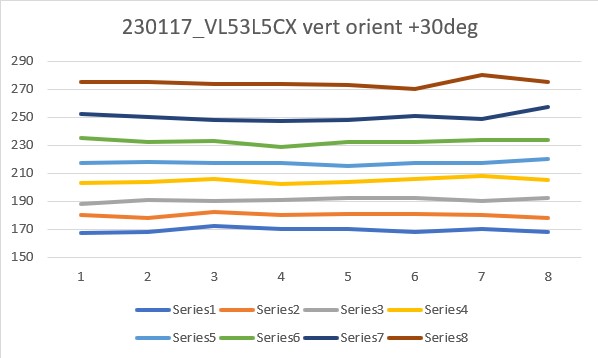
Well, even the above ‘slow as she goes’ idea doesn’t work all the time or that well. I wound up trying to instrument what is going on by doing the following
Turning the robot in 10⁰ steps, followed by a 1500 mSec pause to let the measurements catch up
At 100mSec intervals during the 1500mSec pause, computing and displaying the 5-pt running average of the left front and rear distances, along with the running average computation of the steering value.
When I did this, I got the following plot
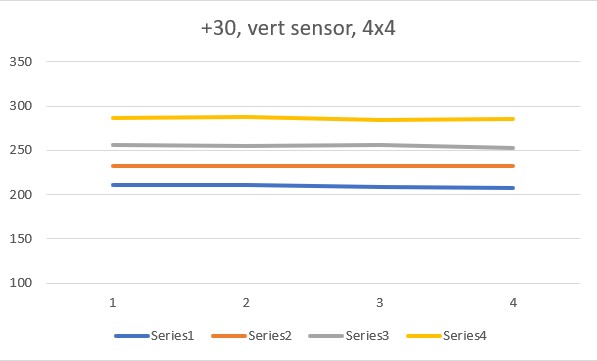
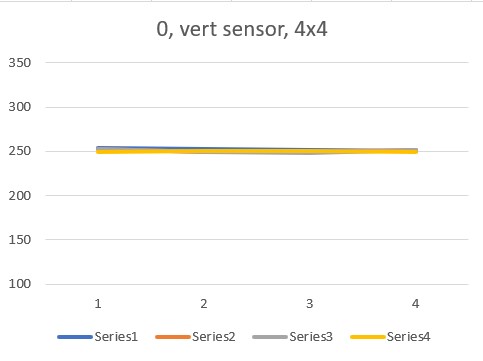
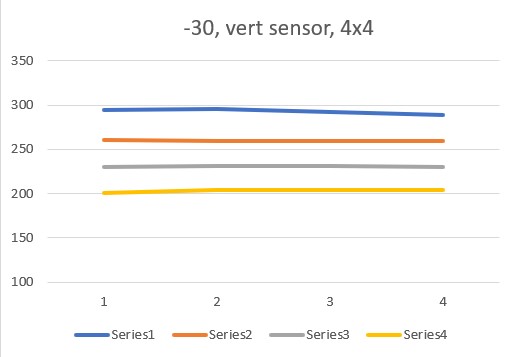
1500mSec plot of the steering value computed from a 5-pt running average of the left front and left rear distances. Each line is a different 10deg angle orientation, with the lowest (yellow) line representing a parallel or near-parallel orientation
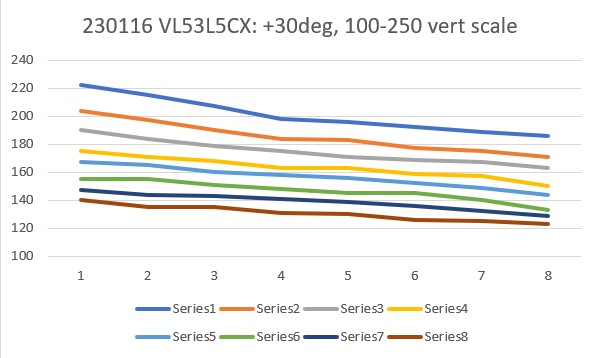
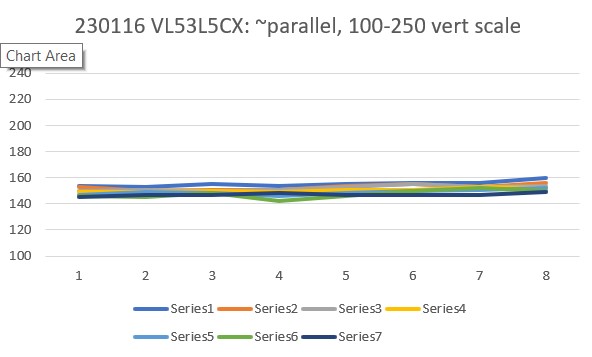
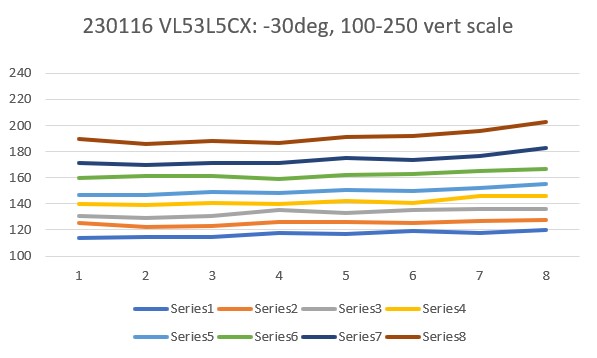
As can be seen from the above plots, there is significant variation over the 1500mSec interval, even though the robot is stationary. In particular, the last plot shows that at the start of the 1500mSec stationary period, the steering value goes from 0.15 (i.e. not parallel at all) to near zero (i.e. very parallel), even though the robot isn’t moving at all.
I have no idea why this is happening, but it sure screws up any thoughts of rapidly finding a parallel orientation, and even sheds significant doubt on the entire idea of using multiple VL53L0X sensors for wall tracking – UGH!!
This time I tried a ‘parallel find’ run using 5⁰ SpinTurn() steps, with no averaging. Here’s the data, and a short video showing the result
This actually looks pretty good, and the unaveraged distance sensor results, although noisy, behaved reasonably well.
07 January 2023 Update:
As I was drifting off to sleep After yesterday’s ‘successful’ trial runs, I was happy visualizing the robot using the ‘SpinTurn() facility to gradually turn to the (mostly) parallel position (I’m a visual person, so I often turn programming problems into visual ones), it suddenly struck me that I was taking the long way around the barn; here I was sneaking up on the parallel orientation by small SpinTurn increments waiting for the steering value to change signs, when actually all I had to do was use my ‘GetWallOrientDeg(float steerval)’. This function takes the current steering value as the sole parameter and returns the current orientation angle with respect to the nearest wall; with this information I could use SpinTurn() to rotate to the parallel orientation in one shot – cool!
So, I recoded my test program to do just that, with the ‘enhancement’ (I hope) of taking a second or so at the start to acquire a 10-point average of the steering value, so as to, hopefully, reduce errors due to noisy distance sensor outputs. Here’s the output and a short video showing the result:
This seemed to work very well, and is a much simpler algorithm than trying to use an ‘on the fly’ steering value and a PID machine. I believe with this result I can get back to the problem I was originally trying to solve – that of reasonable wall following.
02 February 2023 Update:
Referring to my current quest to incorporate the results from all my previous ‘part-task’ programs into a ‘WallE3_Complete_V1’, I have been going through each ‘part-task’ program to verify results, and then incorporating the results (usually in the form of a single function) into the ‘complete’ program. When I got to WallE3_ParallelFind_V1, I discovered that, although I had made quite a bit of progress, including drastically simplifying the ‘parallel find’ algorithm, it still didn’t work very well.
After some additional work, I now think that ‘parallel find’ is ready for inclusion in the complete program. Here’s the functional code from WallE3_ParallelFind_V1:
1
2
3
4
5
6
7
8
9
10
11
12
13
14
15
16
17
18
19
20
21
22
23
24
25
26
27
28
29
30
31
32
33
34
35
36
37
38
39
40
41
42
43
44
45
46
47
48
49
50
51
52
53
54
55
56
57
58
59
60
61
62
63
64
65
66
67
68
69
70
71
72
73
74
75
76
77
78
79
80
81
82
83
84
85
86
87
88
89
90
91
92
93
94
95
96
97
98
99
100
101
102
103
104
105
106
107
108
109
110
111
112
113
114
115
116
117
118
119
120
121
122
123
124
125
126
127
128
129
130
131
132
133
134
135
136
137
138
139
140
141
142
143
144
145
146
147
148
149
150
151
152
153
154
155
156
157
158
159
160
161
162
163
//Step 0: set up arrays for 5-point running average calcs
constuint16_t DIST_ARRAY_SIZE=10;//01/07/23
floatfrontdistsum=0;
floatreardistsum=0;
if(isRightWall)
{
//01/07/22 now using initial average steering value for single-turn solution
The left & right 3-element VL53L0X arrays (plus a single rear distance sensor) are managed by a dedicated Teensy 3.5 processor, which retrieves distance measurements from all seven sensors and then calibrates them using the method described in my April post. When requested by the main processor, these measurements (in integer MM) are provided via a I2C link. After receipt from the VL53L0X processor, distance measurements are converted from MM to CM by dividing by 10, ignoring integer truncation.
However, I have recently discovered that this integer truncation may well be more significant that I originally thought, and may be leading to performance issues, particularly with my ‘RotateToParallelOrientation()’ function and wall offset tracking in general. The linear distance between the front and rear VL53L0X sensor on each side is about 8.5Cm. Assuming that all constant errors are calibrated out, the robot will be parallel to the wall when the front and rear sensors return the same value. However, because the distance values only change in 1Cm increments, the actual distances measured by the front and rear sensors can be as much as 1Cm different. 1Cm difference over a length of 8.5Cm is about 7∘ – small, but not necessarily insignificant.
It turned out to be relatively painless to change all VL53L0X distance variables from ‘uint16_t’ to ‘float’, and get everything going again. After making this change I tried some more ‘rotate to parallel’ experiments but the change didn’t seem to make much of an improvement. Poking around a bit more I found out why – the raw measurement data coming from the VL53L0X sensors exhibited a lot of ‘noise’, even with the robot stationary and only a few cm from the nearby ‘wall’. The following Excel plot shows one sensor’s data with the robot approximately 14cm from the wall.
Robot stationary 14 cm from wall
As can be seen from the above the reported distance varies from 13 to about 14.5cm. Assuming that all three right-hand sensors behave similarly, it would be possible for the front sensor to report 13cm while the rear sensor was reporting 14.5cm. Moreover, my parallel find algorithm defines ‘parallel’ as RF-RR ~= 0, so it can (and does) terminate well before or after the actual physical parallel orientation occurs.
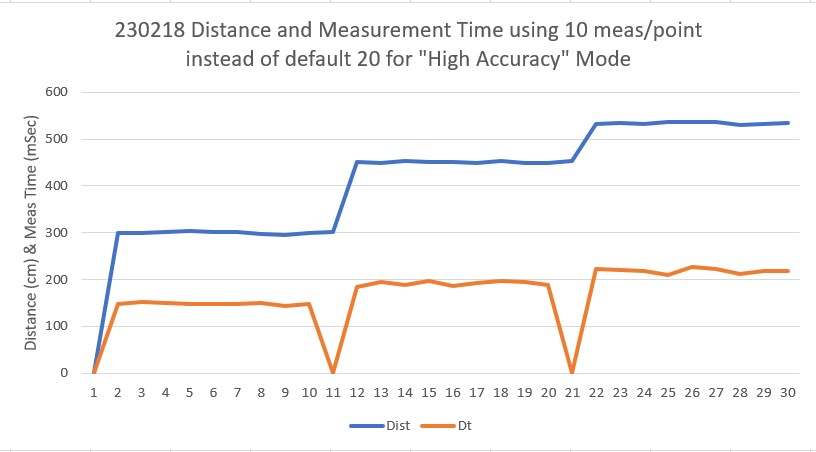
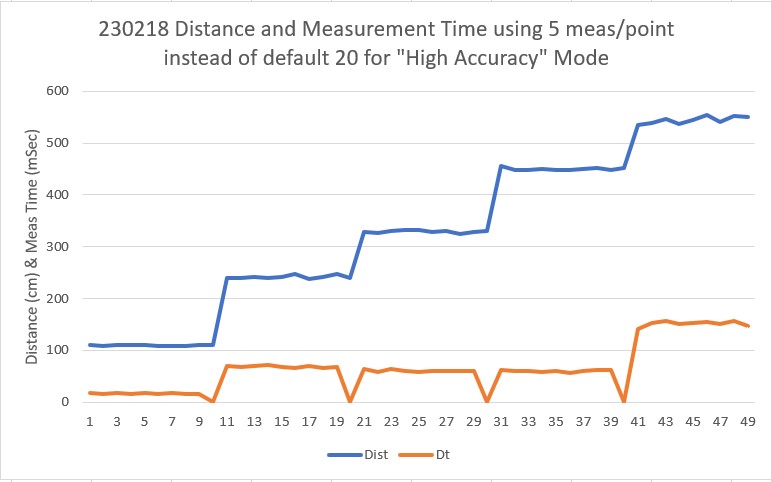
Looking through (again) the VL53L0X documentation, I came across the ‘measurement budget’ parameter, which is set by default to ‘30000’ (30msec). In my application I had it set to ‘20000’ (20msec) because I thought at the time that with 7 total VL53L0X sensors, I couldn’t afford 30msec delay for each and still hold to a 200msec system loop period. I later changed the system design to use a separate Teensy 3.5 to continuously poll the sensors and report the latest measurement to the main processor when asked, which essentially eliminated the sensor delay from the overall loop (not entirely, as longer sensor measurement times may mean that physical dynamics aren’t followed quite as faithfully, but fortunately my robot doesn’t do anything quickly).
To test the effect of longer measurement budgets, I placed my robot in a cardboard box with its right-side sensor array about 7cm from the wall of the box, and then took measurements with measurement budgets of20, 30, 40, 50, and 60msec. For each value I plotted the distance output and also calculated the variance for each sensor, as shown in the plots below:
20msec budget – the current configuration30mse budge with 20 & 30msec variances shownShowing the effect of 40, 50 & 60 msec budgets
As can be seen from the chart immediately above, a measurement budget of 50msec is noticeably better than that for 40msec (which is itself better than the 20 or 30msec budgets), but the 60msec budget plot shows little improvement over 50msec. Looking The ‘RF’ variance starts at 0.0566 for 20msec, drops to less than half that at 30msec, drops by half again at 40msec, and drops by another 50% or so at 50msec. From there to 60msec is only a change from 0.011074 to 0.01046 (this all assumes that I can draw conclusions like this when not only going up with measurement budget, but going across sensors as well). In any case, I settled on a new measurement budge value of 50msec, as shown below.
New value of 50msec for measurement budget
Note that while the motionless measurement variation has been significantly improved, I still have a problem with different nominal measurements from each sensor; the right-front (RF) sensor insists the wall is about 9.2cm away, while the center (RC) and rear (RR) ones think the wall is about 8 and 7.7cm away, respectively (as a side note, before I changed reported measurement variables from ‘uint_16’ to ‘float’, these values would have been reported as 9,8, and 7cm respectively). I thought I had fixed this problem earlier with a set of correction functions as described here, but I obviously have some more work to do (see this post for more on distance correction)
To study the issue of VL53L0X sensor calibration, I set up an experiment where ten measurements from each of the three right-side sensors were collected at distances from 15 – 30cm, as shown below. As can be seen, the ‘raw’ values (no correction) are pretty linear. I used Excel’s ‘trendline’ tool to display the ‘best fit’ linear expression for each line, then used these expressions to calculate a correction expression, (dashed lines)
The actual correction expressions were (cm units):
RF: RFCorr = (RF-0.4297)/1.0808
RC: RCCorr = (RC-5.0603)/1.0438
RR: RRCorr = =(RR-5.6746)/1.0353
Next, I edited my ‘lidar_XX_Correction()’ subroutines in my Teensy_7VL53L0X_I2C_Slave_V4 project to implement the above expressions, and made another run of distances from 15 to 30cm, as shown below.
Before (solid lines) and After (dashed lines) Correction
The above plot shows that the correction algorithm is effective and repeatable, at least on the right side sensors. Now I have to perform the same corrections on the left side and I’ll be all set – at least for this particular part of the ongoing Sisyphean task of educating WallE3, my somewhat retarded autonomous wall-following robot.
Applying the same methodology to the left side sensors, I first captured left-side reported distances for measured values from 15 to 30 cm, same as for the left side. Then, using Excel’s ‘trendline’ calculation feature to derive a correction expression, I added simulated correction lines to the plot, as shown below:
The actual correction expressions were (cm units):
LF: LFCorr = (LF – 0.5478)/1.0918
LC: LCCorr = (LC – 1.989)/0.9913)
LR: LRCorr = (LR + 0.9676)/1.1616
Not much correction is needed for the left-side sensors. However, since I already have the corrections, I might as well put them in; I modified the VL53L0X sensor manager firmware to include the above corrections, and then re-did the calibration plot -this time plotting the pre-correction reported data along with the post-correction reported data, as shown below:
As can be seen from the above plot, left-side correction is pretty good over the entire 15-30cm range – nice!
While working on my new ‘RunToDaylight’ algorithm for WallE3, my autonomous wall-following robot, I noticed that when WallE3 finds a wall to track after travelling in the direction of most front distance, it doesn’t do a very good job at all, oscillating crazily back and forth, and sometimes running head-first into the wall it is supposedly trying to track. This is somewhat disconcerting, as I thought I had long ago established a good wall tracking algorithm. So, I decided to once again plunge headlong into the swamps and jungles of my wall-tracking algorithm, hoping against hope that I won’t get eaten by mosquitos, snakes or crocodiles.
I went back to my latest part-task program, ‘WallE3_WallTrackTuning’. This program actually does OK when the robot starts out close to the wall, as the ‘CaptureWallOffset()’ routine is pretty effective. However, I noticed that when the robot starts out within +/- 4cm from the defined offset value, it isn’t terribly robust; the robot typically just goes straight with very few adjustments, even as it gets farther and farther away from the offset distance – oops!
So, I created yet another part-task program ‘WallE3_WallTrackTuning_V2’ to see if I could figure out why it isn’t working so well. With ‘WallE3_WallTrackTuning’ I simply called either TrackLeftWallOffset() or TrackRightWallOffset() and fed it the user-entered offset and PID values. However, this time I decided to pare down the code to the absolute minimum required to track a wall, as shown below (user input code not shown for clarity):
1
2
3
4
5
6
7
8
9
10
11
12
13
14
15
16
17
18
19
20
21
22
23
24
25
26
27
28
29
30
31
32
33
34
35
36
37
38
39
40
41
42
43
44
45
46
47
48
49
50
51
52
53
54
55
56
57
58
59
60
61
62
63
64
65
66
67
68
69
70
71
72
73
74
75
76
77
78
79
80
while(true)
{
//10/16/22 starting over with wall track tuning
floatkp=WallTrack_Kp;
floatki=WallTrack_Ki;
floatkd=WallTrack_Kd;
floatlastError=0;
floatlastInput=0;
floatlastIval=0;
floatlastDerror=0;
WallTrackSetPoint=OffCm;//04/17/22 this value holds robot parallel to left wall
gl_pSerPort->printf("\nTrackLeftWallOffset: Start tracking offset of %2.1fcm with Kp/Ki/Kd = %2.2f\t%2.2f\t%2.2f\n",
WallTrackSetPoint,kp,ki,kd);
gl_pSerPort->printf(WallFollowTelemHdrStr);
//Step4: Track the wall using PID algorithm
mSecSinceLastWallTrackUpdate=0;//added 09/04/21
MsecSinceLastFrontDistUpdate=0;//added 10/02/22 to slow front LIDAR update rate
while(true)
{
CheckForUserInput();//this is a bit recursive, but should still work (I hope)
gl_pSerPort->printf("After exit from TrackRightWallOffset\n");
}
}
}
The big change from previous versions was to go back to using the desired offset distance as the setpoint for the PID algorithm, and using the measured distance from the (left or right) center VL53L0X sensor as the input to be controlled. Now one might be excused from wondering why the heck I wasn’t doing this all along, as it does seem logical that if you want to control the robot’s distance from the near wall, you should use the desired distance as the setpoint and the measured distance as the input – duh!
Well, way back in the beginning of time, when I changed over from dual ultrasonic ‘Ping’ sensors to dual arrays of three VL53L0X LIDAR sensors well over 18 months ago, I wound up using a combination of the ‘steering value’ ( (front – rear)/100 ) and the reported center distance – desired offset as the input to the PID calc routine, as shown in the following code snippet:
1
2
3
4
5
6
7
8
9
10
11
12
13
14
15
16
17
18
19
20
21
22
23
24
25
26
27
28
29
30
31
32
33
34
35
36
37
38
39
40
41
42
43
44
45
while(true)
{
CheckForUserInput();//this is a bit recursive, but should still work (I hope)
This actually worked pretty well, but as I discovered recently, it is very difficult to integrate two very different physical mechanisms in the same calculations – almost literally oranges and apples. When the offset is small, the steering value term dominates and the robot simply continues more or less – but not quite – parallel to the wall, meaning that it slowly diverges from the desired offset – getting closer or further away. When the divergence gets large enough the offset term dominates and the robot turns toward the desired offset, but it is almost impossible to get PID terms that are large enough to actually make corrections without being so large as to cause wild oscillations.
The above problem didn’t really come to a head until just recently when I started having problems with tracking where the robot started off at or close to the desired offset value and generally parallel, meaning both terms in the above expression were near zero – for this case the behavior was a bit erratic to say the least.
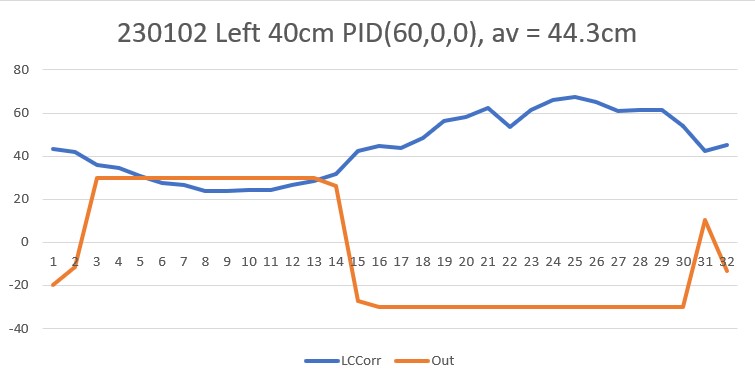
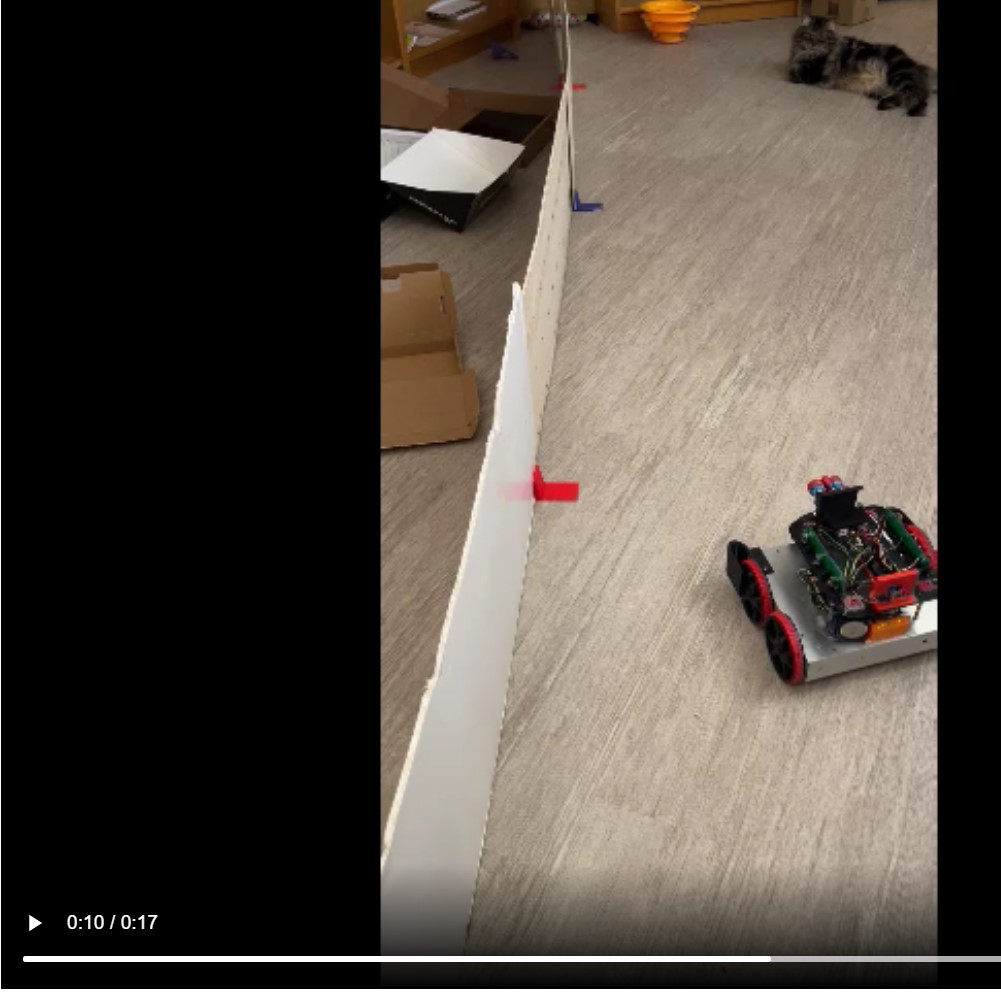
So, back to the basics. The following plot and short video show the robot’s behavior with the new setup (offset = 40cm, PID = (10,0,0)):
Tracking left wall with desired offset = 40cmDesired offset = 40cm, PID = (10,0,0)
With this setup, the robot tracks the desired 40cm offset very well (average of 41.77cm), with a very slow oscillation. I’m sure I can tweak this up a bit with a slightly higher ‘P’ value and then adding a small amount of ‘I’, but even with the most basic parameter set the system is obviously stable.
20 October 2022 Update:
I made another run with PID(10,0,0), but this time I started the run with the robot displaced about 7cm from the 40cm offset. As shown in the plot and short video, this caused quite a large oscillation; not quite disastrous, but probably would have been if my test wall had been any longer.
PID(10,0,0) with robot initial distance from wall = 33cmPID(10,0,0) with initial position at 33cm
After looking at the data from this run, I decided to try lowering the P value from 10 to 5, thinking that the lower value would reduce the oscillation magnitude with a non-zero initial displacement from the desired setpoint. As the following plot and short video shows, the result was much better.
So then I tried PID(3,0,0), again with an initial placement of 33cm from the wall, 7cm from the setpoint of 40cm
PID(3,0,0) init dist 33cm, avg for all points ~41.3cmPID(3,0,0) init dist 33cm, avg for all points ~41.3cm
As shown by the plot and video, PID(3,0,0) does a very good job of recovering from the large initial offset and then maintaining the desired 40cm offset. This result makes me start to wonder if my separate ‘Approach and Capture’ stage is required at all. However, a subsequent run with PID (3,0,0) but with an initial placement of 15cm (25cm error) disabused me of any thoughts like that!
ouch!
After talking this over with my PID-expert stepson, he recommended that I continue to decrease the ‘P’ term until the robot never quite gets to the desired setpoint before running out of room, and then adding some (possibly very small) amount of ‘D’ to hasten capture of the desired setpoint. So, I continued, starting with a ‘P’ value of 2, as shown below:
The ‘Err’ term is the actual PID error term, not multiplied by P as before
This result was a bit unexpected, as I thought such a ‘straight-line’ trajectory should have ended before going past the 40cm setpoint, indicating that I had achieved my ‘not quite controlling’ value of ‘P’. However, after thinking about a bit and looking at the actual data (shown below), I think what this shows is that the robot case is fundamentally different than most PID control applications in that reducing the error term (and thus the ‘drive’ signal) doesn’t necessarily change the robot’s trajectory, as the robot will tend to travel in a straight line in the absence of a contravening error term. In other words, removing the ‘drive’ due to the error term doesn’t cause the robot to slow down, as it would in a normal motor drive scenario.
1
2
3
4
5
6
7
8
9
10
11
12
13
14
15
16
17
18
19
20
21
22
23
24
25
26
27
28
29
30
31
32
33
34
35
36
37
Msec LF LC LR Steer Deg Cos LCCorr Set Err Output LSpd RSpd
105681313333-0.28-160.9631.7408.316.69158
105781303332-0.12-6.860.9932.8407.214.58960
105886313332-0.07-4132.9407.114.28960
105980313334-0.28-160.9631.7408.316.69158
106087313333-0.19-10.860.9832.4407.615.29059
106182323433-0.16-9.140.9933.6406.412.98762
106280323434-0.16-9.140.9933.6406.412.98762
106388333433-0.04-2.2913440612.18762
106482333534-0.04-2.2913540510.18564
106589343736-0.16-9.140.9936.5403.56.98168
106683353536-0.07-4134.9405.110.28564
106781363836-0.08-4.57137.9402.14.27970
106885363938-0.26-14.860.9737.7402.34.67970
106981373839-0.23-13.140.973740368069
107084384039-0.12-6.860.9939.7400.30.67574
107179384241-0.3-17.140.9640.140-0.1-0.37475
107279394341-0.22-12.570.984240-2-3.97178
107388404341-0.14-80.9942.640-2.6-5.26980
107479424342-0.03-1.7114340-3-66980
107586424644-0.25-14.290.9744.640-4.6-9.26584
1076804547450.052.86146.940-6.9-13.96188
107780444947-0.39-22.290.9345.340-5.3-10.76485
107886454848-0.27-15.430.9646.340-6.3-12.56287
107979474950-0.25-14.290.9747.540-7.5-156089
108086484850-0.31-17.710.9545.740-5.7-11.46386
108179484951-0.34-19.430.9446.240-6.2-12.46287
108280485152-0.35-200.9447.940-7.9-15.85990
108384495053-0.35-200.944740-7-146188
108481505352-0.16-9.140.9952.340-12.3-24.75099
108586515352-0.11-6.290.9952.740-12.7-25.449100
108680525553-0.13-7.430.9954.540-14.5-29.145104
108781505455-0.51-29.140.8747.240-7.2-14.36089
108885505353-0.21-120.9851.840-11.8-23.75198
108978525556-0.43-24.570.915040-10-205495
109083525456-0.4-22.860.9249.840-9.8-19.55594
109181525455-0.27-15.430.9652.140-12.1-24.15099
23 October 2022 Update:
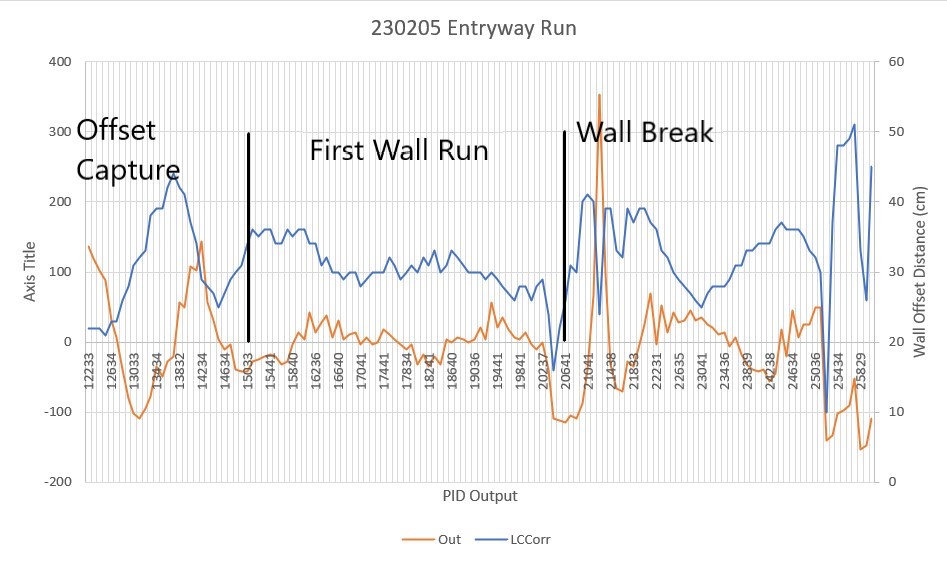
In previous work on this subject, I had already recognized that the ‘capture’ and ‘track’ phases of Wall-E’s behavior required separate treatment, and had implemented this with a ‘CaptureWallOffset()’ function to handle the ‘capture’ phase. This function calculates the amount of rotation needed to achieve an approximately 30 deg orientation angle with respect to the near wall, then moves forward to the desired wall offset value, and then turns back to parallel the near wall.
So, my next step is to re-integrate this ‘CaptureWallOffset()’ routine with my current distance-only based offset tracking algorithm. The idea is to essentially eliminate the problem space where the distance-only PID algorithm fails, so the PID only has to handle initial conditions very near the desired setpoint. When the ‘CaptureWallOffset()’ routine completes, the robot should be oriented parallel to the wall, and at a distance close to (but not necessarily the same as) the desired setpoint. Based on the above results, I think I will change the setpoint from the current constant value (40 cm at present) to match the measured distance from the wall at the point of ‘CaptureWallOffset()’ routine completion. This will guarantee that the PID starts out with the input matching the setpoint – i.e. zero error.
With this new setup, I made a run with the robot starting just 13cm from the wall. The CaptureWallOffset() routine moved the robot from the initial 13cm to about 37cm, with the robot ending up nearly parallel. The PID tracking algorithm started with an initial error term of +3.3, and tracked very well with a ‘P’ value of 10. See the plot and short video below. The video shows both the capture and track phases, but the plot only shows the track portion of the run.
PID tracking after completion of CaptureWallOffset()
Here’s a run with PID(3,0,0), starting at an offset of 22cm.
24 October 2022 Update:
While reading through some more PID theory/practice articles, I was once again reminded that smaller time intervals generally produce better results, and that struck a bit of a chord. Some time back I settled on a time interval of about 200mSec, but while I was working with my ‘WallTrackTuning_V2’ program I realized that this interval was due to the time required by the PulsedLight LIDAR to produce a front distance measurement. I discovered this when I tried to reduce the overall update time from 200 to 100mSec and got lots of errors from GetFrontDistCm(). After figuring this out, I modified the code to use a 200mSec time interval for the front LIDAR, and 100mSec for the VL53L0X side distance sensors.
So, it occurred to me that I might be able to reduce the side measurement interval even further, so I instrumented the robot to toggle a digital output (I borrowed the output for the red laser pointer) at the start and end of the wall tracking adjustment cycle, as shown in the code snippet below:
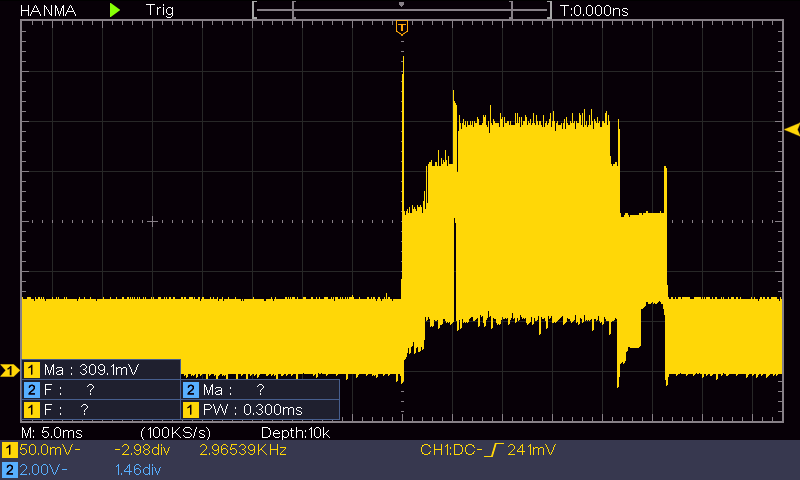
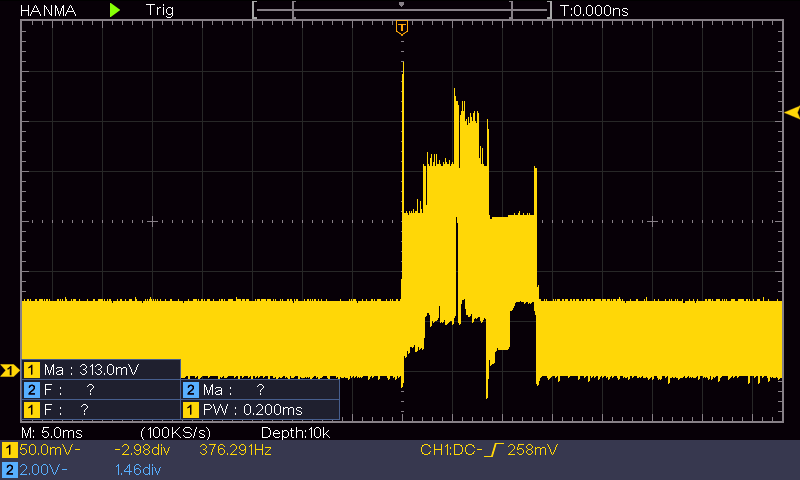
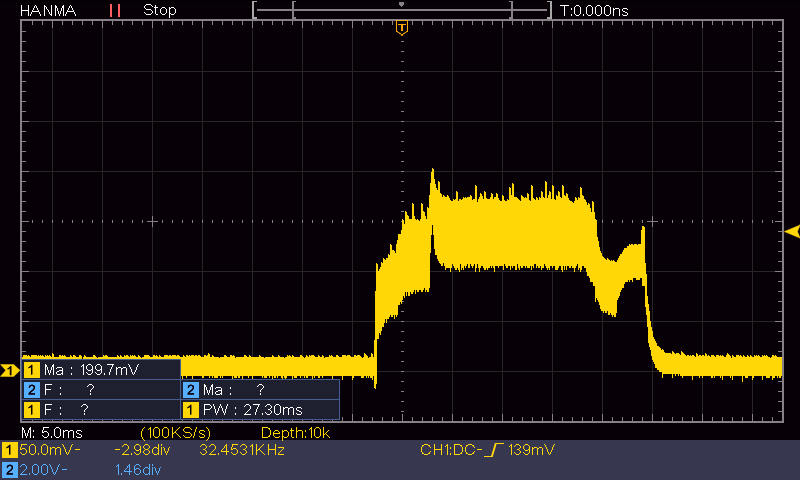
Using my handy-dandy Hanmatek DSO, I was able to capture the pin activity, as shown in the following plot:
Wall track update cycle activity with 100mSec interval (20mSec/div)
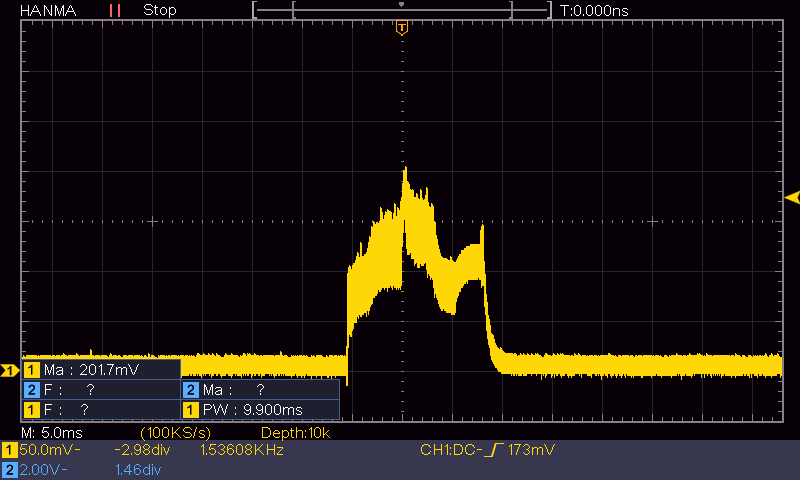
As shown above, the update code takes a bit less than 20mSec to complete, and idles for the remaining 80mSec or so, waiting for the 100mSec time period to elapse. So, I should be able to reduce the time interval by at least a factor of two. I changed the update interval from 100mSec to 50mSec, and got the activity plot shown below:
Wall track update cycle activity with 50mSec interval (20mSec/div)
The above plot has the same 20mSec/div time scale as the previous one; as can be seen, there is still plenty of ‘idle’ time between wall tracking updates. Now to see if this actually changes the robot’s behavior.
As shown in the next plot and video, I ran another ‘sandbox’ test, this time with the update interval set to 50mSec vice 100mSec, and with an 11Cm initial offset.
This wasn’t at all what I expected. I thought the larger ‘P’ value would cause the robot to more closely track the desired offset, but that isn’t what happened. Everything is fine for the first two seconds (140,000 to 142,000 mSec), but then the robot starts weaving dramatically- to the point where the motor values max out at 127 on one side and 0 on the other – bummer. Looks like I need another consulting session with my PID wizard stepson!
25 October 2022 Update:
My PID wiz stepson liked my idea of breaking the wall tracking problem into an offset capture phase, followed by a wall tracking phase, but wasn’t particularly impressed with my thinking about reducing the PID update interval while simultaneously increasing the P value to 10, so, I’m back to taking more data. The following run is just the wall tracking phase, with 50mSec update interval and a P value of 3.
As can be seen, the robot doesn’t really make any corrections – just goes in a straight line more or less. However, the left/right wheel speed data does show the correct trend (left wheel drive decreasing, right wheel drive increasing), so maybe a non-zero ‘I’ value would do the trick?
Here’s a run with PID(3,0.5,0):
PID(3,0.5,0) init dist 40cm
In the above plot the I value does indeed cause the robot to track back to the target distance, but then goes well past the target before starting to turn back. Too much I?
Here’s another run with PID(3,0.1,0) – looking pretty good!
PID(3,0.1,0) init dist 40cm
This looks pretty good; with I = 0.1 the robot definitely adjusted back toward the target distance, but in a much smoother manner than with I = 0.5. OK, time to let the master view these results and see if I’m even in the right PID universe.
One thing to mention in these runs – they are performed in my office, and the total run length is a little over 2m (210Cm), so I’m only seeing just one correction maneuver. Maybe if I start out with a small offset from the target value? Nope – that won’t work – at least not tonight; my current code changes the setpoint from the entered value (40Cm in this case) to the actual offset value (36Cm on this run) before starting the run. Curses! Foiled again!
27 October 2022 Update:
Today I had some time to see how the PID handles wall-tracking runs starting with a small offset from the desired value. First I started with a run essentially identical to the last run from two days ago, just to make sure nothing significant had changed (shouldn’t, but who knows for sure), as shown below:
Then I tried a run with the same PID values, but with a small initial offset from the desired 40Cm:
As can be seen, the robot didn’t seem to handle this very well; there was an initial correction away from the wall (toward the desired offset), but the robot cruised well past the setpoint before correcting back toward the wall. This same behavior repeated when the robot went past the setpoint on the way back toward the wall.
To see which way I needed to move with the ‘I’ value, a made another run with the ‘I’ value changed from 0.1 to 0.25, as shown below:
Now the corrections were much more dramatic, and tracking was much less accurate. on the second correction (when the robot passed through the desired setpoint going away from the wall), the motor drive values maxed out (127 on the left, 0 on the right).
Next I tried an ‘I’ value of 0.05, as shown below:
This looks much nicer – deviations from the desired offset are much smaller, and everything is much smoother. However, I’m a little reluctant to declare victory here, as it may well be that the ‘I’ value is so small now that it may not be making any difference at all, and what I’m seeing is just the natural straight-line behavior of the robot. In addition, the robot may not be able to track the wall around some of the 45deg wall direction changes found in this house.
28 October 2022 Update:
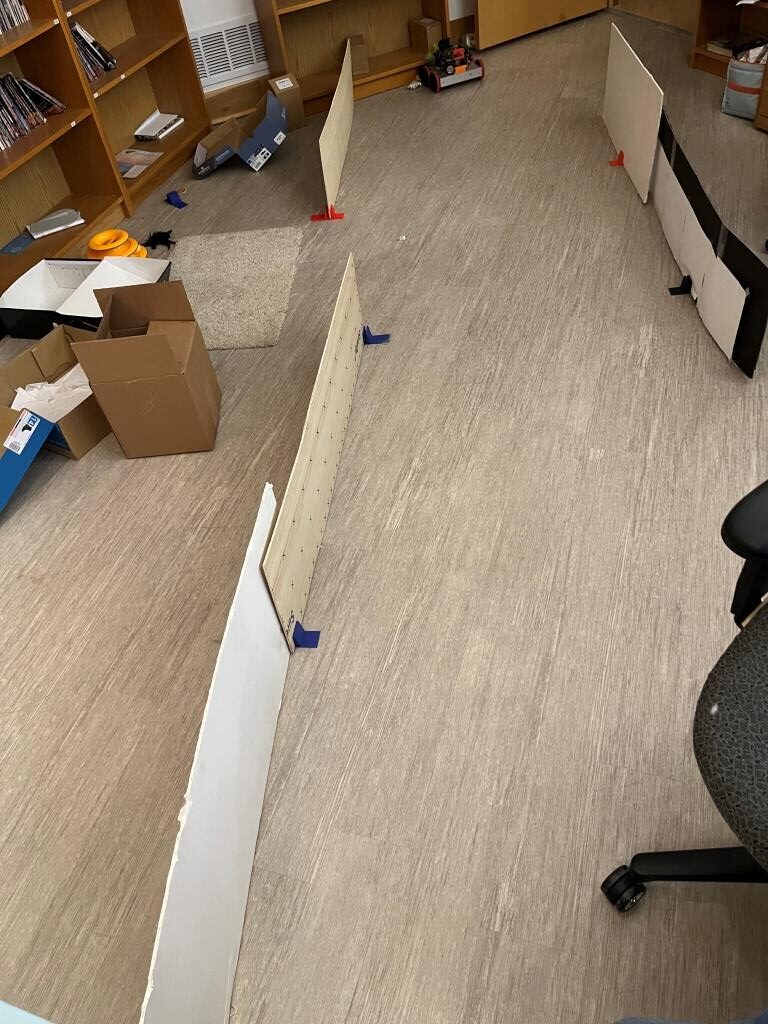
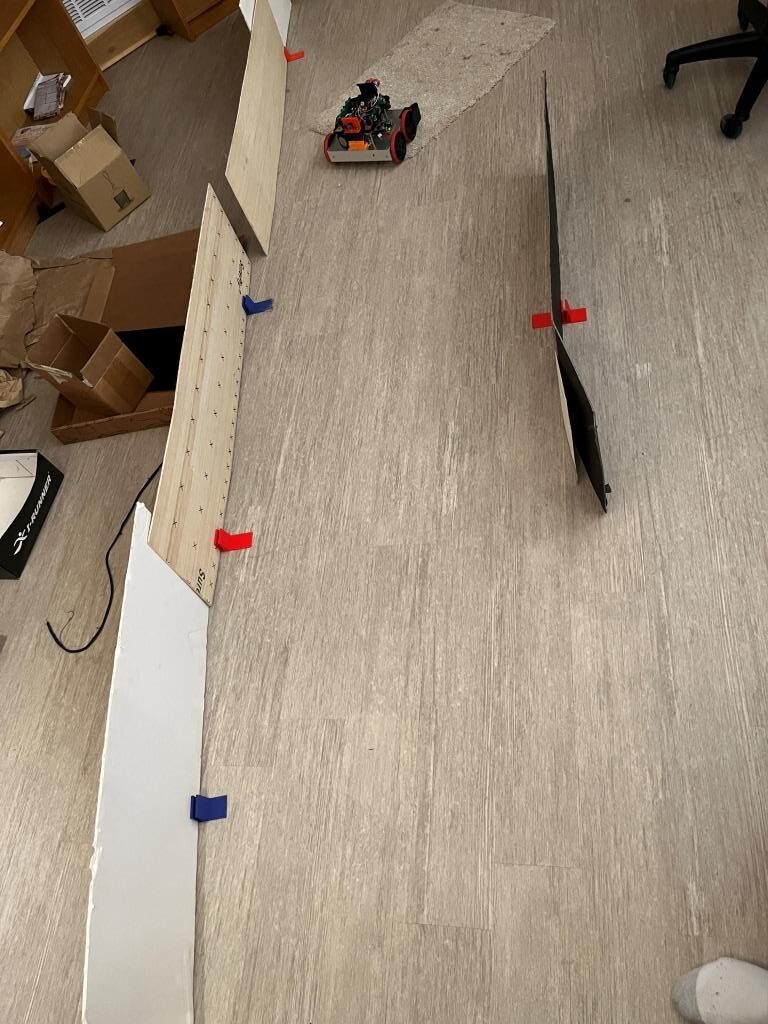
I decided to rearrange my office ‘sandbox’ to provide additional running room for my wall-following robot. By setting up my sandbox ‘walls’ diagonally across my office, I was able to achieve a run length of almost 4 meters (3.94 to be exact). Here is a plot and short video from a run with PID(3,0.1,0):
First run on my new 4m wall
I was very encouraged by this run. The robot tracked very well for most of the run, deviating slightly at the very end. I’m particularly pleased by the 1.4sec period from about 129400 (129.4sec) to about 130800 (130.8sec); during this period the left & right wheel motor drive values were pretty constant, indicating that the PID was actively controlling motor speeds to obtain the desired the wall offset. I’m not sure what caused the deviation at the end, but it might have something to do with the ‘wall’ material (black art board with white paper taped to the bottom half) in that section. However, after replacing that section with white foam core, the turn-out behavior persisted, so it wasn’t the wall properties causing the problem.
After looking at the data and the video for a while, I concluded that the divergence at the end of the run was real. During the first part of the run, the robot was close enough to the setpoint so that no significant correction was required. However, as soon as the natural straight-line behavior diverged enough from the set point to cause the PID to produce a non-small output, the tracking performance was seriously degraded. In other words, the PID was making things worse, not better – rats.
So, I tried another run, this time adding just a smidge of ‘D’, on the theory that this would still allow the PID to drive the robot back toward the setpoint, but not quite as wildly as before. With PID (3, 0.1, 0.1) I got the following plot:
Adding some ‘D’
As can be seen, things are quite a bit nicer, and the robot seemed to track fairly well for the entire 4m run.
Tried another run this morning with PID(3,0,0.1), i.e. removing the ‘I’ factor entirely, but leaving the ‘D’ parameter at 0.1 as in my last run yesterday. As can be seen in the following plot and short video, the results were very encouraging.
Made another run with ‘D’ bumped to 0.5 – looks even better.
Next, I investigated Wall-E3’s ability to handle wall angle changes. As the following plot and video shows, it actually does quite well with PID(3,0,0.5)
transients at end of run are due to encountering another angled wall – not shown in video
30 October 2022 Update
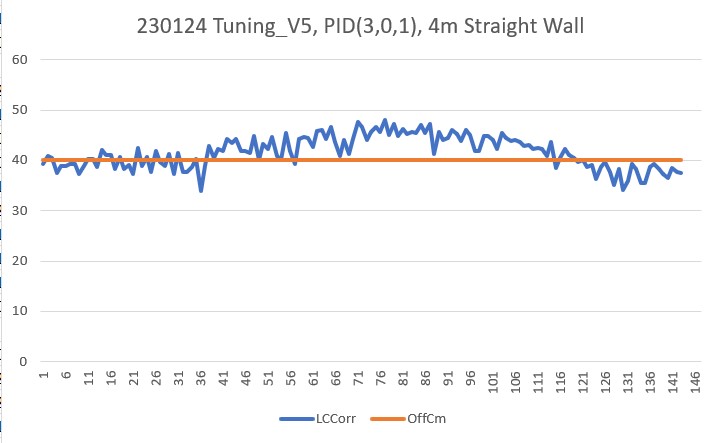
After a few more trials, I think I ended up with PID(3,0,1) as a reasonable compromise. With this setup, Wall-E3 can navigate both concave and convex wall angle changes, as shown in the following plot and short video.
As an aside, I also investigated several other PID triplets of the form (K*3,0,K*1) to see if other values of K besides 1 would produce the same behavior. At first I thought both K = 2 and K = 3 did well, but after a couple of trials I found myself back at K = 1. I’m not sure why there is anything magic about K = 1, but it’s hard to get around the fact that K = 2 and K = 3 did not work as well tracking my ‘sandbox’ walls.
At this point, I think it may be time to back-port the above results into my WallE3_AnomalyRecovery_V2.sln project, and then ultimately back into my main robot control project.
06 November 2022 Update:
Well, now I know why my past efforts at wall tracking didn’t rely exclusively on offset distance as measured by the 3 VL53L0X sensors on each side of the robot. The problem is that the reported distance is only accurate when the robot is parallel to the wall; any off-parallel orientation causes the reported distance to increase, even though the robot body is at the same distance. In the above work I thought I could beat this problem by compensating the distance measurement by the cosine of the off-parallel angle. This works (sort of) but causes the control loop to lag way behind what the robot is actually doing. Moreover, since there can be small variations in the distance reported by the VL53L0X array, the robot can be physically parallel to the wall while the sensors report an off-parallel orientation, or alternatively, the robot can be physically off-parallel (getting closer or farther away) to the wall, while the sensors report that it is parallel and consequently no correction is required. This is why, in previous versions, I tried to incorporate a absolute distance measurement along with orientation information into a single PID loop (didn’t work very well).
09 November 2022 Update:
After beating my head against the problem of tracking the nearby wall using a three-element array of VL53L0X distance sensors and a PID algorithm, I finally decided it just wasn’t wasn’t working well enough to rely on for generalized wall tracking. It does work, but has a pretty horrendous failure mode. If the robot ever gets past about 45 deg orientation w/r/t the near wall, the distance values from the VL53L0X sensor become invalid and the robot goes crazy.
So, I have been spending my night-time sleep preparation time (where I do some of my best thinking) trying to think of different ways of skinning this particular cat, as follows:
The robot needs to be able to accurately track a given offset
Must have enough agility to accommodate abrupt wall direction changes (90 deg changes are easy – but there are several 45 deg changes in our house)
Must handle obstacles appropriately.
It’s that first item on the list that I can’t seem to handle with the typical PID algorithm. So, I started to think about alternative schemes, and the one I decided to experiment with was the idea of implementing a zig-zag tracking algorithm using my already-proven SpinTurn() function. SpinTurn() uses relative heading output from my MP6050 MPU to implement CW/CCW turns, and has proven to be quite reliable (after Homer Creutz and I beat MPU6050 FIFO management into submission).
I modified one of my Wall Track Tuning programs to implement the ‘zig-zag’ algorithm, and ran some tests in my office ‘sandbox’. As the following Excel plot and short video shows, it actually did quite well, considering it was the product of a semi-dream state thought process!
As can be seen from the above, the robot did a decent job of tracking the desired 40Cm offset (average distance for the run was 39.75Cm), especially for the first iteration. I should be able to tweak the algorithm to track the wall faster and with less of a ‘drunken sailor’ behavior.
Exactly one year ago I posted about receiving my then-new FlashForge Creator PRO 2 IDEX 3D printer. Since then I have made many successful prints and have been very happy with the machine. Then just a few weeks ago I started having serious problems with prints not sticking to my flexible build plate. Such problems occur regularly with 3D printers, and they are usually fairly easy to troubleshoot and fix, but this time I found that the touch-screen GUI on the FFCP2 IDEX machine to be more of a hindrance than a help in working my way through the problem. This post describes the issues I encountered and some suggested changes to the GUI to resolve them. The firmware used is the latest version, V1.8.
Extruder Z-axis Offset Calibration:
One of the most common problems for non-sticking prints is the extruder Z-axis offset. If the offset is too large, the filament won’t contact the print bed with enough area to adhere the first layer, and this can cause the BOD (ball of death) as the filament balls up around the extruder. When I do this procedure on my Prusa MK3S+ single-extruder printer, the display shows the current offset so adjustments can be made from a known starting position. Unfortunately the FFCP2 GUI for some reason forces the user to calibrate both extruders every time, and starts by setting the offset on both extruders to +2mm, undoubtedly to make sure the nozzles are well away from the print bed. This also erases the existing offset value, so there is no way to slightly ‘tweak’ the offset value one way or the other – the offsets have to be set from the beginning every time. For first-time users, this might be OK, but for experienced printers it is a royal PITA.
Imagine you have done some minor maintenance on the right extruder, but the left extruder is printing perfectly. Now you need to recalibrate the right extruder, but don’t want to mess with your finely-tuned left extruder. Nope – can’t do that. As soon as you select ‘Z axis Calibration’ you are doomed! The offset values for both extruders fly out the window and you are back to using the supplied plastic spacer to calibrate both extruders ‘by feel’. Doesn’t matter that you had that left extruder all dialed in – you are hosed!
Or, maybe you are happily running PETG on both extruders, but now you want to make a print that requires a dissolvable filament, like AquaSys120 or similar. You change out the filament on one extruder and make a test print using just the dissolvable filament and find it either isn’t extruding at all (offset too close to the bed) or more likely isn’t adhering to the bed due to subtle differences in the texture/stickiness of AquaSys120 filament vs PETG. You know the way to fix this is to slowly vary the z-offset of the AquaSys120 extruder, but you don’t want to mess with the nicely printing PETG extruder. Sorry – go directly to jail, do not pass GO, and do not collect $200.
The only way to handle either of these scenarios is to have already recorded the old Z offset values for both extruders (and who does that?) so you can go through the you must calibrate both every time procedure, dial both extruder offsets to where you had them before, and then adjust slightly from there. Make sure you write the new values down, because if you want to make the next tweak or you make a filament change a month from now, you have to start all over again – ARGGHHHH!
As I mentioned above, this might be OK for first-time users, but becomes a royal PITA for more experienced users. The FFCP2 does have an ‘Advanced’ menu, but this menu only handles X and Y axis tweaks – not the Z axis. This menu should be revised to allow the Z-offset for either extruder to be set independently, and should offer options to start from the default (+2mm) location or from the current z-axis offset position.
Z-axis Calibration Delays Due to Extruder Cooling Requirement:
When troubleshooting a printing problem, I might go through several Z-axis calibration procedures. However, each time I start the procedure, the printer forces me to wait for the extruders to cool to room temperature, which takes several minutes – ARGHHH! This is stupid for two reasons; first, I would think I’d want to calibrate the Z-axis offset at the normal operational temperature to take any temperature-related mechanical changes into consideration, not at room temp. Second, if FlashForge decided that any such mechanical changes were inconsequential, then it shouldn’t matter at what temperature the procedure is conducted, and so there shouldn’t be any delay at all. This seems to be just one of those things where the programmer decided the process should always start with room temperature extruders and never gave any thought to the tradeoff between programming ease and customer frustration.
Print File Names:
The ‘Print’ menu shows a partial list of the available print files, and allows the user to scroll up and down the list as necessary. However, as shown in the following photos, print file names are truncated after N characters, so similarly named files (I use version numbers a lot) all look the same. Moreover, when a file is actually selected by tapping on the name, it still isn’t shown full length. My Prusa MK3S+ printer has the same problem, but solves it by repeatedly scrolling through the name.
Print file list. Notice how similar they are, because the differences are later in the nameSelected print file name is also truncated – you have to just hope you have picked the correct one!
Conclusion:
The FlashForge Creator PRO 2 IDEX printer is a great printer, and I have gotten many many good prints from it over the last year. Even with the frustrations associated with the less-than-perfect GUI, I don’t regret trading down from my previous MakerGear M3-ID Independent Dual Extruder (IDEX) machine. However, I believe the GUI was not given the care and resources it needed to be a first-class example of a 3D printer user interface, and should be updated. If it remains in this ‘sort-of-OK-sort-of-clunky’ state, I think it will sour a lot of 3D makers off the FlashForge brand.
Flashforge could actually kill two birds with one stone if they were to open-source the GUI code; then users like myself who are frustrated with the current performance could collaborate in making it better.
I have been been doing 3D printing (a ‘Maker’ in modern jargon) for almost a decade now, and almost all my designs started out life in TinkerCad – Autodesk’s wonderful online 3D design tool. As I mentioned in my 2014 post comparing AutoDesk’s TinkerCad and 123d Design offerings, TinkerCad is simple and easy to use, powerful due to its large suite of primitive 3D objects and manipulation features, but runs out of gas when dealing with rounded corners, internal fillets, arbitrary chamfers and other sophisticated mesh manipulation options.
Consequently, I have been keeping an eye out for more modern alternatives to TinkerCad – something with the horsepower to do more sophisticated mesh modeling, but still simple enough for an old broke-down engineer to learn in the finite amount of time I have left on earth. As I discovered eight years ago, AutoDesk’s 123D Design offering wasn’t the app I was looking for, but Blender, with the newly introduced CAD Sketcher and CAD Transforms add-ins, may well be. Blender seems to be aimed more at graphic artists, animators, and 3D world-builders rather than for the kind of dimension-driven precision design for 3D printing, but the CAD Sketcher and CAD Transforms add-ons go a long way toward providing explicit dimension-driven precision 3D design tools for us maker types.
I ran across the Blender app several months ago and started looking for online tutorials; the first one I found was the famous ‘Donut Tutorial’ by Blender Guru. After several tries and a large amount of frustration due to the radical GUI changes between Blender 2.x and 3.x, I was able to get most of the way through to making a donut. Unfortunately for me, the donut tutorial didn’t really address dimension-driven 3D models at all, so while the tutorial was kinda fun, it didn’t really address my issue. Then I ran across Maker Tales Jonathan Kobylanski’s demo of the CAD Sketcher V0.24 Blender add-on, and I became convinced that Blender might well be a viable TinkerCad replacment.
So, I worked my way through Jonathan’s CAD Sketcher 0.24 tutorial, and as usual got in trouble several times due to my ignorance of basic Blender GUI techniques. After posting about my problems, Jonathan was kind enough to point me at his paid “How To Use Blender For 3D Printing” 10-lesson series for $124USD. I signed right up, and so far have worked (and I do mean worked!) my way through the first six lessons. I have to say this may be the best money I’ve ever spent on self-education (and at my advanced age, that is saying a LOT 🙂 ). In particular, Jonathan starts off with the assumption that the student knows absolutely NOTHING about Blender (which was certainly true in my case) and shows how to set the program up with precision 3D modeling in mind. All lessons are extensively documented, with video, audio, and all keypresses fully described. At first I was more than a little intimidated by the deluge of short-cut keys (and still am a little bit), but Jonathan’s lessons expose the viewer to slightly more bite-size chunks than the normal fire-hose method, so I was able to stay more or less on the same continent with him as he moved through the design step. I also found it extremely helpful to go back through the first few lessons several times (very easy to do with the academy.makertales.com lesson layout), even to the point of playing and replaying particular steps until I was comfortable with whatever procedure was being taught. There is a MakerTales Discord server and a channel dedicated to helping academy students, and Jonathan seems to be pretty responsive in responding to my (usually clueless) comments and pleas for help.
Jonathan encourages his students to go beyond the lessons and to modify or extend the particular focus of any lesson, so I decided to try and use Blender/CAD Sketcher for a small project I have been considering. My main PC is a Dell XPS15 laptop, connected to two 24″ monitors via a Dell WD19TBS Thunderbolt docking station. I have the monitors on 4″ risers, but found they still weren’t high enough for comfortable viewing and seating ergonomics, so I designed (in TCAD, several years ago) a set of riser risers as shown in the image below
My two-display setup. Note the red ‘riser elevators’ under the metal display risersCloseup showing the built-in shelf for my XPS 15 laptop
As shown above, the ‘riser elevator design incorporates a built-in shelf for my XPS15 laptop. This has worked well for years, but recently I have been looking for ways to simplify/neaten up my workspace. I found that I could move my junk tray from the side of my work area to the currently unused space underneath my laptop, but with the current arrangement there isn’t enough clearance above the tray to see/access the stuff in the back. I was originally thinking of simply replacing the current 3D printed risers with new ones 40mm higher, but in an ‘aha!’ moment I realized I didn’t have to replace the risers – I could simply add another riser on top. The new piece would mate with the current riser vertical tab that keeps the laptop from sliding sideways, and then replicate the same vertical tab, but 40mm higher.
Doing either the re-designed riser or the add-on would be trivial in TinkerCad, but I thought it would be a good project to try in Blender, now that I have some small inkling of what I’m doing there. So, after the normal number of screwups, I came up with a fully-defined sketch for a small test piece (I fully subscribe to Jonathan’s “When in doubt – test it out” philosophy), as shown:
CAD Sketcher sketch for the test piece. Same as the final piece, except for height
I then 3D printed on my Prusa MK3S printer. Halfway through the print job I realized I didn’t need the full 20mm thickness to test the geometry, so I stopped it midway through and placed it on top of one of the original risers, as shown in the following photo:
Maybe not completely perfect, but still a pretty good fit
After convincing myself that the design was going to work, I modified the sketch for the full 40mm height I wanted, and printed 4ea out, as shown:
CAD Sketcher sketch for the full-height version4ea full-size riser add-on pieces
After installation, I now have my laptop higher by 40mm, and better/easier access to my junk tray as shown – success!
Finished project. Laptop higher by 40mm, junk tray now much more accessible
And more than that, I have now developed enough confidence in Blender/CAD Sketcher to move my 3D print designs there rather than relying strictly on TinkerCad. Thanks Jonathan!
16 August 2022 Update:
Just finished Learning Project 7: Stackable Storage Crate, and my brain is bulging at the seams – whew! After finishing, I just had to try printing one (or two, if I want to see whether or not I really got the nesting geometry right), even though each print is something over 13 hours on my Prusa MK3S with a 0.6mm nozzle. Here’s the result:
Hot off the printer – after “only” 13 hours!Underside showing stacking groove. Printed without supports, just using bridging
I’ve had my Flashforge Creator PRO 2 IDEX 3D printer for a while now, and ever since Jaco Theron and I got the Prusa Slicer Configuration for this printer working, I have been enjoying trouble-free (as much as any 3D printer is ‘trouble-free’) dual-color printing.
However, there are some ‘gotchas’ that can make using this printer annoying.
The way that the FFCP2 filament spools are arranged on the back of the printer means that the filament from the left spool feeds the right extruder, and vice versa, which leads to confusion about which filament feeds what extruder
The printer configuration in the slicer refers to the left extruder as ‘Extruder 2, the left extruder temperature as ‘T1’, the right extruder as ‘Extruder 1, the right extruder temperature as ‘T0’, so I’m never sure which physical extruder I’m dealing with when setting up for a print.
The filament spools are located at the rear of the printer, so it’s impossible to tell what filament type is loaded without physically rotating the whole printer, removing the spool from the holder, and looking at the label. And, since my short-term memory is about equal to that of a amoeba, I wind up doing this multiple times.
So, I decided to see what I could do to ameliorate this issue. The first thing I did was to use my handy-dandy Brother label maker to label the left and right extruders with their respective designations in the software, as shown in the photo below.
The next thing was to use my newly-acquired Blender super-powers to create and install removable filament color/type tags to both sides so I would no longer have to rely on my crappy memory to know what filament type and color was loaded on each side, as shown in the following photo.
Filament type and color tags for each extruder
The type/color tags slide into slots in the plate holders, and the plate holders are mounted using the FFCP2′ 4mm hex-head front plate mounting screws. I printed up tags for all my normal colors and filament types and store them inside the printer (the red box seen inside the printer on the left-hand side). Then, when I change a spool, I change the tags to match the new filament type & color.
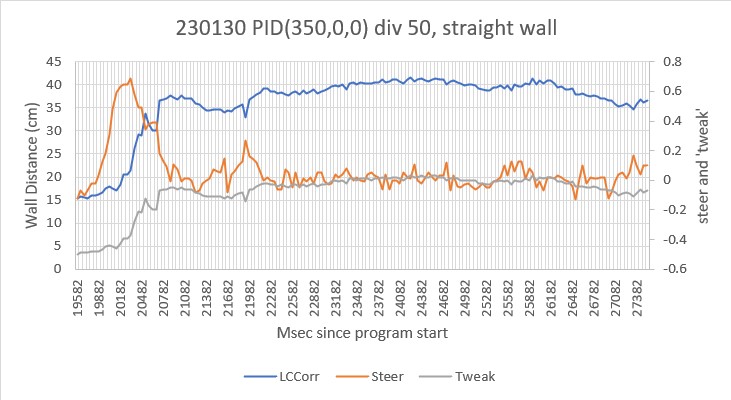
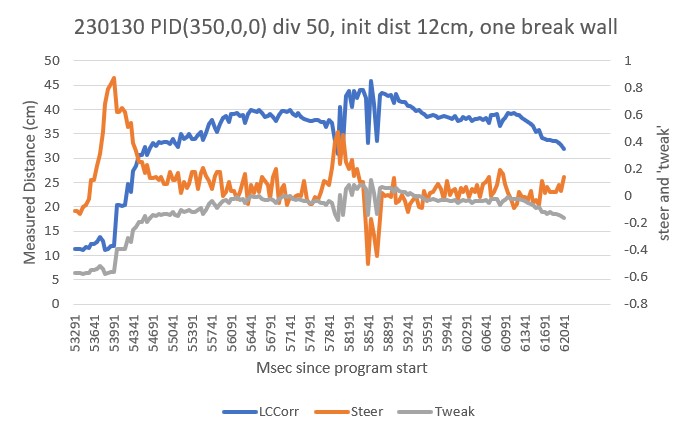
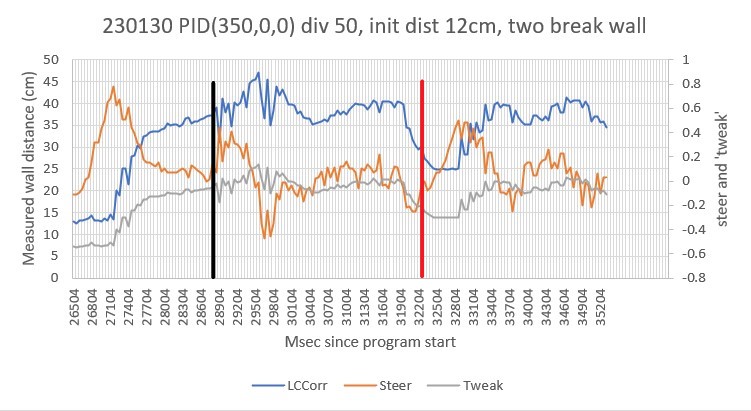
After getting everything working (or so I thought) in my sandbox, I started running into problems again with wall tracking. It just wasn’t very smooth at all. So, I decided to create a part-task version of my Wall-E3 code (WallE3_WallTrackTuning.ino) to just tackle PID tuning for left/right wall tracking. this version allows PID and offset values to be entered interactively to facilitate faster tuning. After a number of runs, I wound up with a PID set of (200,20,0). This produce a very nice, smooth tracking behavior.
In addition, I went back through all my code and re-educated myself on exactly how my current wall offset capture algorithm developed and whether or not it was, in fact, what I wanted. I started by diagramming all (I hope) relevant initial orientation and offset cases, as shown in the following Visio chart.
Wall Capture Algorithm Recap
In the above figure, four basic configurations are diagrammed; The first two are for left-side tracking with the robot starting in three different configurations inside the desired 40cm tracking offset, and three more outside the tracking offset. The second two are the same as the first, but for right-side tracking.
The algorithm is based on knowing the robot’s orientation w/r/t the local wall, which is determined by the expression ‘Steer = (Front – Rear)/100’, implemented in the Teensy 3.5 MCU that manages the VL53L0X lidar array. This result is available to the main program as ‘glLeftSteeringVal’ and ‘glRightSteeringVal’. The steering values are proportional to the orientation angle in degrees, calculated as OrientDeg = steerval/0.0175.
Expressions for which way and how much to turn to achieve the desired capture approach angle of +/- 30 degrees were determined for each of the 12 starting configurations shown (numbered 1-12 in the above figure). An examination of the resulting expressions showed that they could be collapsed down into just two different calls to the ‘SpinTurn(isCCW, numdeg)’ subroutine – one for left-side tracking, and one for right-side tracking, as shown by the bold-face expressions above.