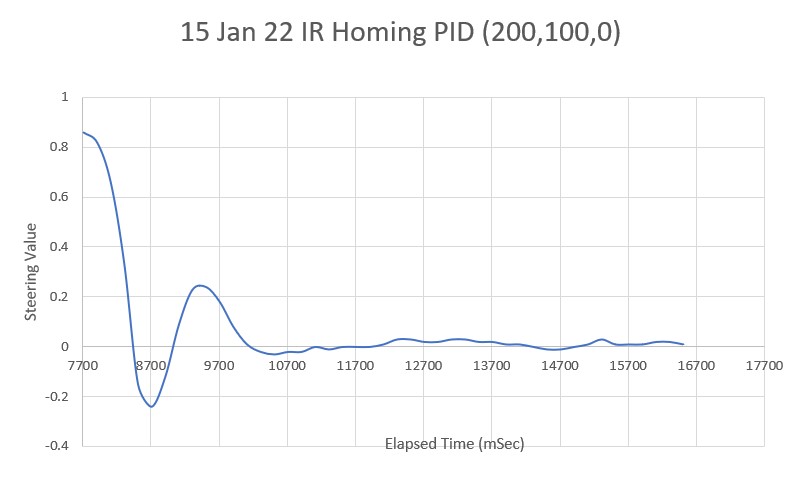
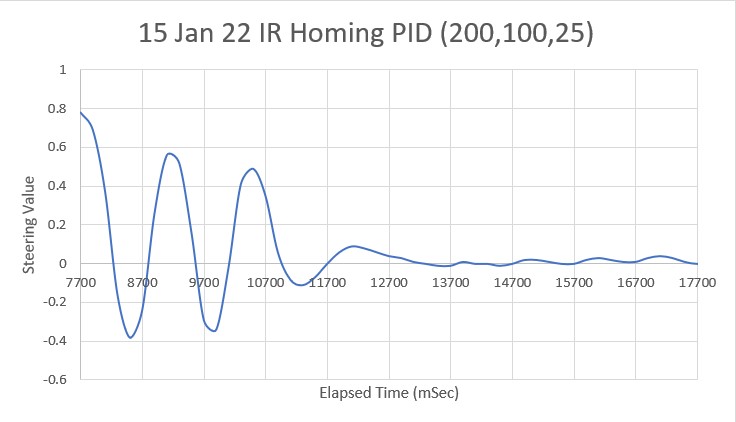
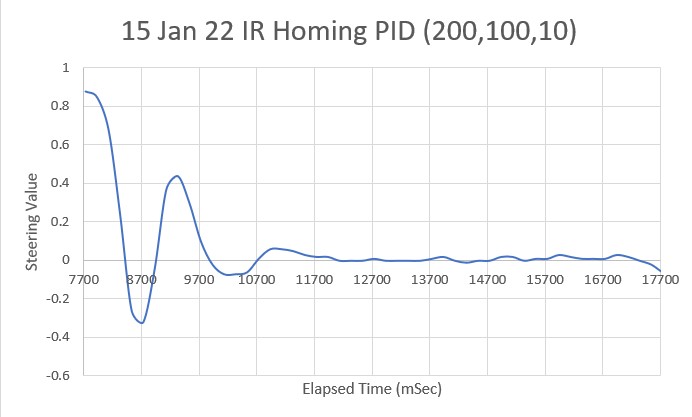
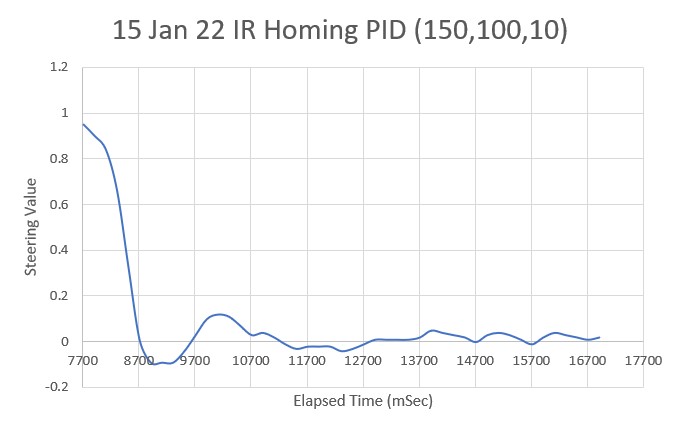
/*
Name: T35_WallE3_V5.ino
Created: 1/15/2022 8:08:22 PM
Author: NEWXPS15\paynt
01/15/22 - This version is intended to add the second deck functionality, and start integrating wall-following
01/20/22 - Now incorporating lessons learned from
https://www.fpaynter.com/2022/01/fixing-the-mess-i-made-with-the-i2cdevlib-mpu6050-libraries/
01/22/22 - replaced I2C_read/writeAnything() calls with new multiple-I2C-bus capable version
01/23/22 - now working properly with Teensy 3.5 VL53L0X array manager
*/
/*
Name: T35_WallE3_V4.ino
Created: 1/3/2022 3:44:09 PM
Author: NEWXPS15\paynt
- added GetOpMode() and the associated loop() switch and case code.
- added the IR Homing code so I could test the IR demod hardware.
- added #include "TeePrint.h" to incorporate dual-port printing in one line - see
(https://forum.pjrc.com/threads/69146-print-same-string-to-two-different-serial-ports)
for details
- replaced all 'Serialx.printf' instances with 'TeePrint.printf'
*/
/*
Name: T35_WallE3_V3.ino
Created: 11/26/2021 8:06:22 PM
Author: FRANKNEWXPS15\Frank
12/18/21: This version uses a TeraTerm script 'TeensyOTA1.ttl' in conjunction with Visual Micro's 'board.txt' feature
to accomplish OTA updates. Note that a 'regular' (F7) build does not trigger an OTA update,
but a DEBUG (F5) build does.
Implementation of OTA update requires that Joe Pasquariello's 'FlasherX'
code be added to the Teensy sketch as it is below, and some code to allow
an external serial communications program to trigger the update process.
*/
#pragma region INCLUDES
#include <Wire.h>
#include "FlashTxx.h" // TLC/T3x/T4x flash primitives
#include <elapsedMillis.h>
#include "MPU6050_6Axis_MotionApps612.h" //01/18/22 changed to use the \I2CDevLib\Arduino\MPU6050\ version
#include "I2C_Anything.h" //needed for sending float data over I2C
#include <PID_v2.h> //new version 05/16/21
#include "timelib.h" //added 01/01/22 for charge monitoring support
#include "TeePrint.h" //added 01/04/22 to print to both ports in one line
#pragma endregion Includes
#pragma region DEFINES
//02/29/16 hardware defines
#define NO_MOTORS
#define NO_MPU6050 //added 01/23/22
//#define IR_HOMING_ONLY
//#define NO_LIDAR
//#define NO_VL53L0X //01/08/22 now used for VL53L0X hardware
#define NO_IRDET //added 04/05/17 for daytime in-atrium testing (too much ambient IR)
#define DISTANCES_ONLY //added 11/14/18 to just display distances in infinite loop
#define NO_STUCK //added 03/10/19 to disable 'stuck' detection
//#define BATTERY_DISCHARGE //added 03/04/20 to discharge battery safely
#define NO_POST //added 04/12/20 to skip all the POST checks
//11/07/2020 moved all I2C Address declarations here
#define IRDET_I2C_ADDR 0x08
#define MPU6050_I2C_ADDR 0x68
//#define IR_HOMING_ONLY
#pragma endregion Program #Defines
#pragma region PRE_SETUP
MPU6050 mpu(MPU6050_I2C_ADDR);
elapsedMillis MsecSinceLastLEDToggle; //used for LED blink timer
elapsedMillis MsecSinceLastOpModeChk; //01/07/22 used for OpMode check
elapsedMillis MsecSinceLastIRHomingAdj; //01/07/22 used for #ifdef IR_HOMING_ONLY block
elapsedMillis MsecSinceLastDistUpdate; //01/07/22 used for local dist update loops
const int MSEC_PER_IR_HOMING_ADJ = 200; //01/07/22
const int MSEC_PER_OP_MODE_CHK = 200; //01/07/22
const int MSEC_PER_LOOP = 200;
const int MSEC_PER_DIST_UPDATE = 200; //01/07/22
TeePrint myTeePrint(Serial, Serial1);
#pragma region ENUMS
//01/05/16 enum types cannot be used as arguments or return types for functions due to Arduino pre-processor quirk
//12/20/15 added for navigation support
//01/15/16 revised to be consistent wtih nav modes identified in https://fpaynter.com/2016/01/making-wall-e2-smarter-using-karnaugh-maps/
enum NavCases
{
NAV_NONE = 0,
NAV_WALLTRK,
NAV_OBSTACLE,
NAV_STEPTURN,
NAV_STUCK,
NAV_OPENCNR
};
//04/10/20 Experiment with porting heading based tracking capability from two wheel robot
enum TrackingState
{
TRK_RIGHT_NONE,
TRK_RIGHT_CAPTURE,
TRK_RIGHT_MAINTAIN,
TRK_RIGHT_BACKUP_AND_TURN,
TRK_RIGHT_STEP_TURN
};
const char* NavStrArray[] = { "WallTrack", "Obstacle", "StepTurn", "Stuck", "OpenCorner" };
//03/08/17 added for new mode/state definitions; see https://fpaynter.com/2017/03/wall-e2-operating-mode-review/
enum OpModes
{
MODE_NONE = 0, //04/04/17 chg from MODE_DEFAULT and moved to top (zero) position
MODE_CHARGING,
MODE_IRHOMING,
MODE_WALLFOLLOW,
MODE_WALLCAPTURE, //added 07/16/21 to manage wall offset capture operations
MODE_DEADBATTERY, //added 01/16/18 to handle dead battery case
MODE_DISCHARGE //added 03/04/20 to safely discharge the battery
};
const char* ModeStrArray[] = { "None", "Charge", "Home", "Wall", "Capture", "DeadBatt", "Discharge" };
const char* LongModeStrArray[] = { "None", "Charging", "IR Homing", "Wall Following", "Wall Capture", "Dead Battery", "Discharging" };
enum WallTrackingCases
{
TRACKING_NONE = 0,
TRACKING_LEFT,
TRACKING_RIGHT,
TRACKING_NEITHER
};
const char* TrkStrArray[] = { "None", "Left", "Right", "Neither" };
#pragma endregion Tracking and Nav Case Enums
#pragma region ADC CONSTANTS
const double ADC_REF_VOLTS = 3.3; //teensy default for analog inputs
const int MAX_AD_COUNT = 1023;
const double AmpsPerVolt = 1.00; //default 10K Rs
const double VoltsPerCount = ADC_REF_VOLTS / MAX_AD_COUNT;
const float VOLTAGE_TO_CURRENT_RATIO = 1.f; //Used for both 'Total' and 'Run' sensors
#pragma endregion ADC CONSTANTS
#pragma region TELEMETRYSTRINGS
//const String IRHomingTelemStr = "Time\tBattV\tFin1\tFin2\tSteer\tPID_Out\t\tLSpd\tRSpd\tFrontD";
const String IRHomingTelemStr = "Time\tBattV\tFin1\tFin2\tSteer\tPID_Out\t\tLSpd\tRSpd\tFrontD\tRearD";
const char* LeftWallFollowTelemStr = "Msec\tLFront\tLCtr\tLRear\tFront\tFrontVar\tRear\tSteer\tOutput\tSetPt\tAdjDist\tLSpd\tRSpd";
const char* RightWallFollowTelemStr = "Msec\tRFront\tRCtr\tRRear\tFront\tFVar\tSteer\tOutput\tSetPt\tAdjDist\tLSpd\tRSpd";
//const String ChargingTelemStr = "ChgSec\tBattV\tTotalI\tRunI\tChgI\n"; //rev 05/02/20
const String ChargingTelemStr = "ChgSec\tBattV\tTotalI\tRunI\tChgI\tRearD\n"; //rev 01/30/21
#pragma endregion Mode-specific telemetry header strings
#pragma region BATTCONSTS
//03/10/15 added for battery charge level monitoring
//const int LOW_BATT_THRESH_VOLTS = 7.4; //50% chg per http://batteryuniversity.com/learn/article/lithium_based_batteries
//const int LOW_BATT_THRESH_VOLTS = 8.4; //07/10/20 temp debug settingr//50% chg per http://batteryuniversity.com/learn/article/lithium_based_batteries
const float LOW_BATT_THRESH_VOLTS = 8.4; //12/18/20 chg to float to fix bug
//const long BATT_CHG_TIMEOUT_SEC = 36000; //10 HRS
const long BATT_CHG_TIMEOUT_SEC = 3600; //12/28/20 for test only
const float DEAD_BATT_THRESH_VOLTS = 6; //added 01/24/17
const float FULL_BATT_VOLTS = 8.4; //added 03/17/18. Chg to 8.4 03/05/20
const int MINIMUM_CHARGE_TIME_SEC = 10; //added 04/01/18
const float FULL_BATT_CURRENT_THRESHOLD = 0.5; //amps chg to 0.5A 03/02/19 per https://www.fpaynter.com/2019/03/better-battery-charging-for-wall-e2/
//const int CURRENT_AVERAGE_NUMBER = 10; //added 03/01/19
//const int VOLTS_AVERAGE_NUMBER = 5; //added 03/01/19
const int IR_HOMING_TELEMETRY_SPACING_MSEC = 200; //added 04/23/20
//battery fuel guage constants
const float _20PCT_BATT_VOLTS = DEAD_BATT_THRESH_VOLTS + 0.2f * (FULL_BATT_VOLTS - DEAD_BATT_THRESH_VOLTS);
const float _40PCT_BATT_VOLTS = DEAD_BATT_THRESH_VOLTS + 0.4f * (FULL_BATT_VOLTS - DEAD_BATT_THRESH_VOLTS);
const float _60PCT_BATT_VOLTS = DEAD_BATT_THRESH_VOLTS + 0.6f * (FULL_BATT_VOLTS - DEAD_BATT_THRESH_VOLTS);
const float _80PCT_BATT_VOLTS = DEAD_BATT_THRESH_VOLTS + 0.8f * (FULL_BATT_VOLTS - DEAD_BATT_THRESH_VOLTS);
const float ZENER_VOLTAGE_OFFSET = 5.84; //measured zener voltage
#pragma endregion Battery Constants
#pragma region DISTANCE_MEASUREMENT_SUPPORT
//misc LIDAR and Ping sensor parameters
const int MIN_FRONT_OBSTACLE_DIST_CM = 20; //rev 04/28/17 for better obstacle handling
const int CHG_STN_AVOIDANCE_DIST_CM = 40; //added 03/11/17 for charge stn avoidance
const int STEPTURN_DIST_CM = 50; //rev 06/29/20 to temporarily disable
const int MAX_FRONT_DISTANCE_CM = 400;
const int MAX_LR_DISTANCE_CM = 200; //04/19/15 now using sep parameters for front and side sensors
const int CHG_STN_FINAL_APPR_DIST_CM = 20; //added 03/11/17 for charge stn avoidance
//04/01/2015 added for 'stuck' detection support
const int FRONT_DIST_ARRAY_SIZE = 50; //11/22/20 doubled to acct for 10Hz update rate
const int FRONT_DIST_AVG_WINDOW_SIZE = 3; //moved here & renamed 04/28/19
const int LR_DIST_ARRAY_SIZE = 3; //04/28/19 added to reinstate l/r dist running avg
const int REAR_DIST_ARRAY_SIZE = 5; //04/13/21 added for running avg calc
const int LR_AVG_WINDOW_SIZE = 3; //added 04/28/19 so front & lr averages can differ
const int STUCK_FRONT_VARIANCE_THRESHOLD = 50; //chg to 50 04/28/17
const int STUCK_REAR_VARIANCE_THRESHOLD = 50; //added 01/08/22
const int NO_LIDAR_FRONT_VAR_VAL = 10 * STUCK_FRONT_VARIANCE_THRESHOLD; //01/16/19
uint16_t aFrontDist[FRONT_DIST_ARRAY_SIZE]; //04/18/19 rev to use uint16_t vs byte
//04/28/19 added to reinstate l/r dist running avg
//06/28/20 chg to uint_16 to accommodate change from cm to mm
uint16_t aLeftDistMM[LR_DIST_ARRAY_SIZE];
uint16_t aRightDistMM[LR_DIST_ARRAY_SIZE];
uint16_t aRearDistMM[REAR_DIST_ARRAY_SIZE];
double Rear_Dist_PrevVar = 0;
double Rear_Dist_PrevMean = 0;
//float RearDistPrevAvg = 0;
int curMinObstacleDistance = MIN_FRONT_OBSTACLE_DIST_CM;//added 03/11/17 for chg stn avoidance
//04/13/20 moved distance vars up here so can be initialized just before loop()
//01/08/22 no longer using ISR
int glFrontDistVal = 0;
int glRearDistVal = 0;
double glFrontvar = 0;
double glRearvar = 0;
//added 10/24/20
//const int STUCK_BACKUP_DISTANCE_CM = 25;
const int STUCK_BACKUP_DISTANCE_CM = 20; //11/21/28 shortened slightly
const int STUCK_FORWARD_DISTANCE_CM = 15;
const int MAX_REAR_DISTANCE_CM = 100;
const int MIN_REAR_OBSTACLE_DIST_CM = 10;
const int STUCK_BACKUP_TIME_MSEC = 1000;
const int STUCK_FORWARD_TIME_MSEC = 1000;
#pragma endregion Distance Measurement Support
#pragma region PIN ASSIGNMENTS
//vvvvvvvvvvvvvvvvvvvvvvvvvvvvvvvvvvvvvvvvvvvvvvvvvvvvvvvvvvvvvv//
//=================== START PIN ASSIGNMENTS ===================//
//vvvvvvvvvvvvvvvvvvvvvvvvvvvvvvvvvvvvvvvvvvvvvvvvvvvvvvvvvvvvvv//
#pragma region MOTOR PINS
//11/04/21 Now using Pololu VNH5019 drivers for all 4 motors
const int InA_Left = 22;
const int InB_Left = 21;
const int Spd_Left = 23;
const int InA_Right = 34;
const int InB_Right = 33;
const int Spd_Right = 35;
#pragma endregion MOTOR PINS
#pragma region CHG SUPP PINS
//12/19/21 updated here, schematic, and spreadsheet
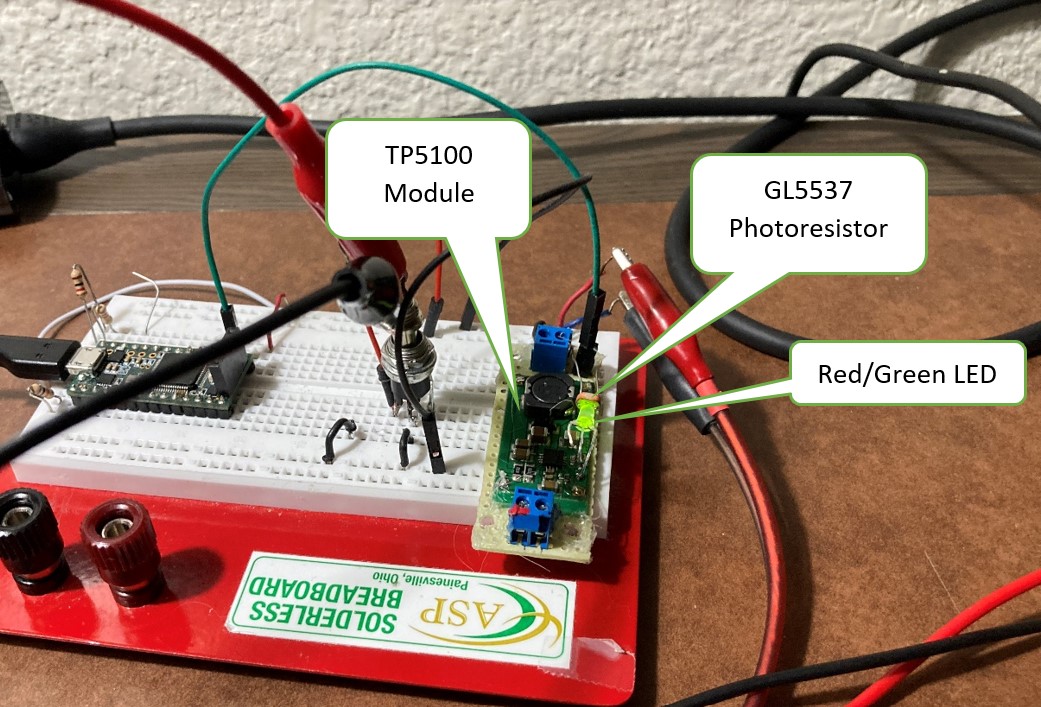
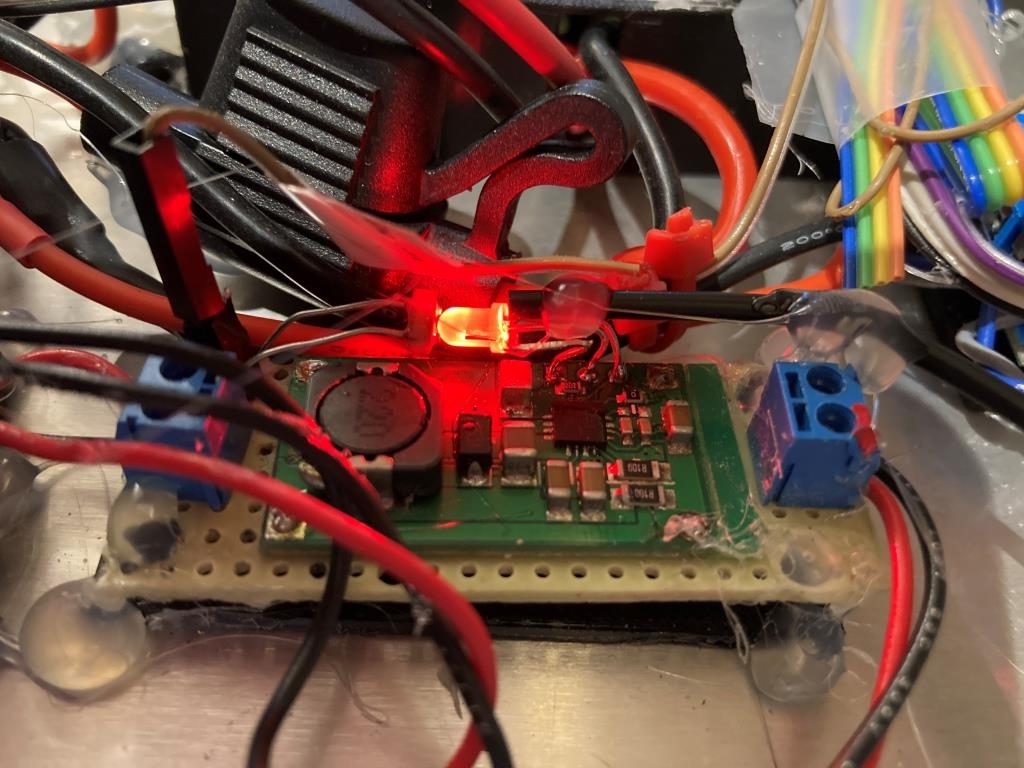
const int CHG_CONNECT_PIN = A0; //output of photo resistor looking at TP5100 CHG LED
const int BATT_MON_PIN = A1; //connected to 5VLDO regulator module
const int TOT_CURR_PIN = A2; //connected to 1NA619 between charge plug and battery
const int RUN_CURR_PIN = A3; //connected to 1NA619 between battery and rest of robot
const int CHG_CONNECT_LED_PIN = 30; //illuminates when chg cable connected
//state-of-charge indicator LEDs
const int FIN_LED_PIN = 27;
const int _80PCT_LED_PIN = 26;
const int _60PCT_LED_PIN = 25;
const int _40PCT_LED_PIN = 24;
const int _20PCT_LED_PIN = 12;
const int CHG_LED_PIN = 11;
#pragma endregion CHG SUPP PINS
//Second Deck Pins
const int RED_LASER_DIODE_PIN = 5;//Laser pointer
const int LIDAR_MODE_PIN = 2; //LIDAR MODE pin (continuous mode)
const int VL53L0X_TEENSY_RESET_PIN = 4; //pulled low for 1 mSec in Setup()
//Miscellaneous pins
const int HOMING_PID_COMPUTE_CALL_PIN = CHG_CONNECT_LED_PIN; //using same LED for two indications
//vvvvvvvvvvvvvvvvvvvvvvvvvvvvvvvvvvvvvvvvvvvvvvvvvvvvvvvvvvvvvv//
//=================== END PIN ASSIGNMENTS ===================//
//vvvvvvvvvvvvvvvvvvvvvvvvvvvvvvvvvvvvvvvvvvvvvvvvvvvvvvvvvvvvvv//
#pragma endregion PIN ASSIGNMENTS
//04/25/21 moved here from MoveToDesiredFront/BackDist() functions
#pragma region Front/Back Offset Motion PID
const double OffsetDistKp = 5.f;
const double OffsetDistKi = 3.f;
const double OffsetDistKd = 0.0f;
double OffsetDistSetpointCm, OffsetDistOutput;//10/06/17 chg input variable name to something more descriptive
double OffsetDistVal = 0; //has to be 'double'
PID OffsetDistPID(&OffsetDistVal, &OffsetDistOutput, &OffsetDistSetpointCm,
OffsetDistKp, OffsetDistKi, OffsetDistKd, DIRECT);//12/14/20 re-doing this from scratch
#pragma endregion
#pragma region CHG SUPP PARAMETERS
//02/06/21 added for charge connection debounce commented out 12/25/21
//const int CHG_CONNECT_PIN_READING_ARRAY_SIZE = 5;
//uint16_t aChgConnectReadings[CHG_CONNECT_PIN_READING_ARRAY_SIZE];
//const float CHG_CONNECTED_AVG_THRESHOLD = 0.8;
//const float CHG_DISCONNECTED_AVG_THRESHOLD = 0.2;
//12/25/21 now using analog input, so threshold scaled by analog ref voltage
const uint16_t CHG_CONNECTED_AVG_THRESHOLD = 0.2 * MAX_AD_COUNT; //integer truncation OK
const uint16_t CHG_DISCONNECTED_AVG_THRESHOLD = 0.8 * MAX_AD_COUNT;//integer truncation OK
//uint16_t ChgConnectReadingTotal;//this is the 'oldTot' in 'IsChargerConnected(bChgConnect, oldTot)'
long chgStartMsec;//added 02/24/17
//bool bChgConnect = false; //updated every MSEC_PER_LOOP Msec
float TotalAmps; //moved here from loop() 01/02/22
float RunAmps; //moved here from loop() 01/02/22
#pragma endregion CHG SUPP PARAMETERS
#pragma region MOTOR_PARAMETERS
//drive wheel speed parameters
const int MOTOR_SPEED_FULL = 200; //range is 0-255
const int MOTOR_SPEED_MAX = 255; //range is 0-255
const int MOTOR_SPEED_HALF = 127; //range is 0-255
const int MOTOR_SPEED_QTR = 75; //added 09/25/20
const int MOTOR_SPEED_LOW = 50; //added 01/22/15
const int MOTOR_SPEED_OFF = 0; //range is 0-255
const int MOTOR_SPEED_CAPTURE_OFFSET = 75; //added 06/21/20 for offset capture
const int TURN_START_SPEED = MOTOR_SPEED_QTR; //added 11/14/21
//drive wheel direction constants
const boolean FWD_DIR = true;
const boolean REV_DIR = !FWD_DIR;
const bool TURNDIR_CCW = true;
const bool TURNDIR_CW = false;
//Motor direction variables
bool bIsForwardDir = true; //default is foward direction
#pragma endregion Motor Parameters
#pragma region MPU6050_SUPPORT
uint8_t mpuIntStatus; // holds actual interrupt status byte from MPU. Used in Homer's Overflow routine
uint8_t devStatus; // return status after each device operation (0 = success, !0 = error)
uint16_t packetSize; // expected DMP packet size (default is 42 bytes)
uint16_t fifoCount; // count of all bytes currently in FIFO
uint8_t fifoBuffer[64]; // FIFO storage buffer
// orientation/motion vars
Quaternion q; // [w, x, y, z] quaternion container
VectorInt16 aa; // [x, y, z] accel sensor measurements
VectorInt16 aaReal; // [x, y, z] gravity-free accel sensor measurements
VectorInt16 aaWorld; // [x, y, z] world-frame accel sensor measurements
VectorFloat gravity; // [x, y, z] gravity vector
float euler[3]; // [psi, theta, phi] Euler angle container
float ypr[3]; // [yaw, pitch, roll] yaw/pitch/roll container and gravity vector
int GetPacketLoopCount = 0;
int OuterGetPacketLoopCount = 0;
//MPU6050 status flags
bool bMPU6050Ready = true;
bool dmpReady = false; // set true if DMP init was successful
volatile float IMUHdgValDeg = 0; //updated by UpdateIMUHdgValDeg()//11/02/20 now updated in ISR
const uint16_t MAX_GETPACKET_LOOPS = 100; //10/30/19 added for backup loop exit condition in GetCurrentFIFOPacket()
uint8_t GetCurrentFIFOPacket(uint8_t* data, uint8_t length, uint16_t max_loops = MAX_GETPACKET_LOOPS); //prototype here so can define a default param
bool bFirstTime = true;
//#define MPU6050_CCW_INCREASES_YAWVAL //added 12/05/19 commented out 11/22/21 as now the MPU6050 module is mounted 'Z-up'
#pragma endregion MPU6050 Support
#pragma region VL53L0X_TOF_LIDAR_SUPPORT
const int ToFArray_PARALLEL_FIND_Kp = 200; //0.50*Kp(crit)
const int ToFArray_PARALLEL_FIND_Ki = 0; //0.45*Kp(crit)
const int ToFArray_PARALLEL_FIND_Kd = 0;//0.60*Kp(crit)
const float ToFArray_PARALLEL_FIND_SETPOINT = 0.01; //09/22/20 moved here
const int ToFArray_OFFSET_CAPTURE_Kp = 200;
const int ToFArray_OFFSET_CAPTURE_Ki = 50;
const int ToFArray_OFFSET_CAPTURE_Kd = 50;
const int ToFArray_OFFSET_TRACK_Kp = 10;
const int ToFArray_OFFSET_TRACK_Kd = 0;
double LeftSteeringVal, RightSteeringVal; //added 08/06/20
double ToFSetpoint, ToFSteeringVal, ToFOutput;//10/06/17 chg input variable name to something more descriptive
PID ToFArrayPID(&ToFSteeringVal, &ToFOutput, &ToFSetpoint, ToFArray_PARALLEL_FIND_Kp, 0.0, 0.0, DIRECT);//06/19/20 use this for now
const int ROTATE_TO_PARALLEL_TELEMETRY_SPACING_MSEC = 200;
const float PARALLEL_ORIENTATION_STEERING_VALUE_THRESHOLD = 0.1; //rev 06/21/20 - now using (F-R)/100
const float CAPTURE_APPROACH_STEERING_VALUE = 0.4; //rev 06/28/20 - now using (F-R)/100
const float WALL_OFFSET_CAPTURE_WINDOW_CM = 2.0; //just a guess
const int VL53L0X_I2C_SLAVE_ADDRESS = 0x20; ////Teensy 3.5 VL53L0X ToF LIDAR controller
//Sensor data values
//11/05/20 revised to make all volatile
//volatile int Lidar_RightFront;
//volatile int Lidar_RightCenter;
//volatile int Lidar_RightRear;
//volatile int Lidar_LeftFront;
//volatile int Lidar_LeftCenter;
//volatile int Lidar_LeftRear;
//volatile int Lidar_Rear; //added 10/24/20
uint16_t Lidar_RightFront;
uint16_t Lidar_RightCenter;
uint16_t Lidar_RightRear;
uint16_t Lidar_LeftFront;
uint16_t Lidar_LeftCenter;
uint16_t Lidar_LeftRear;
uint16_t Lidar_Rear; //added 10/24/20
bool bVL53L0X_TeensyReady = false; //11/10/20 added to prevent bad data reads during Teensy setup()
elapsedMillis lastToFArrayTelemetryMsec; //used to space out telemetry prints
enum VL53L0X_REQUEST
{
VL53L0X_READYCHECK, //added 11/10/20 to prevent bad reads during Teensy setup()
VL53L0X_CENTERS_ONLY,
VL53L0X_RIGHT,
VL53L0X_LEFT,
VL53L0X_ALL, //added 08/06/20, replaced VL53L0X_BOTH 10/31/20
VL53L0X_REAR_ONLY //added 10/24/20
};
#pragma endregion VL53L0X ToF LIDAR Support
#pragma region HEADING_AND_RATE_BASED_TURN_PARAMETERS
elapsedMillis MsecSinceLastTurnRateUpdate;
const int MAX_SPIN_MOTOR_SPEED = 250;
const int MIN_SPIN_MOTOR_SPEED = 50;
const int TURN_RATE_UPDATE_INTERVAL_MSEC = 30; //30 mSec is as fast as it can go
double TurnRateOutput;
double TurnRateSetPoint_DPS;
double Ival = 0;
double lastErr = 0;
double lastTurnRateVal_DPS;
double TurnRateVal_DPS;
double Prev_HdgDeg = 0;
float tgt_deg;
float timeout_sec;
//11/16/21 almost perfect for 45 deg/sec, 100mSec
//11/17/21 and pretty good for 90 deg/sec too!
double TurnRate_Kp = 1.8;
double TurnRate_Ki = 1.0;
double TurnRate_Kd = 0.4;
//ported from FourWD_PulseTurnRateTest.ino
double TurnRatePIDOutput;
//06/02/
const float HDG_NEAR_MATCH_VAL = 0.8; //slow the turn down here
const float HDG_FULL_MATCH_VAL = 0.99; //stop the turn here //rev 06/01/21
const float HDG_MIN_MATCH_VAL = 0.6; //added 09/08/18: don't start checking slope until turn is well started
#pragma endregion HEADING_AND_RATE_BASED_TURN_PARAMETERS
#pragma region OTA UPDATE
//******************************************************************************
// hex_info_t struct for hex record and hex file info
//******************************************************************************
typedef struct { //
char* data; // pointer to array allocated elsewhere
unsigned int addr; // address in intel hex record
unsigned int code; // intel hex record type (0=data, etc.)
unsigned int num; // number of data bytes in intel hex record
uint32_t base; // base address to be added to intel hex 16-bit addr
uint32_t min; // min address in hex file
uint32_t max; // max address in hex file
int eof; // set true on intel hex EOF (code = 1)
int lines; // number of hex records received
} hex_info_t;
void read_ascii_line(Stream* serial, char* line, int maxbytes);
int parse_hex_line(const char* theline, char* bytes,
unsigned int* addr, unsigned int* num, unsigned int* code);
int process_hex_record(hex_info_t* hex);
void update_firmware(Stream* serial, uint32_t buffer_addr, uint32_t buffer_size);
uint32_t buffer_addr, buffer_size; //09/20/21 copied from FlasherX - loop()
#pragma endregion OTA UPDATE
#pragma region IR_HOMING_SUPPORT
//01/07/22 no longer using ISR
//01/10/22 in Teensy land, better to use 'float' everywhere
uint8_t IR_HOMING_MODULE_SLAVE_ADDR = 8; //uint8_t type reqd here for Wire.requestFrom() call
double IRHomingSetpoint, IRHomingOutput;//10/06/17 chg input variable name to something more descriptive
double IRHomingLRSteeringVal = 0;
//these values all come from IR Homing Teensy via I2C calls
unsigned long IRFinalValue1 = 0;
unsigned long IRFinalValue2 = 0;
unsigned long IRHomingValTotalAvg = 0;
//04/05/21 from Z-N method, see https://www.fpaynter.com/2021/04/another-try-at-charging-station-homing-pid-tuning/
//const double IRHomingKp = 100.f;
//const double IRHomingKi = 90.f;
//const double IRHomingKd = 120.f;
//01/11/22 started over again with WallE3 and home-grown PID algorithm
//const double IRHomingKp = 100.f;
//const double IRHomingKp = 200.f; //one or two oscillations at start
//const double IRHomingKp = 250.f; //one or two oscillations at start
//const double IRHomingKp = 300.f; //defining this value as Kc for Z-N method
//const double IRHomingKi = 0.f;
//const double IRHomingKd = 0.f;
//
// 01/15/22 The Z-N values did not work very well - LOTS of oscillation/overshoot!
//const double IRHomingKp = 150.f; //0.5Kc
//const double IRHomingKi = 135.f; //0.45Kc
//const double IRHomingKd = 150.f; //0.5Kc
//01/15/22 starting with Kp = 200, then increasing Ki by increments of 50
//const double IRHomingKp = 200.f;
////const double IRHomingKi = 50.f;
//const double IRHomingKi = 100.f;
////const double IRHomingKd = 25.f; //too much
//const double IRHomingKd = 10.f; //better
//01/15/22 reduce Kp to 150, keeping others the same
const double IRHomingKp = 150.f;
const double IRHomingKi = 100.f;
const double IRHomingKd = 10.f; //better
//PID IRHomingPID(&IRHomingLRSteeringVal, &IRHomingOutput, &IRHomingSetpoint,
// IRHomingKp, IRHomingKi, IRHomingKd, REVERSE);//12/14/20 re-doing this from scratch
const long IR_BEAM_DETECTION_CHANNEL_MAX = 2621440;
const long IR_BEAM_DETECTION_THRESHOLD = 15000;
const double IR_HOMING_STEERING_VAL_CAPTURE_THRESHOLD = 0.3; //added 01/30/21
const double IR_HOMING_STEERING_VAL_DETECTION_THRESHOLD = 0.8; //added 03/30/21
const int IRHOMING_VALUE_ARRAY_SIZE = 3; //added 03/16/21 for value average support
long int aIRHOMINGVALTOTALS[IRHOMING_VALUE_ARRAY_SIZE];//added 03/16/21 for value average support
const int IRHOMING_IAP_OFFSET_LOW_THRESHOLD_PCT = 75; //03/21/21 if wall offset is less than this relative to IAP offset, then adjust
const int IRHOMING_IAP_OFFSET_HIGH_THRESHOLD_PCT = 110; //03/23/21 if wall offset is more than this relative to IAP offset, then adjust
const double IRHOMING_IAP_FINE_TUNE_STEERING_VALUE_THRESHOLD = 0.2; //03/21/21 fine-tune if more off-boresight than this
#pragma endregion IR_HOMING_SUPPORT
#pragma region LOOP_VARS
int leftspeednum = MOTOR_SPEED_HALF;
int rightspeednum = MOTOR_SPEED_HALF;
NavCases NavCase = NAV_WALLTRK;
WallTrackingCases TrackingCase = TRACKING_NEITHER; //added 01/05/16
WallTrackingCases PrevTrackingCase = TRACKING_LEFT; //only used decide which way to turn in the TRACKING_NEITHER case
OpModes PrevOpMode = MODE_NONE; //added 03/08/17, rev to MODE_NONE 04/04/17
OpModes CurrentOpMode = MODE_NONE; //added 10/13/17 so can use in motor speed setting routines
//04/10/20 added for experiment to port heading based wall tracking from two wheel robot
TrackingState CurrentTrackingState = TRK_RIGHT_NONE;
TrackingState PrevTrackingState = TRK_RIGHT_NONE;
//02/13/16 added for 'pause' debug
int m_FinalLeftSpeed = 0;
int m_FinalRightSpeed = 0;
//11/03/18 added for new incremental variance calc
double Front_Dist_PrevVar = 0;
double Front_Dist_PrevVMean = 0;
elapsedMillis lastHomingTelemetryMsec; //used to space out telemetry prints
#pragma endregion Loop Variables
#pragma endregion PRE_SETUP
void setup()
{
#pragma region PIN INITIALIZATION
//init ALL pins to OUTPUT_LOW, then change as necessary
//01/08/22 - THIS MUST BE FIRST STEP IN SETUP() (ask me how i know!)
//InitAllPins();
pinMode(LED_BUILTIN, OUTPUT);
#pragma region Teensy VL53L0X Array Init
//11/15/20 force VL53L0X Teensy to reset whenever main controller does
pinMode(VL53L0X_TEENSY_RESET_PIN, OUTPUT);
digitalWrite(VL53L0X_TEENSY_RESET_PIN, LOW);
delay(50);
digitalWrite(VL53L0X_TEENSY_RESET_PIN, HIGH);
#pragma endregion Teensy VL53L0X Array Init
#pragma region Second Deck Pins
pinMode(RED_LASER_DIODE_PIN, OUTPUT);
pinMode(LIDAR_MODE_PIN, INPUT);
pinMode(VL53L0X_TEENSY_RESET_PIN, OUTPUT);
#pragma endregion Second Deck Pins
#pragma region Charge_Support_Pins
//current sensor pins
pinMode(RUN_CURR_PIN, INPUT); //02/24/19 now connected to 'Run Current' 1NA619 charge current sensor
digitalWrite(RUN_CURR_PIN, LOW); //turn off the internal pullup resistor
pinMode(TOT_CURR_PIN, INPUT);//02/24/19 now connected to 'Total Current' 1NA619 charge current sensor
digitalWrite(TOT_CURR_PIN, LOW); //turn off the internal pullup resistor
//Battery Voltage Monitor pin
pinMode(BATT_MON_PIN, INPUT);
digitalWrite(BATT_MON_PIN, LOW); //turn off the internal pullup resistor
//charge connect
pinMode(CHG_CONNECT_PIN, INPUT_PULLUP); //goes LOW when chg cable connected
digitalWrite(CHG_CONNECT_PIN, HIGH); //01/09/22 needed now that InitAllPins() forces it LOW
//charge connect status display pin (this will eventually be one of the LEDs on the rear LED panel)
pinMode(CHG_CONNECT_LED_PIN, OUTPUT); //12/16/20 lights LED when chg cable connected
digitalWrite(CHG_CONNECT_LED_PIN, HIGH); //01/09/22 needed now that InitAllPins() forces it LOW
//Charge status LED en/dis pins
pinMode(_60PCT_LED_PIN, OUTPUT);
pinMode(FIN_LED_PIN, OUTPUT);
pinMode(_80PCT_LED_PIN, OUTPUT);
pinMode(_40PCT_LED_PIN, OUTPUT);
pinMode(_20PCT_LED_PIN, OUTPUT);
#pragma endregion Charge_Support_Pins
#pragma region Motor_Pins
//motor pins
pinMode(InA_Left, OUTPUT);
pinMode(InB_Left, OUTPUT);
pinMode(Spd_Left, OUTPUT);
pinMode(InA_Right, OUTPUT);
pinMode(InB_Right, OUTPUT);
pinMode(Spd_Right, OUTPUT);
#pragma endregion Motor_Pins
#pragma endregion PIN INITIALIZATION
#pragma region SERIAL_PORTS
Serial.begin(115200);
delay(2000); //10/06/21 - just use fixed delay instead
Serial1.begin(115200); //used HC-05 'AT' commands to set this speed
delay(2000); //11/20/21 use fixed delay instead of waiting
//I2C bus
//Wire.begin(I2C_MASTER, 0x00, I2C_PINS_18_19, I2C_PULLUP_EXT); //MPU6050,IR_DET. MPU6050 has 4.7K pullups
//Wire1.begin(I2C_MASTER, 0x00, I2C_PINS_37_38, I2C_PULLUP_EXT, 400000);//VL53L0X Array
Wire.begin();
Wire1.begin();
pinMode(LED_BUILTIN, OUTPUT);
//DEBUG!!
if (Serial)
{
Serial.printf("Serial = %p, Serial1 = %p\n", &Serial, &Serial1);
}
//DEBUG!!
//DEBUG!!
if (Serial1)
{
Serial1.printf("Serial = %p, Serial1 = %p\n", &Serial, &Serial1);
}
//DEBUG!!
#pragma endregion SERIAL_PORTS
CheckForUserInput(); //01/13/22 - here so OTA procedure can maybe start faster
#pragma region MPU6050
#ifndef NO_MPU6050
myTeePrint.printf("\nChecking for MPU6050 IMU at I2C Addr 0x%x\n", MPU6050_I2C_ADDR);
myTeePrint.println(mpu.testConnection() ? F("MPU6050 connection successful") : F("MPU6050 connection failed"));
mpu.initialize();
// verify connection
float StartSec = 0; //used to time MPU6050 init
myTeePrint.println(F("Initializing DMP..."));
devStatus = mpu.dmpInitialize();
// make sure it worked (returns 0 if successful)
if (devStatus == 0)
{
// turn on the DMP, now that it's ready
myTeePrint.printf(F("Enabling DMP...\n"));
mpu.setDMPEnabled(true);
// set our DMP Ready flag so the main loop() function knows it's okay to use it
Serial.println(F("DMP ready! Waiting for MPU6050 drift rate to settle..."));
Serial1.println(F("DMP ready! Waiting for MPU6050 drift rate to settle..."));
dmpReady = true;
// get expected DMP packet size for later comparison
packetSize = mpu.dmpGetFIFOPacketSize();
myTeePrint.printf(F("Calibrating...Retrieving Calibration Values\n\n"));
mpu.CalibrateGyro(); //using default value of 15
mpu.PrintActiveOffsets();
//loop heading display until stabilized
myTeePrint.printf(F("\nMsec\tHdg\n"));
UpdateIMUHdgValDeg();
Prev_HdgDeg = IMUHdgValDeg;
delay(100);
UpdateIMUHdgValDeg();
myTeePrint.printf("%lu\t%2.3f\t%2.3f\n", millis(), IMUHdgValDeg, Prev_HdgDeg);
while (abs(IMUHdgValDeg - Prev_HdgDeg) > 0.1f)
{
myTeePrint.printf("%lu\t%2.3f\n", millis(), IMUHdgValDeg);
Prev_HdgDeg = IMUHdgValDeg;
delay(100);
UpdateIMUHdgValDeg();
}
StartSec = millis() / 1000.f;
myTeePrint.printf("MPU6050 Ready at %2.2f Sec with delta = %2.3f\n", StartSec, IMUHdgValDeg - Prev_HdgDeg);
bMPU6050Ready = true;
delay(1000);
}
else //MPU6050 Init failed for some reason
{
// ERROR!
// 1 = initial memory load failed
// 2 = DMP configuration updates failed
// (if it's going to break, usually the code will be 1)
myTeePrint.printf("DMP Initialization failed with code %d", devStatus);
//08/29/21 print out battery voltage on failure
float batV = GetBattVoltage();
myTeePrint.printf("Battery Voltage = %2.2f\n", batV);
bMPU6050Ready = false;
}
#endif // !NO_MPU6050
#pragma endregion MPU6050
CheckForUserInput(); //01/13/22 - here so OTA procedure can maybe start faster
#pragma region VL53L0X_TEENSY
myTeePrint.printf("Checking for Teensy 3.5 VL53L0X Controller at I2C addr 0x%x\n", VL53L0X_I2C_SLAVE_ADDRESS);
while (!bVL53L0X_TeensyReady)
{
//Wire.beginTransmission(VL53L0X_I2C_SLAVE_ADDRESS);
Wire1.beginTransmission(VL53L0X_I2C_SLAVE_ADDRESS);
//bVL53L0X_TeensyReady = (Wire.endTransmission() == 0);
bVL53L0X_TeensyReady = (Wire1.endTransmission() == 0);
//mySerial.printf("%lu: VL53L0X Teensy Not Avail...\n", millis());
delay(100);
}
myTeePrint.printf("Teensy available at %lu with bVL53L0X_TeensyReady = %d. Waiting for Teensy setup() to finish\n", millis(), bVL53L0X_TeensyReady);
WaitForVL53L0XTeensy();
//mySerial.printf("VL53L0X Teensy Ready at %lu\n\n", millis());
#pragma endregion VL53L0X_TEENSY
#ifdef DISTANCES_ONLY
digitalWrite(RED_LASER_DIODE_PIN, HIGH); //enable the front laser dot
myTeePrint.printf("\n------------ DISTANCES ONLY MODE!!! -----------------\n\n");
int i = 0; //added 09/20/20 for in-line header display
myTeePrint.printf("Msec\tLFront\tLCenter\tLRear\tRFront\tRCenter\tRRear\tRear\n");
while (true)
{
if (MsecSinceLastDistUpdate >= MSEC_PER_DIST_UPDATE)
{
//just in case there is a long delay somewhere that allows MsecSinceLastDistUpdate to build up
while (MsecSinceLastDistUpdate >= MSEC_PER_DIST_UPDATE)
{
MsecSinceLastDistUpdate -= MSEC_PER_DIST_UPDATE;
}
//09/20/20 re-display the column headers
if (++i % 20 == 0)
{
myTeePrint.printf("\nMsec\tLFront\tLCenter\tLRear\tRFront\tRCenter\tRRear\tRear\n");
}
GetRequestedVL53l0xValues(VL53L0X_ALL);
myTeePrint.printf("%lu\t%d\t%d\t%d\t%d\t%d\t%d\t%d\n",
millis(), Lidar_LeftFront, Lidar_LeftCenter, Lidar_LeftRear,
Lidar_RightFront, Lidar_RightCenter, Lidar_RightRear, Lidar_Rear);
}
}
#endif // DISTANCES_ONLY
#pragma region L/R/FRONT DISTANCE ARRAYS
//09/20/20 have to do this for parallel finding to go the right way
myTeePrint.println(F("Initializing Left, Right, Front Distance Arrays..."));
#ifndef NO_VL53L0X
//03/30/21 moved FrontDistArray init ahead of left/right dist init to prevent inadvertent 'stuck' detection
myTeePrint.println(F("Initializing Front Distance Array"));
InitFrontDistArray(); //08/12/20 code extracted to fcn so can call elsewhere
myTeePrint.println(F("Updating Left\tRight Distance Arrays"));
for (size_t i = 0; i < LR_DIST_ARRAY_SIZE; i++)
{
delay(100); //ensure enough time for ISR to update distances
myTeePrint.printf("%d\t%d\n", Lidar_LeftCenter, Lidar_RightCenter);
UpdateLRDistanceArrays(Lidar_LeftCenter, Lidar_RightCenter);
}
myTeePrint.println(F("Updating Rear Distance Arrays"));
InitRearDistArray();
myTeePrint.printf("Initial rear prev_mean, prev_var = %2.2f, %2.2f\n",
Rear_Dist_PrevMean, Rear_Dist_PrevVar);
#else
Serial.println(F("Distance Sensors Disabled"));
#endif // NO_VL53L0X
#pragma endregion L/R/FRONT DISTANCE ARRAYS
#pragma region IRDET_TEENSY
#ifndef NO_IRDET
bool IRDET_TeensyOK = false;
myTeePrint.printf("\nChecking for Teensy 3.2 IRDET Controller at I2C addr 0x%x\n", IR_HOMING_MODULE_SLAVE_ADDR);
while (!IRDET_TeensyOK)
{
Wire.beginTransmission(IR_HOMING_MODULE_SLAVE_ADDR);
IRDET_TeensyOK = (Wire.endTransmission() == 0);
myTeePrint.printf("%lu: IRDET Teensy Not Avail...\n", millis());
delay(100);
}
myTeePrint.printf("IRDET Teensy Ready at %lu\n", millis());
//get initial values
long Fin1, Fin2;//04/05/20 needs to be 'long int' (4 bytes) here to match Teensy int (4 bytes)
float SteeringValue;
Wire.requestFrom(IR_HOMING_MODULE_SLAVE_ADDR, sizeof(Fin1) + sizeof(Fin2) + sizeof(SteeringValue));
I2C_readAnything(Fin1);
I2C_readAnything(Fin2);
I2C_readAnything(SteeringValue);
myTeePrint.printf("Fin1/Fin2/SteeringVal = %ld\t%ld\t%2.4f\n", Fin1, Fin2, SteeringValue);
#endif // !NO_IRDET
#pragma endregion IRDET_TEENSY
CheckForUserInput(); //01/13/22 - here so OTA procedure can maybe start faster
#ifdef IR_HOMING_ONLY
//myTeePrint.printf("Msec\tValAvg\tSteer\t\tRRear\tRCtr\tRFront\tFront\n");
myTeePrint.printf("Msec\tValAvg\tSteer\n");
MsecSinceLastIRHomingAdj = 0;
while (true)
{
CheckForUserInput();
if (MsecSinceLastIRHomingAdj >= MSEC_PER_IR_HOMING_ADJ)
{
MsecSinceLastIRHomingAdj -= MSEC_PER_IR_HOMING_ADJ;
UpdateIRHomingValues();
//myTeePrint.printf("%lu\t%lu\t%2.2f\t\t%d\t%d\t%d\t%d\n",
// millis(), IRHomingValTotalAvg, IRHomingLRSteeringVal, Lidar_RightRear, Lidar_RightCenter, Lidar_RightFront, glFrontDistVal);
myTeePrint.printf("%lu\t%lu\t%lu\t%lu\t%2.2f\n",
millis(), IRFinalValue1, IRFinalValue2, IRHomingValTotalAvg, IRHomingLRSteeringVal);
}
IRHomeToChgStnNoPings(MOTOR_SPEED_HALF, MOTOR_SPEED_HALF);
}
#endif
#pragma region IR_BEAM_VALUE_AVG_ARRAY
//03/17/21 added for IR beam value averaging array init
Serial.printf("%lu: Initializing IR Beam Value Averaging Array...\n", millis());
for (size_t i = 0; i < IRHOMING_VALUE_ARRAY_SIZE; i++)
{
aIRHOMINGVALTOTALS[i] = 0;
}
IRHomingValTotalAvg = 0;
#pragma endregion IR_BEAM_VALUE_AVG_ARRAY
analogReadAveraging(8); //applies to all analogRead() operations?
myTeePrint.printf("Msec\tBattV\tTotAmps\tRunAmps\tHdgDeg\tChgConn\n");
MsecSinceLastOpModeChk = 0; //main opMode update timer
}
void loop()
{
if (Serial1.available() || Serial.available())
{
CheckForUserInput();
}
if (MsecSinceLastOpModeChk >= MSEC_PER_OP_MODE_CHK)
{
MsecSinceLastOpModeChk -= MSEC_PER_OP_MODE_CHK;
digitalToggle(LED_BUILTIN);
digitalWrite(RED_LASER_DIODE_PIN, HIGH); //fire the laser pointer
//Step1: Determine current operating mode
CurrentOpMode = (OpModes)GetOpMode();
String trackstr = "Unknown"; //used for telemetry printouts
//Step2: Switch to appropriate operating case block
#pragma region OP_MODE SWITCH
switch (CurrentOpMode)
{
case MODE_DEADBATTERY:
break;
case MODE_DISCHARGE:
break;
#pragma region MODE_CHARGING
case MODE_CHARGING:
digitalWrite(RED_LASER_DIODE_PIN, LOW); //disable the laser pointer
chgStartMsec = millis(); //used for charge duration telemetry
myTeePrint.print(F("Starting Charge Mode at ")); Serial.println(chgStartMsec);
StopBothMotors(); //added 03/13/17
//04/27/21
#ifndef NO_VL53L0X
myTeePrint.printf("Reset VL53L0X Teensy to reduce current consumption\n");
digitalWrite(VL53L0X_TEENSY_RESET_PIN, LOW); //hold Teensy reset to reduce current consumption
#endif
MonitorChargeUntilDone();
#ifndef NO_VL53L0X
myTeePrint.printf("Restart VL53L0X Teensy...\n");
digitalWrite(VL53L0X_TEENSY_RESET_PIN, HIGH); //restart Teensy
WaitForVL53L0XTeensy(); //wait for it to come back up.
#endif
ExecDisconManeuver();
PrevOpMode = MODE_NONE; //04/27/21: this will force wall offset recapture
//myTeePrint.printf("%lu: just after ExecDisconManeuver() in TRACKING_RIGHT case block\n", millis());
break;
#pragma endregion MODE_CHARGING
#pragma region MODE_IRHOMING
case MODE_IRHOMING:
digitalWrite(RED_LASER_DIODE_PIN, LOW); //disable the laser pointer
{ //brackets required to set the scope of the new variable (float batVoltage)
float batVoltage = GetBattVoltage();
myTeePrint.printf("IR Beam Detected with Battery Voltage = %1.2f\n", batVoltage);
//PrevOpMode = MODE_IRHOMING;
if (batVoltage > LOW_BATT_THRESH_VOLTS) //not hungry
{
Serial.println("Not Hungry - Avoiding Charger");
//04/27/21 too complicated - just have robot reverse course
int leftdist = GetAvgLeftDistCm();
int rightdist = GetAvgRightDistCm();
SpinTurn(leftdist > rightdist, 180, 45);
PrevOpMode = MODE_NONE;
}
else //hungry - try to connect
{
Serial.println("Low battery - homing to Charger");
//IRHomeToChgStn(0, MOTOR_SPEED_HALF, MOTOR_SPEED_HALF);
}
} //brackets required to set the scope of the new variable (float batVoltage)
break;
#pragma endregion MODE_IRHOMING
#pragma region MODE_WALLCAPTURE
case MODE_WALLCAPTURE:
break;
#pragma endregion MODE_WALLCAPTURE
#pragma region MODE_WALLFOLLOW
case MODE_WALLFOLLOW:
break;
#pragma ENDregion MODE_WALLFOLLOW
case MODE_NONE:
break;
}
//digitalWrite(CHG_CONNECT_LED_PIN, !bChgConnect); //LOW output illuminates LED
//if (bChgConnect)
//{
// MonitorChargeUntilDone();
// MsecSinceLastLEDToggle = 0; //reset so don't get hundreds of lines of output after long charge
// //01/02/22 have to re-print the headings with leading blank line after charging completes
// myTeePrint.printf("\nMsec\tBattV\tTotAmps\tRunAmps\tHdgDeg\tChgConn\n");
//}
////Get battery voltage
//float calc_volts = GetBattVoltage();
////get current heading
//UpdateIMUHdgValDeg(); //updates IMUHdgValDeg
////update IR homing/steering values
////Wire.requestFrom(IR_HOMING_MODULE_SLAVE_ADDR, sizeof(IRFinalValue1) + sizeof(IRFinalValue2) + sizeof(IRHomingLRSteeringVal));
//Wire.requestFrom(IR_HOMING_MODULE_SLAVE_ADDR, (size_t)(sizeof(IRFinalValue1) + sizeof(IRFinalValue2) + sizeof(IRHomingLRSteeringVal)));
//I2C_readAnything(IRFinalValue1);
//I2C_readAnything(IRFinalValue2);
//I2C_readAnything(IRHomingLRSteeringVal);
//IRHomingValTotalAvg = UpdateIRHomingValueTotalAverage(IRFinalValue1, IRFinalValue2, IRHomingValTotalAvg);
////print out battery voltage, currents, and chgr connection state
//myTeePrint.printf("%lu\t%2.2f\t%2.2f\t%2.2f\t%2.2f\t%d\n", millis(), calc_volts, TotalAmps, RunAmps, IMUHdgValDeg, bChgConnect);
}
}
#pragma region CHARGE SUPPORT FUNCTIONS
float GetAmps(int pin_number)
{
//Purpose: Get current in amps
//Inputs:
// pin_number = integer denoting analog pin to be used for measurement
// VOLTAGE_TO_CURRENT_RATIO = measured voltage to current ratio
// MAX_AD_COUNT = int denoting max A/D reading value
// VOLTAGE_TO_CURRENT_RATIO = int denoting conversion ratio
//Outputs:
// returns total robot current (chg current plus running current)
//Notes:
// 02/28/18 chg name from GetBattChgAmps() to GetTotalAmps()
// 11/24/21 chg name, add pin_number param so can use for both Itot & Irun
int reading = analogRead(pin_number); //range is 0-1023
float volts = ((float)reading / (float)MAX_AD_COUNT) * ADC_REF_VOLTS;
float amps = volts * VOLTAGE_TO_CURRENT_RATIO;
//DEBUG!!
//myTeePrint.printf("GetAmps(): reading, volts, amps = %d, %3.2f, %3.2f\n",
// reading, volts, amps);
//DEBUG!!
return amps;
}
bool IsStillCharging()
{
//Purpose: Determine battery charge status
//Inputs:
// Battry charging current in amps from GetBattChgAmps()
// Battery voltage from GetBattV()
//Outputs:
// returns TRUE if battery voltage is below full charge voltage threshold
// AND charging current is above full charge current threshold. Otherwise returns FALSE
float BattV = GetBattVoltage();
float TotI = GetAmps(TOT_CURR_PIN);
float RunI = GetAmps(RUN_CURR_PIN);
//DEBUG!!
//myTeePrint.printf("IsStillCharging(): BattV = %2.3f, TotI = %2.3f, RunI = %2.3f\n", BattV, TotI, RunI);
//DEBUG!!
return (BattV < FULL_BATT_VOLTS&& TotI - RunI > FULL_BATT_CURRENT_THRESHOLD);
}
bool IsChargerConnected(bool curState)
{
//Purpose: Determine if robot has connected to charger
//Inputs:
//oldTot = previous readings total
//curState = current value of bChgConnected
//Outputs:
// true when array total <= CHG_CONNECTED_AVG_THRESHOLD
// false when array total >= CHG_DISCONNECTED_AVG_THRESHOLD
// otherwise maintains previous state
//Notes:
// 12/25/21 - now pin is connected to voltage divider. Goes LOW when charging
// 12/25/21 - now using AnalogReadAveraging(8) everywhere, so no need to do running avg
bool retStatus = curState;
uint16_t adval = (uint16_t)analogRead(CHG_CONNECT_PIN);
if (adval <= CHG_CONNECTED_AVG_THRESHOLD) //low means 'connected'
{
retStatus = true;
}
else if (adval >= CHG_DISCONNECTED_AVG_THRESHOLD)
{
retStatus = false;
}
//myTeePrint.printf("%lu: curState = %d, adval = %d, ConThresh = %d, disConThresh = %d retsatus = %d\n",
// millis(), curState, adval, CHG_CONNECTED_AVG_THRESHOLD, CHG_DISCONNECTED_AVG_THRESHOLD, retStatus);
//else return previous conn/disconnect state
return retStatus;
}
bool MonitorChargeUntilDone()
{
//Purpose: Monitor charging status until charge is complete
//Inputs: startMsec = millis() at the time of the function call
//Outputs:
// returns TRUE if charging completes successfully, FALSE otherwise
// provides mode-specific telemetry to PC via Wixel
//Plan:
// Step1: Blink charger display LEDs
// Step1: Get current time check for sufficiently elapsed time
// Step2: Get charger status signals, and echo them to display LEDs
// Step2: Send telemetry to PC via Serial port (Wixel)
// Step2: Check for end-of-charge or failure (don't know what this would be yet...)
//Notes:
// 03/11/17 for testing, rev to return as soon as connection dropped
// 05/21/17 rev to xmit telemetry before loop & then delay a bit before entering loop
// 05/21/17 abstracted status reporting code to separate function
// 10/16/17 removed startMsec from call sig
// 03/15/18 revised for TP5100 charger module
// 04/01/18 rev to always stay on charge for at least MINIMUM_CHARGE_TIME_SEC sec
// 02/24/19 rev to use new 1NA169 current sensor output
// 02/28/19 moved ChargeTelemetryString printout here from MODE_CHARGING case
// 01/30/21 added rear distance readout for debugging zero distance problem
// 02/06/21 repl bChgConn with ISR-managed bChgConnect
// 04/02/21 added code to blink LED associated with current charge level
// 01/02/22 ported to Wall-E3
//Step1: Get current time & check for sufficient elapsed time
int ElapsedChgTimeSec = 0;
float ElapsedChgTimeMin = 0; //added 05/02/20
myTeePrint.println(ChargingTelemStr); //moved here from main loop MODE_CHARGING case
bool bStillCharging = true;
bool bChgConnect = true; //01/08/22 no longer using ISR
//EnableAllRearLEDs(false);
while (ElapsedChgTimeSec < MINIMUM_CHARGE_TIME_SEC ||
(bStillCharging
&& ElapsedChgTimeSec < BATT_CHG_TIMEOUT_SEC
&& bChgConnect)
)
{
//04/02/21 moved to 'fast' part of loop
float BattV = GetBattVoltage();
float TotI = GetAmps(TOT_CURR_PIN);
float RunI = GetAmps(RUN_CURR_PIN);
//UpdateChgStatusLEDs(BattV, bStillCharging); //updates 'fuel guage' LEDs 04/22/20 added bStillCharging to sig
//05/02/20 rev to only print out 10 times/min
if (ElapsedChgTimeSec % 6 == 0)
{
ElapsedChgTimeMin = (float)ElapsedChgTimeSec / 60.f;
myTeePrint.printf("%3.1f\t%2.4f\t%2.4f\t%2.4f\t%2.4f\n",
ElapsedChgTimeMin, BattV, TotI, RunI, TotI - RunI); //rev 02/24/19 for 1Na169 sensor
}
CheckForUserInput(); //added 04/02/21
delay(1000); //one-second loop
ElapsedChgTimeSec++;
bStillCharging = IsStillCharging(); //02/24/19 - now using 1NA169 current sensor
bChgConnect = IsChargerConnected(bChgConnect); //01/02/22 - wasn't being checked
}
//Step2: Check for end-of-charge or failure (don't know what this would be yet...)
//if charging ran over time, something went wrong
time_t t = now();
if (!bChgConnect) //charger unplugged
{
Serial.printf("Charge connection dropped after %2.2f minutes at %d:%d:%d elapsed time\n", (float)(ElapsedChgTimeSec / 60.), hour(t), minute(t), second(t));
myTeePrint.printf("Charge connection dropped after %2.2f minutes at %d:%d:%d elapsed time\n", (float)(ElapsedChgTimeSec / 60.), hour(t), minute(t), second(t));
return false;
}
else if (ElapsedChgTimeSec < BATT_CHG_TIMEOUT_SEC)
{
myTeePrint.printf("Charging Completed Successfully in %2.2f minutes at %d:%d:%d elapsed time\n", (float)(ElapsedChgTimeSec / 60.), hour(t), minute(t), second(t));
return true;
}
else
{
myTeePrint.printf("Charging timout value of %2.2f minutes expired at\n", (float)(BATT_CHG_TIMEOUT_SEC / 60.), hour(t), minute(t), second(t));
return false;
}
}
float GetBattVoltage()
{
//02/18/17 get corrected battery voltage. Voltage reading is 1/3 actual Vbatt value
int analog_batt_reading = analogRead(BATT_MON_PIN);//analogReadAveraging(8) in setup() does internal averaging
float calc_volts = ZENER_VOLTAGE_OFFSET + ADC_REF_VOLTS * (double)analog_batt_reading / (double)MAX_AD_COUNT;
//DEBUG!!
//myTeePrint.printf("a/d = %d, calc = %2.2f\n", analog_batt_reading,calc_volts);
//DEBUG!!
return calc_volts;
}
bool ExecDisconManeuver()
{
//Purpose: Disconnect from charging station
//Inputs: Call from Charging Mode case block
//Outputs: Robot disconnects from charging station, backs up, and turns 90 away from near wall
//Plan:
// Step1: Turn OFF charger status LEDs (added 04/28/17)
// Step2: Determine which side wall is closer
// Step3: Back straight up for long enough to clear side rails
// Step4: Turn 90 away from near side wall
//Notes:
// 02/15/18 rev to use full speed to disengage, and new rolling turn routines
// 03/27/18 rev for TP5100 charging module
float batv = GetBattVoltage();
myTeePrint.printf("in ExecDisconManeuver() with BattV = %2.4f\n", batv);
//Step1: Turn OFF charger status LEDs (added 04/28/17)
//chg status LEDs are all enabled via a LOW digital output
//03/15/18 rev for TP5100
digitalWrite(FIN_LED_PIN, HIGH); //output is LOW (active) when Pw1_IN is HIGH/TRUE
digitalWrite(_80PCT_LED_PIN, HIGH); //output is LOW (active) when Pw2_IN is HIGH/TRUE
digitalWrite(_60PCT_LED_PIN, HIGH); //output is LOW (active) when Chg1_IN is LOW/FALSE
digitalWrite(_40PCT_LED_PIN, HIGH); //output is LOW (active) when Chg2_IN is LOW/FALSE
digitalWrite(_20PCT_LED_PIN, HIGH); //output is LOW (active) when Fin1_IN is LOW/FALSE
digitalWrite(CHG_LED_PIN, HIGH); //output is LOW (active) when Fin2_IN is LOW/FALSE
//Step2: Determine which side wall is closer. Ping sensors on 2nd deck can see over charger side rails
int leftdist = GetAvgLeftDistCm();
int rightdist = GetAvgRightDistCm();
Serial.print("leftdist = "); Serial.print(leftdist); Serial.print(", ");
Serial.print("rightdist = "); Serial.println(rightdist);
//Step3: Back straight up for long enough to clear side rails
#ifndef NO_VL53L0X
MoveToDesiredFrontDistCm(70); //70cm is plenty to clear the guide rails
#endif
StopBothMotors();
delay(1000);
//Step4: Turn around and go the other way
//SpinTurn(true, 180, 30); //slightly higher rate than default 20dps
SpinTurn(leftdist > rightdist, 180, 30); //slightly higher rate than default 20dps
return true; //can't think of anything else at the moment
}
#pragma endregion CHARGE SUPPORT FUNCTIONS
#pragma region DISTANCE_MEASUREMENT_SUPPORT
//08/12/20 Extracted inline FRONT_DIST_ARRAY init code so can be called from anywhere
void InitFrontDistArray()
{
//04/01/15 initialize 'stuck detection' arrays
//06/17/20 re-wrote for better readability
//to ensure var > STUCK_FRONT_VARIANCE_THRESHOLD for first FRONT_DIST_ARRAY_SIZE loops
//array is initialized with sawtooth from 0 to MAX_FRONT_DISTANCE_CM
int newval = 0;
int bumpval = MAX_FRONT_DISTANCE_CM / FRONT_DIST_ARRAY_SIZE;
bool bgoingUp = true;
for (int i = 0; i < FRONT_DIST_ARRAY_SIZE; i++)
{
aFrontDist[i] = newval;
//DEBUG!!
//myTeePrint.printf("i = %d, newval = %d, aFrontdist[%d] = %d\n", i, newval, i, aFrontDist[i]);
//DEBUG!!
if (bgoingUp)
{
if (newval < MAX_FRONT_DISTANCE_CM - bumpval) //don't want newval > MAX_FRONT_DISTANCE_CM
{
newval += bumpval;
}
else
{
bgoingUp = false;
}
}
else
{
if (newval > bumpval) //don't want newval < 0
{
newval -= bumpval;
}
else
{
bgoingUp = true;
}
}
}
//04/19/19 init Front_Dist_PrevVMean & Front_Dist_PrevVar to mean/var respectively
long sum = 0;
for (int i = 0; i < FRONT_DIST_ARRAY_SIZE; i++)
{
sum += aFrontDist[i]; //adds in rest of values
}
Front_Dist_PrevVMean = (float)sum / (float)FRONT_DIST_ARRAY_SIZE;
// Step2: calc new 'brute force' variance
float sumsquares = 0;
for (int i = 0; i < FRONT_DIST_ARRAY_SIZE; i++)
{
sumsquares += (aFrontDist[i] - Front_Dist_PrevVMean) * (aFrontDist[i] - Front_Dist_PrevVMean);
}
Front_Dist_PrevVar = sumsquares / FRONT_DIST_ARRAY_SIZE;
myTeePrint.printf("%lu: aFrontDist Init: Front_Dist_PrevVMean = %3.2f, Front_Dist_PrevVar = %3.2f\n", millis(), Front_Dist_PrevVMean, Front_Dist_PrevVar);
glFrontvar = Front_Dist_PrevVar; //added 03/30/21 to prevent 'stuck' at startup
}
//08/12/20 Extracted inline FRONT_DIST_ARRAY init code so can be called from anywhere
void InitRearDistArray()
{
//Purpose: initialize rear distance array and initial values for mean and variance
//Inputs:
// aRearDistMM = array of rear distance values
// REAR_DIST_ARRAY_SIZE = number of rear distance values stored
//Outputs:
// aRearDistMM = array of rear distance values
// Rear_Dist_PrevMean = previous mean value initialized
// Rear_Dist_PrevVar = previous variance value initialized
//Notes:
// 01/08/22 no longer using ISR
int idx = 0;
while (idx < REAR_DIST_ARRAY_SIZE)
{
GetRequestedVL53l0xValues(VL53L0X_REAR_ONLY);
aRearDistMM[idx] = Lidar_Rear;
idx++;
delay(100);
}
//04/19/19 init Rear_Dist_PrevMean & Rear_Dist_PrevVar to mean/var respectively
long sum = 0;
for (int i = 0; i < REAR_DIST_ARRAY_SIZE; i++)
{
sum += aRearDistMM[i]; //adds in rest of values
}
Rear_Dist_PrevMean = (float)sum / (float)REAR_DIST_ARRAY_SIZE;
// Step2: calc new 'brute force' variance
float sumsquares = 0;
for (int i = 0; i < REAR_DIST_ARRAY_SIZE; i++)
{
sumsquares += (aRearDistMM[i] - Rear_Dist_PrevMean) * (aRearDistMM[i] - Rear_Dist_PrevMean);
}
Rear_Dist_PrevVar = sumsquares / REAR_DIST_ARRAY_SIZE;
myTeePrint.printf("%lu: aRearDistMM Init: Rear_Dist_PrevMean = %3.2f, Rear_Dist_PrevVar = %3.2f\n", millis(), Rear_Dist_PrevMean, Rear_Dist_PrevVar);
}
//04/25/21 rewritten to use aFrontDist[] values
float GetAvgFrontDistCm()
{
int avgdist = 0;
for (int i = 0; i < FRONT_DIST_AVG_WINDOW_SIZE; i++)
{
//DEBUG!!
//myTeePrint.printf("frontdist[%d] = %d\n", FRONT_DIST_ARRAY_SIZE - 1 - i, aFrontDist[FRONT_DIST_ARRAY_SIZE - 1 - i]);
//DEBUG!!
avgdist += aFrontDist[FRONT_DIST_ARRAY_SIZE - 1 - i];
}
//DEBUG!!
//myTeePrint.printf("avgdisttot = %d\n", avgdist);
//DEBUG!!
avgdist = (int)((float)avgdist / (float)FRONT_DIST_AVG_WINDOW_SIZE);
//DEBUG!!
//myTeePrint.printf("avgdist = %d\n", avgdist);
//DEBUG!!
return avgdist;
}
float GetAvgRightDistCm()
{
//Notes:
// 04/09/20 revised to compute proper running average of
// latest LR_AVG_WINDOW_SIZE ping measurements
// 10/08/20 aRight/LeftDist arrays now contain mm vs cm. rev to convert mm to cm on exit
//int rightavgdist_cm = 0;
int rightavgdist_mm = 0;
for (int validx = 0; validx < LR_AVG_WINDOW_SIZE; validx++)
{
//rightavgdist_cm += aRightDistMM[LR_DIST_ARRAY_SIZE - 1 - validx];
rightavgdist_mm += aRightDistMM[LR_DIST_ARRAY_SIZE - 1 - validx];
}
//float avg = (float)rightavgdist_cm / (float)LR_AVG_WINDOW_SIZE;
float avg = (float)rightavgdist_mm / (float)LR_AVG_WINDOW_SIZE;
//return avg;
return avg / 10.f;
}
float GetAvgLeftDistCm()
{
//Notes:
// 04/09/20 revised to compute proper running average of
// latest LR_AVG_WINDOW_SIZE ping measurements
//int leftavgdist_cm = 0;
int leftavgdist_mm = 0;
for (int validx = 0; validx < LR_AVG_WINDOW_SIZE; validx++)
{
//leftavgdist_cm += aLeftDistMM[LR_DIST_ARRAY_SIZE - 1 - validx];
leftavgdist_mm += aLeftDistMM[LR_DIST_ARRAY_SIZE - 1 - validx];
}
//float avg = (float)leftavgdist_cm / (float)LR_AVG_WINDOW_SIZE;
float avg = (float)leftavgdist_mm / (float)LR_AVG_WINDOW_SIZE;
//return avg;
return avg / 10.f;
}
//11/05/15 added to get LIDAR measurement
int GetFrontDistCm()
{
//Notes:
// 12/05/15 chg to MODE line vs I2C
// 01/06/16 rev to return avg of prev distances on error
#ifndef NO_LIDAR
unsigned long pulse_width;
int LIDARdistCm;
pulse_width = pulseIn(LIDAR_MODE_PIN, HIGH); // Count how long the pulse is high in microseconds
LIDARdistCm = pulse_width / 10; // 10usec = 1 cm of distance for LIDAR-Lite
//chk for erroneous reading
if (LIDARdistCm == 0)
{
//replace with average of last three readings from aFrontDist
int avgdist = GetAvgFrontDistCm();
myTeePrint.printf("%lu: Error in GetFrontDistCm() - %d replaced with %d\n", millis(), LIDARdistCm, avgdist);
LIDARdistCm = avgdist;
}
//04/30/17 added limit detection/correction
LIDARdistCm = (LIDARdistCm > 0) ? LIDARdistCm : MAX_FRONT_DISTANCE_CM;
return LIDARdistCm;
#else
return 10; //safe number, I hope
#endif
}
double CalcFrontDistArrayVariance(unsigned long newdistval)
{
//Purpose: Calculate Variance of input array
//Inputs: aDistArray = FRONT_DIST_ARRAY_SIZE array of integers representing left/right/front distances
//Outputs: Variance of selected array
//Plan:
// Step1: Calculate mean for array
// Step2: Sum up squared deviation of each array item from mean
// Step3: Divide squared deviation sum by number of array elements
//Notes:
// 11/01/18 this function takes about 1.8mSec - small compared to 200mSec loop interval
// 11/02/18 added distval to sig to facilitate incremental calc algorithm
// 11/12/18 re-wrote incr alg
// see C:\Users\Frank\Documents\Arduino\FourWD_WallE2_V1\Variance.xlsm
// and C:\Users\Frank\Documents\Arduino\VarianceCalcTest.ino
// 01/16/19 added 'return inc_var'
// 04/21/19 copied number overflow corrections from VarianceCalcTest.ino
// 04/28/19 commented out the 'brute force' sections - now using incr var exclusively
//unsigned long funcStartMicrosec = micros();
//11/03/18 update distance array, saving oldest for later use in incremental calcs
unsigned long oldestDistVal = aFrontDist[0];
for (int i = 0; i < FRONT_DIST_ARRAY_SIZE - 1; i++)
{
aFrontDist[i] = aFrontDist[i + 1];
}
aFrontDist[FRONT_DIST_ARRAY_SIZE - 1] = newdistval;
//11/02/18 now re-do the calculation using the incremental method, and compare the times
//mu_t = mu_(t-1) - dist_(t-N)/N + dist_t/N
//Example: mu_7 = mu_(6) - dist_(2)/N + dist_7/N
//var^2_t = var^2_(t-1) + dist^2_(t) - dist^2_(t-N) + mu^2_(t-1) - mu^2_t
//Example: var^2_7 = var^2_(6) + dist^2_(7) - dist^2_(t-N) + mu^2_(6) - mu^2_7
//DEBUG!!
//for (int i = 0; i < FRONT_DIST_ARRAY_SIZE; i++)
//{
// Serial.print("aDistArray["); Serial.print(i); Serial.print("] = "); Serial.println(aDistArray[i]);
//}
//DEBUG!!
double inc_mean = Front_Dist_PrevVMean - (double)oldestDistVal / (double)FRONT_DIST_ARRAY_SIZE + (double)newdistval / (double)FRONT_DIST_ARRAY_SIZE;
unsigned long olddist_squared = oldestDistVal * oldestDistVal;
unsigned long newdist_squared = newdistval * newdistval;
double last_incmean_squared = Front_Dist_PrevVMean * Front_Dist_PrevVMean;
double inc_mean_squared = inc_mean * inc_mean;
double inc_var = Front_Dist_PrevVar + ((double)newdist_squared / FRONT_DIST_ARRAY_SIZE) - ((double)olddist_squared / FRONT_DIST_ARRAY_SIZE)
+ last_incmean_squared - inc_mean_squared;
//long uSecI = micros() - funcStartMicrosec - uSecB;
//DEBUG!!
//display results:
//myTeePrint.printf("%lu\t%lu\t%lu\t%4.2f\t%4.2f\t%4.2f\n", millis(),
// newdistval, oldestDistVal, Front_Dist_PrevVMean, Front_Dist_PrevVar, inc_var);
//DEBUG!!
Front_Dist_PrevVar = inc_var; //save for next time
Front_Dist_PrevVMean = inc_mean; //save for next time
return inc_var; //added 01/16/19
}
double CalcRearDistArrayVariance(unsigned long newdistval)
{
//Purpose: Calculate Variance of input array
//Inputs: aDistArray = FRONT_DIST_ARRAY_SIZE array of integers representing left/right/front distances
//Outputs: Variance of selected array
//Plan:
// Step1: Calculate mean for array
// Step2: Sum up squared deviation of each array item from mean
// Step3: Divide squared deviation sum by number of array elements
//Notes:
// 11/01/18 this function takes about 1.8mSec - small compared to 200mSec loop interval
// 11/02/18 added distval to sig to facilitate incremental calc algorithm
// 11/12/18 re-wrote incr alg
// see C:\Users\Frank\Documents\Arduino\FourWD_WallE2_V1\Variance.xlsm
// and C:\Users\Frank\Documents\Arduino\VarianceCalcTest.ino
// 01/16/19 added 'return inc_var'
// 04/21/19 copied number overflow corrections from VarianceCalcTest.ino
// 04/28/19 commented out the 'brute force' sections - now using incr var exclusively
//unsigned long funcStartMicrosec = micros();
//DEBUG
//myTeePrint.printf("in CalcRearDistArryVariance(%d, %2.2f, %2.2f)\n", newdistval, Rear_Dist_PrevMean, Rear_Dist_PrevVar);
//DEBUG
//11/03/18 update distance array, saving oldest for later use in incremental calcs
unsigned long oldestDistVal = aRearDistMM[0];
for (int i = 0; i < REAR_DIST_ARRAY_SIZE - 1; i++)
{
aRearDistMM[i] = aRearDistMM[i + 1];
}
aRearDistMM[REAR_DIST_ARRAY_SIZE - 1] = newdistval;
//11/02/18 now re-do the calculation using the incremental method, and compare the times
//mu_t = mu_(t-1) - dist_(t-N)/N + dist_t/N
//Example: mu_7 = mu_(6) - dist_(2)/N + dist_7/N
//var^2_t = var^2_(t-1) + dist^2_(t) - dist^2_(t-N) + mu^2_(t-1) - mu^2_t
//Example: var^2_7 = var^2_(6) + dist^2_(7) - dist^2_(t-N) + mu^2_(6) - mu^2_7
//DEBUG!!
//for (int i = 0; i < REAR_DIST_ARRAY_SIZE; i++)
//{
// Serial.print("aRearDistMM["); Serial.print(i); Serial.print("] = "); Serial.println(aRearDistMM[i]);
//}
//DEBUG!!
double inc_mean = Rear_Dist_PrevMean - (double)oldestDistVal / (double)REAR_DIST_ARRAY_SIZE + (double)newdistval / (double)REAR_DIST_ARRAY_SIZE;
//DEBUG
//myTeePrint.printf("inc_mean = %2.2f, ", inc_mean);
//DEBUG
unsigned long olddist_squared = oldestDistVal * oldestDistVal;
unsigned long newdist_squared = newdistval * newdistval;
double last_incmean_squared = Rear_Dist_PrevMean * Rear_Dist_PrevMean;
double inc_mean_squared = inc_mean * inc_mean;
//myTeePrint.printf("last_incmean_squared = %2.2f\n", last_incmean_squared);
//myTeePrint.printf("inc_mean_squared = %2.2f\n", inc_mean_squared);
//myTeePrint.printf("olddist_squared = %lu\n", olddist_squared);
//myTeePrint.printf("newdist_squared = %lu\n", newdist_squared);
//myTeePrint.printf("Rear_Dist_PrevVar = %2.2f\n", Rear_Dist_PrevVar);
double inc_var = Rear_Dist_PrevVar + ((double)newdist_squared / REAR_DIST_ARRAY_SIZE) - ((double)olddist_squared / REAR_DIST_ARRAY_SIZE)
+ last_incmean_squared - inc_mean_squared;
//DEBUG
//myTeePrint.printf("inc_var = %2.2f\n", inc_var);
//DEBUG
//long uSecI = micros() - funcStartMicrosec - uSecB;
//DEBUG!!
//display results:
//myTeePrint.printf("%lu\t%lu\t%lu\t%4.2f\t%4.2f\t%4.2f\n", millis(),
// newdistval, oldestDistVal, Rear_Dist_PrevVMean, Rear_Dist_PrevVar, inc_var);
//DEBUG!!
Rear_Dist_PrevVar = inc_var; //save for next time
Rear_Dist_PrevMean = inc_mean; //save for next time
return inc_var; //added 01/16/19
}
//04/28/18 added to update left/right dist arrays, so can reinstate incr l/r dist avg
void UpdateLRDistanceArrays(int leftdistval, int rightdistval)
{
//Purpose: Update the L/R distance arrays with the latest values, shifting all other values down 1
//Inputs:
// Latest left/right values from sensors
//Outputs:
// latest value placed at Array[LR_DIST_ARRAY_SIZE - 1], all other values moved down one
//Plan:
// Step 1: For each array, shift all values down one (the 0th value drops into the bit bucket)
// Step 2: Place the latest reading at [LR_DIST_ARRAY_SIZE - 1].
//Notes:
//DEBUG!!
//myTeePrint.printf("UpdateLRDistanceArrays(left = %d, right = %d)", leftdistval, rightdistval);
//DEBUG!!
//Step 1: For each array, shift all values down one (the 0th value drops into the bit bucket)
for (int i = 0; i < LR_DIST_ARRAY_SIZE - 1; i++)
//for (int i = 0; i < DIST_ARRAY_SIZE; i++)
{
aRightDistMM[i] = aRightDistMM[i + 1];
aLeftDistMM[i] = aLeftDistMM[i + 1];
}
//Step 2: Place the latest reading at [DIST_ARRAY_SIZE - 1].
aRightDistMM[LR_DIST_ARRAY_SIZE - 1] = rightdistval;
aLeftDistMM[LR_DIST_ARRAY_SIZE - 1] = leftdistval;
}
uint16_t CalcRearDistAvgMM(int cur_val, double& prev_avg)
{
//Purposes: compute 5-point moving average
//Inputs:
// cur_val = Most recent value to be averaged
// prev_avg = previous average
// aRearDistMM = float array containing previous N values
uint16_t old_val = aRearDistMM[0];
for (size_t i = 0; i < REAR_DIST_ARRAY_SIZE - 1; i++)
{
aRearDistMM[i] = aRearDistMM[i + 1];
}
aRearDistMM[REAR_DIST_ARRAY_SIZE - 1] = cur_val;
//DEBUG!!
//myTeePrint.printf("In CalcRearDistAvgMM(%2.2f, %2.2f)\n", cur_val, prev_avg);
//for (size_t i = 0; i < REAR_DIST_ARRAY_SIZE-1; i++)
//{
// myTeePrint.printf("%d, ",aRearDistMM[i]);
//}
//myTeePrint.printf("%d\n", aRearDistMM[REAR_DIST_ARRAY_SIZE - 1]);
float new_avg = (prev_avg * REAR_DIST_ARRAY_SIZE + cur_val - old_val) / REAR_DIST_ARRAY_SIZE;
prev_avg = new_avg;
return new_avg;
}
#pragma endregion Distance Measurement Support
#pragma region MOTOR SUPPORT
//09/08/20 modified for DRV8871 motor driver
void MoveReverse(int leftspeednum, int rightspeednum)
{
//Purpose: Move in reverse direction continuously - companion to MoveAhead()
//ProvEnA_Pinnce: G. Frank Paynter 09/08/18
//Inputs:
// leftspeednum = integer denoting speed (0=stop, 255 = full speed)
// rightspeednum = integer denoting speed (0=stop, 255 = full speed)
//Outputs: both drive Motors energized with the specified speed
//Plan:
// Step 1: Set reverse direction for both wheels
// Step 2: Run both Motors at specified speeds
//Notes:
// 01/22/20 now using Adafruit DRV8871 drivers
//Step 1: Set reverse direction and speed for both wheels
SetLeftMotorDirAndSpeed(REV_DIR, leftspeednum);
SetRightMotorDirAndSpeed(REV_DIR, rightspeednum);
}
//09/08/20 modified for DRV8871 motor driver
void MoveAhead(int leftspeednum, int rightspeednum)
{
//Purpose: Move ahead continuously
//ProvEnA_Pinnce: G. Frank Paynter and Danny Frank 01/24/2014
//Inputs:
// leftspeednum = integer denoting speed (0=stop, 255 = full speed)
// rightspeednum = integer denoting speed (0=stop, 255 = full speed)
//Outputs: both drive Motors energized with the specified speed
//Plan:
// Step 1: Set forward direction for both wheels
// Step 2: Run both Motors at specified speeds
//Notes:
// 01/22/20 now using Adafruit DRV8871 drivers
//myTeePrint.printf("InMoveAhead(%d,%d)\n", leftspeednum, rightspeednum);
//Step 1: Set forward direction and speed for both wheels
SetLeftMotorDirAndSpeed(true, leftspeednum);
SetRightMotorDirAndSpeed(true, rightspeednum);
}
//09/08/20 modified for DRV8871 motor driver
//11/04/21 modified for Pololu VNH5019 motor driver
void StopLeftMotors()
{
digitalWrite(InA_Left, LOW);
digitalWrite(InB_Left, LOW);
analogWrite(Spd_Left, MOTOR_SPEED_OFF);
}
//11/04/21 modified for Pololu VNH5019 motor driver
void StopRightMotors()
{
digitalWrite(InA_Right, LOW);
digitalWrite(InB_Right, LOW);
analogWrite(Spd_Right, MOTOR_SPEED_OFF);
}
//09/08/20 added bool bisFwd param for DRV8871 motor driver
void RunBothMotors(bool bisFwd, int leftspeednum, int rightspeednum)
{
//Purpose: Run both Motors at left/rightspeednum speeds
//Inputs:
// speednum = speed value (0 = OFF, 255 = full speed)
//Outputs: Both Motors run for timesec seconds at speednum speed
//Plan:
// Step 1: Apply drive to both wheels
//Notes:
// 01/14/15 - added left/right speed offset for straightness compensation
// 01/22/15 - added code to restrict fast/slow values
// 01/24/15 - revised for continuous run - no timing
// 01/26/15 - speednum modifications moved to UpdateWallFollowmyMotorspeeds()
// 12/07/15 - chg args from &int to int
//Step 1: Apply drive to both wheels
//DEBUG!!
//myTeePrint.printf("In RunBothMotors(%s, %d,%d)\n", bisFwd? "FWD":"REV", leftspeednum, rightspeednum);
//DEBUG!!
SetLeftMotorDirAndSpeed(bisFwd, leftspeednum);
SetRightMotorDirAndSpeed(bisFwd, rightspeednum);
}
void RunBothMotorsBidirectional(int leftspeed, int rightspeed)
{
//Purpose: Accommodate the need for independent bidirectional wheel motion
//Inputs:
// leftspeed - integer denoting left wheel speed. Positive value is fwd, negative is rev
// rightspeed - integer denoting right wheel speed. Positive value is fwd, negative is rev
//Outputs:
// left/right wheel motors direction and speed set as appropriate
//Plan:
// Step1: Set left wheel direction and speed
// Step2: Set right wheel direction and speed
//Step1: Set left wheel direction and speed
//DEBUG!!
//myTeePrint.printf("In RunBothMotorsBidirectional(%d, %d)\n", leftspeed, rightspeed);
if (leftspeed < 0)
{
SetLeftMotorDirAndSpeed(false, -leftspeed); //neg value ==> reverse
}
else
{
SetLeftMotorDirAndSpeed(true, leftspeed); //pos or zero value ==> fwd
}
//Step2: Set right wheel direction and speed
if (rightspeed < 0)
{
SetRightMotorDirAndSpeed(false, -rightspeed); //neg value ==> reverse
}
else
{
SetRightMotorDirAndSpeed(true, rightspeed); //pos or zero value ==> fwd
}
}
//09/08/20 added bool bisFwd param for DRV8871 motor driver
void RunBothMotorsMsec(bool bisFwd, int timeMsec, int leftspeednum, int rightspeednum)
{
//Purpose: Run both Motors for timesec seconds at speednum speed
//Inputs:
// timesec = time in seconds to run the Motors
// speednum = speed value (0 = OFF, 255 = full speed)
//Outputs: Both Motors run for timesec seconds at speednum speed
//Plan:
// Step 1: Apply drive to both wheels
// Step 2: Delay timsec seconds
// Step 3: Remove drive from both wheels.
//Notes:
// 01/14/15 - added left/right speed offset for straightness compensation
// 01/22/15 - added code to restrict fast/slow values
// 11/25/15 - rev to use motor driver class object
// 09/08/20 added bool bisFwd param for DRV8871 motor driver
RunBothMotors(bisFwd, leftspeednum, rightspeednum);
//Step 2: Delay timsec seconds
delay(timeMsec);
//Step3: Stop motors added 04/12/21
StopBothMotors();
}
//11/25/15 added for symmetry ;-).
void StopBothMotors()
{
StopLeftMotors();
StopRightMotors();
}
void SetLeftMotorDirAndSpeed(bool bIsFwd, int speed)
{
//DEBUG!!
//myTeePrint.printf("In SetLeftMotorDirAndSpeed(%s, %d)\n",
// (bIsFwd == true) ? "true" : "false", speed);
//DEBUG!!
//11/04/21 fwd for right motors is CCW when looking at shaft
#ifndef NO_MOTORS
if (bIsFwd)
{
digitalWrite(InA_Left, LOW);
digitalWrite(InB_Left, HIGH);
analogWrite(Spd_Left, speed);
//DEBUG!!
//myTeePrint.printf("In TRUE block of SetLeftMotorDirAndSpeed(%s, %d)\n",
// (bIsFwd == true) ? "true" : "false", speed);
//DEBUG!!
}
else
{
//DEBUG!!
//myTeePrint.printf("In FALSE block of SetLeftMotorDirAndSpeed(%s, %d)\n",
// (bIsFwd == true) ? "true" : "false", speed);
//DEBUG!!
digitalWrite(InA_Left, HIGH);
digitalWrite(InB_Left, LOW);
analogWrite(Spd_Left, speed);
}
#endif // !NO_MOTORS
}
void SetRightMotorDirAndSpeed(bool bIsFwd, int speed)
{
//DEBUG!!
//myTeePrint.printf("In SetRightMotorDirAndSpeed(%s, %d)\n",
// (bIsFwd == true) ? "true" : "false", speed);
//DEBUG!!
//11/04/21 fwd for right motors is CW when looking at shaft
#ifndef NO_MOTORS
if (bIsFwd)
{
//DEBUG!!
//myTeePrint.printf("In TRUE block of SetRighttMotorDirAndSpeed(%s, %d)\n",
// (bIsFwd == true) ? "true" : "false", speed);
//DEBUG!!
digitalWrite(InA_Right, HIGH);
digitalWrite(InB_Right, LOW);
analogWrite(Spd_Right, speed);
}
else
{
//DEBUG!!
//myTeePrint.printf("In FALSE block of SetRightMotorDirAndSpeed(%s, %d)\n",
// (bIsFwd == true) ? "true" : "false", speed);
//DEBUG!!
digitalWrite(InA_Right, LOW);
digitalWrite(InB_Right, HIGH);
analogWrite(Spd_Right, speed);
}
#endif // !NO_MOTORS
}
#pragma endregion Motor Support Functions
#pragma region HDG_BASED_TURN_SUPPORT
bool SpinTurn(bool b_ccw, float numDeg, float degPersec) //04/25/21 added turn-rate arg (default = TURN_RATE_TARGET_DEGPERSEC)
{
//Purpose: Make a numDeg CW or CCW 'spin' turn
//Inputs:
// b_ccw - True if turn is to be ccw, false otherwise
// numDeg - angle to be swept out in the turn
// ROLLING_TURN_MAX_SEC_PER_DEG = const used to generate timeout proportional to turn deg
// IMUHdgValDeg = IMU heading value updated by UpdateIMUHdgValDeg() //11/02/20 now updated in ISR
// degPerSec = float value denoting desired turn rate
//Plan:
// Step1: Get current heading as starting point
// Step2: Disable TIMER5 interrupts
// Step3: Compute new target value & timeout value
// Step4: Run motors until target reached, using inline PID algorithm to control turn rate
// Step5: Re-enable TIMER5 interrupts
//Notes:
// 06/06/21 we-written to remove PID library - now uses custom 'PIDCalcs()' function
// 06/06/21 added re-try for 180.00 return from IMU - could be bad value
// 06/11/21 added code to correct dHdg errors due to 179/-179 transition & bad IMU values
// 06/12/21 cleaned up & commented out debug code
// 11/14/21 removed 'first time skip' block; added motor start before entering loop
float tgt_deg;
float timeout_sec;
bool bDoneTurning = false;
bool bTimedOut = false;
bool bResult = true; //04/21/20 added so will be only one exit point
//DEBUG!!
myTeePrint.printf("In SpinTurn(%s, %2.2f, %2.2f)\n", b_ccw == TURNDIR_CCW ? "CCW" : "CW", numDeg, degPersec);
//Serial.printf("TurnRatePID started with Kp/Ki/Kd = %2.1f,%2.1f,%2.1f, SampleTime(mSec) = %d\n",
//TurnRate_Kp, TurnRate_Ki, TurnRate_Kd, TURN_RATE_UPDATE_INTERVAL_MSEC);
//DEBUG!!
//no need to continue if the IMU isn't available
if (!dmpReady)
{
Serial.printf("DMP Failure - returning FALSE\n");
return false;
}
//Step1: Get current heading as starting point
//06/06/21 it is possible for IMU to return 180.00 on failure
//so try again. If it really IS 180, then
//it will eventually time out and go on
//08/26/21 re-wrote using 3-value array to make sure initial heading is a steady value
UpdateIMUHdgValDeg();
int retries = 0;
if ((IMUHdgValDeg == 180.f || IMUHdgValDeg == 0.f) && retries < 5)
{
//DEBUG!!
myTeePrint.printf("Got 180.00 or 0.00 exactly (%2.3f) from IMU - retrying %d...\n", IMUHdgValDeg, retries);
//DEBUG!!
UpdateIMUHdgValDeg();
retries++;
delay(100);
}
//Step2: Compute new target value & timeout value
//timeout_sec = 3 * numDeg / degPersec; //05/29/21 rev to use new turn rate parmeter
timeout_sec = 2 * numDeg / degPersec; //05/29/21 rev to use new turn rate parmeter
//05/17/20 limit timeout_sec to 1 sec or more
timeout_sec = (timeout_sec < 1) ? 1.f : timeout_sec;
//12/05/19 added #define back in to manage which direction increases yaw values
#ifdef MPU6050_CCW_INCREASES_YAWVAL
tgt_deg = b_ccw ? IMUHdgValDeg + numDeg : IMUHdgValDeg - numDeg;
#else
tgt_deg = b_ccw ? IMUHdgValDeg - numDeg : IMUHdgValDeg + numDeg;
#endif // MPU6050_CCW_INCREASES_YAWVAL
//correct for -180/180 transition
if (tgt_deg < -180)
{
tgt_deg += 360;
}
//07/29/19 bugfix
if (tgt_deg > 180)
{
tgt_deg -= 360;
}
//DEBUG!!
myTeePrint.printf("Init hdg = %4.2f deg, Turn = %4.2f deg, tgt = %4.2f deg, timeout = %4.2f sec\n\n",
IMUHdgValDeg, numDeg, tgt_deg, timeout_sec);
//DEBUG!!
float curHdgMatchVal = 0;
//09/08/18 added to bolster end-of-turn detection
float prevHdgMatchVal = 0;
float matchSlope = 0;
//Step3: Run motors until target reached, using PID algorithm to control turn rate
Prev_HdgDeg = IMUHdgValDeg; //06/10/21 synch Prev_HdgDeg & IMUHdgValDeg just before entering loop
//11/14/21 start motors before entering loop. For CCW turn, left motors go backwards, right ones forward
int startSpd = (degPersec <= 45) ? TURN_START_SPEED : 2 * TURN_START_SPEED;
SetLeftMotorDirAndSpeed(!b_ccw, startSpd);
SetRightMotorDirAndSpeed(b_ccw, startSpd);
elapsedMillis sinceLastTimeCheck = 0;
elapsedMillis sinceLastComputeTime = 0;
double lastError = 0;
double lastInput = 0;
double lastIval = 0;
double lastDerror = 0;
//bool bFirstIMUHdg = true;
//DEBUG!!
myTeePrint.printf("Msec\tHdg\tPrvHdg\tdHdg\tRate\ttgtDPS\terr\tKp*err\tIval\tKd*Derr\tspeed\tMatch\tSlope\n");
//DEBUG!!
while (!bDoneTurning && !bTimedOut)
{
//11/06/20 now just loops between PID calcs
CheckForUserInput();
if (sinceLastComputeTime >= TURN_RATE_UPDATE_INTERVAL_MSEC)
{
sinceLastComputeTime -= TURN_RATE_UPDATE_INTERVAL_MSEC;
UpdateIMUHdgValDeg(); //update IMUHdgValDeg
double dHdg = IMUHdgValDeg - Prev_HdgDeg;
if (dHdg > 180)
{
dHdg -= 360;
//Serial.printf("dHdg > 180 - subtracting 360\n");
}
else if (dHdg < -180)
{
dHdg += 360;
//Serial.printf("dHdg < -180 - adding 360\n");
}
//watch for turn rates that are wildly off
double rate = abs(1000 * dHdg / TURN_RATE_UPDATE_INTERVAL_MSEC);
//if (rate > 3 * degPersec)
//{
// //DEBUG!!
// Serial.printf("hdg/prevhdg/dHdg/rate = %2.2f\t%2.2f\t%2.2f\t%2.2f, excessive rate - replacing with %2.2f\n", IMUHdgValDeg, Prev_HdgDeg, dHdg, rate, degPersec);
// //DEBUG!!
// rate = degPersec;
//}
TurnRatePIDOutput = PIDCalcs(rate, degPersec, TURN_RATE_UPDATE_INTERVAL_MSEC, lastError, lastInput, lastIval, lastDerror, TurnRate_Kp, TurnRate_Ki, TurnRate_Kd);
int speed = 0;
(TurnRatePIDOutput > MOTOR_SPEED_MAX) ? speed = MOTOR_SPEED_MAX : speed = (int)TurnRatePIDOutput;
(TurnRatePIDOutput <= MOTOR_SPEED_LOW) ? speed = MOTOR_SPEED_LOW : speed = (int)TurnRatePIDOutput;
SetLeftMotorDirAndSpeed(!b_ccw, speed);
SetRightMotorDirAndSpeed(b_ccw, speed);
//check for nearly there and all the way there
curHdgMatchVal = GetHdgMatchVal(tgt_deg, IMUHdgValDeg);
matchSlope = curHdgMatchVal - prevHdgMatchVal;
myTeePrint.printf("%lu\t%2.2f\t%2.2f\t%2.2f\t%2.2f\t%2.2f\t%2.2f\t%2.2f\t%2.2f\t%2.2f\t%d\t%2.2f\t%2.2f\n",
millis(),
IMUHdgValDeg,
Prev_HdgDeg,
dHdg,
rate,
degPersec,
lastError,
TurnRate_Kp * lastError,
lastIval,
TurnRate_Kd * lastDerror,
speed,
curHdgMatchVal,
matchSlope);
//DEBUG!!
Prev_HdgDeg = IMUHdgValDeg; //re-synch prev to curr hdg for next time
//look for full match
bDoneTurning = (curHdgMatchVal >= HDG_FULL_MATCH_VAL
|| (prevHdgMatchVal >= HDG_MIN_MATCH_VAL && matchSlope <= -0.01)); //have to use < vs <= as slope == 0 at start
//Serial.printf("curHdgMatchVal = %2.2f, prevHdgMatchVal = %2.2f, matchslope = %2.2f, bDoneTurning = %d\n",
// curHdgMatchVal,
// prevHdgMatchVal,
// matchSlope,
// bDoneTurning);
prevHdgMatchVal = curHdgMatchVal; //07/31/21 moved below bDoneTurning chk so can use prevHdgMatchVal vs curHdgMatchVal in slope check
bTimedOut = (sinceLastTimeCheck > timeout_sec * 1000);
if (bTimedOut)
{
//DEBUG!!
myTeePrint.printf("timed out with yaw = %3.2f, tgt = %3.2f, and match = %1.3f\n", IMUHdgValDeg, tgt_deg, curHdgMatchVal);
//DEBUG!!
bResult = false;
break;
}
if (bDoneTurning)
{
myTeePrint.printf("Completed turn with yaw = %3.2f, tgt = %3.2f, and match = %1.3f\n", IMUHdgValDeg, tgt_deg, curHdgMatchVal);
bResult = true;
break;
}
}
}
StopBothMotors();
delay(1000); //added 04/27/21 for debug
return bResult;
}
double PIDCalcs(double input, double setpoint, uint16_t sampleTime, double& lastError, double& lastInput, double& lastIval, double& lastDerror, double Kp, double Ki, double Kd)
{
//Purpose: Encapsulate PID algorithm so can get rid of PID library. Library too cumbersome and won't synch with TIMER5 ISR
//Inputs:
// input = double denoting current input value (turn rate, speed, whatever)
// setpoint = double denoting desired setpoint in same units as input
// sampleTime = int denoting sample time to be used in calcs.
// lastError = ref to double denoting error saved from prev calc
// lastInput = ref to double denoting input saved from prev calc
// Kp/Ki/Kd = doubles denoting PID values to be used for calcs
// Output = ref to double denoting output from calc
// Notes:
// 01/13/22 sampleTime input parameter is never used. This is OK as long as PIDCalcs
// is called at regular intervals.
double error = setpoint - input;
lastIval += (Ki * error);
//11/16/21 rev to clamp integral term
lastIval = (lastIval > MOTOR_SPEED_MAX) ? MOTOR_SPEED_MAX : lastIval;
lastIval = (lastIval < MOTOR_SPEED_OFF) ? MOTOR_SPEED_OFF : lastIval;
double dErr = (error - lastError);
//myTeePrint.printf("PIDCalcs: error/lastIval/dErr/kp/ki/kd = %2.2f\t%2.2f\t%2.2f\t%2.2f\t%2.2f\t%2.2f\n", error, lastIval, dErr,
// Kp,Ki,Kd);
/*Compute PID Output*/
//11/16/21 rev to subtract differential term rather than add.
//double output = Kp * error + Ki * lastIval + Kd * dErr;
double output = Kp * error + lastIval - Kd * dErr;
//myTeePrint.printf("Kp * error = %2.2f, lastIval = %2.2f, Kd * dErr = %2.2f, output = %2.2f\n",
// Kp * error, lastIval, Kd * dErr, output);
/*Remember some variables for next time*/
lastError = error;
lastInput = input;
lastDerror = dErr;
return output; //added 09/03/21
}
float GetHdgMatchVal(float tgt_deg, float cur_deg)
{
//Purpose: Compute the match ratio between two compass headings
//Inputs:
// tgt_deg = float representing target heading in +/-180 range
// IMUHdgValDeg = float representing sensor yaw value in +/-180 deg range
//Outputs:
// returns result of 1 - abs(Tgt_deg - Hdg_deg)/180, all angles in 0-360 deg range
//Plan:
// Step1: convert both inputs to 0-360 deg range
// Step2: compute match ratio
//Notes:
// formula from https://gis.stackexchange.com/questions/129954/comparing-compass-bearings
//Step1: convert both inputs to 0-360 deg range
float tgthdg = (tgt_deg < 0) ? tgt_deg + 360 : tgt_deg;
float curhdg = (cur_deg < 0) ? cur_deg + 360 : cur_deg;
//Step2: compute match ratio
float match_ratio = 1 - abs(tgthdg - curhdg) / 180;
//DEBUG!!
//myTeePrint.printf("tgt\tcur\tmatch = %4.2f\t%4.2f\t%1.3f\n", tgthdg, curhdg, match_ratio);
//DEBUG!!
return abs(match_ratio);
}
float UpdateIMUHdgValDeg()
{
//Purpose: Get latest yaw (heading) value from IMU
//Inputs: None. This function should only be called after mpu.dmpPacketAvailable() returns TRUE
//Outputs:
// returns true if successful, otherwise false
// IMUHdgValDeg updated on success
//Plan:
//Step1: check for overflow and reset the FIFO if it occurs. In this case, wait for new packet
//Step2: read all available packets to get to latest data
//Step3: update IMUHdgValDeg with latest value
//Notes:
// 10/08/19 changed return type to boolean
// 10/08/19 no longer need mpuIntStatus
// 10/21/19 completely rewritten to use Homer's algorithm
// 05/05/20 changed return type to float vs bool.
int flag = GetCurrentFIFOPacket(fifoBuffer, packetSize, MAX_GETPACKET_LOOPS); //get the latest mpu packet
if (flag != 0) //0 = error exit, 1 = normal exit, 2 = recovered from an overflow
{
// display Euler angles in degrees
mpu.dmpGetQuaternion(&q, fifoBuffer);
mpu.dmpGetGravity(&gravity, &q);
mpu.dmpGetYawPitchRoll(ypr, &q, &gravity);
//compute the yaw value
IMUHdgValDeg = ypr[0] * 180 / M_PI;
}
return IMUHdgValDeg;//05/05/20 now returns updated value for use convenience
}
uint8_t GetCurrentFIFOPacket(uint8_t* data, uint8_t length, uint16_t max_loops)
{
mpu.resetFIFO();
delay(1);
//int countloop = 0;
fifoCount = mpu.getFIFOCount();
GetPacketLoopCount = 0;
//myTeePrint.printf("In GetCurrentFIFOPacket: before loop fifoC = %d\t", fifoCount);
while (fifoCount < packetSize && GetPacketLoopCount < max_loops)
{
GetPacketLoopCount++;
fifoCount = mpu.getFIFOCount();
delay(2);
}
//myTeePrint.printf("In GetCurrentFIFOPacket: after loop fifoC = %d, loop count = %d\n", fifoCount, GetPacketLoopCount);
if (GetPacketLoopCount >= max_loops)
{
return 0;
}
//if we get to here, there should be exactly one packet in the FIFO
mpu.getFIFOBytes(data, packetSize);
return 1;
}
#pragma endregion HDG_BASED_TURN_SUPPORT
#pragma region FLASHER_X
//09/20/21 copied from FlasherX
//******************************************************************************
// update_firmware() read hex file and write new firmware to program flash
//******************************************************************************
void update_firmware(Stream* serial, uint32_t buffer_addr, uint32_t buffer_size)
{
static char line[96]; // buffer for hex lines
static char data[32] __attribute__((aligned(8))); // buffer for hex data
hex_info_t hex = { // intel hex info struct
data, 0, 0, 0, // data,addr,num,code
0, 0xFFFFFFFF, 0, // base,min,max,
0, 0 // eof,lines
};
serial->printf("waiting for hex lines...\n");
// read and process intel hex lines until EOF or error
//DEBUG!!
//int line_num = 0;
//DEBUG!!
long int start_msec = 0;
bool bFirstTime = true;
while (!hex.eof) {
read_ascii_line(serial, line, sizeof(line));
if (bFirstTime)
{
start_msec = millis();
bFirstTime = false;
}
//DEBUG!!
//serial->printf("%d: %s\n", line_num, line);
//line_num++;
//DEBUG!!
//10/02/21 gfp added for visual xfer confirmation
if (hex.lines % 10 == 0)
{
digitalWriteFast(LED_BUILTIN, !digitalReadFast(LED_BUILTIN));
}
// reliability of transfer via USB is improved by this printf/flush
if (serial == (Stream*)&Serial)
{
serial->printf("%s\n", line);
serial->flush();
}
if (parse_hex_line((const char*)line, hex.data, &hex.addr, &hex.num, &hex.code) == 0) {
serial->printf("abort - bad hex line %s\n", line);
return;
}
else if (process_hex_record(&hex) != 0) { // error on bad hex code
serial->printf("abort - invalid hex code %d\n", hex.code);
return;
}
else if (hex.code == 0) { // if data record
uint32_t addr = buffer_addr + hex.base + hex.addr - FLASH_BASE_ADDR;
if (hex.max > (FLASH_BASE_ADDR + buffer_size)) {
serial->printf("abort - max address %08lX too large\n", hex.max);
return;
}
else if (!IN_FLASH(buffer_addr)) {
memcpy((void*)addr, (void*)hex.data, hex.num);
}
else if (IN_FLASH(buffer_addr)) {
int error = flash_write_block(addr, hex.data, hex.num);
if (error) {
serial->printf("abort - error %02X in flash_write_block()\n", error);
return;
}
}
}
hex.lines++;
}
//serial->printf("\nhex file: %1d lines %1lu bytes (%08lX - %08lX)\n",
// hex.lines, hex.max - hex.min, hex.min, hex.max);
serial->printf("\nhex file: %1d lines %1lu bytes (%08lX - %08lX), %lu Msec\n",
hex.lines, hex.max - hex.min, hex.min, hex.max, millis() - start_msec);
// check FSEC value in new code -- abort if incorrect
#if defined(KINETISK) || defined(KINETISL)
uint32_t value = *(uint32_t*)(0x40C + buffer_addr);
if (value == 0xfffff9de) {
serial->printf("new code contains correct FSEC value %08lX\n", value);
}
else {
serial->printf("abort - FSEC value %08lX should be FFFFF9DE\n", value);
return;
}
#endif
// check FLASH_ID in new code - abort if not found
if (check_flash_id(buffer_addr, hex.max - hex.min)) {
serial->printf("new code contains correct target ID %s\n", FLASH_ID);
}
else {
serial->printf("abort - new code missing string %s\n", FLASH_ID);
return;
}
// get user input to write to flash or abort
int user_lines = -1;
while (user_lines != hex.lines && user_lines != 0) {
serial->printf("enter %d to flash or 0 to abort\n", hex.lines);
read_ascii_line(serial, line, sizeof(line));
sscanf(line, "%d", &user_lines);
}
if (user_lines == 0) {
serial->printf("abort - user entered 0 lines\n");
return;
}
// move new program from buffer to flash, free buffer, and reboot
//serial->printf("user entered %d lines\n", user_lines);
flash_move(FLASH_BASE_ADDR, buffer_addr, hex.max - hex.min);
// should not return from flash_move(), but put REBOOT here as reminder
REBOOT;
}
//******************************************************************************
// read_ascii_line() read ascii characters until '\n', '\r', or max bytes
//******************************************************************************
void read_ascii_line(Stream* serial, char* line, int maxbytes)
{
int c = 0, nchar = 0;
while (nchar < maxbytes && !(c == '\n' || c == '\r')) {
if (serial->available()) {
c = serial->read();
line[nchar++] = c;
}
}
line[nchar - 1] = 0; // null-terminate
}
//******************************************************************************
// process_hex_record() process record and return okay (0) or error (1)
//******************************************************************************
int process_hex_record(hex_info_t* hex)
{
if (hex->code == 0) { // data -- update min/max address so far
if (hex->base + hex->addr + hex->num > hex->max)
hex->max = hex->base + hex->addr + hex->num;
if (hex->base + hex->addr < hex->min)
hex->min = hex->base + hex->addr;
}
else if (hex->code == 1) { // EOF (:flash command not received yet)
hex->eof = 1;
}
else if (hex->code == 2) { // extended segment address (top 16 of 24-bit addr)
hex->base = ((hex->data[0] << 8) | hex->data[1]) << 4;
}
else if (hex->code == 3) { // start segment address (80x86 real mode only)
return 1;
}
else if (hex->code == 4) { // extended linear address (top 16 of 32-bit addr)
hex->base = ((hex->data[0] << 8) | hex->data[1]) << 16;
}
else if (hex->code == 5) { // start linear address (32-bit big endian addr)
hex->base = (hex->data[0] << 24) | (hex->data[1] << 16)
| (hex->data[2] << 8) | (hex->data[3] << 0);
}
else {
return 1;
}
return 0;
}
//******************************************************************************
// Intel Hex record foramt:
//
// Start code: one character, ASCII colon ':'.
// Byte count: two hex digits, number of bytes (hex digit pairs) in data field.
// Address: four hex digits
// Record type: two hex digits, 00 to 05, defining the meaning of the data field.
// Data: n bytes of data represented by 2n hex digits.
// Checksum: two hex digits, computed value used to verify record has no errors.
//
// Examples:
// :10 9D30 00 711F0000AD38000005390000F5460000 35
// :04 9D40 00 01480000 D6
// :00 0000 01 FF
//******************************************************************************
/* Intel HEX read/write functions, Paul Stoffregen, paul@ece.orst.edu */
/* This code is in the public domain. Please retain my name and */
/* email address in distributed copies, and let me know about any bugs */
/* I, Paul Stoffregen, give no warranty, expressed or implied for */
/* this software and/or documentation provided, including, without */
/* limitation, warranty of merchantability and fitness for a */
/* particular purpose. */
// type modifications by Jon Zeeff
/* parses a line of intel hex code, stores the data in bytes[] */
/* and the beginning address in addr, and returns a 1 if the */
/* line was valid, or a 0 if an error occured. The variable */
/* num gets the number of bytes that were stored into bytes[] */
#include <stdio.h> // sscanf(), etc.
#include <string.h> // strlen(), etc.
int parse_hex_line(const char* theline, char* bytes,
unsigned int* addr, unsigned int* num, unsigned int* code)
{
unsigned sum, len, cksum;
const char* ptr;
int temp;
*num = 0;
if (theline[0] != ':')
return 0;
if (strlen(theline) < 11)
return 0;
ptr = theline + 1;
if (!sscanf(ptr, "%02x", &len))
return 0;
ptr += 2;
if (strlen(theline) < (11 + (len * 2)))
return 0;
if (!sscanf(ptr, "%04x", (unsigned int*)addr))
return 0;
ptr += 4;
/* myTeePrint.printf("Line: length=%d Addr=%d\n", len, *addr); */
if (!sscanf(ptr, "%02x", code))
return 0;
ptr += 2;
sum = (len & 255) + ((*addr >> 8) & 255) + (*addr & 255) + (*code & 255);
while (*num != len)
{
if (!sscanf(ptr, "%02x", &temp))
return 0;
bytes[*num] = temp;
ptr += 2;
sum += bytes[*num] & 255;
(*num)++;
if (*num >= 256)
return 0;
}
if (!sscanf(ptr, "%02x", &cksum))
return 0;
if (((sum & 255) + (cksum & 255)) & 255)
return 0; /* checksum error */
return 1;
}
#pragma endregion FLASHER_X
#pragma region IR_HOMING_SUPPORT
//bool IRHomeToChgStn(int avoidancedistCm, int initleftspeed, int initrightspeed)
//{
// //Purpose: Home in to charging station with optional avoidance manuever
// //Inputs:
// // avoidancedistCm = int denoting how far away to start avoidance maneuver
// //Outputs:
// // either connected to charging station or turn away at avoidancedistCm
// //Plan:
// // Step1: Navigate to IAP
// // Step2: Initialize PID for homing
// // Step3: If front distance < avoidancedistCm, turn 90 deg away from near wall
// // otherwise continue homing until connected or stuck
// //Notes:
// // 03/19/17 rev to add initial left/right speed vals to calling sig
// // 08/09/20 added IsStuck() call, limited to 5 calls/sec to avoid false positives
// // 08/10/20 now using timer ISR for this so only need to check bIsStuck state
// // 11/08/20 moved I2C comms into timer ISR
// // 01/23/21 added code to re-try docking if the robot gets stuck
// // 02/07/21 rev to use ISR-managed bChgConnect vs local bChgConn
// // 02/21/21 added new nav-to-IAP algorithm
// // 04/03/21 added IRHomingPID.SetSampleTime(0) to make sure sample interval controlled by ISR
//
// bool result = true; //added 01/16/19 to supress warning
//
////Step2: Initialize PID for homing
// IRHomingSetpoint = 0; //01/14/21
// IRHomingPID.SetMode(AUTOMATIC);
// IRHomingPID.SetOutputLimits(-MOTOR_SPEED_HALF, MOTOR_SPEED_HALF);
// //IRHomingPID.SetSampleTime(0); //04/03/21 zero sample time so .Compute() interval controlled by ISR
//
// //int bChgConn = LOW; //for testing
//
// lastHomingTelemetryMsec = 0; //used to space out telemetry prints
//
// myTeePrint.printf("IRHomeToChgStn with detection value = %lu, Steering = %2.2f & IRHOMING Kp,Ki,Kd = (%2.0f,%2.0f,%2.0f)\n",
// IRHomingValTotalAvg, IRHomingLRSteeringVal, IRHomingPID.GetKp(), IRHomingPID.GetKi(), IRHomingPID.GetKd());
//
// //Step3: If front distance < avoidancedistCm, turn 90 deg away from near wall
// // otherwise continue homing until connected or stuck
// myTeePrint.printf("front dist = %d, lastHomingTelemetryMsec = ", glFrontDistVal);
// myTeePrint.println(lastHomingTelemetryMsec);
// myTeePrint.println(IRHomingTelemStr); //header for chg telemetry data
//
// //08/10/20 now using ISR for bChgConnect and front distance
// //01/08/22 no longer using ISR
// //while (bChgConnect == LOW && glFrontDistVal > avoidancedistCm) //01/23/21 removed bIsStuck - handled inside while()
// bool bChgConnect = false; //01/08/22 no longer using ISR, so have to generate locally
//
// //while (bChgConnect == LOW ) //01/08/22 removed avoidancedistCm check
// while (!bChgConnect) //01/08/22 removed avoidancedistCm check
// {
// //05/02/20 turn on Laser
// digitalWrite(RED_LASER_DIODE_PIN, HIGH);
//
// //01/30/17 added to kill motors remotely using Wixel & serial port
// CheckForUserInput();
//
// if (MsecSinceLastIRHomingAdj >= MSEC_PER_IR_HOMING_ADJ)
// {
// MsecSinceLastIRHomingAdj -= MSEC_PER_IR_HOMING_ADJ;
// GetRequestedVL53l0xValues(VL53L0X_ALL);
//
// if (!isnan(IRHomingLRSteeringVal))//skip bad values
// {
// if (IRHomingPID.Compute()) //runs every 100mSec, or every MSEC_PER_IR_HOMING_ADJ whichever is longer
// {
// ////DEBUG!!
// digitalWrite(HOMING_PID_COMPUTE_CALL_PIN, HIGH);
// delay(1);
// digitalWrite(HOMING_PID_COMPUTE_CALL_PIN, LOW);
// ////DEBUG!!
// }
// leftspeednum = initleftspeed + IRHomingOutput;
// rightspeednum = initrightspeed - IRHomingOutput;
//
// //DEBUG!!
// //print out telemetry every 400 msec or so
// //if (lastHomingTelemetryMsec > IR_HOMING_TELEMETRY_SPACING_MSEC) //c/o to get more resolution on steering dynamics
// //{
// // lastHomingTelemetryMsec -= IR_HOMING_TELEMETRY_SPACING_MSEC;
// myTeePrint.printf("%lu\t%2.2f\t%lu\t%lu\t%2.2f\t%2.2f\t\t%d\t%d\t%d\t%d\n",
// millis(), GetBattVoltage(), IRFinalValue1, IRFinalValue2, IRHomingLRSteeringVal, IRHomingOutput,
// leftspeednum, rightspeednum, glFrontDistVal, Lidar_Rear);
// //}
//
// UpdateRearLEDPanel(leftspeednum, rightspeednum);
//
// //04/24/20 experiment with going to full speed when near charge plug
// //01/30/21 bugfix. Robot must also be somewhere near centerline alignment, to avoid
// //sensing the charging station beacon while approaching a wall and 'accelerating to
// //contact' before actually turning to home in on the beacon
// if (glFrontDistVal <= CHG_STN_FINAL_APPR_DIST_CM && abs(IRHomingLRSteeringVal) <= IR_HOMING_STEERING_VAL_CAPTURE_THRESHOLD)
// {
// leftspeednum = rightspeednum = MOTOR_SPEED_MAX;
// myTeePrint.printf("Accelerating to Contact with frontdist = %d\n", glFrontDistVal);
// }
//
// MoveAhead(leftspeednum, rightspeednum);
// }
//
// bChgConnect = IsChargerConnected(bChgConnect);
// }
//
// //01/23/21 moved new 'bIsStuck' section into main while() loop to support multiple docking attempts
// // 01/23/21 added code to handle 'stuck' condition in charging station funnel
// glFrontDistVal = GetFrontDistCm();
// glFrontvar = CalcFrontDistArrayVariance(glFrontDistVal);
//
// glRearDistVal = GetRequestedVL53l0xValues(VL53L0X_REAR_ONLY);
// glRearvar = CalcRearDistArrayVariance(glRearDistVal);
// bool bIsStuck = glFrontvar > STUCK_FRONT_VARIANCE_THRESHOLD || glRearvar > STUCK_REAR_VARIANCE_THRESHOLD;
// if (bIsStuck)
// {
// myTeePrint.printf("Stuck in IRHomeToChargingStation() - Attempting to recover\n");
// myTeePrint.printf("Msec\tLF\tLC\tLR\tRF\tRC\tRR\tIR\n");
//
// myTeePrint.printf("%lu\t%d\t%d\t%d\t%d\t%d\t%d\t%2.3f\n", millis(), Lidar_LeftFront, Lidar_LeftCenter, Lidar_LeftRear,
// Lidar_RightFront, Lidar_RightCenter, Lidar_RightRear, IRHomingLRSteeringVal);
//
// //reverse for 0.5 sec, then pause for 2 sec
// MoveReverse(MOTOR_SPEED_HALF, MOTOR_SPEED_HALF);
// delay(500);
// StopBothMotors();
// delay(2000);
//
// while (abs(IRHomingLRSteeringVal) > 0.1f)
// {
// if (!isnan(IRHomingLRSteeringVal))
// {
// //11/08/20 now this executes every time, with interval controlled by timer ISR
// IRHomingPID.Compute();
// leftspeednum = initleftspeed - IRHomingOutput;
// rightspeednum = initrightspeed + IRHomingOutput;
//
// //DEBUG!!
// //print out telemetry every 400 msec or so
// if (lastHomingTelemetryMsec > IR_HOMING_TELEMETRY_SPACING_MSEC) //c/o to get more resolution on steering dynamics
// {
// lastHomingTelemetryMsec -= IR_HOMING_TELEMETRY_SPACING_MSEC;
// myTeePrint.printf("%lu\t%2.2f\t%lu\t%lu\t%2.2f\t%2.2f\t\t%d\t%d\t%d\n",
// millis(), GetBattVoltage(), IRFinalValue1, IRFinalValue2, IRHomingLRSteeringVal, IRHomingOutput,
// leftspeednum, rightspeednum, glFrontDistVal);
// }
// //DEBUG!!
//
// MoveReverse(leftspeednum, rightspeednum);
// }
// }
//
// myTeePrint.printf("Succeeded! Robot should now be lined up again! Stopping motors\n");
// StopBothMotors();
// delay(1000);
// myTeePrint.printf("Trying again to dock with Charging Station\n");
// delay(1000);
//
// //08/10/20 now using ISR for bIsStuck and front distances
// while (bChgConnect == LOW && !bIsStuck && glFrontDistVal > avoidancedistCm)
// {
// //05/02/20 turn on Laser
// digitalWrite(RED_LASER_DIODE_PIN, HIGH);
//
// //01/30/17 added to kill motors remotely using Wixel & serial port
// CheckForUserInput();
//
// //skip bad values
// if (!isnan(IRHomingLRSteeringVal))
// {
// //11/08/20 now this executes every time, with interval controlled by timer ISR
// IRHomingPID.Compute();
// leftspeednum = initleftspeed + IRHomingOutput;
// rightspeednum = initrightspeed - IRHomingOutput;
//
// //DEBUG!!
// //print out telemetry every 400 msec or so
// if (lastHomingTelemetryMsec > IR_HOMING_TELEMETRY_SPACING_MSEC) //c/o to get more resolution on steering dynamics
// {
// lastHomingTelemetryMsec -= IR_HOMING_TELEMETRY_SPACING_MSEC;
// myTeePrint.printf("%lu\t%2.2f\t%lu\t%lu\t%2.2f\t%2.2f\t\t%d\t%d\t%d\n",
// millis(), GetBattVoltage(), IRFinalValue1, IRFinalValue2, IRHomingLRSteeringVal, IRHomingOutput,
// leftspeednum, rightspeednum, glFrontDistVal);
// }
// //DEBUG!!
//
// //04/24/20 experiment with going to full speed when near charge plug
// if (glFrontDistVal <= CHG_STN_FINAL_APPR_DIST_CM)
// {
// leftspeednum = rightspeednum = MOTOR_SPEED_MAX;
// myTeePrint.printf("Accelerating to Contact with frontdist = %d\n", glFrontDistVal);
// }
//
// MoveAhead(leftspeednum, rightspeednum);
// }
//
// //05/02/20 turn off Laser
// digitalWrite(RED_LASER_DIODE_PIN, LOW);
// }// while (bChgConn == LOW && !bIsStuck && glFrontDistVal > avoidancedistCm)
// }
// }
//
// //if (bChgConnect == HIGH)
// if (bChgConnect)
// {
// Serial.print("Charger Connected at "); Serial.println(millis());
// result = true; //added 01/16/19 to supress warning
// }
// else //added 12/28/20 for debug.
// {
// myTeePrint.printf("In IRHomeToChgStation: This code block should never execute! Stopping Program!");
// StopBothMotors();
// while (true)
// {
//
// }
// }
//
// //11/21/20 added to force PID re-init next time
// IRHomingPID.SetMode(MANUAL);
//
// return result; //added 01/16/19 to supress warning
//}
bool IRHomeToChgStnNoPings(int initleftspeed, int initrightspeed)
{
//Purpose: Home in to charging station without distance information
//Inputs:
//Outputs:
// robot homes to charging station
//Plan:
// Step2: Initialize PID for homing
//Notes:
// 03/19/17 rev to add initial left/right speed vals to calling sig
// 01/14/22 rev to use PIDCalcs vs PID library
bool result = true; //added 01/16/19 to suppress warning
//Step2: Initialize PID for homing
IRHomingSetpoint = 0; //01/14/21
double lastError = 0;
double lastInput = 0;
double lastIval = 0;
double lastDerror = 0;
myTeePrint.printf("IRHomeToChgStnNoPings with detection value = %lu, Steering = %2.2f & IRHOMING Kp,Ki,Kd = (%2.0f,%2.0f,%2.0f)\n",
IRHomingValTotalAvg, IRHomingLRSteeringVal, IRHomingKp, IRHomingKi, IRHomingKd);
myTeePrint.println(IRHomingTelemStr); //header for chg telemetry data
bool bChgConnect = false; //01/08/22 no longer using ISR, so have to generate locally
while (!bChgConnect) //01/08/22 removed avoidancedistCm check
{
//05/02/20 turn on Laser
digitalWrite(RED_LASER_DIODE_PIN, HIGH);
//01/30/17 added to kill motors remotely using Wixel & serial port
CheckForUserInput();
if (MsecSinceLastIRHomingAdj >= MSEC_PER_IR_HOMING_ADJ)
{
//01/15/22 added to measure time required to do a PID computation loop (w/o pings)
//DEBUG!!
digitalWrite(HOMING_PID_COMPUTE_CALL_PIN, HIGH);
//DEBUG!!
//01/15/22 when changing from 'remote manual control' to 'auto' mode
//it is possible for MsecSinceLastIRHomingAdj to grow very large
//MsecSinceLastIRHomingAdj -= MSEC_PER_IR_HOMING_ADJ;
while (MsecSinceLastIRHomingAdj >= MSEC_PER_IR_HOMING_ADJ)
{
MsecSinceLastIRHomingAdj -= MSEC_PER_IR_HOMING_ADJ;
}
UpdateIRHomingValues();
if (!isnan(IRHomingLRSteeringVal))//skip bad values
{
//myTeePrint.printf("IRHomingLRSteeringVal = %2.2f\n", IRHomingLRSteeringVal);
IRHomingOutput = PIDCalcs(IRHomingLRSteeringVal, 0, MSEC_PER_IR_HOMING_ADJ, lastError, lastInput, lastIval,
lastDerror, IRHomingKp, IRHomingKi, IRHomingKd);
//reversed 01/11/22 - 01/14/22 - reversed it back again
leftspeednum = initleftspeed + IRHomingOutput;
rightspeednum = initrightspeed - IRHomingOutput;
//limit wheel speeds to valid range (0-255)
leftspeednum = (leftspeednum > MOTOR_SPEED_MAX) ? MOTOR_SPEED_MAX : leftspeednum;
leftspeednum = (leftspeednum < MOTOR_SPEED_OFF) ? MOTOR_SPEED_OFF : leftspeednum;
rightspeednum = (rightspeednum > MOTOR_SPEED_MAX) ? MOTOR_SPEED_MAX : rightspeednum;
rightspeednum = (rightspeednum < MOTOR_SPEED_OFF) ? MOTOR_SPEED_OFF : rightspeednum;
//DEBUG!!
myTeePrint.printf("%lu\t%2.2f\t%lu\t%lu\t%2.2f\t%2.2f\t\t%d\t%d\n",
millis(), GetBattVoltage(), IRFinalValue1, IRFinalValue2, IRHomingLRSteeringVal, IRHomingOutput,
leftspeednum, rightspeednum);
UpdateRearLEDPanel(leftspeednum, rightspeednum);
MoveAhead(leftspeednum, rightspeednum);
}
bChgConnect = IsChargerConnected(bChgConnect);
//01/15/22 added to measure time required to do a PID computation loop (w/o pings)
//DEBUG!!
digitalWrite(HOMING_PID_COMPUTE_CALL_PIN, LOW);
//DEBUG!!
}
}
if (bChgConnect)
{
Serial.print("Charger Connected at "); Serial.println(millis());
result = true; //added 01/16/19 to supress warning
}
else //added 12/28/20 for debug.
{
myTeePrint.printf("In IRHomeToChgStation: This code block should never execute! Stopping Program!");
StopBothMotors();
while (true)
{
}
}
return result; //added 01/16/19 to supress warning
}
void UpdateIRHomingValues()
{
//Purpose: Update all the IR Homing related values
//Provenance: Ported from FourWD_WallE2_V12 01/07/22
//Inputs:
// IRHomingValTotalAvg = long int denoting previous average value
//Outputs:
// IRFinalValue1/2 = long ints denoting left/right computed demodulator outputs
// IRHomingLRSteeringVal = double denoting left/right steering error
// IRHomingValueTotalAverage array & IRHomingValTotalAvg updated
//myTeePrint.printf("Requesting %d, %d, %d bytes from IRDet\n", sizeof(IRFinalValue1), sizeof(IRFinalValue2), sizeof(IRHomingLRSteeringVal));
Wire.requestFrom(IR_HOMING_MODULE_SLAVE_ADDR, sizeof(IRFinalValue1) + sizeof(IRFinalValue2) + sizeof(IRHomingLRSteeringVal));
I2C_readAnything(IRFinalValue1);
I2C_readAnything(IRFinalValue2);
I2C_readAnything(IRHomingLRSteeringVal);
//myTeePrint.printf("Got %lu, %lu, %2.2f from IR Detector module\n", IRFinalValue1, IRFinalValue2, IRHomingLRSteeringVal);
IRHomingValTotalAvg = UpdateIRHomingValueTotalAverage(IRFinalValue1, IRFinalValue2, IRHomingValTotalAvg);
}
unsigned long UpdateIRHomingValueTotalAverage(unsigned long FinVal1, unsigned long FinVal2, unsigned long prev_avg)
{
//Purpose: Update L/R IR Homing average total signal strength
// Provenance 03/16/21
// Inputs:
// FinVal1, FinVal2 = latest values from IR Homing Teensy
// prev_avg = previous left/right total average
// Plan:
// Step1: Add new total to top of array, bump everything down one, oldest value to bit-bucket
// Step2: Calc new average as new_avg = old_avg + (new_val - old_val)/SIZE
//Step1: Add new total to top of array, bump everything down one, oldest value to bit-bucket
//Step2: Calc new average as new_avg = old_avg + (new_val - old_val)/SIZE
unsigned long newValTotal = FinVal1 + FinVal2;
unsigned long oldValTotal = aIRHOMINGVALTOTALS[0];
for (int i = 0; i < IRHOMING_VALUE_ARRAY_SIZE - 1; i++)
{
aIRHOMINGVALTOTALS[i] = aIRHOMINGVALTOTALS[i + 1];
//myTeePrint.printf("%d\t%lu\n", i, aIRHOMINGVALTOTALS[i]);
}
aIRHOMINGVALTOTALS[IRHOMING_VALUE_ARRAY_SIZE - 1] = newValTotal; //new total value
//myTeePrint.printf("%d\t%lu\n", IRHOMING_VALUE_ARRAY_SIZE - 1, aIRHOMINGVALTOTALS[IRHOMING_VALUE_ARRAY_SIZE - 1]);
//Step2: Calc new average as new_avg = old_avg + (new_val - old_val)/SIZE
unsigned long new_val_avg = prev_avg + ((long int)newValTotal - (long int)oldValTotal) / IRHOMING_VALUE_ARRAY_SIZE;
//myTeePrint.printf("FinVal1/2 = %lu/%lu, prev_avg = %lu, old_tot = %lu, new_avg = %lu\n",
//FinVal1,FinVal2,prev_avg, oldValTotal, new_val_avg);
return (unsigned long)new_val_avg;
}
bool MoveToDesiredRearDistCm(int offsetCm)
{
//Purpose: Move forward or backward to a specified rear offset distance
// Inputs:
// offsetCm - int denoting desired rear distance offset
// Outputs:
// Robot moves forward or backward to the desired offset, under PID control
PID OffsetDistPID(&OffsetDistVal, &OffsetDistOutput, &OffsetDistSetpointCm,
OffsetDistKp, OffsetDistKi, OffsetDistKd, DIRECT);//12/14/20 re-doing this from scratch
OffsetDistPID.SetMode(AUTOMATIC);
OffsetDistPID.SetSampleTime(0);
OffsetDistPID.SetOutputLimits(-MOTOR_SPEED_HALF, MOTOR_SPEED_HALF);
StopBothMotors();
int speed;
//OffsetDistSetpointCm = 30;
OffsetDistSetpointCm = offsetCm;
myTeePrint.printf("Msec\tDist\tdiff\tspeed\tvar\tavg\n");
uint16_t avg = CalcRearDistAvgMM(Lidar_Rear, Rear_Dist_PrevMean);
MsecSinceLastDistUpdate = 0; //01/08/22 not using ISR anymore
while (abs(Lidar_Rear - 10 * OffsetDistSetpointCm) > 10 || abs(avg - 10 * OffsetDistSetpointCm) > 10)
{
CheckForUserInput();
if (MsecSinceLastDistUpdate >= MSEC_PER_DIST_UPDATE)
{
MsecSinceLastDistUpdate -= MSEC_PER_DIST_UPDATE;
OffsetDistVal = Lidar_Rear / 10;
OffsetDistPID.Compute();
speed = (int)OffsetDistOutput;
uint16_t rear_var = CalcRearDistArrayVariance((unsigned long)Lidar_Rear);
avg = CalcRearDistAvgMM(Lidar_Rear, Rear_Dist_PrevMean);
myTeePrint.printf("%lu\t%2.2f\t%2.2f\t%d\t%d\t%d\n", millis(), OffsetDistVal, OffsetDistOutput, speed, rear_var, avg);
if (speed >= 0)
{
RunBothMotors(true, speed, speed);
}
else
{
RunBothMotors(false, -speed, -speed);
}
}
}
myTeePrint.printf("Stopped at %2.2f cm with avg = %d\n", (float)Lidar_Rear / 10, avg);
//StopBothMotors();
return true;
}
bool MoveToDesiredFrontDistCm(int offsetCm)
{
//Purpose: Move forward or backward to a specified front offset distance
// Inputs:
// offsetCm - int denoting desired forward distance offset
// Kp,Ki,Kd set at top of program (lines 85-87)
// Outputs:
// Robot moves forward or backward to the desired offset, under PID control
//Notes:
// 04/25/21 the Kp/Ki/Kd values are much lower than prescribed by Z-N theory
// but I like the slower, more deliberate action.
//DEBUG!!
myTeePrint.printf("MoveToDesiredFrontDistCm: Kp/Ki/Kd = %2.1f/%2.1f/%2.1f\n", OffsetDistPID.GetKp(), OffsetDistPID.GetKi(), OffsetDistPID.GetKd());
OffsetDistPID.SetMode(AUTOMATIC);
OffsetDistPID.SetSampleTime(0);
OffsetDistPID.SetOutputLimits(-MOTOR_SPEED_HALF, MOTOR_SPEED_HALF);
StopBothMotors();
int speed;
OffsetDistSetpointCm = offsetCm;
myTeePrint.printf("Msec\tDist\tdiff\tspeed\tavg\n");
uint16_t avg = GetAvgFrontDistCm();
MsecSinceLastDistUpdate = 0; //01/08/22 not using ISR anymore
while (abs(glFrontDistVal - OffsetDistSetpointCm) > 1 || abs(avg - OffsetDistSetpointCm) > 1)
{
CheckForUserInput();
if (MsecSinceLastDistUpdate >= MSEC_PER_DIST_UPDATE)
{
MsecSinceLastDistUpdate -= MSEC_PER_DIST_UPDATE;
OffsetDistVal = glFrontDistVal;
OffsetDistPID.Compute();
speed = -(int)OffsetDistOutput;
avg = GetAvgFrontDistCm();
myTeePrint.printf("%lu\t%2.2f\t%2.2f\t%d\t%d\n", millis(), OffsetDistVal, OffsetDistOutput, speed, avg);
RunBothMotorsBidirectional(speed, speed);
}
}
myTeePrint.printf("Stopped at %d cm with avg = %d\n", glFrontDistVal, avg);
StopBothMotors();
return true;
}
void UpdateRearLEDPanel(int leftspeed, int rightspeed) //added 05/02/17
{
//Purpose: Update LED enable/disable states on rear LED panel
//Provenance: Created 05/03/17 gfp
//Inputs:
// leftspeed, rightspeed = integers representing left/right motor speeds
//Outputs:
// Rear LED panel updated to reflect left/right motor speeds
//Plan:
// Step1: Disable all LEDs to blank the display
// Step2: Enable the appropriate LEDs on each side
//Step1: Disable all LEDs to blank the display
//DisableAllRearPanelLEDs();
EnableAllRearLEDs(false); //repl DisableAllRearPanelLEDs() 04/02/21
//Step2: Enable the appropriate LEDs on each side
//left side
if (leftspeed >= MOTOR_SPEED_LOW)
{
digitalWrite(_40PCT_LED_PIN, LOW);
}
if (leftspeed >= MOTOR_SPEED_HALF)
{
digitalWrite(_20PCT_LED_PIN, LOW);
}
if (leftspeed >= MOTOR_SPEED_FULL)
{
digitalWrite(CHG_LED_PIN, LOW);
}
//right side
if (rightspeed >= MOTOR_SPEED_LOW)
{
digitalWrite(_60PCT_LED_PIN, LOW);
}
if (rightspeed >= MOTOR_SPEED_HALF)
{
digitalWrite(_80PCT_LED_PIN, LOW);
}
if (rightspeed >= MOTOR_SPEED_FULL)
{
digitalWrite(FIN_LED_PIN, LOW);
}
}
#pragma endregion IR_HOMING_SUPPORT
#pragma region MISCELLANEOUS
int GetOpMode() //04/28/19 added batv to sig 01/07/22 removed - now call GetBatt
{
//Purpose: Determine operating mode based on sensor inputs
//Inputs: none
//Outputs: Integer denoting current op mode (CHARGING = 1, IRHOMING = 2, WALLFOLLOW = 3)
//Plan:
// Step1: If batt voltage too low, return MODE_DEADBATTERY (5)
// Step2: If Charger is connected, return MODE_CHARGING (1)
// Step3: Else If IR Homing beam detected, return MODE_IRHOMING (2)
// Step4: Else return MODE_WALLFOLLOW (3)
//Notes:
// 01/16/18 added MODE_DEADBATTERY
// 03/28/18 now looking for either IsChargerConnected OR low on TP5100 Chg line
// 09/03/18 reorganized so DEADBATTERY is on top, and added new TURNING_TO_HDG mode
// 02/24/19 now using 1NA619 charge current sensor
// 04/28/19 added batV to function sig
// 04/27/20 rewrote to simplify MODE_CHARGING code and to have only one exit point
// 05/02/20 bugfix - IsChargerConnected() block has to come before DEAD_BATTERY check
// 07/16/21 added MODE_WALLCAPTURE (4)
// 01/07/22 removed battv from sig - now done internally
//
myTeePrint.printf("%lu: At top of GetOpMode() with mode = %s (%d), prev_mode = %s (%d)\n",
millis(), ModeStrArray[CurrentOpMode], CurrentOpMode, ModeStrArray[PrevOpMode], PrevOpMode);
int mode = MODE_NONE; //04/27/20 added so function has only one exit point
//01/08/22 updates added here - no longer using ISR strategy
float batv = GetBattVoltage();
UpdateIRHomingValues();
bool bIRBeamAvail = (IRHomingValTotalAvg > IR_BEAM_DETECTION_THRESHOLD
&& abs(IRHomingLRSteeringVal) < IR_HOMING_STEERING_VAL_DETECTION_THRESHOLD);
bool bChgConnect = true;
bChgConnect = IsChargerConnected(bChgConnect);
//Step1: If Charger is connected, return MODE_CHARGING (1)
if (bChgConnect) //12/16/20 rev to use ISR-generated value
{
myTeePrint.printf("Robot has successfully connected to charger!\n");
mode = MODE_CHARGING;
}
//Step2: Else If IR Homing beam detected, return MODE_IRHOMING (2)
else if (bIRBeamAvail)
{
myTeePrint.printf("IR beam detected with value = %lu\n", IRFinalValue1 + IRFinalValue2);
mode = MODE_IRHOMING; //this handles 'hungry/not-hungry' cases internally.
}
//Step3: If batt voltage too low, return MODE_DEADBATTERY (4)
else if (batv <= DEAD_BATT_THRESH_VOLTS)
{
myTeePrint.printf("in MODE_DEADBATTERY block with batV = %2.3f\n", batv);
mode = MODE_DEADBATTERY;
}
//01/08/22 - revised to explicitly add default MODE_WALLFOLLOW assignment
else if (PrevOpMode != MODE_WALLFOLLOW)
{
mode = MODE_WALLCAPTURE;
PrevOpMode = MODE_WALLCAPTURE;
//myTeePrint.printf("%lu: After PrevOpMode != MODE_WALLFOLLOW with mode = %s (%d), prev_mode = %s (%d)\n",
// millis(), ModeStrArray[CurrentOpMode], CurrentOpMode, ModeStrArray[PrevOpMode], PrevOpMode);
}
else mode = MODE_WALLFOLLOW;
//myTeePrint.printf("%lu: At bottom of GetOpMode() with mode = %d\n", millis(), CurrentOpMode);
return mode;
}
void CheckForUserInput()
{
//Notes:
// 11/21/21 rev to accomodate cmd input from either serial, and output to both
// 12/25/21 another try at using pointer for Serial object
//DEBUG!!
//myTeePrint.printf("In CheckForUserInput(). Serial.available() = %d, Serial1.available() = %d\n",
// Serial.available(), Serial1.available());
const int bufflen = 3;
char buff[bufflen];
memset(buff, 0, bufflen);
byte incomingByte = 0; //moved here 11/21/21
int numchars = 0;
Stream* pStream = 0;
if (Serial.available() > 0)
{
// read the incoming byte:
numchars = Serial.readBytesUntil('\n', buff, sizeof(buff));
incomingByte = buff[0];
//Set pStream to Serial
pStream = (Stream*)&Serial;
// say what you got:
pStream->printf("I received %d chars, first char 0X%X on USB Serial\n", numchars, incomingByte);
}
//11/21/21 now input can come from Serial1 too
else if (Serial1.available() > 0)
{
// read the incoming byte:
numchars = Serial1.readBytesUntil('\n', buff, sizeof(buff));
incomingByte = buff[0];
//Set pStream to Serial1
pStream = (Stream*)&Serial1;
// say what you got:
pStream->printf("I received %d chars, first char 0X%X on BT Serial1\n", numchars, incomingByte);
}
//11/21/21 incomingByte can come from either serial input
if (incomingByte != 0)
{
//02/18/20 experiment with multiple commands
switch (incomingByte)
{
case 0x55: //ASCII 'U'
case 0x75: //ASCII 'u'
#pragma region FIRMWARE UPDATE
StopBothMotors();
pStream->println(F("Start Program Update - Send new HEX file!"));
//09/20/21 copied from FlasherX - loop()
if (firmware_buffer_init(&buffer_addr, &buffer_size) == 0)
{
pStream->printf("unable to create buffer\n"); Serial.flush();
for (;;) {}
}
pStream->printf("buffer = %1luK %s (%08lX - %08lX)\n",
buffer_size / 1024, IN_FLASH(buffer_addr) ? "FLASH" : "RAM",
buffer_addr, buffer_addr + buffer_size);
//09/20/21 clear the serial buffer
while (pStream->available())
{
pStream->read();
}
// receive hex file via serial, write new firmware to flash, clean up, reboot
update_firmware(&Serial1, buffer_addr, buffer_size); // no return if success
// return from update_firmware() means error or user abort, so clean up and
// reboot to ensure that static vars get boot-up initialized before retry
pStream->printf("erase FLASH buffer / free RAM buffer...\n");
firmware_buffer_free(buffer_addr, buffer_size);
Serial1.flush();
REBOOT;
break;
#pragma endregion FIRMWARE UPDATE
case 0x43: //ASCII 'C'
case 0x63: //ASCII 'c'
#pragma region MANUALCONTROL
pStream->println(F("ENTERING COMMAND MODE:"));
pStream->println(F("0 = 180 deg CCW Turn"));
pStream->println(F("1 = 180 deg CW Turn"));
pStream->println(F("A = Back to Auto Mode"));
pStream->println(F("S = Stop"));
pStream->println(F("F = Forward"));
pStream->println(F("R = Reverse"));
pStream->println(F(""));
pStream->println(F(" Faster"));
pStream->println(F("\t8"));
pStream->println(F("Left 4\t5 6 Right"));
pStream->println(F("\t2"));
pStream->println(F(" Slower"));
StopBothMotors();
int speed = 0;
bool bAutoMode = false;
while (pStream->available())
{
incomingByte = pStream->read();
pStream->printf("I removed 0X%X from Serial1\n", incomingByte);
}
incomingByte = 0;
while (!bAutoMode)
{
//12/25/21 now using Stream* for serial
if (pStream->available() > 0)
{
// read the incoming bytes:
numchars = pStream->readBytesUntil('\n', buff, sizeof(buff));
incomingByte = buff[0];
// say what you got:
pStream->printf("I received %d chars, first char 0X%X on Serial1\n", numchars, incomingByte);
while (pStream->available())
{
pStream->read();
pStream->printf("I removed 0X%X from Serial1\n", incomingByte);
}
}
//11/21/21 incomingByte can come from either serial input
if (incomingByte != 0)
{
switch (incomingByte)
{
case 0x30: //Dec '0'
pStream->println(F("CCW 180 deg Turn"));
SpinTurn(true, 180, 90);
MoveAhead(speed, speed);
break;
case 0x31: //Dec '1'
pStream->println(F("CW 180 deg Turn"));
SpinTurn(false, 180, 45);
break;
case 0x34: //Turn left 10 deg and keep moving
pStream->println(F("CCW 10 deg Turn"));
SpinTurn(true, 10, 30);
if (bIsForwardDir)
{
MoveAhead(speed, speed);
}
else
{
MoveReverse(speed, speed);
}
break;
case 0x36: //Turn right 10 deg and keep moving
pStream->print("CW 10 deg Turn\n");
SpinTurn(false, 10, 30);
//added 05/03/20
if (bIsForwardDir)
{
MoveAhead(speed, speed);
}
else
{
MoveReverse(speed, speed);
}
break;
case 0x38: //Speed up
speed += 50;
speed = (speed >= MOTOR_SPEED_MAX) ? MOTOR_SPEED_MAX : speed;
pStream->printf("Speeding up: speed now %d\n", speed);
if (bIsForwardDir)
{
MoveAhead(speed, speed);
}
else
{
MoveReverse(speed, speed);
}
break;
case 0x32: //Slow down
speed -= 50;
speed = (speed < 0) ? 0 : speed;
pStream->printf("Slowing down: speed now %d\n", speed);
if (bIsForwardDir)
{
MoveAhead(speed, speed);
}
else
{
MoveReverse(speed, speed);
}
break;
case 0x35: //05/07/20 changed to use '5' vs 'S'
pStream->println(F("Stopping Motors!"));
StopBothMotors();
speed = 0;
break;
case 0x41: //ASCII 'A'
case 0x61: //ASCII 'a'
StopBothMotors();
pStream->println(F("Re-entering AUTO mode"));
bAutoMode = true;
break;
case 0x52: //ASCII 'R'
case 0x72: //ASCII 'r'
pStream->println(F("Setting both motors to reverse"));
bIsForwardDir = false;
MoveReverse(speed, speed);
break;
case 0x46: //ASCII 'F'
case 0x66: //ASCII 'f'
pStream->println(F("Setting both motors to forward"));
bIsForwardDir = true;
MoveAhead(speed, speed);
#pragma endregion MANUALCONTROL
break;
//01/11/22 copied here from 'automatic' mode to allow firmware updates
//even when in 'command' mode
case 0x55: //ASCII 'U'
case 0x75: //ASCII 'u'
#pragma region FIRMWARE UPDATE
StopBothMotors();
pStream->println(F("Start Program Update - Send new HEX file!"));
//09/20/21 copied from FlasherX - loop()
if (firmware_buffer_init(&buffer_addr, &buffer_size) == 0)
{
pStream->printf("unable to create buffer\n"); Serial.flush();
for (;;) {}
}
pStream->printf("buffer = %1luK %s (%08lX - %08lX)\n",
buffer_size / 1024, IN_FLASH(buffer_addr) ? "FLASH" : "RAM",
buffer_addr, buffer_addr + buffer_size);
//09/20/21 clear the serial buffer
while (pStream->available())
{
pStream->read();
}
// receive hex file via serial, write new firmware to flash, clean up, reboot
update_firmware(&Serial1, buffer_addr, buffer_size); // no return if success
// return from update_firmware() means error or user abort, so clean up and
// reboot to ensure that static vars get boot-up initialized before retry
pStream->printf("erase FLASH buffer / free RAM buffer...\n");
firmware_buffer_free(buffer_addr, buffer_size);
Serial1.flush();
REBOOT;
break;
#pragma endregion FIRMWARE UPDATE
default:
pStream->println(F("In Default Case: Stopping Motors!"));
StopBothMotors();
//while (true)
//{
//}
}
incomingByte = 0;
}
}
}
}
}
void InitAllPins()
{
for (uint8_t i = 0; i < CORE_NUM_DIGITAL; i++)
{
pinMode(i, OUTPUT);
digitalWrite(i, LOW);
}
}
void EnableAllRearLEDs(bool bEnable)
{
//Purpose: Turns all 4 LEDs ON or OFF (LOW is ON)
//Provenance: Created 05/02/17 gfp
if (bEnable)
{
digitalWrite(CHG_LED_PIN, LOW);
digitalWrite(_20PCT_LED_PIN, LOW);
digitalWrite(_40PCT_LED_PIN, LOW);
digitalWrite(_60PCT_LED_PIN, LOW);
digitalWrite(_80PCT_LED_PIN, LOW);
digitalWrite(FIN_LED_PIN, LOW);
}
else
{
digitalWrite(CHG_LED_PIN, HIGH);
digitalWrite(_20PCT_LED_PIN, HIGH);
digitalWrite(_40PCT_LED_PIN, HIGH);
digitalWrite(_60PCT_LED_PIN, HIGH);
digitalWrite(_80PCT_LED_PIN, HIGH);
digitalWrite(FIN_LED_PIN, HIGH);
}
}
#pragma endregion MISCELLANEOUS
#pragma region VL53L0X Sensor Support
void WaitForVL53L0XTeensy()
{
bVL53L0X_TeensyReady = false;
while (!bVL53L0X_TeensyReady)
{
GetRequestedVL53l0xValues(VL53L0X_READYCHECK); //this updates bVL53L0X_TeensyReady
myTeePrint.printf("%lu: got %d from VL53L0X Teensy\n", millis(), bVL53L0X_TeensyReady);
delay(100);
}
myTeePrint.print(F("Teensy setup() finished at ")); Serial.printf("%lu mSec\n", millis());
//now try to get a VL53L0X measurement
//11/08/20 rev to loop until all distance sensors provide valid data
myTeePrint.printf("Msec\tLFront\tLCtr\tLRear\tRFront\tRCtr\tRRear\tRear\n");
GetRequestedVL53l0xValues(VL53L0X_ALL);
myTeePrint.printf("%lu: %d\t%d\t%d\t%d\t%d\t%d\t%d\n",
millis(), Lidar_LeftFront, Lidar_LeftCenter, Lidar_LeftRear,
Lidar_RightFront, Lidar_RightCenter, Lidar_RightRear, Lidar_Rear);
while (Lidar_LeftFront <= 0 || Lidar_LeftCenter <= 0 || Lidar_LeftRear <= 0
|| Lidar_LeftFront <= 0 || Lidar_LeftCenter <= 0 || Lidar_LeftRear <= 0
|| Lidar_Rear <= 0)
{
GetRequestedVL53l0xValues(VL53L0X_ALL);
myTeePrint.printf("%lu: %d\t%d\t%d\t%d\t%d\t%d\t%d\n",
millis(), Lidar_LeftFront, Lidar_LeftCenter, Lidar_LeftRear,
Lidar_RightFront, Lidar_RightCenter, Lidar_RightRear, Lidar_Rear);
delay(100);
}
myTeePrint.printf("VL53L0X Teensy Ready at %lu\n\n", millis());
}
//01/24/21 revised to implement error reporting
bool GetRequestedVL53l0xValues(VL53L0X_REQUEST which)
{
//Purpose: Obtain VL53L0X ToF sensor data from Teensy sensor handler
//Inputs:
// which = VL53L0X_REQUEST value denoting which combination of value to retrieve
// VL53L0X_CENTERS_ONLY -> Just the left/right center sensor values
// VL53L0X_RIGHT -> All three right sensor values, in front/center/rear order
// VL53L0X_LEFT -> All three left sensor values, in front/center/rear order
// VL53L0X_ALL -> All seven sensor values, in left/right front/center/rear/rear order
// VL53L0X_REAR_ONLY -> added 10/24/20 Just the rear sensor reading
//Outputs:
// Requested sensor values, obtained via I2C from the VL53L0X sensor handler
// Returns TRUE if data retrieval successful, otherwise FALSE
//Plan:
// Step1: Send request to VL53L0X handler
// Step2: get the requested data
//Notes:
// Copied from FourWD_WallE2_V4.ino's IsIRBeamAvail() and adapted
// 08/05/20 added a VL53L0X_ALL request type
// 01/24/21 added error detection/reporting
// 01/16/22 rev to use I2C_Anything1 functions for Wire1
//Step1: Send request to VL53L0X handler
//DEBUG!!
//myTeePrint.printf("Sending %d to slave\n", which);
//DEBUG!!
//myTeePrint.printf("In GetRequestedVL53l0xValues(%d)\n", (int)which);
Wire1.beginTransmission(VL53L0X_I2C_SLAVE_ADDRESS);
//I2C_writeAnything1((uint8_t)which);
I2C_writeAnything((uint8_t)which, &Wire1);
Wire1.endTransmission();
//Step2: get the requested data
int readResult = 0;
int data_size = 0;
switch (which)
{
case VL53L0X_READYCHECK: //11/10/20 added to prevent bad reads during Teensy setup()
Wire1.requestFrom(VL53L0X_I2C_SLAVE_ADDRESS, (int)(sizeof(bVL53L0X_TeensyReady)));
//readResult = I2C_readAnything1(bVL53L0X_TeensyReady);
readResult = I2C_readAnything(bVL53L0X_TeensyReady, &Wire1);
break;
case VL53L0X_CENTERS_ONLY:
//just two data values needed here
data_size = 2 * sizeof(int);
Wire1.requestFrom(VL53L0X_I2C_SLAVE_ADDRESS, (int)(2 * sizeof(Lidar_RightCenter)));
readResult = I2C_readAnything(Lidar_RightCenter, &Wire1);
if (readResult > 0)
{
I2C_readAnything(Lidar_LeftCenter, &Wire1);
}
//DEBUG!!
//myTeePrint.printf("VL53L0X_CENTERS_ONLY case: Got LC/RC = %d, %d\n", Lidar_LeftCenter, Lidar_RightCenter);
//DEBUG!!
break;
case VL53L0X_RIGHT:
//four data values needed here
data_size = 3 * sizeof(int) + sizeof(float);
//DEBUG!!
//myTeePrint.printf("data_size = %d\n", data_size);
//DEBUG!!
Wire1.requestFrom(VL53L0X_I2C_SLAVE_ADDRESS, data_size);
readResult = I2C_readAnything(Lidar_RightFront, &Wire1);
if (readResult > 0)
{
readResult = I2C_readAnything(Lidar_RightCenter, &Wire1);
}
if (readResult > 0)
{
readResult = I2C_readAnything(Lidar_RightRear, &Wire1);
}
if (readResult > 0)
{
readResult = I2C_readAnything(RightSteeringVal, &Wire1);
}
//DEBUG!!
//myTeePrint.printf("VL53L0X_RIGHT case: Got L/C/R/S = %d, %d, %d, %3.2f\n",
// Lidar_RightFront, Lidar_RightCenter, Lidar_RightRear, ToFSteeringVal);
//DEBUG!!
break;
case VL53L0X_LEFT:
//four data values needed here
data_size = 3 * sizeof(int) + sizeof(float);
Wire1.requestFrom(VL53L0X_I2C_SLAVE_ADDRESS, data_size);
readResult = I2C_readAnything(Lidar_LeftFront, &Wire1);
if (readResult > 0)
{
readResult = I2C_readAnything(Lidar_LeftCenter, &Wire1);
}
if (readResult > 0)
{
readResult = I2C_readAnything(Lidar_LeftRear, &Wire1);
}
if (readResult > 0)
{
readResult = I2C_readAnything(LeftSteeringVal, &Wire1);
}
//DEBUG!!
//myTeePrint.printf("VL53L0X_RIGHT case: Got L/C/R/S = %d, %d, %d, %3.2f\n",
// Lidar_LeftFront, Lidar_LeftCenter, Lidar_LeftRear, ToFSteeringVal);
//DEBUG!!
break;
case VL53L0X_ALL: //added 08/05/20, chg to VL53L0X_ALL 10/31/20
//nine data values needed here - 7 ints and 2 floats
//data_size = 7 * sizeof(int) + 2 * sizeof(float); //10/31/20 added rear distance
data_size = 7 * sizeof(uint16_t) + 2 * sizeof(double); //10/31/20 added rear distance
//myTeePrint.printf("In VL53L0X_ALL case with data_size = %d\n", data_size);
Wire1.requestFrom(VL53L0X_I2C_SLAVE_ADDRESS, data_size);
//Lidar_LeftFront
readResult = I2C_readAnything(Lidar_LeftFront, &Wire1);
if (readResult != sizeof(Lidar_LeftFront))
{
myTeePrint.printf("Error reading Lidar_LeftFront\n");
}
//Lidar_LeftCenter
readResult = I2C_readAnything(Lidar_LeftCenter, &Wire1);
if (readResult != sizeof(Lidar_LeftCenter))
{
myTeePrint.printf("Error reading Lidar_LeftCenter\n");
}
//Lidar_LeftRear
readResult = I2C_readAnything(Lidar_LeftRear, &Wire1);
if (readResult != sizeof(Lidar_LeftRear))
{
myTeePrint.printf("Error reading Lidar_LeftRear\n");
}
//LeftSteeringVal
readResult = I2C_readAnything(LeftSteeringVal, &Wire1);
if (readResult != sizeof(LeftSteeringVal))
{
myTeePrint.printf("Error reading LeftSteeringVal\n");
}
//Lidar_RightFront
readResult = I2C_readAnything(Lidar_RightFront, &Wire1);
if (readResult != sizeof(Lidar_RightFront))
{
myTeePrint.printf("Error reading Lidar_RightFront\n");
}
//Lidar_RightCenter
readResult = I2C_readAnything(Lidar_RightCenter, &Wire1);
if (readResult != sizeof(Lidar_RightCenter))
{
myTeePrint.printf("Error reading Lidar_RightCenter\n");
}
//Lidar_RightRear
readResult = I2C_readAnything(Lidar_RightRear, &Wire1);
if (readResult != sizeof(Lidar_RightRear))
{
myTeePrint.printf("Error reading Lidar_RightRear\n");
}
//Lidar_Rear
readResult = I2C_readAnything(Lidar_Rear, &Wire1);
if (readResult != sizeof(Lidar_Rear))
{
myTeePrint.printf("Error reading Lidar_Rear\n");
}
//RightSteeringVal
readResult = I2C_readAnything(RightSteeringVal, &Wire1);
if (readResult != sizeof(RightSteeringVal))
{
myTeePrint.printf("Error reading LeftSteeringVal\n");
}
//myTeePrint.printf("%lu: VL53l0x - %d, %d, %d, %d, %d, %d, %d\n",
// millis(),
// Lidar_LeftFront, Lidar_LeftCenter, Lidar_LeftRear,
// Lidar_RightFront, Lidar_RightCenter, Lidar_RightRear,
// Lidar_Rear);
break; //10/31/20 bugfix
case VL53L0X_REAR_ONLY:
//just ONE data value needed here
data_size = sizeof(int);
Wire1.requestFrom(VL53L0X_I2C_SLAVE_ADDRESS, (int)(sizeof(Lidar_Rear)));
readResult = I2C_readAnything(Lidar_Rear, &Wire1);
//DEBUG!!
//myTeePrint.printf("VL53L0X_REAR_ONLY case: Got Rear = %d\n", Lidar_Rear);
//DEBUG!!
break;
default:
break;
}
return readResult > 0; //this is true only if all reads succeed
}
#pragma endregion VL53L0X Support